amiko_csharp
20230910.3

C#で書かれたWindows用のAmiko。アプリケーションは現在Microsoftストアで入手できます!
| 名前 | 言語 | 建てる |
|---|---|---|
| アミコデシチン | Deutsch(Schweiz) | Azure Pipelinesで構築します |
| コメドデシシン | フランサ(スイス) | Azure Pipelinesで構築します |
MacOSの別のバージョンも利用できます。 amiko-osxを参照してください。
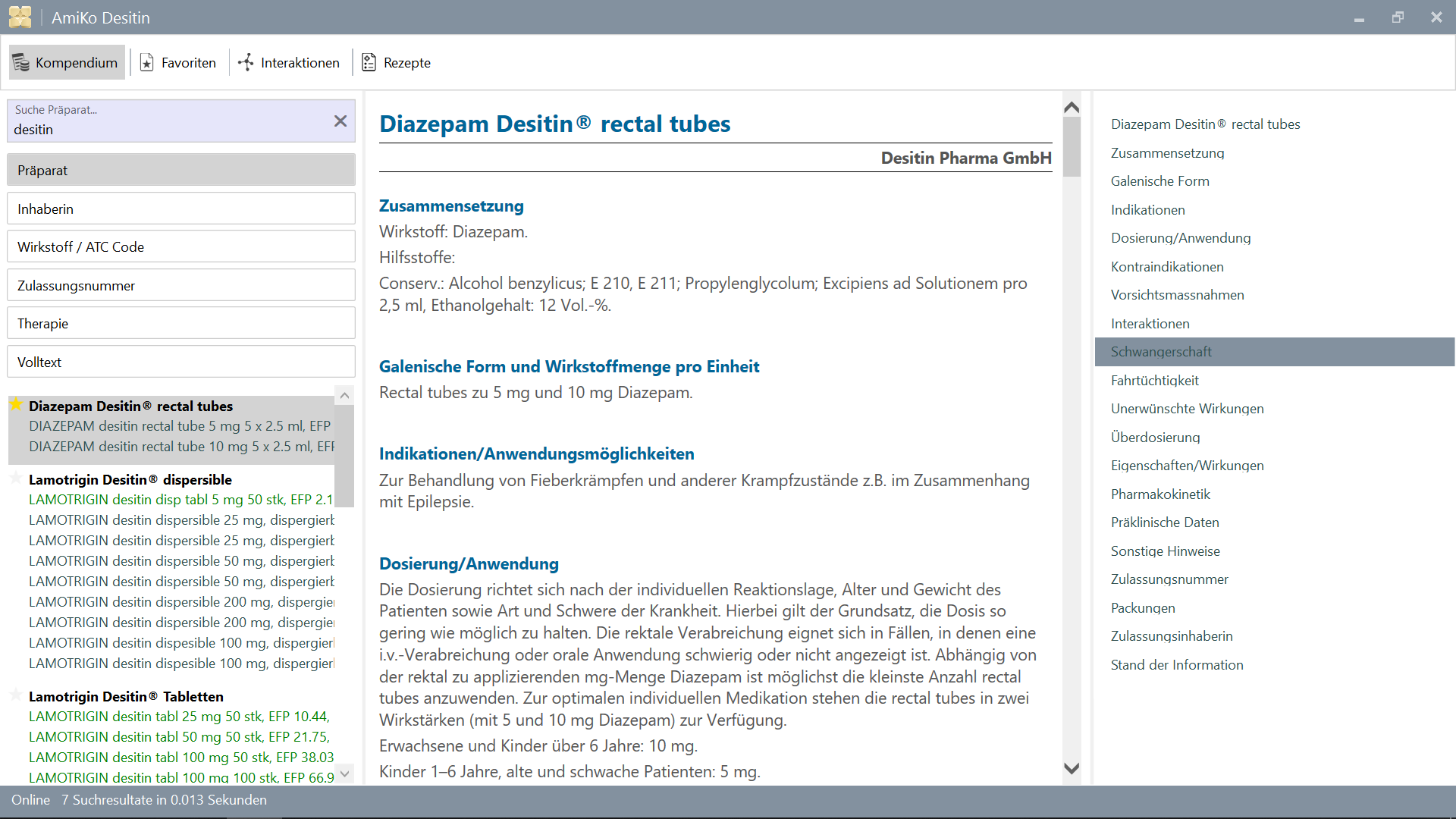
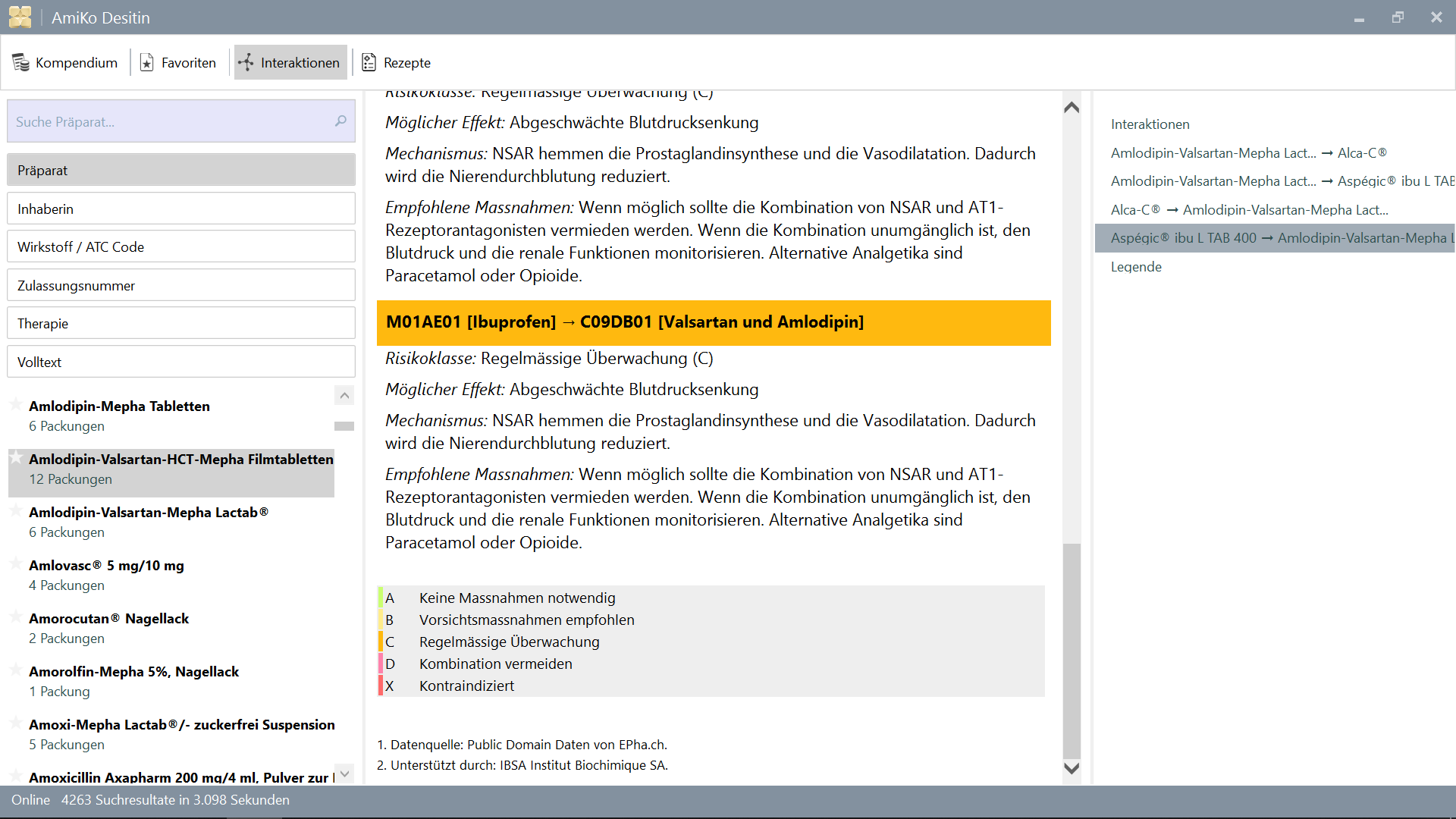
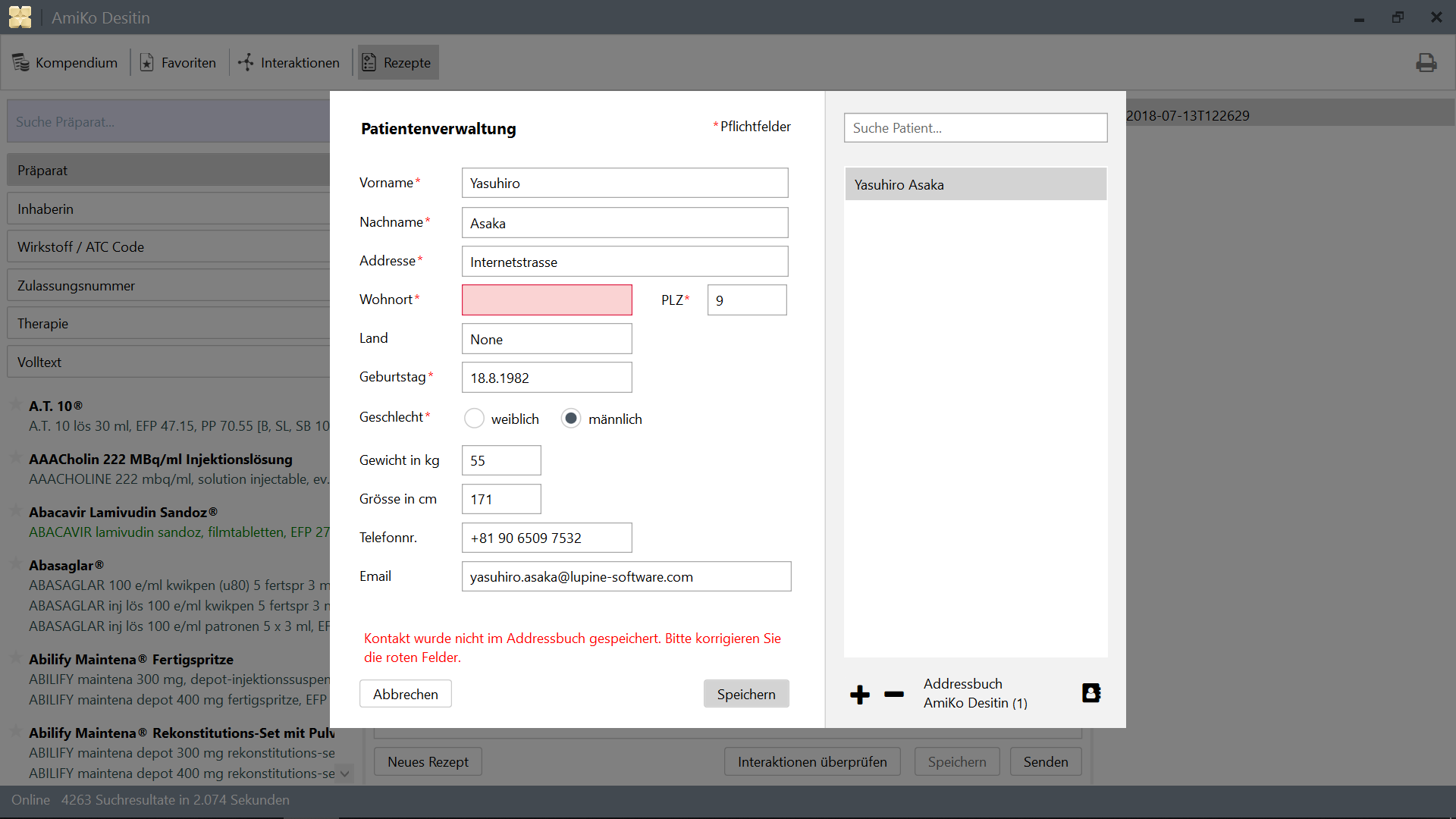
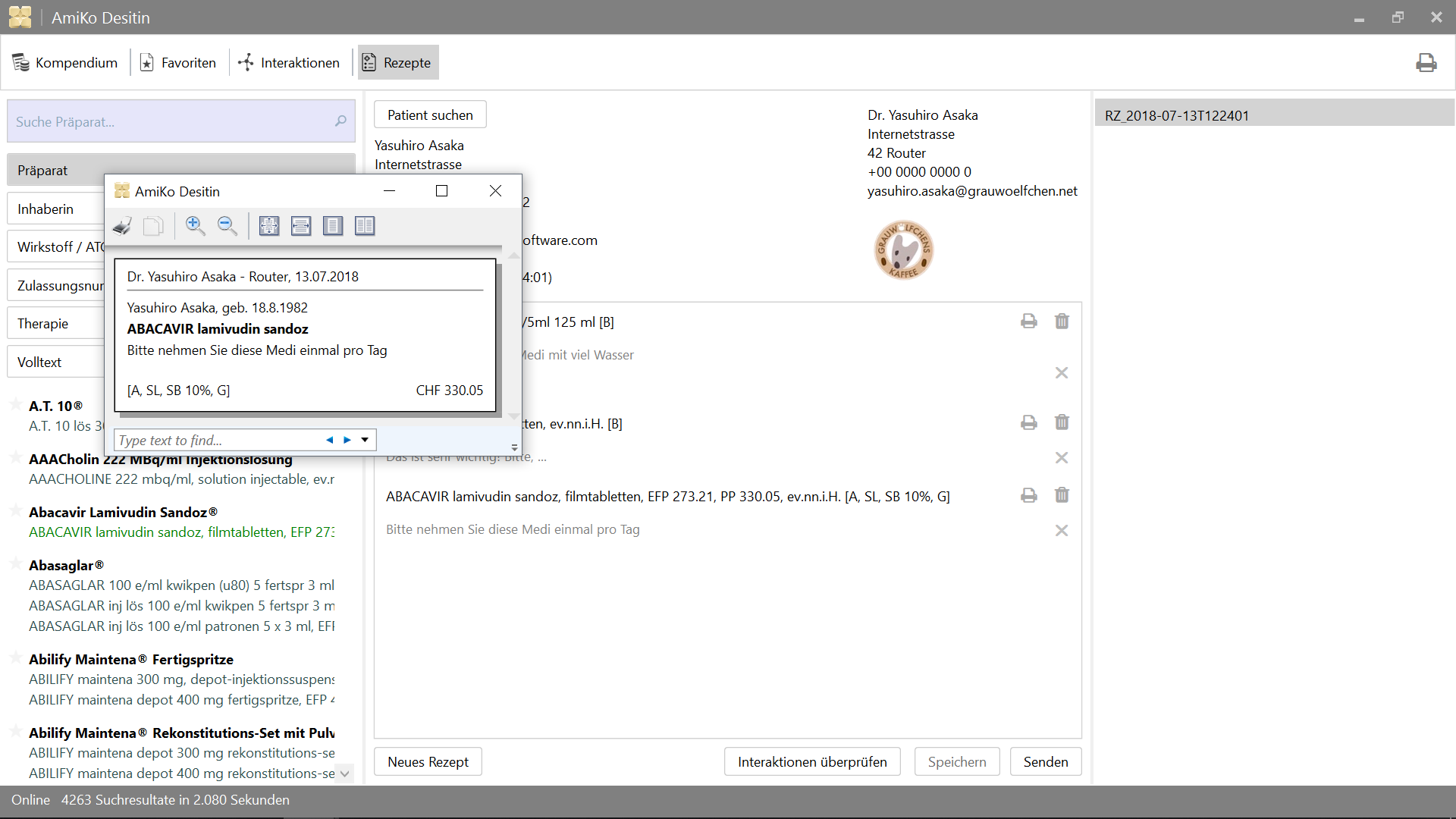
15'913薬物薬物相互作用検索:
すべてのデータは毎日更新できます。
>= 4.6.2>= 14.02.1.105 )2.0.7 )4.6.2 )または、 Visual Studioをセットアップ>= 2015
そしてテスト用。
>= 3.10.1 )>= 3.8.0 )リリース用。
10.0.17134.0 )Windows上のLinuxのソースコードをチェックする場合、Windowsで読み取る必要があるようです。 MSBuildやVisual Studioなどを使用してWindowsでそれを構築することはできますが、Windows側から既存のファイルを変更することはできません。
参照:Windowsアプリとツールを使用してLinuxファイルを変更しないでください。
/mnt ) 最初は、データベースとCSVファイルをDataディレクトリに配置する必要があります。これらのファイルを使用してアプリを構築したら、アプリの機能を介して更新できます。
PowerShellを使用してdownload.ps1実行することで実行できます。
$ cd /path/to/project
% mkdir -p AmiKoWindows/Data/{de,fr}

# AmiKoDesitin
$ cd AmiKoWindows/Data/de
$ curl -sLO http://pillbox.oddb.org/amiko_report_de.html

$ curl -sLO http://pillbox.oddb.org/amiko_db_full_idx_de.zip
$ curl -sLO http://pillbox.oddb.org/amiko_frequency_de.db.zip
$ curl -sLO http://pillbox.oddb.org/drug_interactions_csv_de.zip
$ unzip amiko_db_full_idx_de.zip
$ unzip amiko_frequency_de.db.zip
$ unzip drug_interactions_csv_de.zip

# CoMedDesitin
$ cd AmiKoWindows/Data/fr
$ curl -sLO http://pillbox.oddb.org/amiko_report_fr.html

$ curl -sLO http://pillbox.oddb.org/amiko_db_full_idx_fr.zip
$ curl -sLO http://pillbox.oddb.org/amiko_frequency_fr.db.zip
$ curl -sLO http://pillbox.oddb.org/drug_interactions_csv_fr.zip
$ unzip amiko_db_full_idx_fr.zip
$ unzip amiko_frequency_fr.db.zip
$ unzip drug_interactions_csv_fr.zip *:グリフのアイコンを購入し、このプロジェクトのためにそれらを変更しました。 GPL-3.0 (アイコンとして)で再配布されていません。オープンソースプロジェクトではないため、このプロジェクトのアイコンとしてそれらを取得することはできません。ソースコードの一部として使用できます。 Glyphish-License.txtを参照してください。
WindowsのLinuxでプロジェクトをチェックアウトした場合、 NuGet WindowsのPowershellの長い道を正しく処理できません。したがって、コマンドプロンプトまたはPowerShell( /cを使用)でmklinkと環境変数を使用してシンボリックリンクを設定する必要があります。
参照:NugetおよびLong File Name Support#3324。
 # This is project location, for example environment variable `AmiKo` is set as:
# C:Users<USER>AppDataLocalPackagesTheDebian...LocalStaterootfs
#   home<user>pathtoproject

C:Windowssystem32> cd C:Users<USER>

# Or `cmd /c mklink /D AmiKo %AmiKo%` on PowerShell
C:Users<USER>> mklink /d AmiKo %AmiKo%
C:Users<USER>> cd AmiKo
C:Users<USER>AmiKo>
そして、パッケージを( Packagesに)ダウンロードできます。 PowerShell:
 # Downloads NuGet.exe (windows x86 Commandline) here
C:Users < USER > AmiKo > . NuGet.exe install " AmiKoWindows/packages.config "
Windows上のLinuxでは、長いパス名の問題に影響されません。 on Bash(Monoを使用したWindowsのLinux):
 # You can just do it (e.g. `/usr/local/bin/nuget.exe`)
user@host:/path/to/project $ nuget install AmiKoWindows/packages.configGoogleConstants.cs.sampleをAmiKoWindowsSourceGoogleConstants.csに変更しますAmiKoWindowsSourceHINClientHINClientCredentials.cs.sample AmiKoWindowsSourceHINClientHINClientCredentials.csに変更しますこのステップから、WindowsでPowerShellを使用する必要がある場合があります。
DebugまたはRelease )AnyCPU 、 x86またはx64 。)Traceまたはなし) ここからMicrosoft Build Tools 2015をインストールする必要があります。
使用>= 14.0 ( Microsoft Build Tools 2015によって1つインストール)。または、Visual StudioにバンドルされたDeveloper Command Prompt for VS 2017のような特別なコマンドプロンプトを使用することもできます。
 # Check the location of `MSBuild.exe`
PS C:Users.. . > Resolve-Path HKLM:SOFTWAREMicrosoftMSBuildToolsVersion * | Get-ItemProperty - Name MSBuildToolsPath

MSBuildToolsPath : C:Program Files (x86)MSBuild 14.0 binamd64
PSPath           : Microsoft.PowerShell.CoreRegistry::HKEY_LOCAL_MACHINESOFTWAREMicrosoftMSBuildToolsVersions 14.0
...

MSBuildToolsPath : C:WindowsMicrosoft.NETFramework64v4. 0.30319
PSPath           : Microsoft.PowerShell.CoreRegistry::HKEY_LOCAL_MACHINESOFTWAREMicrosoftMSBuildToolsVersions 4.0
... PowerShellにMSBuildを使用して構築します( MSBuild.exeのパスを設定する必要があります):
 # AmiKoDesitin
PS C:Users... > MSBuild.exe .AmiKoWindowsAmiKoDesitin.csproj / t: Clean
PS C:Users... > MSBuild.exe .AmiKoWindowsAmiKoDesitin.csproj / t:Build / p:Configuration = Debug

# CoMedDesitin
PS C:Users... > MSBuild.exe .AmiKoWindowsCoMedDesitin.csproj / t: Clean
PS C:Users... > MSBuild.exe .AmiKoWindowsCoMedDesitin.csproj / t:Build / p:Configuration = Debugそして、このようなbinディレクトリで{AmiKo|CoMed}Desitin.exe開始または殺すことができます。
 # AmiKoDesitin
PS C:Users... > Start-Process ' .AmiKoWindowsbinDebugAmiKoAmiKo Desitin.exe '
PS C:Users... > Get-Process ' AmiKo Desitin ' | Stop-Process
PS C:Users... > taskkill / im ' AmiKo Desitin.exe ' / f

# CoMedDesitin
PS C:Users... > Start-Process ' .AmiKoWindowsbinDebugAmiKoCoMed Desitin.exe '
PS C:Users... > Get-Process ' CoMed Desitin ' | Stop-Process
PS C:Users... > taskkill / im ' CoMed Desitin.exe ' / f
アプリケーションを構築および呼び出すスクリプトもあります。
 # AmiKoDesitin (Debug is default)
PS C:Users... > PowerShell.exe - ExecutionPolicy Bypass - File .BuildAndRun.ps1 " AmiKo "

# CoMedDesitin
PS C:Users... > PowerShell.exe - ExecutionPolicy Bypass - File .BuildAndRun.ps1 " CoMed " " Debug "
最後に、 DebugViewまたはWinDbgなどでアプリをデバッグする必要があります(SET /p:Log=Trace )
1. AmiKoWindows -> Navigate {AmiKoDesitin|CoMedDesitin} -> Properties (Right Click)
  a. Set assembly name
  b. Set assembly information (Title, Product, Assembly version, File version)
2. Confirm Signing Tab
3. Check Security
4. Set target project using `Set as StartUp Project` (Right Click on the Solution Name)
5. Clean Solution (both projects)
5. Rebuild target project (AmiKoDesitin or CoMedDesitin)
6. (Publish)または、これをパスに追加することもできます
C:Program Files (x86)Microsoft Visual Studio2017CommunityMSBuild15.0Binamd64
これはソースディレクトリからも機能します
 PS C:Users...> MSBuild.exe .AmiKoWindowsAmiKoDesitin.csproj /t:Clean
PS C:Users...> MSBuild.exe .AmiKoWindowsAmiKoDesitin.csproj /t:Build /p:Configuration=Debug
PS C:Users...> Start-Process '.AmiKoWindowsbinDebugAmiKoAmiKo Desitin.exe'

# or just do
PS C:Users...> PowerShell.exe -ExecutionPolicy Bypass -File .BuildAndRun.ps1 "AmiKo"
MakeMsi.ps1を実行します;C:Program Files (x86)WiX Toolset v3.11binAmikoWindowsbinReleaseAmiko-InstallerAmiko-Installer.msiAmikoWindowsbinReleaseComed-InstallerComed-Installer.msi次の手順が必要です。
MakeRelease.ps1を使用して、exeバイナリをAppxに変換しますPackage.ps1を使用した資産を再梱包します Microsoft StoreからDesktop App Converterをダウンロードします。次に、署名証明書とキーを使用してMakeRelease.ps1スクリプトを使用します。 (PowerShellで管理者として実行されます)
リリースビルドを作成する前に、次のファイルでビルド構成とバージョンなどを確認してください。
AmiKoWindows/{AmiKoDesitin.appx.manifest,CoMedDesitin.appx.manifest}AmiKoWindows/Properties/AssemblyInfo.csMakeRelease.ps1 # As Administrator
# AmiKoDesitin
PS C:Users... > PowerShell.exe - ExecutionPolicy Bypass - File .MakeRelease.ps1 " AmiKo " " Debug "
PS C:Users... > PowerShell.exe - ExecutionPolicy Bypass - File .MakeRelease.ps1 " AmiKo " " Release "
# CoMedDesitin
PS C:Users... > PowerShell.exe - ExecutionPolicy Bypass - File .MakeRelease.ps1 " CoMed " " Debug "
PS C:Users... > PowerShell.exe - ExecutionPolicy Bypass - File .MakeRelease.ps1 " CoMed " " Release " appxはAmiKoWindows/bin/{Debug,Release}/Output/{AmiKo,CoMed}で生成されます。
現在、 desktopappConverterの-AppFileTypesオプションは、構成のアウトでは予想されていません。ただし、 AppxManifest.xml手動で修正します。
パス:
AmiKoWindows/bin/Release/Output/yweseeGmbH.AmiKo/PackageFiles/AppxManifest.xmlAmiKoWindows/bin/Release/Output/yweseeGmbH.CoMedDesitin/PackageFiles/AppxManifest.xml # add missing entries `Extensions`
<Applications>
<Application>
...
<Extensions>
<uap:Extension Category="windows.fileTypeAssociation">
<uap:FileTypeAssociation Name="amk">
<uap:Logo>AssetsSquare44x44Logo.scale-100.png</uap:Logo>
<uap:SupportedFileTypes>
<uap:FileType>.amk</uap:FileType>
</uap:SupportedFileTypes>
</uap:FileTypeAssociation>
</uap:Extension>
</Extensions>
</Application>
</Applications>
Package.ps1スクリプトもこのステップを実行します。手動でもう一度やりたい場合。これらの指示に従うことができます。
 # As Administrator

# AmiKoDesitin
PS C:Users... > PowerShell.exe - ExecutionPolicy Bypass - File .Package.ps1 " AmiKo " " Debug "
PS C:Users... > PowerShell.exe - ExecutionPolicy Bypass - File .Package.ps1 " AmiKo " " Release "

# CoMedDesitin
PS C:Users... > PowerShell.exe - ExecutionPolicy Bypass - File .Package.ps1 " CoMed " " Debug "
PS C:Users... > PowerShell.exe - ExecutionPolicy Bypass - File .Package.ps1 " CoMed " " Release "
または、
'C:Program Files (x86)Windows Kits10bin10.0.17134.0x64{makepri,makeappx}.exe' exist(バージョン10.0.17134 、そしてあなたも必要なようにパスを設定します)AmiKoWindows/bin/Release/Output/yweseeGmbH.AmiKo/PackageFilesにアクセスしてくださいAmiKoWindows/Assets/ AmiKoWindows/bin/Release/Output/yweseeGmbH.AmiKo/PackageFiles/Assets/ (overwrite)にすべての資産をコピーするMakeAppx.exeを使用した再パッケージ # e.g. AmiKoDesitin
# Change directory into **PackageFiles**
PS C:Users... > cd AmiKoWindows / bin / Release / Output / yweseeGmbH.AmiKo / PackageFiles
PS C:Users... > rm .Assets - r - fo
PS C:Users... > cp ..........Assets .
# MakePri.exe
PS C:Users... > ' makepri.exe ' createconfig / cf priconfig.xml / dq de - CH
# It seems that it needs absolute path...
PS C:Users... > ' makepri.exe ' new
/ pr C:Users < user > pathtoamiko_csharpAmiKoWindowsbinReleaseOutputyweseeGmbH.AmiKoPackageFiles
/ cf C:Users < user > pathtoamiko_csharpAmiKoWindowsbinReleaseOutputyweseeGmbH.AmiKoPackageFilespriconfig.xml
# MakeAppx.exe
PS C:Users... > ' makeappx.exe ' pack / d . / p " AmiKo Desitin "
# Replace appx
PS C:Users... > Move-Item - Path " AmiKoWindowsbinReleaseOutputyweseeGmbH.AmiKoPackageFilesAmiKo Desitin.appx " `
- Destination " AmiKoWindowsbinReleaseOutputyweseeGmbH.AmiKoyweseeGmbH.AmiKo.appx " - Force # Sign (again)
PS C:Users... > signtool.exe sign / fd < HASH ALGORITHM > / a / f < PFX > / p < PASSWORD > < FILE > .appx注:このpfx証明書は、証明書ウィザードを介してローカルマシン上の信頼できる人々にインストールする必要があります。 importpfx.exe importpfx.exe -f "somePfx.pfx" -p "somePassword" -t MACHINE -s "TRUSTEDPEOPLE"を使用します
構築されたキャッシュデータやリソースなどをきれいにする(デバッグ用、.exe)
PS C:Users... > taskkill / im ' AmiKo Desitin.exe ' / f
PS C:Users... > MSBuild.exe .AmiKoWindowsAmiKoDesitin.csproj / t: Clean

PS C:Users... > taskkill / im ' CoMed Desitin.exe ' / f
PS C:Users... > MSBuild.exe .AmiKoWindowsCoMedDesitin.csproj / t: Clean # Just delete these directories (or delete `user.config` in there)
PS C:Users... > rm ' C:Users<USER>AppDataLocalyweseeAmiKo Desitin.exe* ' -f - fo
PS C:Users... > rm ' C:Users<USER>AppDataLocalyweseeCoMed Desitin.exe* ' -f - fo # e.g. Profile Photo (for debug, .exe)
PS C:Users... > rm ' C:Users<USER>AppDataRoamingyweseeAmiKo Desitin*.png ' -f - fo
PS C:Users... > rm ' C:Users<USER>AppDataRoamingyweseeCoMed Desitin*.png ' -f - foアドレスブックエントリと処方ファイル( .amkファイル)をリセットします。
 # AmiKoDesitin (for debug, .exe)
PS C:Users... > taskkill / im ' AmiKo Desitin.exe ' / f
PS C:Users... > rm ' C:Users<USER>AppDataLocalTempamiko* ' - r - fo
PS C:Users... > rm ' C:Users<USER>AppDataRoamingyweseeAmiko Desitinamk* ' - r - fo
PS C:Users... > rm .AmiKoWindowsbinDebugAmiKo * - r - fo

# CoMedDesitin (for debug, .exe)
PS C:Users... > taskkill / im ' CoMed Desitin.exe ' / f
PS C:Users... > rm ' C:Users<USER>AppDataLocalTempcomed* ' - r - fo
PS C:Users... > rm ' C:Users<USER>AppDataRoamingyweseeCoMed Desitinamk* ' - r - fo
PS C:Users... > rm .AmiKoWindowsbinDebugCoMed * - r - foAmiKoWindows.Testsのプロジェクトを参照してください。テストはヌニットで書かれています。
PS C:Users... > taskkill / im ' MSBuild.exe ' / f

# AmiKoDesitin
PS C:Users... > MSBuild.exe .AmiKoWindows.TestsAmiKoDesitin.Test.csproj / t: Clean
PS C:Users... > MSBuild.exe .AmiKoWindows.TestsAmiKoDesitin.Test.csproj / t:Build / p:Configuration = Debug / p:Platform = x64
PS C:Users... > .PackageNUnit.ConseleRunner. 3.8 . 0 tools nunit3-console.exe .AmiKoWindows.TestsbinDebugAmiKoAmiKoDesitin.Test.dll -- output TestOutput.log

# CoMedDesitin
PS C:Users... > MSBuild.exe .AmiKoWindows.TestsCoMedDesitin.Test.csproj / t: Clean
PS C:Users... > MSBuild.exe .AmiKoWindows.TestsCoMedDesitin.Test.csproj / t:Build / p:Configuration = Debug / p:Platform = x64
PS C:Users... > .PackageNUnit.ConsoleRunner. 3.8 . 0 tools nunit3-console.exe .AmiKoWindows.TestsbinDebugCoMedCoMedDesitin.Test.dll -- output TestOutput.logまたは、このようなRunTest.ps1を使用してテストを実行することができます。
 # AmiKoDesitin
PS C:Users... > PowerShell.exe - ExecutionPolicy Bypass - File .RunTest.ps1 " AmiKo "

# CoMedDesitin
PS C:Users... > PowerShell.exe - ExecutionPolicy Bypass - File .RunTest.ps1 " CoMed " GPL-3.0
AmiKo for Windows
Copyright (c) ywesee GmbH連絡してください:
[email protected]
+41 43 540 05 50




