amiko_csharp
20230910.3

C#로 작성된 Windows 용 Amiko. 현재 Microsoft Store에서 응용 프로그램이 제공됩니다!
| 이름 | 언어 | 짓다 |
|---|---|---|
| Amiko Desitin | 도이치 (Schweiz) | Azure 파이프 라인을 구축하십시오 |
| 코팅 된 데시 틴 | Français (Suisse) | Azure 파이프 라인을 구축하십시오 |
MacOS의 다른 버전도 제공됩니다. Amiko-OSX를 참조하십시오.
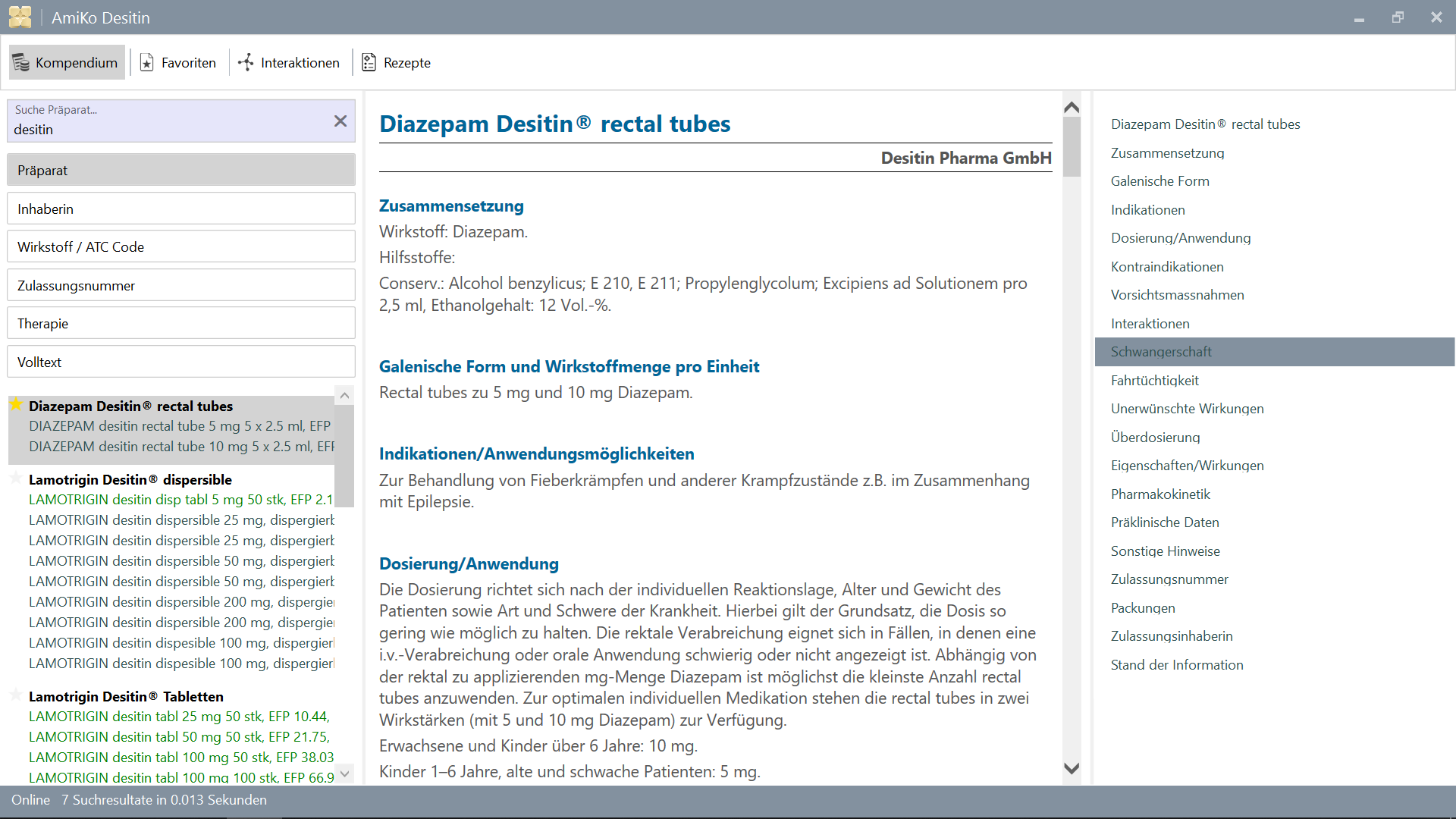
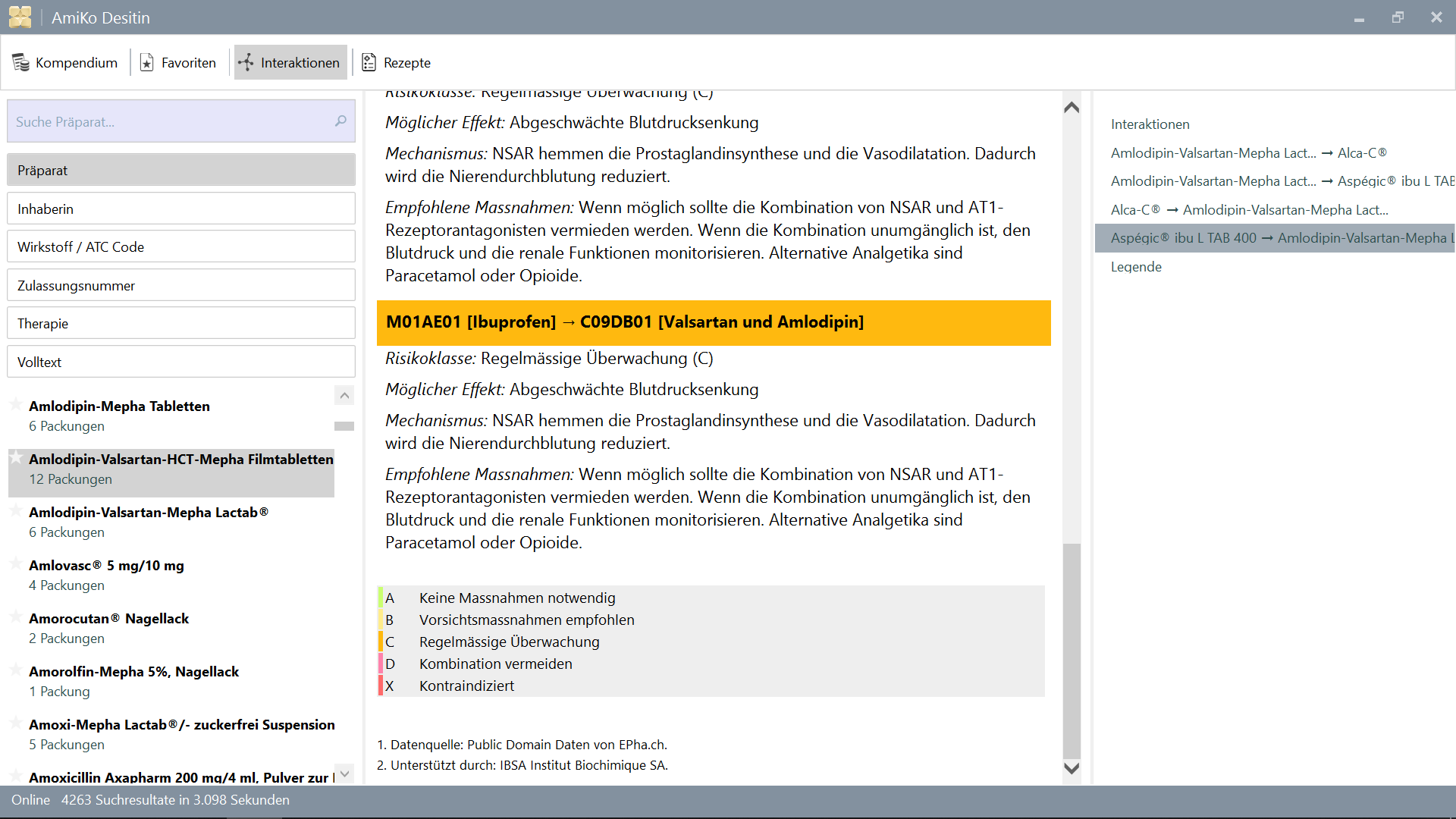
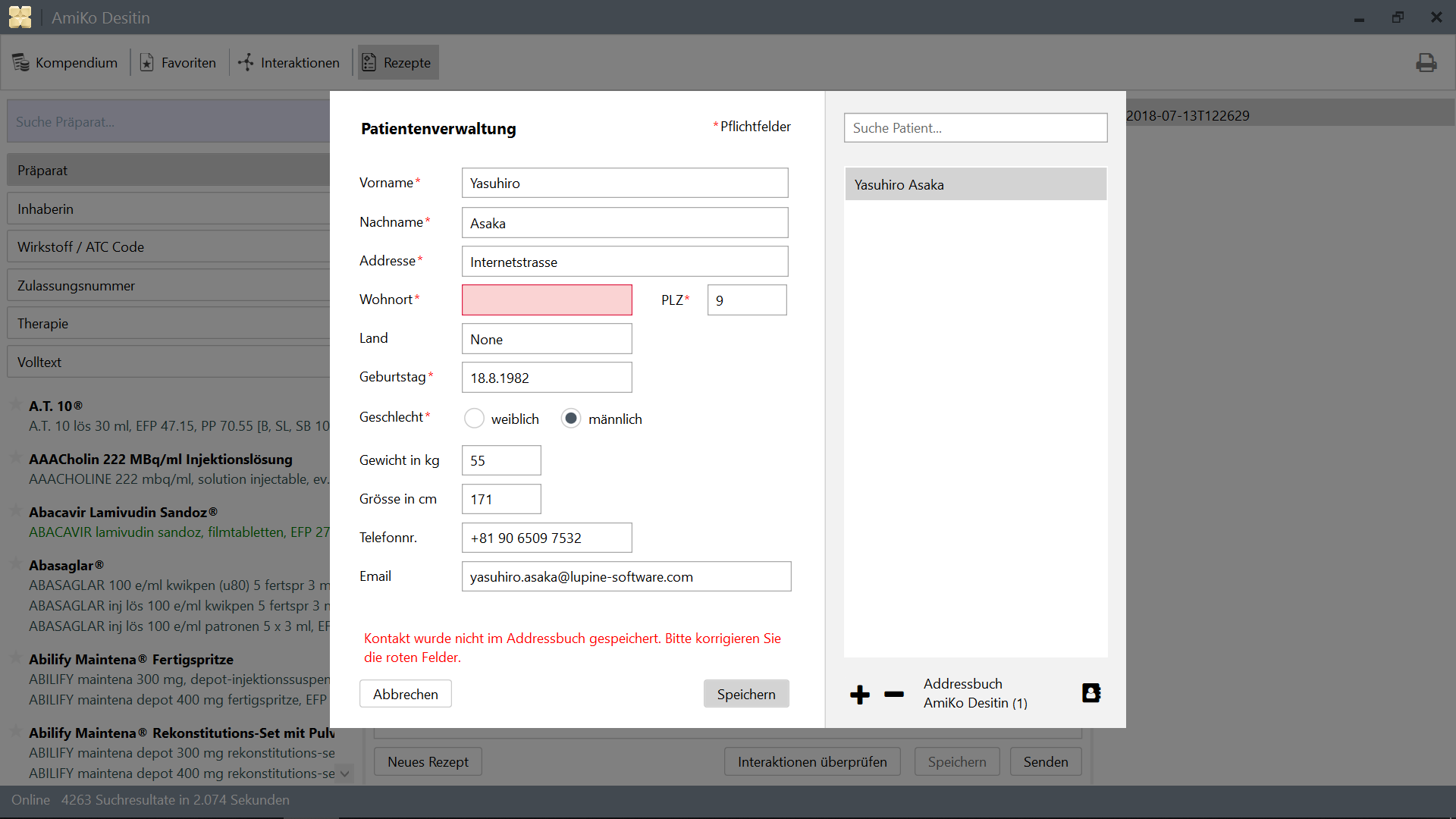
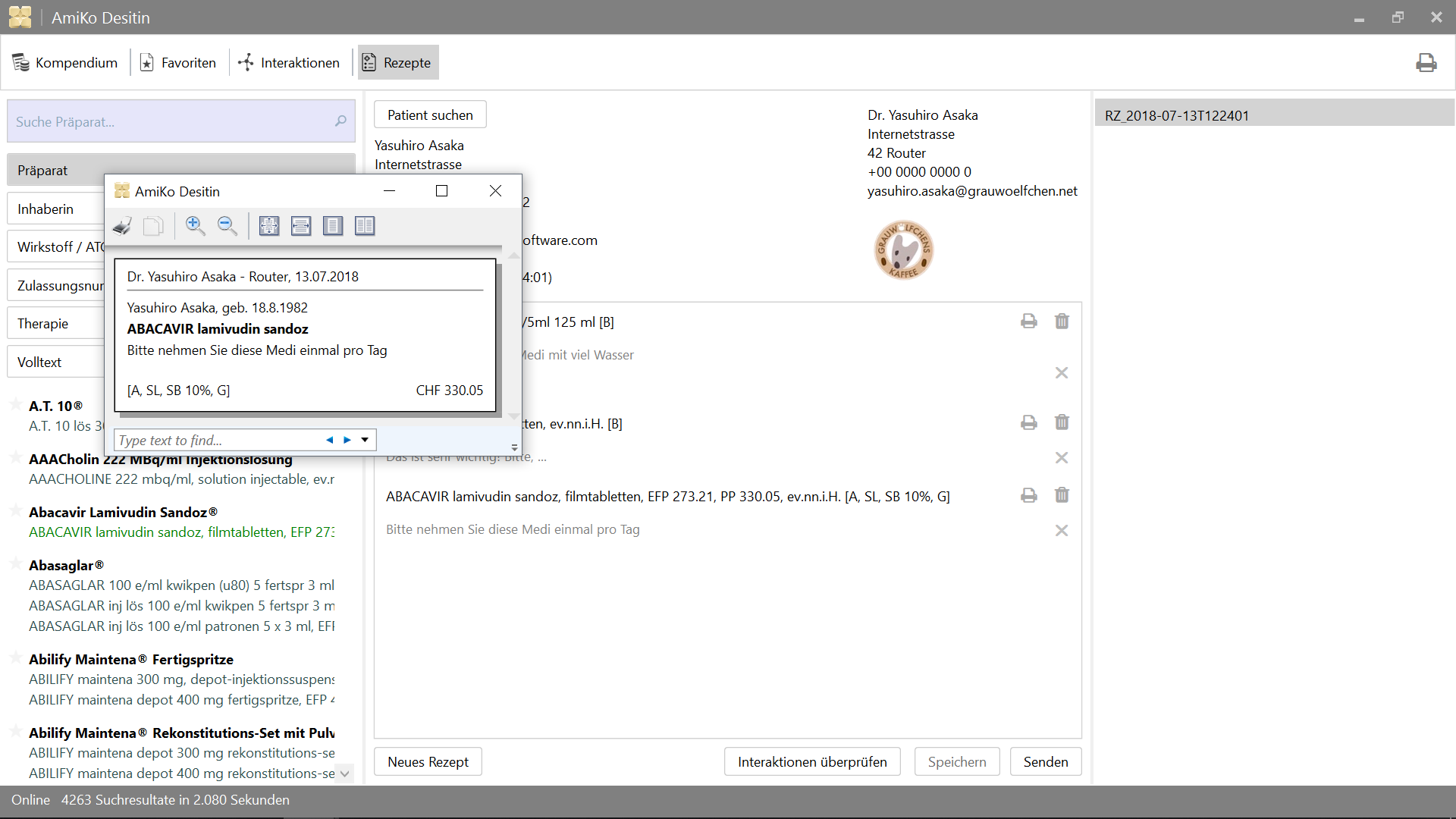
15'913 약물 약물 상호 작용검색 : :
모든 데이터는 매일 업데이트 될 수 있습니다.
>= 4.6.2>= 14.02.1.105 )2.0.7 )4.6.2 ) 또는 Visual Studio >= 2015 설정하십시오
그리고 테스트를 위해.
>= 3.10.1 )>= 3.8.0 )릴리스를 위해.
10.0.17134.0 )Windows에서 Linux의 소스 코드를 확인하면 Windows에서 읽기가 있어야합니다. MSBuild 또는 Visual Studio 등을 사용하여 Windows에서 여전히 빌드 할 수 있지만 Windows 측면에서 기존 파일을 수정할 수는 없습니다.
참조 : Windows 앱과 도구를 사용하여 Linux 파일을 변경하지 마십시오.
/mnt 를 통해 Windows의 Linux) 처음에는 데이터베이스 및 CSV 파일을 Data 디렉토리에 넣어야합니다. 이러한 파일로 앱을 구축 한 후에는 앱의 기능을 통해 업데이트 할 수 있습니다.
PowerShell을 사용하여 download.ps1 실행하여 수행 할 수 있습니다.
$ cd /path/to/project
% mkdir -p AmiKoWindows/Data/{de,fr}

# AmiKoDesitin
$ cd AmiKoWindows/Data/de
$ curl -sLO http://pillbox.oddb.org/amiko_report_de.html

$ curl -sLO http://pillbox.oddb.org/amiko_db_full_idx_de.zip
$ curl -sLO http://pillbox.oddb.org/amiko_frequency_de.db.zip
$ curl -sLO http://pillbox.oddb.org/drug_interactions_csv_de.zip
$ unzip amiko_db_full_idx_de.zip
$ unzip amiko_frequency_de.db.zip
$ unzip drug_interactions_csv_de.zip

# CoMedDesitin
$ cd AmiKoWindows/Data/fr
$ curl -sLO http://pillbox.oddb.org/amiko_report_fr.html

$ curl -sLO http://pillbox.oddb.org/amiko_db_full_idx_fr.zip
$ curl -sLO http://pillbox.oddb.org/amiko_frequency_fr.db.zip
$ curl -sLO http://pillbox.oddb.org/drug_interactions_csv_fr.zip
$ unzip amiko_db_full_idx_fr.zip
$ unzip amiko_frequency_fr.db.zip
$ unzip drug_interactions_csv_fr.zip *: 우리는 Glyphish 아이콘을 구입 하여이 프로젝트를 위해 수정했습니다. GPL-3.0 (아이콘)에 따라 재분배되지 않습니다. 오픈 소스 프로젝트가 아니기 때문에이 프로젝트의 아이콘으로 가져갈 수 없으며 소스 코드의 일부로 사용할 수 있습니다. Glyphish-license.txt를 참조하십시오.
Windows의 Linux에서 프로젝트를 확인한 경우 NuGet Windows의 PowerShell에서 긴 경로를 올바르게 처리 할 수 없습니다. 따라서 명령 프롬프트 또는 PowerShell (사용 /c )의 mklink 및 환경 변수를 사용하여 상징적 링크를 설정해야합니다.
NUGET 및 LONG 파일 이름 지원 #3324를 참조하십시오.
 # This is project location, for example environment variable `AmiKo` is set as:
# C:Users<USER>AppDataLocalPackagesTheDebian...LocalStaterootfs
#   home<user>pathtoproject

C:Windowssystem32> cd C:Users<USER>

# Or `cmd /c mklink /D AmiKo %AmiKo%` on PowerShell
C:Users<USER>> mklink /d AmiKo %AmiKo%
C:Users<USER>> cd AmiKo
C:Users<USER>AmiKo>
그런 다음 패키지 ( Packages 로)를 다운로드 할 수 있습니다. PowerShell :
 # Downloads NuGet.exe (windows x86 Commandline) here
C:Users < USER > AmiKo > . NuGet.exe install " AmiKoWindows/packages.config "
Windows의 Linux에서는 긴 경로 이름 문제에 영향을 미치지 않습니다. Bash에서 (모노가있는 Windows의 Linux) :
 # You can just do it (e.g. `/usr/local/bin/nuget.exe`)
user@host:/path/to/project $ nuget install AmiKoWindows/packages.configGoogleConstants.cs.sample AmiKoWindowsSourceGoogleConstants.cs 로 이름을 바꿉니다AmiKoWindowsSourceHINClientHINClientCredentials.cs.sample to AmiKoWindowsSourceHINClientHINClientCredentials.cs이 단계에서 Windows에서 PowerShell을 사용해야 할 수도 있습니다.
Debug 또는 Release )AnyCPU , x86 또는 x64 .)Trace 또는 없음) 여기에서 Microsoft Build Tools 2015를 설치해야합니다.
사용 >= 14.0 ( Microsoft Build Tools 2015 에서 설치). 또는 Visual Studio에서 Bundled에 Developer Command Prompt for VS 2017 와 같은 특수 명령 프롬프트를 사용하고 싶을 수도 있습니다.
 # Check the location of `MSBuild.exe`
PS C:Users.. . > Resolve-Path HKLM:SOFTWAREMicrosoftMSBuildToolsVersion * | Get-ItemProperty - Name MSBuildToolsPath

MSBuildToolsPath : C:Program Files (x86)MSBuild 14.0 binamd64
PSPath           : Microsoft.PowerShell.CoreRegistry::HKEY_LOCAL_MACHINESOFTWAREMicrosoftMSBuildToolsVersions 14.0
...

MSBuildToolsPath : C:WindowsMicrosoft.NETFramework64v4. 0.30319
PSPath           : Microsoft.PowerShell.CoreRegistry::HKEY_LOCAL_MACHINESOFTWAREMicrosoftMSBuildToolsVersions 4.0
...
PowerShell의 MSBuild 사용하여 빌드합니다 ( MSBuild.exe 의 경로를 설정해야 함) :
 # AmiKoDesitin
PS C:Users... > MSBuild.exe .AmiKoWindowsAmiKoDesitin.csproj / t: Clean
PS C:Users... > MSBuild.exe .AmiKoWindowsAmiKoDesitin.csproj / t:Build / p:Configuration = Debug

# CoMedDesitin
PS C:Users... > MSBuild.exe .AmiKoWindowsCoMedDesitin.csproj / t: Clean
PS C:Users... > MSBuild.exe .AmiKoWindowsCoMedDesitin.csproj / t:Build / p:Configuration = Debug
그런 다음 {AmiKo|CoMed}Desitin.exe bin 하거나 죽일 수 있습니다.
 # AmiKoDesitin
PS C:Users... > Start-Process ' .AmiKoWindowsbinDebugAmiKoAmiKo Desitin.exe '
PS C:Users... > Get-Process ' AmiKo Desitin ' | Stop-Process
PS C:Users... > taskkill / im ' AmiKo Desitin.exe ' / f

# CoMedDesitin
PS C:Users... > Start-Process ' .AmiKoWindowsbinDebugAmiKoCoMed Desitin.exe '
PS C:Users... > Get-Process ' CoMed Desitin ' | Stop-Process
PS C:Users... > taskkill / im ' CoMed Desitin.exe ' / f
응용 프로그램을 빌드하고 호출하는 스크립트도 있습니다.
 # AmiKoDesitin (Debug is default)
PS C:Users... > PowerShell.exe - ExecutionPolicy Bypass - File .BuildAndRun.ps1 " AmiKo "

# CoMedDesitin
PS C:Users... > PowerShell.exe - ExecutionPolicy Bypass - File .BuildAndRun.ps1 " CoMed " " Debug "
마지막으로 DebugView 또는 WinDbg 등으로 앱을 디버깅해야합니다 (Set /p:Log=Trace ).
1. AmiKoWindows -> Navigate {AmiKoDesitin|CoMedDesitin} -> Properties (Right Click)
  a. Set assembly name
  b. Set assembly information (Title, Product, Assembly version, File version)
2. Confirm Signing Tab
3. Check Security
4. Set target project using `Set as StartUp Project` (Right Click on the Solution Name)
5. Clean Solution (both projects)
5. Rebuild target project (AmiKoDesitin or CoMedDesitin)
6. (Publish)또는 이것을 당신의 경로에 추가 할 수 있습니다
C:Program Files (x86)Microsoft Visual Studio2017CommunityMSBuild15.0Binamd64
그리고 이것은 소스 디렉토리에서도 작동합니다.
 PS C:Users...> MSBuild.exe .AmiKoWindowsAmiKoDesitin.csproj /t:Clean
PS C:Users...> MSBuild.exe .AmiKoWindowsAmiKoDesitin.csproj /t:Build /p:Configuration=Debug
PS C:Users...> Start-Process '.AmiKoWindowsbinDebugAmiKoAmiKo Desitin.exe'

# or just do
PS C:Users...> PowerShell.exe -ExecutionPolicy Bypass -File .BuildAndRun.ps1 "AmiKo"
MakeMsi.ps1 실행하십시오;C:Program Files (x86)WiX Toolset v3.11binAmikoWindowsbinReleaseAmiko-InstallerAmiko-Installer.msiAmikoWindowsbinReleaseComed-InstallerComed-Installer.msi다음 단계가 필요합니다.
MakeRelease.ps1 사용하여 Exe Binary를 AppX로 변환합니다Package.ps1 사용하여 자산을 다시 포장합니다 Microsoft Store에서 Desktop App Converter 다운로드하십시오. 그런 다음 서명 인증서 및 키와 함께 MakeRelease.ps1 스크립트를 사용하십시오. (PowerShell에서 관리자로 실행)
릴리스 빌드를 만들기 전에 다음 파일에서 구성 및 버전 등을 확인하십시오.
AmiKoWindows/{AmiKoDesitin.appx.manifest,CoMedDesitin.appx.manifest}AmiKoWindows/Properties/AssemblyInfo.csMakeRelease.ps1 # As Administrator
# AmiKoDesitin
PS C:Users... > PowerShell.exe - ExecutionPolicy Bypass - File .MakeRelease.ps1 " AmiKo " " Debug "
PS C:Users... > PowerShell.exe - ExecutionPolicy Bypass - File .MakeRelease.ps1 " AmiKo " " Release "
# CoMedDesitin
PS C:Users... > PowerShell.exe - ExecutionPolicy Bypass - File .MakeRelease.ps1 " CoMed " " Debug "
PS C:Users... > PowerShell.exe - ExecutionPolicy Bypass - File .MakeRelease.ps1 " CoMed " " Release " Appx는 AmiKoWindows/bin/{Debug,Release}/Output/{AmiKo,CoMed} 에서 생성됩니다.
현재 DesktOpAppConverter 의 -AppFileTypes 옵션은 구성에 대해 예상되지 않습니다. AppxManifest.xml 수동으로 수정되지만.
길:
AmiKoWindows/bin/Release/Output/yweseeGmbH.AmiKo/PackageFiles/AppxManifest.xmlAmiKoWindows/bin/Release/Output/yweseeGmbH.CoMedDesitin/PackageFiles/AppxManifest.xml # add missing entries `Extensions`
<Applications>
<Application>
...
<Extensions>
<uap:Extension Category="windows.fileTypeAssociation">
<uap:FileTypeAssociation Name="amk">
<uap:Logo>AssetsSquare44x44Logo.scale-100.png</uap:Logo>
<uap:SupportedFileTypes>
<uap:FileType>.amk</uap:FileType>
</uap:SupportedFileTypes>
</uap:FileTypeAssociation>
</uap:Extension>
</Extensions>
</Application>
</Applications>
Package.ps1 스크립트 도이 단계를 수행합니다. 수동으로 다시하고 싶다면 다시하십시오. 다음과 같은 지침을 따를 수 있습니다.
 # As Administrator

# AmiKoDesitin
PS C:Users... > PowerShell.exe - ExecutionPolicy Bypass - File .Package.ps1 " AmiKo " " Debug "
PS C:Users... > PowerShell.exe - ExecutionPolicy Bypass - File .Package.ps1 " AmiKo " " Release "

# CoMedDesitin
PS C:Users... > PowerShell.exe - ExecutionPolicy Bypass - File .Package.ps1 " CoMed " " Debug "
PS C:Users... > PowerShell.exe - ExecutionPolicy Bypass - File .Package.ps1 " CoMed " " Release "
또는,
'C:Program Files (x86)Windows Kits10bin10.0.17134.0x64{makepri,makeappx}.exe' 있는지 확인하십시오 (버전 10.0.17134 , 필요한대로 경로 도 설정).AmiKoWindows/bin/Release/Output/yweseeGmbH.AmiKo/PackageFiles 로 이동하십시오AmiKoWindows/Assets/ AmiKoWindows/bin/Release/Output/yweseeGmbH.AmiKo/PackageFiles/Assets/ (오버 라이팅)에 복사하십시오.MakeAppx.exe 사용하여 다시 포장합니다 # e.g. AmiKoDesitin
# Change directory into **PackageFiles**
PS C:Users... > cd AmiKoWindows / bin / Release / Output / yweseeGmbH.AmiKo / PackageFiles
PS C:Users... > rm .Assets - r - fo
PS C:Users... > cp ..........Assets .
# MakePri.exe
PS C:Users... > ' makepri.exe ' createconfig / cf priconfig.xml / dq de - CH
# It seems that it needs absolute path...
PS C:Users... > ' makepri.exe ' new
/ pr C:Users < user > pathtoamiko_csharpAmiKoWindowsbinReleaseOutputyweseeGmbH.AmiKoPackageFiles
/ cf C:Users < user > pathtoamiko_csharpAmiKoWindowsbinReleaseOutputyweseeGmbH.AmiKoPackageFilespriconfig.xml
# MakeAppx.exe
PS C:Users... > ' makeappx.exe ' pack / d . / p " AmiKo Desitin "
# Replace appx
PS C:Users... > Move-Item - Path " AmiKoWindowsbinReleaseOutputyweseeGmbH.AmiKoPackageFilesAmiKo Desitin.appx " `
- Destination " AmiKoWindowsbinReleaseOutputyweseeGmbH.AmiKoyweseeGmbH.AmiKo.appx " - Force # Sign (again)
PS C:Users... > signtool.exe sign / fd < HASH ALGORITHM > / a / f < PFX > / p < PASSWORD > < FILE > .appx 참고 :이 pfx 인증서를 인증서 마법사를 통해 로컬 머신 의 신뢰할 수있는 사람들 에게 설치해야합니다. importpfx.exe importpfx.exe -f "somePfx.pfx" -p "somePassword" -t MACHINE -s "TRUSTEDPEOPLE"
구축 된 캐시 데이터 또는 리소스 등을 정리하려면 (디버그의 경우, .exe)
PS C:Users... > taskkill / im ' AmiKo Desitin.exe ' / f
PS C:Users... > MSBuild.exe .AmiKoWindowsAmiKoDesitin.csproj / t: Clean

PS C:Users... > taskkill / im ' CoMed Desitin.exe ' / f
PS C:Users... > MSBuild.exe .AmiKoWindowsCoMedDesitin.csproj / t: Clean # Just delete these directories (or delete `user.config` in there)
PS C:Users... > rm ' C:Users<USER>AppDataLocalyweseeAmiKo Desitin.exe* ' -f - fo
PS C:Users... > rm ' C:Users<USER>AppDataLocalyweseeCoMed Desitin.exe* ' -f - fo # e.g. Profile Photo (for debug, .exe)
PS C:Users... > rm ' C:Users<USER>AppDataRoamingyweseeAmiKo Desitin*.png ' -f - fo
PS C:Users... > rm ' C:Users<USER>AppDataRoamingyweseeCoMed Desitin*.png ' -f - fo 주소 책 항목 및 처방전 파일 ( .amk 파일)을 재설정하려면
 # AmiKoDesitin (for debug, .exe)
PS C:Users... > taskkill / im ' AmiKo Desitin.exe ' / f
PS C:Users... > rm ' C:Users<USER>AppDataLocalTempamiko* ' - r - fo
PS C:Users... > rm ' C:Users<USER>AppDataRoamingyweseeAmiko Desitinamk* ' - r - fo
PS C:Users... > rm .AmiKoWindowsbinDebugAmiKo * - r - fo

# CoMedDesitin (for debug, .exe)
PS C:Users... > taskkill / im ' CoMed Desitin.exe ' / f
PS C:Users... > rm ' C:Users<USER>AppDataLocalTempcomed* ' - r - fo
PS C:Users... > rm ' C:Users<USER>AppDataRoamingyweseeCoMed Desitinamk* ' - r - fo
PS C:Users... > rm .AmiKoWindowsbinDebugCoMed * - r - fo AmiKoWindows.Tests 의 프로젝트를 참조하십시오. 테스트는 Nunit으로 작성됩니다.
PS C:Users... > taskkill / im ' MSBuild.exe ' / f

# AmiKoDesitin
PS C:Users... > MSBuild.exe .AmiKoWindows.TestsAmiKoDesitin.Test.csproj / t: Clean
PS C:Users... > MSBuild.exe .AmiKoWindows.TestsAmiKoDesitin.Test.csproj / t:Build / p:Configuration = Debug / p:Platform = x64
PS C:Users... > .PackageNUnit.ConseleRunner. 3.8 . 0 tools nunit3-console.exe .AmiKoWindows.TestsbinDebugAmiKoAmiKoDesitin.Test.dll -- output TestOutput.log

# CoMedDesitin
PS C:Users... > MSBuild.exe .AmiKoWindows.TestsCoMedDesitin.Test.csproj / t: Clean
PS C:Users... > MSBuild.exe .AmiKoWindows.TestsCoMedDesitin.Test.csproj / t:Build / p:Configuration = Debug / p:Platform = x64
PS C:Users... > .PackageNUnit.ConsoleRunner. 3.8 . 0 tools nunit3-console.exe .AmiKoWindows.TestsbinDebugCoMedCoMedDesitin.Test.dll -- output TestOutput.log
또는 RunTest.ps1 사용하여 테스트를 실행할 수 있습니다.
 # AmiKoDesitin
PS C:Users... > PowerShell.exe - ExecutionPolicy Bypass - File .RunTest.ps1 " AmiKo "

# CoMedDesitin
PS C:Users... > PowerShell.exe - ExecutionPolicy Bypass - File .RunTest.ps1 " CoMed " GPL-3.0
AmiKo for Windows
Copyright (c) ywesee GmbH연락하십시오 :
[email protected]
+41 43 540 05 50




