amiko_csharp
20230910.3

amiko สำหรับ windows เขียนด้วย C# แอปพลิเคชันมีอยู่ใน Microsoft Store ทันที!
| ชื่อ | ภาษา | สร้าง |
|---|---|---|
| Amiko Desitin | Deutsch (Schweiz) | สร้างในท่อสีฟ้า |
| Comed Desitin | Français (Suisse) | สร้างในท่อสีฟ้า |
รุ่นอื่นสำหรับ macOS ก็มีให้เช่นกัน ดู amiko-osx
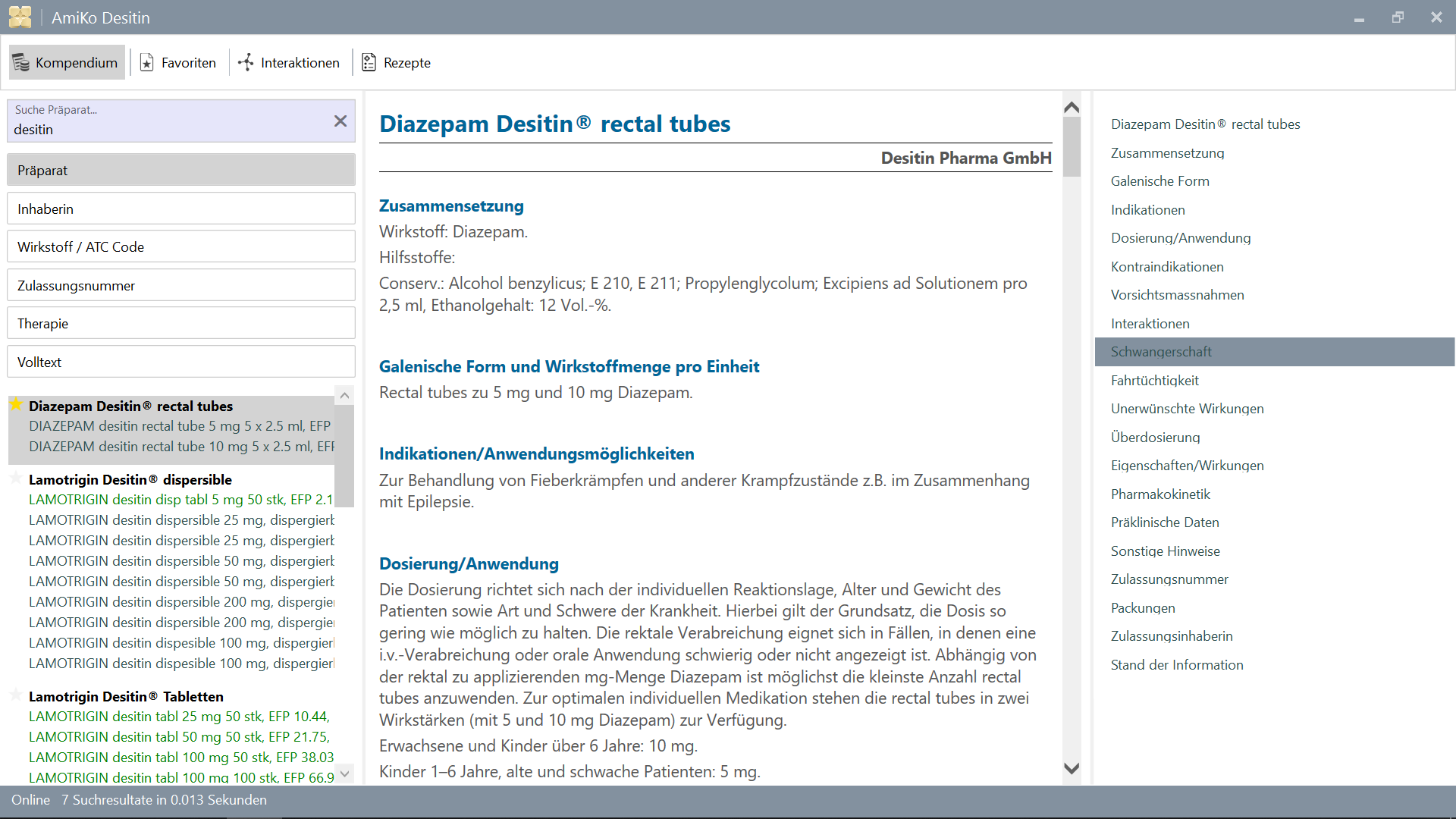
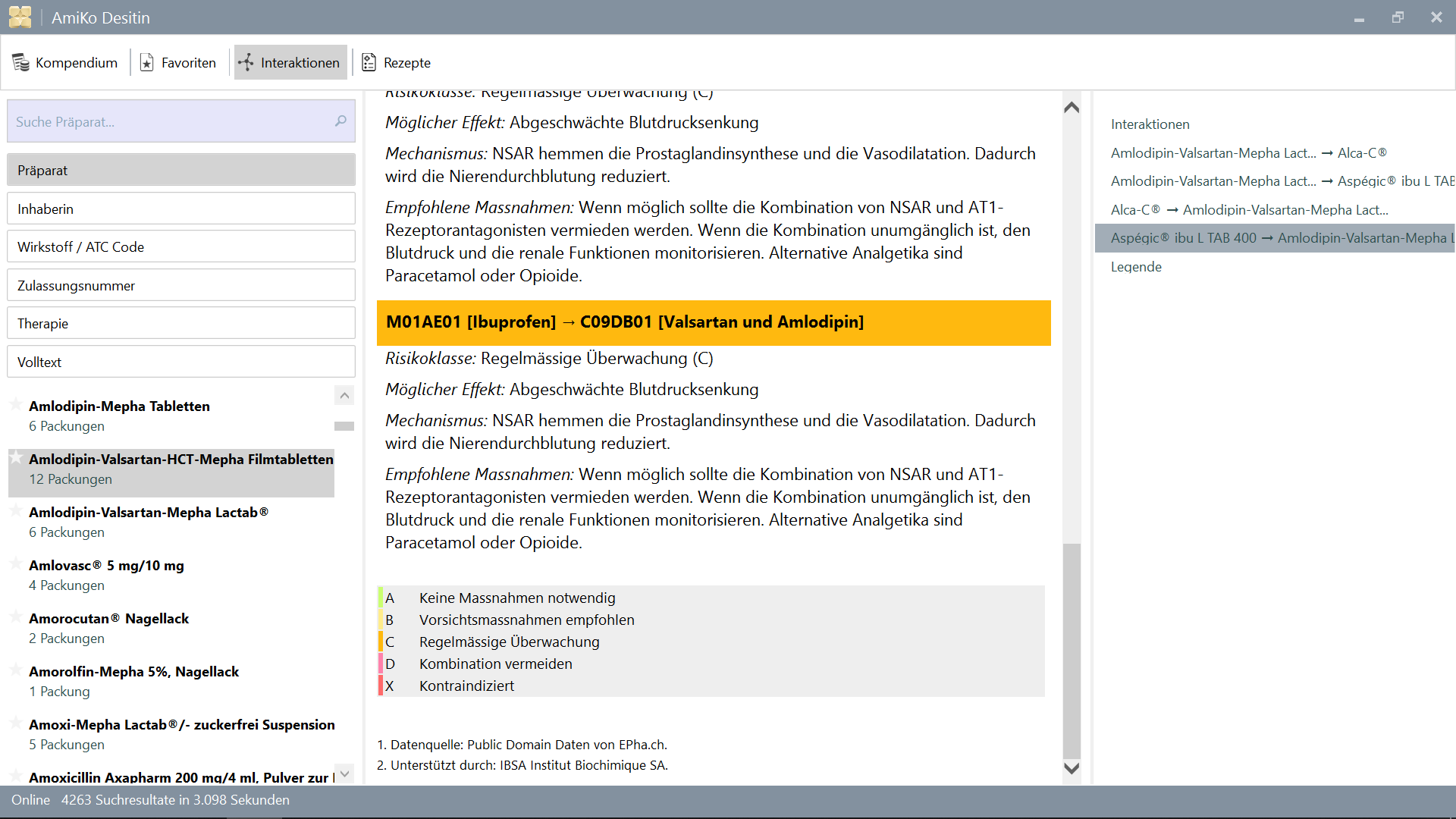
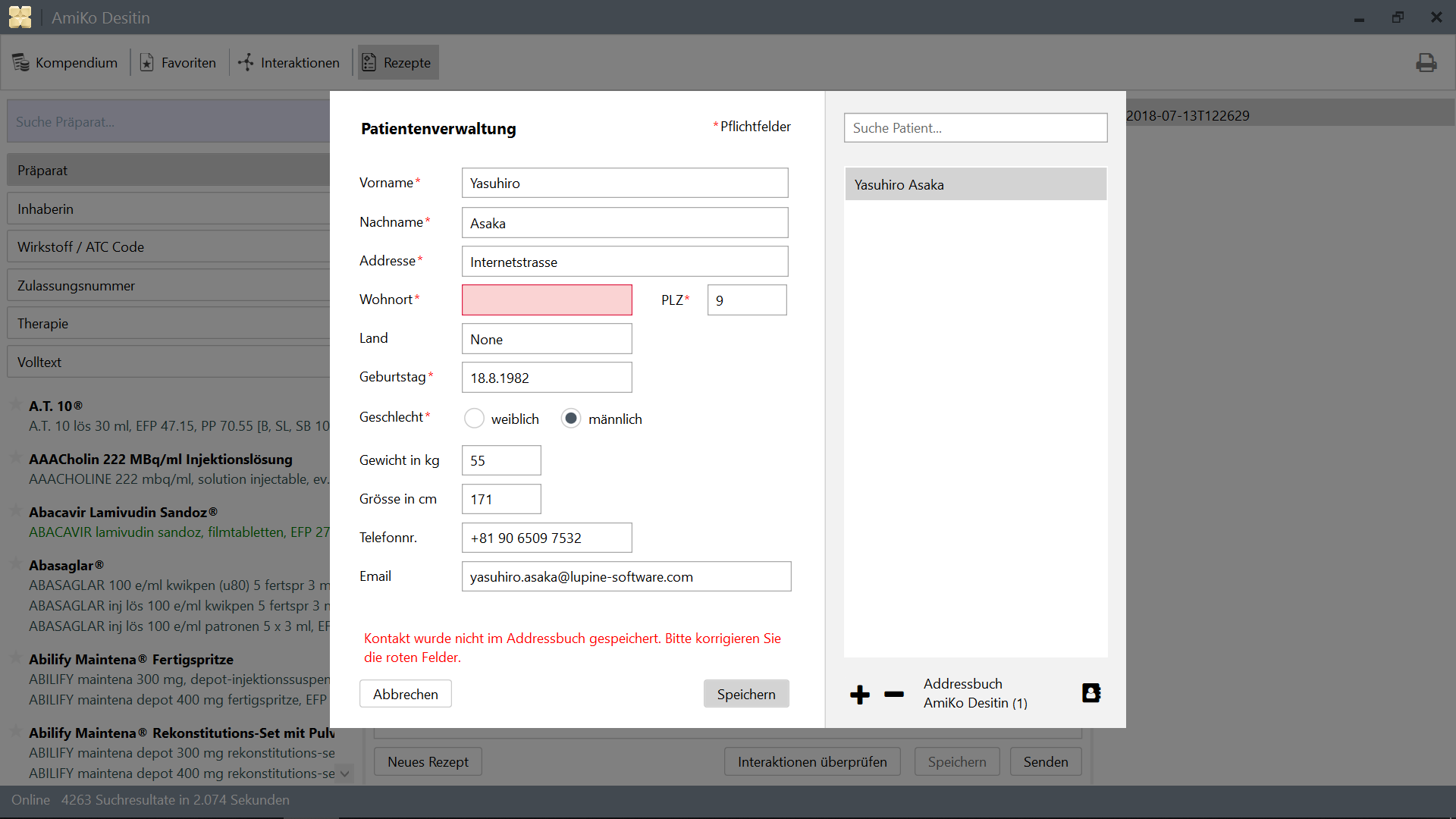
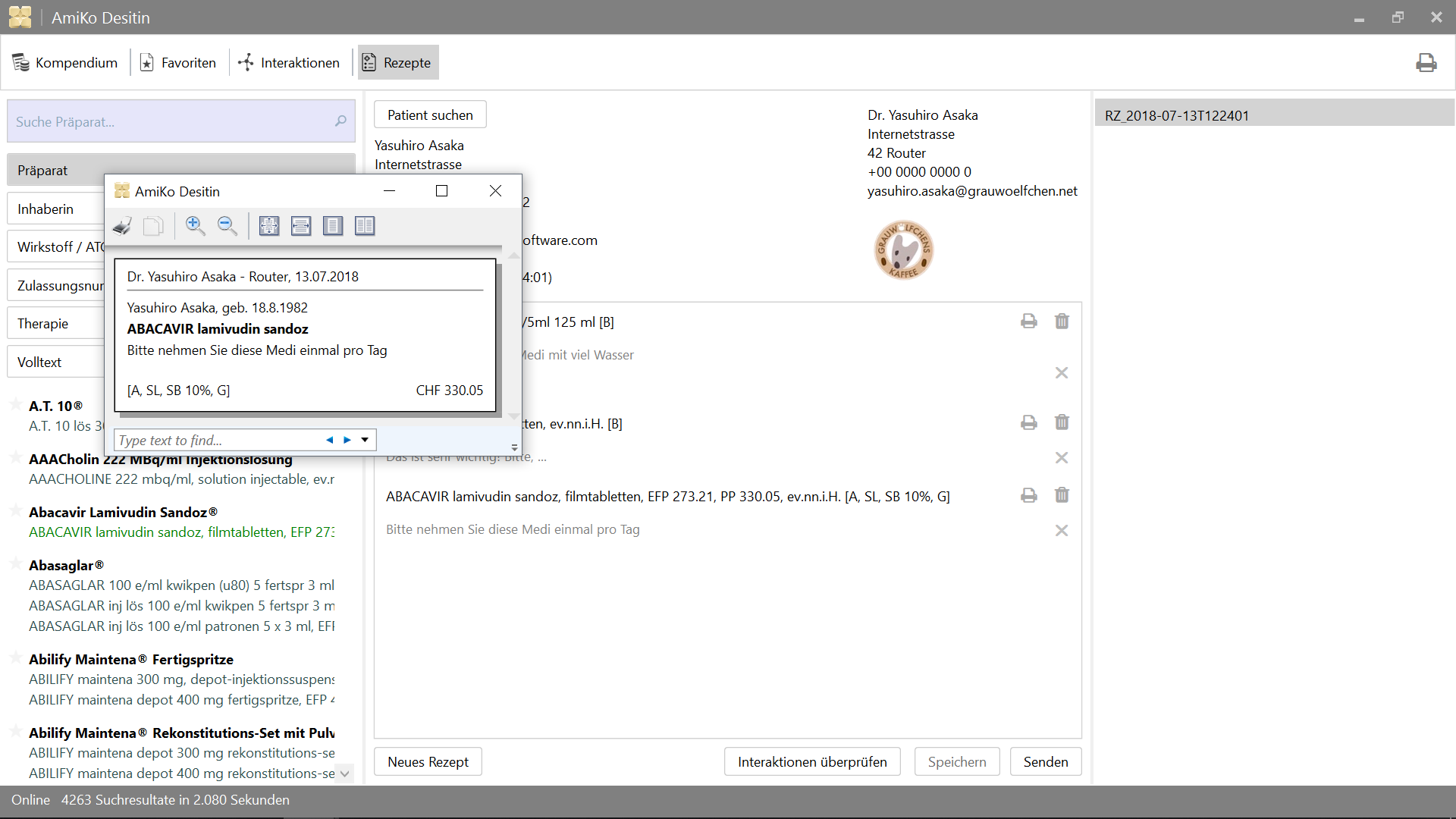
15'913 ปฏิสัมพันธ์ยาเสพติดยาเสพติดค้นหาโดย:
ข้อมูลทั้งหมดสามารถอัปเดตได้ทุกวัน
>= 4.6.2>= 14.02.1.105 )2.0.7 )4.6.2 ) หรือเพียงแค่ตั้งค่า Visual Studio >= 2015
และสำหรับการทดสอบ
>= 3.10.1 )>= 3.8.0 )สำหรับการเปิดตัว
10.0.17134.0 )หากคุณตรวจสอบซอร์สโค้ดบน Linux บน Windows ดูเหมือนว่าจะต้อง อ่านอย่างเดียว บน Windows คุณยังสามารถสร้างมันบน Windows โดยใช้ MSBuild หรือ Visual Studio ฯลฯ แต่คุณไม่สามารถแก้ไขไฟล์ที่มีอยู่ได้จาก Windows Side
ดู: อย่าเปลี่ยนไฟล์ Linux โดยใช้แอพและเครื่องมือ Windows
/mnt ) ในตอนแรกคุณต้องใส่ฐานข้อมูลและไฟล์ CSV ลงในไดเรกทอรี Data เมื่อคุณสร้างแอพด้วยไฟล์เหล่านี้คุณสามารถอัปเดตผ่านคุณสมบัติของแอพ
สามารถทำได้โดยเรียกใช้ download.ps1 ด้วย PowerShell หรือ:
$ cd /path/to/project
% mkdir -p AmiKoWindows/Data/{de,fr}

# AmiKoDesitin
$ cd AmiKoWindows/Data/de
$ curl -sLO http://pillbox.oddb.org/amiko_report_de.html

$ curl -sLO http://pillbox.oddb.org/amiko_db_full_idx_de.zip
$ curl -sLO http://pillbox.oddb.org/amiko_frequency_de.db.zip
$ curl -sLO http://pillbox.oddb.org/drug_interactions_csv_de.zip
$ unzip amiko_db_full_idx_de.zip
$ unzip amiko_frequency_de.db.zip
$ unzip drug_interactions_csv_de.zip

# CoMedDesitin
$ cd AmiKoWindows/Data/fr
$ curl -sLO http://pillbox.oddb.org/amiko_report_fr.html

$ curl -sLO http://pillbox.oddb.org/amiko_db_full_idx_fr.zip
$ curl -sLO http://pillbox.oddb.org/amiko_frequency_fr.db.zip
$ curl -sLO http://pillbox.oddb.org/drug_interactions_csv_fr.zip
$ unzip amiko_db_full_idx_fr.zip
$ unzip amiko_frequency_fr.db.zip
$ unzip drug_interactions_csv_fr.zip *: เราได้ซื้อไอคอน glyphish และแก้ไขสำหรับโครงการนี้ มันไม่ได้แจกจ่ายซ้ำภายใต้ GPL-3.0 (เป็นไอคอน) เนื่องจากไม่ใช่โครงการโอเพ่นซอร์สคุณจึงไม่สามารถใช้เป็นไอคอนจากโครงการนี้ได้เพียงแค่ใช้เป็นส่วนหนึ่งของซอร์สโค้ดของเรา ดู Glyphish-license.txt
หากคุณตรวจสอบโครงการบน Linux บน Windows แล้ว NuGet ไม่สามารถจัดการเส้นทางยาวบน PowerShell บน Windows ได้อย่างถูกต้อง ดังนั้นคุณต้องตั้งค่าลิงค์สัญลักษณ์โดยใช้ mklink และตัวแปรสภาพแวดล้อมบนพรอมต์คำสั่งหรือ PowerShell (ใช้ /c )
โปรดดู: NUGET และ LONG FILE NAME SUPPOND #3324
 # This is project location, for example environment variable `AmiKo` is set as:
# C:Users<USER>AppDataLocalPackagesTheDebian...LocalStaterootfs
#   home<user>pathtoproject

C:Windowssystem32> cd C:Users<USER>

# Or `cmd /c mklink /D AmiKo %AmiKo%` on PowerShell
C:Users<USER>> mklink /d AmiKo %AmiKo%
C:Users<USER>> cd AmiKo
C:Users<USER>AmiKo>
จากนั้นคุณสามารถดาวน์โหลดแพ็คเกจ (ลงใน Packages ) บน PowerShell:
 # Downloads NuGet.exe (windows x86 Commandline) here
C:Users < USER > AmiKo > . NuGet.exe install " AmiKoWindows/packages.config "
บน Linux บน Windows มันไม่ได้รับผลกระทบจากปัญหาชื่อเส้นทางยาว บน bash (linux บน windows ด้วย mono):
 # You can just do it (e.g. `/usr/local/bin/nuget.exe`)
user@host:/path/to/project $ nuget install AmiKoWindows/packages.configGoogleConstants.cs.sample เป็น AmiKoWindowsSourceGoogleConstants.csAmiKoWindowsSourceHINClientHINClientCredentials.cs.sample เป็น AmiKoWindowsSourceHINClientHINClientCredentials.csจากขั้นตอนนี้คุณอาจต้องใช้ PowerShell บน Windows
Debug หรือ Release )AnyCPU , x86 หรือ x64 )Trace หรือไม่มี) คุณจะต้องติดตั้ง Microsoft Build Tools 2015 จากที่นี่
ใช้ >= 14.0 (ติดตั้งโดย Microsoft Build Tools 2015 ) หรือคุณอาจต้องการใช้พรอมต์คำสั่งพิเศษเช่น Developer Command Prompt for VS 2017 ที่รวมอยู่ใน Visual Studio
 # Check the location of `MSBuild.exe`
PS C:Users.. . > Resolve-Path HKLM:SOFTWAREMicrosoftMSBuildToolsVersion * | Get-ItemProperty - Name MSBuildToolsPath

MSBuildToolsPath : C:Program Files (x86)MSBuild 14.0 binamd64
PSPath           : Microsoft.PowerShell.CoreRegistry::HKEY_LOCAL_MACHINESOFTWAREMicrosoftMSBuildToolsVersions 14.0
...

MSBuildToolsPath : C:WindowsMicrosoft.NETFramework64v4. 0.30319
PSPath           : Microsoft.PowerShell.CoreRegistry::HKEY_LOCAL_MACHINESOFTWAREMicrosoftMSBuildToolsVersions 4.0
...
สร้างด้วย MSBuild บน PowerShell (คุณต้องตั้ง ค่าเส้นทาง สำหรับ MSBuild.exe ):
 # AmiKoDesitin
PS C:Users... > MSBuild.exe .AmiKoWindowsAmiKoDesitin.csproj / t: Clean
PS C:Users... > MSBuild.exe .AmiKoWindowsAmiKoDesitin.csproj / t:Build / p:Configuration = Debug

# CoMedDesitin
PS C:Users... > MSBuild.exe .AmiKoWindowsCoMedDesitin.csproj / t: Clean
PS C:Users... > MSBuild.exe .AmiKoWindowsCoMedDesitin.csproj / t:Build / p:Configuration = Debug
จากนั้นคุณสามารถเริ่มหรือฆ่า {AmiKo|CoMed}Desitin.exe ในไดเรกทอรี bin เช่นนี้:
 # AmiKoDesitin
PS C:Users... > Start-Process ' .AmiKoWindowsbinDebugAmiKoAmiKo Desitin.exe '
PS C:Users... > Get-Process ' AmiKo Desitin ' | Stop-Process
PS C:Users... > taskkill / im ' AmiKo Desitin.exe ' / f

# CoMedDesitin
PS C:Users... > Start-Process ' .AmiKoWindowsbinDebugAmiKoCoMed Desitin.exe '
PS C:Users... > Get-Process ' CoMed Desitin ' | Stop-Process
PS C:Users... > taskkill / im ' CoMed Desitin.exe ' / f
นอกจากนี้ยังมีสคริปต์ที่จะสร้างและเรียกใช้แอปพลิเคชัน
 # AmiKoDesitin (Debug is default)
PS C:Users... > PowerShell.exe - ExecutionPolicy Bypass - File .BuildAndRun.ps1 " AmiKo "

# CoMedDesitin
PS C:Users... > PowerShell.exe - ExecutionPolicy Bypass - File .BuildAndRun.ps1 " CoMed " " Debug "
ในที่สุดคุณต้องดีบักแอปด้วย DebugView หรือ WinDbg ฯลฯ (set /p:Log=Trace for Trace)
1. AmiKoWindows -> Navigate {AmiKoDesitin|CoMedDesitin} -> Properties (Right Click)
  a. Set assembly name
  b. Set assembly information (Title, Product, Assembly version, File version)
2. Confirm Signing Tab
3. Check Security
4. Set target project using `Set as StartUp Project` (Right Click on the Solution Name)
5. Clean Solution (both projects)
5. Rebuild target project (AmiKoDesitin or CoMedDesitin)
6. (Publish)หรือคุณสามารถเพิ่มสิ่งนี้ลงในเส้นทางของคุณ
C:Program Files (x86)Microsoft Visual Studio2017CommunityMSBuild15.0Binamd64
และสิ่งนี้จะทำงานได้ดีจากไดเรกทอรีต้นทางของคุณ
 PS C:Users...> MSBuild.exe .AmiKoWindowsAmiKoDesitin.csproj /t:Clean
PS C:Users...> MSBuild.exe .AmiKoWindowsAmiKoDesitin.csproj /t:Build /p:Configuration=Debug
PS C:Users...> Start-Process '.AmiKoWindowsbinDebugAmiKoAmiKo Desitin.exe'

# or just do
PS C:Users...> PowerShell.exe -ExecutionPolicy Bypass -File .BuildAndRun.ps1 "AmiKo"
MakeMsi.ps1 กับ PowerShell;C:Program Files (x86)WiX Toolset v3.11binAmikoWindowsbinReleaseAmiko-InstallerAmiko-Installer.msiAmikoWindowsbinReleaseComed-InstallerComed-Installer.msiคุณจะต้องทำตามขั้นตอนต่อไปนี้
MakeRelease.ps1Package.ps1 ดาวน์โหลด Desktop App Converter จาก Microsoft Store จากนั้นใช้ MakeRelease.ps1 สคริปต์พร้อมใบรับรองการลงนามและคีย์ของคุณ (ใน PowerShell ทำงานเป็นผู้ดูแลระบบ)
ก่อนที่จะสร้างการเปิดตัวตรวจสอบการกำหนดค่าและเวอร์ชัน ฯลฯ ในไฟล์ต่อไปนี้
AmiKoWindows/{AmiKoDesitin.appx.manifest,CoMedDesitin.appx.manifest}AmiKoWindows/Properties/AssemblyInfo.csMakeRelease.ps1 # As Administrator
# AmiKoDesitin
PS C:Users... > PowerShell.exe - ExecutionPolicy Bypass - File .MakeRelease.ps1 " AmiKo " " Debug "
PS C:Users... > PowerShell.exe - ExecutionPolicy Bypass - File .MakeRelease.ps1 " AmiKo " " Release "
# CoMedDesitin
PS C:Users... > PowerShell.exe - ExecutionPolicy Bypass - File .MakeRelease.ps1 " CoMed " " Debug "
PS C:Users... > PowerShell.exe - ExecutionPolicy Bypass - File .MakeRelease.ps1 " CoMed " " Release " Appx จะถูกสร้างขึ้นใน AmiKoWindows/bin/{Debug,Release}/Output/{AmiKo,CoMed}
ปัจจุบันตัวเลือก -AppFileTypes ของ DesktopAppConverter ไม่ทำงานอย่างคาดหวังสำหรับการกำหนดค่า แม้ว่าจะแก้ไข AppxManifest.xml ด้วยตนเอง
เส้นทาง:
AmiKoWindows/bin/Release/Output/yweseeGmbH.AmiKo/PackageFiles/AppxManifest.xmlAmiKoWindows/bin/Release/Output/yweseeGmbH.CoMedDesitin/PackageFiles/AppxManifest.xml # add missing entries `Extensions`
<Applications>
<Application>
...
<Extensions>
<uap:Extension Category="windows.fileTypeAssociation">
<uap:FileTypeAssociation Name="amk">
<uap:Logo>AssetsSquare44x44Logo.scale-100.png</uap:Logo>
<uap:SupportedFileTypes>
<uap:FileType>.amk</uap:FileType>
</uap:SupportedFileTypes>
</uap:FileTypeAssociation>
</uap:Extension>
</Extensions>
</Application>
</Applications>
Package.ps1 สคริปต์ยังทำตามขั้นตอนนี้ ถ้าคุณต้องการทำด้วยตนเองอีกครั้ง คุณสามารถทำตามคำแนะนำเหล่านี้:
 # As Administrator

# AmiKoDesitin
PS C:Users... > PowerShell.exe - ExecutionPolicy Bypass - File .Package.ps1 " AmiKo " " Debug "
PS C:Users... > PowerShell.exe - ExecutionPolicy Bypass - File .Package.ps1 " AmiKo " " Release "

# CoMedDesitin
PS C:Users... > PowerShell.exe - ExecutionPolicy Bypass - File .Package.ps1 " CoMed " " Debug "
PS C:Users... > PowerShell.exe - ExecutionPolicy Bypass - File .Package.ps1 " CoMed " " Release "
หรือ,
'C:Program Files (x86)Windows Kits10bin10.0.17134.0x64{makepri,makeappx}.exe' (เวอร์ชัน 10.0.17134 และตั้ง เส้นทาง ตามที่คุณต้องการ)AmiKoWindows/bin/Release/Output/yweseeGmbH.AmiKo/PackageFilesAmiKoWindows/Assets/ to AmiKoWindows/bin/Release/Output/yweseeGmbH.AmiKo/PackageFiles/Assets/ (overwrite)MakeAppx.exe # e.g. AmiKoDesitin
# Change directory into **PackageFiles**
PS C:Users... > cd AmiKoWindows / bin / Release / Output / yweseeGmbH.AmiKo / PackageFiles
PS C:Users... > rm .Assets - r - fo
PS C:Users... > cp ..........Assets .
# MakePri.exe
PS C:Users... > ' makepri.exe ' createconfig / cf priconfig.xml / dq de - CH
# It seems that it needs absolute path...
PS C:Users... > ' makepri.exe ' new
/ pr C:Users < user > pathtoamiko_csharpAmiKoWindowsbinReleaseOutputyweseeGmbH.AmiKoPackageFiles
/ cf C:Users < user > pathtoamiko_csharpAmiKoWindowsbinReleaseOutputyweseeGmbH.AmiKoPackageFilespriconfig.xml
# MakeAppx.exe
PS C:Users... > ' makeappx.exe ' pack / d . / p " AmiKo Desitin "
# Replace appx
PS C:Users... > Move-Item - Path " AmiKoWindowsbinReleaseOutputyweseeGmbH.AmiKoPackageFilesAmiKo Desitin.appx " `
- Destination " AmiKoWindowsbinReleaseOutputyweseeGmbH.AmiKoyweseeGmbH.AmiKo.appx " - Force # Sign (again)
PS C:Users... > signtool.exe sign / fd < HASH ALGORITHM > / a / f < PFX > / p < PASSWORD > < FILE > .appx หมายเหตุ: คุณต้องติดตั้งใบรับรอง pfx นี้ลงใน คนที่เชื่อถือได้ ใน เครื่องท้องถิ่น ผ่านตัวช่วยสร้างใบรับรอง ใช้ importpfx.exe importpfx.exe -f "somePfx.pfx" -p "somePassword" -t MACHINE -s "TRUSTEDPEOPLE"
เพื่อทำความสะอาดข้อมูลแคชหรือทรัพยากรที่สร้างขึ้น ฯลฯ (สำหรับการดีบัก, .exe)
PS C:Users... > taskkill / im ' AmiKo Desitin.exe ' / f
PS C:Users... > MSBuild.exe .AmiKoWindowsAmiKoDesitin.csproj / t: Clean

PS C:Users... > taskkill / im ' CoMed Desitin.exe ' / f
PS C:Users... > MSBuild.exe .AmiKoWindowsCoMedDesitin.csproj / t: Clean # Just delete these directories (or delete `user.config` in there)
PS C:Users... > rm ' C:Users<USER>AppDataLocalyweseeAmiKo Desitin.exe* ' -f - fo
PS C:Users... > rm ' C:Users<USER>AppDataLocalyweseeCoMed Desitin.exe* ' -f - fo # e.g. Profile Photo (for debug, .exe)
PS C:Users... > rm ' C:Users<USER>AppDataRoamingyweseeAmiKo Desitin*.png ' -f - fo
PS C:Users... > rm ' C:Users<USER>AppDataRoamingyweseeCoMed Desitin*.png ' -f - fo ในการรีเซ็ตรายการ ที่อยู่ และไฟล์ ใบสั่งยา (ไฟล์. .amk )
 # AmiKoDesitin (for debug, .exe)
PS C:Users... > taskkill / im ' AmiKo Desitin.exe ' / f
PS C:Users... > rm ' C:Users<USER>AppDataLocalTempamiko* ' - r - fo
PS C:Users... > rm ' C:Users<USER>AppDataRoamingyweseeAmiko Desitinamk* ' - r - fo
PS C:Users... > rm .AmiKoWindowsbinDebugAmiKo * - r - fo

# CoMedDesitin (for debug, .exe)
PS C:Users... > taskkill / im ' CoMed Desitin.exe ' / f
PS C:Users... > rm ' C:Users<USER>AppDataLocalTempcomed* ' - r - fo
PS C:Users... > rm ' C:Users<USER>AppDataRoamingyweseeCoMed Desitinamk* ' - r - fo
PS C:Users... > rm .AmiKoWindowsbinDebugCoMed * - r - fo ดูโครงการใน AmiKoWindows.Tests การทดสอบเขียนขึ้นในนูนิท
PS C:Users... > taskkill / im ' MSBuild.exe ' / f

# AmiKoDesitin
PS C:Users... > MSBuild.exe .AmiKoWindows.TestsAmiKoDesitin.Test.csproj / t: Clean
PS C:Users... > MSBuild.exe .AmiKoWindows.TestsAmiKoDesitin.Test.csproj / t:Build / p:Configuration = Debug / p:Platform = x64
PS C:Users... > .PackageNUnit.ConseleRunner. 3.8 . 0 tools nunit3-console.exe .AmiKoWindows.TestsbinDebugAmiKoAmiKoDesitin.Test.dll -- output TestOutput.log

# CoMedDesitin
PS C:Users... > MSBuild.exe .AmiKoWindows.TestsCoMedDesitin.Test.csproj / t: Clean
PS C:Users... > MSBuild.exe .AmiKoWindows.TestsCoMedDesitin.Test.csproj / t:Build / p:Configuration = Debug / p:Platform = x64
PS C:Users... > .PackageNUnit.ConsoleRunner. 3.8 . 0 tools nunit3-console.exe .AmiKoWindows.TestsbinDebugCoMedCoMedDesitin.Test.dll -- output TestOutput.log
หรือคุณสามารถดำเนินการทดสอบโดยใช้ RunTest.ps1 เช่นนี้
 # AmiKoDesitin
PS C:Users... > PowerShell.exe - ExecutionPolicy Bypass - File .RunTest.ps1 " AmiKo "

# CoMedDesitin
PS C:Users... > PowerShell.exe - ExecutionPolicy Bypass - File .RunTest.ps1 " CoMed " GPL-3.0
AmiKo for Windows
Copyright (c) ywesee GmbHกรุณาติดต่อ:
[email protected]
+41 43 540 05 50




