CodeDraw
1.0.0

CodedRaw是一个对初学者友好的绘图库,可用于创建图片,动画甚至交互式应用程序。它是为刚刚开始学习编程的人而设计的,使他们能够创建图形应用程序。
阅读《编码介绍》的介绍,以获取编码的初学者指南。它还概述了CodedRaw中可用的功能。
可以在此处找到编码图的Javadoc。
对于C#版本的CodedRaw,请访问CodedRawProject存储库。
转到发布并下载最新的Codedraw.jar。
打开Intellij,您想在其中添加CodedRaw。单击文件>项目结构...。在项目设置下,选择库。在左上方,单击Small Plus图标,然后选择Java选项。转到下载的codedraw.jar,然后选择它,然后按OK 。现在,您可以使用import codedraw.*;在Java文件的顶部。
要安装带有Eclipse , Maven或Gradle的CodedRaw,请参阅install.md。
这是一个示例,说明如何使用CodedRaw创建静态图像。
 import codedraw .*;

public class Main {
    public static void main ( String [] args ) {
        // Creates a new CodeDraw window with a size of 400x400 pixel.
        CodeDraw cd = new CodeDraw ( 400 , 400 );

        // Sets the drawing color to red.
        cd . setColor ( Palette . RED );
        // Draws the outline of a rectangle.
        cd . drawRectangle ( 100 , 100 , 200 , 100 );
        // Draws a filled square.
        cd . fillSquare ( 180 , 150 , 80 );

        // Changes the color to light blue.
        cd . setColor ( Palette . LIGHT_BLUE );
        cd . fillCircle ( 300 , 200 , 50 );

        // Finally, the method "show" must be called
        // to display the drawn shapes in the CodeDraw window.
        cd . show ();
    }
}.show() ❗ 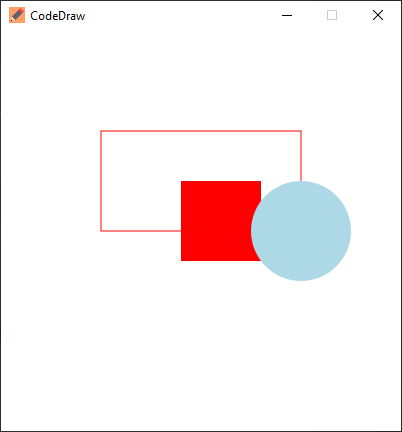
动画是通过绘制多个帧然后在这些框架之间暂停的。在CodedRaw中,这是通过创建一个循环来实现的,其中每次迭代绘制一个帧,然后使用方法.show(1000)在这种情况下等待一定的时间,1秒或1000毫秒。
 import codedraw .*;

public class Main {
    public static void main ( String [] args ) {
        CodeDraw cd = new CodeDraw ( 400 , 400 );

        for ( double sec = - Math . PI / 2 ; ! cd . isClosed (); sec += Math . PI / 30 ) {
            // Clears the entire canvas.
            cd . clear ();
            // Draws the second hand of the clock.
            cd . drawLine ( 200 , 200 , Math . cos ( sec ) * 100 + 200 , Math . sin ( sec ) * 100 + 200 );

            // Draws the twelve dots.
            for ( double j = 0 ; j < Math . PI * 2 ; j += Math . PI / 6 ) {
                cd . fillCircle ( Math . cos ( j ) * 100 + 200 , Math . sin ( j ) * 100 + 200 , 4 );
            }

            // Displays the drawn objects and waits 1 second.
            cd . show ( 1000 );
        }
    }
}可以通过读取EventsCanner的事件并根据事件类型进行switch来创建交互式程序。在较旧的Java版本中,EventsCanner也可以与java.util.Scanner相同的方式使用has...和next...方法。在编码事件简介中的“处理事件”部分中可以找到更详细的解释。
您还可以使用CodedRaw事件代码生成器自动为您生成事件代码。
 import codedraw .*;

public class Main {
    public static void main ( String [] args ) {
        CodeDraw cd = new CodeDraw ();

        cd . drawText ( 200 , 200 , "Move your mouse over here." );
        cd . show ();

        cd . setColor ( Palette . RED );

        // Creates an endless loop (until you close the window).
        while (! cd . isClosed ()) {
            // Creates a loop that consumes all the currently available events.
            for ( var e : cd . getEventScanner ()) {
                switch ( e ) {
                    // If the event is a mouse move event, a red square will be drawn at its location.
                    case MouseMoveEvent a ->
                        cd . fillSquare ( a . getX () - 5 , a . getY () - 5 , 10 );
                    default -> { }
                }
            }

            // Display the red squares that have been drawn up to this point.
            cd . show ( 16 );
        }
    }
}所有这些示例也可以使用Animation接口创建。 Animation接口的实例可以传递给codedraw,随后调用您实现的方法。以下示例使您可以用wasd-keys控制一个圆圈。每次按下钥匙时,都会触发onKeyDown方法,并修改圆的位置。 draw方法称为每秒60次,并在xy坐标处绘制圆。
 import codedraw .*;

public class MyAnimation implements Animation {
    public static void main ( String [] args ) {
        CodeDraw . run ( new MyAnimation ());
    }

    private int x = 50 ;
    private int y = 50 ;

    @ Override
    public void onKeyDown ( KeyDownEvent event ) {
        if ( event . getKey () == Key . W ) {
            y -= 20 ;
        }
        else if ( event . getKey () == Key . A ) {
            x -= 20 ;
        }
        else if ( event . getKey () == Key . S ) {
            y += 20 ;
        }
        else if ( event . getKey () == Key . D ) {
            x += 20 ;
        }
    }

    @ Override
    public void draw ( Image canvas ) {
        canvas . clear ();
        canvas . fillCircle ( x , y , 10 );
    }
}请随时提出问题,建议功能或在问题部分中进行错误报告。 ?





