100ms flutter
1.10.6


Inscreva -se em https://dashboard.100ms.live/register e visite a guia Desenvolvedor para acessar suas credenciais.
Familiarize -se com tokens e segurança aqui
Conclua as etapas no Token Start Start Guide
Obtenha o HMSSDK via pub.dev. Adicione o hmssdk_flutter ao seu pubSpec.yaml.
Consulte o guia de instalação completo aqui.
O aplicativo de exemplo completo está disponível aqui.
Adicionamos explicações e guia de uso recomendado para diferentes recursos, layouts da interface do usuário, armazenamento de dados etc. no exemplo de leitura de aplicativos.
Para executar o aplicativo de exemplo em seu sistema, siga estas etapas -
Clone os 100ms flutter github repo
No Project Root, Run flutter pub get construir o pacote de fletagem
Alterar diretório para pasta example
Agora, para executar o aplicativo, basta executar o comando flutter run para executar o aplicativo em um dispositivo conectado, ou simulador iOS, ou emulador Android.
Para executar em um dispositivo iOS (iPhone ou iPad), verifique se você definiu a equipe de desenvolvimento correta na seção de capacidades e assinatura do XCode.
O aplicativo de exemplo padrão usa a biblioteca de gerenciamento de estado do provedor. Para outras implementações, verifique -
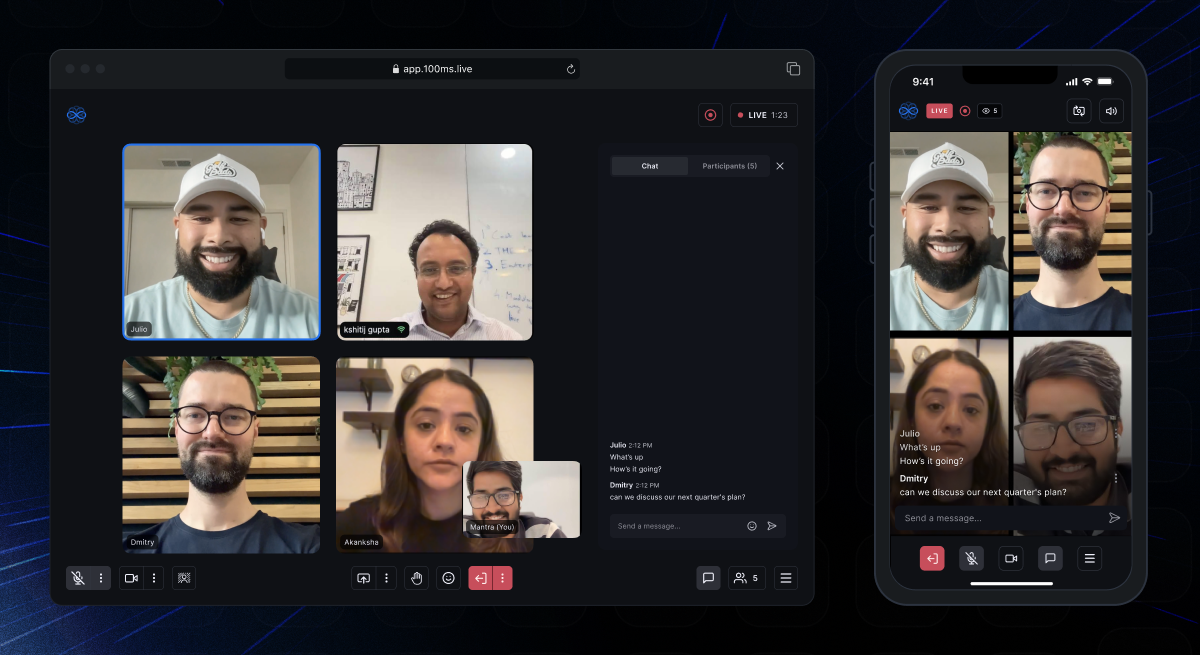 | 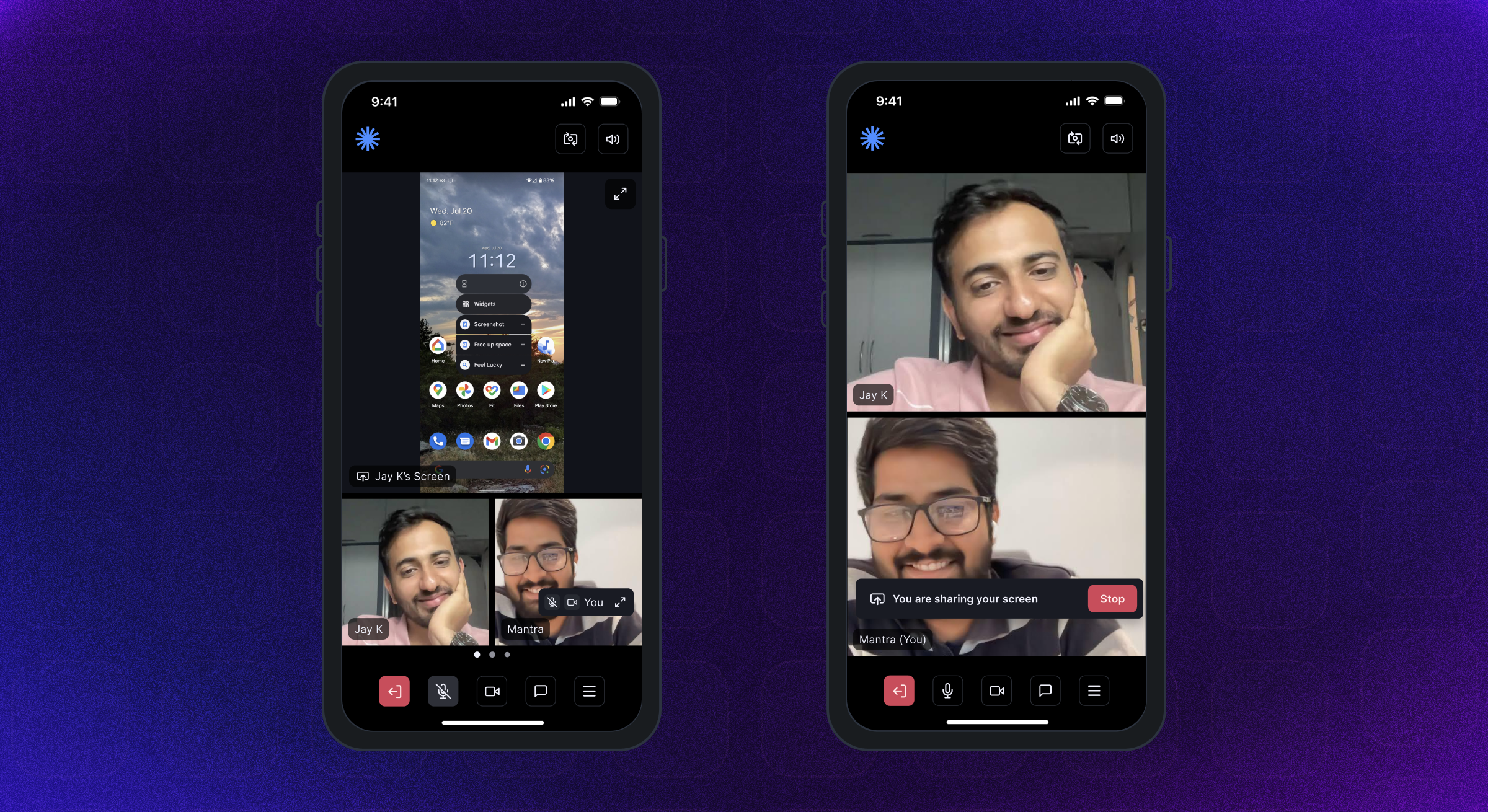 | 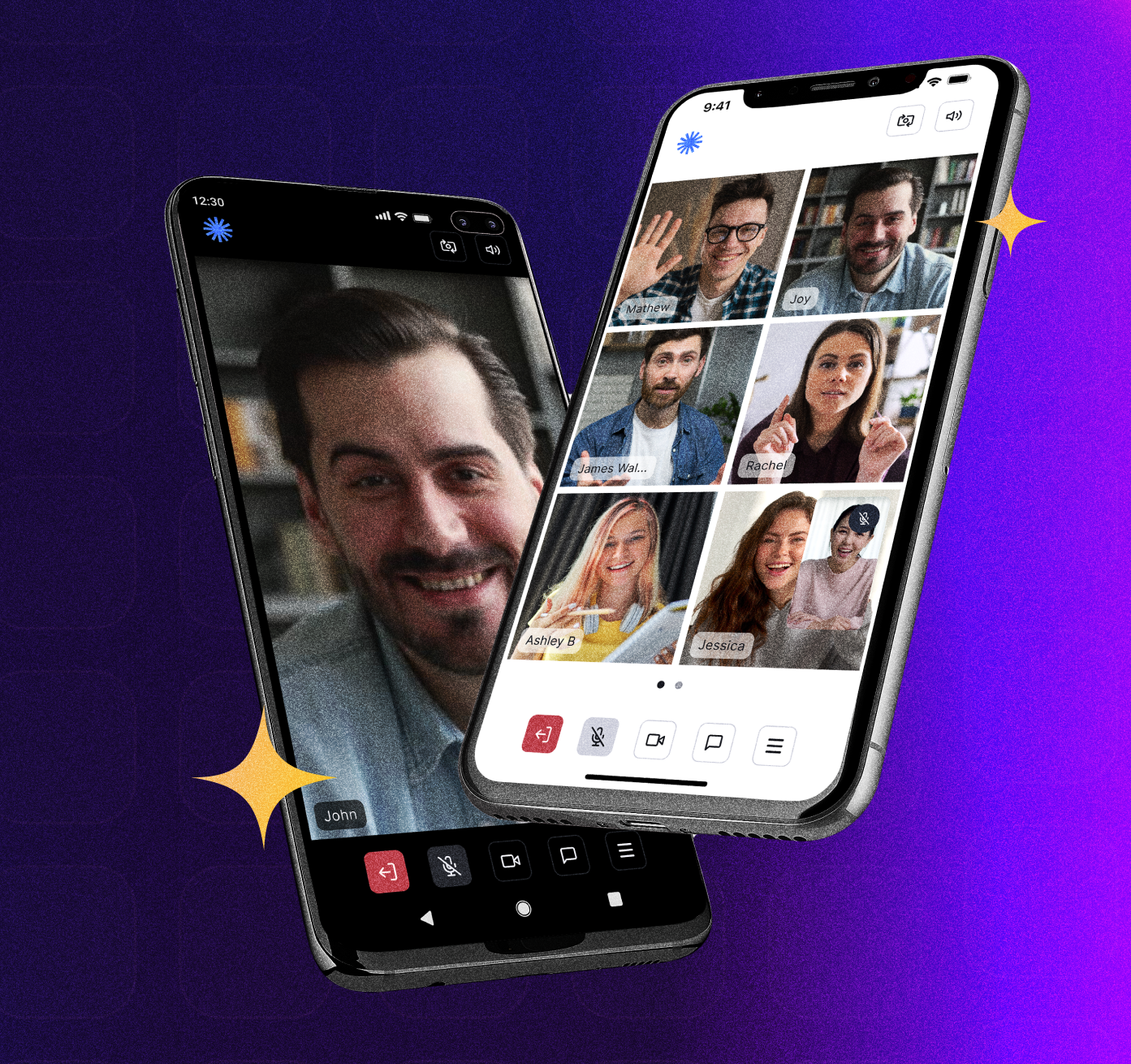 |
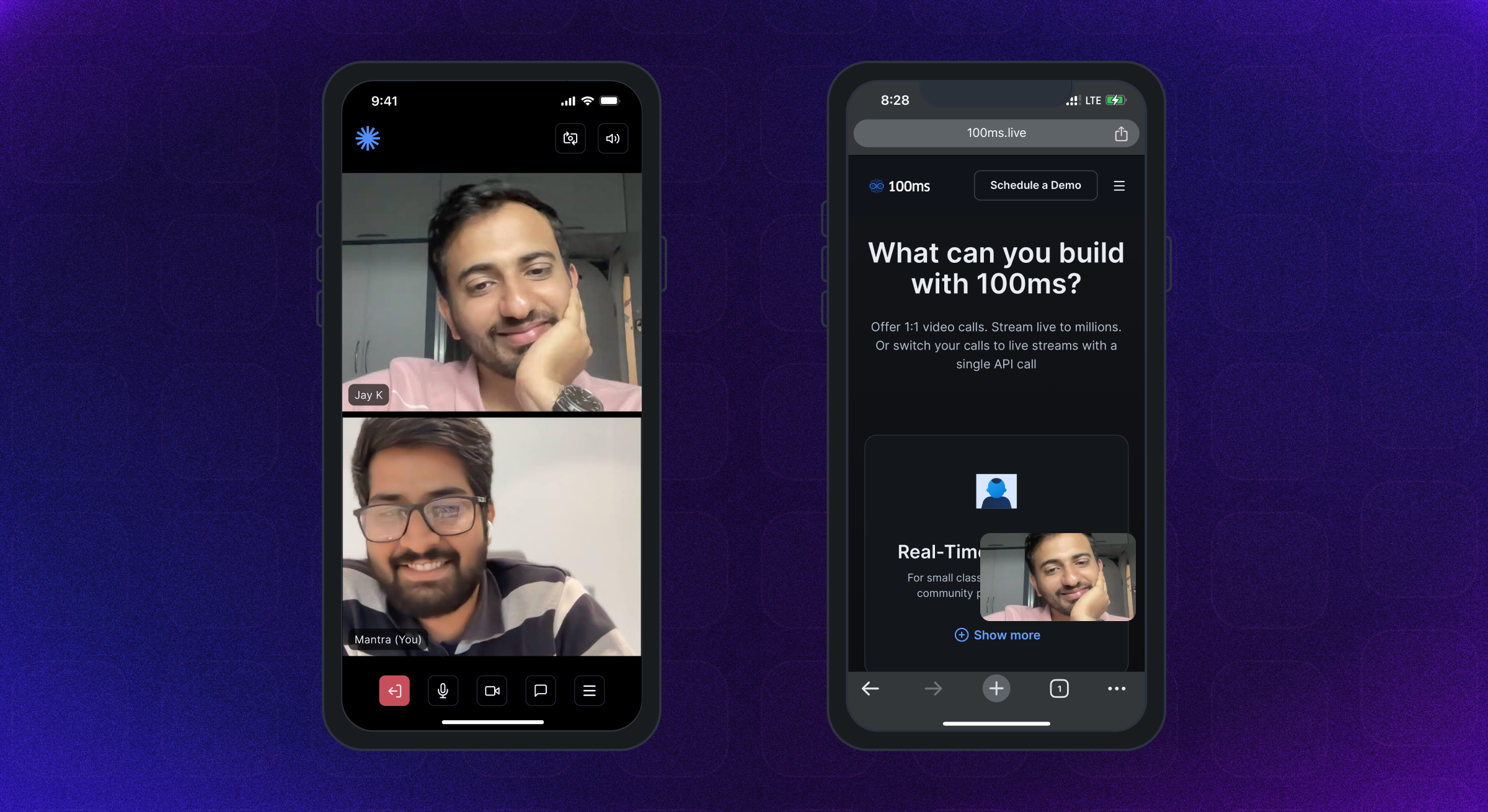 | 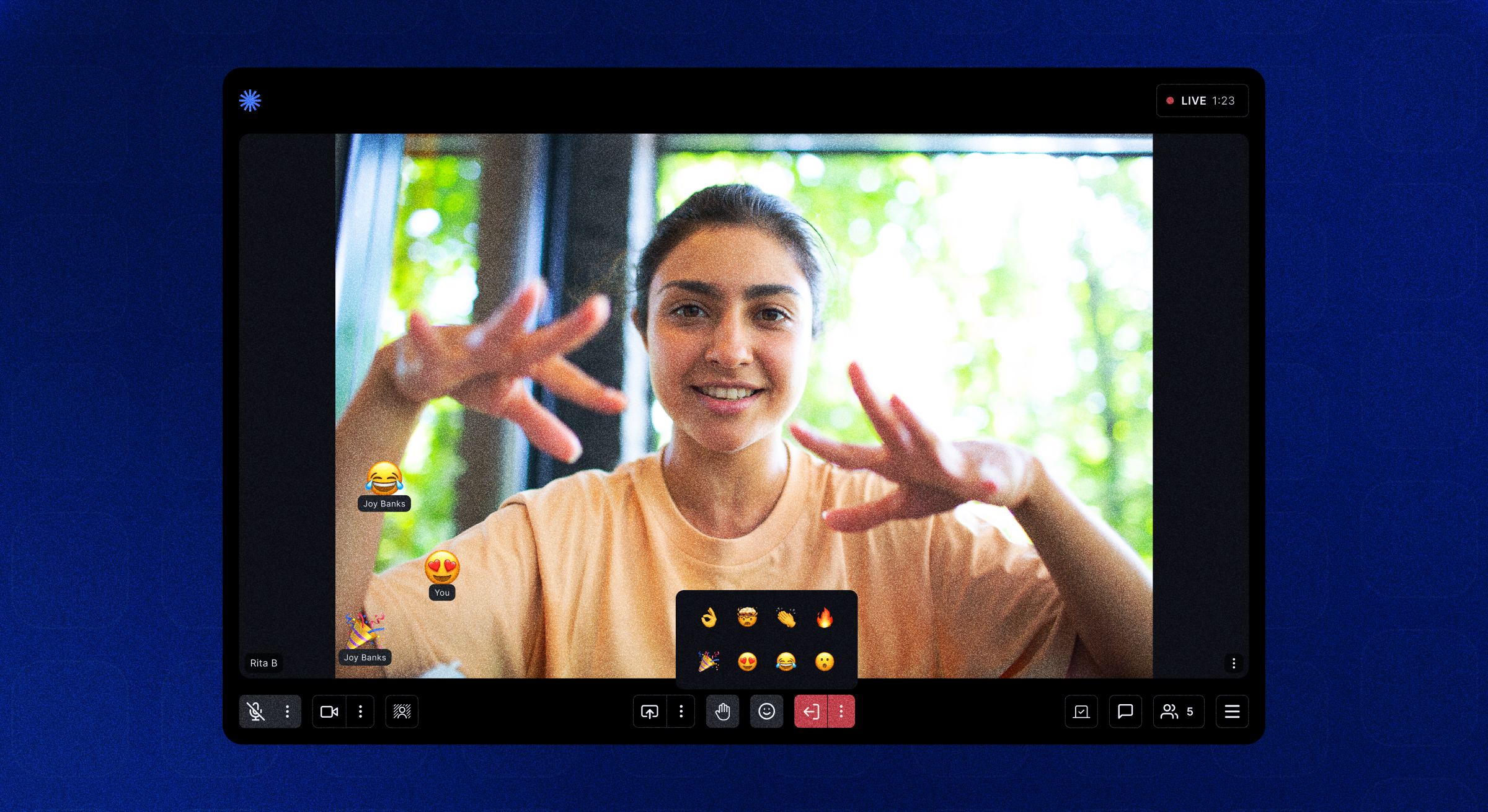 | 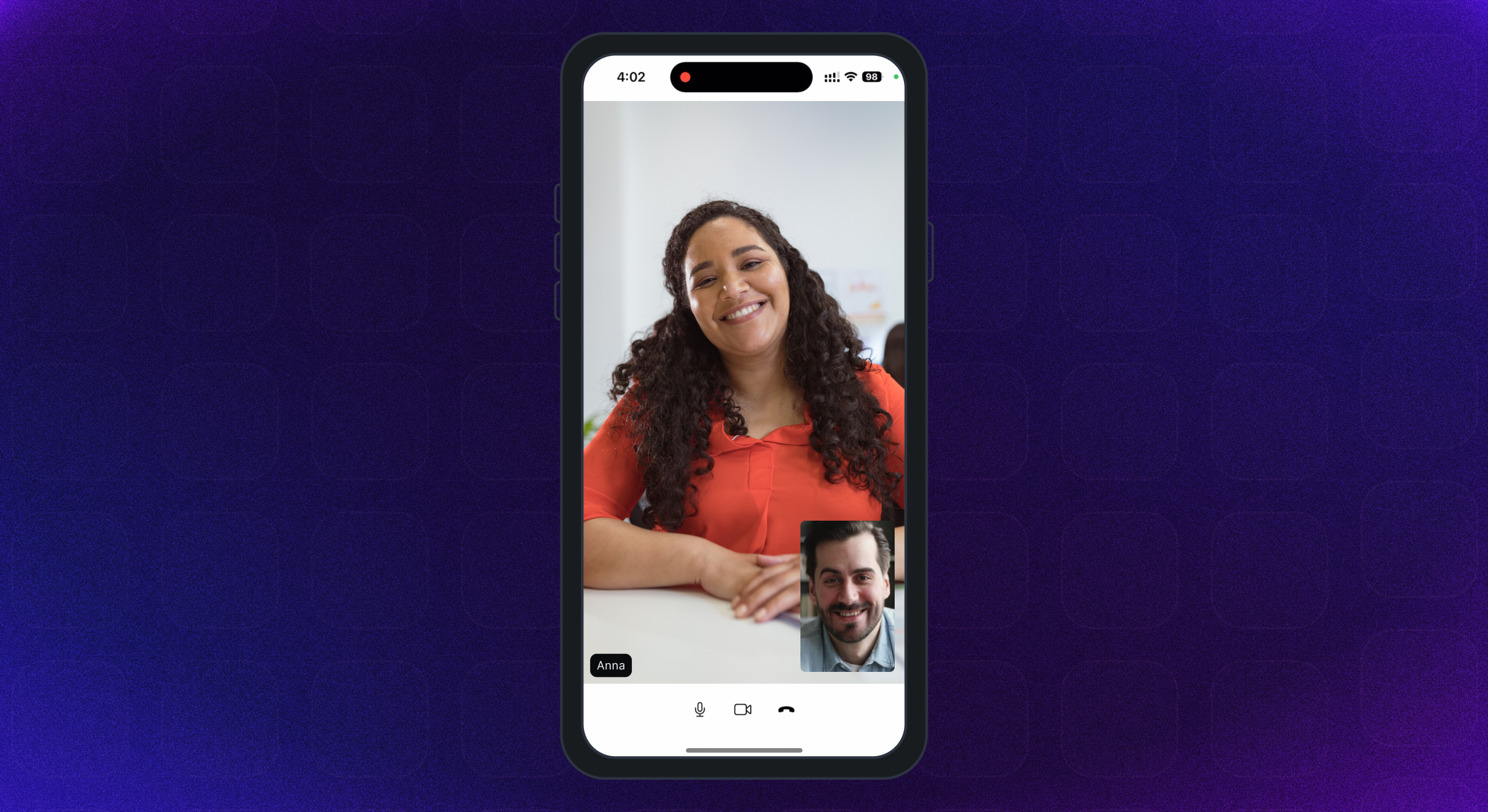 |
O Android SDK suporta o nível 21 da API Android e acima. É construído para arquiteturas Armabi-V7a, Arm64-V8a, X86 e X86_64. Os dispositivos que executam o Android OS 12 ou acima são recomendados.
iPhone & iPads com iOS versão 12 ou superior são suportados. Os dispositivos que executam o iOS 16 ou acima são recomendados.
Guia de permissões completas está disponível aqui.
Adicione as seguintes permissões no arquivo AndroidManifest.xml do AndroidManifest.xml -
< uses-feature android : name = " android.hardware.camera " />

< uses-feature android : name = " android.hardware.camera.autofocus " />

< uses-permission android : name = " android.permission.CAMERA " />

< uses-permission android : name = " android.permission.CHANGE_NETWORK_STATE " />

< uses-permission android : name = " android.permission.MODIFY_AUDIO_SETTINGS " />

< uses-permission android : name = " android.permission.RECORD_AUDIO " />

< uses-permission android : name = " android.permission.INTERNET " />

< uses-permission android : name = " android.permission.ACCESS_NETWORK_STATE " />

< uses-permission android : name = " android.permission.FOREGROUND_SERVICE " />

< uses-permission android : name = " android.permission.BLUETOOTH " android : maxSdkVersion = " 30 " />

< uses-permission android : name = " android.permission.BLUETOOTH_CONNECT " />Adicione as seguintes permissões no arquivo iOS info.plist
< key >NSMicrophoneUsageDescription</ key >
< string >{YourAppName} wants to use your microphone</ string >

< key >NSCameraUsageDescription</ key >
< string >{YourAppName} wants to use your camera</ string >

< key >NSLocalNetworkUsageDescription</ key >
< string >{YourAppName} App wants to use your local network</ string > Room Um quarto é o objeto básico que os 100ms SDKs retornam sobre a conexão bem -sucedida. Isso contém referências a colegas, faixas e tudo o que você precisa para renderizar um aplicativo de streaming A/V ou ao vivo ao vivo.
Peer um par é o objeto retornado por 100ms SDKs que contém todas as informações sobre um usuário - nome, função, faixa de vídeo etc.
A Track uma faixa é um segmento de mídia (áudio/vídeo) capturado da câmera e microfone do par. Pares em uma sessão publicam faixas locais e assinem faixas remotas de outros pares.
Role A define quem pode ver/ouvir colegas, a qualidade em que publica seu vídeo, se eles têm permissões para publicar vídeo/screenshare, silenciar alguém, mudar o papel de alguém.
O 100MS SDK fornece retornos de chamada para o aplicativo cliente sobre qualquer alteração ou atualização que aconteça na sala depois que um usuário se unir ao implementar HMSUpdateListener . Essas atualizações podem ser usadas para renderizar o vídeo na tela ou exibir outras informações sobre a sala. Vamos dar uma olhada no fluxograma.
 /// 100ms SDK provides callbacks to the client app about any change or update happening in the room after a user has joined by implementing HMSUpdateListener.
/// These updates can be used to render the video on the screen or to display other info regarding the room.
abstract class HMSUpdateListener {


  /// This will be called on a successful JOIN of the room by the user
  ///
  /// This is the point where applications can stop showing their loading state
  /// [room] : the room which was joined
  void onJoin ({ required HMSRoom room});


  /// This will be called whenever there is an update on an existing peer
  /// or a new peer got added/existing peer is removed.
  ///
  /// This callback can be used to keep a track of all the peers in the room
  /// [peer] : the peer who joined/left or was updated
  /// [update] : the triggered update type. Should be used to perform different UI Actions
  void onPeerUpdate ({ required HMSPeer peer, required HMSPeerUpdate update});


  /// This is called when there are updates on an existing track
  /// or a new track got added/existing track is removed
  ///
  /// This callback can be used to render the video on screen whenever a track gets added
  ///  [track] : the track which was added, removed or updated
  ///  [trackUpdate] : the triggered update type
  ///  [peer] : the peer for which track was added, removed or updated
  void onTrackUpdate ({ required HMSTrack track, required HMSTrackUpdate trackUpdate, required HMSPeer peer});


  /// This will be called when there is an error in the system
  /// and SDK has already retried to fix the error
  /// [error] : the error that occurred
  void onHMSError ({ required HMSException error});


  /// This is called when there is a new broadcast message from any other peer in the room
  ///
  /// This can be used to implement chat is the room
  /// [message] : the received broadcast message
  void onMessage ({ required HMSMessage message});


  /// This is called every 1 second with a list of active speakers
  ///
  /// ## A HMSSpeaker object contains -
  ///    - peerId: the peer identifier of HMSPeer who is speaking
  ///    - trackId: the track identifier of HMSTrack which is emitting audio
  ///    - audioLevel: a number within range 1-100 indicating the audio volume
  ///
  /// A peer who is not present in the list indicates that the peer is not speaking
  ///
  /// This can be used to highlight currently speaking peers in the room
  /// [speakers] the list of speakers
  void onUpdateSpeakers ({ required List < HMSSpeaker > updateSpeakers});


  /// This is called when there is a change in any property of the Room
  ///
  ///  [room] : the room which was joined
  ///  [update] : the triggered update type. Should be used to perform different UI Actions
  void onRoomUpdate ({ required HMSRoom room, required HMSRoomUpdate update});


  /// when network or some other error happens it will be called
  void onReconnecting ();


  /// when you are back in the room after reconnection
  void onReconnected ();


  /// This is called when someone asks for a change or role
  ///
  /// for eg. admin can ask a peer to become host from guest.
  /// this triggers this call on peer's app
  void onRoleChangeRequest ({ required HMSRoleChangeRequest roleChangeRequest});


  /// when someone requests for track change of yours be it video or audio this will be triggered
  /// [hmsTrackChangeRequest] request instance consisting of all the required info about track change
  void onChangeTrackStateRequest ({ required HMSTrackChangeRequest hmsTrackChangeRequest});


  /// when someone kicks you out or when someone ends the room at that time it is triggered
  /// [hmsPeerRemovedFromPeer] it consists of info about who removed you and why.
  void onRemovedFromRoom ({ required HMSPeerRemovedFromPeer hmsPeerRemovedFromPeer});


  /// whenever a new audio device is plugged in or audio output is changed we
  /// get the onAudioDeviceChanged update
  /// This callback is only fired on Android devices. On iOS, this callback will not be triggered.
  /// - Parameters:
  ///   - currentAudioDevice: Current audio output route
  ///   - availableAudioDevice: List of available audio output devices
  void onAudioDeviceChanged (
      { HMSAudioDevice ? currentAudioDevice,
      List < HMSAudioDevice > ? availableAudioDevice});


  /// Whenever a user joins a room [onSessionStoreAvailable] is fired to get an instance of [HMSSessionStore]
  /// which can be used to perform session metadata operations
  /// - Parameters:
  ///   - hmsSessionStore: An instance of HMSSessionStore which will be used to call session metadata methods
  void onSessionStoreAvailable (
      { HMSSessionStore ? hmsSessionStore});


  /// Upon joining a room with existing peers, onPeerListUpdated will be called with the list of peers present
  /// in the room instead of getting onPeerUpdate for each peer in the room.
  /// Subsequent peer joins/leaves would be notified via both onPeerUpdate and onPeerListUpdated
  void onPeerListUpdate (
      { required List < HMSPeer > addedPeers, required List < HMSPeer > removedPeers});
} O 100MS SDK envia atualizações para o aplicativo sobre qualquer alteração no HMSPEER, HMSTRACK, HMSOURS, etc por meio dos retornos de chamada no HMSUpdateListener .
Os métodos do HMSUPDATEListener são invocados para notificar as atualizações que estão acontecendo na sala como uma junção/licença de colegas, rastrear mudo/som etc.
Mais informações sobre os ouvintes de atualização estão disponíveis aqui.
A seguir, são apresentados os diferentes tipos de atualizações emitidas pelo SDK -
HMSPeerUpdate
  .peerJoined: A new peer joins the Room
  .peerLeft: An existing peer leaves the Room
  .roleUpdated: When a peer's Role has changed
  .metadataChanged: When a peer's metadata has changed
  .nameChanged: When a peer's name has changed


HMSTrackUpdate
  .trackAdded: A new track (audio or video) is added to the Room
  .trackRemoved: An existing track is removed from the Room
  .trackMuted: A track of a peer is muted
  .trackUnMuted: A muted track of a peer was unmuted
  .trackDegraded: When track is degraded due to bad network conditions
  .trackRestored: When a degraded track is restored when optimal network conditions are available again


HMSRoomUpdate
  .roomMuted: When room is muted to due external interruption like a Phone Call
  .roomUnmuted: When a muted room is unmuted when external interruption has ended
  .serverRecordingStateUpdated: When Server recording state is updated
  .browserRecordingStateUpdated: When Browser recording state is changed
  .rtmpStreamingStateUpdated: When RTMP is started or stopped
  .hlsStreamingStateUpdated: When HLS is started or stopped
.hlsRecordingStateUpdated: When HLS recording state is updated Para participar e interagir com outras pessoas em áudio ou videochamada, o usuário precisa join em uma room .
Para ingressar em uma sala, seu aplicativo deve ter -
Para ingressar em uma sala, precisamos de um token de autenticação, como mencionado acima. Existem dois métodos para obter o token:
Podemos obter o token de autenticação usando o código de sala da URL da reunião.
Vamos entender o subdomínio e o código do URL da amostra neste URL: https://public.app.100ms.live/meeting/xvm-wxwo-gbl
publicxvm-wxwo-gbl Agora, para obter o código da sala de conhecer o URL, podemos escrever nossa própria lógica ou usar o método getCode daqui
Para gerar token, usaremos o método getAuthTokenByRoomCode do HMSSDK . Este método possui roomCode como um parâmetro, userId e endPoint necessário como parâmetro opcional.
Este método deve ser chamado após chamar o método
build.
Vamos verificar a implementação:
  //This returns an object of Future<dynamic> which can be either
  //of HMSException type or String? type based on whether
  //method execution is completed successfully or not

  dynamic authToken = await hmsSDK. getAuthTokenByRoomCode (roomCode : 'YOUR_ROOM_CODE' );

  if (authToken is String ){
    HMSConfig roomConfig = HMSConfig (
        authToken : authToken,
        userName : userName,
      );

    hmsSDK. join (config : roomConfig);
  }
  else if (authToken is HMSException ){
    // Handle the error
}Para testar a funcionalidade de áudio/vídeo, você precisa se conectar a uma sala de 100ms; Por favor, verifique as seguintes etapas para o mesmo:
Video Conferencing Starter Kit para criar uma sala com um modelo padrão atribuído a ele para testar este aplicativo rapidamente.Room Id da sala que você criou acima e clique no botão Join Room no canto superior direito.Auth Token for role ; Você pode clicar no ícone 'cópia' para copiar o token de autenticação.O token do painel 100ms é apenas para fins de teste, apenas para aplicativos de produção, você deve gerar tokens em seu próprio servidor. Consulte a seção de token de gerenciamento em autenticação e tokens guia para obter mais informações.
Opcionalmente, você também pode passar por esses campos no construtor HMSSDK -
Rastrear configurações - como ingressar em uma sala com áudio ou vídeo suave usando o objeto HMSTrackSetting . Mais informações estão disponíveis aqui.
Metadados do usuário - Isso pode ser usado para passar por qualquer metadado adicional associado ao usuário usando metadata do objeto HMSConfig . Para por exemplo: mapeamento de ID do usuário no lado do aplicativo. Mais informações estão disponíveis aqui.
Mais informações sobre ingressar em uma sala estão disponíveis aqui.
 // create a class that implements `HMSUpdateListener` and acts as a data source for our UI
class Meeting implements HMSUpdateListener {

    late HMSSDK hmsSDK;

    Meeting () {
        initHMSSDK ();
    }

    void initHMSSDK () async {
        hmsSDK = HMSSDK (); // create an instance of `HMSSDK` by invoking it's constructor
        await hmsSDK. build (); // ensure to await while invoking the `build` method
        hmsSDK. addUpdateListener ( this ); // `this` value corresponds to the instance implementing HMSUpdateListener
        HMSConfig config = HMSConfig (authToken : 'eyJH5c' , // client-side token generated from your token service
                                userName : 'John Appleseed' );
        hmsSDK. join (config : config); // Now, we are primed to join the room. All you have to do is call `join` by passing the `config` object.
    }

    ... // implement methods of HMSUpdateListener
}Tudo se resume a isso. Toda a configuração até agora foi feita para que possamos mostrar vídeos ao vivo em nosso lindo aplicativo.
O pacote Flutter de 100ms fornece o widget HMSVideoView que renderiza o vídeo na tela.
Simplesmente temos que passar por um objeto de faixa de vídeo para o HMSVideoView para iniciar a renderização automática do fluxo de vídeo ao vivo.
Opcionalmente, podemos passar acessórios como key , scaleType , mirror para personalizar o widget HMSVideoView .
 HMSVideoView (
  track : videoTrack,
  key : Key (videoTrack.trackId),
),
Mais informações sobre a exibição de um vídeo estão disponíveis aqui.
Depois de terminar a reunião e querer sair, ligue para a licença na instância do HMSSDK que você criou para ingressar na sala.
Antes de ligar para licença, remova a instância HMSUpdateListener como:
 // updateListener is the instance of class in which HMSUpdateListener is implemented
hmsSDK. removeUpdateListener (updateListener);
Para deixar a reunião, ligue para o método leave do HMSSDK e passe no parâmetro hmsActionResultListener para obter um retorno de chamada de sucesso do SDK no método de substituição onSuccess , como segue.
Você precisará implementar a interface
HMSActionResultListenerem uma classe para obter um retorno de chamadaonSuccesseonException. Para saber como implementarHMSActionResultListener, verifique os documentos aqui
 class Meeting implements HMSActionResultListener {
//this is the instance of class implementing HMSActionResultListener
await hmsSDK. leave (hmsActionResultListener : this );

@override
  void onSuccess (
      { HMSActionResultListenerMethod methodType = HMSActionResultListenerMethod .unknown, Map < String , dynamic > ? arguments}) {
        switch (methodType) {
          case HMSActionResultListenerMethod .leave :
          // Room leaved successfully
          // Clear the local room state
          break ;
          ...
        }
      }
}
Mais informações sobre como sair de um quarto estão disponíveis aqui.
HMSTrack é a super classe de todas as faixas usadas dentro HMSSDK . Sua hierarquia se parece com isso -
 HMSTrack
    - AudioTrack
        - LocalAudioTrack
        - RemoteAudioTrack
    - VideoTrack
        - LocalVideoTrack
- RemoteVideoTrack O HMStrack contém um campo chamado fonte que denota a fonte da faixa.
Source pode ter os seguintes valores -
regular para áudio ou vídeo normal sendo publicado por colegasscreen para a pista screenshare quando um colega começa a transmitir sua tela em uma salaplugin para um plug -in de áudio ou vídeo personalizado que está sendo usado na sala Para saber o tipo de faixa, verifique o valor do tipo que seria um dos valores da enumeração - AUDIO ou VIDEO
Você pode enviar um bate -papo ou qualquer outro tipo de mensagem de um colega local para todos os colegas remotos da sala.
Para enviar uma mensagem primeiro, crie uma instância do objeto HMSMessage .
Adicione as informações a serem enviadas na propriedade message do HMSMessage .
Em seguida, use a função sendBroadcastMessage na instância do HMSSDK para mensagem de transmissão, sendGroupMessage para mensagem de grupo e sendDirectMessage para mensagem direta.
Quando você (o par local) recebe uma mensagem de outras pessoas (qualquer par remoto), void onMessage({required HMSMessage message}) função do HMSUpdateListener é invocada.
Mais informações sobre as mensagens de bate -papo estão disponíveis aqui.
 // onMessage is HMSUpdateListener method called when a new message is received
@override
void onMessage ({ required HMSMessage message}) {
  //Here we will receive messages sent by other peers
}


/// [message] : Message to be sent
/// [type] : Message type(More about this at the end)
/// [hmsActionResultListener] : instance of class implementing HMSActionResultListener
//Here this is an instance of class that implements HMSActionResultListener i.e. Meeting
hmsSDK. sendBroadcastMessage (
  message : message,
  type : type,
  hmsActionResultListener : this );


/// [message] : Message to be sent
/// [peerTo] : Peer to whom message needs to be sent
/// [type] : Message type(More about this at the end)
/// [hmsActionResultListener] : instance of class implementing HMSActionResultListener
//Here this is an instance of class that implements HMSActionResultListener i.e. Meeting
hmsSDK. sendDirectMessage (
  message : message,
  peerTo : peerTo,
  type : type,
  hmsActionResultListener : this );


/// [message] : Message to be sent
/// [hmsRolesTo] : Roles to which this message needs to be sent
/// [type] : Message type(More about this at the end)
/// [hmsActionResultListener] : instance of class implementing HMSActionResultListener
//Here this is an instance of class that implements HMSActionResultListener i.e. Meeting
hmsSDK. sendGroupMessage (
    message : message,
    hmsRolesTo : rolesToSendMessage,
    type : type,
    hmsActionResultListener : this );


@override
void onSuccess (
  { HMSActionResultListenerMethod methodType =
    HMSActionResultListenerMethod .unknown,
    Map < String , dynamic > ? arguments}) {

    switch (methodType) {

      case HMSActionResultListenerMethod .sendBroadcastMessage :
      //Broadcast Message sent successfully
      break ;

      case HMSActionResultListenerMethod .sendGroupMessage :
      //Group Message sent successfully
      break ;

      case HMSActionResultListenerMethod .sendDirectMessage :
      //Direct Message sent successfully
      break ;
      ...
    }
  }


@override
void onException (
  { HMSActionResultListenerMethod methodType =
    HMSActionResultListenerMethod .unknown,
    Map < String , dynamic > ? arguments,
    required HMSException hmsException}) {

    switch (methodType) {

      case HMSActionResultListenerMethod .sendBroadcastMessage :
      // Check the HMSException object for details about the error
      break ;

      case HMSActionResultListenerMethod .sendGroupMessage :
      // Check the HMSException object for details about the error
      break ;

      case HMSActionResultListenerMethod .sendDirectMessage :
      // Check the HMSException object for details about the error
      break ;
      ...
    }

  }
? O Guia Quickstart pré -construído está disponível aqui.
Consulte o Guia de Documentação Completo disponível aqui.
? ♀️ Confira o exemplo de implementação do aplicativo disponível aqui.
Adicionamos explicações e guia de uso recomendado para diferentes recursos, layouts da interface do usuário, armazenamento de dados etc. no exemplo de leitura de aplicativos.
100ms Flutter Apps são lançados nas lojas de aplicativos, você pode baixá -los aqui:
? App iOS na Apple App Store: https://apps.apple.com/app/100ms-live/id1576541989
? App Android na loja do Google Play: https://play.google.com/store/apps/details?id=live.hms.flutter







