better attributes legacy
v3.1.10

주의
패키지는 더 이상 사용되지 않고 대체됩니다 - 더 나은 속성
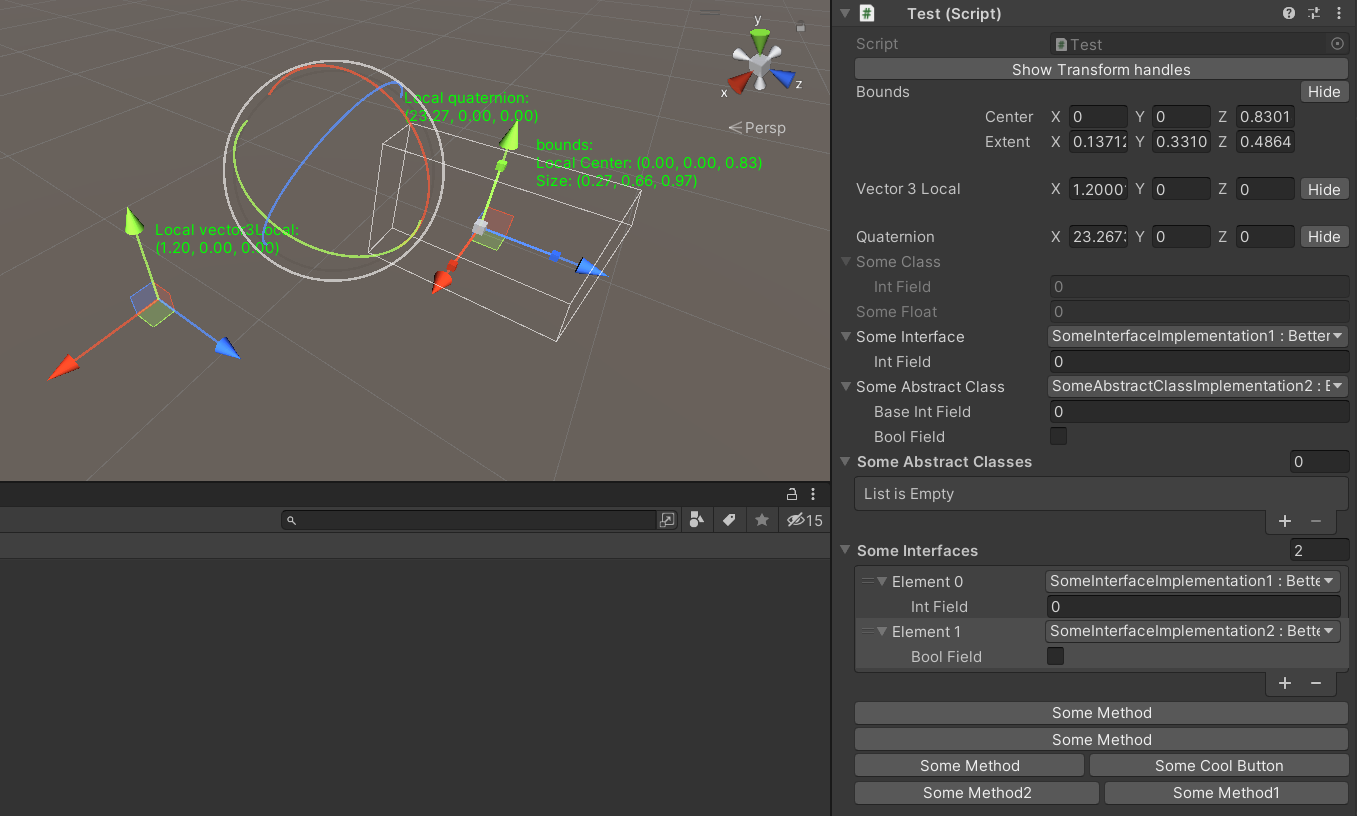
이 패키지는 다음과 같은 기능을 제공합니다.
이 패키지에는 더 나은 드롭 다운이있는 서랍의 기본 클래스가 포함되어 있습니다.
더 나은 드롭 다운에는 다음이 포함됩니다.
Unity Inspector의 더 나은 드롭 다운으로 인터페이스 구현, 열거 값을 선택할 수 있습니다.
또한 깃발 열거를 지원합니다.
용법:
 [ Select ] [ SerializeReference ]
private ISomeInterface someInterface ;

[ Select ] [ SerializeReference ]
private SomeAbstractClass someAbstractClass ;

[ Select ( typeof ( SomeAbstractClass ) ) ] [ SerializeReference ]
private List < SomeAbstractClass > someAbstractClasses ;

[ Select ( typeof ( ISomeInterface ) ) ] [ SerializeReference ]
private List < ISomeInterface > someInterfaces ;

[ Select ] [ SerializeField ]
private KeyCode keyCode ; Select Attribute와 유사하지만 자체 선택 모음을 정의 할 수 있습니다.
용법:
 [ Dropdown ( "Method()" ) ] [ SerializeField ]
private List < int > someInts ;

[ Dropdown ( "Method()" ) ] [ SerializeField ]
private List < int > someInts ;
이 옵션을 사용하려면 다른 클래스에서 정보 selectorName 을 지원합니다 r:
용법:
 [ Dropdown ( "r:OtherClass.StaticFieldOrProperty" ) ] [ SerializeField ]
private List < int > someInts ;

[ Dropdown ( "r:OtherClass.StaticMethod()" ) ] [ SerializeField ]
private List < int > someInts ;

[ Dropdown ( "r:Singleton.Instance.Method()" ) ] [ SerializeField ]
private List < int > someInts ;

[ Dropdown ( "r:Singleton.Instance.Method()" ) ] [ SerializeField ]
private List < int > someInts ; Unity Inspector에서 필드를 클릭하여 객체 미리보기를 볼 수 있습니다.
텍스처 및 스프라이트 뿐만 아니라 장면 객체 및 사전 랩 객체에 대한 미리보기를 지원합니다.
용법:
 [ Preview ] [ SerializeField ]
private Sprite sprite ;

[ Preview ] [ SerializeField ]
private SomeMonobehaviour someMonobehaviour ; Unity Inspector에서 필드 수정을 비활성화 할 수 있지만 표시를 유지할 수 있습니다.
용법:
 [ ReadOnlyField ] [ SerializeField ]
private SomeClass someClass ;

[ ReadOnlyField ] [ SerializeField ]
private float someFloat ;

[ ReadOnlyField ] [ TextArea ( 5 , 10 ) ] [ SerializeField ]
private string someString ; Unity Inspector의 필드에 대한 전체 크기의 텍스처를 그릴 수 있습니다. 텍스처를 얻으려면 텍스처 림 포트 창과 오른쪽 열린 컨텍스트 메뉴 -> iconheaderattribute로 변환합니다.
용법:
 [ IconHeader ( "TEXTURE_GUID" ) ] [ SerializeField ]
private string oldName ; UnityEngine.object에서 inheretex 유형으로 Fullsized Inspector를 필드 아래에 그릴 수 있습니다.
용법:
 [ DrawInspector ] [ SerializeField ]
private SomeScriptable scriptable ; Unity Inspector에서 레이블 이름을 바꿀 가능성을 제공합니다.
용법:
 [ RenameField ( "New Name" ) ] [ SerializeField ]
private string oldName ; 핸들을 드래그하여 벡터 3/vector2/Quaternion/경계에 대한 값을 설정할 수 있습니다.
[GizmoLocal] MonoBehaviour Unity Inspector에서만 작동합니다.
용법:
 [ Gizmo ]
[ SerializeField ] private Bounds bounds ;

[ Gizmo ]
[ SerializeField ] private Vector3 vector3 ;

[ Gizmo ]
[ SerializeField ] private Quaternion quaternion ;

[ GizmoLocal ]
[ SerializeField ] private Bounds boundsLocal ;

[ GizmoLocal ]
[ SerializeField ] private Vector3 vector3Local ;

[ GizmoLocal ]
[ SerializeField ] private Quaternion quaternionLocal ; Unity Inspector의 방법에 대한 버튼을 표시 할 가능성을 제공합니다.
사용법 :
 ///Default usage of attribute.
[ EditorButton ]
private void SomeMethod ( )
{
//Some code.
}

///This button will call method with predefined parameters.
///When invokeParams not specified will call with null.
[ EditorButton ( invokeParams : 10f ) ]
private void SomeMethod ( float floatValue )
{
//Some code.
}

///This button will call method with predefined parameters.
///When invokeParams not specified will call with null.
[ EditorButton ( invokeParams : new object [ ] { 10f , 10 } ) ]
private void SomeMethod ( float floatValue , int intValue )
{
//Some code.
}

/// This button will be in the same row with button for SomeMethod2.
/// But will be in the second position.
/// When captureGroup not specified each button placed in separate row.
/// When priority not specified buttons in one row sorted by order in code.
[ EditorButton ( captureGroup : 1 , priority : 2 ) ]
private void SomeMethod1 ( )
{
//Some code.
}

[ EditorButton ( captureGroup : 1 , priority : 1 ) ]
private void SomeMethod2 ( )
{
//Some code.
}

/// This button will have name "Some Cool Button".
/// When displayName not specified or null/empty/whitespace button
/// will have name same as method.
[ EditorButton ( displayName : "Some Cool Button" ) ]
private void SomeMethod ( )
{
//Some code
}
더 많은 특정 옵션에서 EditorButtonAttribute 의 생성자를 확인할 수 있습니다.
설치 방법






