qdrant client
v1.12.1


Qdrant 벡터 검색 엔진 용 Python Client Library.
Qdrant 벡터 검색 엔진의 클라이언트 라이브러리 및 SDK.
라이브러리에는 모든 qdrant API에 대한 유형 정의가 포함되어 있으며 동기화 및 비동기 요청을 모두 수행 할 수 있습니다.
클라이언트는 모든 qdrant API 메소드를 직접 호출 할 수 있습니다. 또한 초기 컬렉션 업로드, 예를 들어 자주 필요한 작업을위한 몇 가지 추가 도우미 방법을 제공합니다.
자세한 내용은 QuickStart를 참조하십시오!
Python Client API 문서는 Python-Client.qdrant.tech에서 제공됩니다
pip install qdrant-client
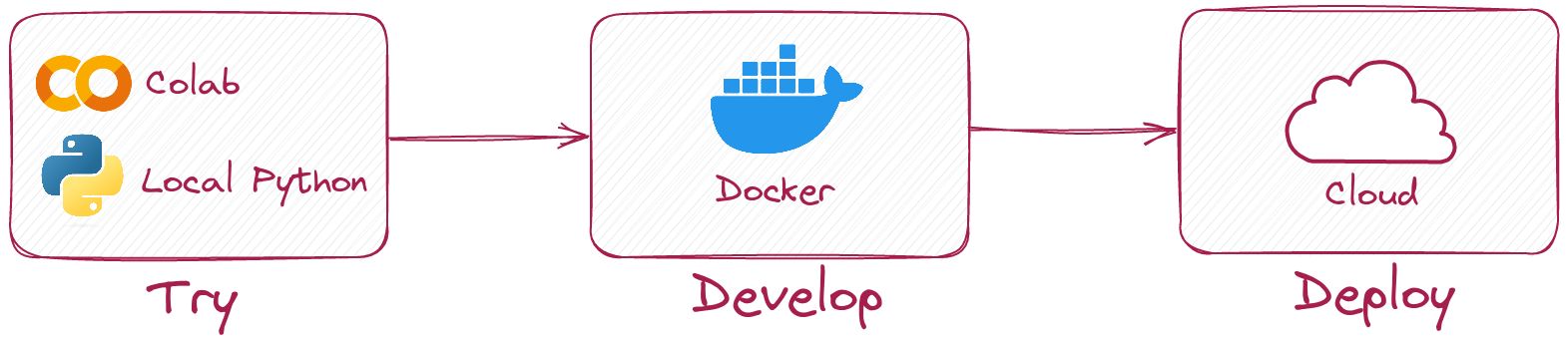
Python Client를 사용하면 Qdrant 서버를 실행하지 않고 로컬 모드에서 동일한 코드를 실행할 수 있습니다.
다음과 같이 클라이언트를 초기화하기 만하면됩니다.
 from qdrant_client import QdrantClient

client = QdrantClient ( ":memory:" )
# or
client = QdrantClient ( path = "path/to/db" )  # Persists changes to disk
로컬 모드는 개발, 프로토 타이핑 및 테스트에 유용합니다.
pip install qdrant-client[fastembed]
Fastembed는 CPU에서 빠른 벡터 임베딩을 만드는 라이브러리입니다. ONNX 런타임을 기반으로하며 GPU와 같은 성능으로 CPU에서 추론을 실행할 수 있습니다.
Qdrant 클라이언트는 Fastembed를 사용하여 임베딩을 생성하고 Qdrant에 업로드 할 수 있습니다. 이를 통해 API를 단순화하고보다 직관적으로 만들 수 있습니다.
 from qdrant_client import QdrantClient

# Initialize the client
client = QdrantClient ( ":memory:" )  # or QdrantClient(path="path/to/db")

# Prepare your documents, metadata, and IDs
docs = [ "Qdrant has Langchain integrations" , "Qdrant also has Llama Index integrations" ]
metadata = [
    { "source" : "Langchain-docs" },
    { "source" : "Linkedin-docs" },
]
ids = [ 42 , 2 ]

# Use the new add method
client . add (
    collection_name = "demo_collection" ,
    documents = docs ,
    metadata = metadata ,
    ids = ids
)

search_result = client . query (
    collection_name = "demo_collection" ,
    query_text = "This is a query document"
)
print ( search_result )
Fastembed는 또한 더 빠른 임베딩을 위해 GPU를 활용할 수 있습니다. GPU 지원을 활성화하려면 설치하십시오
pip install ' qdrant-client[fastembed-gpu] ' from qdrant_client import QdrantClient
# Initialize the client
client = QdrantClient ( ":memory:" ) # or QdrantClient(path="path/to/db")
client . set_model ( client . DEFAULT_EMBEDDING_MODEL , providers = [ "CUDAExecutionProvider" , "CPUExecutionProvider" ])참고 :
fastembed-gpu및fastembed는 상호 배타적입니다. 그중 하나만 설치할 수 있습니다.이전에
fastembed설치 한 경우fastembed-gpu설치하려면 새로운 환경에서 시작해야 할 수도 있습니다.
Qdrant 서버에 연결하려면 호스트와 포트를 간단히 지정합니다.
 from qdrant_client import QdrantClient

client = QdrantClient ( host = "localhost" , port = 6333 )
# or
client = QdrantClient ( url = "http://localhost:6333" )
Docker를 사용하여 로컬로 Qdrant 서버를 실행할 수 있습니다.
docker run -p 6333:6333 qdrant/qdrant:latestQdrant 저장소에서 더 많은 런치 옵션을 참조하십시오.
Qdrant Cloud를 등록하고 사용하여 1GB RAM으로 무료 계층 계정을 얻을 수 있습니다.
클러스터와 API 키가 있으면 다음과 같이 연결할 수 있습니다.
 from qdrant_client import QdrantClient

qdrant_client = QdrantClient (
    url = "https://xxxxxx-xxxxx-xxxxx-xxxx-xxxxxxxxx.us-east.aws.cloud.qdrant.io:6333" ,
    api_key = "<your-api-key>" ,
)새 컬렉션을 만듭니다
 from qdrant_client . models import Distance , VectorParams

client . create_collection (
    collection_name = "my_collection" ,
    vectors_config = VectorParams ( size = 100 , distance = Distance . COSINE ),
)
벡터를 컬렉션에 삽입하십시오
 import numpy as np
from qdrant_client . models import PointStruct

vectors = np . random . rand ( 100 , 100 )
# NOTE: consider splitting the data into chunks to avoid hitting the server's payload size limit
# or use `upload_collection` or `upload_points` methods which handle this for you
# WARNING: uploading points one-by-one is not recommended due to requests overhead
client . upsert (
    collection_name = "my_collection" ,
    points = [
        PointStruct (
            id = idx ,
            vector = vector . tolist (),
            payload = { "color" : "red" , "rand_number" : idx % 10 }
        )
        for idx , vector in enumerate ( vectors )
    ]
)
유사한 벡터를 검색하십시오
 query_vector = np . random . rand ( 100 )
hits = client . search (
    collection_name = "my_collection" ,
    query_vector = query_vector ,
    limit = 5  # Return 5 closest points
)
필터링 조건이있는 유사한 벡터를 검색하십시오
 from qdrant_client . models import Filter , FieldCondition , Range

hits = client . search (
    collection_name = "my_collection" ,
    query_vector = query_vector ,
    query_filter = Filter (
        must = [  # These conditions are required for search results
            FieldCondition (
                key = 'rand_number' ,  # Condition based on values of `rand_number` field.
                range = Range (
                    gte = 3  # Select only those results where `rand_number` >= 3
                )
            )
        ]
    ),
    limit = 5  # Return 5 closest points
)
문서에서 더 많은 예를보십시오!
GRPC로 업로드하는 컬렉션을 활성화하려면 다음 초기화를 사용하십시오.
 from qdrant_client import QdrantClient

client = QdrantClient ( host = "localhost" , grpc_port = 6334 , prefer_grpc = True )버전 1.6.1에서 시작하여 모든 Python 클라이언트 메소드는 비동기 버전으로 제공됩니다.
이를 사용하려면 QdrantClient 대신 AsyncQdrantClient 가져 오십시오.
 from qdrant_client import AsyncQdrantClient , models
import numpy as np
import asyncio

async def main ():
    # Your async code using QdrantClient might be put here
    client = AsyncQdrantClient ( url = "http://localhost:6333" )

    await client . create_collection (
        collection_name = "my_collection" ,
        vectors_config = models . VectorParams ( size = 10 , distance = models . Distance . COSINE ),
    )

    await client . upsert (
        collection_name = "my_collection" ,
        points = [
            models . PointStruct (
                id = i ,
                vector = np . random . rand ( 10 ). tolist (),
            )
            for i in range ( 100 )
        ],
    )

    res = await client . search (
        collection_name = "my_collection" ,
        query_vector = np . random . rand ( 10 ). tolist (),  # type: ignore
        limit = 10 ,
    )

    print ( res )

asyncio . run ( main ())
GRPC 및 REST API는 모두 비동기 모드로 지원됩니다. 더 많은 예가 여기에서 찾을 수 있습니다.
이 프로젝트는 git 후크를 사용하여 코드 포맷터를 실행합니다.
PIP3로 pre-commit 설치하면 pip3 install pre-commit 및 pre-commit install 로 후크를 설정하십시오.
사전 커밋에는 Python> = 3.8이 필요합니다





