vscode numbered bookmarks
v8.0.3

Numbered Bookmarks is an extension created for Visual Studio Code. If you find it useful, please consider supporting it.
It helps you to navigate in your code, moving between important positions easily and quickly. No more need to search for code. All of this in in Delphi style.
Numbered Bookmarks: Toggle Bookmark '#number' Mark/unmark the current position with a numbered bookmarkNumbered Bookmarks: Jump to Bookmark '#number' Move the cursor to the numbered bookmarkNumbered Bookmarks: List List all bookmarks from the current fileNumbered Bookmarks: List from All Files List all bookmarks from the all filesNumbered Bookmarks: Clear remove all bookmarks from the current fileNumbered Bookmarks: Clear from All Files remove all bookmarks from the all filesBoth Toggle Bookmark and Jump to Bookmark commands are numbered from 0 to 9
The Numbered Bookmark 0 has been reactivated in PR #16, but because of this issue it has no keyboard shortcut defined. If sometime in the future these OS related limitation disappears, the shortcuts will be restored.
MacOS users should be aware that some commands shortcuts should conflict with native shortcuts, and uses
Cmdinstead ofCtrl(Cmd + Shift + 3andCmd + Shift + 4)
You can easily Mark/Unmark bookmarks on any position.
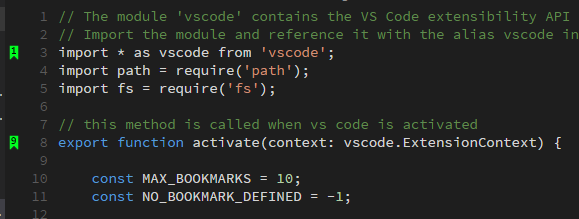
The default shortcuts are numbered from 0 to 9:
Toggle Bookmark #(Ctrl + Shift + #)
The default shortcuts are numbered from 0 to 9:
Jump to Bookmark #(Ctrl + #)
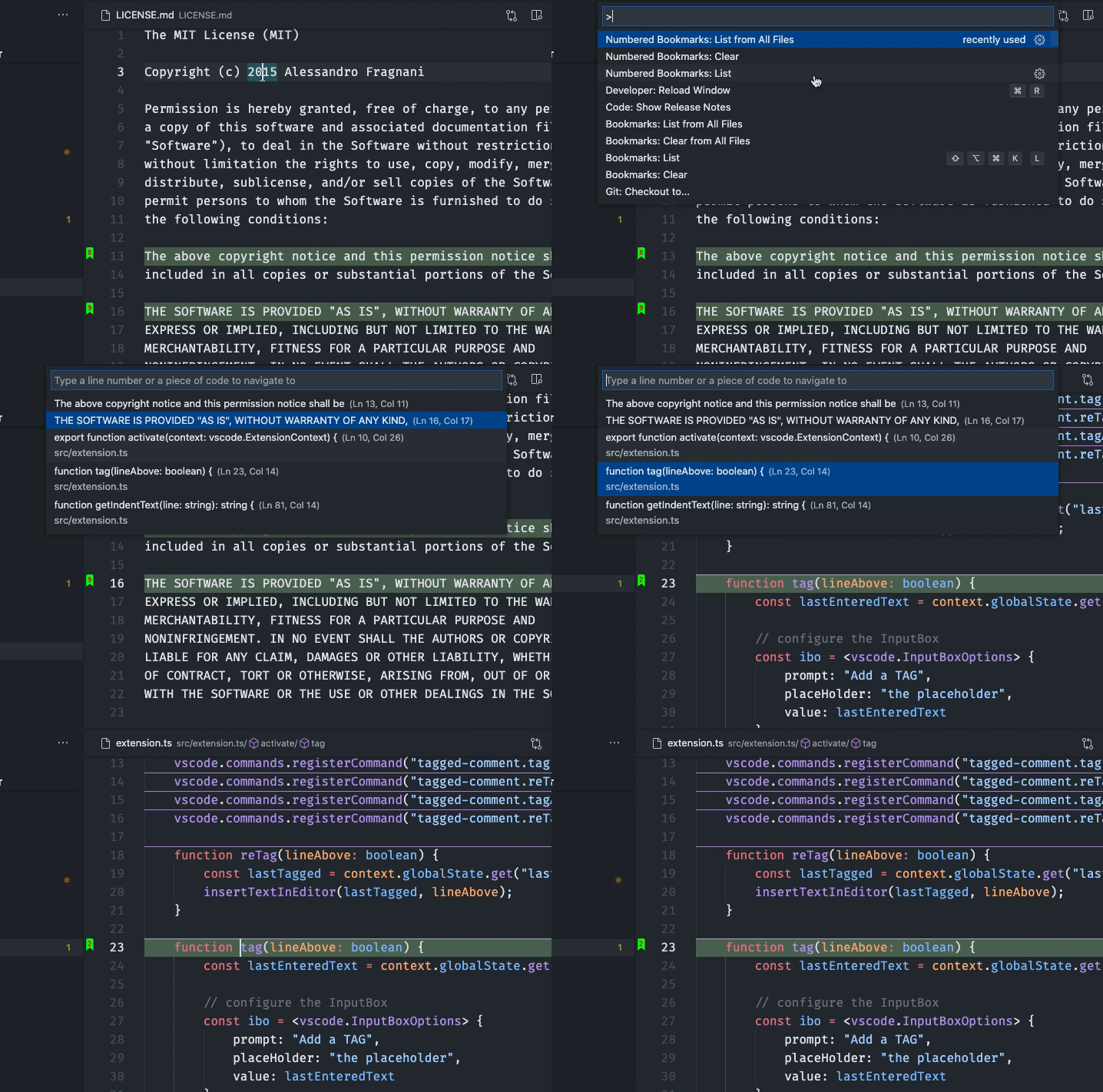
List all bookmarks from the current file and easily navigate to any one. It shows you the line contents and temporarily scroll to that position.
List all bookmarks from all files and easily navigate to any one. It shows you the line contents and temporarily scroll to that position.
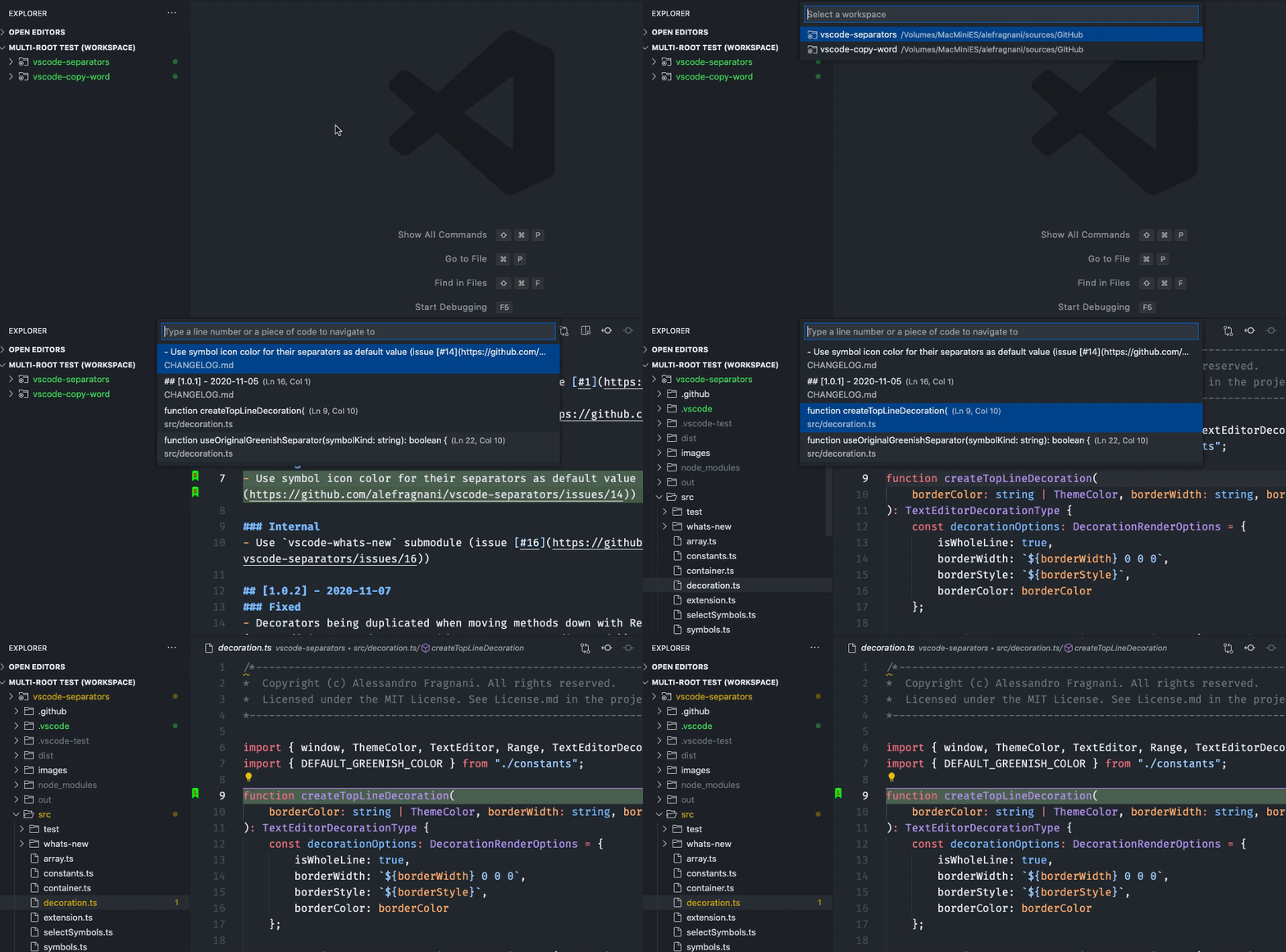
When you work with multi-root workspaces, the extension can manage the bookmarks individually for each folder.
Simply define saveBookmarksInProject as true on your User Settings or in the Workspace Settings, and when you run the Numbered Bookmarks: List from All Files command, you will be able to select from which folder the bookmarks will be shown.
The extension now fully supports Remote Development scenarios.
It means that when you connect to a remote location, like a Docker Container, SSH or WSL, the extension will be available, ready to be used.
You don't need to install the extension on the remote anymore.
Better yet, if you use numberedBookmarks.saveBookmarksInProject setting defined as true, the bookmarks saved locally will be available remotely, and you will be able to navigate and update the bookmarks. Just like it was a resource from folder you opened remotely.
false by default). Set to true and it will save the bookmarks in .vscodenumbered-bookmarks.json file. "numberedBookmarks.saveBookmarksInProject": truefalse by default) "numberedBookmarks.showBookmarkNotDefinedWarning": true "numberedBookmarks.navigateThroughAllFiles"Possible Values:
| Value | Explanation |
|---|---|
false |
default - same behavior as today |
replace |
you can't have the same numbered bookmark in different files |
allowDuplicates |
you can have the same numbered bookmark in different files, and if you jump repeatedly to the same number, it will look on other files |
true by default) "numberedBookmarks.experimental.enableNewStickyEngine": falsefalse by default) "numberedBookmarks.keepBookmarksOnLineDelete": trueLimitation: It does not support
Undooperations. It means that, once you delete a line and the bookmark is moved to the next available line, theUndooperation won't move the bookmark back to the previous line. The next line is now the new location of the bookmark.
"numberedBookmarks.gutterIconFillColor" "numberedBookmarks.gutterIconNumberColor"Choose the location where the bookmarked line will be revealed (center by default)
top: Reveals the bookmarked line at the top of the editorcenter: Reveals the bookmarked line in the center of the editor "numberedBookmarks.revealPosition": "center" "workbench.colorCustomizations": {
"numberedBookmarks.lineBackground": "#157EFB22"
} "workbench.colorCustomizations": {
"numberedBookmarks.lineBorder": "#FF0000"
} "workbench.colorCustomizations": {
"numberedBookmarks.overviewRuler": "#157EFB88"
}For any of the Color settings, you can use color names
blue, RGBrgb(0, 255, 37), RGBArgba(0, 255, 37, 0.2)or HEX#00ff25format.
The bookmarks are saved per session for the project that you are using. You don't have to worry about closing files in Working Files. When you reopen the file, the bookmarks are restored.
It also works even if you only preview a file (simple click in TreeView). You can put bookmarks in any file and when you preview it again, the bookmarks will be there.
GPL-3.0 © Alessandro Fragnani