ai assistant electron
1.0.0

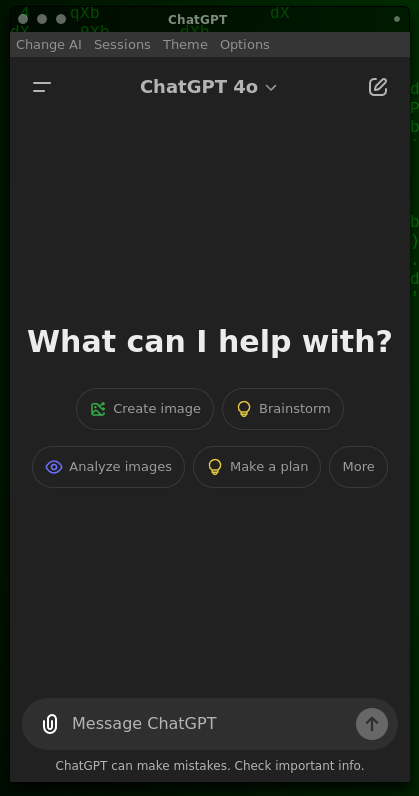
This project is MAINTAINED but is migrating to premium "Vidyā" GUI which will be close-sourced.
If you want to follow and support the project, please join our Discord (it's French).
| OS | Location of folder for CSS themes |
|---|---|
| Windows | C:Users{username}AppDataRoamingchatgpt-electron |
| macOS | /Users/{username}/Library/Application Support/chatgpt-electron |
| Linux | /home/{username}/.config/chatgpt-electron |
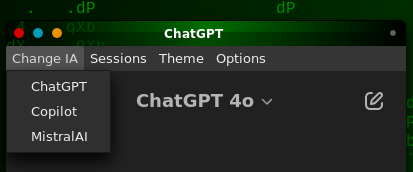
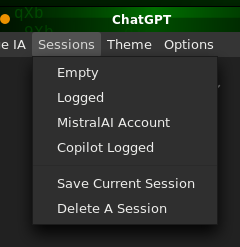
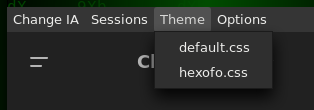
npm i
npm run package
This will create a folder (ie: out/chatgpt-electron-linux-x64) which contains the executable file for your system.
You can directly run out/chatgpt-electron-linux-x64/chatgpt-electron or you may want to use it in a "widget":
Move the executable folder out/chatgpt-electron-win32-x64 anywhere you like it
Run chatgpt-electron.exe and enjoy!
Move the executable folder out/chatgpt-electron-darwin-arm64 anywhere you like it
Run chatgpt-electron.app and enjoy!
Move the executable folder out/chatgpt-electron-linux-x64 anywhere you like it
run chatgpt-electron-linux-x64/chatgpt-electron and enjoy!
apt install xdotoolapt install wmctrlTo make a shortcut to open a controlled window from your XFCE panel, you need to call your ./open_chatgpt.sh.
The goal of ./open_chatgpt.sh is to find the Electron window then resize it at will.
It works with a package output and I did NOT tested it with deb and rpm.
Right click on your XFCE Panel > "Panel" > "Add new items..."
Double-click on "Launcher":
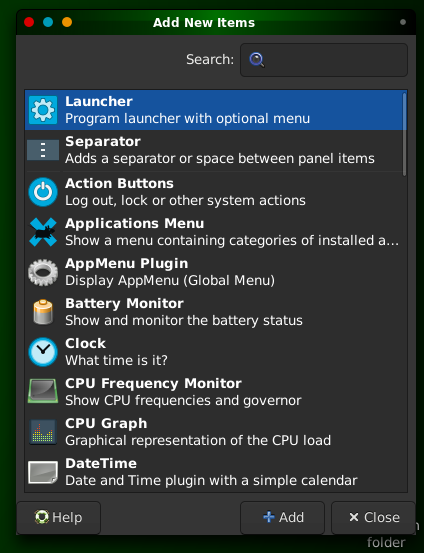
In the "Launcher" window, press the "+" button.
In the "Edit Launcher" window, configure the Launcher so the command will open your open_chatgpt.sh from its path:
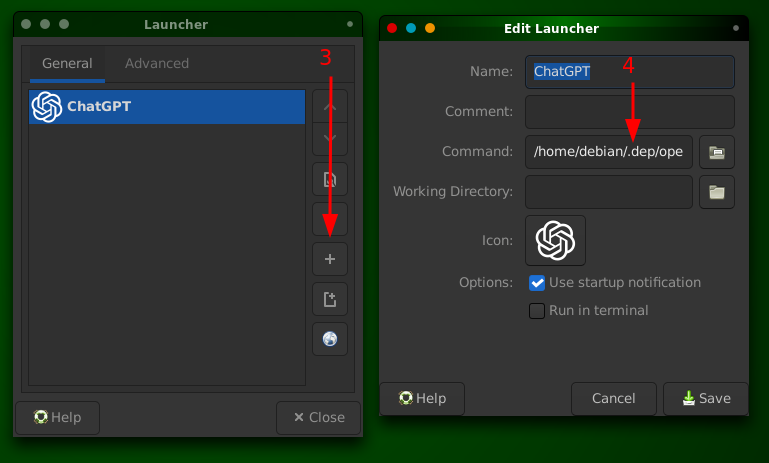
Optional: Name the shortcut and select an Icon (you can copy it from GPT.svg)
Save, Close, Enjoy!
This was made by Axel Andaroth (aka Anda Pirate) for personal use with Debian 12 XFCE.
Source is open because sharing is caring.
Thanks for your support!





