Yoopta Editor
v4.9.3

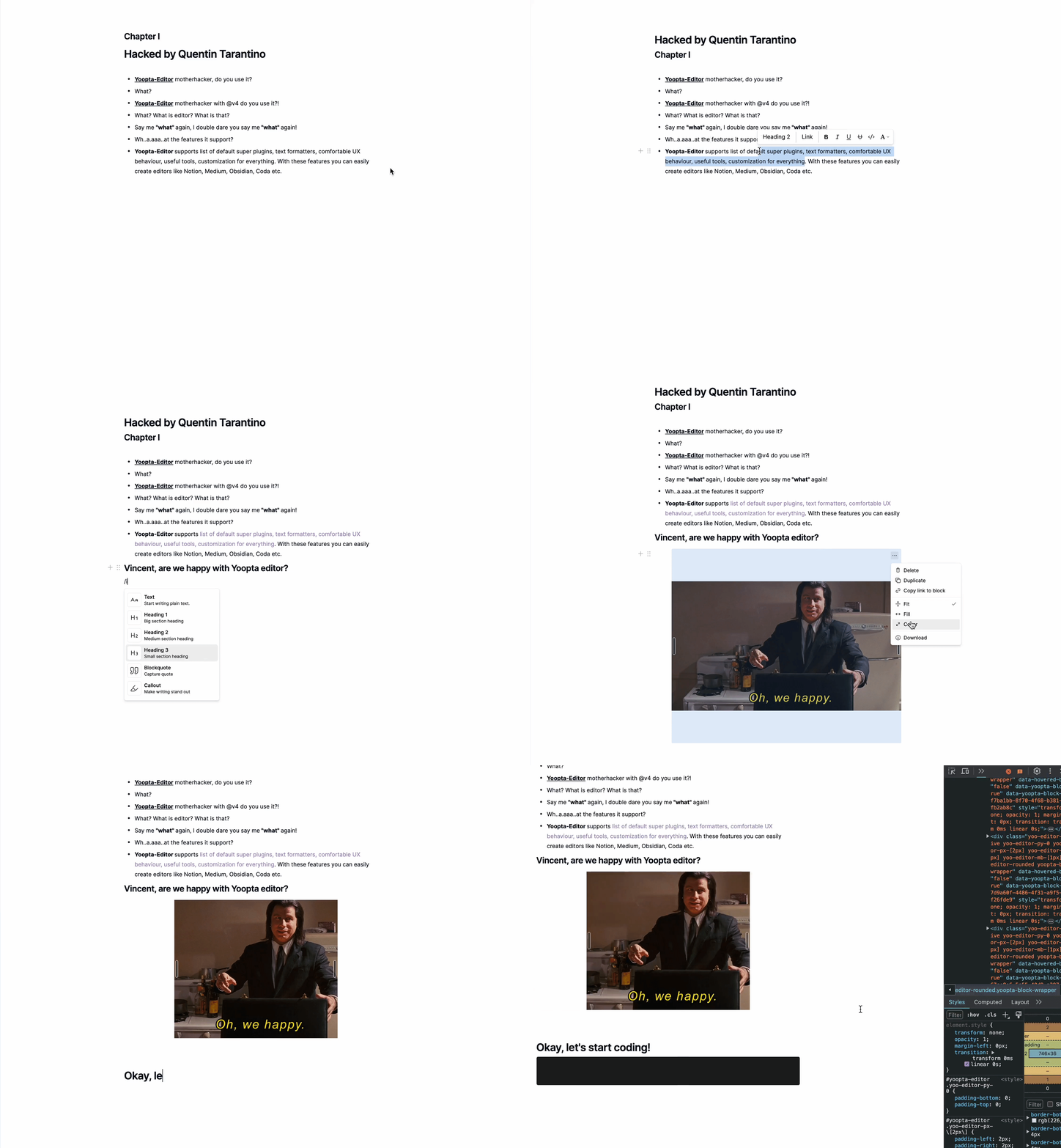
Yoopta-編輯器是為React應用程序構建的免費的開源豐富文本編輯器。它包含功能,可讓您構建一個功能強大且用戶友好的編輯器,例如概念,工藝,尾聲,中等。
使用Yoopta-editor,您可以自定義所有內容以完全適合所需的內容。是否想調整外觀,添加酷功能或製作完全自定義的用戶界面?沒問題。 Yoopta-editor使您可以靈活地完成所有操作,從而輕鬆為您的項目創建完美的工具。所有這些都是可自定義,可擴展且易於設置的!
核
插件
工具
標記
首先,使用至少一個插件安裝同伴依賴項和Yoopta Core軟件包
 # # slate, slate-react, react, react-dom - peer dependencies
# # @yoopta/editor - core package
yarn add slate slate-react @yoopta/editor @yoopta/paragraph
# or
npm install slate slate-react @yoopta/editor @yoopta/paragraph從核心軟件包@yoopta/編輯器編輯器組件和函數中導入以創建編輯器實例
 import YooptaEditor , { createYooptaEditor } from '@yoopta/editor' ;

const plugins = [ ... ] ;

export default function Editor ( ) {
  const editor = useMemo ( ( ) => createYooptaEditor ( ) , [ ] ) ;
   const [ value , setValue ] = useState < YooptaContentValue > ( ) ;

  const onChange = ( value : YooptaContentValue , options : YooptaOnChangeOptions ) => {
    setValue ( value ) ;
  } ;

  return (
    < div >
      < YooptaEditor
        editor = { editor }
        plugins = { plugins }
        value = { value }
        onChange = { onChange }
      />
    </ div >
  ) ;
}
Yooptaeditor組件的可用道具
 type YooptaEditor = {
  /* editor instance */
  editor : YooEditor ;
  /* list of plugins */
  plugins : YooptaPlugin [ ] ;
  /* list of marks */
  marks ?: YooptaMark < any > [ ] ;
  /* Value. [Default] - undefined */
  value ?: YooptaContentValue ;
  /* Change handler  */
  onChange ?: ( value : YooptaContentValue , options : YooptaOnChangeOptions ) => void ;
  /* autoFocus. [Default] - true */
  autoFocus ?: boolean ;
  /* className - class name */
  className ?: string ;
  /* These props define the area for the selection box.
  Good practice - passing parent element.
  [Default] - document */
  selectionBoxRoot ?: HTMLElement | React . MutableRefObject < HTMLElement | null > | false ;
  children ?: React . ReactNode ;
  /* Props for tools. You can get access to any passed tools using `useTools` hook from @yoopta/editor  */
  tools ?: Partial < Tools > ;
  placeholder ?: string ;
  readOnly ?: boolean ;
  /* Width. [Default] - 400px. Will be DEPRECATED, use style object  */
  width ?: number | string ;
  /* Style CSS Object. [Default] - { width: '400px', paddingBottom: '100px' } */
  style ?: number | string ;
  /* Id for your editor instance. Can be useful for multiple editors */
  id ?: number | string ;
} ;這是可用插件的列表
 import YooptaEditor , { createYooptaEditor } from '@yoopta/editor' ;
import Paragraph from '@yoopta/paragraph' ;
import Blockquote from '@yoopta/blockquote' ;

const plugins = [ Paragraph , Blockquote ] ;

export default function Editor ( ) {
  const editor = useMemo ( ( ) => createYooptaEditor ( ) , [ ] ) ;
  const [ value , setValue ] = useState < YooptaContentValue > ( ) ;
  const onChange = ( value : YooptaContentValue , options : YooptaOnChangeOptions ) => {
    setValue ( value ) ;
  } ;

  return (
    < div >
      < YooptaEditor
        editor = { editor }
        placeholder = "Type text.."
        value = { value }
        onChange = { onChange }
        // here we go
        plugins = { plugins }
      />
    </ div >
  ) ;
}
使用插件檢查代碼
Yoopta-編輯器提供了有用的工具,可以在與編輯器一起工作時為您提供幫助
這是可用工具的列表
使用工具檢查代碼
 // IMPORT TOOLS
import LinkTool , { DefaultLinkToolRender } from '@yoopta/link-tool' ;
import ActionMenu , { DefaultActionMenuRender } from '@yoopta/action-menu-list' ;
import Toolbar , { DefaultToolbarRender } from '@yoopta/toolbar' ;

// Tools should be defined outside component
const TOOLS = {
  Toolbar : {
    tool : Toolbar ,
    render : DefaultToolbarRender ,
  } ,
  ActionMenu : {
    tool : ActionMenu ,
    render : DefaultActionMenuRender ,
  } ,
  LinkTool : {
    tool : LinkTool ,
    render : DefaultLinkToolRender ,
  } ,
} ;

export default function Editor ( ) {
  const editor = useMemo ( ( ) => createYooptaEditor ( ) , [ ] ) ;
  const [ value , setValue ] = useState < YooptaContentValue > ( ) ;
  const onChange = ( value : YooptaContentValue , options : YooptaOnChangeOptions ) => {
    setValue ( value ) ;
  } ;

  return (
    < div >
      < YooptaEditor
        editor = { editor }
        plugins = { plugins }
        placeholder = "Type text.."
        value = { value }
        onChange = { onChange }
        // here we go
        tools = { TOOLS }
      />
    </ div >
  ) ;
}標記是簡單的文本格式
這是@yoopta/標記包的可用標記的列表
 // IMPORT MARKS
import { Bold , Italic , CodeMark , Underline , Strike , Highlight } from '@yoopta/marks' ;

const MARKS = [ Bold , Italic , CodeMark , Underline , Strike , Highlight ] ;

export default function Editor ( ) {
  const editor = useMemo ( ( ) => createYooptaEditor ( ) , [ ] ) ;
   const [ value , setValue ] = useState < YooptaContentValue > ( ) ;

  const onChange = ( value : YooptaContentValue , options : YooptaOnChangeOptions ) => {
    setValue ( value ) ;
  } ;

  return (
    < div >
      < YooptaEditor
        editor = { editor }
        placeholder = "Type text.."
        plugins = { plugins }
        value = { value }
        onChange = { onChange }
        tools = { TOOLS }
        // here we go
        marks = { MARKS }
      />
    </ div >
  ) ;
}
用標記檢查代碼
在下面找到在項目中使用Yoopta-編輯器的有用示例。這些示例將幫助您快速入門,並向您展示將編輯器集成和自定義您的需求的容易。
好吧,走吧吧!
如果您發現Yoopta-編輯器對您的項目有用且有價值,我會請您通過在Github上給出此倉庫來表示支持。您的讚賞對我來說意義重大,並幫助我成長並繼續改善社區的編輯。 ?
嘿!如果您發現此項目有用或對您的工作有幫助,請考慮支持它以確保不斷的改進和開發。您的捐款有助於保持項目的活力,並讓我投入更多的時間和資源來維護和增強其。
您可以通過:
任何大小的貢獻都將受到高度讚賞,並可以幫助我維護項目並添加令人興奮的新功能。謝謝您的支持!
 packages/
├── core - core components of the editor
├── marks - text marks
├── plugins - editor plugin extensions
├── tools - tools packages
└── development - developer playground
如果您準備支持Yoopta-編輯器,則可以做到這一點:
Yoopta-編輯根據MIT許可發布。隨時使用並為您的項目修改它。






