SkeletonView
? 1.31.0

功能•指南•安装•使用•其他•贡献
? README提供其他语言:?? 。 ? 。 ? 。 ? 。 ? 。 ?
如今,几乎所有应用程序都具有异步过程,例如API请求,长期运行过程等。当这些流程正常工作时,通常开发人员会放置加载视图,以向用户展示正在发生的事情。
Skeletonview已被构想以满足这一需求,这是一种优雅的方式,向用户展示正在发生的事情,并为内容准备等待的内容做好准备。
好好享受! ?
| SkeletonView指南 - 入门 | 如何在ikh4ever Studio中使用Swift 5.2中使用骨架视图创建加载视图 | 在应用程序(Swift 5)中创建骨骼加载视图-Xcode 11,2020 by ios Academy | CómoCrearunaanimacióndeCarga de Datos en ios by Mouredev |
pod 'SkeletonView' github "Juanpe/SkeletonView"dependencies: [
. package ( url : " https://github.com/Juanpe/SkeletonView.git " , from : " 1.7.0 " )
]重要的!
由于版本1.30.0,
SkeletonView支持XCFrameWorks ,因此,如果要以XCFramework的形式安装它,请改用此仓库。
使用SkeletonView只需3个步骤:
1️⃣在适当的位置导入SkeletonView。
import SkeletonView 2️⃣现在,设置哪些视图将是skeletonables 。您可以通过两种方式实现这一目标:
使用代码:
avatarImageView . isSkeletonable = true使用IB/故事板:
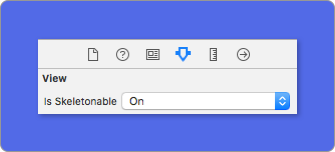
3️⃣一旦设置了视图,就可以显示骨架。为此,您有4个选择:
 ( 1 ) view . showSkeleton ( )                 // Solid
( 2 ) view . showGradientSkeleton ( )         // Gradient
( 3 ) view . showAnimatedSkeleton ( )         // Solid animated
( 4 ) view . showAnimatedGradientSkeleton ( ) // Gradient animated
预览
| 坚硬的 | 坡度 | 扎实的动画 | 渐变动画 |
 |  |  |  |
重要的!
SkeletonView是递归的,因此,如果要在所有可骨架视图中显示骨架,则只需要在主容器视图中调用显示方法即可。例如,使用UIViewControllers。
SkeletonView与UITableView和UICollectionView兼容。
uitableview
如果您想在UITableView中显示骨架,则需要符合SkeletonTableViewDataSource协议。
 public protocol SkeletonTableViewDataSource : UITableViewDataSource {
    func numSections ( in collectionSkeletonView : UITableView ) -> Int // Default: 1
    func collectionSkeletonView ( _ skeletonView : UITableView , numberOfRowsInSection section : Int ) -> Int
    func collectionSkeletonView ( _ skeletonView : UITableView , cellIdentifierForRowAt indexPath : IndexPath ) -> ReusableCellIdentifier
    func collectionSkeletonView ( _ skeletonView : UITableView , skeletonCellForRowAt indexPath : IndexPath ) -> UITableViewCell ? // Default: nil
    func collectionSkeletonView ( _ skeletonView : UITableView , prepareCellForSkeleton cell : UITableViewCell , at indexPath : IndexPath )
}如您所见,此协议从UITableViewDataSource继承,因此您可以用骨架协议替换此协议。
该协议具有某些方法的默认实现。例如,在运行时计算每个部分的行数:
 func collectionSkeletonView ( _ skeletonView : UITableView , numberOfRowsInSection section : Int ) -> Int
// Default:
// It calculates how many cells need to populate whole tableview
重要的!
如果您返回上述方法中的
UITableView.automaticNumberOfSkeletonRows,则其作用类似于默认行为(即它计算了填充整个tableview需要多少个单元格)。
您只需要实现一种方法来让骨架知道单元格标识符。此方法没有默认实现:
 func collectionSkeletonView ( _ skeletonView : UITableView , cellIdentifierForRowAt indexPath : IndexPath ) -> ReusableCellIdentifier {
   return " CellIdentifier "
}
默认情况下,图书馆从每个Indexpath中列出了单元格,但是如果您想在出现骨架之前进行一些更改,也可以这样做:
 func collectionSkeletonView ( _ skeletonView : UITableView , skeletonCellForRowAt indexPath : IndexPath ) -> UITableViewCell ? {
    let cell = skeletonView . dequeueReusableCell ( withIdentifier : " CellIdentifier " , for : indexPath ) as? Cell
    cell ? . textField . isHidden = indexPath . row == 0
    return cell
}
如果您希望将Deque零件留到库,则可以使用此方法配置单元格:
 func collectionSkeletonView ( _ skeletonView : UITableView , prepareCellForSkeleton cell : UITableViewCell , at indexPath : IndexPath ) {
    let cell = cell as? Cell
    cell ? . textField . isHidden = indexPath . row == 0
}此外,您可以将标头和页脚骨骼化。您需要符合SkeletonTableViewDelegate协议。
 public protocol SkeletonTableViewDelegate : UITableViewDelegate {
    func collectionSkeletonView ( _ skeletonView : UITableView , identifierForHeaderInSection section : Int ) -> ReusableHeaderFooterIdentifier ? // default: nil
    func collectionSkeletonView ( _ skeletonView : UITableView , identifierForFooterInSection section : Int ) -> ReusableHeaderFooterIdentifier ? // default: nil
}
重要的!
1️⃣如果您使用的是可分解的单元格(
tableView.rowHeight = UITableViewAutomaticDimension),则必须定义estimatedRowHeight。2️⃣当您在
UITableViewCell中添加元素时,应将其添加到contentView,而不是直接到单元格中。self . contentView . addSubview ( titleLabel ) ✅ self . addSubview ( titleLabel )
UicollectionView
对于UICollectionView ,您需要符合SkeletonCollectionViewDataSource协议。
 public protocol SkeletonCollectionViewDataSource : UICollectionViewDataSource {
    func numSections ( in collectionSkeletonView : UICollectionView ) -> Int  // default: 1
    func collectionSkeletonView ( _ skeletonView : UICollectionView , numberOfItemsInSection section : Int ) -> Int
    func collectionSkeletonView ( _ skeletonView : UICollectionView , cellIdentifierForItemAt indexPath : IndexPath ) -> ReusableCellIdentifier
    func collectionSkeletonView ( _ skeletonView : UICollectionView , supplementaryViewIdentifierOfKind : String , at indexPath : IndexPath ) -> ReusableCellIdentifier ? // default: nil
    func collectionSkeletonView ( _ skeletonView : UICollectionView , skeletonCellForItemAt indexPath : IndexPath ) -> UICollectionViewCell ?  // default: nil
    func collectionSkeletonView ( _ skeletonView : UICollectionView , prepareCellForSkeleton cell : UICollectionViewCell , at indexPath : IndexPath )
    func collectionSkeletonView ( _ skeletonView : UICollectionView , prepareViewForSkeleton view : UICollectionReusableView , at indexPath : IndexPath )
}该过程的其余部分与UITableView相同
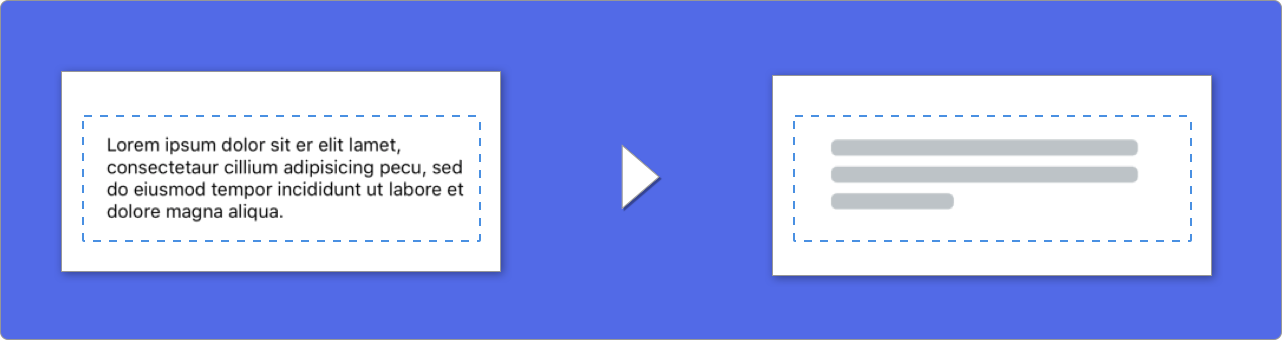
当使用文本元素时, SkeletonView绘制线以模拟文本。
您可以为多线元素设置一些属性。
| 财产 | 类型 | 默认 | 预览 |
|---|---|---|---|
| LastLineFillpercent | CGFloat | 70 |  |
| 线cornerradius | Int | 0 |  |
| 骨骼路线 | CGFloat | 10 | 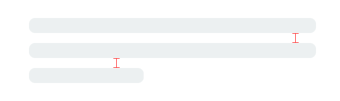 |
| 骨架padding剂 | UIEdgeInsets | .zero | 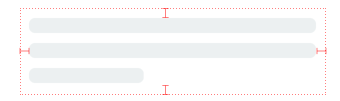 |
| SkeletontextlineHeight | SkeletonTextLineHeight | .fixed(15) |  |
| Skeletontextnumberoflines | SkeletonTextNumberOfLines | .inherited | |
要使用代码修改百分比或半径,请设置属性:
descriptionTextView . lastLineFillPercent = 50
descriptionTextView . linesCornerRadius = 5或者,如果您喜欢使用IB/故事板:
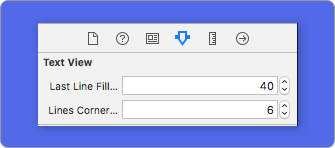
如何定义行数?
默认情况下,行数与numberOfLines属性的值相同。而且,如果设置为零,它将计算需要多少行以填充整个骨架并绘制它。
但是,如果要设置特定数量的骨架线,则可以通过设置skeletonTextNumberOfLines属性来完成。该属性具有两个可能的值,该inherited将返回numberOfLines值和custom(Int)该值返回指定为关联值的线数。
例如:
label . skeletonTextNumberOfLines = 3 // .custom(3)
配x 弃用!UsefontlineHeight已被弃用。您可以使用SkeletonTextlineHeight :
descriptionTextView . skeletonTextLineHeight = . relativeToFont
重要的!
请注意,对于没有多行的视图,单行将被视为最后一行。
骨架具有默认外观。因此,当您不指定颜色,梯度或多行属性时, SkeletonView会使用默认值。
默认值:
UIColor.skeletonDefault (与.clouds相同但适应黑暗模式)SkeletonGradient(baseColor: .skeletonDefault)CGFloatCGFloatIntIntCGFloat (ibinspectable)(带有角落的骨架视图)要获取这些默认值,您可以使用SkeletonAppearance.default 。使用此属性,您也可以设置值:
 SkeletonAppearance . default . multilineHeight = 20
SkeletonAppearance . default . tintColor = . green
配x 弃用!UsefontlineHeight已被弃用。您可以使用textlineHeight :
SkeletonAppearance . default . textLineHeight = . relativeToFont
您可以确定骨骼有色的颜色。您只需要作为参数传递的颜色或梯度即可。
使用纯色
view . showSkeleton ( usingColor : UIColor . gray ) // Solid
// or
view . showSkeleton ( usingColor : UIColor ( red : 25.0 , green : 30.0 , blue : 255.0 , alpha : 1.0 ) )
使用梯度
 let gradient = SkeletonGradient ( baseColor : UIColor . midnightBlue )
view . showGradientSkeleton ( usingGradient : gradient ) // Gradient
此外, SkeletonView具有20种平面颜色?
UIColor.turquoise, UIColor.greenSea, UIColor.sunFlower, UIColor.flatOrange ...
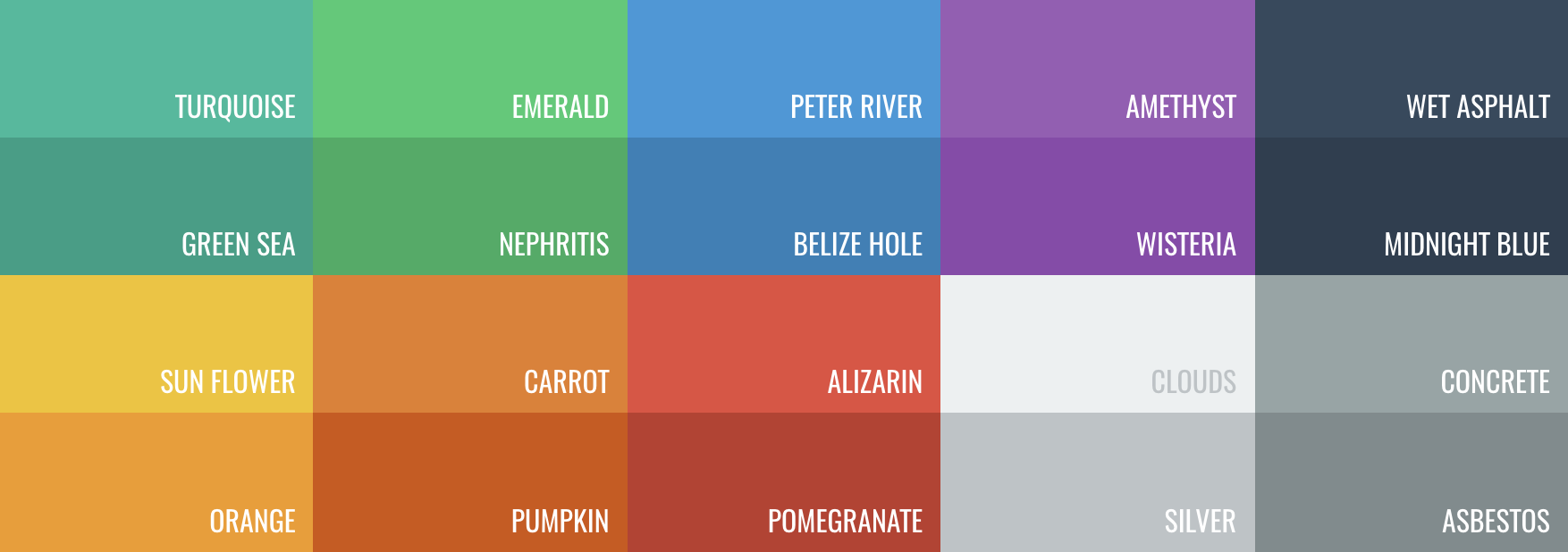
SkeletonView具有两个内置动画,用于实心骨架的脉冲和梯度滑动。
此外,如果您想做自己的骨架动画,那真的很容易。
Skeleton提供了showAnimatedSkeleton功能,该功能具有SkeletonLayerAnimation闭合,您可以在其中定义自定义动画。
public typealias SkeletonLayerAnimation = ( CALayer ) -> CAAnimation您可以这样调用函数:
view . showAnimatedSkeleton { ( layer ) -> CAAnimation in
  let animation = CAAnimation ( )
  // Customize here your animation

  return animation
}它SkeletonAnimationBuilder 。这是制造SkeletonLayerAnimation的建造者。
今天,您可以为梯度创建滑动动画,决定方向并设置动画的持续时间(默认= 1.5s)。
// func makeSlidingAnimation(withDirection direction: GradientDirection, duration: CFTimeInterval = 1.5) -> SkeletonLayerAnimation

let animation = SkeletonAnimationBuilder ( ) . makeSlidingAnimation ( withDirection : . leftToRight )
view . showAnimatedGradientSkeleton ( usingGradient : gradient , animation : animation ) GradientDirection是一个枚举,有这些案例:
| 方向 | 预览 |
|---|---|
| .leftright |  |
| 。右路 |  |
| .topbottom |  |
| .bottomtop |  |
| .topleftbottomright |  |
| .bottomrighttopleft |  |
诡计!
存在另一种创建滑动动画的方法,只需使用此快捷方式:
let animation = GradientDirection . leftToRight . slidingAnimation ( )
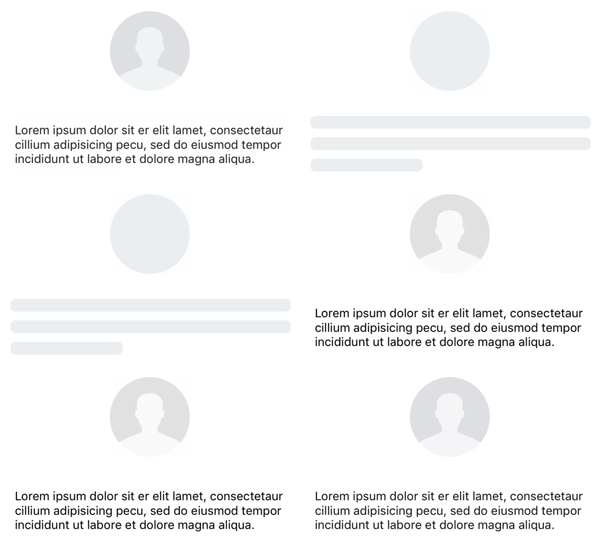
Skeletonview具有内置的过渡,以更平滑的方式显示或隐藏骨架?
要使用过渡,只需将transition参数添加到您的showSkeleton()或hideSkeleton()函数中的过渡时间,例如:
view . showSkeleton ( transition : . crossDissolve ( 0.25 ) )     //Show skeleton cross dissolve transition with 0.25 seconds fade time
view . hideSkeleton ( transition : . crossDissolve ( 0.25 ) ) //Hide skeleton cross dissolve transition with 0.25 seconds fade time默认值是crossDissolve(0.25)
预览
| 没有任何 | 交叉溶解 |
 |  |
等级制度
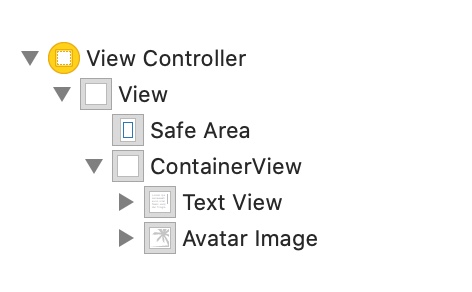
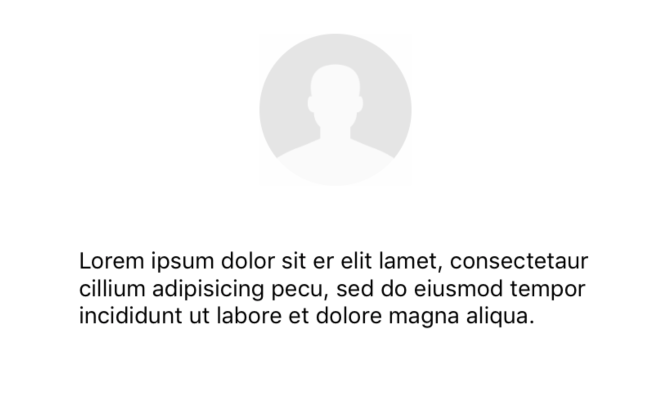
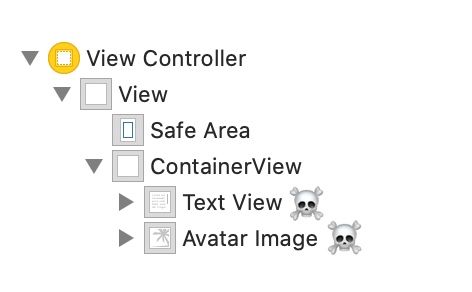
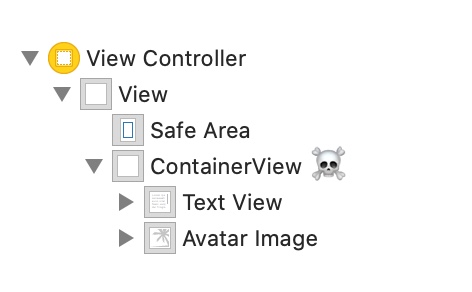
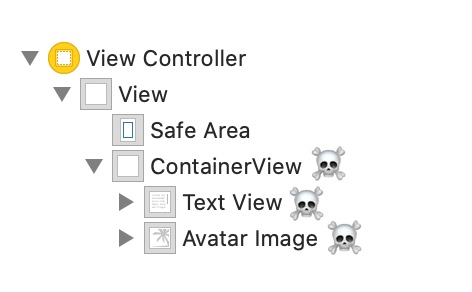
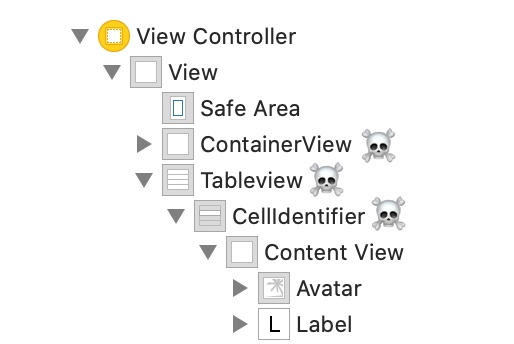
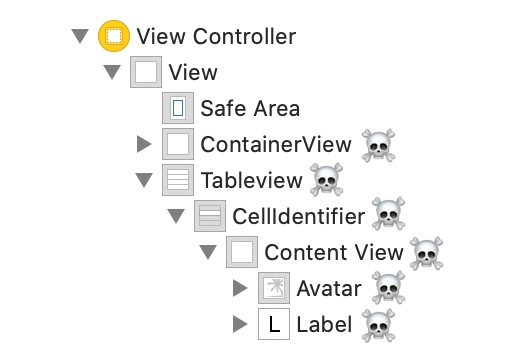
由于SkeletonView是递归的,我们希望骨骼非常有效,因此我们希望尽快停止递归。因此,您必须将容器视图设置为Skeletonable视图,因为一旦视图不可骨骼,骨架就会停止寻找skeletonable子视图,然后折断递归。
因为图像价值一千个字:
在此示例中,我们有一个带有ContainerView和UITableView UIViewController 。当视图准备就绪时,我们使用此方法显示骨骼:
view.showSkeleton()
isSkeletonable=☠️
| 配置 | 结果 |
|---|---|
 |  |
 | |
 |  |
 |  |
 |  |
 |  |
骨架视图布局
有时,骨架布局可能不符合您的布局,因为父视图已更改。例如,旋转设备。
您可以像这样转发骨架视图:
 override func viewDidLayoutSubviews ( ) {
    view . layoutSkeletonIfNeeded ( )
}
重要的!
您不应该调用此方法。从版本1.8.1中,您无需调用此方法,库会自动进行。因此,仅在需要手动更新骨架的布局的情况下,才能使用此方法。
更新骨骼
您可以随时更改骨架配置,例如其颜色,动画等。使用以下方法:
 ( 1 ) view . updateSkeleton ( )                 // Solid
( 2 ) view . updateGradientSkeleton ( )         // Gradient
( 3 ) view . updateAnimatedSkeleton ( )         // Solid animated
( 4 ) view . updateAnimatedGradientSkeleton ( ) // Gradient animated
动画开始时隐藏视图
有时,当动画启动时,您想隐藏一些视图,因此您可以使用快速的属性来实现这一目标:
view . isHiddenWhenSkeletonIsActive = true // This works only when isSkeletonable = true当骨架处于活动状态时,请勿修改用户互动
默认情况下,用于骨架的项目禁用了用户交互,但是如果您不想在骨架处于活动状态时修改用户交互指示器,则可以使用isUserInteractionDisabledWhenSkeletonIsActive属性:
view . isUserInteractionDisabledWhenSkeletonIsActive = false // The view will be active when the skeleton will be active.不要使用标签中的骨架线的字体线高度
虚假至禁用骨骼以自动调整到UILabel或UITextView的字体高度。默认情况下,将骨架线的高度自动调整至字体高度,以更准确地反映标签rect中的文本,而不是使用边界框。
label . useFontLineHeight = false延迟的表演骨骼
如果视图迅速更新,则可以延迟骨骼的呈现。
 func showSkeleton ( usingColor : UIColor ,
                  animated : Bool ,
                  delay : TimeInterval ,
                  transition : SkeletonTransitionStyle )
func showGradientSkeleton ( usingGradient : SkeletonGradient ,
animated : Bool ,
delay : TimeInterval ,
transition : SkeletonTransitionStyle )调试
当某些事情不正常时,可以促进调试任务。 SkeletonView有一些新工具。
首先, UIView提供了带有其骨骼信息的属性:
var sk . skeletonTreeDescription : String此外,您可以激活新的调试模式。您只需添加环境变量SKELETON_DEBUG并激活它即可。
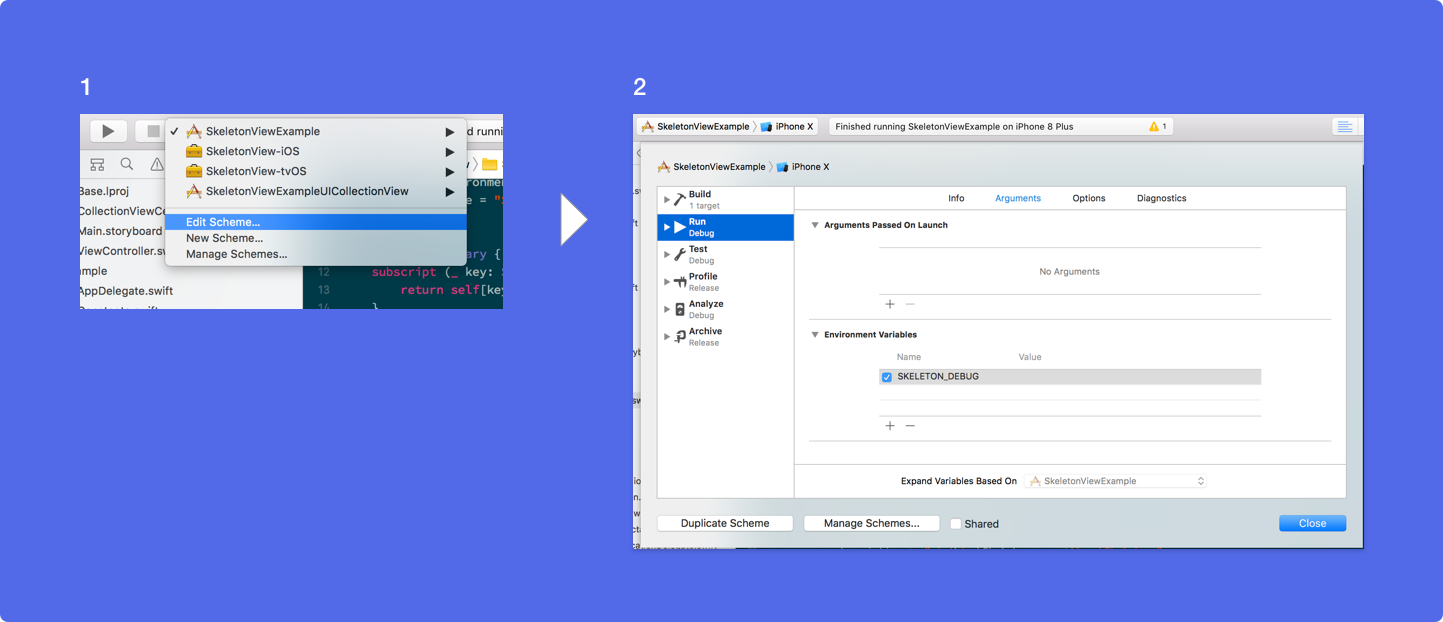
然后,当骨骼出现时,您可以在Xcode控制台中看到视图层次结构。
 {
  "type" : "UIView", // UITableView, UILabel...
  "isSkeletonable" : true,
  "reference" : "0x000000014751ce30",
  "children" : [
    {
      "type" : "UIView",
      "isSkeletonable" : true,
      "children" : [ ... ],
      "reference" : "0x000000014751cfa0"
    }
  ]
}
支持的OS和SDK版本
这是一个开源项目,因此请随时做出贡献。如何?
查看所有贡献者
有关更多信息,请阅读贡献指南。
没有您的帮助,开源项目就不长。如果您发现SkeletonView很有用,请考虑通过成为赞助商来支持该项目。
通过GitHub赞助商❤️成为赞助商
JuanpeCatalán
 MIT License

Copyright (c) 2017 Juanpe Catalán

Permission is hereby granted, free of charge, to any person obtaining a copy
of this software and associated documentation files (the "Software"), to deal
in the Software without restriction, including without limitation the rights
to use, copy, modify, merge, publish, distribute, sublicense, and/or sell
copies of the Software, and to permit persons to whom the Software is
furnished to do so, subject to the following conditions:

The above copyright notice and this permission notice shall be included in all
copies or substantial portions of the Software.

THE SOFTWARE IS PROVIDED "AS IS", WITHOUT WARRANTY OF ANY KIND, EXPRESS OR
IMPLIED, INCLUDING BUT NOT LIMITED TO THE WARRANTIES OF MERCHANTABILITY,
FITNESS FOR A PARTICULAR PURPOSE AND NONINFRINGEMENT. IN NO EVENT SHALL THE
AUTHORS OR COPYRIGHT HOLDERS BE LIABLE FOR ANY CLAIM, DAMAGES OR OTHER
LIABILITY, WHETHER IN AN ACTION OF CONTRACT, TORT OR OTHERWISE, ARISING FROM,
OUT OF OR IN CONNECTION WITH THE SOFTWARE OR THE USE OR OTHER DEALINGS IN THE
SOFTWARE.





