CodeTerminal
2022-05-09

Visual Studio代码的独立终端。
强烈推荐与自制的安装。
brew tap xcodebuild/custom
brew reinstall --no-quarantine --cask codeterminal
部分用户可能需要设置代理,例如
export https_proxy=http://127.0.0.1:7890 http_proxy=http://127.0.0.1:7890 all_proxy=socks5://127.0.0.1:7890
从https://nightly.link/xcodebuild/codeterminal/workflows/release/release下载。
或加入组。
加入电报组
按下Menubar CodeTerminal => Preferences => Settings以显示System File Manager中的setting.json 。使用您的代码编辑器进行编辑(建议使用Visual Studio代码)。
这是一个例子:
 {
    "workbench.statusBar.visible": false,
    "workbench.tips.enabled": false,
    "workbench.colorTheme": "Solarized Dark",
    "editor.fontLigatures": true,
    "terminal.integrated.fontSize": 16,
    "editor.fontFamily": "agave Nerd Font Mono"
}
顺便说一句,您可以从这里下载agave Nerd Font Mono 。
打开时如果提示文件已损坏,需要执行
如果打开时提示文件损坏,则需要执行
sudo xattr -rd com.apple.quarantine /Applications/CodeTerminal.app主题管理尚未完成,但您仍然可以使用它。
现在,主题(或扩展)的预览暂时不起作用。
您目前已经显示出显示/关闭扩展管理面板。
使用Ctrl(Cmd)+Shift+P您可以运行Extensions: Install Extensions命令以显示扩展安装面板,然后搜索和安装主题。
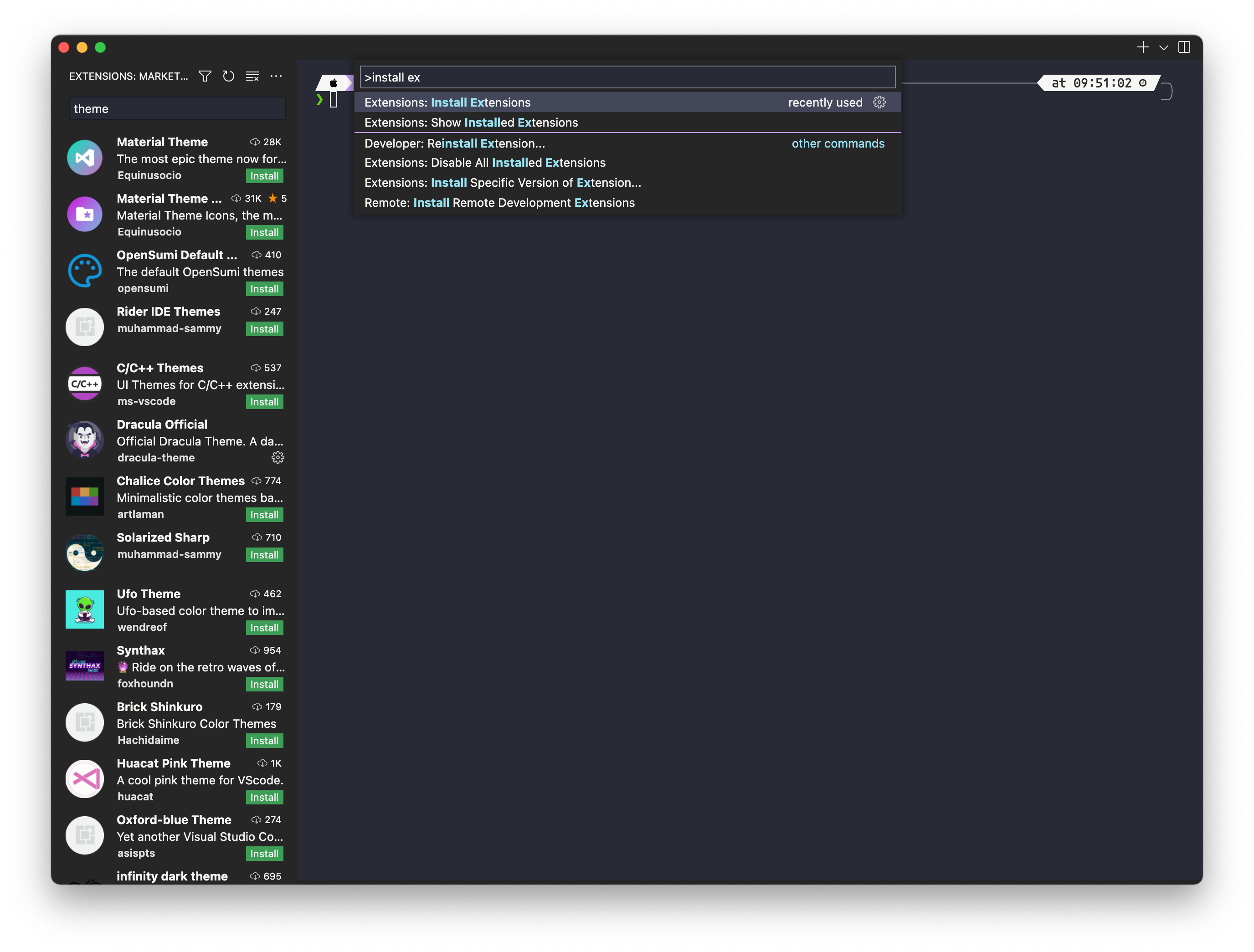
安装后,您可以使用View: Close Primary Side Bar ,以关闭延长侧杆。
使用Ctrl(Cmd)+Shift+P您可以运行Preferences: Color Theme命令以显示扩展安装面板,然后搜索和安装主题。





