CodeTerminal
2022-05-09

Visual Studioコードのスタンドアロン端末。
HomeBrewでインストールすることを強くお勧めします。
brew tap xcodebuild/custom
brew reinstall --no-quarantine --cask codeterminal
部分用户可能需要设置代理、例如
export https_proxy=http://127.0.0.1:7890 http_proxy=http://127.0.0.1:7890 all_proxy=socks5://127.0.0.1:7890
https://nightly.link/xcodebuild/codeterminal/workflows/release/releaseからダウンロードしてください。
またはグループに参加します。
Telegram Groupに参加してください
Menubar CodeTerminal => Preferences => Settingsを押して、システムファイルマネージャーのsetting.jsonを表示します。コードエディターで編集します(ビジュアルスタジオコードをお勧めします)。
これが例です:
 {
    "workbench.statusBar.visible": false,
    "workbench.tips.enabled": false,
    "workbench.colorTheme": "Solarized Dark",
    "editor.fontLigatures": true,
    "terminal.integrated.fontSize": 16,
    "editor.fontFamily": "agave Nerd Font Mono"
}
ところで、こちらからagave Nerd Font Monoをダウンロードできます。
打开时如果提示文件已损坏、需要执行
開くときにプロンプトファイルが破損している場合、実行する必要があります
sudo xattr -rd com.apple.quarantine /Applications/CodeTerminal.appテーマ管理はまだ完了していませんが、それでも使用できます。
テーマ(または拡張機能)のプレビューは今のところ機能していません。
今のところショー/クローズ拡張管理パネルがあります。
Ctrl(Cmd)+Shift+PではExtensions: Install Extensions拡張機能パネルを表示し、テーマを検索してインストールします。
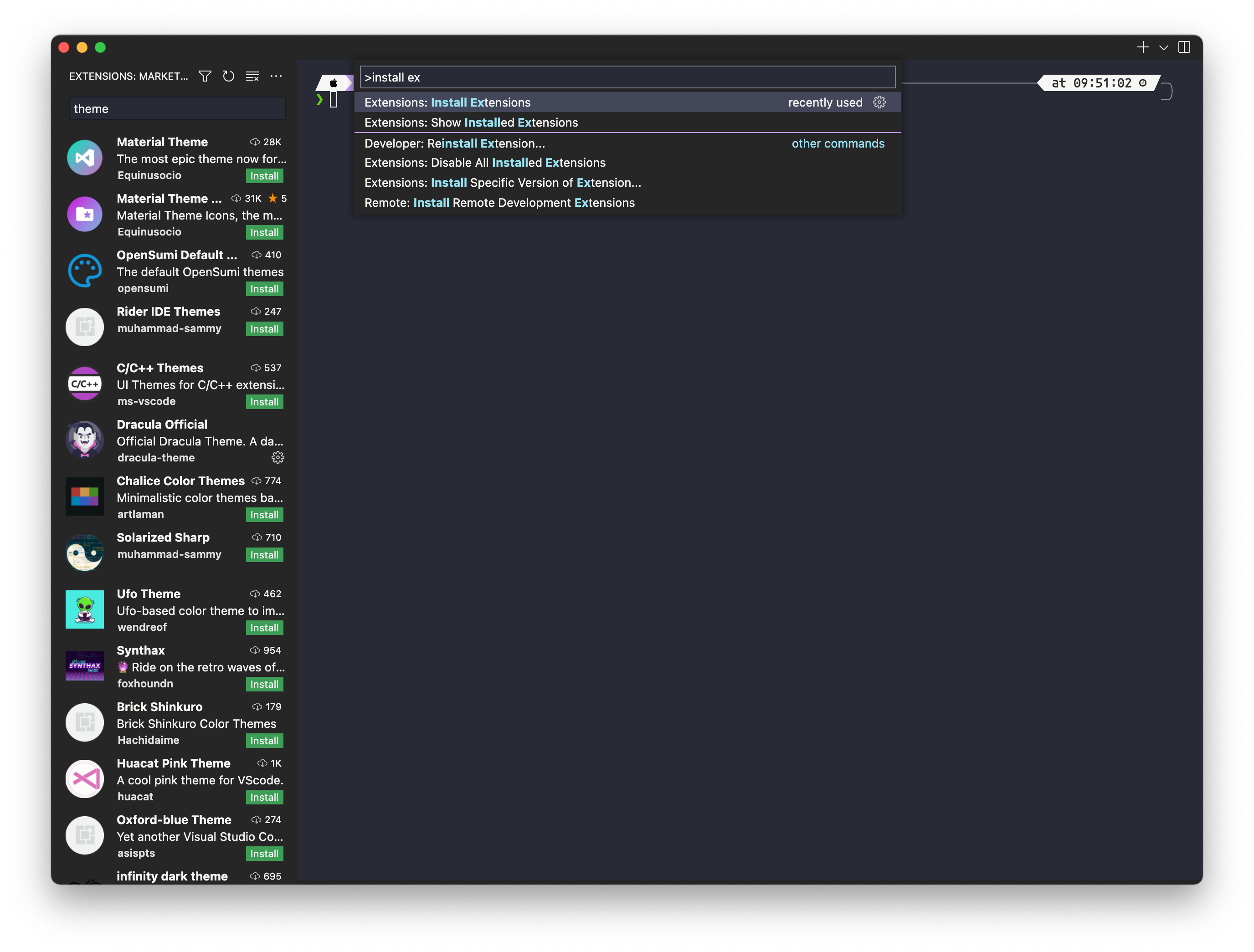
インストール後View: Close Primary Side Bar拡張サイドバーを閉じることができます。
Ctrl(Cmd)+Shift+Pを使用すると、拡張機能インストールパネルを表示するためPreferences: Color Themeテーマを検索してインストールします。





