phoenix todo list tutorial
1.0.0

一个完整的初学者,用于在凤凰城建立待办事项清单的逐步教程。
100%功能。 0%JavaScript。只是HTML , CSS和Elixir 。快速可维护。
大多数人都熟悉待办事项名单。我们一直在列出清单。从头开始构建待办事项列表是学习Elixir / Phoenix好方法,因为UI / UX很简单,因此我们可以专注于实现。
对于@dwyl团队,此应用程序/教程是一个展示服务器端渲染(具有客户端渐进增强)如何在开发人员有效性(快速运输功能),UX和可访问性之间提供良好平衡的展示。服务器渲染的页面需要少于5毫秒的响应,因此UX很快。 fly.io:phxtodo.fly.dev往返响应时间是所有互动的200ms,因此感觉就像是客户端渲染的应用程序。
一个待办事项列表教程,该教程显示了一个完整的初学者如何从头开始在Elixir/Phoenix中构建应用程序。
尝试fly.io版本。在列表中添加一些项目并测试功能。
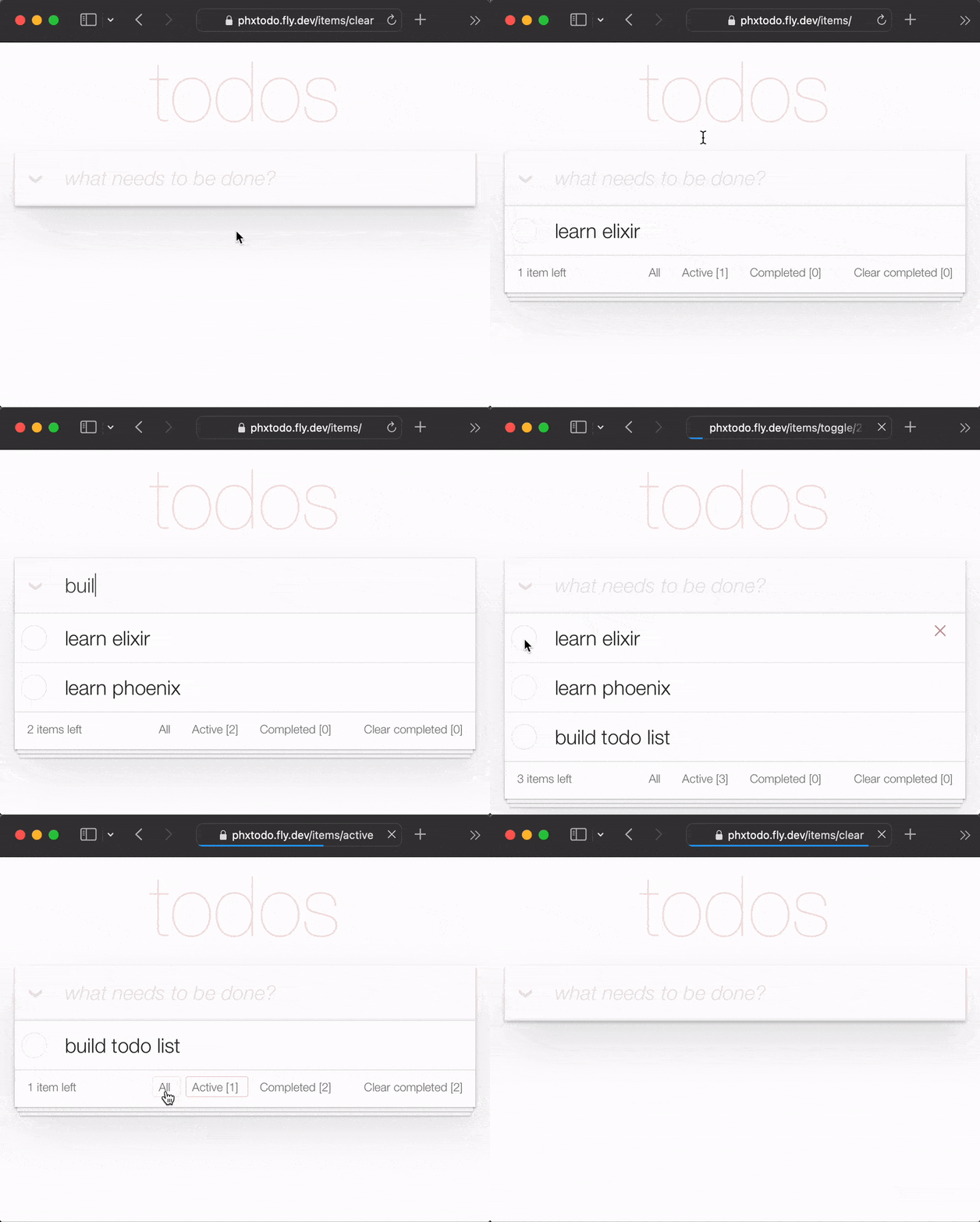
即使每次相互作用进行完整的HTTP往返,响应时间也很快。请注意Chrome | Firefox | Safari在重新呈现页面之前等待服务器的响应。过去的旧整页刷新消失了。现代浏览器巧妙地渲染了变化!因此,UX近似于“本机”!认真地,尝试手机上的fly.io应用程序,然后查看!
在本教程中,我们使用todomVC CSS来简化我们的UI。这有几个优势,最大程度地减少了我们必须撰写多少CSS!这也意味着我们有一个指南,需要实现哪些功能才能实现完整的功能。
注意:我们喜欢
CSS的功能/灵活性,但我们知道并不是每个人都喜欢它。请参阅:学习tachyons#为什么我们想要的最后一件事是在Phoenix教程中与CSS浪费大量时间!
本教程适用于正在学习精灵/凤凰城的任何人。没有假定/预期的凤凰经验。我们包括构建应用程序所需的所有步骤。
如果您遇到任何步骤,请在Github上打开一个问题,我们很乐意帮助您解开!如果您认为任何代码线都可以使用更多的解释/清晰度,请随时通知我们!我们知道成为初学者的感觉,当某事没有意义时,它可能会令人沮丧!在Github上询问问题可以帮助每个人学习!
请给我们反馈!如果您发现它有帮助,请将其播放。
在尝试构建待办事项列表之前,请确保您在计算机上安装了所有需要的东西。请参阅:先决条件
确认已安装了Phoenix&PostgreSQL后,请尝试运行完成的应用程序。
localhost上运行完成的应用程序在开始构建自己的TODO List应用程序版本之前,请在localhost上运行完成版本以确认其有效。
从Github克隆该项目:
git clone [email protected]:dwyl/phoenix-todo-list-tutorial.git && cd phoenix-todo-list-tutorial安装依赖项并设置数据库:
mix setup启动Phoenix服务器:
mix phx.server访问localhost:4000在您的Web浏览器中。
您应该看到:
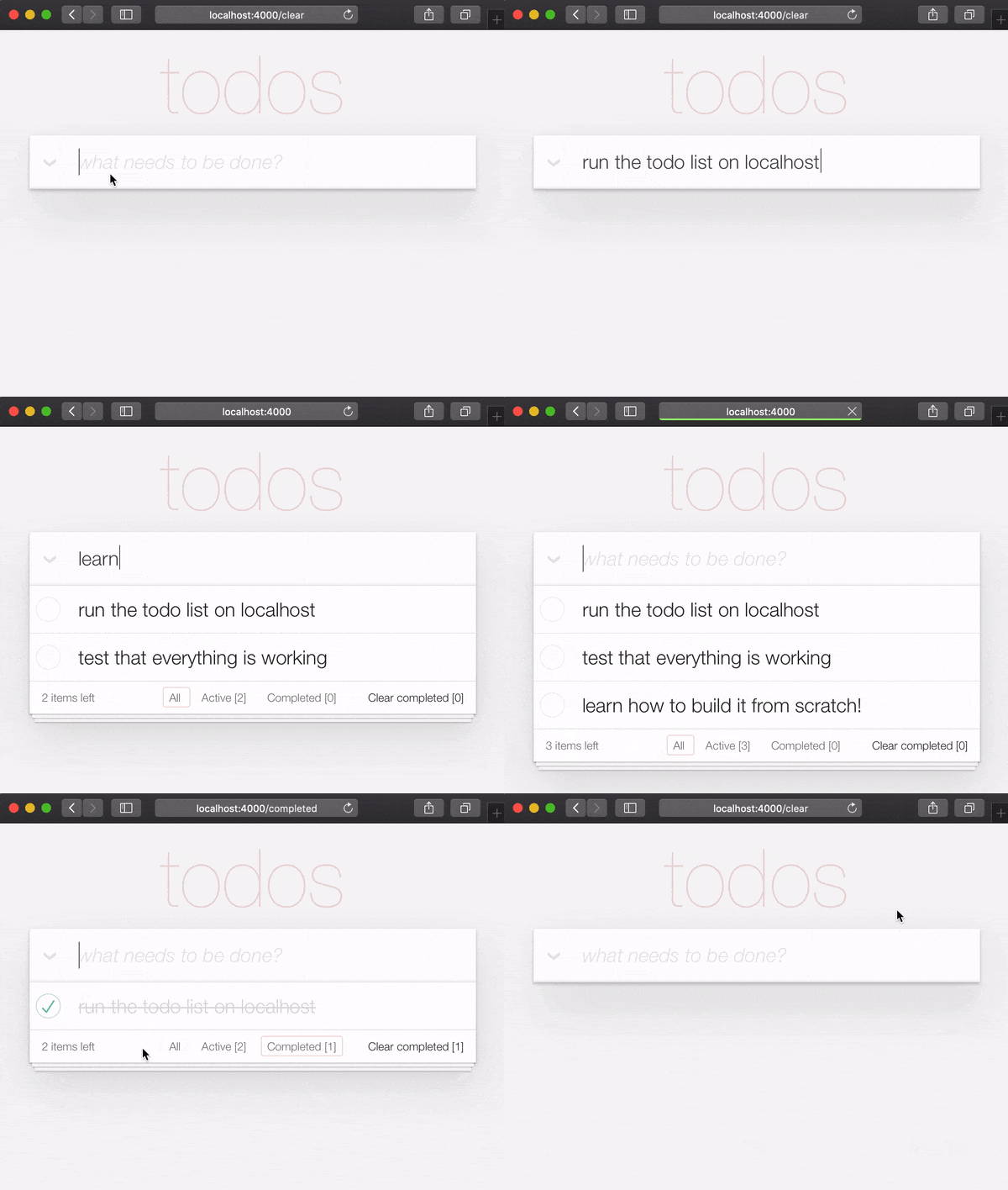
现在,您已经在localhost上运行完成的示例应用程序,
让我们从头开始构建它,并了解所有步骤。
在localhost上运行完成的示例应用程序时,如果您想尝试login按钮,则需要获得AUTH_API_KEY 。 [1分钟]请参阅:获取您的AUTH_API_KEY
如果您在localhost上运行完成的应用程序(您真的应该! ),
在启动教程之前,您需要更改目录:
cd ..
现在您准备好建造了!
在您的终端中,使用以下mix命令创建一个新的凤凰应用程序:
mix phx.new app --no-dashboard --no-gettext --no-mailer 当提示安装依赖项时,键入y ,然后输入。
注意:
app名称之后的那些标志只是为了避免创建这个简单示例我们不需要的文件。请参阅:hexdocs.pm/phoenix/mix.tasks.phx.new
更改为新创建的app目录( cd app ),并确保您拥有所需的一切:
mix setup启动Phoenix服务器:
mix phx.server现在,您可以在Web浏览器中访问localhost:4000 。您应该看到类似的东西:
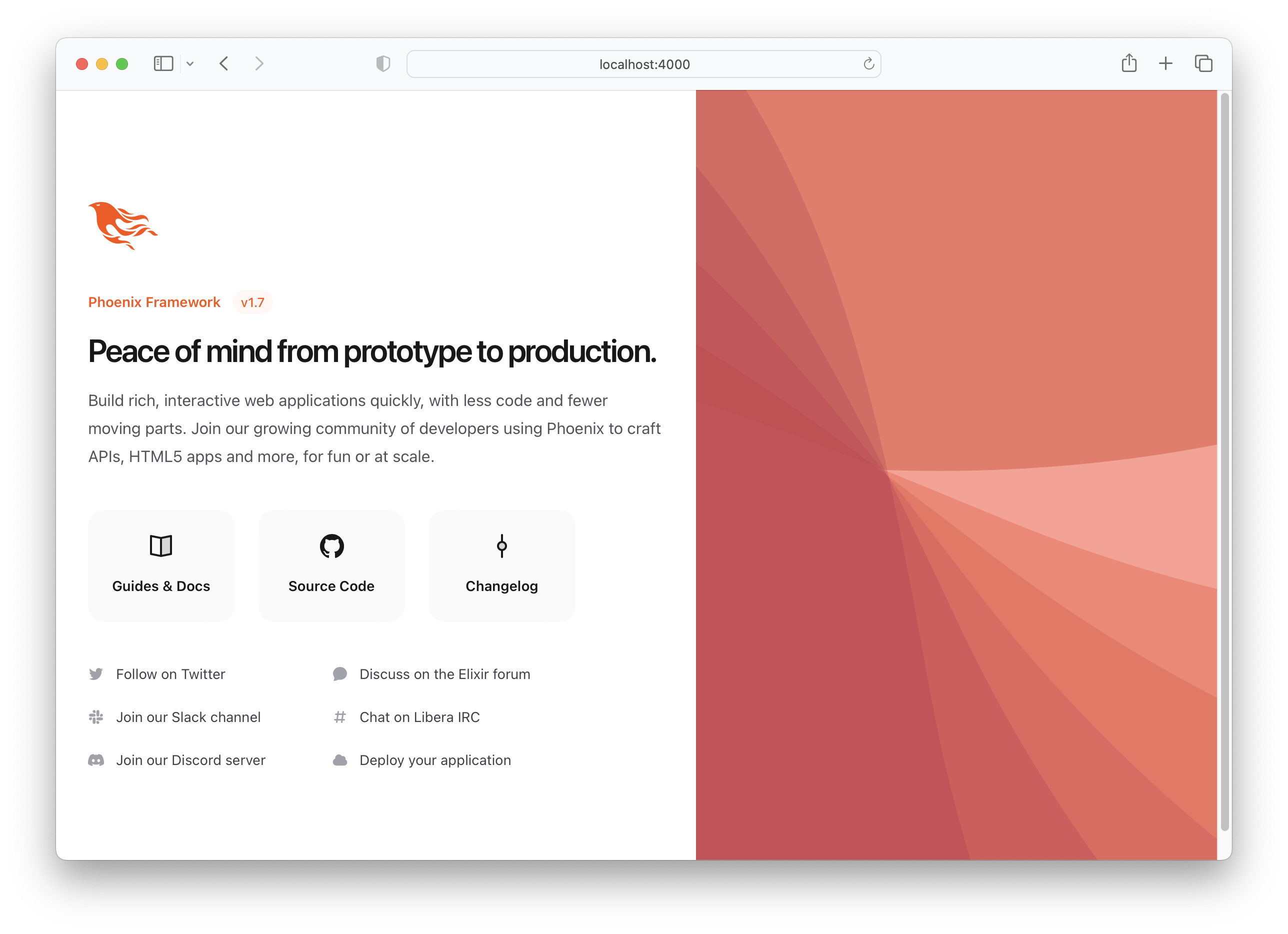
关闭Phoenix服务器CTRL + C。
运行测试以确保一切按预期运行:
mix test您应该看到:
Compiling 16 files (.ex)
Generated app app

17:49:40.111 [info]  Already up
...

Finished in 0.04 seconds
3 tests, 0 failures
确定Phoenix应用程序可以按预期工作,让我们继续创建一些文件!
items模式在创建基本待办事项列表时,我们只需要一个架构: items 。稍后,我们可以添加单独的列表和标签来组织/分类我们的items ,但是现在这就是我们所需要的。
运行以下生成器命令来创建项目表:
mix phx.gen.html Todo Item items text:string person_id:integer status:integer严格来说,我们只需要text和status字段,但是由于我们知道我们想将项目与人相关联(_教程中的_ -later),所以我们现在正在添加该字段。
您将看到以下输出:
 * creating lib/app_web/controllers/item_controller.ex
* creating lib/app_web/controllers/item_html/edit.html.heex
* creating lib/app_web/controllers/item_html/index.html.heex
* creating lib/app_web/controllers/item_html/new.html.heex
* creating lib/app_web/controllers/item_html/show.html.heex
* creating lib/app_web/controllers/item_html.ex
* creating test/app_web/controllers/item_controller_test.exs
* creating lib/app/todo/item.ex
* creating priv/repo/migrations/20221205102303_create_items.exs
* creating lib/app/todo.ex
* injecting lib/app/todo.ex
* creating test/app/todo_test.exs
* injecting test/app/todo_test.exs
* creating test/support/fixtures/todo_fixtures.ex
* injecting test/support/fixtures/todo_fixtures.ex

Add the resource to your browser scope in lib/app_web/router.ex:

    resources "/items", ItemController


Remember to update your repository by running migrations:

    $ mix ecto.migrate
那创建了一堆文件!其中一些我们不需要。
我们只能手动创建所需的文件,但这是在凤凰城创建CRUD应用程序的“官方”方式,因此我们将其用于速度。
注意:在此示例中表示为
Todo凤凰语境是“暴露和组相关功能的专用模块”。我们认为他们不必要地将基本的凤凰应用程序与“接口”层复杂化,我们真的希望我们能避免使用它们。但是,鉴于它们被烤到发电机中,并且框架的创建者喜欢它们,我们可以选择:要么加入上下文,要么手动在我们的Phoenix项目中创建所有文件。发电机是一种更快的构建方式!拥抱它们,即使您最终不得不沿此过程中delete一些未使用的文件!
我们不会在教程中的此阶段解释这些文件中的每个文件,因为在构建应用程序时,更容易理解文件!当您通过编辑它们进行编辑时,每个文件的目的将变得清晰。
/items资源添加到router.ex请按照发电机指出的说明将resources "/items", ItemController添加到router.ex 。
打开lib/app_web/router.ex文件并找到行: scope "/", AppWeb do 。将行添加到块的末端。例如:
 scope "/" , AppWeb do
  pipe_through :browser

  get "/" , PageController , :index
  resources "/items" , ItemController # this is the new line
end您的router.ex文件应该看起来像: router.ex#L20
现在,正如终端所建议的那样,运行mix ecto.migrate 。这将完成设置数据库表并运行必要的迁移,以便一切正常工作!
在这一点上,我们已经有一个功能性的待办事项列表(如果我们愿意使用默认的Phoenix UI )。
尝试在您的localhost上运行该应用程序:使用mix ecto.migrate运行生成的迁移,然后使用以下服务器。
mix phx.server
请访问:http:// localhost:4000/ittem/new并输入一些数据。
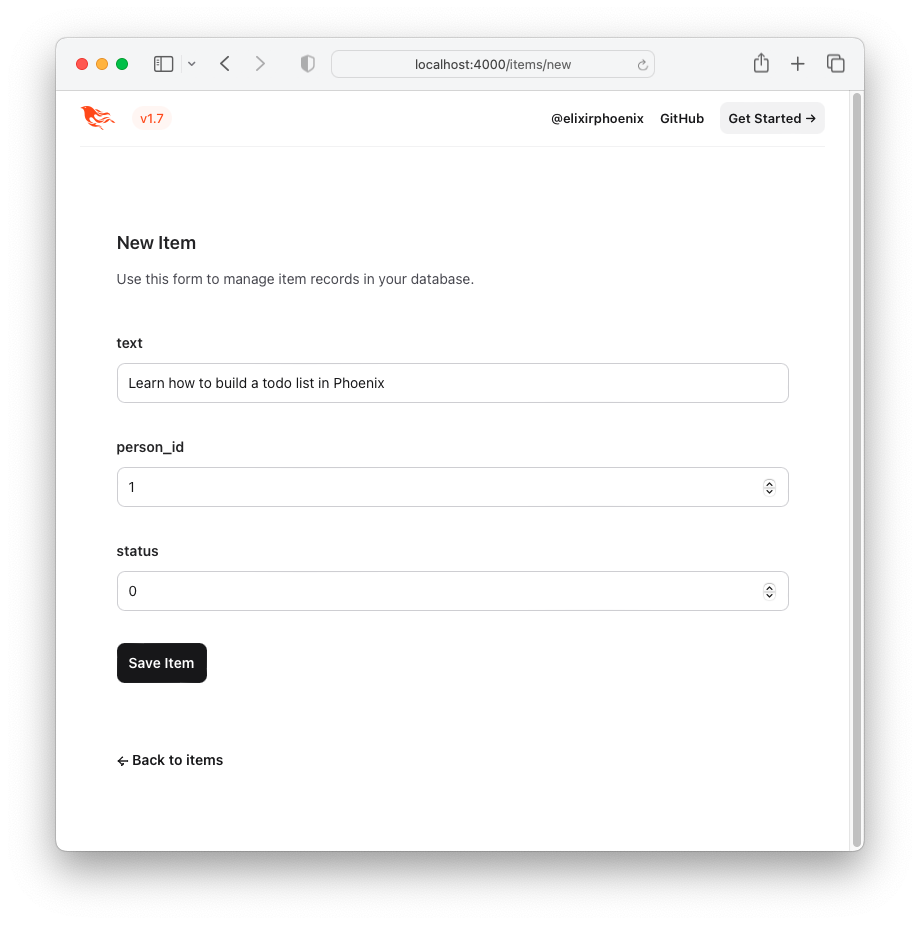
单击“保存项目”按钮,您将被重定向到“显示”页面:http:// localhost:4000/tock/tock/1
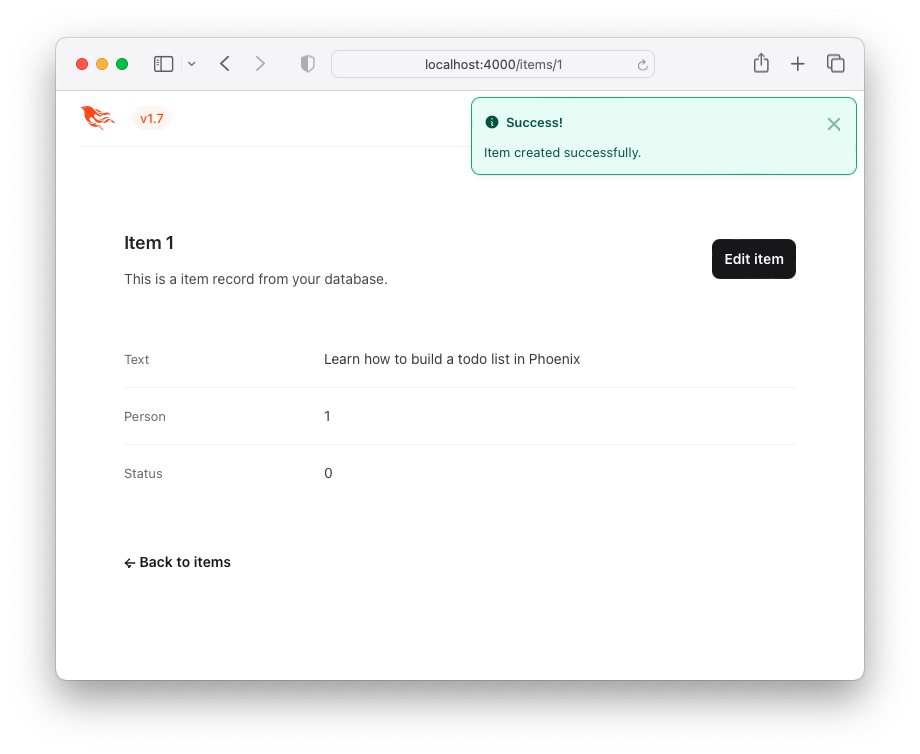
这不是一个有吸引力的用户体验(UX),但它起作用了!这是项目列表- “待办事项列表”。您可以通过单击Back to items按钮或访问以下URL http:// localhost:4000/items来访问此。
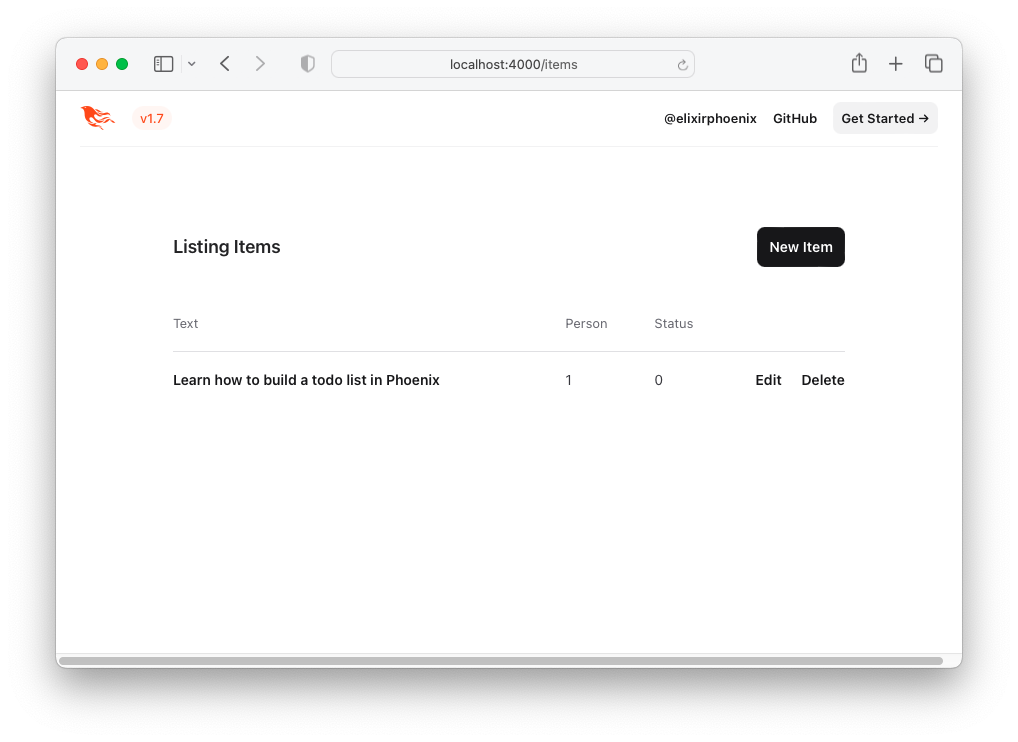
让我们使用TODONVC HTML和CSS来改进UX!
要重新创建TODONVC UI/UX,让我们直接从示例中借用HTML代码。
访问:http://todomvc.com/examples/vanillajs在列表中添加了几个项目。然后,使用浏览器的开发工具检查源。例如:
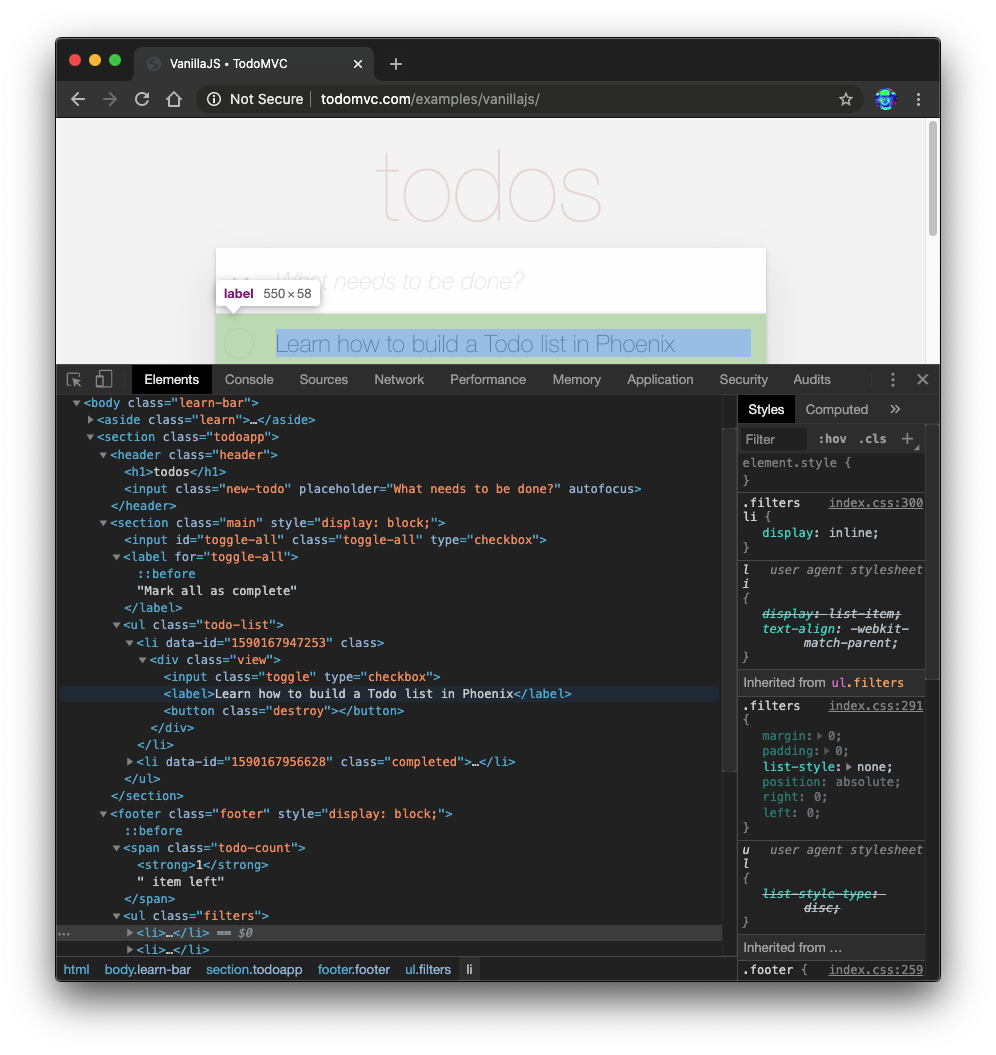
右键单击所需的源(例如: <section class="todoapp"> ),然后选择“编辑为html”:
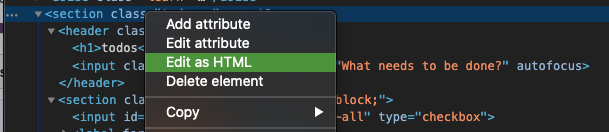
一旦<section>的HTML可编辑,请选择并复制它。
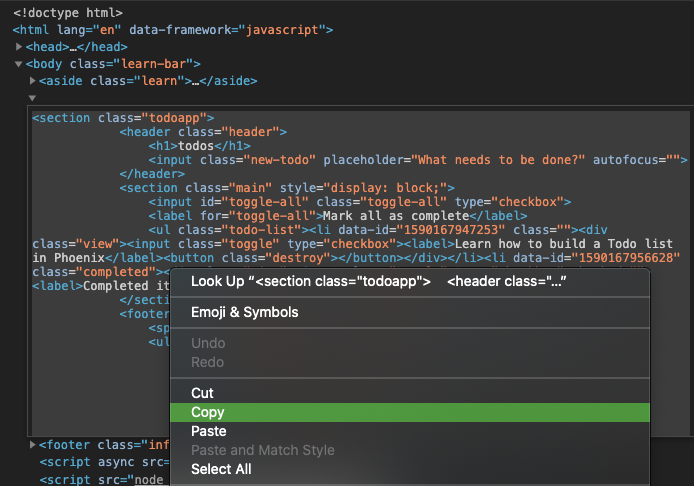
HTML代码是:
 < section class =" todoapp " >
  < header class =" header " >
    < h1 > todos </ h1 >
    < input class =" new-todo " placeholder =" What needs to be done? " autofocus ="" />
  </ header >
  < section class =" main " style =" display: block; " >
    < input id =" toggle-all " class =" toggle-all " type =" checkbox " />
    < label for =" toggle-all " > Mark all as complete </ label >
    < ul class =" todo-list " >
      < li data-id =" 1590167947253 " class ="" >
        < div class =" view " >
          < input class =" toggle " type =" checkbox " />
          < label > Learn how to build a Todo list in Phoenix </ label >
          < button class =" destroy " > </ button >
        </ div >
      </ li >
      < li data-id =" 1590167956628 " class =" completed " >
        < div class =" view " >
          < input class =" toggle " type =" checkbox " />
          < label > Completed item </ label >
          < button class =" destroy " > </ button >
        </ div >
      </ li >
    </ ul >
  </ section >
  < footer class =" footer " style =" display: block; " >
    < span class =" todo-count " > < strong > 1 </ strong > item left </ span >
    < ul class =" filters " >
      < li >
        < a href =" #/ " class =" selected " > All </ a >
      </ li >
      < li >
        < a href =" #/active " > Active </ a >
      </ li >
      < li >
        < a href =" #/completed " > Completed </ a >
      </ li >
    </ ul >
    < button class =" clear-completed " style =" display: block; " >
      Clear completed
    </ button >
  </ footer >
</ section >让我们将此HTML转换为嵌入式长生不老药( EEx )模板。
注意:我们是从浏览器的元素检查器复制此
HTML原因,而不是直接从GitHub上的源:examples/vanillajs/index.html上,这是一个“单页应用程序”,因此<ul class="todo-list"></ul>仅在browser中填充。从浏览器开发工具中复制它是获得完整HTML最简单方法。
index.html.eex中打开lib/app_web/controllers/item_html/index.html.eex文件,然后滚动到底部。
然后(不删除已经存在的代码)粘贴我们从todomvc采购的HTML代码。
例如:
/lib/app_web/controllers/item_html/index.html.eex#L27-L73
如果您尝试立即运行该应用并访问http:// localhost:4000/tock/times/
您将看到此(没有TODOMVC CSS ):
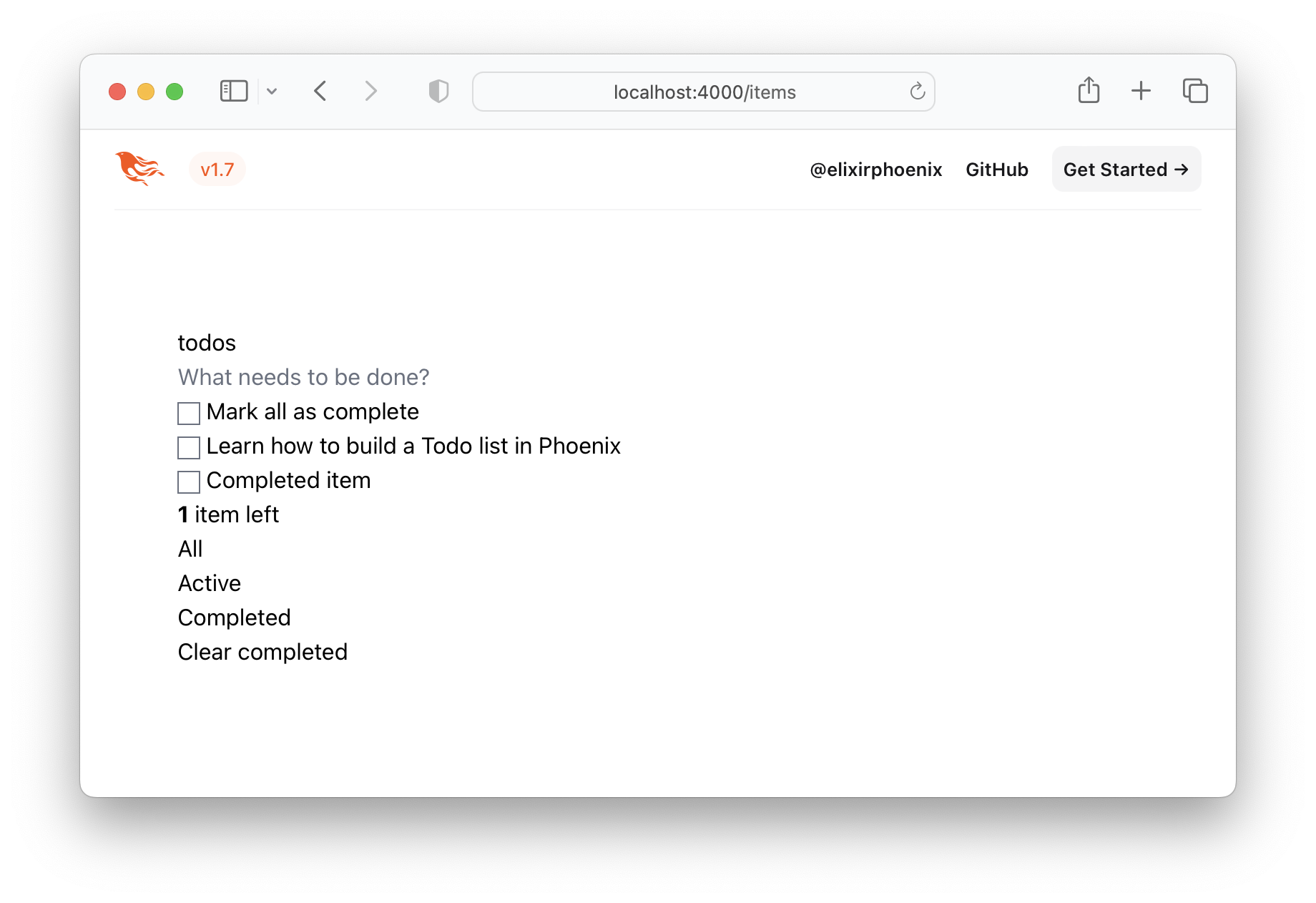
这显然不是我们想要的,所以让我们获取TodomVC CSS并将其保存在我们的项目中!
/assets/css访问http://todomvc.com/examples/vanillajs/node_modules/todomvc-app-css/index.css
并将文件保存到/assets/css/todomvc-app.css 。
例如: /assets/css/todomvc-app.css
app.scss中导入todomvc-app.css打开assets/css/app.scss文件,然后用以下内容替换它:
 /* This file is for your main application css. */
/* @import "./phoenix.css"; */
@import "./todomvc-app.css" ;
例如: /assets/css/app.scss#L4
打开您的lib/app_web/components/layouts/app.html.heex文件,然后用以下代码替换内容:
 <!DOCTYPE html >
< html lang =" en " >
  < head >
    < meta charset =" utf-8 " />
    < meta http-equiv =" X-UA-Compatible " content =" IE=edge " />
    < meta name =" viewport " content =" width=device-width, initial-scale=1.0 " />
    < title > Phoenix Todo List </ title >
    < link rel =" stylesheet " href = {~p "/assets/app.css"} />
    < script defer type =" text/javascript " src = {~p "/assets/app.js"} > </ script >
  </ head >
  < body >
    < main role =" main " class =" container " >
      < %= @inner_content % >
    </ main >
  </ body >
</ html >
在之前:
lib/app_web/components/layouts/app.html.eex
之后:lib/app_web/components/layouts/app.html.heex
<%= @inner_content %>是渲染TODO应用的地方。
注意:
<script>标签包含在常规中。但是,我们不会在本教程中编写任何JavaScript。我们将在不编写JS行的情况下实现100%的特征奇偶校验。我们不“讨厌”JS,实际上,我们有一个“姐妹”教程,该教程在JS:Dwyl/Javascript-todo-list-Tutearial中构建了相同的应用程序,我们只想提醒您,您不需要任何JS就可以使用出色的UX构建功能齐全的Web应用程序!
保存的布局模板后,将保存到/assets/css/todomvc-app.css和app.scss中导入的todomvc-app.css todomvc css文件保存到 /todomvc-app.cs.css和todomvc-app.css,您的/items页面现在应该看起来像这样:
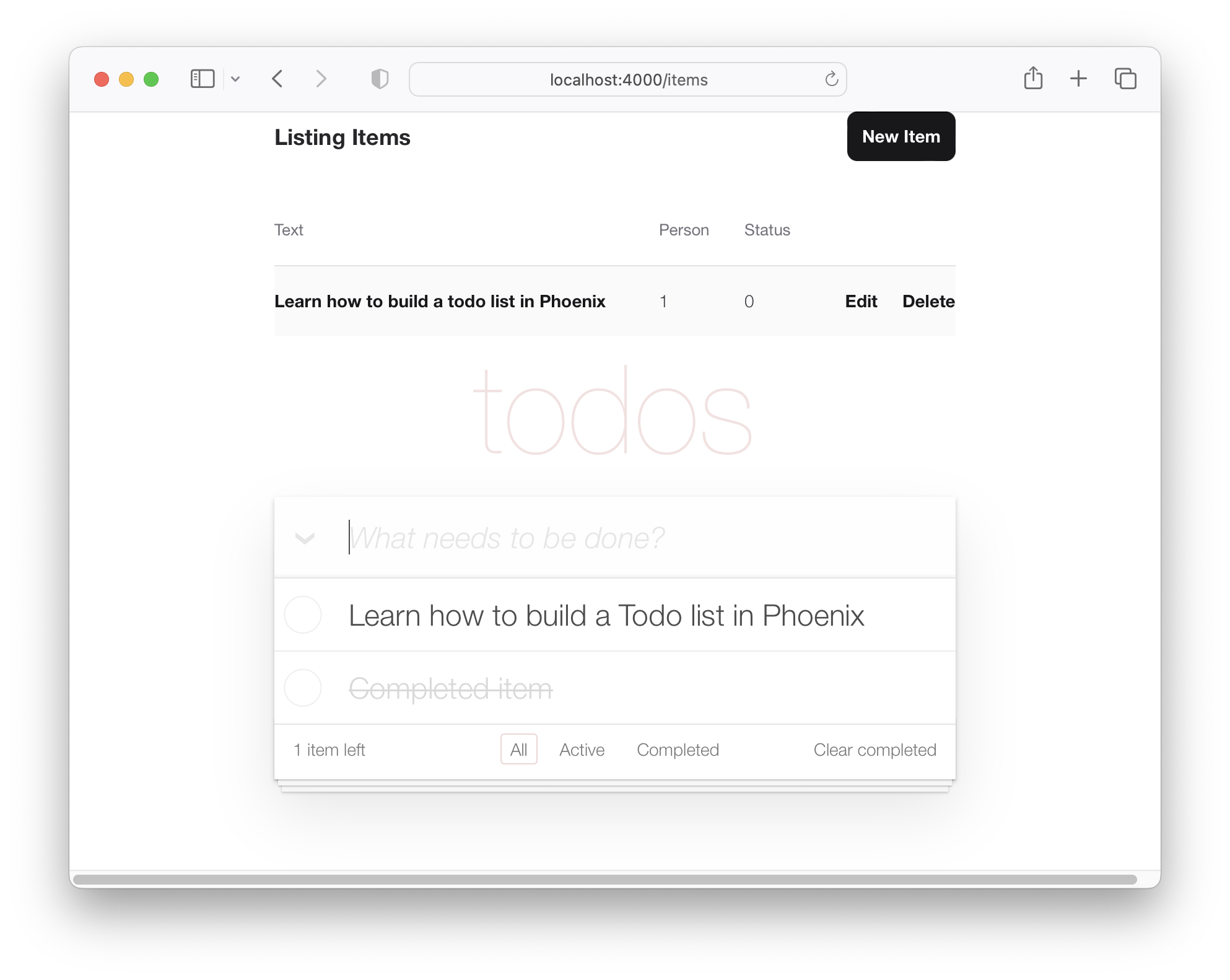
因此,我们的待办事项列表开始看起来像domvc,但它仍然只是一个虚拟列表。
为了在TODOMVC模板中渲染item数据,我们将需要添加一些功能。当我们创建项目并生成item模型时,创建了一个控制器(位于lib/app_web/controllers/item_controller.ex中)和组件/视图(位于lib/app_web/controllers/item_html.ex中)。此组件/视图是有效地控制我们使用先验修改的lib/app_web/controllers/item_html目录中内容的渲染。
我们知道我们需要更改UI,因此我们将在此组件中添加一些功能(类似于MVC范式的视图部分)。
这是我们第一次进行测试驱动开发(TDD)的机会。
使用路径test/app_web/controllers/item_html_test.exs创建一个新文件。
在文件中键入以下代码:
 defmodule AppWeb.ItemHTMLTest do
  use AppWeb.ConnCase , async: true
  alias AppWeb.ItemHTML

  test "complete/1 returns completed if item.status == 1" do
    assert ItemHTML . complete ( % { status: 1 } ) == "completed"
  end

  test "complete/1 returns empty string if item.status == 0" do
    assert ItemHTML . complete ( % { status: 0 } ) == ""
  end
end
例如: /test/app_web/controllers/item_html_test.exs
如果您尝试运行此测试文件:
mix test test/app_web/controllers/item_html_test.exs您会看到以下错误(因为函数尚不存在!):
** (UndefinedFunctionError) function AppWeb.ItemHTML.checked/1 is undefined or private
打开lib/app_web/controllers/item_html.ex文件并写入功能以使测试通过。
这就是我们实施功能的方式。您的item_html.ex文件现在应该看起来像以下内容。
 defmodule AppWeb.ItemHTML do
  use AppWeb , :html

  embed_templates "item_html/*"

  # add class "completed" to a list item if item.status=1
  def complete ( item ) do
    case item . status do
      1 -> "completed"
      _ -> "" # empty string means empty class so no style applied
    end
  end
end
重新进行测试,现在应该通过:
mix test test/app_web/controllers/item_html_test.exs您应该看到:
....

Finished in 0.1 seconds
4 tests, 0 failures现在我们已经创建了这两个视图功能,并且我们的测试正在通过,让我们在模板中使用它们!
打开lib/app_web/controllers/item_html/index.html.eex文件并找到行:
< ul class =" todo-list " >用以下内容替换<ul>的内容:
 < %= for item < - @items do % >
  < li data-id = {item.id} class = {complete(item)} >
    < div class =" view " >
      < %= if item.status == 1 do % >
        < input class =" toggle " type =" checkbox " checked />
      < % else % >
        < input class =" toggle " type =" checkbox " />
      < % end % >
      < label > < %= item.text % > </ label >
      < .link
        class="destroy"
        href={~p"/items/#{item}"}
        method="delete"
      >
      </ .link >
    </ div >
  </ li >
< % end % >
例如: lib/app_web/controllers/item_html/index.html.heex#L43-L53
保存了这两个文件后,如果您立即运行该应用程序: mix phx.server并访问http:// localhost:4000/items。
您将在上面的步骤2.2中看到您创建的实际items :
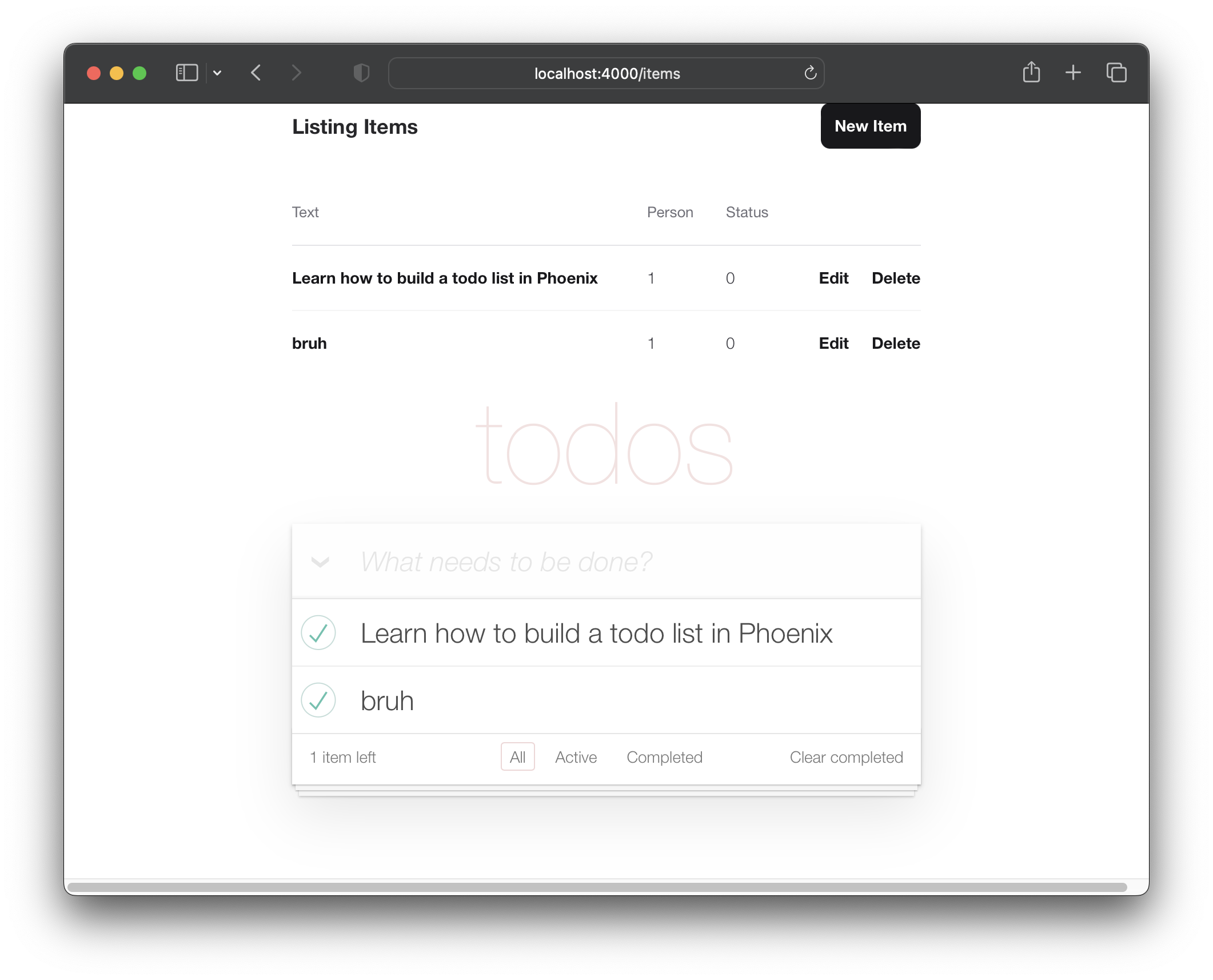
现在,我们已经在todomvc布局中渲染了项目,让我们开始在“单页应用程序”样式中创建新项目。
目前,我们的“新项目”表格可在以下网址提供:http:// localhost:4000/ittem/new(如上步骤2所述)
我们希望该人能够创建一个新项目,而无需导航到其他页面。为了实现该目标,我们将在lib/app_web/controllers/item_html/new.html.heex模板中包括lib/app_web/controllers/item_html/index.html.heex模板(部分)模板。例如:
在这样做之前,我们需要整理new.html.heex模板以删除我们不需要的字段。
让我们打开lib/app_web/controllers/item_html/new.html.heex并将其简化为基本字段:text :
 < . simple_form :let = { f } for = { @ changeset } action = { ~p " /items " } >
  < . input
    field = { { f , :text } }
    type = "text"
    placeholder = "what needs to be done?"
  / >
  < :actions >
    < . button style = "display:none" > Save Item< / . button >
  < / :actions >
< / . simple_form >
之前:
/lib/app_web/controllers/item_html/new.html.heex
之后:/lib/app_web/controllers/item_html/new.html.heex
我们需要另外更改<.input>标签的样式。使用Phoenix,在lib/app_web/components/core_components.ex文件中,为预构建的组件定义了样式( <.input>是这种情况)。
要更改此操作,以便使用与todomVc相同的样式,请找到以下行。
def input ( assigns ) do
使用new-todo类更改类属性。此功能应该看起来如下。
  def input ( assigns ) do
    ~H """
    <div phx-feedback-for={@name}>
      <.label for={@id}><%= @label %></.label>
      <input
        type={@type}
        name={@name}
        id={@id || @name}
        value={@value}
        class={[
          input_border(@errors),
          "new-todo"
        ]}
        {@rest}
      />
      <.error :for={msg <- @errors}><%= msg %></.error>
    </div>
    """
end我们还需要更改simple_form中的actions样式。在同一文件中,搜索def simple_form(assigns) do并更改它,因此看起来如此:
  def simple_form ( assigns ) do
    ~H """
    <.form :let={f} for={@for} as={@as} {@rest}>
      <div>
        <%= render_slot(@inner_block, f) %>
        <div :for={action <- @actions}>
          <%= render_slot(action, f) %>
        </div>
      </div>
    </.form>
    """
  end
如果您立即运行Phoenix应用,然后访问http:// localhost:4000/items/new,您将看到单曲:text输入字段,否“保存”按钮:
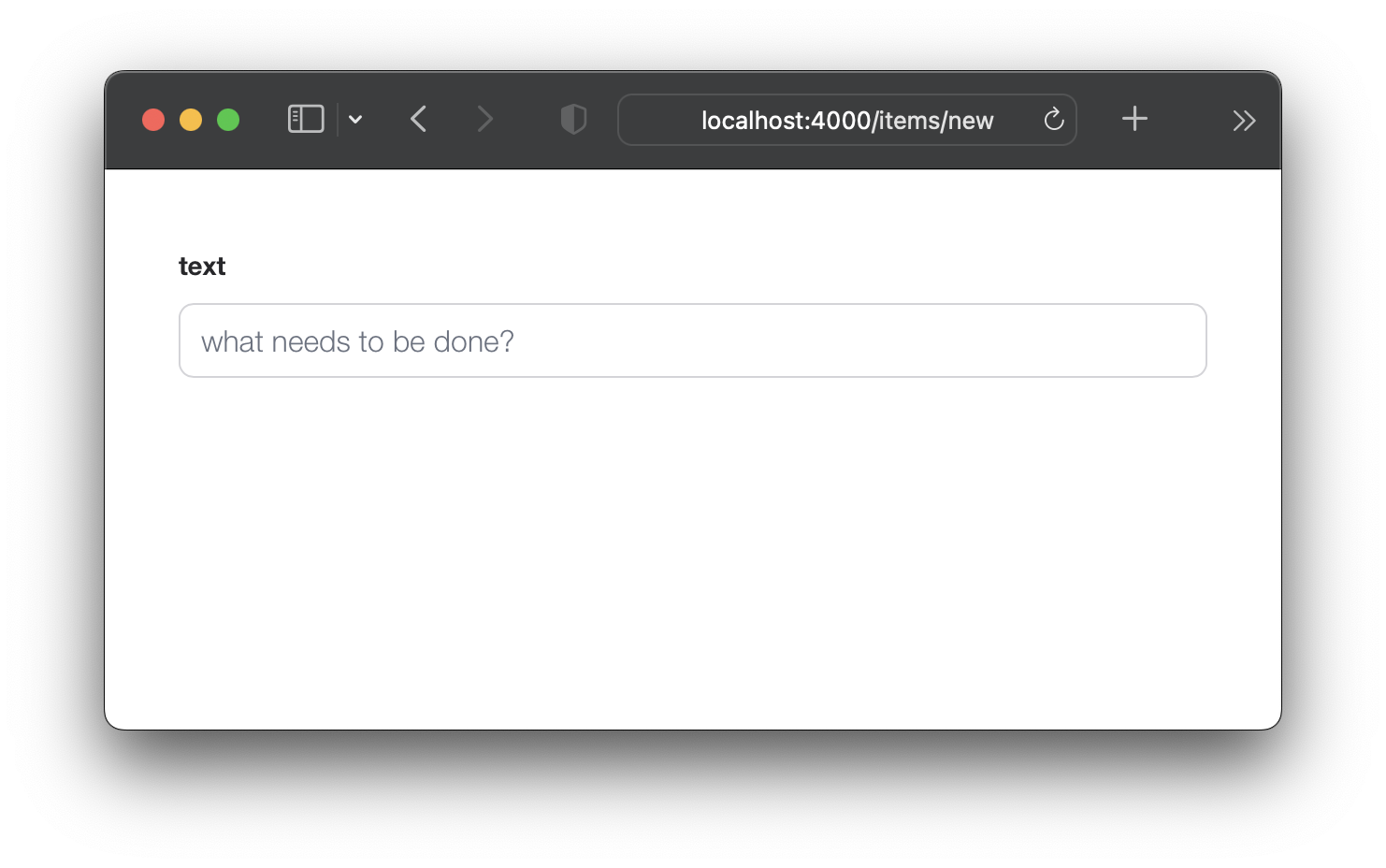
不用担心,您仍然可以提交带有Enter (return)密钥的表格。但是,如果您现在试图提交表格,它将无法使用,因为我们删除了changeset所需的两个字段!让我们解决这个问题。
items模式以设置default值鉴于我们已经从new.html.eex中删除了两个字段( :person_id and :status ),我们需要确保在架构中为这些值提供默认值。打开lib/app/todo/item.ex文件,然后用以下内容替换内容:
 defmodule App.Todo.Item do
  use Ecto.Schema
  import Ecto.Changeset

  schema "items" do
    field :person_id , :integer , default: 0
    field :status , :integer , default: 0
    field :text , :string

    timestamps ( )
  end

  @ doc false
  def changeset ( item , attrs ) do
    item
    |> cast ( attrs , [ :text , :person_id , :status ] )
    |> validate_required ( [ :text ] )
  end
end
在这里,我们正在更新“项目” schema ,以将person_id和status的默认值设置为0 。在changeset/2中,我们正在删除对person_id和status的要求。这样一来,我们的新item表单就可以仅使用text字段提交。
例如: /lib/app/todo/item.ex#L6-L7
现在,我们有default值为person_id和status如果您提交/items/new表格,它将成功。
ItemController中更新index/2为了在index.html.eex模板中插入新项目表单( new.html.eex ),我们需要更新AppWeb.ItemController.index/2以包括一个更改。
打开lib/app_web/controllers/item_controller.ex文件,然后将index/2函数更新到以下:
 def index ( conn , _params ) do
  items = Todo . list_items ( )
  changeset = Todo . change_item ( % Item { } )
  render ( conn , "index.html" , items: items , changeset: changeset )
end
之前: /lib/app_web/controllers/item_controller.ex
之后: /lib/app_web/controllers/item_controller.ex#L9-L10
在此步骤之后,您将看不到UI或测试的任何更改。只需转移到“ aha”时刻发生的5.3。
new.html.eex内部index.html.eex现在我们已经完成了所有准备工作,下一步是在index.html.eex模板中渲染new.html.eex (部分)。
打开lib/app_web/controllers/item_html/index.html.heex文件并找到行:
< input class =" new-todo " placeholder =" What needs to be done? " autofocus ="" >用此替换:
< % = new ( Map . put ( assigns , :action , ~p " /items/new " ) ) % >让我们分解我们刚刚做的事情。我们将new.html.heex部分嵌入index.html.heex文件中。我们正在通过在item_controller.ex中调用new/2函数来执行此操作。此功能与URL items/new页面有关,并呈现new.html.heex文件。因此,为什么我们将此功能称为成功嵌入?
之前: /lib/app_web/controllers/item_html/index.html.heex#L36
之后: /lib/app_web/controllers/item_html/index.html.heex#L36
如果您立即运行该应用并访问:http:// localhost:4000/ittem
您可以通过键入文本并使用Enter (return)密钥提交项目来创建项目。
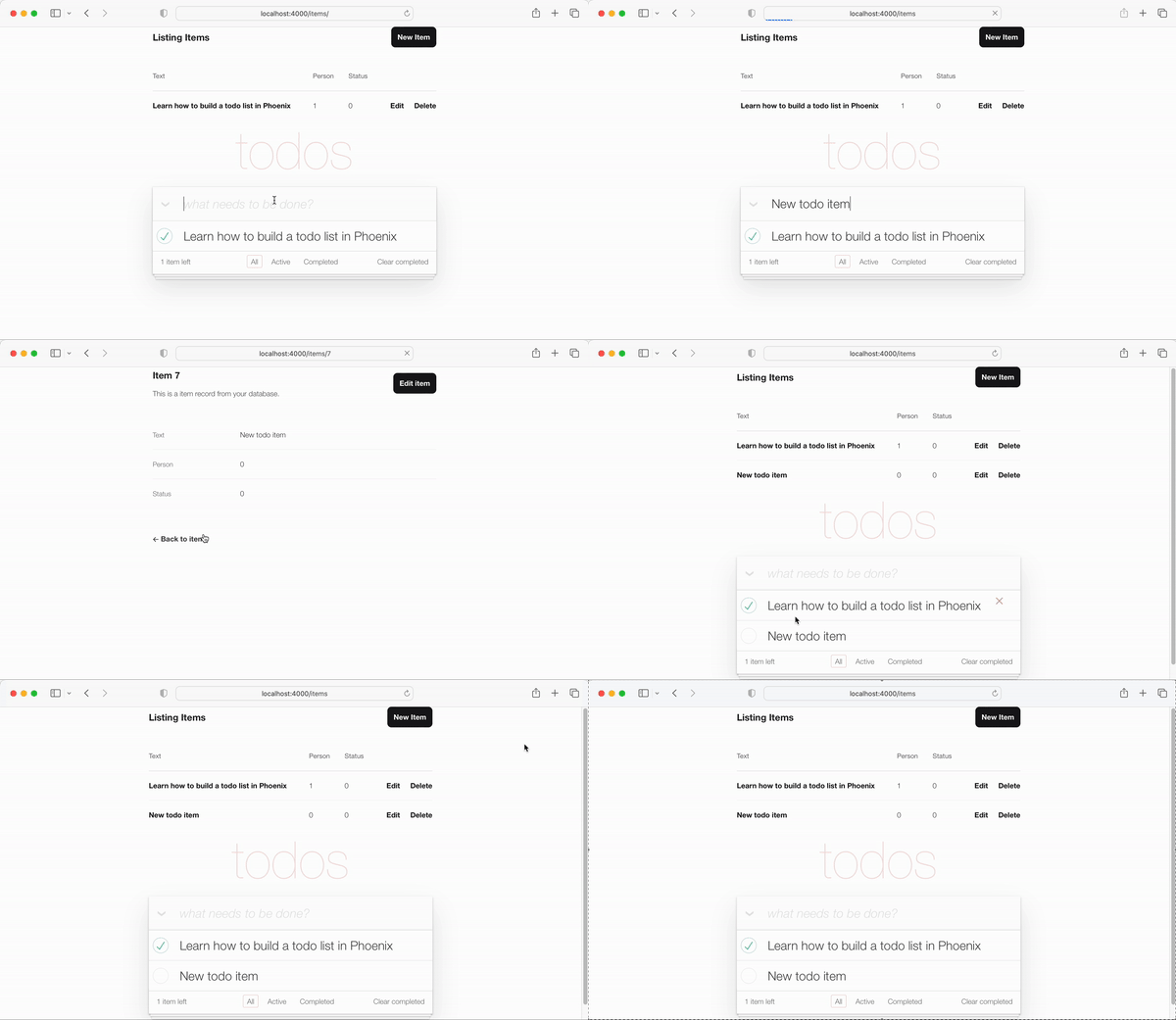
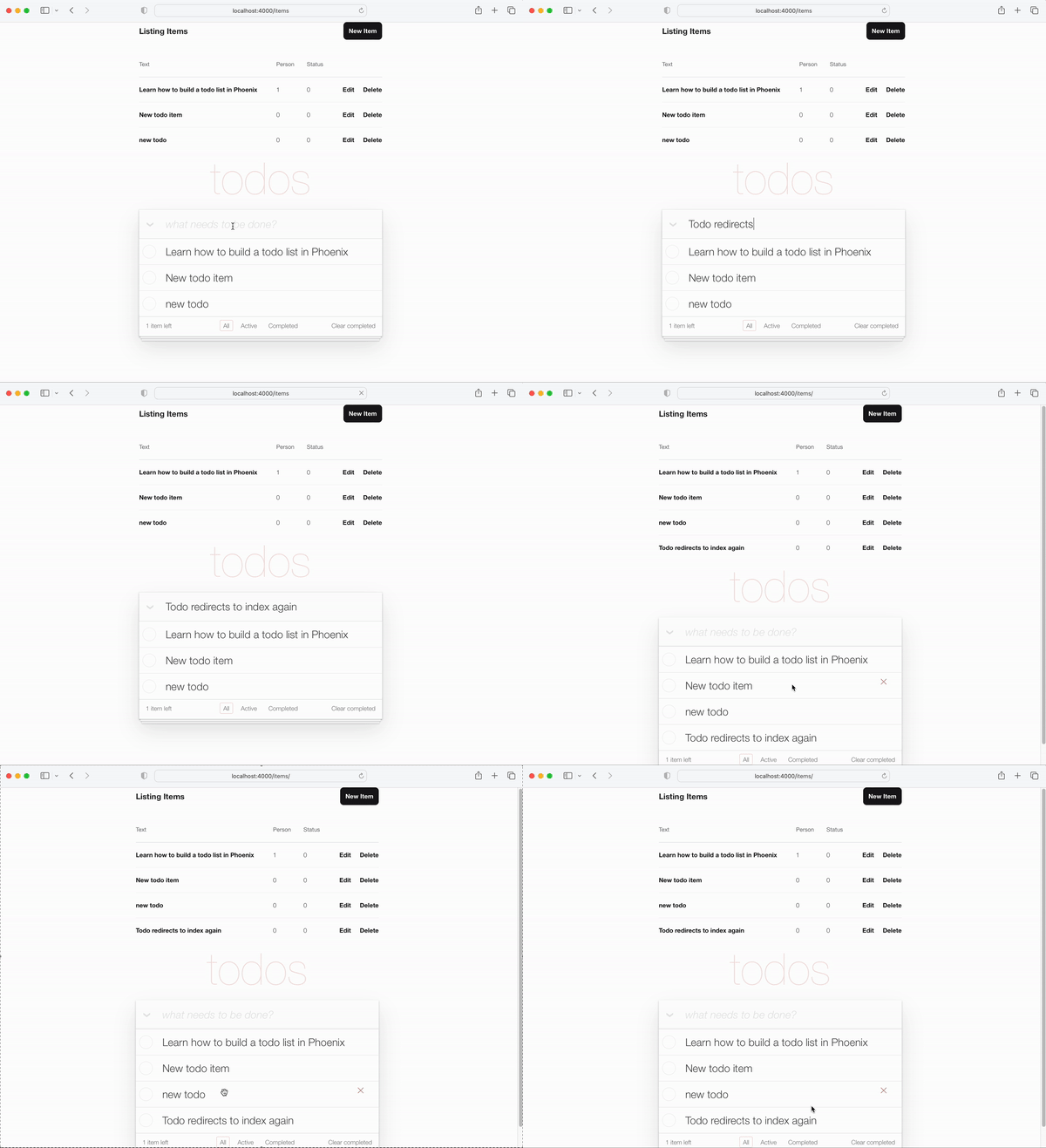
重定向到“显示”模板是“确定”,但是我们可以通过重定向回到index.html模板来做得更好。值得庆幸的是,这与更新代码中的一行一样容易。
create/2中的redirect打开lib/app_web/controllers/item_controller.ex文件并找到create函数。具体的行:
|> redirect ( to: ~p " /items/ #{ item } " )将行更新为:
|> redirect ( to: ~p " /items/ " )之前: /lib/app_web/controllers/item_controller.ex#L22
之后: /lib/app_web/controllers/item_controller.ex#L23
现在,当我们创建一个新item时,我们将重定向到index.html模板:
item_controller_test.exs以重定向到index我们对new.html.heex文件和上述步骤进行的更改打破了我们的一些自动测试。我们应该解决这个问题。
运行测试:
mix test您将看到以下输出:
 Finished in 0.08 seconds (0.03s async, 0.05s sync)
23 tests, 3 failures
打开test/app_web/controllers/item_controller_test.exs文件并找到describe "new item"并describe "create item" 。将这两个更改为以下内容。
更换测试:
 describe "new item" do
  test "renders form" , % { conn: conn } do
    conn = get ( conn , ~p " /items/new " )
    assert html_response ( conn , 200 ) =~ "what needs to be done?"
  end
end

describe "create item" do
  test "redirects to show when data is valid" , % { conn: conn } do
    conn = post ( conn , ~p " /items " , item: @ create_attrs )

    assert % { } = redirected_params ( conn )
    assert redirected_to ( conn ) == ~p " /items/ "
  end

  test "errors when invalid attributes are passed" , % { conn: conn } do
    conn = post ( conn , ~p " /items " , item: @ invalid_attrs )
    assert html_response ( conn , 200 ) =~ "can't be blank"
  end
end
更新的代码:
/test/app_web/controllers/item_controller_test.exs#L34-L55
如果重新运行测试mix test ,现在将再次通过。
......................
Finished in 0.2 seconds (0.09s async, 0.1s sync)
22 tests, 0 failures到目前为止,TODOMVC UI的主要功能正在运行,我们可以创建新项目,并且它们出现在我们的列表中。在此步骤中,我们将增强UI,以包括左下角剩余项目的计数。
打开test/app_web/controllers/item_html_test.exs文件并创建以下两个测试:
 test "remaining_items/1 returns count of items where item.status==0" do
  items = [
    % { text: "one" , status: 0 } ,
    % { text: "two" , status: 0 } ,
    % { text: "done" , status: 1 }
  ]
  assert ItemHTML . remaining_items ( items ) == 2
end

test "remaining_items/1 returns 0 (zero) when no items are status==0" do
  items = [ ]
  assert ItemHTML . remaining_items ( items ) == 0
end
例如: test/app_web/controllers/item_html_test.exs#L14-L26
这些测试将失败,因为ItemHTML.remaining_items/1函数不存在。
通过将以下代码添加到lib/app_web/controllers/item_html.ex文件中来进行测试:
 # returns integer value of items where item.status == 0 (not "done")
def remaining_items ( items ) do
  Enum . filter ( items , fn i -> i . status == 0 end ) |> Enum . count
end
例如: /lib/app_web/controllers/item_html#L15-L17
现在测试正在通过,请在index.html模板中使用remaining_items/1 。打开lib/app_web/controllers/item_html/index.html.eex文件并找到代码行:
< span class =" todo-count " > < strong > 1 </ strong > item left </ span >用这一行替换:
< span class =" todo-count " > < %= remaining_items(@items) % > items left </ span >这只需调用ItemHTML.remaining_items/1函数@items列表,@Items将返回尚未“完成”的剩余项目的整数。
例如: /lib/app_web/controllers/item_html/index.html.eex#L60
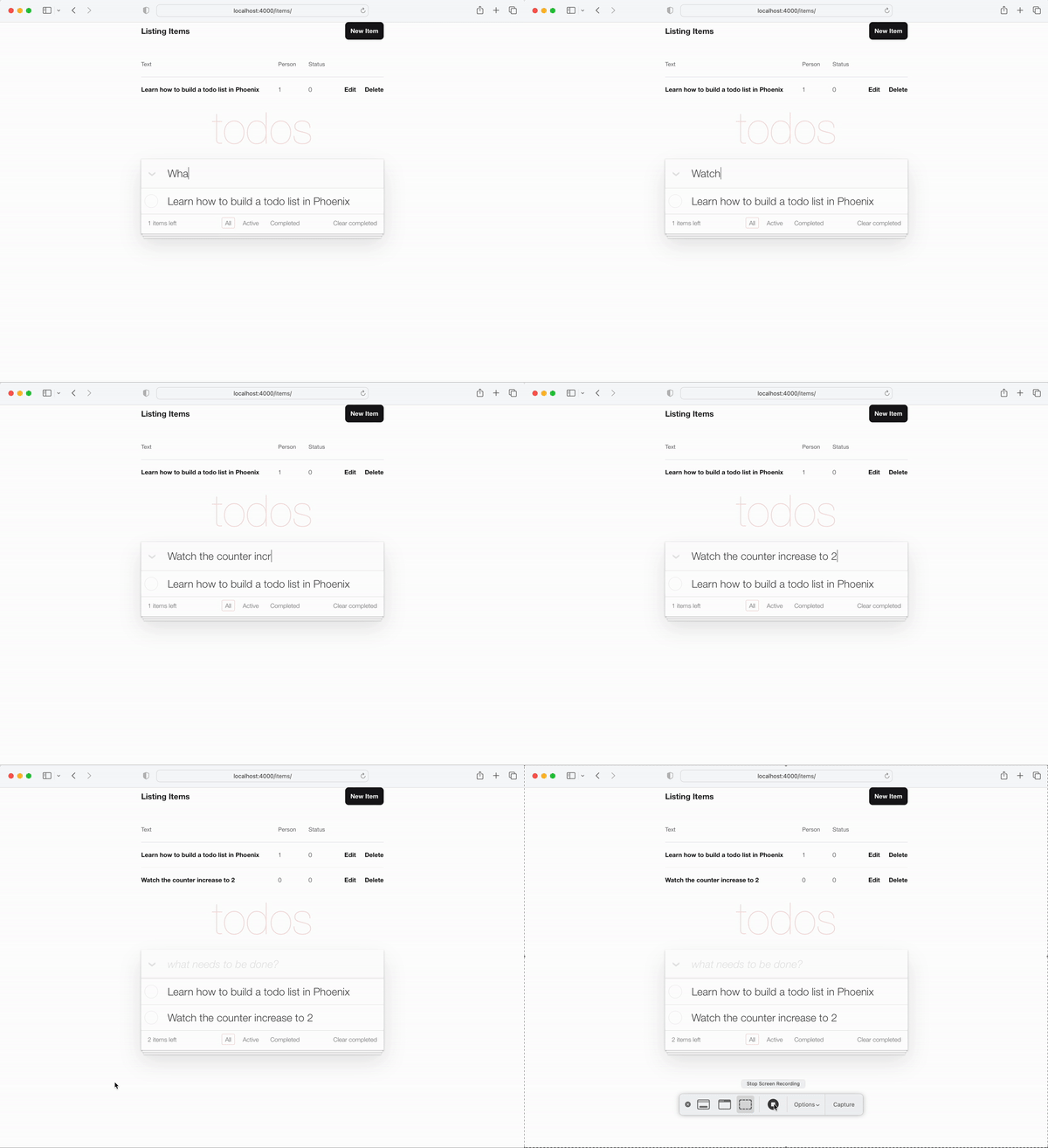
在这一点上,TODOMVC UI左下方的(剩余)项目计数器正在工作!
将new项目添加到您的列表中,并观看数量增加:
这很容易,让我们尝试一些更先进的东西!
休息一下,抓住一杯新鲜的水,下一部分将要激烈!
status切换到1 TODO列表的核心功能之一是将item status从0到1 (“完整”)切换。
在我们的架构中,完整的item的status为1 。
我们将在控制器中需要两个功能:
toggle_status/1切换项目的状态,例如:0至1和1至0。toggle/2 HTTP请求的处理程序功能要切换项目的状态。打开test/app_web/controllers/item_controller_test.exs文件。我们将在这里进行一些更改,以便我们可以将测试添加到先前提到的功能中。我们将在item_controller_test.exs中导入App.Todo ,并修复创建和属性常数以创建模拟项目。确保文件的开始看起来像是这样。
 defmodule AppWeb.ItemControllerTest do
  use AppWeb.ConnCase
  alias App.Todo

  import App.TodoFixtures

  @ create_attrs % { person_id: 42 , status: 0 , text: "some text" }
  @ public_create_attrs % { person_id: 0 , status: 0 , text: "some public text" }
  @ completed_attrs % { person_id: 42 , status: 1 , text: "some text completed" }
  @ public_completed_attrs % { person_id: 0 , status: 1 , text: "some public text completed" }
  @ update_attrs % { person_id: 43 , status: 1 , text: "some updated text" }
  @ invalid_attrs % { person_id: nil , status: nil , text: nil }
我们将固定的Item属性添加到稍后在测试中使用。我们正在指定public Item ,因为稍后我们将在此应用中添加身份验证。
之后,在同一文件中找到defp create_item()/1函数。更改它,看起来像是如此。
  defp create_item ( _ ) do
    item = item_fixture ( @ create_attrs )
    % { item: item }
end我们将使用此功能创建Item对象,以在要添加的测试中使用。说到哪个,让我们这样做!将以下片段添加到文件中。
 describe "toggle updates the status of an item 0 > 1 | 1 > 0" do
  setup [ :create_item ]

  test "toggle_status/1 item.status 1 > 0" , % { item: item } do
    assert item . status == 0
    # first toggle
    toggled_item = % { item | status: AppWeb.ItemController . toggle_status ( item ) }
    assert toggled_item . status == 1
    # second toggle sets status back to 0
    assert AppWeb.ItemController . toggle_status ( toggled_item ) == 0
  end

  test "toggle/2 updates an item.status 0 > 1" , % { conn: conn , item: item } do
    assert item . status == 0
    get ( conn , ~p ' /items/toggle/ #{ item . id } ' )
    toggled_item = Todo . get_item! ( item . id )
    assert toggled_item . status == 1
  end
end
例如: /test/app_web/controllers/item_controller_test.exs#L64-L82
打开lib/app_web/controllers/item_controller.ex文件,然后向其添加以下功能:
  def toggle_status ( item ) do
    case item . status do
      1 -> 0
      0 -> 1
    end
  end

  def toggle ( conn , % { "id" => id } ) do
    item = Todo . get_item! ( id )
    Todo . update_item ( item , % { status: toggle_status ( item ) } )
    conn
    |> redirect ( to: ~p " /items " )
  end
例如: /lib/app_web/controllers/item_controller.ex#L64-L76
此时测试仍将失败,因为我们在测试中调用的路线尚不存在。让我们解决这个问题!
get /items/toggle/:id调用toggle/2 ID路由打开lib/app_web/router.ex并找到行resources "/items", ItemController 。添加新行:
get "/items/toggle/:id" , ItemController , :toggle例如: /lib/app_web/router.ex#L21
现在我们的测试最终将通过:
mix test您应该看到:
22:39:42.231 [info]  Already up
...........................

Finished in 0.5 seconds
27 tests, 0 failuresindex.html中单击复选框时调用toggle/2现在我们的测试正在过去,现在是时候使用我们在UI中构建的所有这些功能了。打开/lib/app_web/controllers/item_html/index.html.heex文件并找到行:
 < %= if item.status == 1 do % >
...
< % else % >
...
< % end % >
用以下内容替换:
  < %= if item.status == 1 do % >
    < .link href={~p"/items/toggle/#{item.id}"}
        class="toggle checked" >
        type="checkbox"
    </ .link >
  < % else % >
    < .link href={~p"/items/toggle/#{item.id}"}
        type="checkbox"
        class="toggle" >
    </ .link >
< % end % >单击此链接时,调用了get /items/toggle/:id端点,
反过来,这触发了我们上面定义的toggle/2处理程序。
之前:
/lib/app_web/controllers/item_html/index.html.heex#L40
之后:/lib/app_web/controllers/item_html/index.html.heex#L47-L57
.checked CSS到app.scss不幸的是, <a>标签(使用<.link>生成的标签)不能具有:checked伪选择器,因此在<input>标签上使用的默认todomvc样式将无法适用于链接。因此,我们需要在app.scss中添加几行CSS。
打开assets/css/app.scss文件,然后向其添加以下行:
. todo-list li . checked + label {
	background-image : url ( 'data:image/svg+xml;utf8,%3Csvg%20xmlns%3D%22http%3A//www.w3.org/2000/svg%22%20width%3D%2240%22%20height%3D%2240%22%20viewBox%3D%22-10%20-18%20100%20135%22%3E%3Ccircle%20cx%3D%2250%22%20cy%3D%2250%22%20r%3D%2250%22%20fill%3D%22none%22%20stroke%3D%22%23bddad5%22%20stroke-width%3D%223%22/%3E%3Cpath%20fill%3D%22%235dc2af%22%20d%3D%22M72%2025L42%2071%2027%2056l-4%204%2020%2020%2034-52z%22/%3E%3C/svg%3E' );
	background-repeat : no-repeat;
}
保存文件后,您应该拥有: /assets/css/app.scss#L8
当您查看应用程序时,切换功能正常工作:
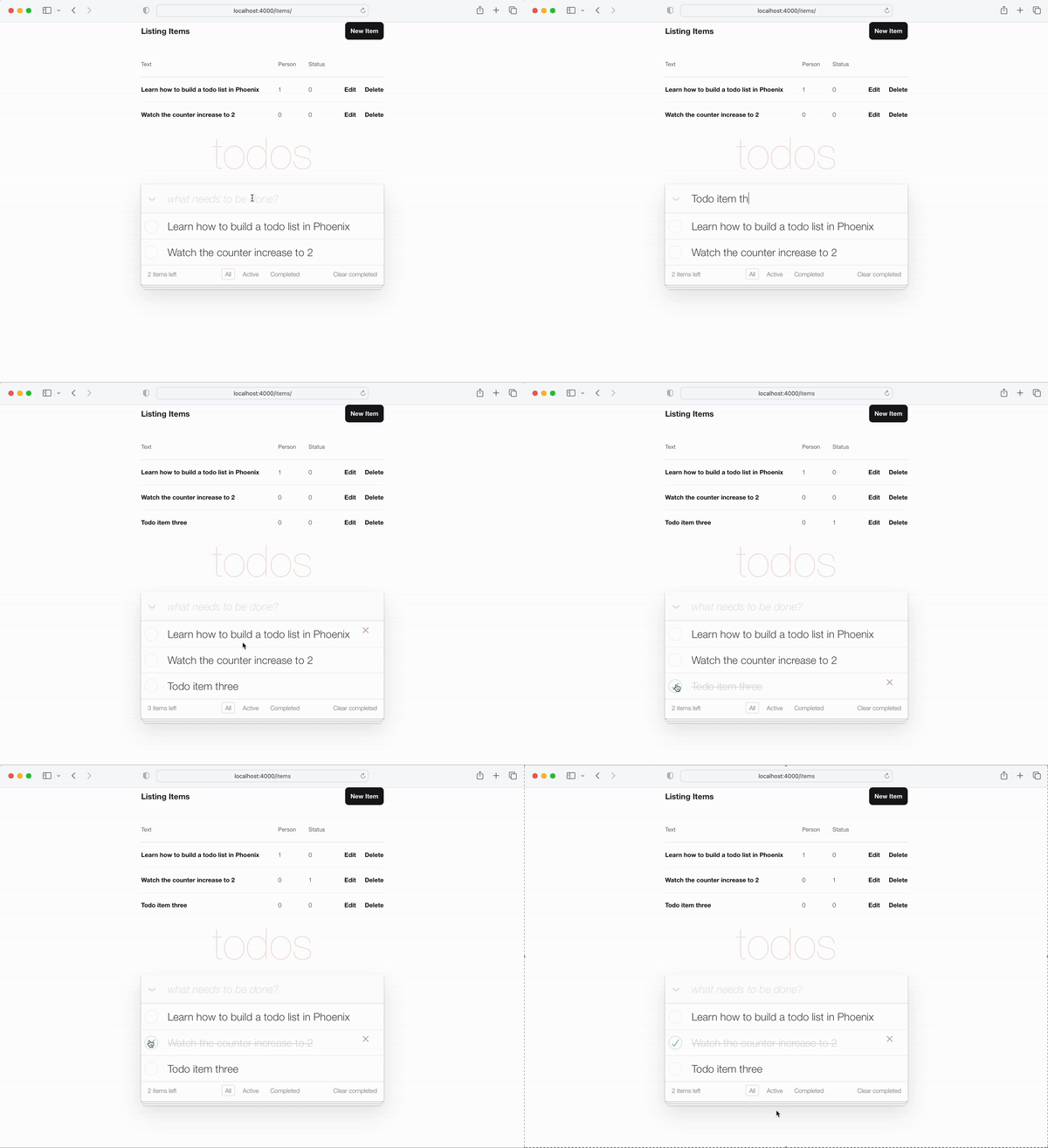
实施注意:我们非常故意在本教程中不使用JavaScript ,因为我们正在演示如何执行100%服务器端渲染应用程序。即使在浏览器中禁用JS或设备超级旧,并且没有现代的Web浏览器,这总是有效的。我们可以很容易地将一个onclick属性添加到<input>标签,例如:
 < input < %= checked(item) % > type="checkbox" class="toggle"
onclick="location.href='
< %= Routes.item_path(@conn, :toggle, item.id) % > ';" >但是onclick是JavaScript ,我们不需要求助于JS 。
<a> (链接)是一种完美的语义非JS方法来切换item.status 。
todo顺序如果您“完成”或恢复操作,则这些操作之间的托多斯订单可能会有所不同。为了保持这种一致,让我们以相同的顺序获取所有todo 。
在lib/app/todo.ex中,将list_items/0更改为以下内容。
  def list_items do
    query =
      from (
        i in Item ,
        select: i ,
        order_by: [ asc: i . id ]
      )

    Repo . all ( query )
end通过获取todo物品并订购它们,我们保证UX保持一致!
我们需要添加到UI的最终功能是编辑项目文本的能力。
在此步骤结束时,您将进行在线编辑工作:
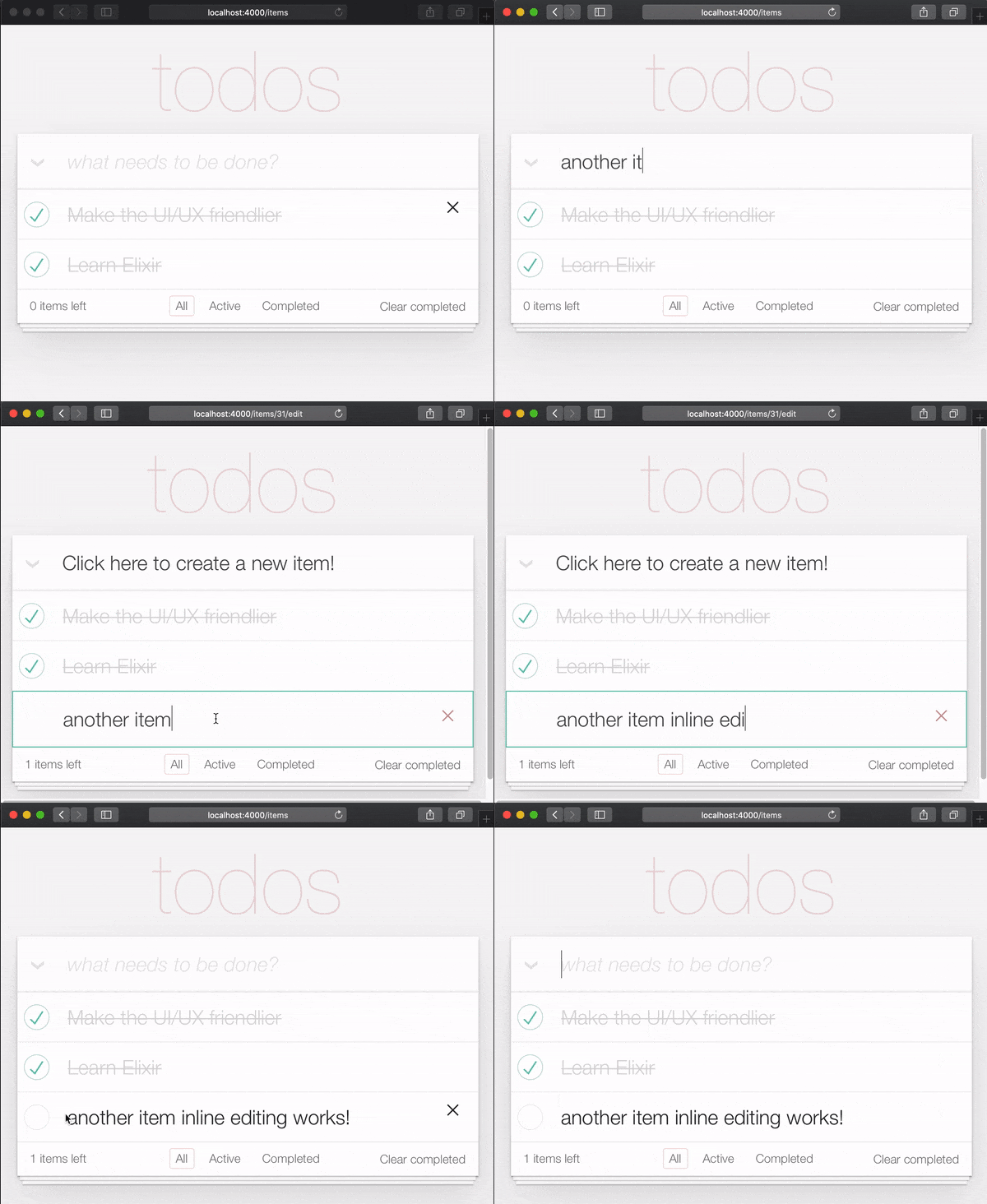
需要两次单击以编辑项目的原因是,人们不会在滚动时意外编辑项目。因此,他们必须故意单击/点击两次才能进行编辑。
在TODOMVC规格中,这是通过为双击事件创建事件侦听器并用<input>替换<label>元素来实现的。我们正在尝试避免在服务器端渲染的Phoenix应用中使用JavaScript (目前),因此我们要使用替代方法。值得庆幸的是,我们可以使用HTML和CSS模拟双击事件。请参阅:https://css-tricks.com/double-click-in-css(我们建议阅读该帖子和演示,以完全了解此CSS的工作方式!)
注意:CSS实现不是真正的双击,更准确的描述将是“两次点击”,因为两次单击可以通过任意延迟发生。即首次单击,然后进行10秒等待,第二次点击将与快速连续两次点击具有相同的效果。如果您想实现真正的双击,请参见:github.com/dwyl/javascript-todo-list-tutorial#52-double-click
让我们继续吧!打开lib/app_web/controllers/item_html/index.html.heex文件并找到行:
< % = new ( Map . put ( assigns , :action , ~p " /items/new " ) ) % >替换为:
 < % = if @ editing . id do % >
  <. link href = { ~p " /items " }
      method = "get"
      class= "new-todo" >
      Click here to create a new item!
  < / . link >
< % else % >
  < % = new ( Map . put ( assigns , :action , ~p " /items/new " ) ) % >
< % end % >在这里,我们正在检查是否正在编辑项目,并呈现链接而不是表单。我们这样做是为了避免页面上有多个表格。如果我们不编辑项目,请像以前一样渲染new.html.heex 。这样,如果用户正在编辑项目,他可以通过单击渲染的链接来“摆脱编辑模式”。
例如: lib/app_web/controllers/item_html/index.html.heex#L30-L38
接下来,仍在index.html.eex文件中,找到该行:
< %= for item < - @items do % >用以下代码替换整个<li>标签。
 < li data - id = { item . id } class= { complete ( item ) } >
    < % = if item . status == 1 do % >
      <. link href = { ~p " /items/toggle/ #{ item . id } " }
          class= "toggle checked" >
          type = "checkbox"
      < / . link >
    < % else % >
      < . link href = { ~p " /items/toggle/ #{ item . id } " }
          type = "checkbox"
          class= "toggle" >
      < / . link >
    < % end % >

  < div class = "view" >
    < % = if item . id == @ editing . id do % >
      < % = edit (
        Map . put ( assigns , :action , ~p " /items/ #{ item . id } /edit " )
        |> Map . put ( :item , item )
      ) % >
    < % else % >
      < . link href = { ~p " /items/ #{ item } /edit " } class= "dblclick" >
        < label > < % = item . text % > < / label >
      < / . link >
      < span > < / span > < ! -- used for CSS Double Click -- >
    < % end % >

    < . link
      class = "destroy"
      href = { ~p " /items/ #{ item } " }
      method= "delete"
    >
    < / . link >
  < / div >
< /li>
例如: lib/app_web/controllers/item_html/index.html.heex#L46-L79
我们在这里做了一些事情。我们更改了<div class="view> tag之外的切换按钮。此外,我们已经使用a if else block语句更改了文本。
如果用户不编辑,则会渲染链接( <a> ),单击时,该链接允许用户输入“编辑”模式。另一方面,如果用户正在编辑,则呈现edit.html.heex文件。
说到哪个,让我们编辑edit.html.heex ,这样就可以呈现我们想要的内容:一个文本字段,一旦按下Enter ,就会编辑引用todo项目。
 < .simple_form :let={f} for={@changeset} method="put" action={~p"/items/#{@item}"} >
  < .input
    field={{f, :text}}
    type="text"
    placeholder="what needs to be done?"
    class="new-todo"
  />
  < :actions >
    < .button
    style="display: none;"
    type="submit" >
      Save
    </ .button >
  </ :actions >
  <!-- submit the form using the Return/Enter key -->
</ .simple_form >CSS用于编辑要启用CSS双击效果以输入edit模式,我们需要将以下CSS添加到我们的assets/css/app.scss文件:
. dblclick {
  position : relative; /* So z-index works later, but no surprises now */
}

. dblclick + span {
  position : absolute;
  top : -1 px ; /* these negative numbers are to ensure */
  left : -1 px ; /* that the <span> covers the <a> */
  width : 103 % ; /* Gotta do this instead of right: 0; */
  bottom : -1 px ;
  z-index : 1 ;
}

. dblclick + span : active {
  left : -9999 px ;
}

. dblclick : hover {
  z-index : 2 ;
}
例如: assets/css/app.css#L13-L32
此外,由于我们的标记与TODOMVC标记略有不同,因此我们需要添加更多CSS以保持UI一致:
. todo-list li . toggle + div > a > label {
  background-image : url ( 'data:image/svg+xml;utf8,%3Csvg%20xmlns%3D%22http%3A//www.w3.org/2000/svg%22%20width%3D%2240%22%20height%3D%2240%22%20viewBox%3D%22-10%20-18%20100%20135%22%3E%3Ccircle%20cx%3D%2250%22%20cy%3D%2250%22%20r%3D%2250%22%20fill%3D%22none%22%20stroke%3D%22%23ededed%22%20stroke-width%3D%223%22/%3E%3C/svg%3E' );
  background-repeat : no-repeat;
  background-position : center left;
}

. todo-list li . checked + div > a > label
{
  background-image : url ( 'data:image/svg+xml;utf8,%3Csvg%20xmlns%3D%22http%3A//www.w3.org/2000/svg%22%20width%3D%2240%22%20height%3D%2240%22%20viewBox%3D%22-10%20-18%20100%20135%22%3E%3Ccircle%20cx%3D%2250%22%20cy%3D%2250%22%20r%3D%2250%22%20fill%3D%22none%22%20stroke%3D%22%23bddad5%22%20stroke-width%3D%223%22/%3E%3Cpath%20fill%3D%22%235dc2af%22%20d%3D%22M72%2025L42%2071%2027%2056l-4%204%2020%2020%2034-52z%22/%3E%3C/svg%3E' );
  background-repeat : no-repeat;
  background-position : center left;
}

. toggle {
  width : 10 % ;
  z-index : 3 ; /* keep the toggle checkmark above the rest */
}

a . new-todo {
  display : block;
  text-decoration : none;
}

. todo-list . new-todo {
  border : 1 px # 1abc9c solid;
}

. view a , . view a : visited {
  display : block;
  text-decoration : none;
  color : # 2b2d2f ;
}

. todo-list li . destroy {
  text-decoration : none;
  text-align : center;
  z-index : 3 ; /* keep the delete link above the text */
}这是您的app.scss文件在此步骤结束时的样子: assets/css/app.css#L34-L71
ItemController.edit/2功能为了启用在线编辑,我们需要修改edit/2功能。打开lib/app_web/controllers/item_controller.ex文件,然后用以下内容替换edit/2函数:
 def edit ( conn , params ) do
  index ( conn , params )
end此外,鉴于我们要求我们的index/2函数来处理编辑,我们需要更新index/2 :
 def index ( conn , params ) do
  item = if not is_nil ( params ) and Map . has_key? ( params , "id" ) do
    Todo . get_item! ( params [ "id" ] )
  else
    % Item { }
  end
  items = Todo . list_items ( )
  changeset = Todo . change_item ( item )
  render ( conn , "index.html" , items: items , changeset: changeset , editing: item )
end最后,我们需要处理提交表单以更新项目(在edit.html.heex中渲染)。当我们按Enter时, update/2处理程序在lib/app_web/controllers/item_controller.ex中被调用。更新项目后,我们希望留在同一页面上。
因此,更改它,看起来像这样。
 def update ( conn , % { "id" => id , "item" => item_params } ) do
  item = Todo . get_item! ( id )

  case Todo . update_item ( item , item_params ) do
    { :ok , _item } ->
      conn
      |> redirect ( to: ~p " /items/ " )

    { :error , % Ecto.Changeset { } = changeset } ->
      render ( conn , :edit , item: item , changeset: changeset )
  end
end您的item_controller.ex文件现在应该看起来像: lib/app_web/controllers/item_controller.ex
ItemControllerTest中的测试为了构建单页应用程序,我们打破了一些测试!没关系。它们很容易修复。
打开test/app_web/controllers/item_controller_test.exs文件,并使用以下文本找到测试。
test "renders form for editing chosen item"
并更改它,以便如下。
  test "renders form for editing chosen item" , % { conn: conn , item: item } do
    conn = get ( conn , ~p " /items/ #{ item } /edit " )
    assert html_response ( conn , 200 ) =~ "Click here to create a new item"
end当我们输入“编辑计时器模式”时,我们会创建<a>链接以返回/items ,如我们先前实现的。此标签具有“单击此处创建新项目”文本,这就是我们所说的。
例如: test/app_web/controllers/item_controller_test.exs#L37-L39
接下来,使用以下描述找到测试:
describe "update item"将块更新为以下代码。
 describe "update item" do
  setup [ :create_item ]

  test "redirects when data is valid" , % { conn: conn , item: item } do
    conn = put ( conn , ~p " /items/ #{ item } " , item: @ update_attrs )
    assert redirected_to ( conn ) == ~p " /items/ "

    conn = get ( conn , ~p " /items/ " )
    assert html_response ( conn , 200 ) =~ "some updated text"
  end

  test "errors when invalid attributes are passed" , % { conn: conn , item: item } do
    conn = put ( conn , ~p " /items/ #{ item } " , item: @ invalid_attrs )
    assert html_response ( conn , 200 ) =~ "can't be blank"
  end
end
例如: test/app_web/controllers/item_controller_test.exs#L67-L80
我们已将应用程序重定向的路径更新到更新项目后。由于我们正在构建一个单页应用程序,因此该路径与/items/ URL路径有关。
如果您现在进行测试,它们应该再次通过:
 mix test

23:08:01.785 [info]  Already up
...........................

Finished in 0.5 seconds
27 tests, 0 failures

Randomized with seed 956565
index.html中删除旧模板现在,我们已经有了toggle和edit功能工作,我们最终可以从lib/app_web/controllers/item_html/index.html.heex模板中删除默认的凤凰(表)布局。
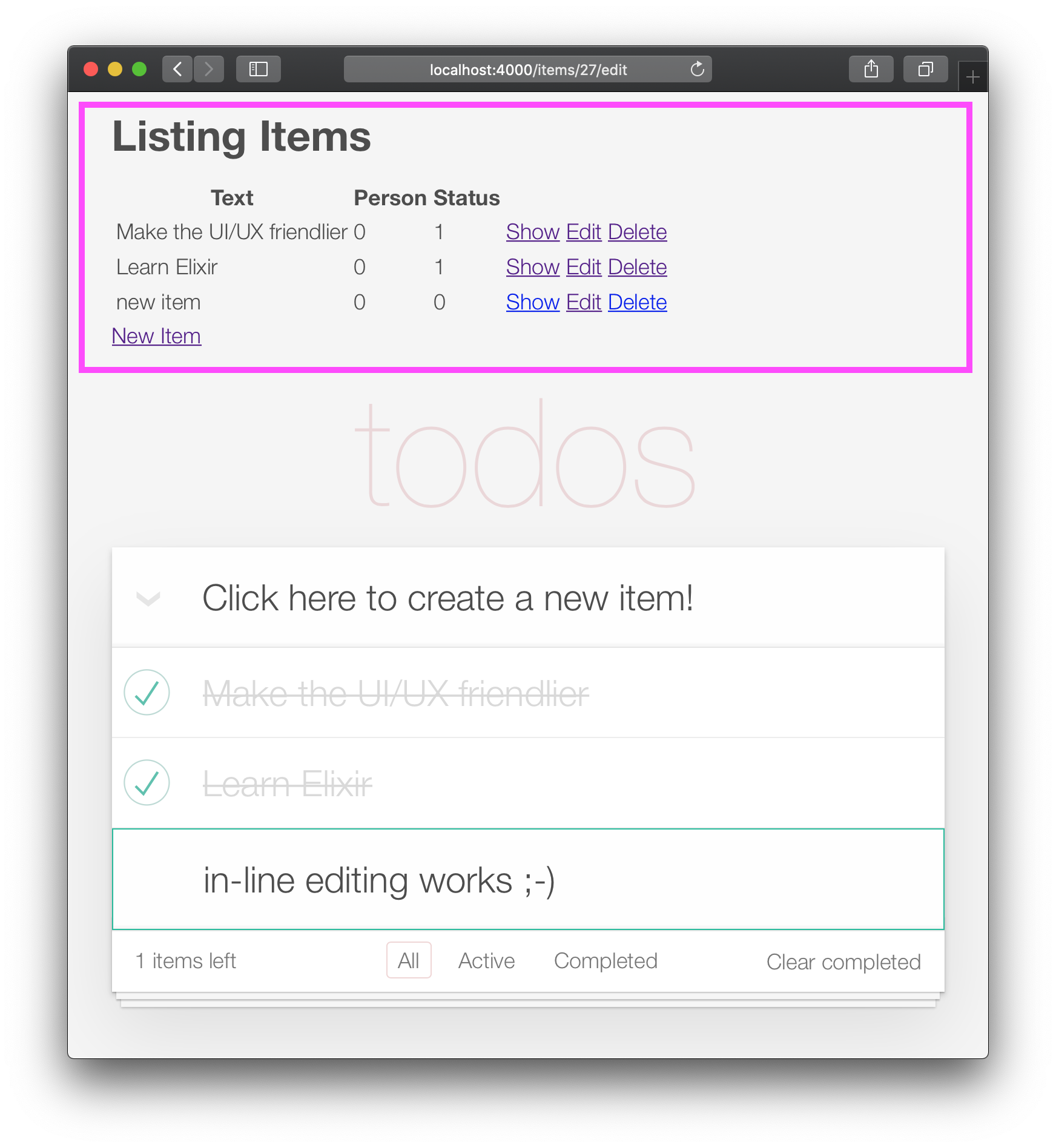
打开lib/app_web/controllers/item_html/index.html.eex文件,然后在行之前删除所有代码:
< section class =" todoapp " >例如: lib/app_web/controllers/item_html/index.html.heex
您的应用现在应该看起来像这样: 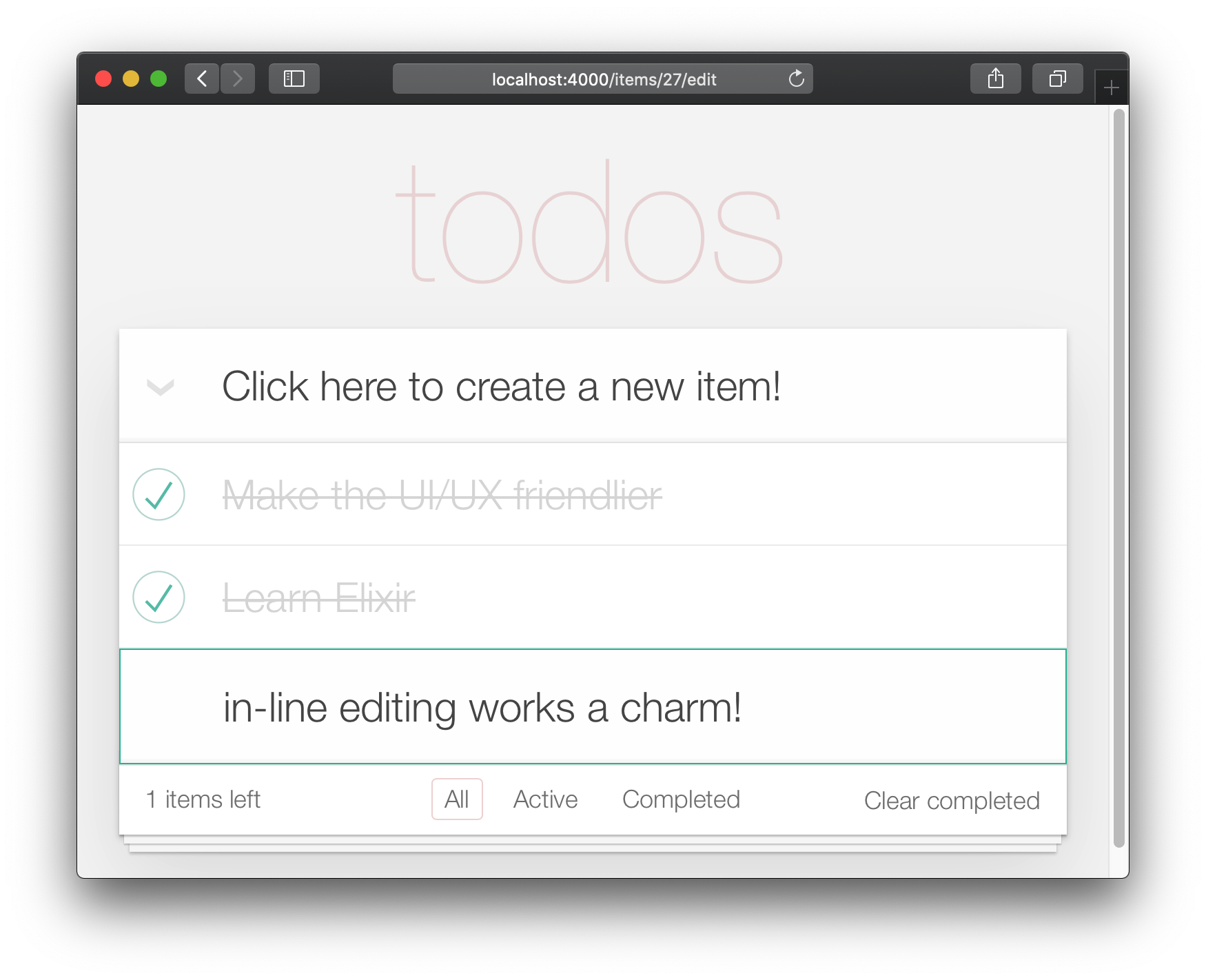
不幸的是,通过删除默认布局,我们“打破”了测试。
打开test/app_web/controllers/item_controller_test.exs文件并找到具有以下描述的测试:
test "lists all items"从:
assert html_response ( conn , 200 ) =~ "Listing Items"到:
assert html_response ( conn , 200 ) =~ "todos"例如: test/app_web/controllers/item_controller_test.exs#L14
现在,核心(创建,编辑/更新,删除)功能正在正常工作,我们可以添加最终的UI增强功能。在此步骤中,我们将添加页脚导航/过滤。
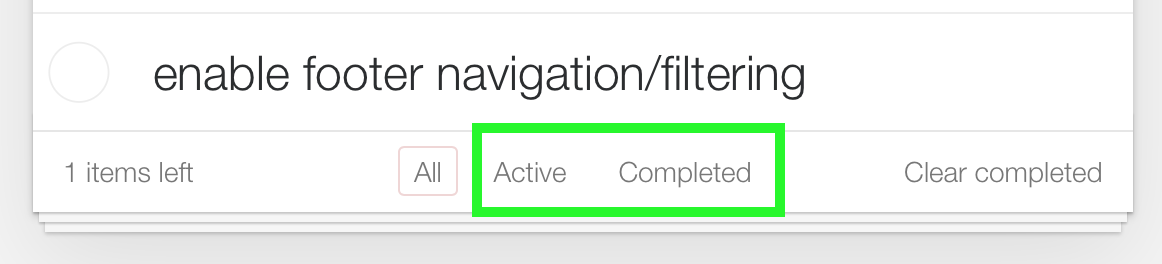
“全”视图是默认值。 “活动”是所有项目status==0 。 “已完成”是所有具有status==1项目。
/:filter路线开始之前,让我们添加一个单元测试。我们希望根据所选的过滤器显示过滤的项目。
打开test/app_web/controllers/item_controller_test.exs并找到describe "index" do 。在此块中,添加以下测试。它检查更改过滤器时是否正确显示该项目。
  test "lists items in filter" , % { conn: conn } do
    conn = post ( conn , ~p " /items " , item: @ public_create_attrs )

    # After creating item, navigate to 'active' filter page
    conn = get ( conn , ~p " /items/filter/active " )
    assert html_response ( conn , 200 ) =~ @ public_create_attrs . text

    # Navigate to 'completed page'
    conn = get ( conn , ~p " /items/filter/completed " )
    assert ! ( html_response ( conn , 200 ) =~ @ public_create_attrs . text )
  end
例如: test/app_web/controllers/item_controller_test.exs#L21-L32
打开lib/app_web/router.ex并添加以下路由:
get "/items/filter/:filter" , ItemController , :index例如: /lib/app_web/router.ex#L23
index/2以将filter发送到视图/模板打开lib/app_web/controllers/item_controller.ex文件并找到index/2函数。替换index/2末尾的render/3的调用:用以下内容:
 render ( conn , "index.html" ,
  items: items ,
  changeset: changeset ,
  editing: item ,
  filter: Map . get ( params , "filter" , "all" )
)
例如: lib/app_web/controllers/item_controller.ex#L17-L22
Map.get(params, "filter", "all")将filter的默认值设置为“ all”,因此当启用index.html时,显示“所有”项目。
filter/2视图功能为了通过其状态过滤这些项目,我们需要创建一个新功能。
打开lib/app_web/controllers/item_html.ex文件,然后创建filter/2函数如下:
 def filter ( items , str ) do
  case str do
    "items" -> items
    "active" -> Enum . filter ( items , fn i -> i . status == 0 end )
    "completed" -> Enum . filter ( items , fn i -> i . status == 1 end )
    _ -> items
  end
end
例如: lib/app_web/controllers/item_html.ex#L19-L26
这将使我们能够在下一步中过滤这些项目。
index.html模板中的页脚使用filter/2功能过滤显示的项目。打开lib/app_web/controllers/item_html/index.html.heex文件并找到for loop Line:
< % = for item <- @ items do % >替换为:
< % = for item <- filter ( @ items , @ filter ) do % >例如: lib/app_web/controllers/item_html/index.html.heex#L18
这将调用我们在@items和所选@filter列表中的上一个步骤中定义的filter/2函数。
接下来,找到<footer> ,然后用以下代码替换<ul class="filters">的内容:
  < li >
    < % = if @ filter == "items" do % >
      <a href = "/items/filter/items" class= "selected" >
        All
      < / a >
    < % else % >
      <a href = "/items/filter/items" >
        All
      < / a >
    < % end % >
  < / li >
  < li >
    < % = if @ filter == "active" do % >
      <a href = "/items/filter/active" class= 'selected' >
        Active
        [ < % = Enum . count ( filter ( @ items , "active" ) ) % > ]
      < / a >
    < % else % >
      <a href = "/items/filter/active" >
        Active
        [ < % = Enum . count ( filter ( @ items , "active" ) ) % > ]
      < / a >
    < % end % >
  < / li >
  < li >
    < % = if @ filter == "completed" do % >
      <a href = "/items/filter/completed" class= 'selected' >
        Completed
        [ < % = Enum . count ( filter ( @ items , "completed" ) ) % > ]
      < / a >
    < % else % >
      <a href = "/items/filter/completed" >
        Completed
        [ < % = Enum . count ( filter ( @ items , "completed" ) ) % > ]
      < / a >
    < % end % >
< / li >我们将根据@filter分配值有条件地添加selected类。
例如: /lib/app_web/controllers/item_html/index.html.heex#L62-L98
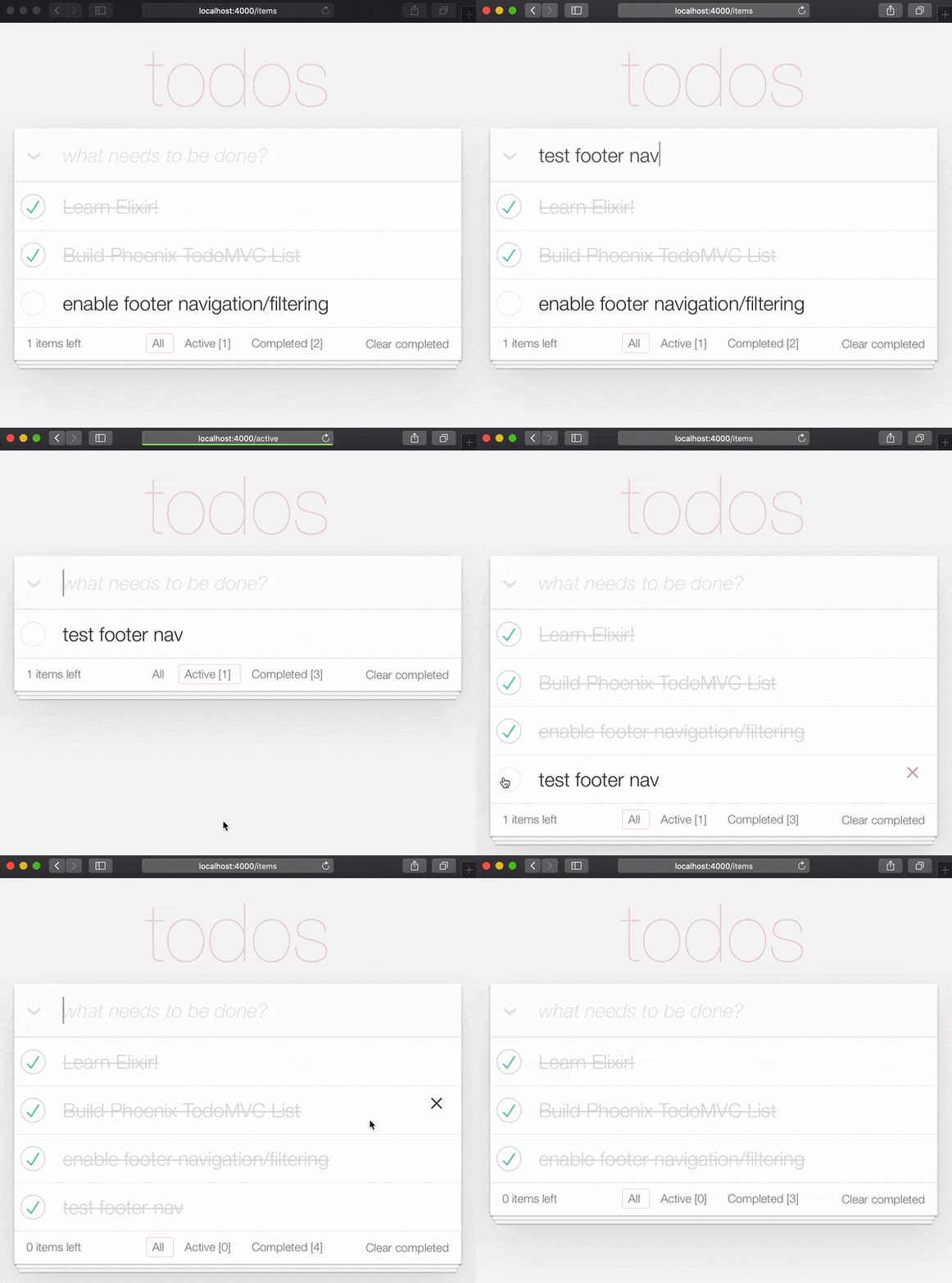
在此步骤结束时,您将拥有一个功能齐全的页脚过滤器:
我们可以快速覆盖我们通过小型单元测试添加的功能。打开test/app_web/controllers/item_html_test.exs并添加以下内容。
  test "test filter function" do
    items = [
      % { text: "one" , status: 0 } ,
      % { text: "two" , status: 0 } ,
      % { text: "three" , status: 1 } ,
      % { text: "four" , status: 2 } ,
      % { text: "five" , status: 2 } ,
      % { text: "six" , status: 1 } ,
    ]

    assert length ( ItemHTML . filter ( items , "items" ) ) == 4
    assert length ( ItemHTML . filter ( items , "active" ) ) == 2
    assert length ( ItemHTML . filter ( items , "completed" ) ) == 2
    assert length ( ItemHTML . filter ( items , "any" ) ) == 4
  end
而且您应该完成此功能吗?很棒的工作!
我们几乎完成了凤凰城的实施todomvc。要实现的最后一件事是“清晰完成”。
打开您的lib/app_web/router.ex文件,并添加以下路由:
get "/items/clear" , ItemController , :clear_completed您的scope "/"现在看起来如下:
  scope "/" , AppWeb do
    pipe_through :browser

    get "/" , PageController , :home
    get "/items/toggle/:id" , ItemController , :toggle
    get "/items/clear" , ItemController , :clear_completed
    get "/items/filter/:filter" , ItemController , :index
    resources "/items" , ItemController
end在lib/app_web/controllers/item_controller.ex文件中添加以下代码:
 import Ecto.Query
alias App.Repo

def clear_completed ( conn , _param ) do
  person_id = 0
  query = from ( i in Item , where: i . person_id == ^ person_id , where: i . status == 1 )
  Repo . update_all ( query , set: [ status: 2 ] )
  # render the main template:
  index ( conn , % { filter: "all" } )
end
例如: lib/app_web/controllers/item_controller.ex#L87-L93
这使用Handy update_all/3函数来更新与query匹配的所有项目。在我们的情况下,我们搜索所有属于person_id==0并具有status==1 items 。
我们不是在删除项目,而是将其状态更新为2 ,这是为了我们的示例,这意味着它们是“存档”的。
注意:这是
update_all的有用指南:https://adamdelong.com/bulk-update-ecto
最后,在lib/app_web/controllers/item_html/index.html.eex滚动到文件底部并替换行:
 < button class = "clear-completed" style = "display: block;" >
  Clear completed
< / button >
和:
 < a class = "clear-completed" href = "/items/clear" >
  Clear completed
  [ < % = Enum . count ( filter ( @ items , "completed" ) ) % > ]
< / a >
例如: lib/app_web/controllers/item_html/index.html.heex#L104-L107
我们需要做的最后一件事是在lib/app_web/controllers/item_html.ex中更新filter/2函数。由于status = 2现在与存档状态有关,因此我们要返回任何未存档的内容。
更改filter/2功能,使其看起来如此。
 def filter ( items , str ) do
  case str do
    "items" -> Enum . filter ( items , fn i -> i . status !== 2 end )
    "active" -> Enum . filter ( items , fn i -> i . status == 0 end )
    "completed" -> Enum . filter ( items , fn i -> i . status == 1 end )
    _ -> Enum . filter ( items , fn i -> i . status !== 2 end )
  end
end
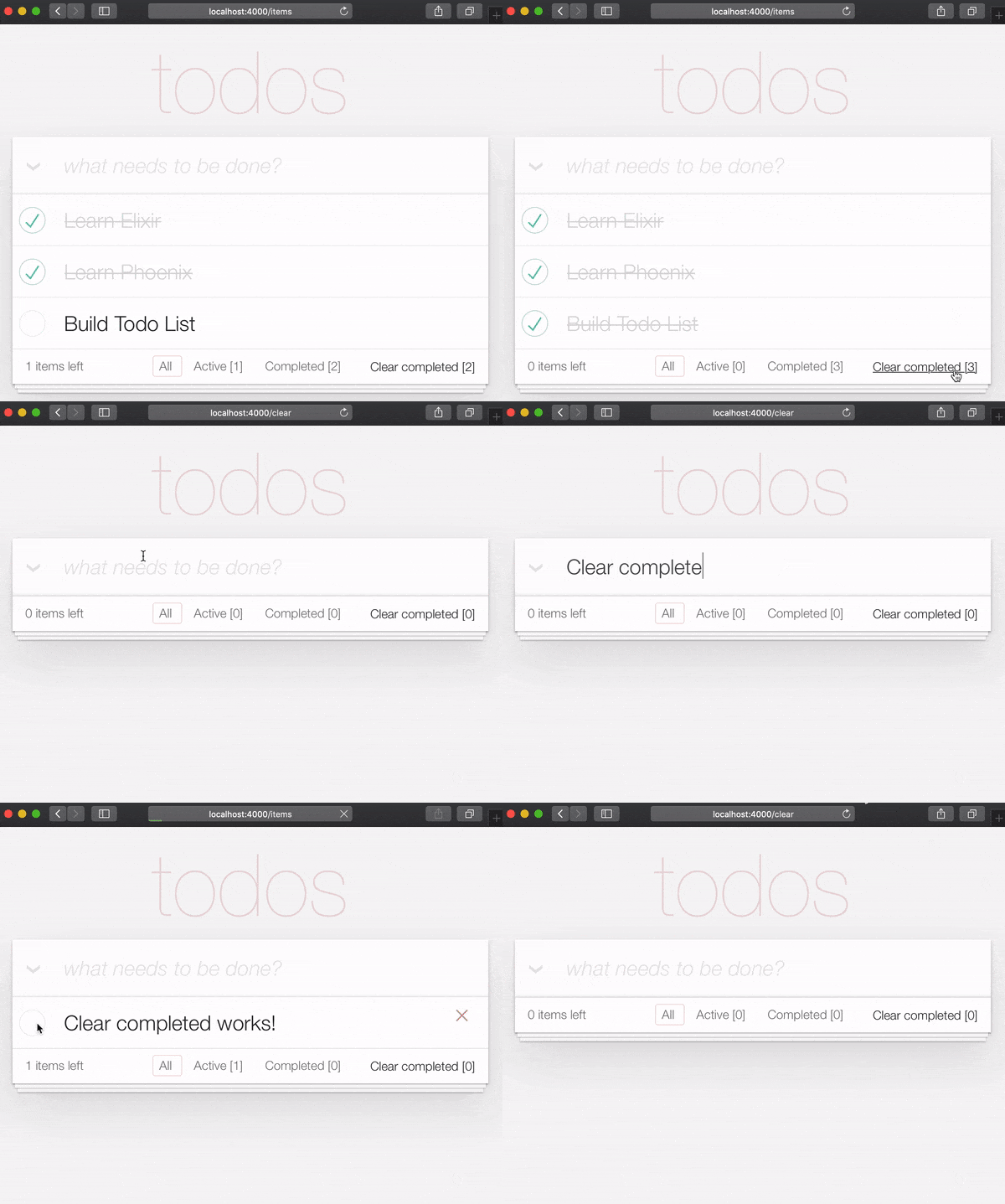
在本节末尾,您的todo列表应具有“清晰完成的”功能:
It's useful to have tests cover this feature. Open test/app_web/controllers/item_controller_test.exs . Alongside the constants, on top of the file, add the following line.
@completed_attrs %{person_id: 42, status: 1, text: "some text completed"}
We will use this to create an item that is already completed, so we can test the "clear completed" functionality.
Add the next lines to test the clear_completed/2 function.
  describe "clear completed" do
    setup [ :create_item ]

    test "clears the completed items" , % { conn: conn , item: item } do

      # Creating completed item
      conn = post ( conn , ~p " /items " , item: @ public_completed_attrs )
      # Clearing completed items
      conn = get ( conn , ~p " /items/clear " )

      items = conn . assigns . items
      [ completed_item | _tail ] = conn . assigns . items

      assert conn . assigns . filter == "all"
      assert completed_item . status == 2
    end

    test "clears the completed items in public (person_id=0)" , % { conn: conn , item: item } do

      # Creating completed item
      conn = post ( conn , ~p " /items " , item: @ public_completed_attrs )
      # Clearing completed items
      conn = get ( conn , ~p " /items/clear " )

      items = conn . assigns . items
      [ completed_item | _tail ] = conn . assigns . items

      assert conn . assigns . filter == "all"
      assert completed_item . status == 2
    end
endAt this point we already have a fully functioning Phoenix Todo List. There are a few things we can tidy up to make the App even better!
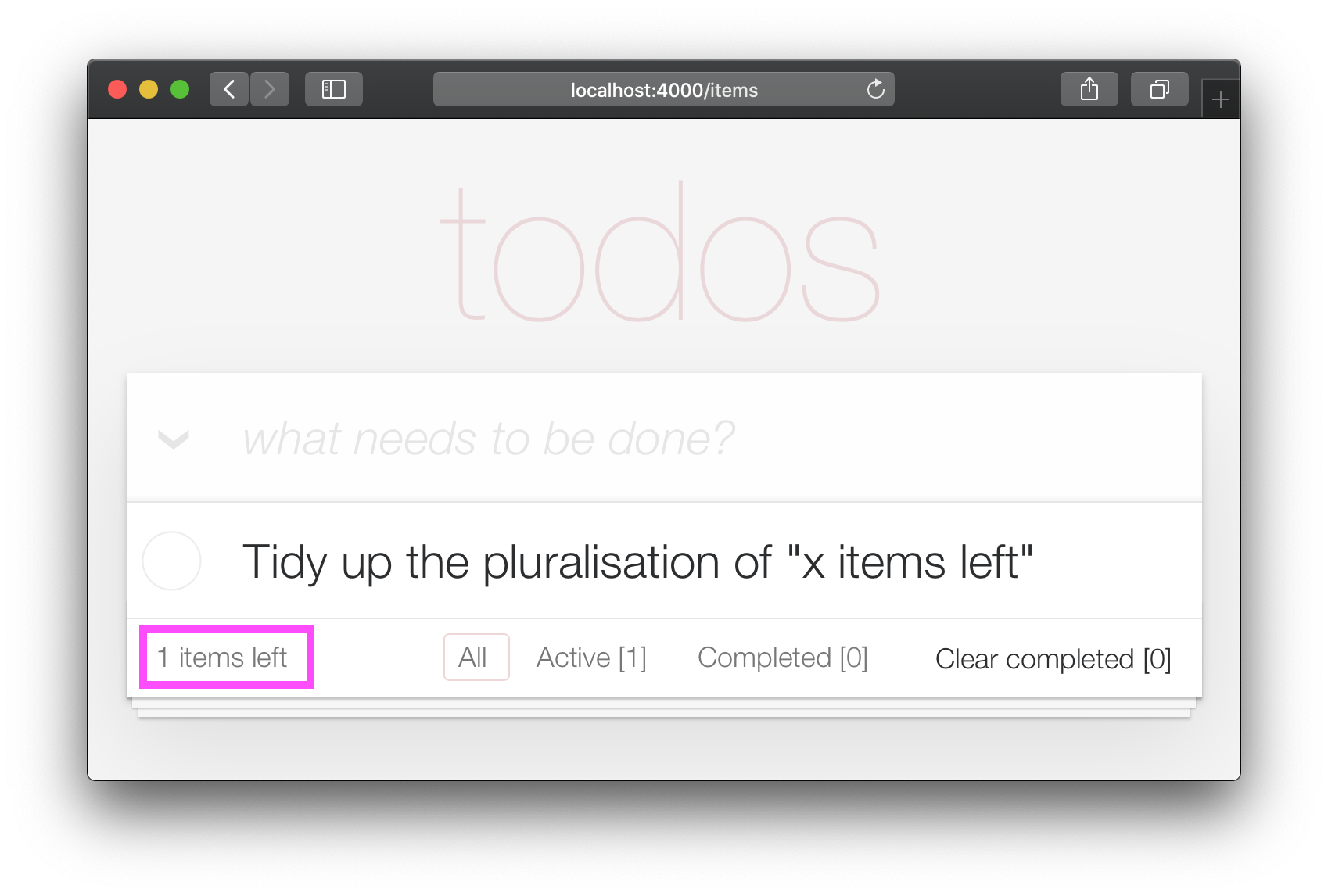
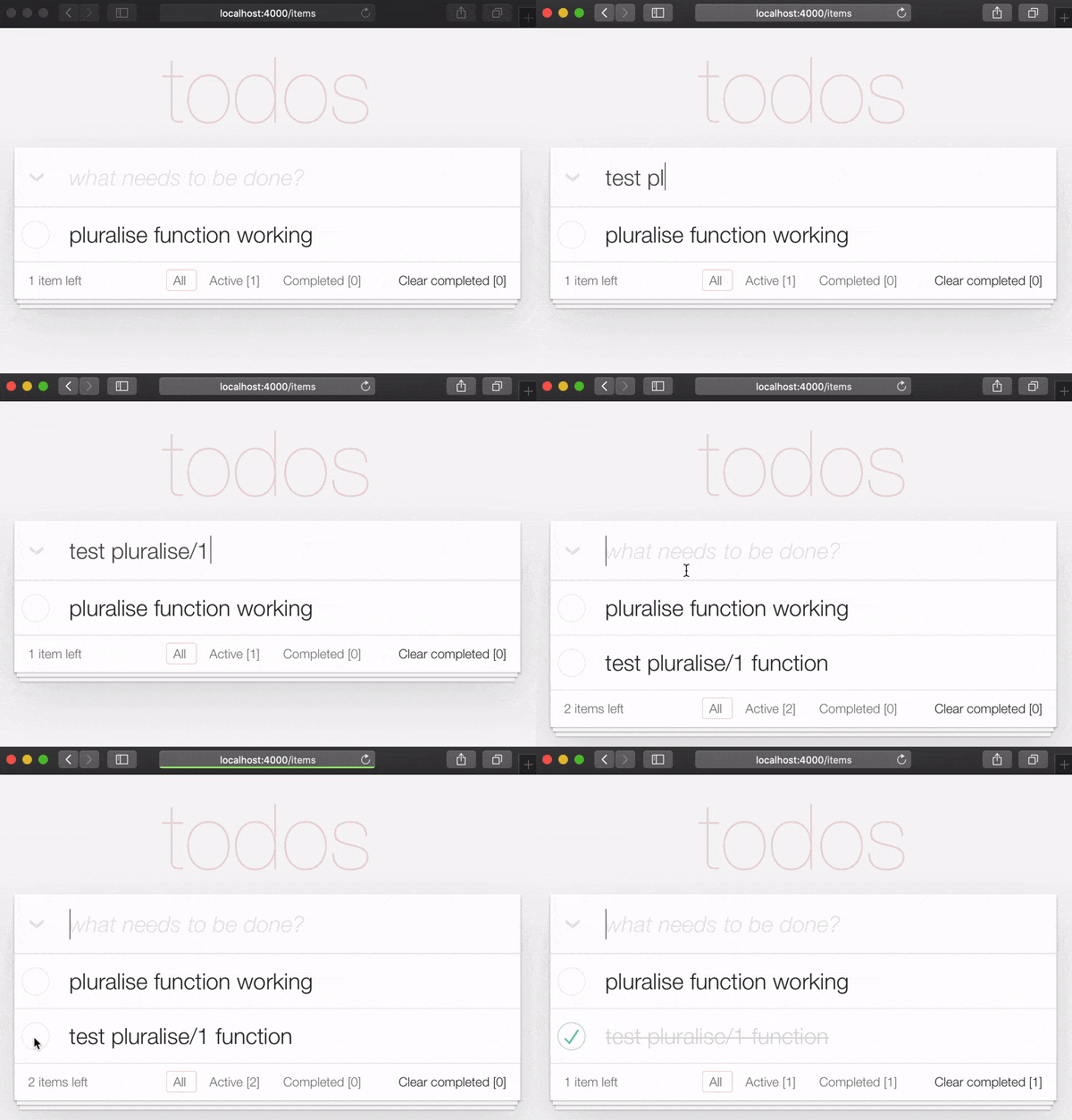
If you are the type of person to notice the tiny details, you would have been itching each time you saw the " 1 items left " in the bottom left corner:
Open your test/app_web/controllers/item_html_test.exs file and add the following test:
 test "pluralise/1 returns item for 1 item and items for < 1 <" do
  assert ItemHTML . pluralise ( [ % { text: "one" , status: 0 } ] ) == "item"
  assert ItemHTML . pluralise ( [
    % { text: "one" , status: 0 } ,
    % { text: "two" , status: 0 }
  ] ) == "items"
  assert ItemHTML . pluralise ( [ % { text: "one" , status: 1 } ] ) == "items"
end
eg: test/app_web/controllers/item_html_test.exs#L28-L35
This test will obviously fail because the AppWeb.ItemHTML.pluralise/1 is undefined. Let's make it pass!
Open your lib/app_web/controllers/item_html.ex file and add the following function definition for pluralise/1 :
 # pluralise the word item when the number of items is greater/less than 1
def pluralise ( items ) do
  # items where status < 1 is equal to Zero or Greater than One:
  case remaining_items ( items ) == 0 || remaining_items ( items ) > 1 do
    true -> "items"
    false -> "item"
  end
end
eg: lib/app_web/controllers/item_html.ex#L28-L35
Note : we are only pluralising one word in our basic Todo App so we are only handling this one case in our
pluralise/1function. In a more advanced app we would use a translation tool to do this kind of pluralising. See: https://hexdocs.pm/gettext/Gettext.Plural.html
Finally, use the pluralise/1 in our template. Open lib/app_web/controllers/item_html/index.html.heex
Locate the line:
< span class = "todo-count" > < % = remaining_items ( @ items ) % > items left < /span>And replace it with the following code:
 < span class = "todo-count" >
  < % = remaining_items ( @ items ) % > < % = pluralise ( @ items ) % > left
< /span>
eg: lib/app_web/controllers/item_html/index.html.heex#L61
At the end of this step you will have a working pluralisation for the word item/items in the bottom left of the UI:
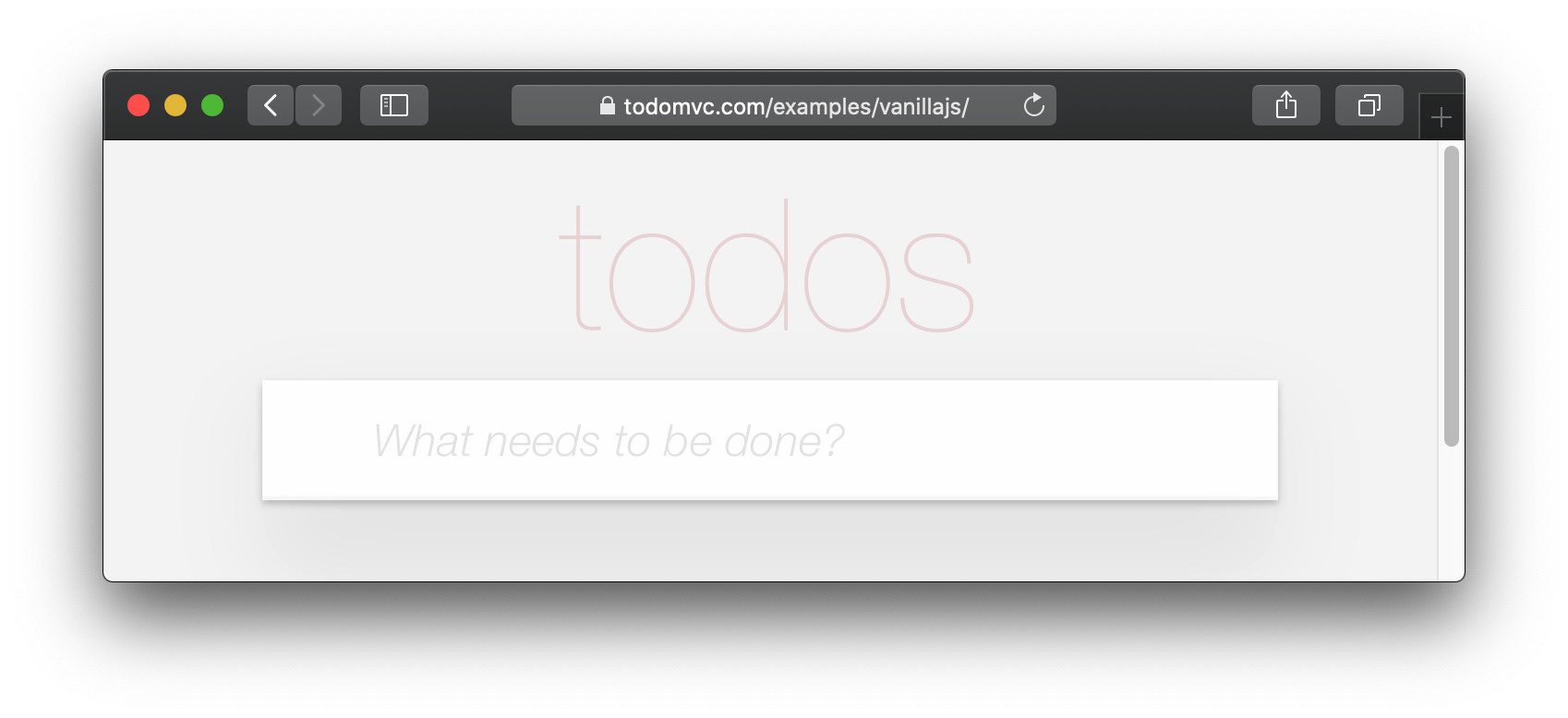
If you visit one of the TodoMVC examples, you will see that no <footer> is displayed when there are no items in the list: http://todomvc.com/examples/vanillajs
At present our App shows the <footer> even if their are Zero items: ?
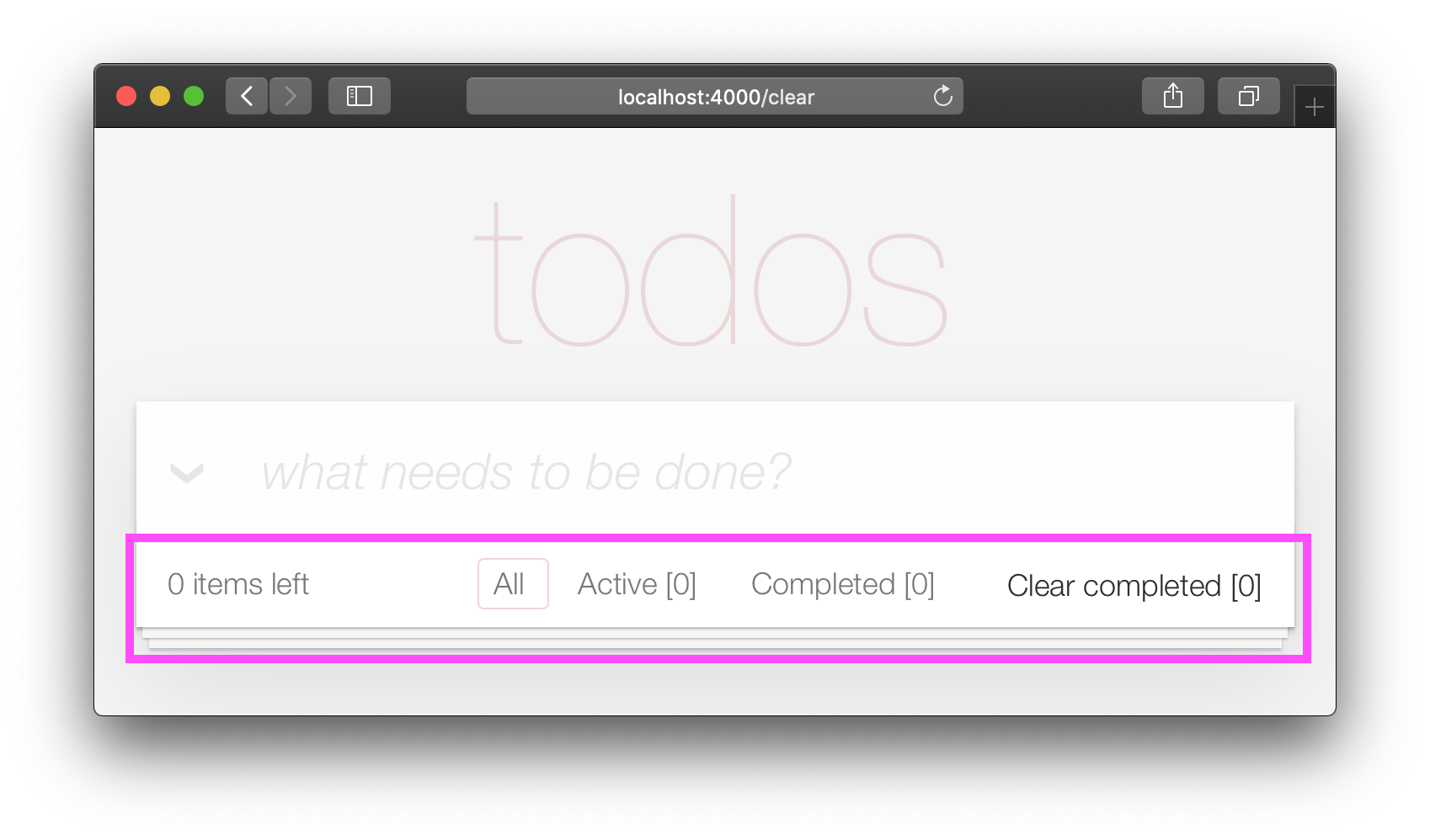
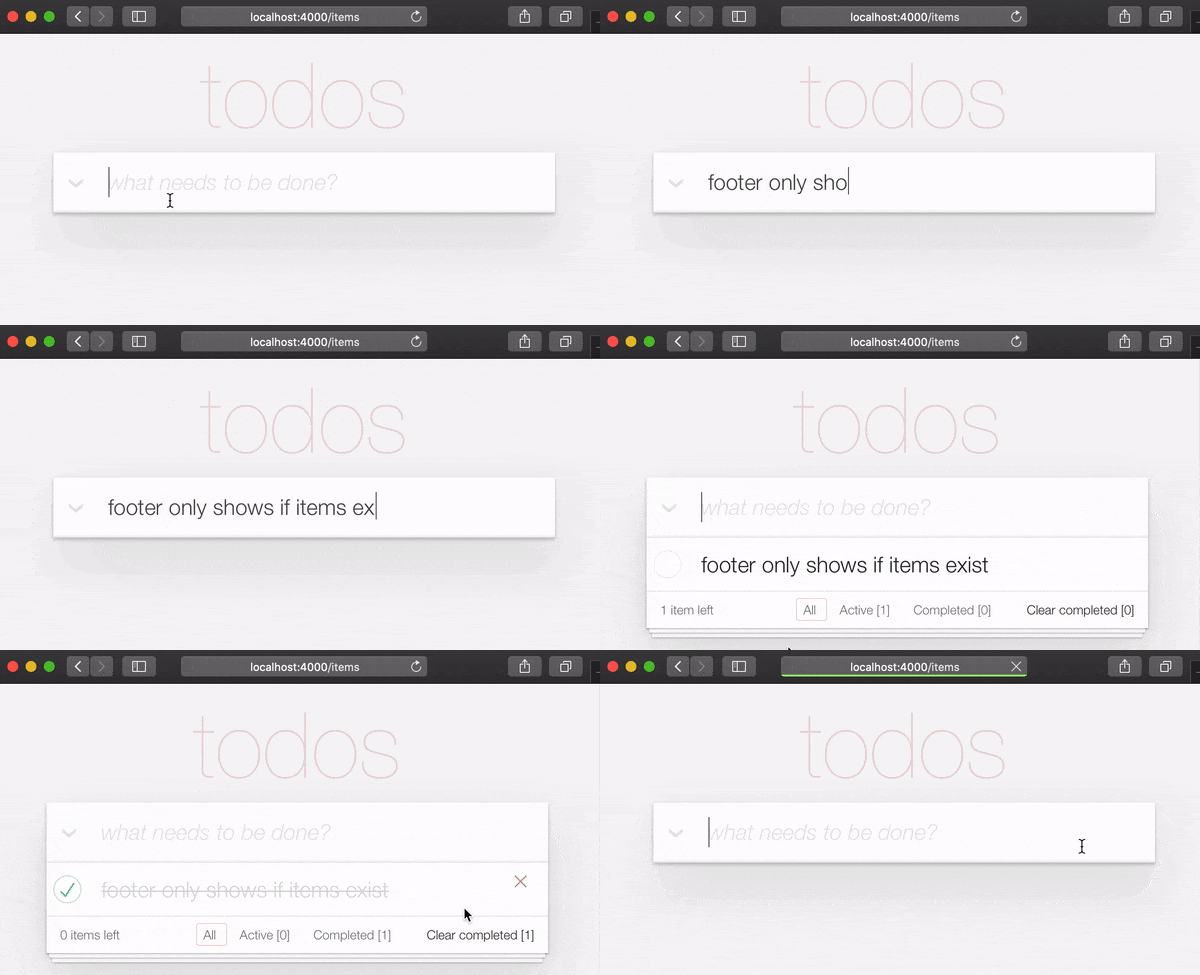
This is a visual distraction/clutter that creates unnecessary questions in the user's mind. Let's fix it!
Open your lib/app_web/controllers/item_html.ex file and add the following function definition unarchived_items/1 :
 def got_items? ( items ) do
  Enum . filter ( items , fn i -> i . status < 2 end ) |> Enum . count > 0
end
eg: lib/app_web/controllers/item_html.ex#L37-L39
Now use got_items?/1 in the template.
Wrap the <footer> element in the following if statement:
 < % = if got_items? ( @ items ) do % >

< % end % >
eg: lib/app_web/controllers/item_html/index.html.heex#L58
The convention in Phoenix/Elixir ( which came from Ruby/Rails ) is to have a ? (question mark) in the name of functions that return a Boolean ( true/false ) result.
At the end of this step our <footer> element is hidden when there are no items:
/ to ItemController.index/2 The final piece of tidying up we can do is to change the Controller that gets invoked for the "homepage" ( / ) of our app. Currently when the person viewing the Todo App
visits http://localhost:4000/ they see the lib/app_web/controllers/page_html/home.html.eex template:
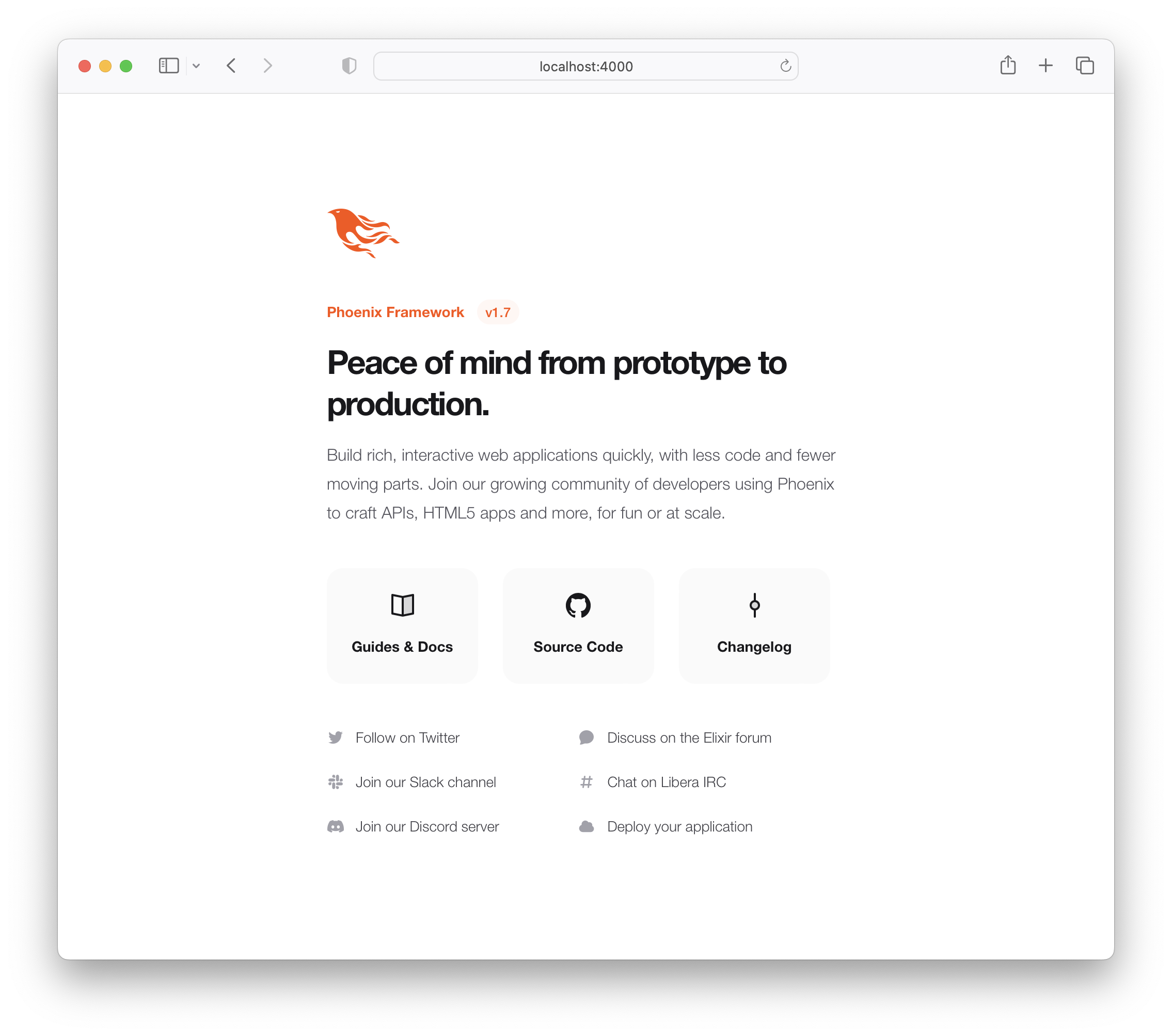
This is the default Phoenix home page ( minus the CSS Styles and images that we removed in step 3.4 above ). It does not tell us anything about the actual app we have built, it doesn't even have a link to the Todo App! Let's fix it!
Open the lib/app_web/router.ex file and locate the line:
get "/" , PageController , :index Update the controller to ItemController .
get "/" , ItemController , :index eg: lib/app_web/router.ex#L20
Now when you run your App you will see the todo list on the home page:
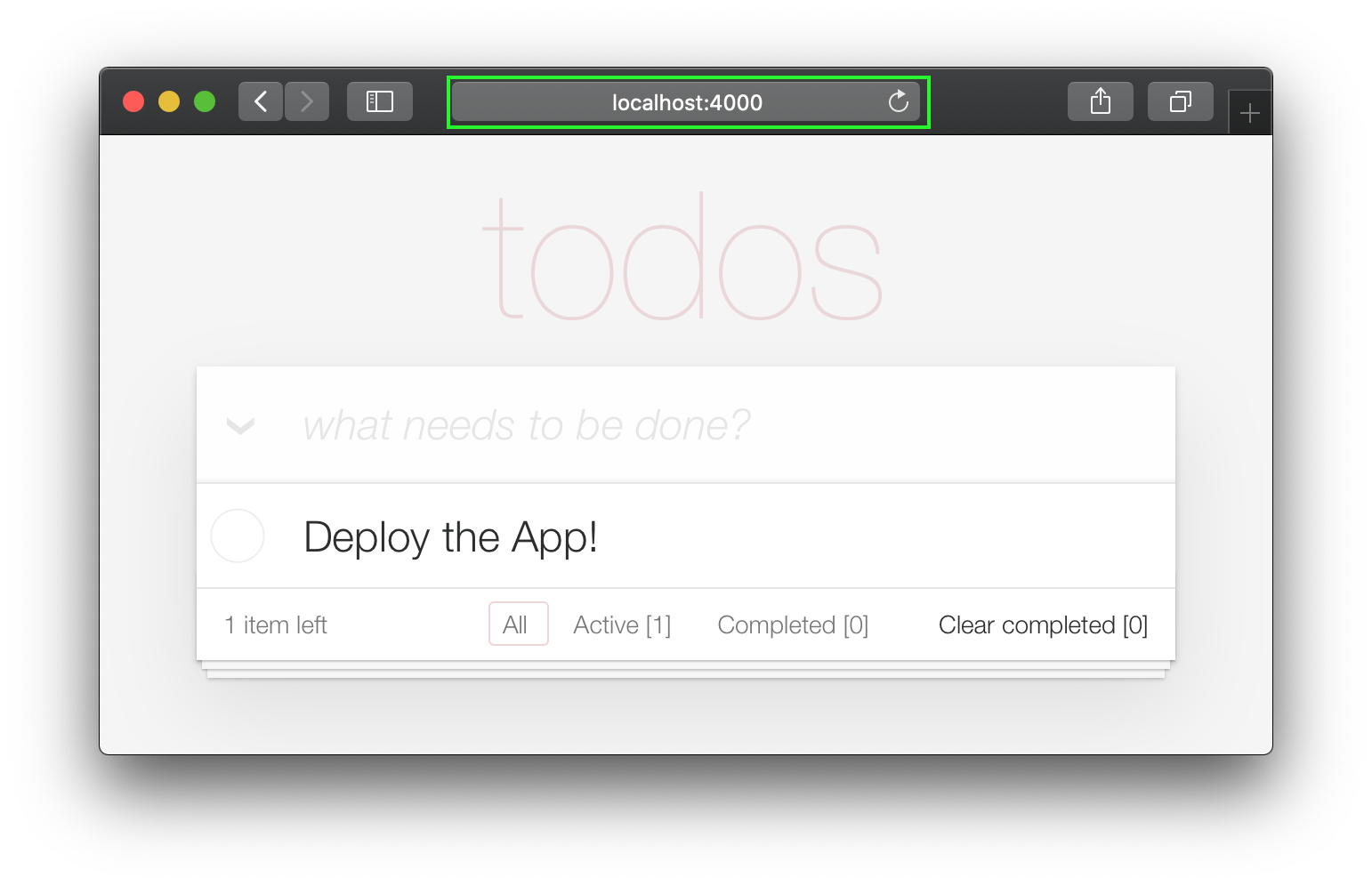
Unfortunately, this update will "break" the page test. Run the tests and see:
1) test GET / (AppWeb.PageControllerTest)
     test/app_web/controllers/page_controller_test.exs:4
     Assertion with = ~ failed
     code:  assert html_response(conn, 200) = ~ " Welcome to Phoenix! "
     left:  " <!DOCTYPE html>n<html lang= " en " >n  <head>n ... "
Given that we are no longer using the Page Controller, View, Template or Tests, we might as well delete them from our project!
git rm lib/app_web/controllers/page_controller.ex
git rm lib/app_web/controllers/page_html.ex
git rm lib/app_web/page_html/home.html.heex
git rm test/app_web/controllers/page_controller_test.exs
Deleting files is good hygiene in any software project. Don't be afraid to do it, you can always recover files that are in your git history.
Re-run the tests:
mix test
You should see them pass now:
 ...........................

Finished in 0.5 seconds
27 tests, 0 failures
Given that our Phoenix Todo List App is 100% server rendered, older browsers will perform a full page refresh when an action (create/edit/toggle/delete) is performed. This will feel like a "blink" in the page and on really slow connections it will result in a temporary blank page ! Obviously, that's horrible UX and is a big part of why Single Page Apps (SPAs) became popular; to avoid page refresh, use Turbo !
Get the performance benefits of an SPA without the added complexity of a client-side JavaScript framework. When a link is clicked/tapped, Turbolinks automatically fetches the page, swaps in its <body> , and merges its <head> , all without incurring the cost of a full page load.
Luckily, adding Turbo will require just a simple copy and paste! Check the unpkg files to fetch the latest CDN package.
We now need to add the following line to lib/app_web/components/layouts/app.html.heex and lib/app_web/components/layouts/root.html.heex .
< script src =" https://unpkg.com/browse/@hotwired/[email protected]/dist/turbo.es2017-esm.js " > </ script > This will install the UMD builds from Turbo without us needing to install a package using npm . Neat, huh?
就是这样! Now when you deploy your server rendered Phoenix App, it will feel like an SPA! Try the Fly.io demo again: phxtodo.fly.dev Feel that buttery-smooth page transition.
Currently, our application occurs in the same page. However, there is a route that we don't use and is also aesthetically incompatible with the rest of our app.
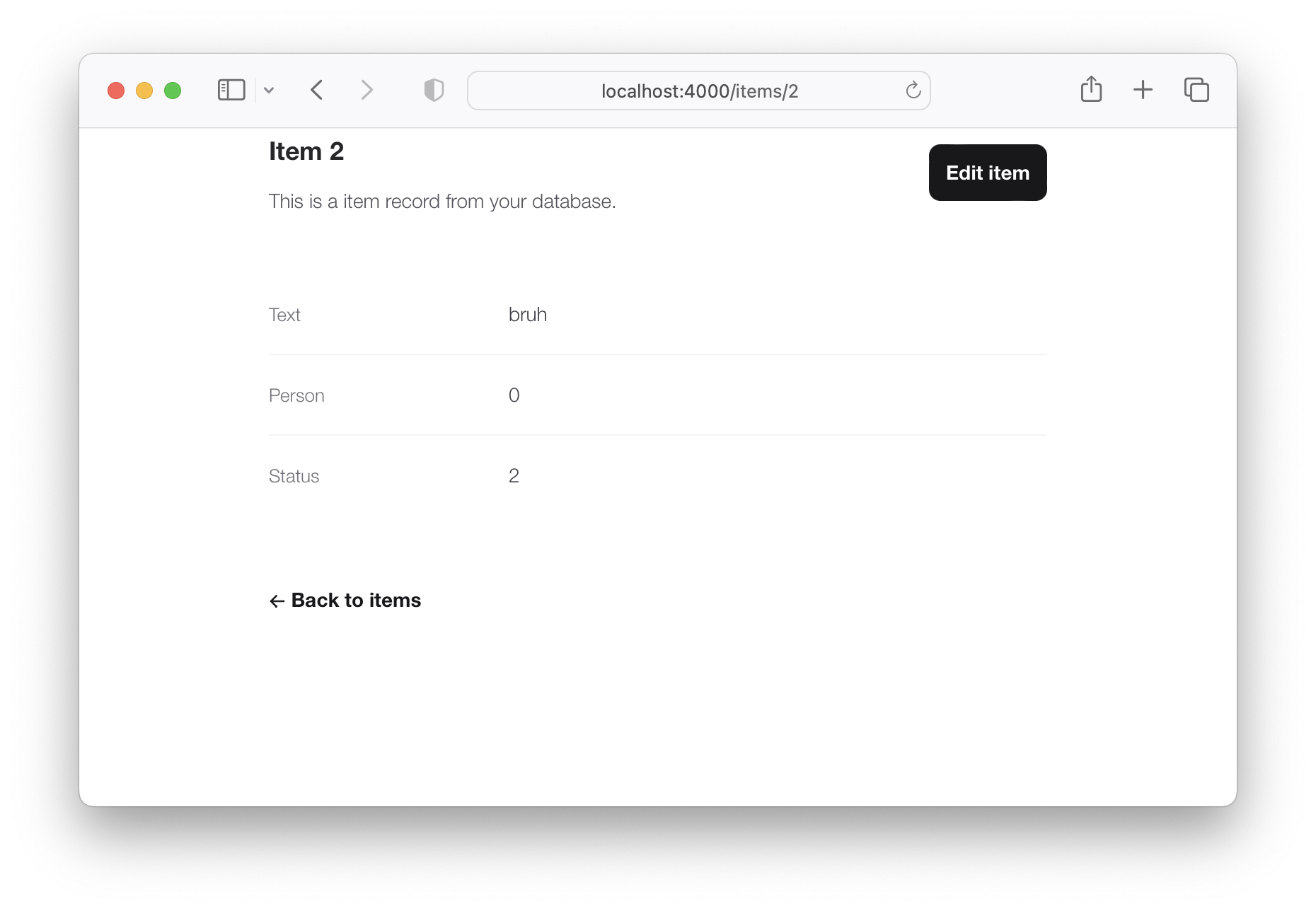
If we check lib/app_web/controllers/item_controller.ex , you might notice the following function.
  def show ( conn , % { "id" => id } ) do
    item = Todo . get_item! ( id )
    render ( conn , :show , item: item )
  end
This serves the GET /items/:id route. We could do the same as we did with edit and render index . However, let's do something different so we learn a bit more about routes.
If we head on to router.ex , and locate the line:
resources "/items" , ItemControllerWe can change it to this.
resources "/items" , ItemController , except: [ :show ] We are saying that we want to keep all the routes in ItemController except the one related to the show action.
We can now safely delete it from item_controller.ex , as we don't need it any more.
Your files should look like the following.
eg: /lib/router.ex#L19-L29 lib/app_web/controllers/item_controller.ex
Currently, the application allows anyone to access it and manage todo items . Wouldn't it be great if we added authentication so each person could check their own list?
We created a dedicated authentication guide: /auth.md to help you set this up. You will soon find out this is extremely easy ?.
Deployment to Fly.io takes a few minutes, but has a few "steps", we suggest you follow the speed run guide: https://fly.io/docs/elixir/getting-started/
Once you have deployed you will will be able to view/use your app in any Web/Mobile Browser.
eg: https://phxtodo.fly.dev
XS
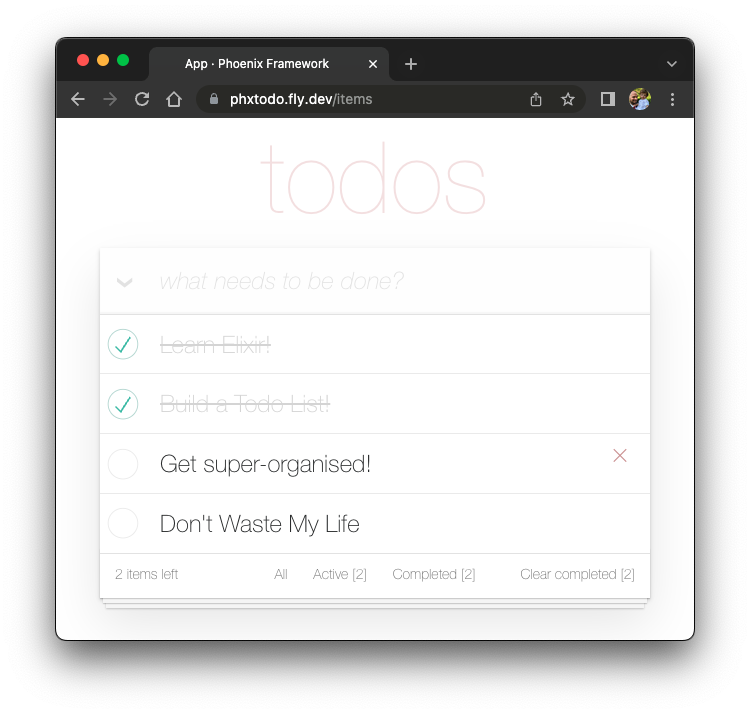
Our Phoenix server currently only returns HTML pages that are server-side rendered . This is already awesome but we can make use of Phoenix to extend its capabilities.
What if our server also responded with JSON ?你很幸运! We've created small guide for creating a REST API : api.md
If you found this example useful, please ️ the GitHub repository so we ( and others ) know you liked it!
If you want to learn more Phoenix and the magic of LiveView , consider reading our beginner's tutorial: github.com/dwyl/ phoenix-liveview-counter-tutorial
Thank you for learning with us! ☀️





