anki canvas
v0.8

이것은 ankidroid 및 데스크탑 Anki의 모양을 그리기위한 터치 기반 캔버스입니다.
메모를 작성하도록 설계된 Ankidroid의 자체 기본 화이트 보드와 비교할 때, 이는 사용자가 카드에 대한 답으로 모양을 그려야하는 사용 사례 (예 : Kanji/Hanzi 드로잉 연습 , Kanji를 기억하는 등)를위한 것입니다.
다음 Anki 플러그인을 설치해야합니다. Anki에서 도구> 애드온> 추가 기능 가져 오기 ... 그런 다음 플러그인의 코드를 삽입하십시오.
릴리스 페이지에서 Precade Anki 데크를 다운로드하여 Anki로 가져옵니다 (데크를 두 번 클릭하면 작동합니다).
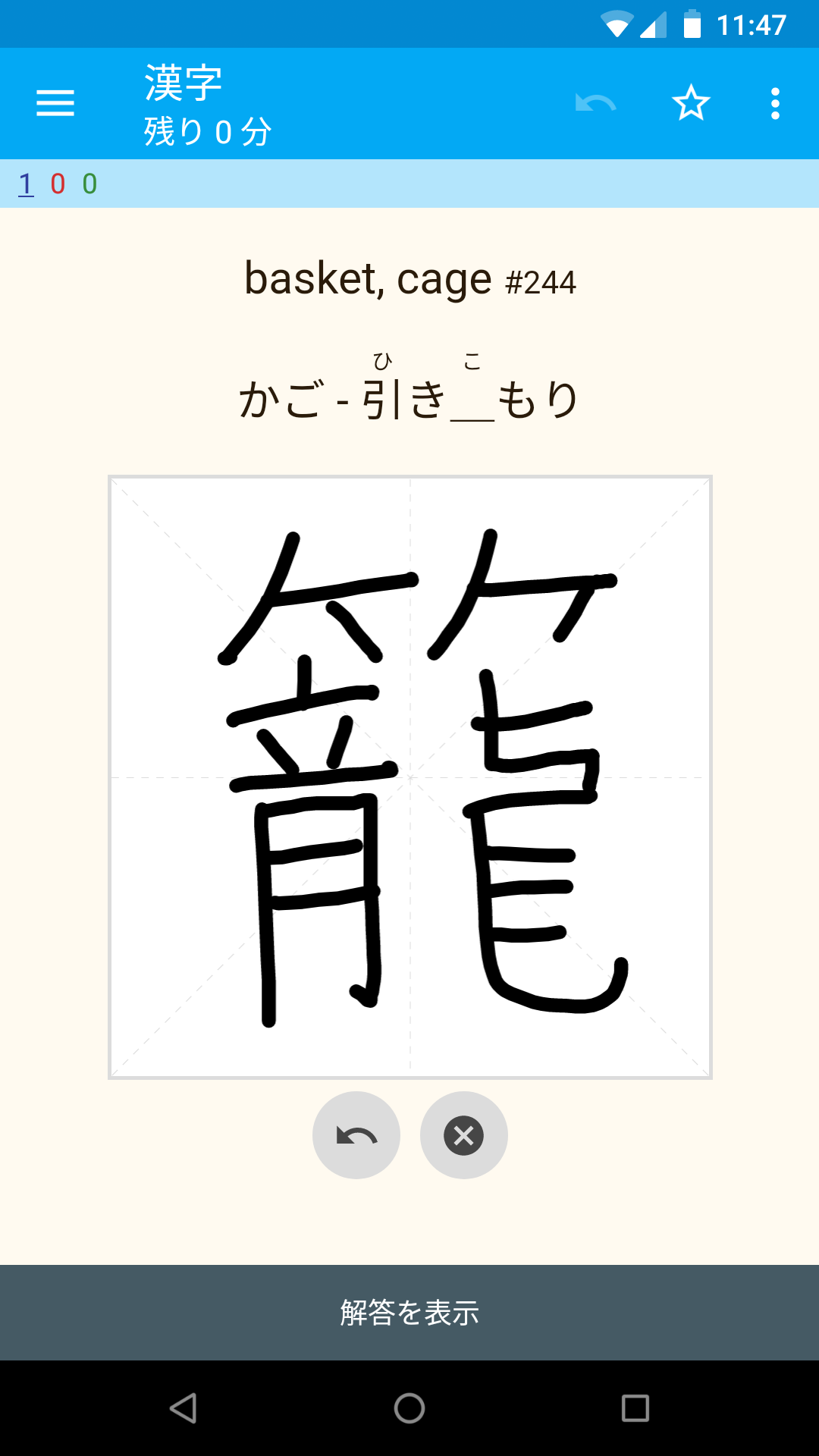
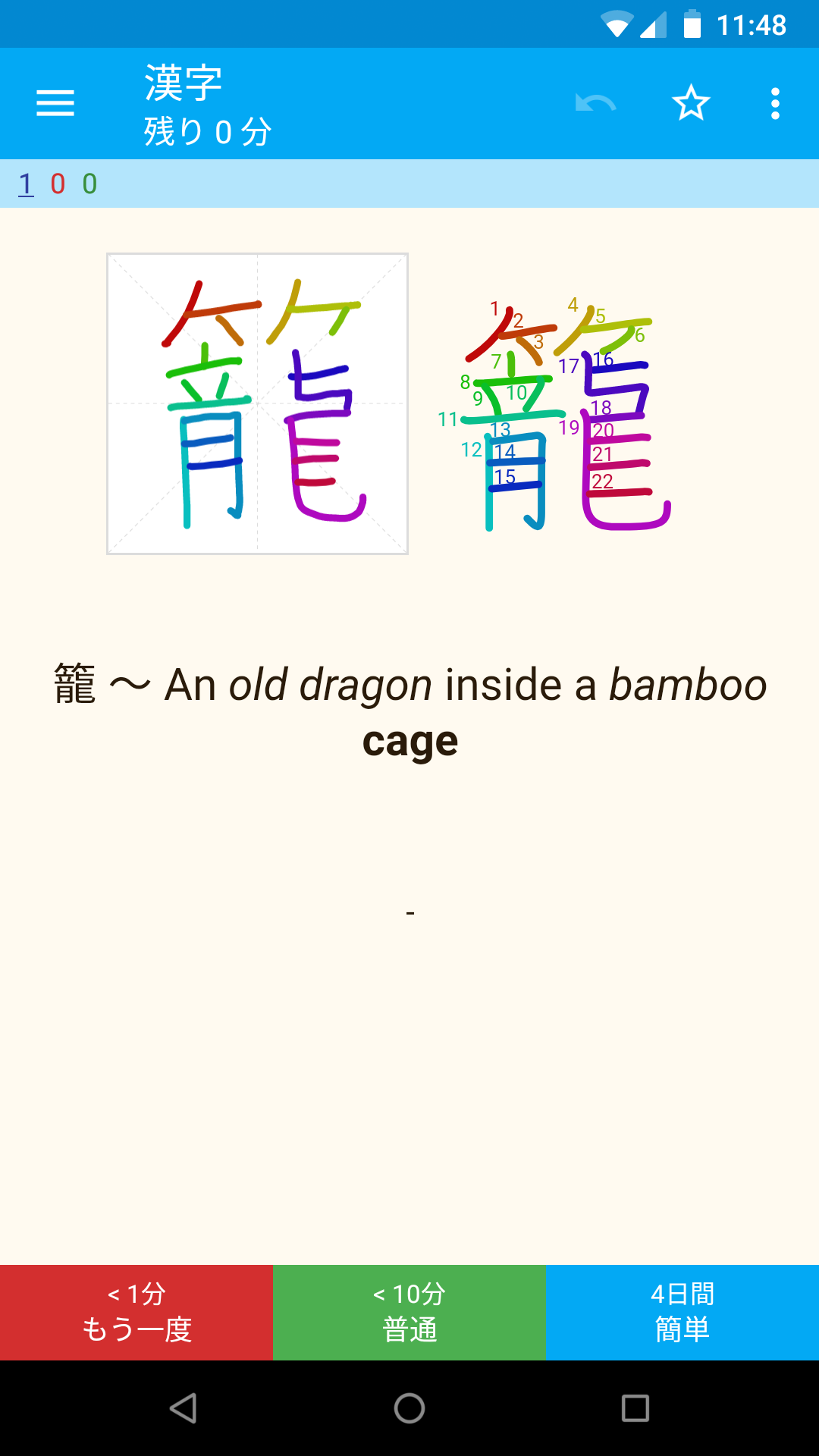
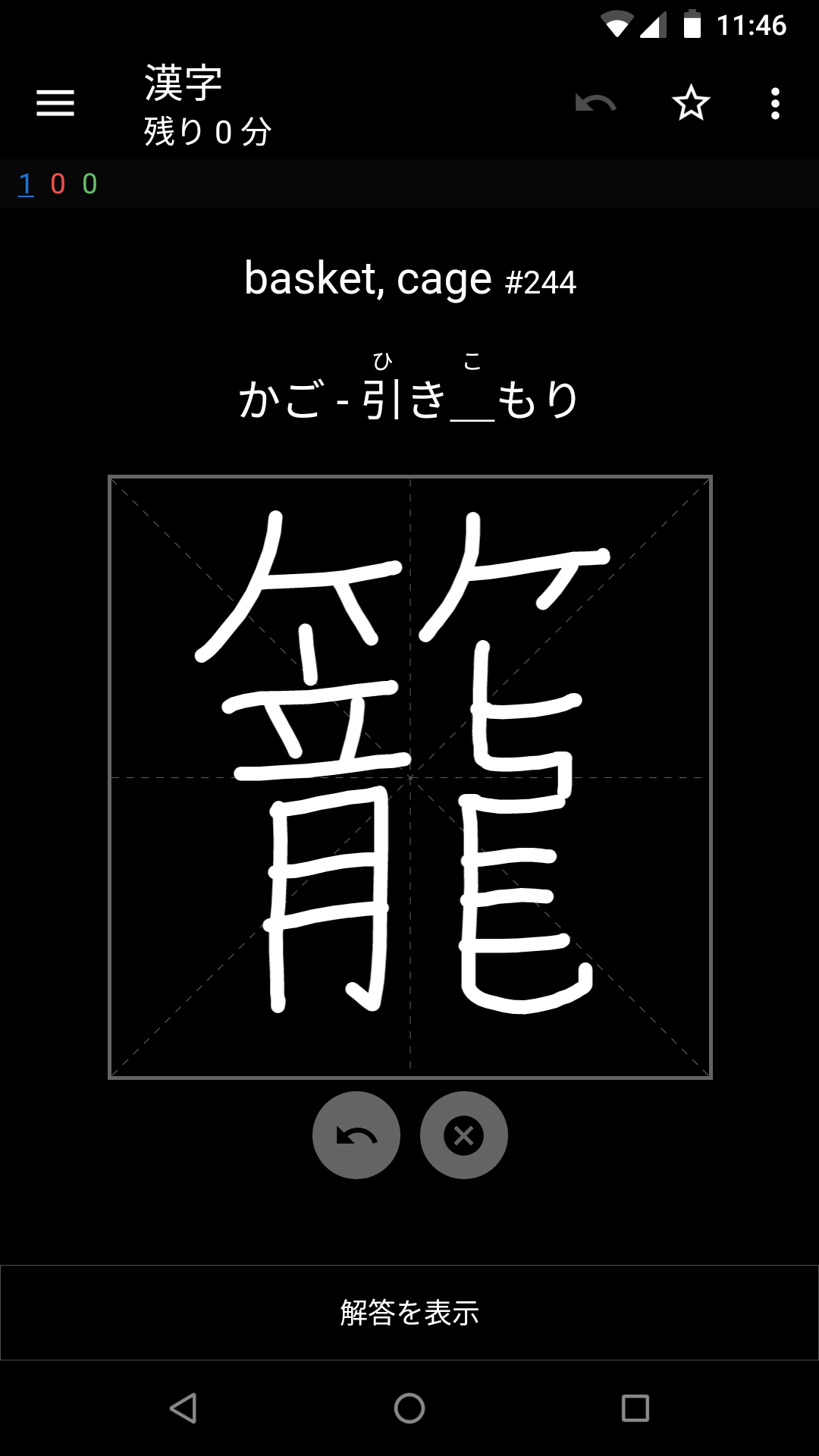
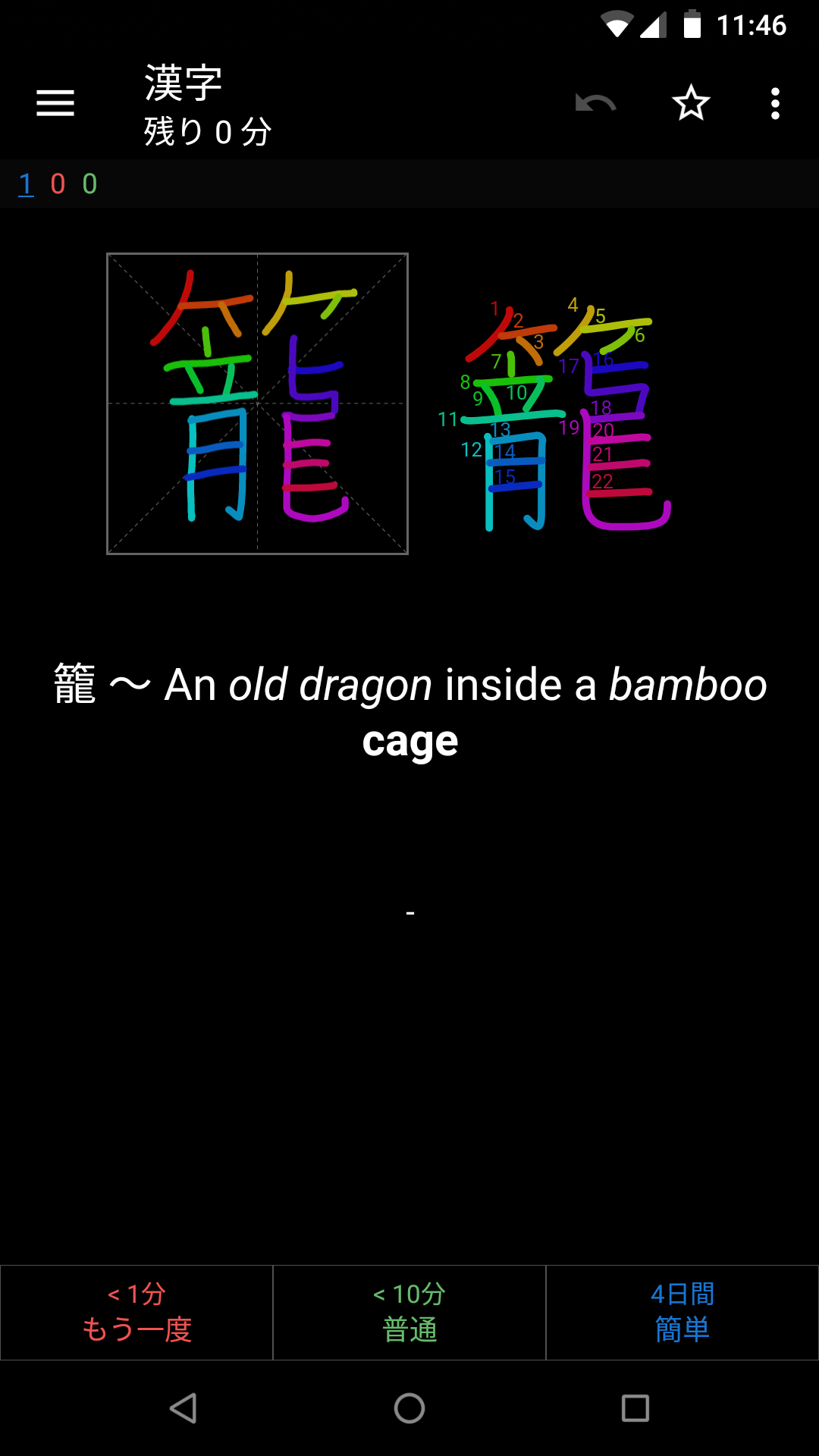
Ankicanvas가 선택한 일부 변수를 쉽게 사용자 정의 할 수 있습니다. 카드 레이아웃을 열고 앞뒤 템플릿에서 AnkiCanvasOptions JavaScript 객체를 편집하십시오.
현재 기본 옵션 객체는 다음과 같습니다.
 < script >
window . AnkiCanvasOptions = {
  frontCanvasSize : 300 ,
  frontLineWidth : 7 ,
  backCanvasSize : 150 ,
  backLineWidth : 3.5 ,

  // 'auto' is a special value that will automatically select either 'light' or
  // 'dark' depending on Anki's "Night Mode" status. If you wish to force a
  // colorScheme, you can pass it's name from the colorSchemes settings below.
  colorScheme : 'auto' ,

  // You can modify the default colorSchemes in the dictionary below, or even
  // add your own colorSchemes beyond light and dark.
  colorSchemes : {
    light : {
      brush : '#000' ,
      grid : '#dcdcdc' ,
      gridBg : '#fff' ,
      buttonIcon : '#464646' ,
      buttonBg : '#dcdcdc' ,
      frontBrushColorizer : 'none' , // none | spectrum | contrast
      backBrushColorizer : 'spectrum' ,
    } ,
    dark : {
      brush : '#fff' ,
      grid : '#646464' ,
      gridBg : '#000' ,
      buttonIcon : '#000' ,
      buttonBg : '#646464' ,
      frontBrushColorizer : 'none' ,
      backBrushColorizer : 'spectrum' ,
    } ,
  } ,
}
</ script >




