AvaloniaEdit
11.1.0

このプロジェクトは、AvaloniaのWPFベースのテキストエディターであるAvaloneditのポートです。
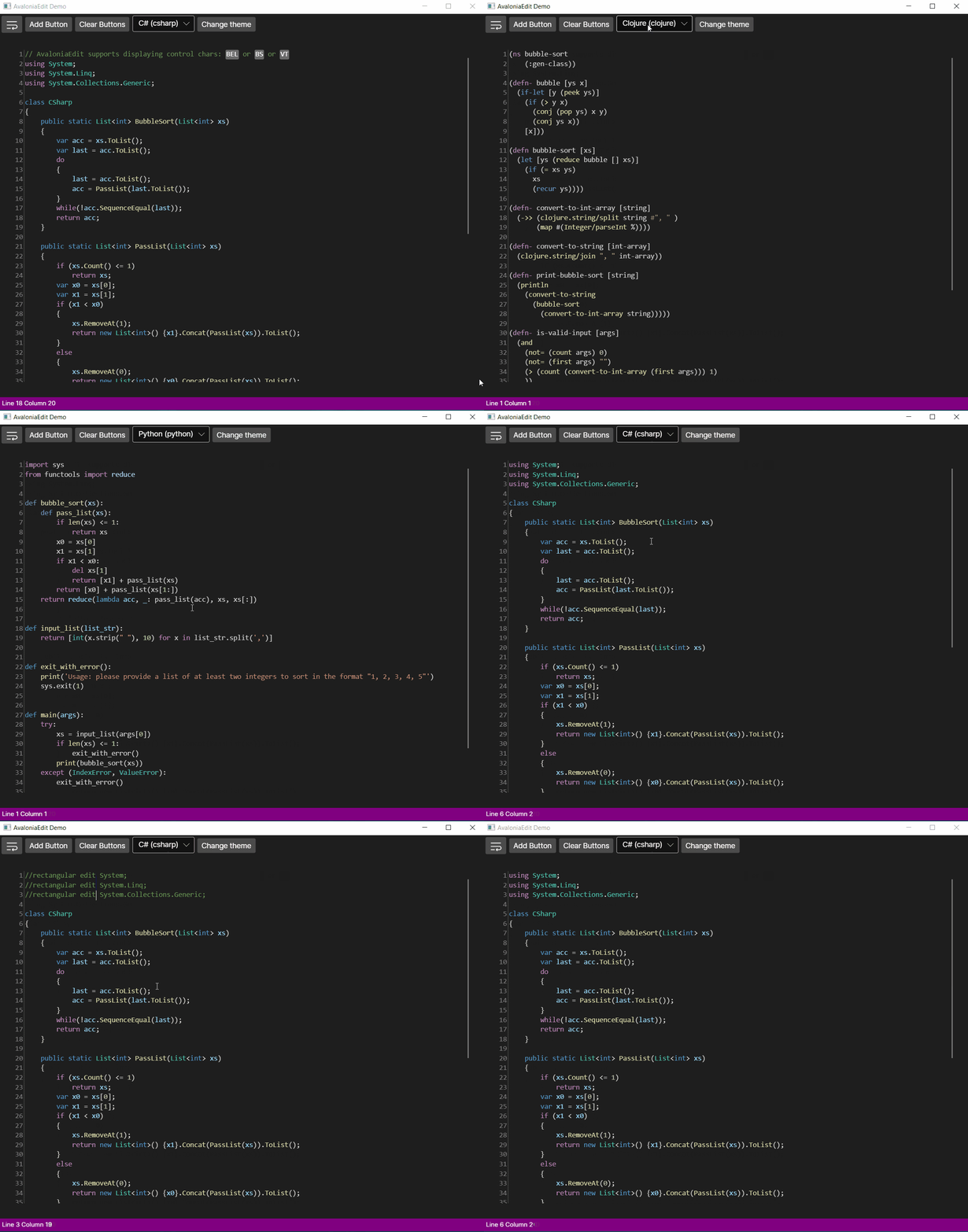
AvaloniaEditは次のような機能をサポートしています。
そして、もっとたくさん!
現在、AvaloniaEditは2つのパッケージで構成されています
<PackageReference Include="Avalonia.AvaloniaEdit" Version="xyzt" />追加します。App.xamlに必要なスタイルを<Application.Styles>に含めます:0.10.xyベースのバージョンを使用している場合、 <StyleInclude Source="avares://AvaloniaEdit/AvaloniaEdit.xaml" />11.xyベースのバージョンの場合、 <StyleInclude Source="avares://AvaloniaEdit/Themes/Fluent/AvaloniaEdit.xaml" />を含めます< Window xmlns = " https://github.com/avaloniaui "
...
xmlns : AvaloniaEdit = " clr-namespace:AvaloniaEdit;assembly=AvaloniaEdit "
...>
...
< AvaloniaEdit : TextEditor Text = " Hello AvaloniaEdit! "
ShowLineNumbers = " True "
FontFamily = " Cascadia Code,Consolas,Menlo,Monospace " />
...
</ Window >デモアプリケーションを参照として見ることができます。
まず第一に、Textmatesharpによってサポートされている文法を使用する場合は、次のパッケージをインストールする必要があります。
または、独自の文法をサポートしたい場合は、AvaloniaEdit.Textmateパッケージをインストールし、IREGISTRYOPTIONSインターフェイスを実装するだけです。これは、バンドルされたTextmatesharp.grammarsとは異なるグラマーのセットでAvaloniaEditを使用する場合に最も簡単な方法です。
 //First of all you need to have a reference for your TextEditor for it to be used inside AvaloniaEdit.TextMate project.
var _textEditor = this . FindControl < TextEditor > ( "Editor" ) ;

//Here we initialize RegistryOptions with the theme we want to use.
var  _registryOptions = new RegistryOptions ( ThemeName . DarkPlus ) ;

//Initial setup of TextMate.
var _textMateInstallation = _textEditor . InstallTextMate ( _registryOptions ) ;

//Here we are getting the language by the extension and right after that we are initializing grammar with this language.
//And that's all ?, you are ready to use AvaloniaEdit with syntax highlighting!
_textMateInstallation . SetGrammar ( _registryOptions . GetScopeByLanguageId ( _registryOptions . GetLanguageByExtension ( ".cs" ) . Id ) ) ;