docsify this
v1.9.16: Merge pull request #161 from hibbitts-design

魔法のドキュメントサイトジェネレーターDocsifyで構築されたこのオープンソースWebアプリでは、独自のWebサイトを設定せずにオンラインマークダウンファイルをWebページとして公開できます。
このReadMeファイルを最大4レベルの見出しを含むオプションのサイドバーを備えたWebページとして表示することで、Docsifyができることを確認してください!
図1。DOCSIFY-THIS.NET Webページビルダー。
Docsifyを試しましたか? Docsifyについてのフィードバックを共有してください
docsify-これは、さまざまなコンテキストでマークダウンコンテンツを表示および共有する簡単な方法を提供し、Webサイトのセットアップやビルドプロセスは必要ありません。 GitHubまたはCodebergでMarkdownファイルをホストすることにより、バージョン制御(変更を追跡および逆転させる機能)を活用してコラボレーションを有効にすることもできます。
docsifyを使用してください。
docsify-thisは、次の形式でURLパラメーターを介してリモートマークダウンファイルをレンダリングするように構成されたカスタマイズされたDocsify公開スターターキットサイトです。
https://docsify-this.net?basePath=URLpath&homepage=filename.md
BasePath Docsifyパラメーターは、レンダリングするRaw Source Markdownファイルを含むURLパスです。ファイルに予想されるデフォルトのreadme.mdに名前が付けられている場合、他のパラメーターは必要ありません。そうしないと、ホームページDocsifyパラメーターもファイルの名前に設定してレンダリングする必要があります。 docsify-this urlの例は次のとおりです。https://docsify-this.net/?basepath=https://raw.githubusercontent.com/hibbitts-design/docsify-this-one-page-article/main&homepage=home.md
docsify-これは、マークダウンファイルのコンテンツをWebブラウザー内で表示できる場所からファイルをどこからでもレンダリングできます。
上記のWebページビルダーを使用していないときにパブリックGitHubリポジトリに保存されているファイルを直接レンダリングするには、ファイルを表示するときにRAWボタンをタップして、そのファイルのRAWソースURL(つまりraw.githubusercontent.com)を使用する必要があります。また、そのリポジトリ内のgithubページをアクティブにして、そのファイル(username.github.io)のgithubページURLを使用して、プライベートGithubリポジトリに保存されたファイルをレンダリングすることもできます。
レンダリングされたマークダウンファイルの外観は、オプションのURLパラメーターと、ソースマークダウンファイル内の利用可能なCSSクラスの小さなセットによってカスタマイズできます。標準のマークダウンのサポートに加えて、embed.ly、H5p、ラテックス、人魚の図が含まれています。オプションで、仮説を備えたページアノテーションを有効にすることができます。
Docsify-thisでの出版の概要全体をお探しですか? Docsify-thisでMarkdown Publishingをご覧ください。
(マークダウンファイル)URLをdocsifyに入れてから、WebページのURLを取り戻すという事実だけに吹き飛ばされます。 URLを取り、行きます。とてもシームレスです。
- J. Groom、Reclaim Todayエピソード39(共同設立者、ホスティングを回収)
私はdocsifyを使用しています。これは、大学院の出版制作コースに、一部はマークダウンパブリッシングの新しいモデルを探索するために、一部は厄介で扱いにくいキャンバスを飼いならすためにも使用しています。すべてのコースノートをプレーンテキストファイルとして保持し、Githubとdocsifyを介してそれらを展開することは簡単で、コース開発を簡単にします。さらに、私はすべての材料をローカルに保持し、キャンバスに依存せずにそれらを使用することができます。
- J.マックスウェル(サイモンフレイザー大学の出版プログラムのディレクター&准教授)
私が何年も見つけた最高のツール - これは、コアまでずっと正しく行われた作品の1つです。
- D.マラウェイ(テキサスA&M大学の学際的なラボコーディネーター)
docsify-これにより、githubリポジトリで使用しているのと同じドキュメントをインターフェースにシームレスに埋め込むことができることにより、WordPressのテーマが大幅に改善されました。これにより、より良いドキュメントを書くことになりました! Docsify-Thisは、使いやすいWebパブリッシングツールとしてできることの表面をかろうじて傷つけませんでした。
- A.レバイン別名コグドッグ(独立した教育技術者)
docsify-これは、2024年のオープンエデュケーションアワードのオープンインフラストラクチャカテゴリのファイナリストとして認められています。
docsifyによってWebページとして表示されるオンラインマークダウンファイルの視覚的な外観は、次の2つの方法で変更できます。
たとえば、https://raw.githubusercontent.com/hibbitts-design/docsign/docsify-thone-page-article/main/home.mdにあるMarkdownファイルを表示するには、3レベルまでの見出しを含むDocsifyサイドバーを使用して、Docsify-urlは次のとおりです。
https://docsify-this.net/?basePath=https://raw.githubusercontent.com/hibbitts-design/docsify-this-one-page-article/main&homepage=home.md&sidebar=true&maxLevel=3そして、ここにdocsify-this.netが同じURLを表示する方法は次のとおりです。
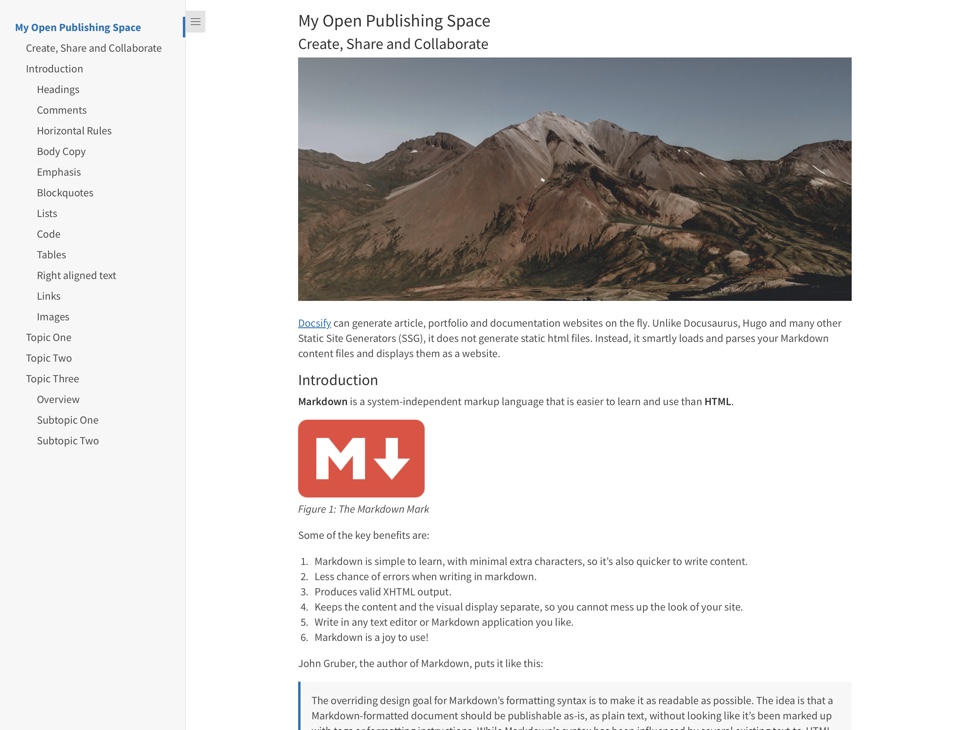 docsify-this.netによって表示されたWebページ。markdownファイルは、Docsify-thiS URLで指定されているように、最大3レベルの見出しを含むサイドバーを示しています。
以下の基本的なDocsify-このURLパラメーターのそれぞれの詳細をご覧ください。URLパラメーターとオンラインマークダウンファイルをすぐに使用できるDocsify-Downテンプレートのセットと組み合わせると、可能なことを発見してください。
基本的なURLパラメーター(標準のWebページビルダーに含まれています)
オプションのブラウザタブタイトルパラメーターを使用して、Webページのブラウザタブにカスタムタイトルを設定します。たとえば
https://docsify-this.net?basepath=https://raw.githubusercontent.com/paulhibbitts/demo-grav-open-matter-course-hub/master/pages/04.resources&homepage=page.md&エンコードされているため、「私のページ」は「私の%20ページ」になります。
「このページの編集」リンク(デフォルトの場所はページの下部)をオプションの編集リンクパラメーターに表示します。たとえば
https://docsify-this.net?basepath=https://raw.githubusercontent.com/hibbitts-design/docsify-open-course-starte r-kit/main&edit-link = https://github.com/hibbitts-design/docsify-open-publishing-starter-kit/blob/main/readme.md
「このページの編集」リンクのデフォルトテキストをオプションの編集リンクテキストパラメーターに変更します。たとえば
https://docsify-this.net?basepath=https://raw.githubusercontent.com/hibbitts-design/docsify-open-course-starter-kit/main&edit-li nk = https://github.com/hibbitts-design/docsify-pen-publishing-starter-kit/blob/main/readme.md&edit-link-text = view%20as%20markdownエンコードする必要があるスペースを持つテキストを使用するには、「マークダウンとしてビュー」は「view%20AS%20markdown」になります。
ページの下部から「このページの編集」リンクの場所を、オプションの編集リンクトップパラメーターを使用してページの上部に変更します。たとえば
https://docsify-this.net?basepath=https://raw.githubusercontent.com/hibbitts-design/docsify-open-course-starter-kit/main&toc = true&edit-link = https://github.com/hibbitts-design/docsify-open-publishing-starter-kit/blob/main/readme.md&edit-link-top = true
たとえば、オプションのフォントファミリーパラメーターを使用して、Webページのカスタムフォントを設定します。
https://docsify-this.net?basepath=https://raw.githubusercontent.com/hibbitts-design/docsify-open-course-starter-kit/main/docs&homepage=resources.md&font-helvetica、helvetica、ariarial leniarial leniarialこのパラメーターは、組み込みコンテンツの視覚的なプレゼンテーションを宛先プラットフォームとよりよく一致させようとする場合、特に価値があります。名前のスペースを持つフォントを使用するには、エンコードする必要があるため、「Courier new」は「クーリエ%20new」になります。
たとえば、オプションのフォントサイズパラメーターを使用して、Webページのカスタムフォントサイズを設定します。
https://docsify-this.net?basepath=https://raw.githubusercontent.com/hibbitts-design/docify-open-course-starter-kit/main/docs&homepage=resources.md&fontsize=1。このパラメーターは、組み込みコンテンツの視覚的なプレゼンテーションを宛先プラットフォームとよりよく一致させようとする場合、特に価値があります。フォントサイズはREMユニットに設定されていることに注意してください。
オプションのヘッダーウェイトパラメーターを使用して、Webページのカスタムヘッダーフォント重量(デフォルトは400-通常)を設定します。
https://docsify-this.net?basepath=https://raw.githubusercontent.com/hibbitts-design/docify-open-course-starter-kit/main/docs&homepage=resources.md&header weight = 600。
オプションのHide -Creditsパラメーターを使用して、通常表示されているすべてのdocsify-thisページの下部に表示されるクレジットを非表示にします。たとえば
https://docsify-this.net?basepath=https://raw.githubusercontent.com/hibbitts-design/docsify-open-course-starter-kit/main/docs&homepage=resources.md&hide-credits = true。
仮説を使用したページアノテーションを有効にします。たとえば、オプションの仮説パラメーターを使用します。
https://docsify-this.net?basepath=https://raw.githubusercontent.com/hibbitts-design/docify-open-course-starter-kit/main/docs&homepage=resources.md&hypothesis = true。
たとえば、オプションのラインハイトパラメーターを使用して、Webページのカスタムラインの高さを設定します。
https://docsify-this.net?basepath=https://raw.githubusercontent.com/hibbitts-design/docify-open-course-starter-kit/main/docs&homepage=resources.md&line-height = 1.5。
すべてのリンクにカスタムカラーを設定します。これは、オプションのリンク色パラメーターを備えた「#」シンボルなしで標準の16進形式を使用して定義されています。
https://docsify-this.net?basePath=https://raw.githubusercontent.com/hibbitts-design/docsify-open-course-starter-kit/main/docs&homepage=resources.md&link-color=CC0000.
Optional Maxlevel Docsifyパラメーターを使用して、Docsifyサイドバーの最大ヘッダーレベルを設定します。
https://docsify-this.net?basepath=https://raw.githubusercontent.com/hibbitts-design/docify-open-publishing-starter-kit/main/docs&homepage=introduction.md&bar = trule&maxlevel = 3
たとえば、オプションのサイドバーパラメーターを使用してDocsifyサイドバーを表示します。
https://docsify-this.net?basepath=https://raw.githubusercontent.com/hibbitts-design/docsify-open-course-starter-kit/main&sidebar = true
たとえば、オプションのTOCパラメーターを使用して、ページテーブルを表示します。
https://docsify-this.net?basepath=https://raw.githubusercontent.com/hibbitts-design/docify-open-publishing-starter-kit/main/docs&homepage=introduction.md&toc = true
ページの見出しレベル(つまり、H1、H2など)を設定して、オプションのTOC-Headingsパラメーターを使用して、目標のページテーブルに含まれています。
https://docsify-this.net?basepath=https://raw.githubusercontent.com/hibbitts-design/docsify-open-publishing-starter-kit/main/docs&homepage=introduction.md&toc=true&toc-headings = h1,h1,h1,h1,h1,。
たとえば、オプションのTOCナローパラメーターを使用して、あまり幅の広いページテーブルのテーブルを使用します。
https://docsify-this.net?basepath=https://raw.githubusercontent.com/hibbitts-design/docify-open-publishing-starter-kit/main/docs&homepage=introduction.md&toc-narrow=true。このパラメーターは、より小さな画面領域がありそうなコンテンツを埋め込む場合、特に価値があります。
オプションのZoom Images Docsifyパラメーターを使用して、画像ズーム(ページ画像をタップして拡大する)を有効にします。
https://docsify-this.net?basepath=https://raw.githubusercontent.com/paulhibbitts/docsify-this-markdown-content-demo/main&zoom-images = true。画像を除外するには、 を使用します。
以下の追加のURLパラメーターは、Docsify-This URLで使用でき、特に明記しない限り、高度なWebページビルダーに含まれています。
補足URLパラメーター(高度なWebページビルダーに含まれる)
たとえば、オプションのカバーページパラメーターを使用してDocsifyカスタムカバーページを表示します。
https://docsify-this.net?basepath=https://raw.githubusercontent.com/hibbitts-design/docsify-open-publishing-starter-kit/main/docs&homepage=home.md&coverpage=_coverpage.md
たとえば、オプションのカバーページカラーパラメーターを使用して、カバーページのカスタムカラーを設定します。
https://docsify-this.net?basepath=https://raw.githubusercontent.com/hibbitts-design/docsify-open-publishing-starter-kit/main/docs&homepage=home.md&coverpage=
オプションのCoverPage-Color-Dark-Modeパラメーターを使用して、カバーページのカスタムカラーをダークモードで設定します。たとえば
https://docsify-this.net?basepath=https://raw.githubusercontent.com/hibbitts-design/docify-open-publishing-starter-kit/main/docs&homepage=home .md&dark-mode = true&link-color = cc0000&link-color-dark-mode = ff9e9e&coverpage = _coverpage.md&coverpage-color = cc0000&coverpage-color-dark-mode = 4d0000
システムOSレベルの設定に基づいて、ライト/ダークテーマを自動的に切り替えます。たとえば
https://docsify-this.net?basepath=https://raw.githubusercontent.com/hibbitts-design/docsify-open-publishing-starter-kit/main/docs&homepage=introduction.md&dark-mode = true
デフォルトの絵文字を変更して、オプションの編集リンク-Emojiパラメーター(Advanced Web Page Builderに含まれていない)に「このページの編集」リンクを変更します。たとえば
https://docsify-this.net?basepath=https://raw.githubusercontent.com/hibbitts-design/docsify-open-course-starter-kit/main&edit-link=https://git hub.com/hibbitts-design/docify-open-publishing-starter-kit/blob/main/readme.md&edit-link-text = view%20on%20github&edit-link-emoji =:file_folder:
オプションのLazy-Loage-Imagesパラメーター(Advanced Web Page Builderに含まれていない)を使用して、ブラウザによる画像の怠zyなロードを有効にします。
https://docsify-this.net?basepath=https://raw.githubusercontent.com/hibbitts-design/docsify-open-publishing-starter-kit/main/docs&homepage=introduction.md&loaz-load- forage forage forage-load- forage forage-load-homeage-right-true forage-load-homeage-grest umage forage-load-homepage= introduction. Docsifyサイドバーなどによる例
すべてのリンクのカスタムカラーをダークモードで設定します。これは、オプションのリンクカラーダークモードパラメーターを持つ「#」シンボルなしで標準の16進形式を使用して定義されています。
https://docsify-this.net?basepath=https://raw.githubusercontent.com/hibbitts-design/docsify-open-course-- Starter-Kit/Main/Docs&Homepage = resources.md&link-color = cc0000&dark-mode = true&link-color-dark-mode = ff9e9e。
すべてのリンクにカスタムホバー色を設定します。これは、オプションのリンクホバーカラーパラメーターなど、 「#」シンボルなしで標準の16進形式を使用して定義されています。
https://docsify-this.net?basepath=https://raw.githubusercontent.com/hibbitts-design/docify-open-course-starter-kit/main/docs&homepage=resources.md&link-color = cc0000。
すべてのリンクのカスタムホバーカラーをダークモードで設定します。オプションのリンクホバーカラーダークモードパラメーターを持つ「#」シンボルなしで標準の16進形式を使用して定義されます。たとえば
https://docsify-this.net?basepath=https://raw.githubusercontent.com/hibbitts-design/docsify-open-course-sta rter-kit/main/docs&homepage = resources.md&link-color = cc0000&dark-mode = true&link-hover-color-dark-mode = ff9e9e。
すべてのリンクのカスタムテキストの装飾を設定し、オプションのリンクテキストデコレーションパラメーターなど、次のように設定します。
https://docsify-this.net?basepath=https://raw.githubusercontent.com/hibbitts-design/docify-open-course-starter-kit/main/docs&homepage=resources.md&link-decoration=none
すべてのリンクのカスタムホバーテキストの装飾を設定します。たとえば、オプションのリンクテキストデコレーションホバーパラメーターなど:
https://docsify-this.net?basepath=https://raw.githubusercontent.com/hibbitts-design/docify-open-course-starter-kit/main/docs&homepage=resources.link-decoration-hover = lineline
たとえば、オプションのLoadFaviconパラメーターから渡された画像ファイルからカスタムファビコンを設定できます。
https://docsify-this.net?basepath=https://raw.githubusercontent.com/paulhibbitts/docsify-this-markdown-content-demo/main&loadfavicon=open-access.png
オプションのLoadFooter Docsifyパラメーターで渡された現在のディレクトリのMarkDownファイルからDocsifyフッターをロードする例: https://docsify-this.net?basepath=https://raw.githubusercontent.com/hibbitts-design/docsify-open-publishing-starter-kit/main/docs&homepage=introduction.md&md_footer.md
オプションのloadnavbar docsifyパラメーターで渡されたマークダウンファイルからdocsifyカスタムナビバーをロードする例:
https://docsify-this.net?basepath=https://raw.githubusercontent.com/hibbitts-design/docsify-open-publishing-starter-kit/main/docs&homepage=introduction.md&md
オプションのLoadsideBar Docsifyパラメーターで渡されたMarkdownファイルからDocsifyカスタムサイドバーをロードする例:
https://docsify-this.net/?basepath=https://raw.githubusercontent.com/paulhibits/docsify-this-cmpt-363-222-site/main&homepage=home.md&md&bar = true&loadsidebar = _ diddbar-with-with-with-with-with-with-with-home
Webサイトのロゴ画像をDocsifyカスタムサイドバー(IEファイル 'logo.png)に表示します。
https://docsify-this.net/?basepath=https://raw.githubusercontent.com/hibbitts-design/docsify-this-multiple-page-course--サイト/メイン&ホームページ= home.md&sidebar = true&loadsidebar = _sidebar.md&loadnavbar = _navbar.md&name = cpt-363&logo =/images/logo.png完全なフォルダーパスとファイル名を提供する必要があります。ウェブサイト名も提供する必要があり、ロゴのALTテキストとして使用されます。
オプションのmergenavbar docsifyパラメーターを使用して、小さな画面のサイドバーの上部にnavbarアイテムをマージします。 https://docsify-this.net/?basepath=https://raw.githubusercontent.com/hibbitts-design/docsify-this-multiple-page-cours e-site/main&homepage = home.md&sidebar = true&loadsidebar = _sidebar.md&loadnavbar = _navbar.md&mergenavbar = true&name = cpt-363
Webサイトの名前をDocsifyカスタムサイドバー(IEファイル '_sidebar.md)にオプション名Docsifyパラメーターに掲載して表示します。
https://docsify-this.net/?basepath=https://raw.githubusercontent.com/hibbitts-design/docsify-this-multiple-page-co urse-site/main&homepage = home.md&sidebar = true&loadsidebar = _sidebar.md&loadnavbar = _navbar.md&search = true&name = cpt-363このパラメーターが提供されると、ブラウザタブのタイトルとしても自動的に使用されます。
たとえば、オプションのページタイトルパラメーターを使用して、Webページの上部にカスタムページタイトルを設定します。
https://docsify-this.net?basepath=https://raw.githubusercontent.com/paulhibbitts/demo-grav-open-matter-course-hub/master/pages/04.resources&homepage=page.md&sietle-resuourseds with it with it with sepaces 「私のページ」は「私の%20ページ」になります。
オプションのページネーションパラメーターを使用して、ページコンテンツ領域(Docsifyカスタムサイドバーが必要)にページネーションボタンを表示します。たとえば
https://docsify-this.net?basepath=https://raw.githubusercontent.com/hibbitts-design/docsify-this-multiple-page-cour se-site/main&homepage = home.md&sidebar = true&loadsidebar = _sidebar.md&loadnavbar = _navbar.md&search = true&pagination = true
オプションのSearchBox Docsifyパラメーターを備えたカスタムサイドバーを含む複数のページサイトで、Docsify Searchプラグイン(現在テキストとマークアップの一致を含む)を有効にします。
https://docsify-this.net?basepath=https://raw.githubusercontent.com/hibbitts-design/docsify-this-multiple-pag e-course-site/main&homepage = home.md&sidebar = true&loadsidebar = _sidebar.md&loadnavbar = _navbar.md&searchbox = true
オプションのSubmaxlevel Docsifyパラメーターを使用して、Docsifyカスタムサイドバー(IEファイル '_sidebar.md)の内容ヘッダーレベルの最大自動テーブルを設定します。たとえば
https://docsify-this.net/?basepath=https://raw.githubusercontent.com/paulibbitts/docsify-this-cmpt-363-222-site/main&homepage=home.md&md&bar€
オプションのSVG-ICONSパラメーターを備えたWebフォントの代わりに、Font AwesomeアイコンのSVGバージョンを使用します(高度なWebページビルダーには含まれていません)。
https://v2.preview.docsify-this.net/?basepath=https://raw.githubusercontent.com/hibbitts-design/docsify-this-content-pages/main&homepage=schedule.md&svg-icons = true
キャンバスにコンテンツを埋め込みます
iframeコードの例。これを含む、このコンテンツをキャンバスにシームレスに一致させるためのURLパラメーターを含む:
< p > < iframe style =" overflow: hidden; border: 0px #ffffff none; background: #ffffff; " src =" https://docsify-this.net?basePath=https://raw.githubusercontent.com/paulhibbitts/cmpt-363-222-pages/main&homepage=home.md&font-family=Lato%20Extended,Lato,Helvetica%20Neue,Helvetica,Arial,sans-serif&font-size=1&hide-credits=true " width =" 800px " height =" 1400px " allowfullscreen =" allowfullscreen " > </ iframe > </ p >スクロールバーが存在する場合は、iframeコードを再編集し、「高さ」値を調整することをお勧めします。
モジュールアイテムとして外部URLを追加するにはどうすればよいですか?
モジュール外部リンクの例、目次のテーブル:
https://docsify-this.net?basePath=https://raw.githubusercontent.com/paulhibbitts/cmpt-363/main/docs/222&homepage=week-02.md&toc-narrow=true&font-family=Lato%20Extended,Lato,Helvetica%20Neue,Helvetica,Arial,sans-serif&font-size=1&hide-credits=trueリダイレクトツールを使用してコースナビゲーションにカスタムリンクを作成する
URLフィールドのリダイレクト例:
https://docsify-this.net/?basePath=https://raw.githubusercontent.com/paulhibbitts/cmpt-363-222-pages/main&homepage=resources.md&edit-link=https://github.com/paulhibbitts/cmpt-363-222-pages/blob/main/resources.md&font-family=Lato%20Extended,Lato,Helvetica%20Neue,Helvetica,Arial,sans-serif&font-size=1&hide-credits=trueiframe(ページ内にコンテンツを埋め込むため)
外部ツール(コースナビゲーションまたは要素にリンクを追加するため)
docsifyを使用する必要があるのはすべて基本的なマークダウンファイルですが、以下はマークダウン、画像、URLパラメーター、さらにはいくつかのHTMLスニペットで可能なことを示すテンプレートを使用できます。
これらのテンプレートを使用するには、通常、次のテンプレートを実行します(各テンプレートにはテンプレート固有の命令が含まれています)。
githubにサインインするか、アカウントがまだない場合はアカウントを作成します。
タップしたこのテンプレートを選択したテンプレートリポジトリ(右上の緑色のボタン)で使用し、新しいリポジトリの作成を選択します
新しいリポジトリの名前を選択して、ファイルを封じ込め、 [リポジトリの作成]をタップしてテンプレートファイルを独自のGitHubアカウントにコピーします
home.mdなど、付属のマークダウンファイルを表示し、そのURLをコピーします。
https://docsify-this.netに移動し、コピーされたURLをMarkdownファイルURLフィールドに貼り付けます
必要なページオプション(Docsify SideBarなど)を選択し、パブリッシュをWebページボタンとしてタップして、マークダウンファイルを共有または埋め込みのWebページとして表示します
GitHubでファイルを編集するには、上部右側のPencilアイコン(ファイルを編集)をタップして、ファイルを表示するときに変更し、変更を行い、 Commitの変更...ボタンをタップしてそれらの変更を保存します。
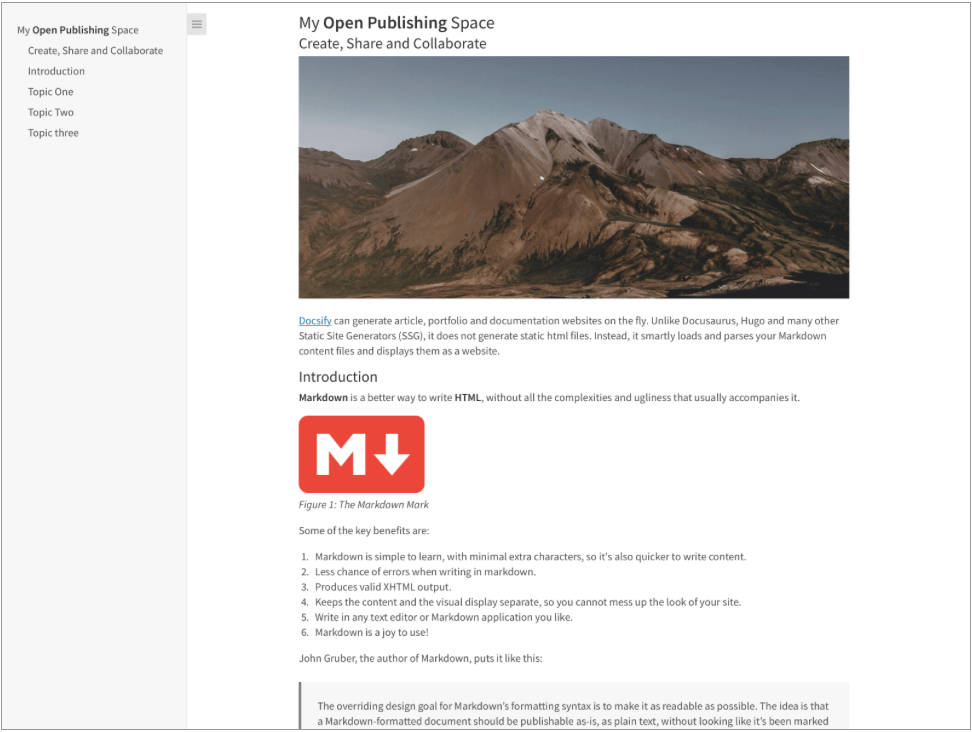
1ページの記事home.mdファイルはdocsifyによって表示されます。
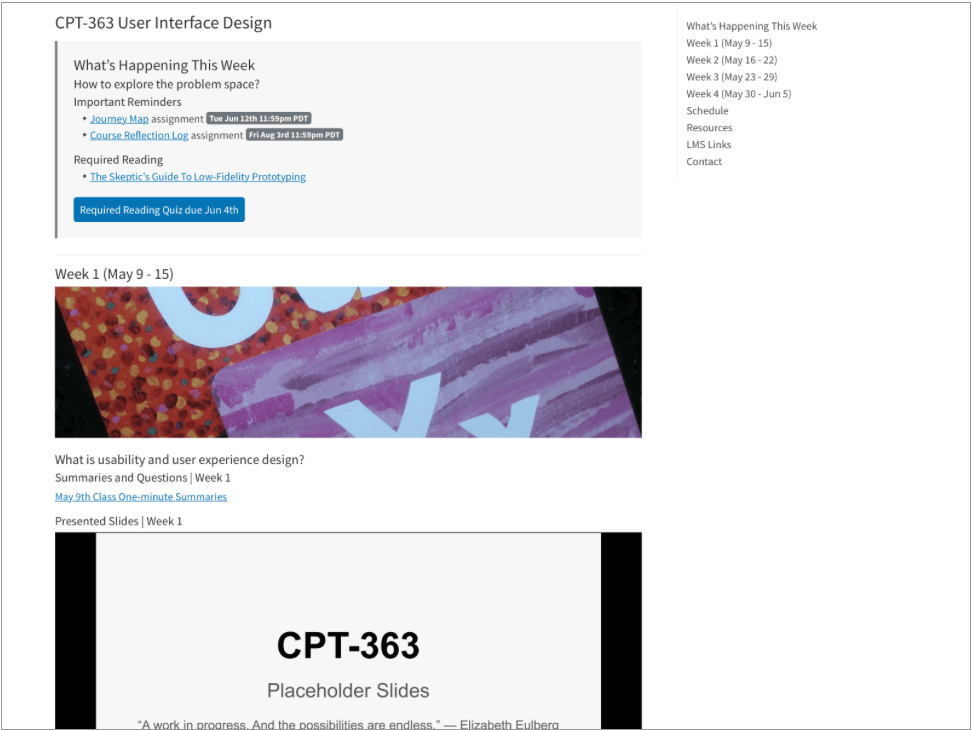
docsifyによって表示される1ページのコースhome.mdファイル:
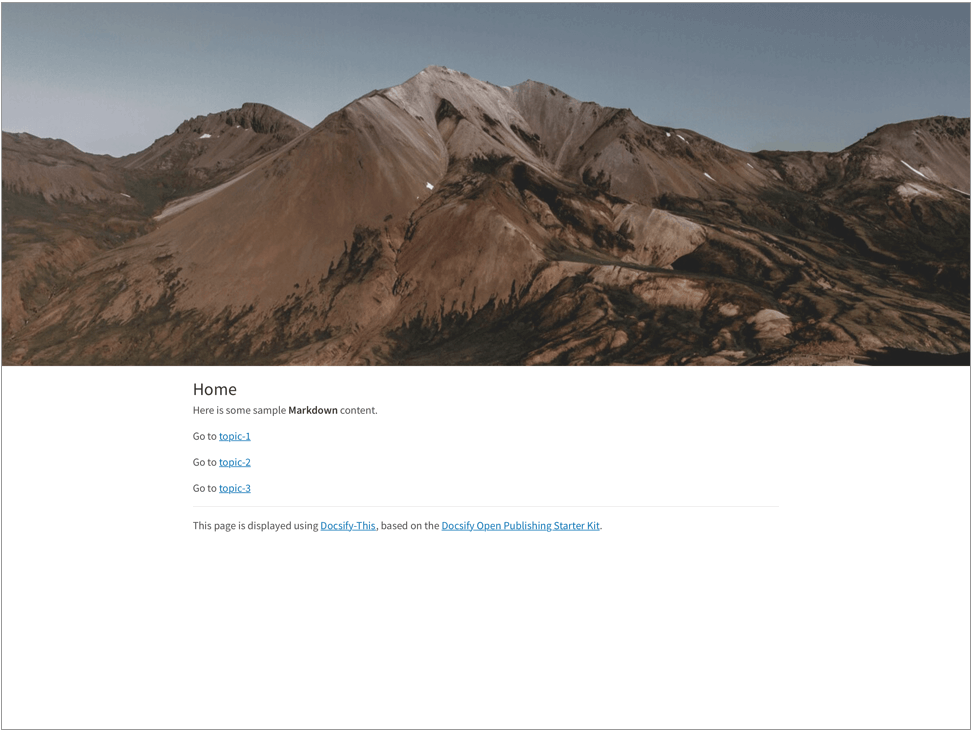
Markdown CSSクラスheader-image-full-widthの使用を含む複数のページサイトhome.mdファイル。
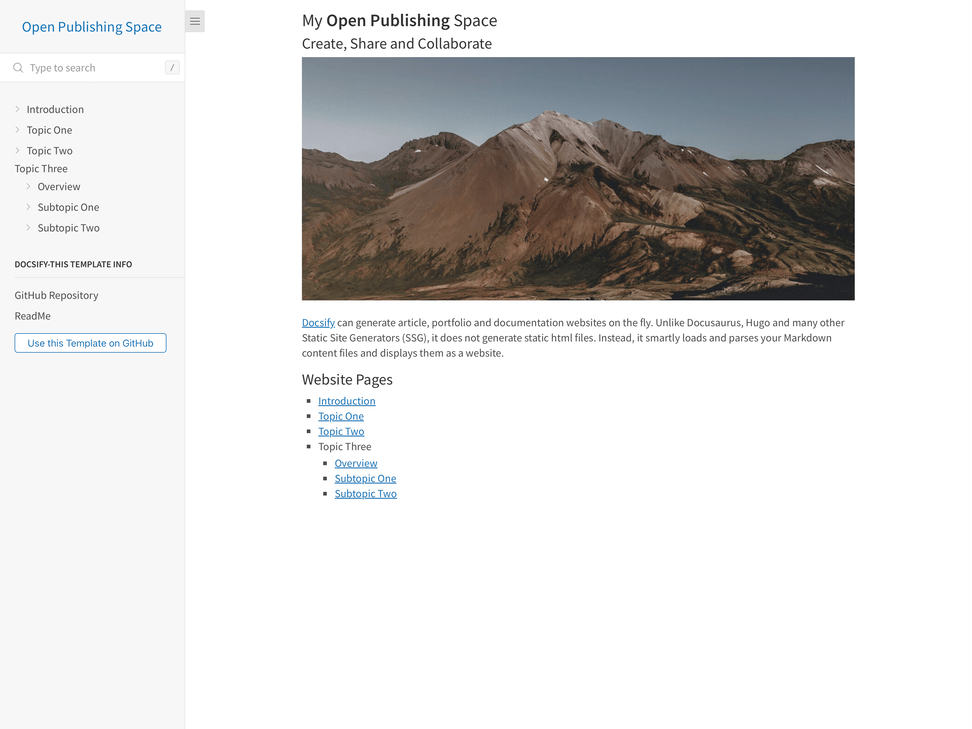
複数のページを開いている公開サイトhome.mdファイルには、docsify-thisによって表示されるdocsifyカスタムサイドバーファイルの使用を含む。
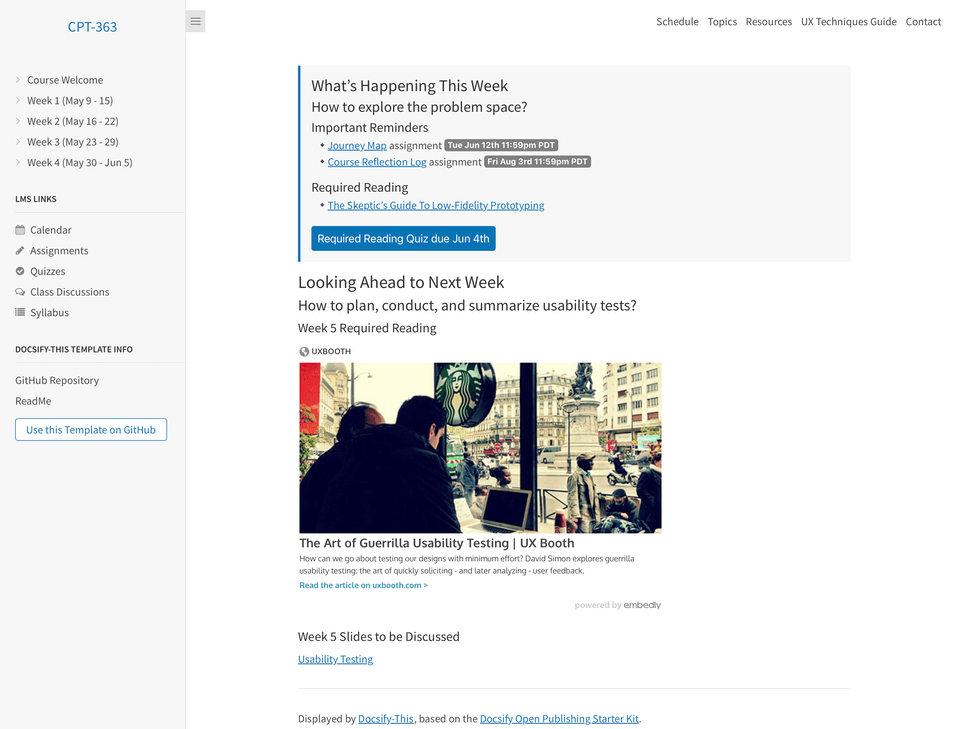
Docsify Custom Navbarファイルの使用を含む複数のページコースサイトhome.mdファイル。
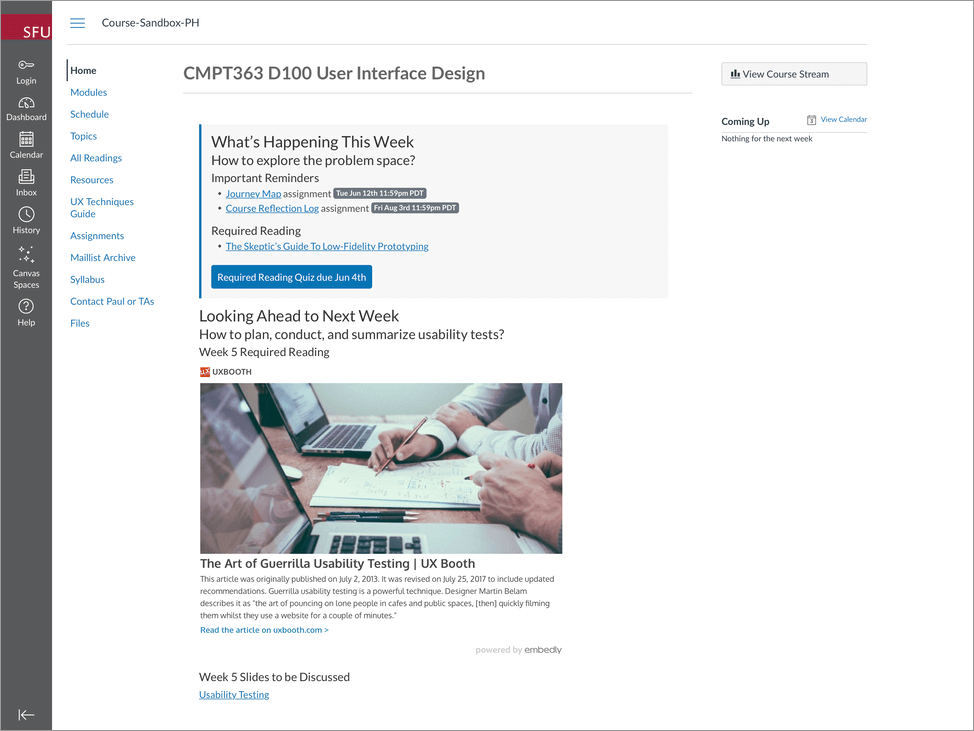
docsify-thisによって表示されるように、キャンバスLMS内に埋め込まれたシームレスなコンテンツのシームレスなコンテンツのためのfont-family 、 font-size 、 hide-credits URLパラメーターの使用を含む例ページ:
https://canvas.sfu.ca/courses/76692でdocsify-このコンテンツを使用してキャンバスLMSサイトの例を表示します。
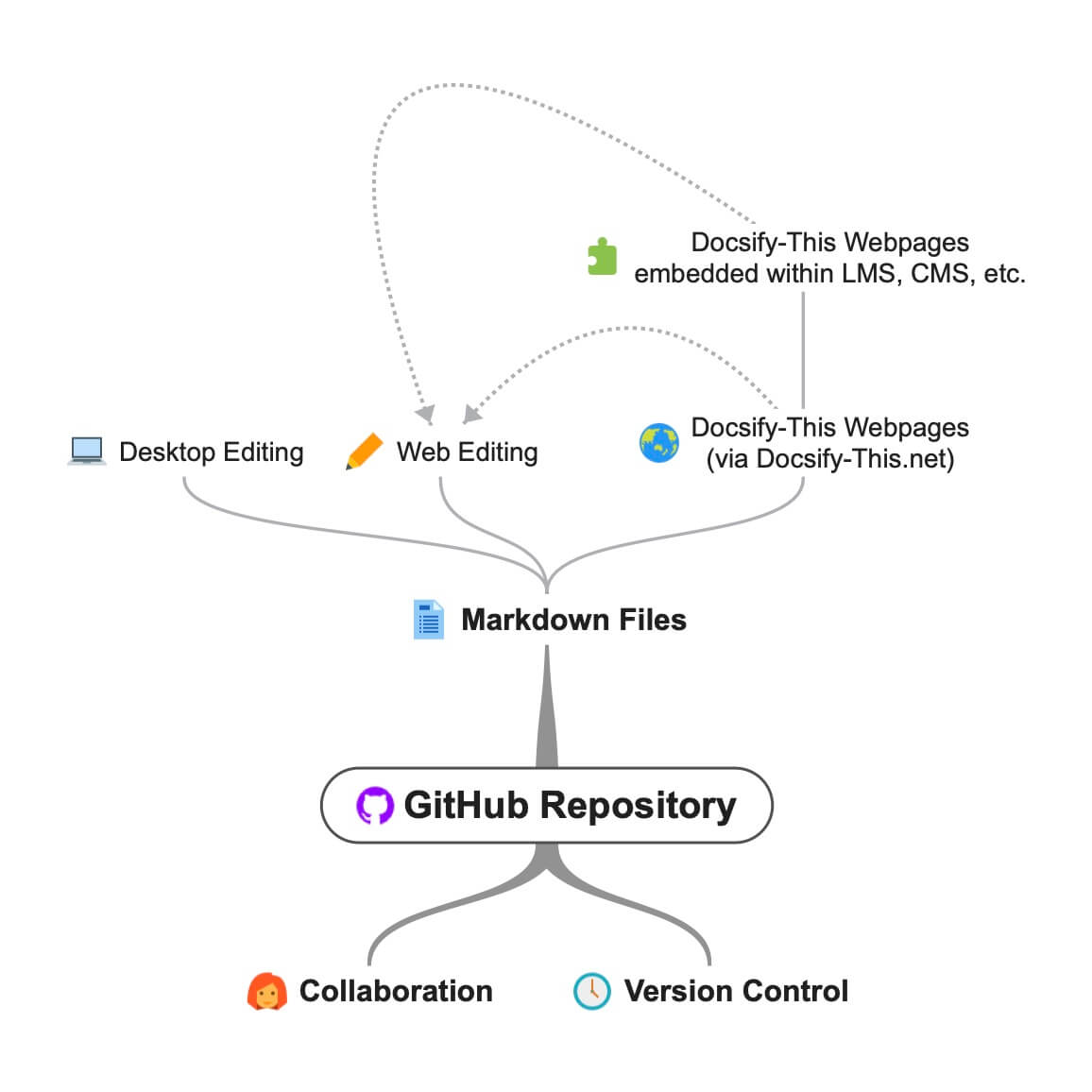
GitHub Markdownファイルを使用して、docsify-this.netオープンおよびコラボレーションワークフロー。
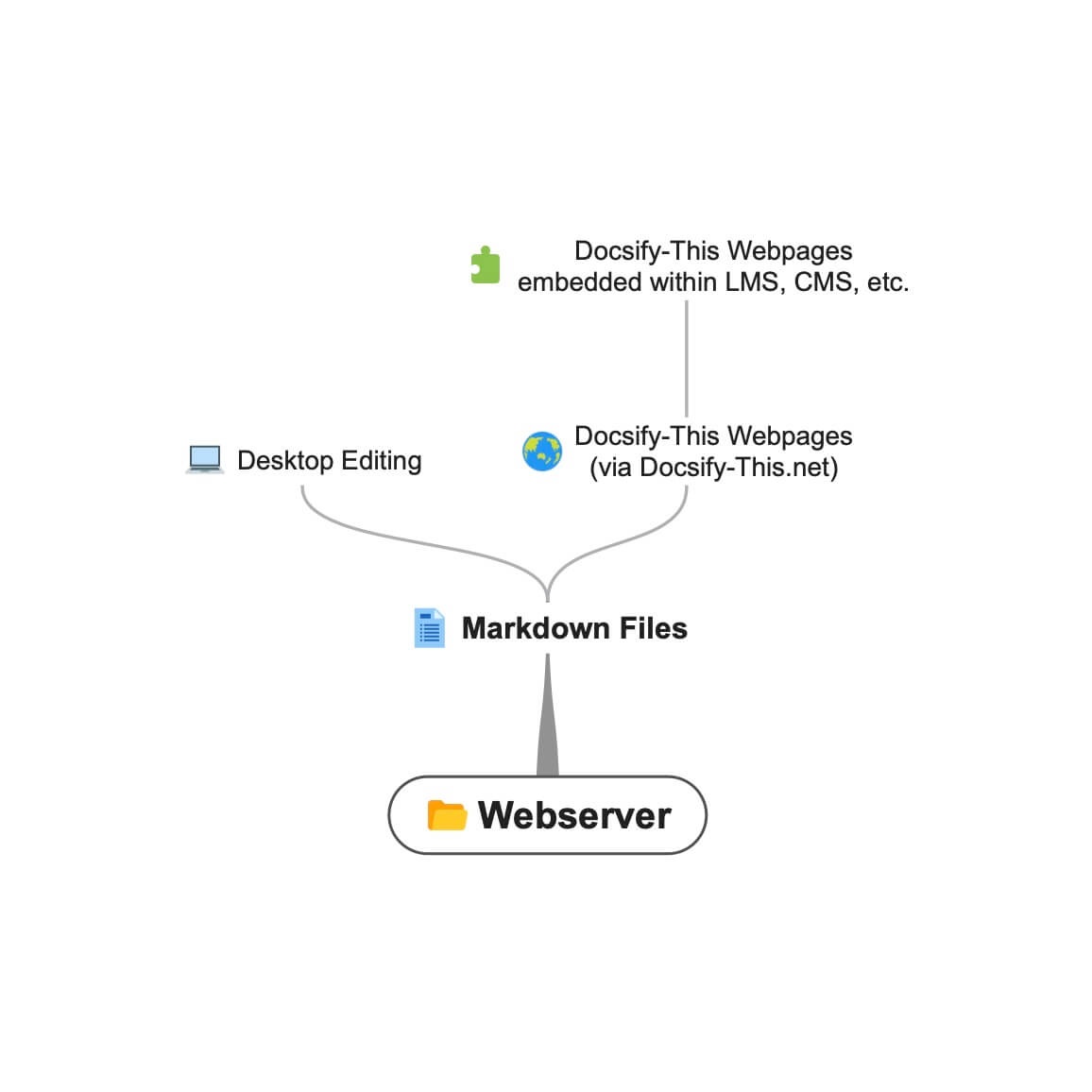 WebServer Markdownファイルを使用したDocsify-this.netワークフロー。
docsify-thisを使用して、GithubやCodebergなどのGitベースのサービスにあるMarkdownファイルを表示する場合、ローカル編集のためにデスクトップにファイルをダウンロードしてから、オンラインファイルに変更(プッシュ)をダウンロードできます。
たとえば、デスクトップでGitHub Markdownファイルを編集するには、次のことを行います。
GitHubデスクトップの開始について詳しくは、詳細をご覧ください。
独自のマークダウンコンテンツを作成するときに、次のCSSクラスを利用できます。
 < div class =" accordion " >

< details >
  < summary > Topic One </ summary >

  Topic one details here.

</ details >

< details >
  < summary > Topic Two </ summary >

  Topic two details here.

</ details >

</ div > < span class =' badge ' > Tue Jun 12th 11:59pm PDT </ span > < span class =' badge ' style =' --badge-bg-color: #0164db; ' > Tue Jun 12th 11:59pm PDT </ span > < span class =' badge ' style =' --badge-bg-color: #e7c500; --badge-text-color: #000; ' > Tue Jun 12th 11:59pm PDT </ span > < span class =' badge ' > [Tue May 16 2:30pm PT](https://www.timeanddate.com/worldclock/fixedtime.html?msg=CMPT-363+Blackboard+Mini-lectures+and+Activities&iso=20220516T1430&p1=256&ah=1&am=50) </ span > 大きな画面では250pxの高さまで、小さな画面で125pxの高さまでトリミングされています。
![ UX - User Experience ] ( images/12650723674_d5c85af332_k.jpg ' :class=banner-image ') 大画面で350pxの高さまで、小さな画面で175pxの高さまでトリミングされています。
![ UX - User Experience ] ( images/12650723674_d5c85af332_k.jpg ' :class=banner-tall-image ') [ Required Reading Quiz due Jun 4th ] ( https://canvas.sfu.ca/courses/44038/quizzes/166553 ' :class=button ') [ : fa fa-download fa-fw : Download ] ( https://creativecommons.org/wp-content/uploads/2019/02/ccheart_black.svg_.zip ' :class=button ') < a class =" button " href =" https://creativecommons.org/wp-content/uploads/2019/02/ccheart_black.svg_.zip " target =" _blank " > < i class =" fa fa-download fa-fw " > </ i > Download </ a > [ Required Reading Quiz due Jun 4th ] ( https://canvas.sfu.ca/courses/44038/quizzes/166553 ' :class=button-rounded ') [ : fa fa-download fa-fw : Download ] ( https://creativecommons.org/wp-content/uploads/2019/02/ccheart_black.svg_.zip ' :class=button-rounded ') < a class =" button-rounded " href =" https://creativecommons.org/wp-content/uploads/2019/02/ccheart_black.svg_.zip " target =" _blank " > < i class =" fa fa-download fa-fw " > </ i > Download </ a > [ Required Reading Quiz due Jun 4th ] ( https://canvas.sfu.ca/courses/44038/quizzes/166553 ' :class=button-secondary ') [ : fa fa-download fa-fw : Download ] ( https://creativecommons.org/wp-content/uploads/2019/02/ccheart_black.svg_.zip ' :class=button ') < a class =" button-secondary " href =" https://creativecommons.org/wp-content/uploads/2019/02/ccheart_black.svg_.zip " target =" _blank " > < i class =" fa fa-download fa-fw " > </ i > Download </ a > [ Required Reading Quiz due Jun 4th ] ( https://canvas.sfu.ca/courses/44038/quizzes/166553 ' :class=button-secondary-rounded ') [ : fa fa-download fa-fw : Download ] ( https://creativecommons.org/wp-content/uploads/2019/02/ccheart_black.svg_.zip ' :class=button-secondary-rounded ') < a class =" button-secondary-rounded " href =" https://creativecommons.org/wp-content/uploads/2019/02/ccheart_black.svg_.zip " target =" _blank " > < i class =" fa fa-download fa-fw " > </ i > Download </ a > リンクされた記事のプレビュー、埋め込みスライド/ビデオなど。
< a class =" embedly-card " data-card-controls =" 0 " data-card-align =" left " href =" https://blog.prototypr.io/defining-usability-e7bf42e8abd0 " > Defining usability </ a > 1200pxから2000pxの推奨幅。
![ Photo of Mountain ] ( images/mountain.jpg ' :class=header-image-fade ') 1200pxから2000pxの推奨幅、および目次の表示は使用できません。
![ Photo of Mountain ] ( images/mountain.jpg ' :class=header-image-fade-full-width ') 幅1200pxから2000px幅、400pxから600pxの高さのサイズのサイズが推奨されており、目次の表示は利用できません。
![ Photo of Mountain ] ( images/mountain.jpg ' :class=header-image ') 画像を%にスケールします。
![ Photo of Mountain ] ( images/mountain.jpg ' :class=image-75 ') 境界線のスケール画像から%まで。
![ Photo of Mountain ] ( images/mountain.jpg ' :class=image-75-border ') ![ Photo of Mountain ] ( images/mountain.jpg ' :class=image-border ') ![ Photo of Mountain ] ( images/mountain.jpg ' :class=image-border-rounded ') [ GitHub ] ( https://github.com/hibbitts-design/docsify-this ' :class=navpill ') [ : fab fa-github fa-fw : GitHub ] ( https://github.com/hibbitts-design/docsify-this ' :class=navpill ') < a class =" navpill " href =" https://github.com " target =" _blank " > < i class =" fab fa-github fa-fw " > </ i > GitHub </ a > サイズ寸法を含む生のHTML画像を作成します。
< img src =" https://raw.githubusercontent.com/hibbitts-design/publishing-with-docsify-this/main/images/docsify-this-web-page-builder.jpg " width =" 910 " height =" 682 " class =" responsive image-border " alt =" Docsify-This Web Page Builder " > < div class =" row " >
< div class =" column " >
Lorem ipsum dolor sit amet, consectetur adipiscing elit.
</ div >
< div class =" column " >
Lorem ipsum dolor sit amet, consectetur adipiscing elit.
</ div >
</ div > < div class =" row reverse-columns " >
< div class =" column " >
Lorem ipsum dolor sit amet, consectetur adipiscing elit.
</ div >
< div class =" column " >
Lorem ipsum dolor sit amet, consectetur adipiscing elit.
</ div >
</ div > < div class =" row " >
< div class =" column " >
Lorem ipsum dolor sit amet, consectetur adipiscing elit.
</ div >
< div class =" column-right " >
Lorem ipsum dolor sit amet, consectetur adipiscing elit.
</ div >
</ div > < div class =" video-container-4by3 " > < div class =" video-container-16by9 " > < iframe width =" 560 " height =" 315 " src =" https://www.youtube.com/embed/lJIrF4YjHfQ " > </ iframe > </ div > ソースドメイン「YouTube.com」または「docs.google.com」を使用して、すべてのiframesに自動的に追加されます。
< div class =" video-container-16by9 " > < iframe width =" 560 " height =" 315 " src =" https://www.youtube.com/embed/lJIrF4YjHfQ " > </ iframe > </ div > Docsify-ThisでサポートされているMarkdown CSSクラスに加えて、表示されたMarkdownファイル内で独自のカスタムクラスを定義することもできます。
マークダウンファイルのCSS:
<style >
. markdown-section . mybutton , . markdown-section . mybutton : hover {
  cursor : pointer;
  color : # CC0000 ;
  height : auto;
  display : inline-block;
  border : 2 px solid # CC0000 ;
  border-radius : 4 rem ;
  margin : 2 px 0 px 2 px 0 px ;
  padding : 8 px 18 px 8 px 18 px ;
  line-height : 1.2 rem ;
  background-color : white;
  font-family : -apple-system , "Segoe UI" , "Helvetica Neue" , sans-serif;
  font-weight : bold;
  text-decoration : none;
}
< / style >
マークダウン:
[ Required Reading Quiz due Jun 4th ] ( https://canvas.sfu.ca/courses/44038/quizzes/166553 ' :class=mybutton ') docsify-thisは、リモートでホストされている1つ以上のマークダウンファイルをすばやく簡単に表示するように設計されています。ファイルレンダリングのカスタマイズを強化し、一貫した可用性を確保するために、Public Docsify-this.netインスタンスが利用できなくなったとしても、Docsify-this-thisの独自のインスタンスをホストできます。
To host your own instance on GitHub Pages, which also supports the option of a custom domain, fork or clone the Docsify-This repository to your GitHub account. Then, enable GitHub Pages using the /docs folder.
You can also have an instance of Docsify-This run on Codeberg such as https://docsify-this.codeberg.page by creating a new repository called pages , then choosing paulhibbitts/docsify-this-app in the template dropdown menu, choosing the Git Content (Default Branch) option and then tapping the Create Repository button.
Alternatively, you can upload the files in the Docsify-This /docs folder into a newly created Codeberg repository and then manually enable Codeberg Pages. An example Docsify-This instance running on Codeberg is available at https://codeberg.org/paulhibbitts/docsify-this-app, which uses a Branch renamed to pages .
If you want to run Docsify-This on your own Websever, create a destination folder on your server and then copy the files within the Docsify-This folder /docs to your newly created server folder. You could also use this docs folder as a custom domain root.
A more future-friendly setup would be to fork the Docsify-This repository (to support getting upstream updates) and use a GitHub Action such as FTP-Deploy to deploy all changed repository files to a webserver.
You can limit the domains which remote files can be rendered from by locating the line var allowedDomains = ''; within the index.html file and include your list of allowed domains separated by commas, for example var allowedDomains = 'codeberg.org,raw.githubusercontent.com,hibbittsdesign.org'; 。
If you want to further customize and control the presentation of your Markdown content, especially when rendering multiple page sites, you can install your own Docsify Open Publishing Starter Kit (that this hosted web app is based on) and store all Markdown files within that site. You can learn more about the capabilities of Docsify itself at Docsify.js.org.
Looking for some help with getting a Docsify custom-This instance up and running for your organization? Paul provides a range of professional services related to Docsify-This - contact him to learn more.
The display of Font Awesome Free icons within Markdown content is supported with the following format:
: fas fa-home fa-fw :
The above Markdown is equivalent to the HTML markup <i class="fas fa-home fa-fw" aria-hidden="true"></i> .
When using the above shortcode for Font Awesome icons, it is assumed to be for decorative purposes, and so for improved accessibility an aria-hidden="true" attribute is automatically added to the icon. For semantic purposes, it is recommended you refer to the Font Awesome Icons and Accessibility guidelines.
The following style prefixes are available with Docsify-This:
GitHub Training Manual Working Locally with Git Markdown file, displayed by Docsify-This as a:
Easy Markdown to Github Pages linked set of Markdown files, displayed by Docsify-This as:
A Collection of GitHub Markdown files used as course content within an SFU CMPT-363 Canvas LMS site.
A Collection of GitHub Markdown files with inline CSS used as a multiple page SFU CMPT-363 course site with SFU visual branding and the Docsify Search plugin enabled, multiple page SFU CMPT-363 course site with SFU visual branding and website logo, and an example single Markdown file with default visual styling for embeddeding.
GitHub Markdown Content Demo file, displayed by Docsify-This as a Web Page with 'Edit this Page' link using the new GitHub.dev web editor (currently in Beta).
GitHub Markdown Content Demo file, displayed by Docsify-This as a Web Page with 'View raw Markdown' link.
Codeberg Markdown Content Demo file, displayed by Docsify-This as a Web Page with 'View raw Markdown' link.
GitHub's LaTeX Support Examples Markdown file, displayed by Docsify-This as a Web Page with an 'Edit this Page' link.
Mermaid-Docsify Example GitHub Markdown file, displayed by Docsify-This as a Web Page with an 'Edit this Page' link.
Docsify-This Multi-language Site Template, displayed by Docsify-This as a:
Docsify-This Simple Visual Portfolio Template (based on Notion Portfolio Template), displayed by Docsify-This as a:
Docsify-This Visual Portfolio Template (based on Notion Portfolio Template), displayed by Docsify-This as a:
A simple Markdown Student Portfolio Starter Template (based on Markdown Student Portfolio Template by Justin Thoreson) which is viewable on both GitHub and with Docsify-This.net, displayed by Docsify-This as:
Introduction to Docsify–This
Introductory, beginner to intermediate.
An introduction of Markdown publishing using the open source project Docsify–This.
Self-Publishing with Docsify–This
Intermediate, with a mix of basic and advanced aspects.
An overview to self-publishing with Markdown using the open source project Docsify–This, with a focus on digital literacy.
Use a page inspector to identify the font family and font size used in the platform you are embedding Docsify-This content in, and then pass that font family using the font-family (encoded, where spaces are replaced with '%20') and font-size (REM units) URL parameters to Docsify-This. For example, to match fonts with the Canvas LMS:
https://docsify-this.net?basePath=https://raw.githubusercontent.com/paulhibbitts/cmpt-363-222-pages/main&homepage=topics.md&font-family=Lato%20Extended,Lato,Helvetica%20Neue,Helvetica,Arial,sans-serif&font-size=1
If you want to include a Page Table of Contents with embedded Docsify-This content, but the destination platform screen area is not very wide, you might want to try the optional toc-narrow display option. For example, to use a narrower Table of Contents area that includes a smaller screen breakpoint: https://docsify-this.net?basePath=https://raw.githubusercontent.com/paulhibbitts/cmpt-363/main/docs/222&homepage=week-01.md&toc-narrow=true
Using Prismjs code blocks with syntax highlighting is supported for the languages included with Docsify and as well Bash, Go, Java, Kotlin, PHP, Python and Swift. To embed a code block use the Markdown standard of triple backticks and start the block with the name of the language, for example to embed a block of Javascript code with syntax highlight the following would be used:
 ```javascript
function test() {
  console.log("Hello world!");
}
`` `
Which would then appear as:
 function test ( ) {
  console . log ( "Hello world!" ) ;
} The content of external Markdown files can be embedded into Docisfy-This web pages with the following:
[ included Markdown from same source location ] ( example.md ' :include ') [ included Markdown from URL ] ( https://raw.githubusercontent.com/paulhibbitts/Markdown-File-Tests/main/itworks.md ' :include ')For additional examples of including external content, view Docsify Embeded Files.
WikiLinks format for links and images are supported, as also found in the desktop editor Obsidian and other platforms.
The display of AsciiDoc files ('.adoc' extension) via DownDoc is possible by manually passing the relevant filenames within a Docsify-This URL (not available in the Docisfy-This.net Web Page Builder), for example: https://docsify-this.net/?basePath=https://raw.githubusercontent.com/asciidoctor/asciidoctor-pdf/main/examples&homepage=basic-example.adoc&edit-link=https://github.com/asciidoctor/asciidoctor-pdf/blob/main/examples/basic-example.adoc
You can support the display of AsciiDoc files in the Web Page Builder of your own instance of Docsify-This by locating the function getAllowedFileExtensions() within the index.html file and add the file extension '.adoc' to the return statement, for example return ".md,.adoc"; 。
The display of HedgeDoc files containing basic Markdown (as well as Mermaid and MathJax elements) is possible by manually using 'download' for the homepage URL parameter within a Docsify-This URL (not available in the Docisfy-This.net Web Page Builder), for example: https://docsify-this.net/?basePath=https://demo.hedgedoc.org/crN3ispNQdejWkUXXIXYQA&homepage=download
Here is an additional example, using the HedgeDoc file https://demo.hedgedoc.org/oisWMy9ZS36PE6TvYhJC4A?both (seen in split-screen view) and and rendered as a web page by Docsify-This https://docsify-this.net/?basePath=https://demo.hedgedoc.org&homepage=oisWMy9ZS36PE6TvYhJC4A/download&edit-link=https://demo.hedgedoc.org/oisWMy9ZS36PE6TvYhJC4A?both&toc=true&edit-link-text=Edit%20this%20Page%20in%20HedgeDoc
You can support HedgeDoc URLs (eg https://demo.hedgedoc.org/ip4SRxZYTEKa6JHr62XTiA) in the Web Page Builder of your own instance of Docsify-This by locating the line var hedgedocInstances = ''; within the index.html file and include your HedgeDoc instances separated by commas, for example var hedgedocInstances = 'demo.hedgedoc.org'; 。 Try out a demo instance of Docsify-This with support for demo.hedgedoc.org files at https://hibbitts-design.github.io/hedgedoc-docsify-this.
You can use camel case instead of hyphens for the names of Docsify-This URL parameters if prefered.例えば、 https://docsify-this.net?basePath=https://raw.githubusercontent.com/hibbitts-design/docsify-this-one-page-article/main&homepage= home.md&toc=true&toc-headings=h2,h3&edit-link=https://github.com/hibbitts-design/docsify-this-one-page-article/blob/main/home.md そして https://docsify-this.net?basePath=https://raw.githubusercontent.com/hibbitts-design/docsify-this-one-page-article/main&homepage =home.md&toc=true&tocHeadings=h2,h3&editLink=https://github.com/hibbitts-design/docsify-this-one-page-article/blob/main/home.md are equilivent.
To use the new GitHub.dev web editor (currently in Beta) for 'Edit this Page' links, change github.com to github.dev for GitHub.com files entered into the Web Page Builder Markdown File URL field.
There are multiple ways to get a raw Markdown file available online, here are three options to help you get started:
GitHub or Codeberg:
Gist (GitHub Gists):
.md (eg myfile.md )Personal or Organizational Website:
Some text editors, such as Microsoft Visual Studio (including the online GitHub.dev web editor), have the ability to link your own CSS so Markdown previews are more visually accurate. If your editor supports this ability, the below CSS files can be used.
Docsify-This (based on the Docsify Open Publishing Starter Kit) CSS:
https://docsify-this.net/assets/css/editor.css
FontAwesome CSS:
https://cdnjs.cloudflare.com/ajax/libs/font-awesome/4.7.0/css/font-awesome.css
Enhanced Previews with Microsoft Visual Studio
For an even closer visual representation of your Docsify-This pages in Microsoft Visual Studio, do the following:
docs folderTIP: If you change the VSCode setting for Workbench › Editor: Show Tabs to single then the docsify preview area will remain in place as you edit multiple Markdown files.
You can load custom default settings in the Docsify-This Web Page Builder using URL parameters. This ability is especially helpful for Docsify-This online sessions, workshops, or when users collaborate and assist one another. Along with the standard Docsify-This URL parameters, the Web Page Builder also offers the following specific parameters:
https://docsify-this.net/?url-field=https://codeberg.org/paulhibbitts/docsify-this-one-page-course/src/branch/main/home.mdhttps://docsify-this.net/?url-field=empty You can even just type docsify-this.net? in front of an online Markdown file URL that you are viewing (such as files hosted on GitHub, Codeberg, or raw source files) to instantly set up the Docsify-This Web Page Builder with that file. Once the Web Page Builder loads, press the Return key — no need to leave the keyboard — to see Docsify-This display the Markdown file as a web page! For example, https://docsify-this.net?https://github.com/hibbitts-design/docsify-this-one-page-course/blob/main/home.md .
https://docsify-this.net/?url-field=https://codeberg.org/paulhibbitts/docsify-this-one-page-course/src/branch/main/home.md&edit-link-checkbox=truehttps://docsify-this.net/?show-page-options=truehttps://docsify-this.net/?advanced=true For example, the following URL will display the Advanced Web Page Builder, with the Markdown file URL set to https://github.com/hibbitts-design/docsify-this-multiple-page-course-site/blob/main/home.md , the site name 'CPT-363' along with a Docsify custom Sidebar and Navbar to be included: https://docsify-this.net/?url-field=https://github.com/hibbitts-design/docsify-this-multiple-page-course-site/blob/main/home.md&sidebar=true&loadSidebar=true&loadNavbar=true&name=CPT-363
The quickest way to create such a shareable URL is to use the Docsify-This Web Page Builder to generate a Docisfy-This web page URL, and then replace the URL parameter basepath with url-field using the full path of the source Markdown file URL. For example, the URL https://docsify-this.net/?basePath=https://raw.githubusercontent.com/hibbitts-design/docsify-this-one-page-article/main&homepage=home.md&sidebar=true&maxLevel=3 would be changed to https://docsify-this.net/?url-field=https://github.com/hibbitts-design/docsify-this-one-page-article/blob/main/home.md&homepage=home.md&sidebar=true&maxLevel=3.
The provided basePath parameter and/or optional homepage parameter may not be correct, verify that these items lead to accessible content. This error message may also result from a Cross-Origin Resource Sharing (CORS) policy, which restricts resources on a web page to be requested from another domain. If possible, relocate files to a domain that supports cross-origin requests or alternatively if the domain in question is under your control explore re-configuring CORS related settings. You can confirm the cause of the 404 message by viewing the errors displayed in the Browser Javascript Console.
When displaying GitHub Markdown files, the branch name is assumed to be main , and other paths will likely cause a 404 file not found message. When displaying Codeberg Markdown files, the path is assumed to contain /src/branch/main and other paths will likely cause a 404 file not found message.
Due to not being able to update Navbar or custom Sidebar links before page rendering, 'Edit this Page' links cannot be automatically updated to their correct target pages. Manually pass a URL pointing to the Git Repository using the URL parameter edit-link as a workaround, for example https://docsify-this.net?basePath=https://raw.githubusercontent.com/hibbitts-design/docsify-this-multiple-page-site/main&homepage=home .md&loadNavbar=_navbar&edit-link=https://github.com/hibbitts-design/docsify-this-multiple-page-site&edit-link-text=GitHub%20Repository そして https://docsify-this.net/?basePath=https://raw.githubusercontent.com/paulhibbitts/docsify-this-cmpt-363-222-site/main&homepage=home.md&loadNavbar=_navbar.m d&sidebar=true&loadSidebar=_sidebar.md&edit-link=https://github.com/paulhibbitts/docsify-this-cmpt-363-222-site/tree/main&edit-link-text=GitHub%20Repository
Docsify is likely displaying the last cached version. To ensure the most recent version of a file is loaded, do a hard refresh of your Browser cache.
The most likely cause for embedded images in Markdown not being displayed as expected is the use of relative paths (ie  ) - review image paths and ensure the full path to each image is used (ie  ). Likewise, if images in HTML are not being displayed as expected the likely cause is again the use of relative paths (ie <img src="images/filename.jpg" alt="Alt Text"> ) - use absolute URLs for HTML image sources (ie <img src="https://raw.githubusercontent.com/user/repository/main/images/filename.jpg" alt="Alt Text"> ).
Due to iframe cross-domain issues embedded content may not be able to be displayed. Use the included rich media embed service embed.ly as a workaround.
For example, the following iFrame HTML:
< iframe src =" https://docs.google.com/presentation/d/e/2PACX-1vRnnRFelgw1ksq_p8Eryg3dnyLCRRLPf5fBgdwdv9p-tCIwcxqWvzDGrGbjxGHL7HqEJVpmV26ntk3a/embed?start=false&loop=false&delayms=3000 " frameborder =" 0 " width = 780 " height="585" allowfullscreen="true" mozallowfullscreen="true" webkitallowfullscreen="true" > </ iframe >Would be changed to:
< a class =" embedly-card " data-card-controls =" 0 " data-card-align =" left " data-card-width =" 100% " href =" https://docs.google.com/presentation/d/1BLaaOTsGxDmNcAhg6pdx3hl9IvI8NErg8Oe5ceh83fw/edit?usp=sharing " > Grav and Docsify Slides Placeholder </ a > When displaying a Docsify Sidebar or custom Sidebar, it is expected that page header levels start with a H1 level header.
When the search field is enabled in a Docsify custom Sidebar, only pages listed and linked in the Sidebar will be indexed for the search. Any pages linked in an optional Navbar will not be included in searches.
Docsify-This (as with Docsify itself) will only execute the first script included in a Markdown page, as described in the Docsify documentation.
Have you tried out Docsify-This? Share your feedback about Docsify-This
By leveraging his extensive UX design expertise and systems-oriented approach, Paul helps teams and individuals utilize open content in a range of education and publication settings, especially in connection with his Markdown-based Docsify and Grav CMS open-source projects. Professional services include user experience and workflow consulting, premium support subscriptions, workshops, and custom development. Sound of interest? Send a note to [email protected].
This open source project is by Paul Hibbitts of HibbittsDesign.org.
??♂️Special Thanks
Beau Shaw for his Remote Docsify example.
Alan Levine for the inspiration of a consolidated ReadMe collection.







