docsify this
v1.9.16: Merge pull request #161 from hibbitts-design

This open-source web app, built with magical documentation site generator Docsify, lets you publish online Markdown files as web pages without setting up your own website.
Check out what Docsify-This can do by viewing this ReadMe file as a web page with an optional Sidebar that includes headings up to 4 levels!
Figure 1. Docsify-This.net Web Page Builder.
Have you tried out Docsify-This? Share your feedback about Docsify-This
Docsify-This provides an easy way to display and share Markdown content in various contexts, with no website setup or build process required. By hosting your Markdown files on GitHub or Codeberg, you can also leverage version control (the ability to track and reverse changes) and enable collaboration.
With Docsify-This you can:
Docsify-This is a customized Docsify Open Publishing Starter Kit site configured to render remote Markdown files via URL parameters in the following format:
https://docsify-this.net?basePath=URLpath&homepage=filename.md
The basePath Docsify parameter is the URL path containing the raw source Markdown file to render. If the file is named the expected default README.md then no other parameter are required, otherwise the homepage Docsify parameter must also be included set to the name of the file to render. An example Docsify-This URL would be: https://docsify-this.net/?basePath=https://raw.githubusercontent.com/hibbitts-design/docsify-this-one-page-article/main&homepage=home.md
Docsify-This can render files from anywhere that the content of a Markdown file can be viewed within a web browser, including:
To directly render a file stored in a public GitHub repository when not using the above Web Page Builder, you need to use the raw source URL of that file (i.e. raw.githubusercontent.com) by tapping the Raw button when viewing a file. It is also possible to render a file stored in a private GitHub repository by activating GitHub Pages within that repository and then using the GitHub Pages URL of that file (i.e. username.github.io).
The appearance of rendered Markdown files can be customized by optional URL parameters and a small set of available CSS Classes within source Markdown files. In addition to supporting standard Markdown, Embed.ly, H5P, Latex and Mermaid Diagrams are included. Optionally, page annotation with Hypothes.is can be enabled.
Looking for an overall introduction to publishing with Docsify-This? Check out Markdown Publishing with Docsify-This.
I’m blown away just by the fact you put a (Markdown file) URL into Docsify-This and then you get a URL back for a web page… done! Take the URL and go. It is so seamless.
— J. Groom, Reclaim Today Episode 39 (Co-founder, Reclaim Hosting)
I've been using Docsify-This for my graduate publishing production course, partly to explore new models in markdown publishing, but partly also to tame Canvas, which I find awkward and cumbersome. Keeping all my course notes as plain text files and deploying them through Github and Docsify-this is easy and makes my course development a breeze. Plus, I keep all my materials locally, and can use re-use them without being reliant on Canvas.
— J. Maxwell (Director & Associate Professor in the Publishing Program at Simon Fraser University)
Best tool I’ve found in years - this is one of those creations that is just done right, all the way to the core.
— D. Malawey (Multidisciplinary Lab Coordinator, Texas A&M University)
Docsify-This has significantly improved my WordPress themes by being able to seamlessly embed into the interface the same documentation I use in the GitHub repository. This in turn has lead me to write better docs! I've barely scratched the surface of what Docsify-This can do as a simple-to-use web publishing tool.
— A. Levine aka CogDog (Independent Educational Technologist)
Docsify-This has been recognized as a finalist in the Open Infrastructure category for the 2024 Open Education Awards for Excellence — thank you to all Docsify.js.org maintainers and contributors, and to fellow open publishers, educators, and creators who share their open content with the rest of the world through Docsify-This.
The visual appearance of an online Markdown file displayed as a web page by Docsify-This can be altered in two ways:
For example, to display the Markdown file located at https://raw.githubusercontent.com/hibbitts-design/docsify-this-one-page-article/main/home.md with a Docsify sidebar including headings up to 3 levels, the Docsify-This URL is:
https://docsify-this.net/?basePath=https://raw.githubusercontent.com/hibbitts-design/docsify-this-one-page-article/main&homepage=home.md&sidebar=true&maxLevel=3And here’s how Docsify-This.net displays the same URL:
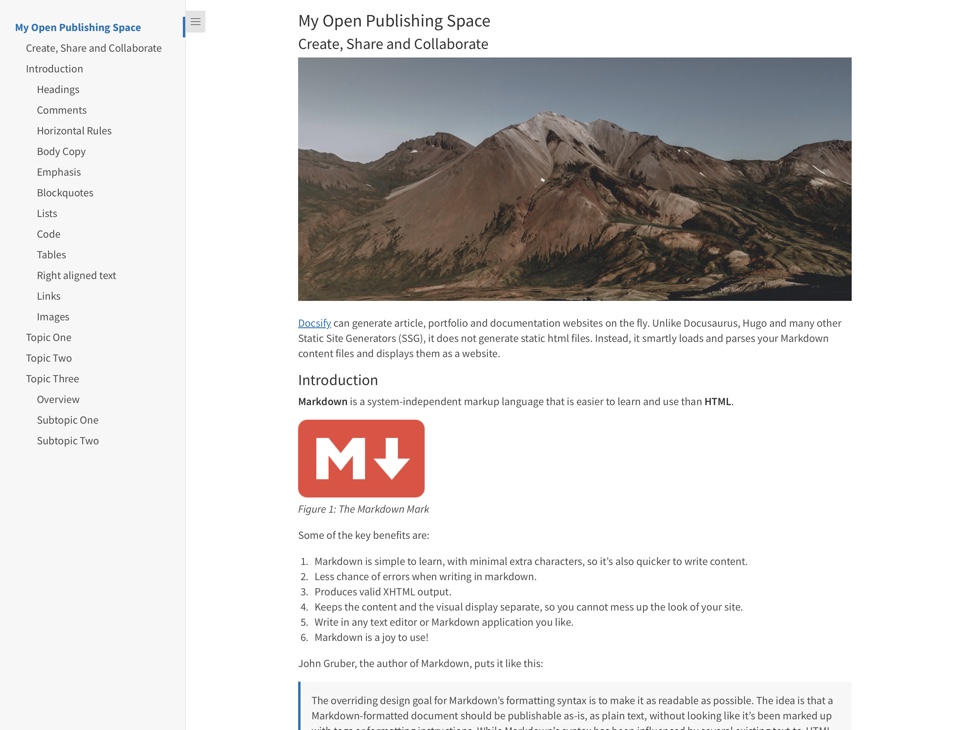 The web page displayed by Docsify-This.net, showing the Markdown file with a sidebar that includes headings up to 3 levels, as specified by the Docsify-This URL.
Learn more about each of the basic Docsify-This URL parameters below, and discover what is possible when combining URL parameters and online Markdown files with a set of ready-to-use Docsify-This markdown templates.
Basic URL Parameters (included in the standard Web Page Builder)
Set a custom title on Browser tab for your web pages with the optional browser-tab-title parameter, for example:
https://docsify-this.net?basePath=https://raw.githubusercontent.com/paulhibbitts/demo-grav-open-matter-course-hub/master/pages/04.resources&homepage=page.md&browser-tab-title=Resources Please note to use titles with spaces they must be encoded, so "My Page" would be "My%20Page".
Display a "Edit this Page" link (default location is bottom of page) with the optional edit-link parameter, for example:
https://docsify-this.net?basePath=https://raw.githubusercontent.com/hibbitts-design/docsify-open-course-starter-kit/main&edit-link=https://github.com/hibbitts-design/docsify-open-publishing-starter-kit/blob/main/README.md
Change the default text for a "Edit this Page" link with the optional edit-link-text parameter, for example:
https://docsify-this.net?basePath=https://raw.githubusercontent.com/hibbitts-design/docsify-open-course-starter-kit/main&edit-link=https://github.com/hibbitts-design/docsify-open-publishing-starter-kit/blob/main/README.md&edit-link-text=View%20as%20Markdown Please note to use text with spaces they must be encoded, so "View as Markdown" would be "View%20as%20Markdown".
Change the location of the "Edit this Page" link from the bottom of pages to be the top of pages with the optional edit-link-top parameter, for example:
https://docsify-this.net?basePath=https://raw.githubusercontent.com/hibbitts-design/docsify-open-course-starter-kit/main&toc=true&edit-link=https://github.com/hibbitts-design/docsify-open-publishing-starter-kit/blob/main/README.md&edit-link-top=true
Set a custom font for your web pages with the optional font-family parameter, for example:
https://docsify-this.net?basePath=https://raw.githubusercontent.com/hibbitts-design/docsify-open-course-starter-kit/main/docs&homepage=resources.md&font-family=Helvetica,Arial,sans-serif. This parameter can be particularly valuable when trying to better match the visual presentation of embedded content with your destination platform. Please note to use fonts with spaces in their names they must be encoded, so "Courier New" would be "Courier%20New".
Set a custom font size for your web pages with the optional font-size parameter, for example:
https://docsify-this.net?basePath=https://raw.githubusercontent.com/hibbitts-design/docsify-open-course-starter-kit/main/docs&homepage=resources.md&font-size=1. This parameter can be particularly valuable when trying to better match the visual presentation of embedded content with your destination platform. Please note the font size is set in REM units.
Set a custom header font weight (default is 400 - regular) for your web pages with the optional header-weight parameter, for example:
https://docsify-this.net?basePath=https://raw.githubusercontent.com/hibbitts-design/docsify-open-course-starter-kit/main/docs&homepage=resources.md&header-weight=600.
Hide the credits usually shown at the bottom of every displayed Docsify-This page with the optional hide-credits parameter, for example:
https://docsify-this.net?basePath=https://raw.githubusercontent.com/hibbitts-design/docsify-open-course-starter-kit/main/docs&homepage=resources.md&hide-credits=true.
Enable page annotation with Hypothes.is with the optional hypothesis parameter, for example:
https://docsify-this.net?basePath=https://raw.githubusercontent.com/hibbitts-design/docsify-open-course-starter-kit/main/docs&homepage=resources.md&hypothesis=true.
Set a custom line height for your web pages with the optional line-height parameter, for example:
https://docsify-this.net?basePath=https://raw.githubusercontent.com/hibbitts-design/docsify-open-course-starter-kit/main/docs&homepage=resources.md&line-height=1.5.
Set a custom color for all links, defined using the standard hexadecimal format without the '#' symbol with the optional link-color parameter, for example:
https://docsify-this.net?basePath=https://raw.githubusercontent.com/hibbitts-design/docsify-open-course-starter-kit/main/docs&homepage=resources.md&link-color=CC0000.
Set the maximum header level of the Docsify sidebar with the optional maxLevel Docsify parameter, for example:
https://docsify-this.net?basePath=https://raw.githubusercontent.com/hibbitts-design/docsify-open-publishing-starter-kit/main/docs&homepage=introduction.md&sidebar=true&maxLevel=3
Display a Docsify sidebar with the optional sidebar parameter, for example:
https://docsify-this.net?basePath=https://raw.githubusercontent.com/hibbitts-design/docsify-open-course-starter-kit/main&sidebar=true
Display a page table of contents with the optional toc parameter, for example:
https://docsify-this.net?basePath=https://raw.githubusercontent.com/hibbitts-design/docsify-open-publishing-starter-kit/main/docs&homepage=introduction.md&toc=true
Set the page heading levels (i.e. h1, h2, etc.) to be included in the Page Table of Contents with the optional toc-headings parameter, for example:
https://docsify-this.net?basePath=https://raw.githubusercontent.com/hibbitts-design/docsify-open-publishing-starter-kit/main/docs&homepage=introduction.md&toc=true&toc-headings=h1,h2,h3.
Use a less wide Page Table of Contents with the optional toc-narrow parameter, for example:
https://docsify-this.net?basePath=https://raw.githubusercontent.com/hibbitts-design/docsify-open-publishing-starter-kit/main/docs&homepage=introduction.md&toc-narrow=true. This parameter can be particularly valuable when embedding content where a smaller screen area is likely.
Enable image zoom (tapping on page images to enlarge them) with the optional zoom-images Docsify parameter, for example:
https://docsify-this.net?basePath=https://raw.githubusercontent.com/paulhibbitts/docsify-this-markdown-content-demo/main&zoom-images=true. To exclude images, use .
The following additional URL parameters are available for use in Docsify-This URLs, and are included in the Advanced Web Page Builder unless otherwise indicated.
Supplemental URL Parameters (included in the Advanced Web Page Builder)
Display a Docsify custom coverpage with the optional coverpage parameter, for example:
https://docsify-this.net?basePath=https://raw.githubusercontent.com/hibbitts-design/docsify-open-publishing-starter-kit/main/docs&homepage=home.md&coverpage=_coverpage.md
Set a custom color for the coverpage with the optional coverpage-color parameter, for example:
https://docsify-this.net?basePath=https://raw.githubusercontent.com/hibbitts-design/docsify-open-publishing-starter-kit/main/docs&homepage=home.md&coverpage=_coverpage.md&coverpage-color=cc0000
Set a custom color for the coverpage in dark mode with the optional coverpage-color-dark-mode parameter, for example:
https://docsify-this.net?basePath=https://raw.githubusercontent.com/hibbitts-design/docsify-open-publishing-starter-kit/main/docs&homepage=home.md&dark-mode=true&link-color=CC0000&link-color-dark-mode=FF9E9E&coverpage=_coverpage.md&coverpage-color=cc0000&coverpage-color-dark-mode=4d0000
Automatically switch light/dark theme based on system OS-level preference, for example:
https://docsify-this.net?basePath=https://raw.githubusercontent.com/hibbitts-design/docsify-open-publishing-starter-kit/main/docs&homepage=introduction.md&dark-mode=true
Change the default emoji for a "Edit this Page" link with the optional edit-link-emoji parameter (not included in the Advanced Web Page Builder), for example:
https://docsify-this.net?basePath=https://raw.githubusercontent.com/hibbitts-design/docsify-open-course-starter-kit/main&edit-link=https://github.com/hibbitts-design/docsify-open-publishing-starter-kit/blob/main/README.md&edit-link-text=View%20on%20GitHub&edit-link-emoji=:file_folder:
Enable the lazy loading of images by Browsers with the optional lazy-load-images parameter (not included in the Advanced Web Page Builder), for example:
https://docsify-this.net?basePath=https://raw.githubusercontent.com/hibbitts-design/docsify-open-publishing-starter-kit/main/docs&homepage=introduction.md&lazy-load-images=true Please note that enabling lazy loading of images may affect page scroll accuracy, for example by the Docsify Sidebar etc.
Set a custom color for all links in dark mode, defined using the standard hexadecimal format without the '#' symbol with the optional link-color-dark-mode parameter, for example:
https://docsify-this.net?basePath=https://raw.githubusercontent.com/hibbitts-design/docsify-open-course-starter-kit/main/docs&homepage=resources.md&link-color=CC0000&dark-mode=true&link-color-dark-mode=FF9E9E.
Set a custom hover color for all links, defined using the standard hexadecimal format without the '#' symbol with the optional link-hover-color parameter, for example:
https://docsify-this.net?basePath=https://raw.githubusercontent.com/hibbitts-design/docsify-open-course-starter-kit/main/docs&homepage=resources.md&link-hover-color=CC0000.
Set a custom hover color for all links in dark mode, defined using the standard hexadecimal format without the '#' symbol with the optional link-hover-color-dark-mode parameter, for example:
https://docsify-this.net?basePath=https://raw.githubusercontent.com/hibbitts-design/docsify-open-course-starter-kit/main/docs&homepage=resources.md&link-color=CC0000&dark-mode=true&link-hover-color-dark-mode=FF9E9E.
Set a custom text decoration for all links, with the optional link-text-decoration parameter, for example:
https://docsify-this.net?basePath=https://raw.githubusercontent.com/hibbitts-design/docsify-open-course-starter-kit/main/docs&homepage=resources.md&link-text-decoration=none
Set a custom hover text decoration for all links, with the optional link-text-decoration-hover parameter, for example:
https://docsify-this.net?basePath=https://raw.githubusercontent.com/hibbitts-design/docsify-open-course-starter-kit/main/docs&homepage=resources.md&link-text-decoration-hover=underline
You can set a custom Favicon from the image file passed from the optional loadFavicon parameter, for example:
https://docsify-this.net?basePath=https://raw.githubusercontent.com/paulhibbitts/docsify-this-markdown-content-demo/main&loadFavicon=open-access.png
Load a Docsify footer from the Markdown file in the current directory passed with the optional loadFooter Docsify parameter, for example: https://docsify-this.net?basePath=https://raw.githubusercontent.com/hibbitts-design/docsify-open-publishing-starter-kit/main/docs&homepage=introduction.md&loadFooter=_footer.md
Load a Docsify custom navbar from the Markdown file passed with the optional loadNavbar Docsify parameter, for example:
https://docsify-this.net?basePath=https://raw.githubusercontent.com/hibbitts-design/docsify-open-publishing-starter-kit/main/docs&homepage=introduction.md&loadNavbar=_navbar.md
Load a Docsify custom sidebar from the Markdown file passed with the optional loadSidebar Docsify parameter, for example:
https://docsify-this.net/?basePath=https://raw.githubusercontent.com/paulhibbitts/docsify-this-cmpt-363-222-site/main&homepage=home.md&sidebar=true&loadSidebar=_sidebar-with-home.md
Display a logo image for the website in a Docsify custom Sidebar (i.e. file 'logo.png) with the optional logo Docsify parameter, for example:
https://docsify-this.net/?basePath=https://raw.githubusercontent.com/hibbitts-design/docsify-this-multiple-page-course-site/main&homepage=home.md&sidebar=true&loadSidebar=_sidebar.md&loadNavbar=_navbar.md&name=CPT-363&logo=/images/logo.png The full folder path and filename must be provided. A website name must also be provided, and will be used as the alt text for the logo.
Merge the Navbar items to the top of the sidebar on smaller screens with the optional mergeNavbar Docsify parameter, for example: https://docsify-this.net/?basePath=https://raw.githubusercontent.com/hibbitts-design/docsify-this-multiple-page-course-site/main&homepage=home.md&sidebar=true&loadSidebar=_sidebar.md&loadNavbar=_navbar.md&mergeNavbar=true&name=CPT-363
Display the name for the website in a Docsify custom Sidebar (i.e. file '_sidebar.md) with the optional name Docsify parameter, for example:
https://docsify-this.net/?basePath=https://raw.githubusercontent.com/hibbitts-design/docsify-this-multiple-page-course-site/main&homepage=home.md&sidebar=true&loadSidebar=_sidebar.md&loadNavbar=_navbar.md&search=true&name=CPT-363 When this parameter is provided it will be automatically used as the Browser tab title as well.
Set a custom page title at the top of your web pages with the optional page-title parameter, for example:
https://docsify-this.net?basePath=https://raw.githubusercontent.com/paulhibbitts/demo-grav-open-matter-course-hub/master/pages/04.resources&homepage=page.md&page-title=Resources Please note to use titles with spaces they must be encoded, so "My Page" would be "My%20Page".
Display Pagination buttons in page content area (Docsify custom Sidebar required) with the optional pagination parameter, for example:
https://docsify-this.net?basePath=https://raw.githubusercontent.com/hibbitts-design/docsify-this-multiple-page-course-site/main&homepage=home.md&sidebar=true&loadSidebar=_sidebar.md&loadNavbar=_navbar.md&search=true&pagination=true
Enable the Docsify Search plugin (which currently includes matches for text and markup) on multiple page sites including a custom Sidebar with the optional searchbox Docsify parameter, for example:
https://docsify-this.net?basePath=https://raw.githubusercontent.com/hibbitts-design/docsify-this-multiple-page-course-site/main&homepage=home.md&sidebar=true&loadSidebar=_sidebar.md&loadNavbar=_navbar.md&searchbox=true
Set the maximum automatic table of contents header levels in Docsify custom Sidebar (i.e. file '_sidebar.md) with the optional subMaxLevel Docsify parameter, for example:
https://docsify-this.net/?basePath=https://raw.githubusercontent.com/paulhibbitts/docsify-this-cmpt-363-222-site/main&homepage=home.md&sidebar=true&loadSidebar=_sidebar-with-home.md&subMaxLevel=1
Use the SVG version of Font Awesome icons instead of Web Fonts with the optional svg-icons parameter (not included in the Advanced Web Page Builder), for example:
https://v2.preview.docsify-this.net/?basePath=https://raw.githubusercontent.com/hibbitts-design/docsify-this-lms-content-pages/main&homepage=schedule.md&svg-icons=true
Embed content in Canvas
iFrame code example, including URL parameters to seamlessly match Docsify-This content to Canvas:
<p><iframe style="overflow: hidden; border: 0px #ffffff none; background: #ffffff;" src="https://docsify-this.net?basePath=https://raw.githubusercontent.com/paulhibbitts/cmpt-363-222-pages/main&homepage=home.md&font-family=Lato%20Extended,Lato,Helvetica%20Neue,Helvetica,Arial,sans-serif&font-size=1&hide-credits=true" width="800px" height="1400px" allowfullscreen="allowfullscreen"></iframe></p>If a scroll bar is present, you may want to re-edit your iFrame code and adjust the "height" value.
How do I add an external URL as a module item?
Module external link example, with Page Table of Contents:
https://docsify-this.net?basePath=https://raw.githubusercontent.com/paulhibbitts/cmpt-363/main/docs/222&homepage=week-02.md&toc-narrow=true&font-family=Lato%20Extended,Lato,Helvetica%20Neue,Helvetica,Arial,sans-serif&font-size=1&hide-credits=trueCreating a custom link in your course navigation using the Redirect Tool
Redirect URL field example:
https://docsify-this.net/?basePath=https://raw.githubusercontent.com/paulhibbitts/cmpt-363-222-pages/main&homepage=resources.md&edit-link=https://github.com/paulhibbitts/cmpt-363-222-pages/blob/main/resources.md&font-family=Lato%20Extended,Lato,Helvetica%20Neue,Helvetica,Arial,sans-serif&font-size=1&hide-credits=trueiFrame (for embedding content within pages)
External tool (for adding a link to course navigation or elements)
While all you need to get going with Docsify-This is a basic Markdown file, below are some templates you can use that show what is possible with Markdown, images, URL parameters, and even a few HTML snippets!
To use these templates you would generally do the following (template specific instructions are included with each template):
Sign in to GitHub, or create an account if you don’t already have one.
Tap Use this template in the chosen template repository (upper-right green button) and then choose Create a new repository
Choose the name for your new repository to contain the files and then tap Create repository to copy the template files to your own GitHub account
View an included Markdown file, for example home.md, and copy its URL.
Go to https://docsify-this.net and paste the copied URL into the Markdown File URL field
Select the page options you want (e.g. Docsify Sidebar) and tap the Publish as a Web Page button to view your Markdown file as a web page for sharing or embedding
To edit a file in GitHub, tap the Pencil icon (Edit file) in the upper-right when viewing the file, make your changes, and then tap the Commit changes... button to save those changes.
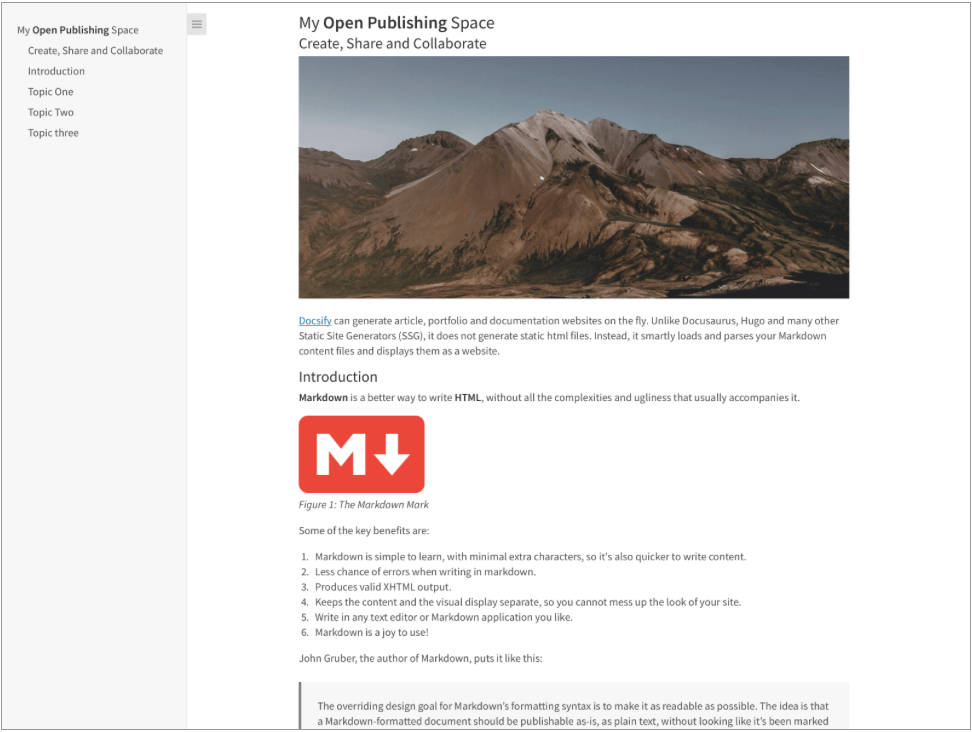
One Page Article home.md file displayed by Docsify-This as a:
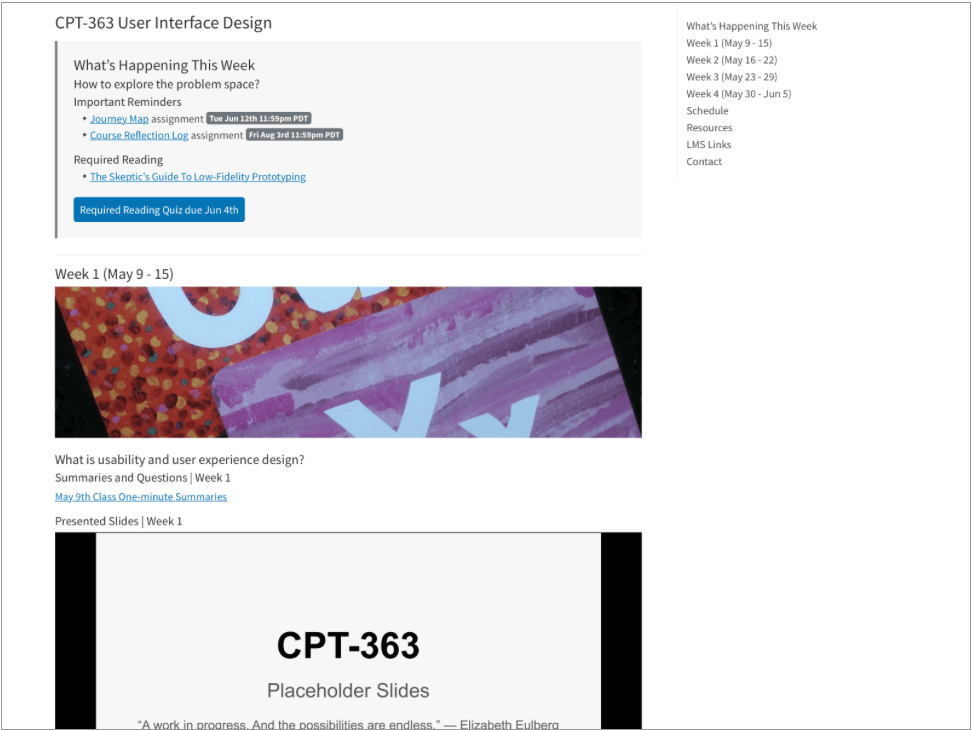
One Page Course home.md file displayed by Docsify-This as a:
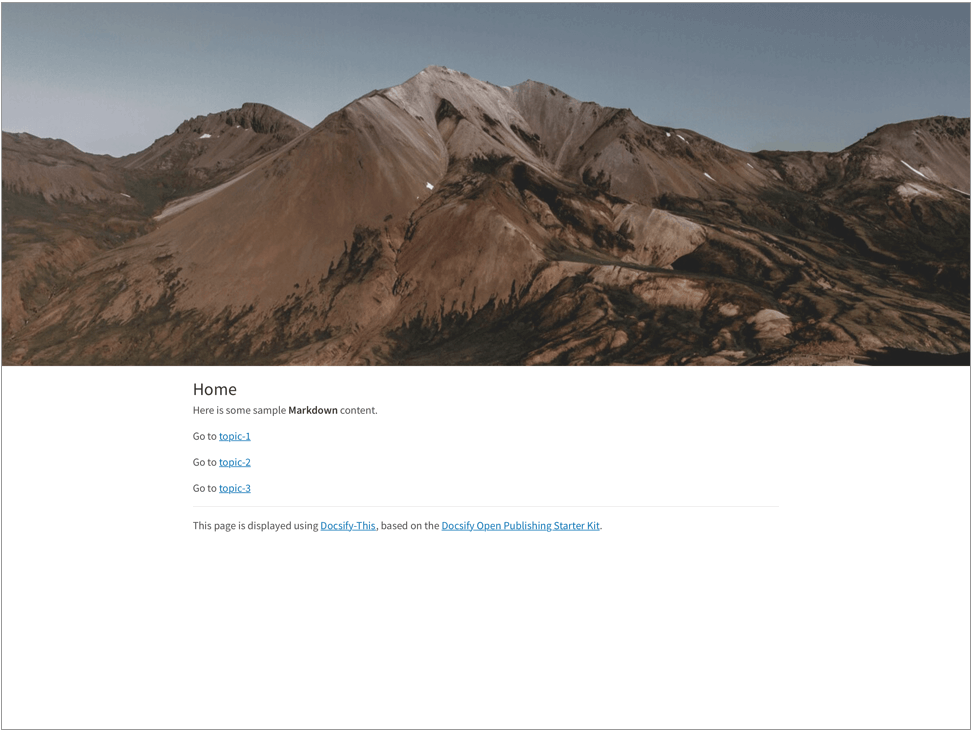
Multiple Page Site home.md file, including the use of the Markdown CSS class header-image-full-width, displayed by Docsify-This as:
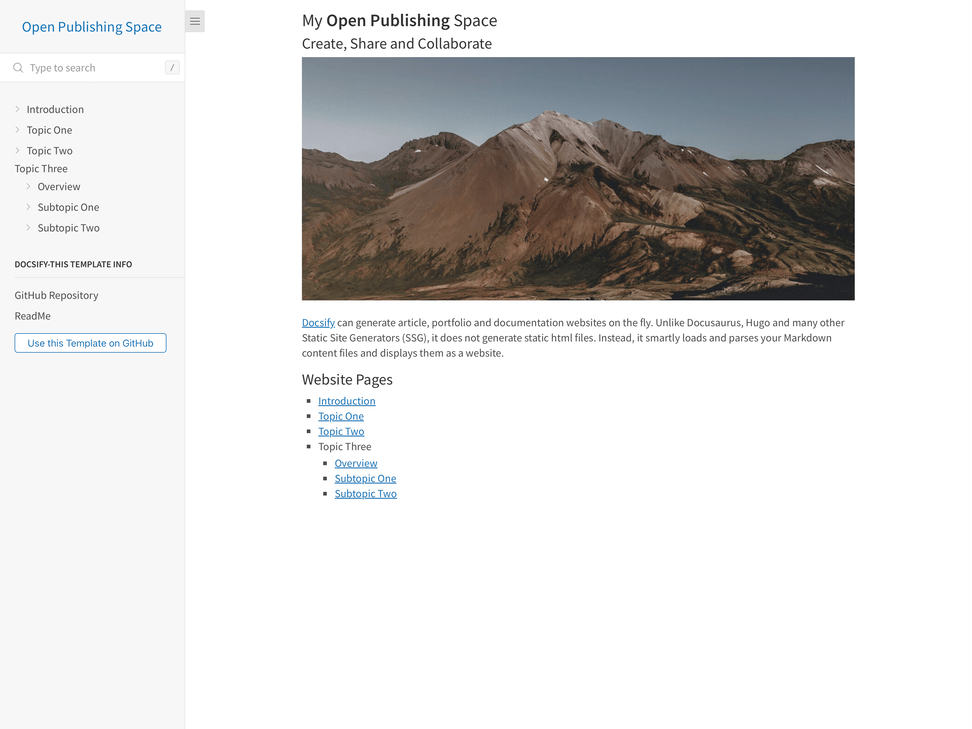
Multiple Page Open Publishing Site home.md file, including the use of a Docsify custom Sidebar file, displayed by Docsify-This as:
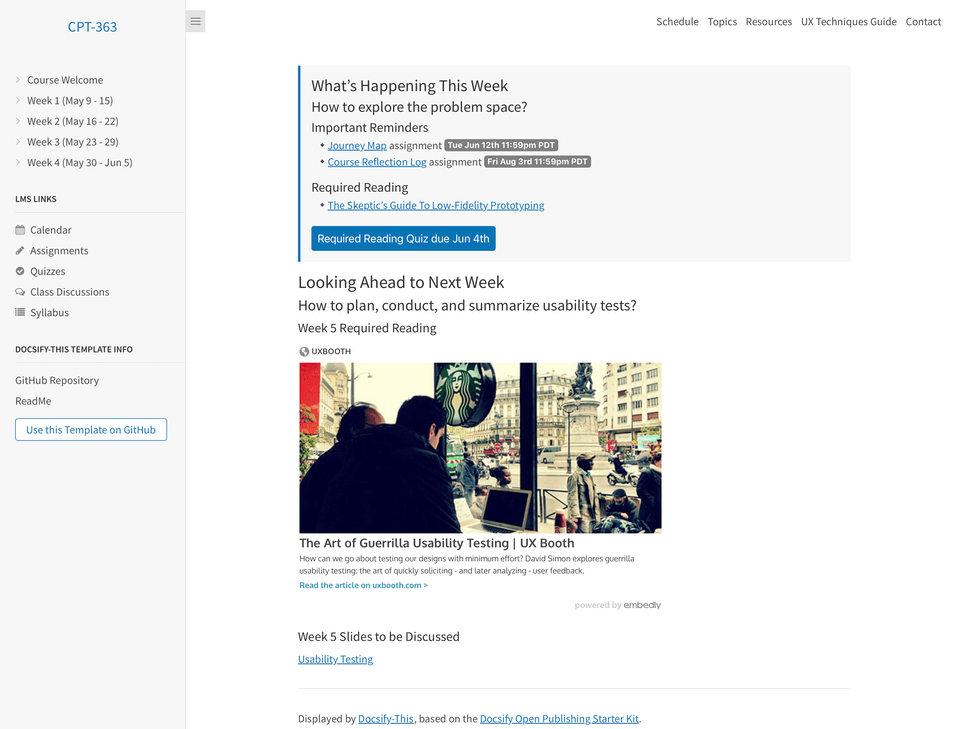
Multiple Page Course Site home.md file, including the use of a Docsify custom Sidebar file and Docsify custom Navbar file, displayed by Docsify-This as:
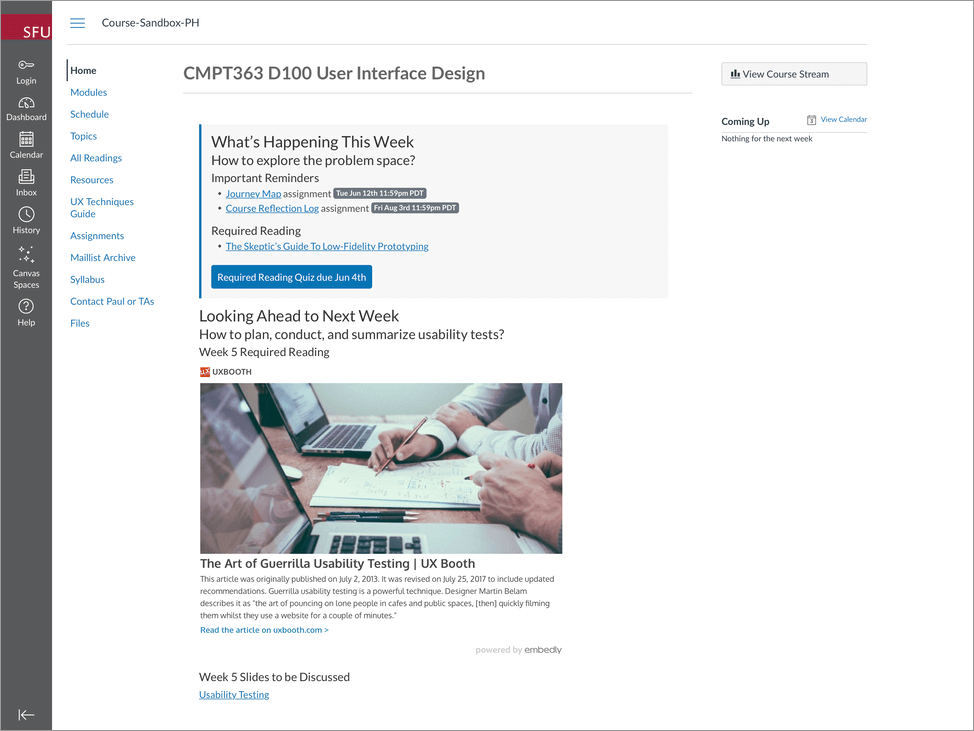
Example pages, including the use of the font-family, font-size and hide-credits URL parameters for seamless content embedding within the Canvas LMS, as displayed by Docsify-This:
View an example Canvas LMS site using Docsify-This content at https://canvas.sfu.ca/courses/76692.
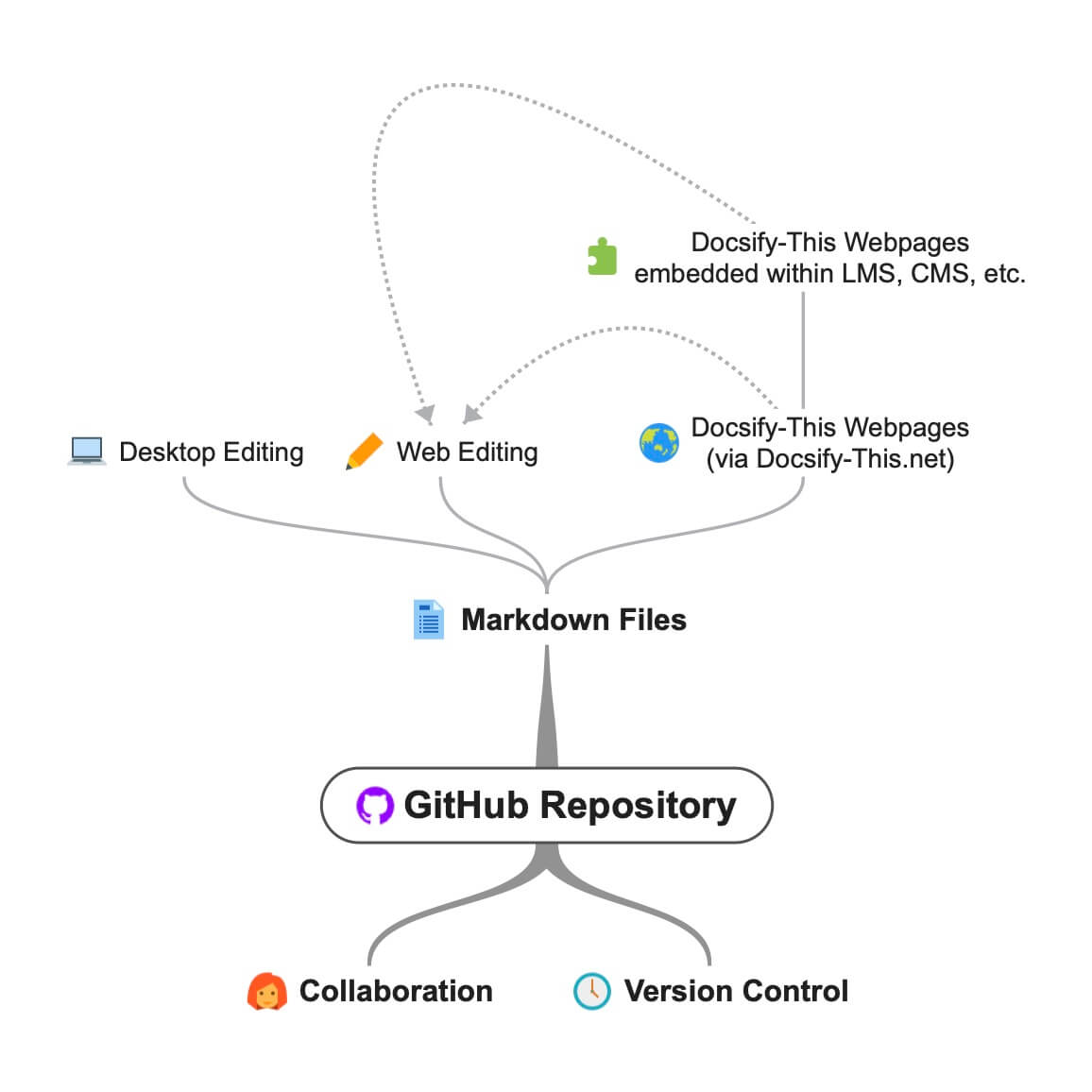
Docsify-This.net open and collaborative workflow using GitHub Markdown files.
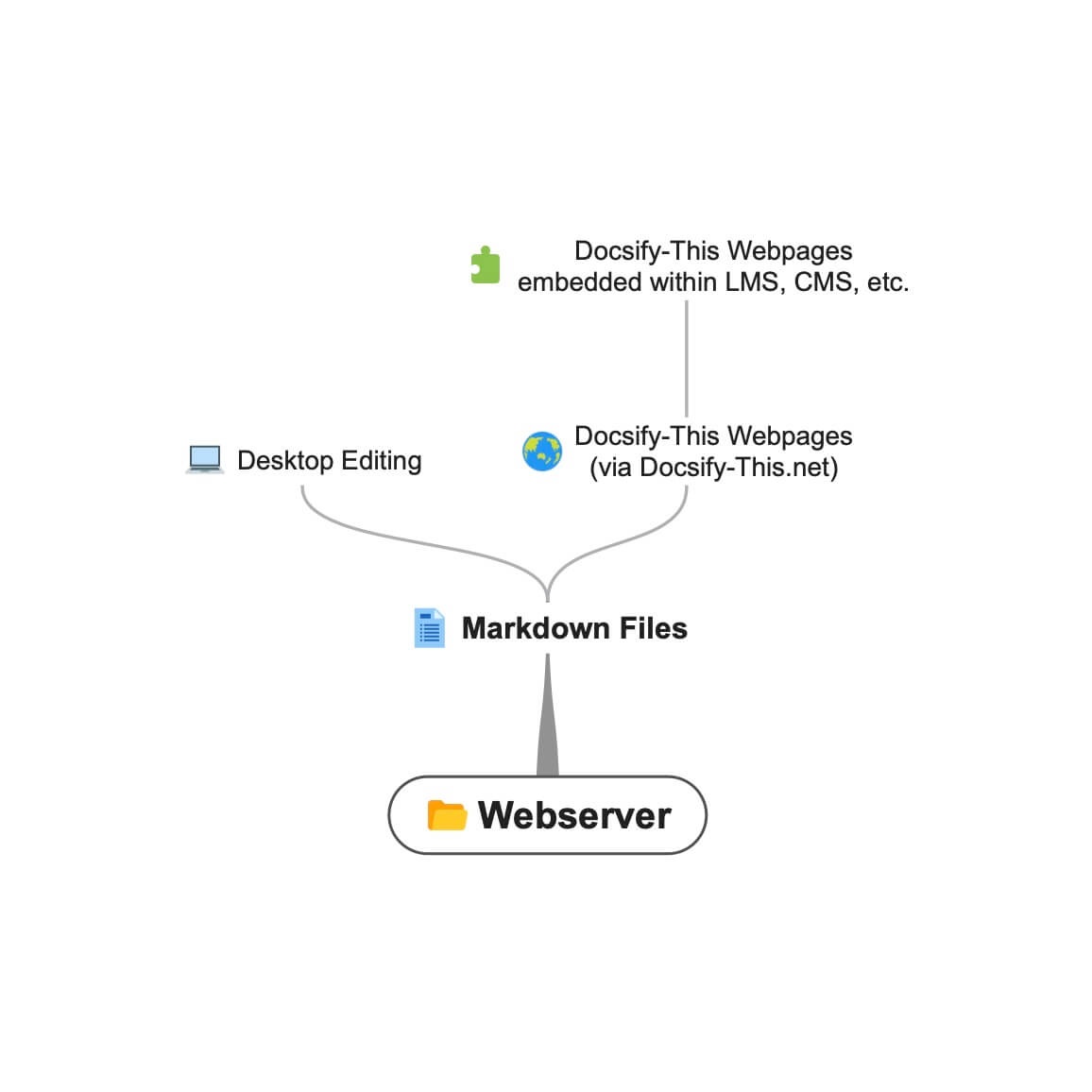 Docsify-This.net workflow using Webserver Markdown files.
When using Docsify-This to display Markdown files located on Git-based services such as GitHub or Codeberg you can download (clone) files to your desktop for local editing and then upload (push) changes back to the online files.
For example, to edit GitHub Markdown files on your desktop you would do the following:
Learn more about getting started with GitHub Desktop.
The following CSS classes are available when authoring your own Markdown content.
<div class="accordion">

<details>
  <summary>Topic One</summary>

  Topic one details here.

</details>

<details>
  <summary>Topic Two</summary>

  Topic two details here.

</details>

</div><span class='badge'> Tue Jun 12th 11:59pm PDT</span><span class='badge' style='--badge-bg-color: #0164db;'> Tue Jun 12th 11:59pm PDT</span><span class='badge' style='--badge-bg-color: #e7c500; --badge-text-color: #000;'> Tue Jun 12th 11:59pm PDT</span><span class='badge'> [Tue May 16 2:30pm PT](https://www.timeanddate.com/worldclock/fixedtime.html?msg=CMPT-363+Blackboard+Mini-lectures+and+Activities&iso=20220516T1430&p1=256&ah=1&am=50)</span> Cropped to height of 250px on large screens, 125px on small screens.
Cropped to height of 350px on large screens, 175px on small screens.
[Required Reading Quiz due Jun 4th](https://canvas.sfu.ca/courses/44038/quizzes/166553 ':class=button')[:fa fa-download fa-fw:Download](https://creativecommons.org/wp-content/uploads/2019/02/ccheart_black.svg_.zip ':class=button')<a class="button" href="https://creativecommons.org/wp-content/uploads/2019/02/ccheart_black.svg_.zip" target="_blank"><i class="fa fa-download fa-fw"></i>Download</a>[Required Reading Quiz due Jun 4th](https://canvas.sfu.ca/courses/44038/quizzes/166553 ':class=button-rounded')[:fa fa-download fa-fw:Download](https://creativecommons.org/wp-content/uploads/2019/02/ccheart_black.svg_.zip ':class=button-rounded')<a class="button-rounded" href="https://creativecommons.org/wp-content/uploads/2019/02/ccheart_black.svg_.zip" target="_blank"><i class="fa fa-download fa-fw"></i>Download</a>[Required Reading Quiz due Jun 4th](https://canvas.sfu.ca/courses/44038/quizzes/166553 ':class=button-secondary')[:fa fa-download fa-fw:Download](https://creativecommons.org/wp-content/uploads/2019/02/ccheart_black.svg_.zip ':class=button')<a class="button-secondary" href="https://creativecommons.org/wp-content/uploads/2019/02/ccheart_black.svg_.zip" target="_blank"><i class="fa fa-download fa-fw"></i>Download</a>[Required Reading Quiz due Jun 4th](https://canvas.sfu.ca/courses/44038/quizzes/166553 ':class=button-secondary-rounded')[:fa fa-download fa-fw:Download](https://creativecommons.org/wp-content/uploads/2019/02/ccheart_black.svg_.zip ':class=button-secondary-rounded')<a class="button-secondary-rounded" href="https://creativecommons.org/wp-content/uploads/2019/02/ccheart_black.svg_.zip" target="_blank"><i class="fa fa-download fa-fw"></i>Download</a>For linked article previews, embedded slides/videos, etc.
<a class="embedly-card" data-card-controls="0" data-card-align="left" href="https://blog.prototypr.io/defining-usability-e7bf42e8abd0">Defining usability</a>Suggested width of 1200px to 2000px.
Suggested width of 1200px to 2000px, and display of Table of Contents is not available.
Suggested size of 1200px to 2000px width and 400px to 600px height, and display of Table of Contents is not available.
Scale images to %.
Scale images with border to %.
[GitHub](https://github.com/hibbitts-design/docsify-this ':class=navpill')[:fab fa-github fa-fw:GitHub](https://github.com/hibbitts-design/docsify-this ':class=navpill')<a class="navpill" href="https://github.com" target="_blank"><i class="fab fa-github fa-fw"></i>GitHub</a>Make raw HTML images that include size dimensions responsive.
<img src="https://raw.githubusercontent.com/hibbitts-design/publishing-with-docsify-this/main/images/docsify-this-web-page-builder.jpg" width="910" height="682" class="responsive image-border" alt="Docsify-This Web Page Builder"><div class="row">
<div class="column">
Lorem ipsum dolor sit amet, consectetur adipiscing elit.
</div>
<div class="column">
Lorem ipsum dolor sit amet, consectetur adipiscing elit.
</div>
</div><div class="row reverse-columns">
<div class="column">
Lorem ipsum dolor sit amet, consectetur adipiscing elit.
</div>
<div class="column">
Lorem ipsum dolor sit amet, consectetur adipiscing elit.
</div>
</div><div class="row">
<div class="column">
Lorem ipsum dolor sit amet, consectetur adipiscing elit.
</div>
<div class="column-right">
Lorem ipsum dolor sit amet, consectetur adipiscing elit.
</div>
</div><div class="video-container-4by3"><div class="video-container-16by9"><iframe width="560" height="315" src="https://www.youtube.com/embed/lJIrF4YjHfQ"></iframe></div>Automatically added to all iFrames with the source domains 'youtube.com' or 'docs.google.com'.
<div class="video-container-16by9"><iframe width="560" height="315" src="https://www.youtube.com/embed/lJIrF4YjHfQ"></iframe></div>In addition to the Markdown CSS classes supported by Docsify-This, you can also define your own custom classes within your displayed Markdown files, for example:
CSS in Markdown file:
<style>
.markdown-section .mybutton, .markdown-section .mybutton:hover {
  cursor: pointer;
  color: #CC0000;
  height: auto;
  display: inline-block;
  border: 2px solid #CC0000;
  border-radius: 4rem;
  margin: 2px 0px 2px 0px;
  padding: 8px 18px 8px 18px;
  line-height: 1.2rem;
  background-color: white;
  font-family: -apple-system, "Segoe UI", "Helvetica Neue", sans-serif;
  font-weight: bold;
  text-decoration: none;
}
</style>
Markdown:
[Required Reading Quiz due Jun 4th](https://canvas.sfu.ca/courses/44038/quizzes/166553 ':class=mybutton')Docsify-This was designed to quickly and easily display one or more remotely hosted Markdown files. For greater customization of file rendering and to ensure consistent availability, even if the public Docsify-This.net instance was no longer available, you can host your own instance of Docsify-This.
To host your own instance on GitHub Pages, which also supports the option of a custom domain, fork or clone the Docsify-This repository to your GitHub account. Then, enable GitHub Pages using the /docs folder.
You can also have an instance of Docsify-This run on Codeberg such as https://docsify-this.codeberg.page by creating a new repository called pages, then choosing paulhibbitts/docsify-this-app in the template dropdown menu, choosing the Git Content (Default Branch) option and then tapping the Create Repository button.
Alternatively, you can upload the files in the Docsify-This /docs folder into a newly created Codeberg repository and then manually enable Codeberg Pages. An example Docsify-This instance running on Codeberg is available at https://codeberg.org/paulhibbitts/docsify-this-app, which uses a Branch renamed to pages.
If you want to run Docsify-This on your own Websever, create a destination folder on your server and then copy the files within the Docsify-This folder /docs to your newly created server folder. You could also use this docs folder as a custom domain root.
A more future-friendly setup would be to fork the Docsify-This repository (to support getting upstream updates) and use a GitHub Action such as FTP-Deploy to deploy all changed repository files to a webserver.
You can limit the domains which remote files can be rendered from by locating the line var allowedDomains = ''; within the index.html file and include your list of allowed domains separated by commas, for example var allowedDomains = 'codeberg.org,raw.githubusercontent.com,hibbittsdesign.org';.
If you want to further customize and control the presentation of your Markdown content, especially when rendering multiple page sites, you can install your own Docsify Open Publishing Starter Kit (that this hosted web app is based on) and store all Markdown files within that site. You can learn more about the capabilities of Docsify itself at Docsify.js.org.
Looking for some help with getting a Docsify custom-This instance up and running for your organization? Paul provides a range of professional services related to Docsify-This - contact him to learn more.
The display of Font Awesome Free icons within Markdown content is supported with the following format:
:fas fa-home fa-fw:
The above Markdown is equivalent to the HTML markup <i class="fas fa-home fa-fw" aria-hidden="true"></i>.
When using the above shortcode for Font Awesome icons, it is assumed to be for decorative purposes, and so for improved accessibility an aria-hidden="true" attribute is automatically added to the icon. For semantic purposes, it is recommended you refer to the Font Awesome Icons and Accessibility guidelines.
The following style prefixes are available with Docsify-This:
GitHub Training Manual Working Locally with Git Markdown file, displayed by Docsify-This as a:
Easy Markdown to Github Pages linked set of Markdown files, displayed by Docsify-This as:
A Collection of GitHub Markdown files used as course content within an SFU CMPT-363 Canvas LMS site.
A Collection of GitHub Markdown files with inline CSS used as a multiple page SFU CMPT-363 course site with SFU visual branding and the Docsify Search plugin enabled, multiple page SFU CMPT-363 course site with SFU visual branding and website logo, and an example single Markdown file with default visual styling for embeddeding.
GitHub Markdown Content Demo file, displayed by Docsify-This as a Web Page with 'Edit this Page' link using the new GitHub.dev web editor (currently in Beta).
GitHub Markdown Content Demo file, displayed by Docsify-This as a Web Page with 'View raw Markdown' link.
Codeberg Markdown Content Demo file, displayed by Docsify-This as a Web Page with 'View raw Markdown' link.
GitHub's LaTeX Support Examples Markdown file, displayed by Docsify-This as a Web Page with an 'Edit this Page' link.
Mermaid-Docsify Example GitHub Markdown file, displayed by Docsify-This as a Web Page with an 'Edit this Page' link.
Docsify-This Multi-language Site Template, displayed by Docsify-This as a:
Docsify-This Simple Visual Portfolio Template (based on Notion Portfolio Template), displayed by Docsify-This as a:
Docsify-This Visual Portfolio Template (based on Notion Portfolio Template), displayed by Docsify-This as a:
A simple Markdown Student Portfolio Starter Template (based on Markdown Student Portfolio Template by Justin Thoreson) which is viewable on both GitHub and with Docsify-This.net, displayed by Docsify-This as:
Introduction to Docsify–This
Introductory, beginner to intermediate.
An introduction of Markdown publishing using the open source project Docsify–This.
Self-Publishing with Docsify–This
Intermediate, with a mix of basic and advanced aspects.
An overview to self-publishing with Markdown using the open source project Docsify–This, with a focus on digital literacy.
Use a page inspector to identify the font family and font size used in the platform you are embedding Docsify-This content in, and then pass that font family using the font-family (encoded, where spaces are replaced with '%20') and font-size (REM units) URL parameters to Docsify-This. For example, to match fonts with the Canvas LMS:
https://docsify-this.net?basePath=https://raw.githubusercontent.com/paulhibbitts/cmpt-363-222-pages/main&homepage=topics.md&font-family=Lato%20Extended,Lato,Helvetica%20Neue,Helvetica,Arial,sans-serif&font-size=1
If you want to include a Page Table of Contents with embedded Docsify-This content, but the destination platform screen area is not very wide, you might want to try the optional toc-narrow display option. For example, to use a narrower Table of Contents area that includes a smaller screen breakpoint:
https://docsify-this.net?basePath=https://raw.githubusercontent.com/paulhibbitts/cmpt-363/main/docs/222&homepage=week-01.md&toc-narrow=true
Using Prismjs code blocks with syntax highlighting is supported for the languages included with Docsify and as well Bash, Go, Java, Kotlin, PHP, Python and Swift. To embed a code block use the Markdown standard of triple backticks and start the block with the name of the language, for example to embed a block of Javascript code with syntax highlight the following would be used:
```javascript
function test() {
  console.log("Hello world!");
}
```
Which would then appear as:
function test() {
  console.log("Hello world!");
}The content of external Markdown files can be embedded into Docisfy-This web pages with the following:
[included Markdown from same source location](example.md ':include')[included Markdown from URL](https://raw.githubusercontent.com/paulhibbitts/Markdown-File-Tests/main/itworks.md ':include')For additional examples of including external content, view Docsify Embeded Files.
WikiLinks format for links and images are supported, as also found in the desktop editor Obsidian and other platforms.
The display of AsciiDoc files ('.adoc' extension) via DownDoc is possible by manually passing the relevant filenames within a Docsify-This URL (not available in the Docisfy-This.net Web Page Builder), for example: https://docsify-this.net/?basePath=https://raw.githubusercontent.com/asciidoctor/asciidoctor-pdf/main/examples&homepage=basic-example.adoc&edit-link=https://github.com/asciidoctor/asciidoctor-pdf/blob/main/examples/basic-example.adoc
You can support the display of AsciiDoc files in the Web Page Builder of your own instance of Docsify-This by locating the function getAllowedFileExtensions() within the index.html file and add the file extension '.adoc' to the return statement, for example return ".md,.adoc";.
The display of HedgeDoc files containing basic Markdown (as well as Mermaid and MathJax elements) is possible by manually using 'download' for the homepage URL parameter within a Docsify-This URL (not available in the Docisfy-This.net Web Page Builder), for example: https://docsify-this.net/?basePath=https://demo.hedgedoc.org/crN3ispNQdejWkUXXIXYQA&homepage=download
Here is an additional example, using the HedgeDoc file https://demo.hedgedoc.org/oisWMy9ZS36PE6TvYhJC4A?both (seen in split-screen view) and and rendered as a web page by Docsify-This https://docsify-this.net/?basePath=https://demo.hedgedoc.org&homepage=oisWMy9ZS36PE6TvYhJC4A/download&edit-link=https://demo.hedgedoc.org/oisWMy9ZS36PE6TvYhJC4A?both&toc=true&edit-link-text=Edit%20this%20Page%20in%20HedgeDoc
You can support HedgeDoc URLs (e.g. https://demo.hedgedoc.org/ip4SRxZYTEKa6JHr62XTiA) in the Web Page Builder of your own instance of Docsify-This by locating the line var hedgedocInstances = ''; within the index.html file and include your HedgeDoc instances separated by commas, for example var hedgedocInstances = 'demo.hedgedoc.org';. Try out a demo instance of Docsify-This with support for demo.hedgedoc.org files at https://hibbitts-design.github.io/hedgedoc-docsify-this.
You can use camel case instead of hyphens for the names of Docsify-This URL parameters if prefered. For example, https://docsify-this.net?basePath=https://raw.githubusercontent.com/hibbitts-design/docsify-this-one-page-article/main&homepage=home.md&toc=true&toc-headings=h2,h3&edit-link=https://github.com/hibbitts-design/docsify-this-one-page-article/blob/main/home.md and https://docsify-this.net?basePath=https://raw.githubusercontent.com/hibbitts-design/docsify-this-one-page-article/main&homepage=home.md&toc=true&tocHeadings=h2,h3&editLink=https://github.com/hibbitts-design/docsify-this-one-page-article/blob/main/home.md are equilivent.
To use the new GitHub.dev web editor (currently in Beta) for 'Edit this Page' links, change github.com to github.dev for GitHub.com files entered into the Web Page Builder Markdown File URL field.
There are multiple ways to get a raw Markdown file available online, here are three options to help you get started:
GitHub or Codeberg:
Gist (GitHub Gists):
.md (e.g. myfile.md)Personal or Organizational Website:
Some text editors, such as Microsoft Visual Studio (including the online GitHub.dev web editor), have the ability to link your own CSS so Markdown previews are more visually accurate. If your editor supports this ability, the below CSS files can be used.
Docsify-This (based on the Docsify Open Publishing Starter Kit) CSS:
https://docsify-this.net/assets/css/editor.css
FontAwesome CSS:
https://cdnjs.cloudflare.com/ajax/libs/font-awesome/4.7.0/css/font-awesome.css
Enhanced Previews with Microsoft Visual Studio
For an even closer visual representation of your Docsify-This pages in Microsoft Visual Studio, do the following:
docs folderTIP: If you change the VSCode setting for Workbench › Editor: Show Tabs to single then the docsify preview area will remain in place as you edit multiple Markdown files.
You can load custom default settings in the Docsify-This Web Page Builder using URL parameters. This ability is especially helpful for Docsify-This online sessions, workshops, or when users collaborate and assist one another. Along with the standard Docsify-This URL parameters, the Web Page Builder also offers the following specific parameters:
https://docsify-this.net/?url-field=https://codeberg.org/paulhibbitts/docsify-this-one-page-course/src/branch/main/home.mdhttps://docsify-this.net/?url-field=emptyYou can even just type docsify-this.net? in front of an online Markdown file URL that you are viewing (such as files hosted on GitHub, Codeberg, or raw source files) to instantly set up the Docsify-This Web Page Builder with that file. Once the Web Page Builder loads, press the Return key — no need to leave the keyboard — to see Docsify-This display the Markdown file as a web page! For example, https://docsify-this.net?https://github.com/hibbitts-design/docsify-this-one-page-course/blob/main/home.md.
https://docsify-this.net/?url-field=https://codeberg.org/paulhibbitts/docsify-this-one-page-course/src/branch/main/home.md&edit-link-checkbox=truehttps://docsify-this.net/?show-page-options=truehttps://docsify-this.net/?advanced=trueFor example, the following URL will display the Advanced Web Page Builder, with the Markdown file URL set to https://github.com/hibbitts-design/docsify-this-multiple-page-course-site/blob/main/home.md, the site name 'CPT-363' along with a Docsify custom Sidebar and Navbar to be included: https://docsify-this.net/?url-field=https://github.com/hibbitts-design/docsify-this-multiple-page-course-site/blob/main/home.md&sidebar=true&loadSidebar=true&loadNavbar=true&name=CPT-363
The quickest way to create such a shareable URL is to use the Docsify-This Web Page Builder to generate a Docisfy-This web page URL, and then replace the URL parameter basepath with url-field using the full path of the source Markdown file URL. For example, the URL https://docsify-this.net/?basePath=https://raw.githubusercontent.com/hibbitts-design/docsify-this-one-page-article/main&homepage=home.md&sidebar=true&maxLevel=3 would be changed to https://docsify-this.net/?url-field=https://github.com/hibbitts-design/docsify-this-one-page-article/blob/main/home.md&homepage=home.md&sidebar=true&maxLevel=3.
The provided basePath parameter and/or optional homepage parameter may not be correct, verify that these items lead to accessible content. This error message may also result from a Cross-Origin Resource Sharing (CORS) policy, which restricts resources on a web page to be requested from another domain. If possible, relocate files to a domain that supports cross-origin requests or alternatively if the domain in question is under your control explore re-configuring CORS related settings. You can confirm the cause of the 404 message by viewing the errors displayed in the Browser Javascript Console.
When displaying GitHub Markdown files, the branch name is assumed to be main, and other paths will likely cause a 404 file not found message. When displaying Codeberg Markdown files, the path is assumed to contain /src/branch/main and other paths will likely cause a 404 file not found message.
Due to not being able to update Navbar or custom Sidebar links before page rendering, 'Edit this Page' links cannot be automatically updated to their correct target pages. Manually pass a URL pointing to the Git Repository using the URL parameter edit-link as a workaround, for example https://docsify-this.net?basePath=https://raw.githubusercontent.com/hibbitts-design/docsify-this-multiple-page-site/main&homepage=home.md&loadNavbar=_navbar&edit-link=https://github.com/hibbitts-design/docsify-this-multiple-page-site&edit-link-text=GitHub%20Repository and https://docsify-this.net/?basePath=https://raw.githubusercontent.com/paulhibbitts/docsify-this-cmpt-363-222-site/main&homepage=home.md&loadNavbar=_navbar.md&sidebar=true&loadSidebar=_sidebar.md&edit-link=https://github.com/paulhibbitts/docsify-this-cmpt-363-222-site/tree/main&edit-link-text=GitHub%20Repository
Docsify is likely displaying the last cached version. To ensure the most recent version of a file is loaded, do a hard refresh of your Browser cache.
The most likely cause for embedded images in Markdown not being displayed as expected is the use of relative paths (i.e. ) - review image paths and ensure the full path to each image is used (i.e. ). Likewise, if images in HTML are not being displayed as expected the likely cause is again the use of relative paths (i.e. <img src="images/filename.jpg" alt="Alt Text">) - use absolute URLs for HTML image sources (i.e. <img src="https://raw.githubusercontent.com/user/repository/main/images/filename.jpg" alt="Alt Text">).
Due to iframe cross-domain issues embedded content may not be able to be displayed. Use the included rich media embed service embed.ly as a workaround.
For example, the following iFrame HTML:
<iframe src="https://docs.google.com/presentation/d/e/2PACX-1vRnnRFelgw1ksq_p8Eryg3dnyLCRRLPf5fBgdwdv9p-tCIwcxqWvzDGrGbjxGHL7HqEJVpmV26ntk3a/embed?start=false&loop=false&delayms=3000" frameborder="0" width=780" height="585" allowfullscreen="true" mozallowfullscreen="true" webkitallowfullscreen="true"></iframe>Would be changed to:
<a class="embedly-card" data-card-controls="0" data-card-align="left" data-card-width="100%" href="https://docs.google.com/presentation/d/1BLaaOTsGxDmNcAhg6pdx3hl9IvI8NErg8Oe5ceh83fw/edit?usp=sharing">Grav and Docsify Slides Placeholder</a>When displaying a Docsify Sidebar or custom Sidebar, it is expected that page header levels start with a H1 level header.
When the search field is enabled in a Docsify custom Sidebar, only pages listed and linked in the Sidebar will be indexed for the search. Any pages linked in an optional Navbar will not be included in searches.
Docsify-This (as with Docsify itself) will only execute the first script included in a Markdown page, as described in the Docsify documentation.
Have you tried out Docsify-This? Share your feedback about Docsify-This
By leveraging his extensive UX design expertise and systems-oriented approach, Paul helps teams and individuals utilize open content in a range of education and publication settings, especially in connection with his Markdown-based Docsify and Grav CMS open-source projects. Professional services include user experience and workflow consulting, premium support subscriptions, workshops, and custom development. Sound of interest? Send a note to [email protected].
This open source project is by Paul Hibbitts of HibbittsDesign.org.
??♂️Special Thanks
Beau Shaw for his Remote Docsify example.
Alan Levine for the inspiration of a consolidated ReadMe collection.







