
Windows 11 Chinese Input Method Fix
Win 11 Chinese Microsoft Pinyin input method repair
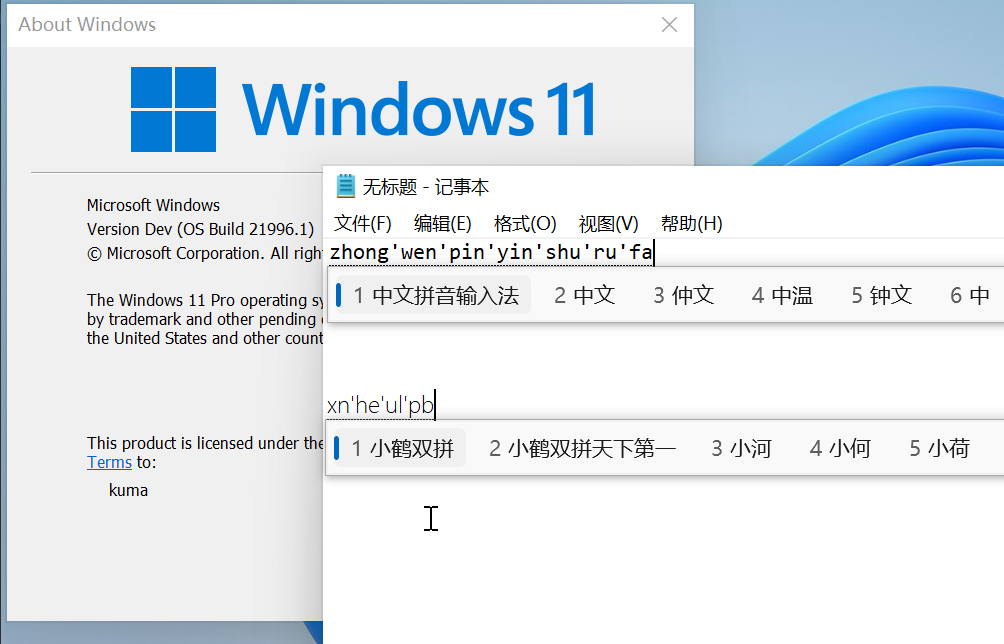
This fix is an implement of Shelling's fix .
The fix for this project comes from Shelling 's method .
Add Chinese
From the Settings App, in Time & Language - Language - Preferred languages , click Add a language , select中文(中华人民共和国) / Chinese (Simplified, China) (zh-CN in this case, or other variations if you need), and click Next .
Install the language
Check only Install language pack , and click Install , then wait for completion.
Download the fix
Download the fix.zip archive from the release page, extract it wherever.
Apply the fix
Either:
* copy both CHS and CHT to C:WindowsInputMethod
* run the run.bat script.
Add Chinese <br/> Open Settings App, enter Time & Language - Language - Preferred languages , click Add a language , select中文(中华人民共和国) / Chinese (Simplified, China) (or other variants), and then click Next .
Install language <br/> Select Install language pack , then click Install and wait for the installation to complete.
Download file <br/> Download fix.zip from the release page and extract it to any location.
Repair System <br/> Choose one:
* Copy CHS and CHT to C:WindowsInputMethod
* Run the script run.bat .
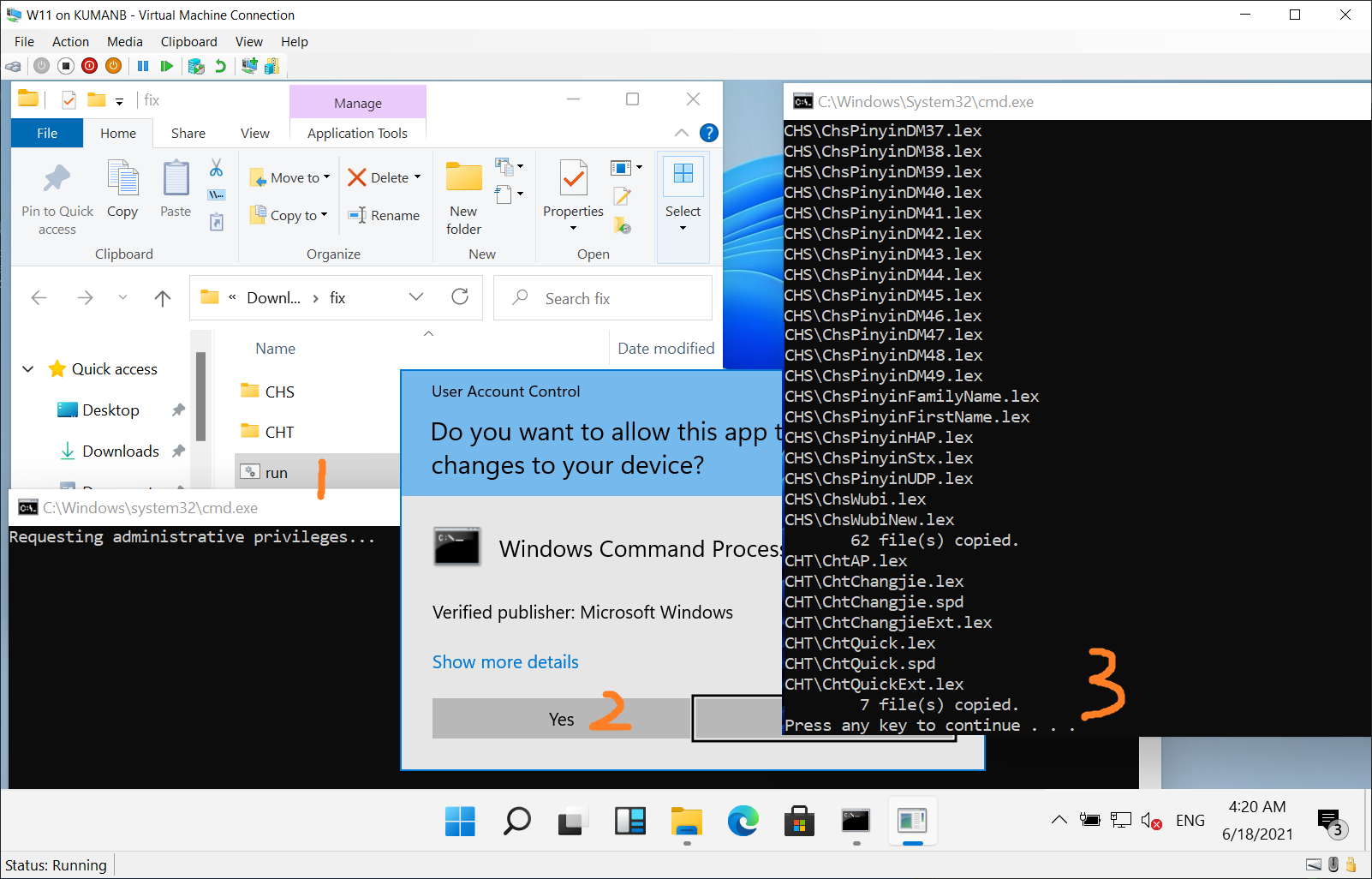
We found that in the directory C:WindowsInputMethod , both CHS and CHT are empty, while in Windows 10 they contain ~ 50 MB files.
So this script copies files in Windows 10 to the corresponding location, and surprisingly finds this trick works.
We observed that in the directory C:WindowsInputMethod , both CHS and CHT are empty folders, while the corresponding location in Windows 10 contains about 50MB files.
This script copies files from Windows 10 to the appropriate location, and I was pleasantly surprised that this solution worked.





