Ananas
v1.2.6


Eine einfache Integration von Photo Editor für Ihre Android -Apps.
| Hauptmenü | Textmodus |
|---|---|
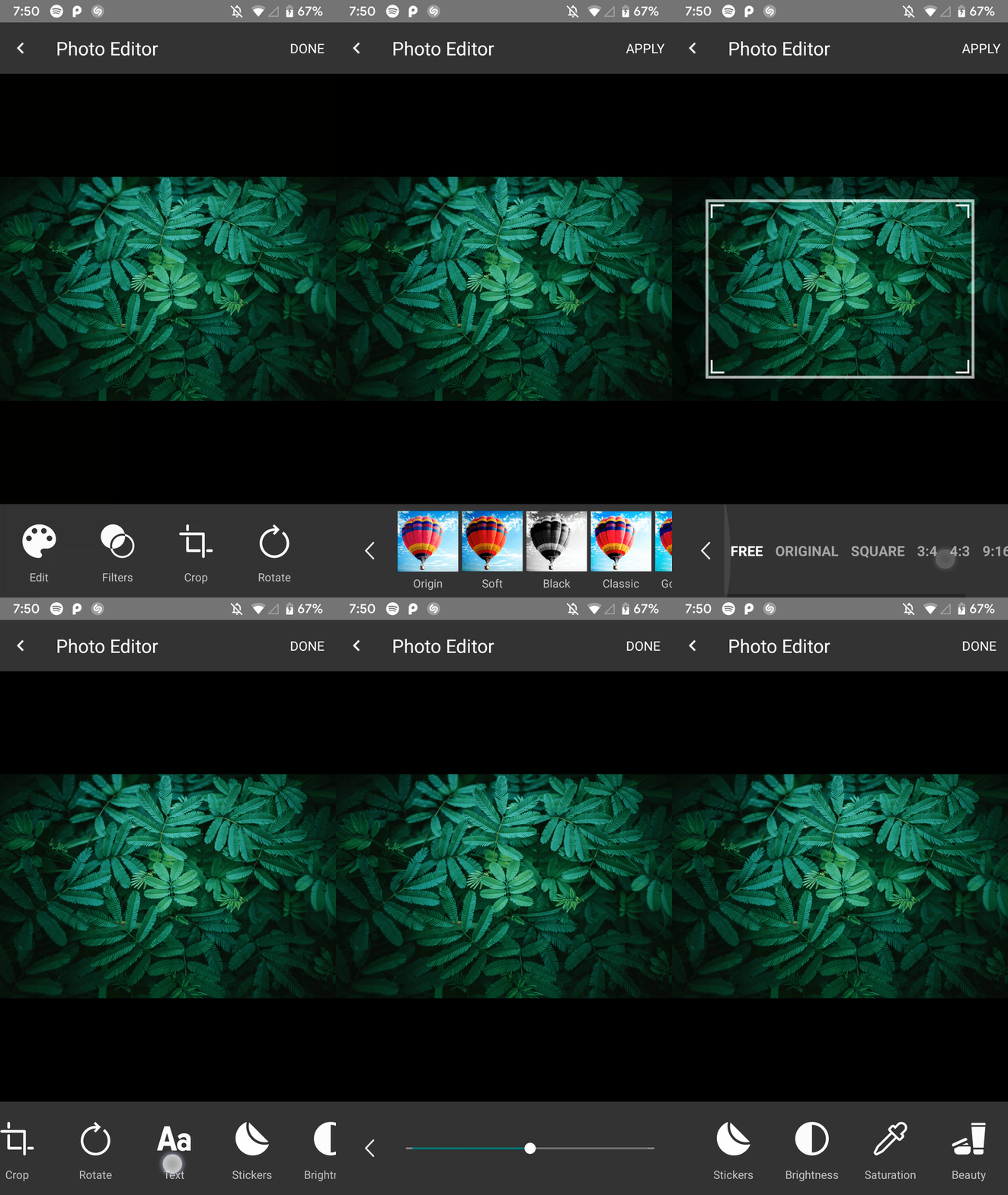 | 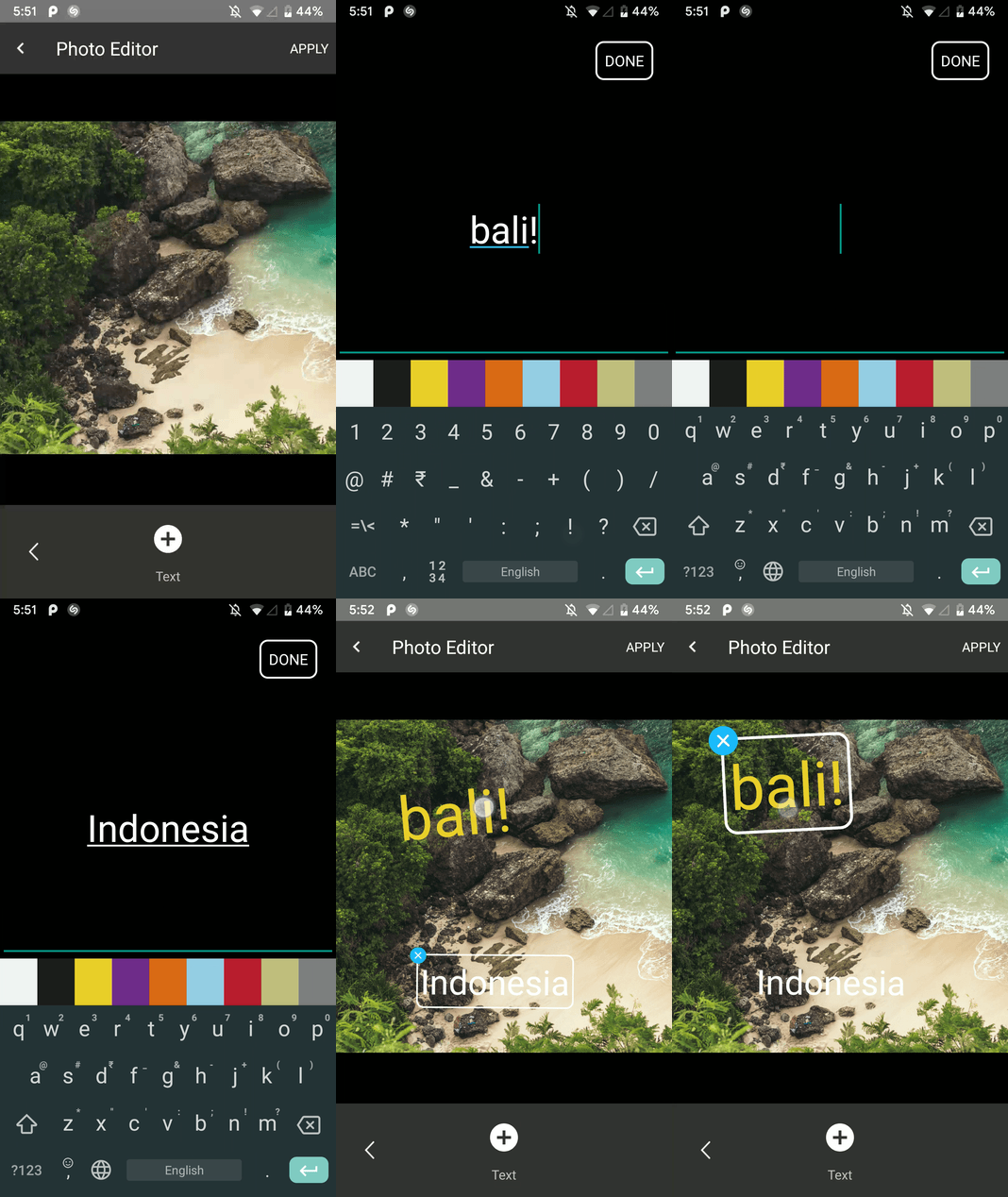 |
| Drehenmodus | Erntemodus |
|---|---|
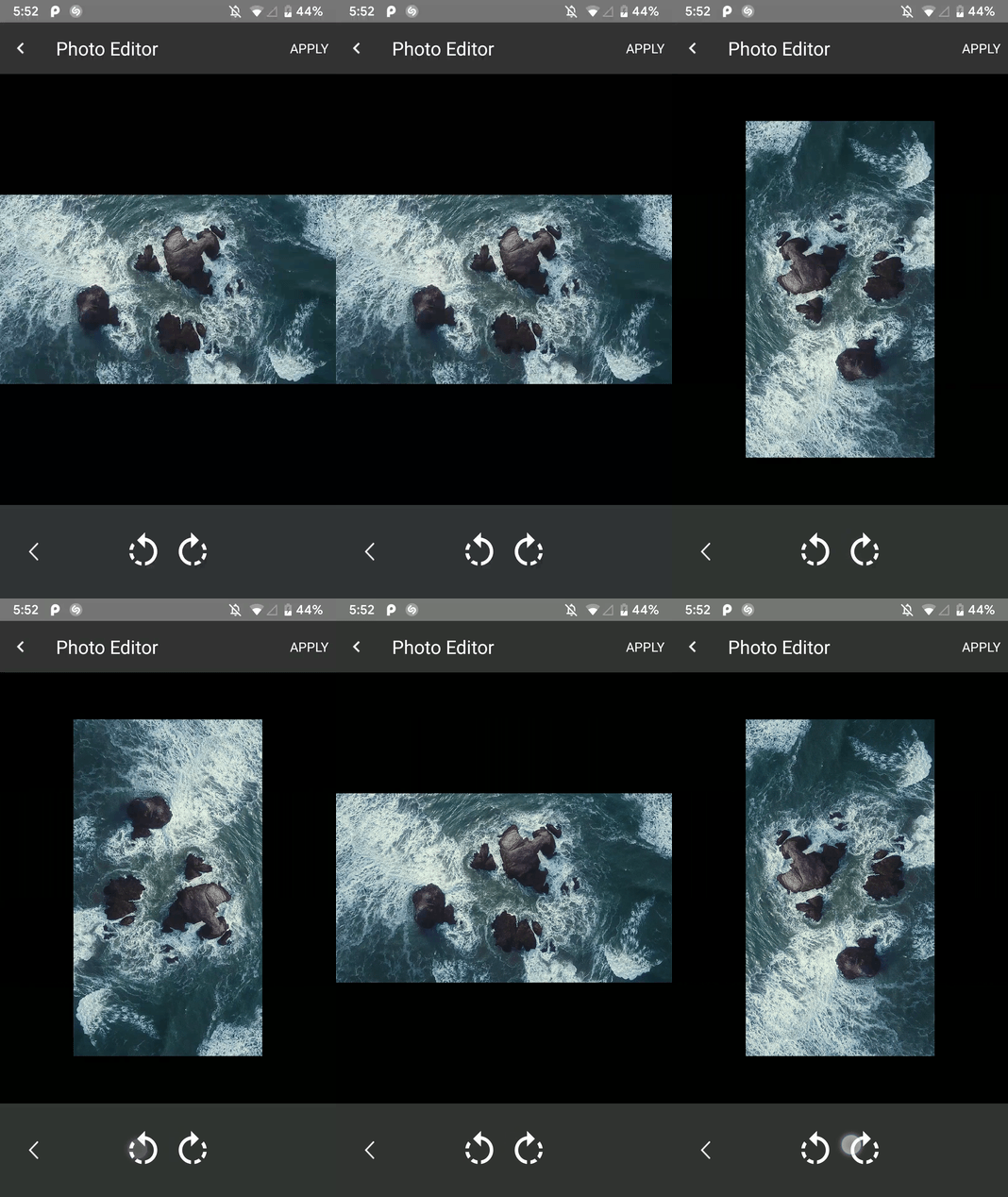 | 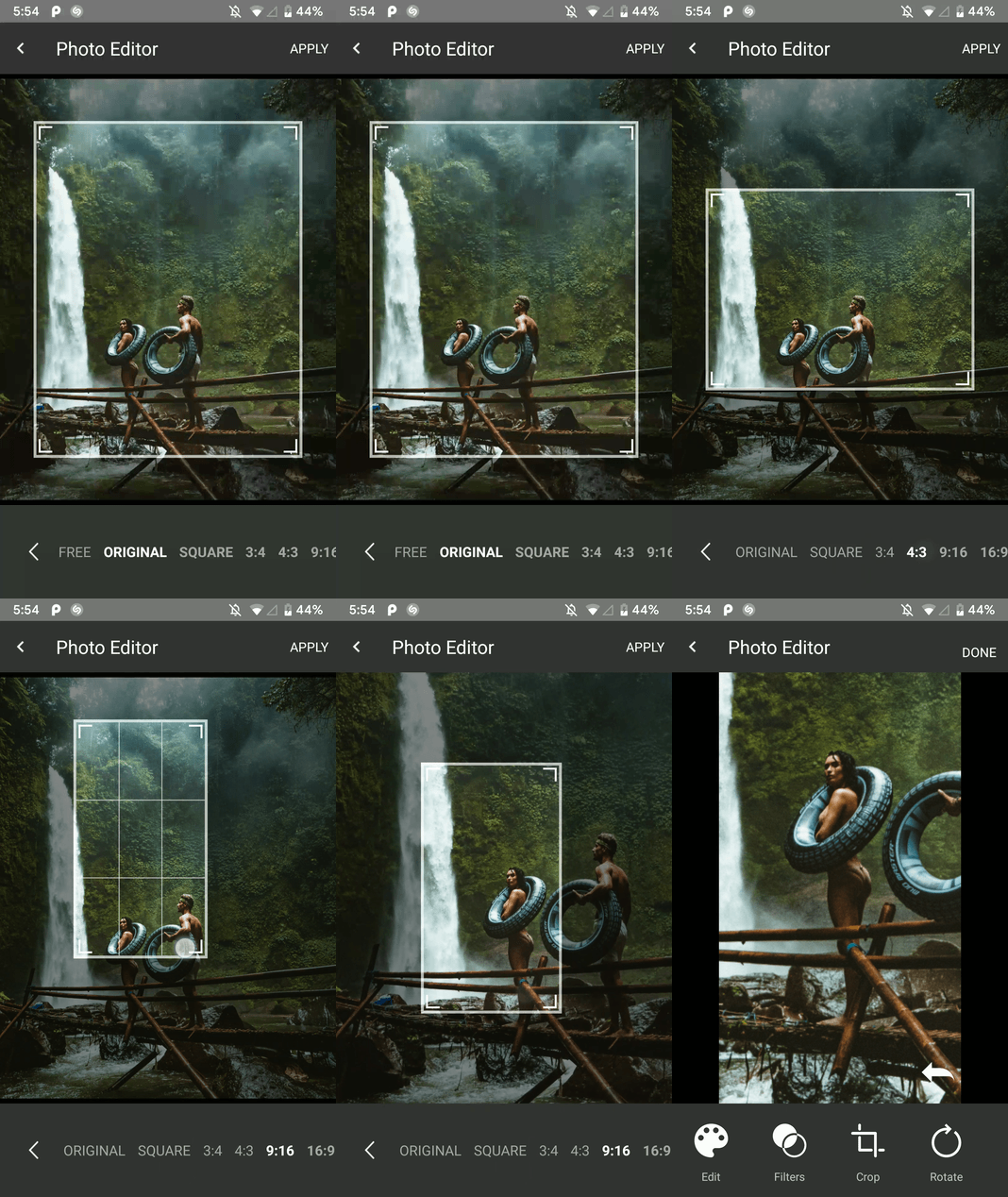 |
| Filtermodus | Lackmodus |
|---|---|
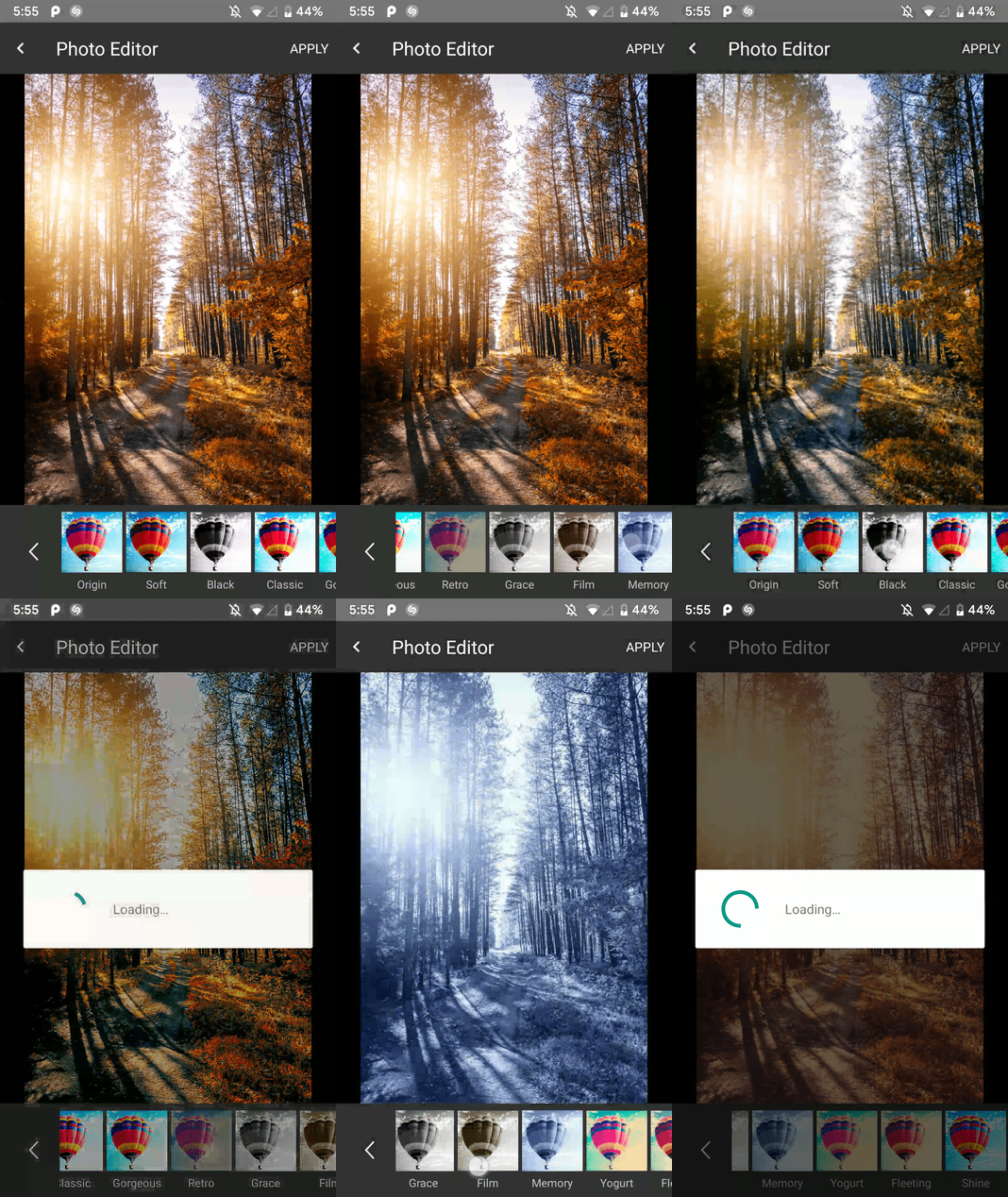 | 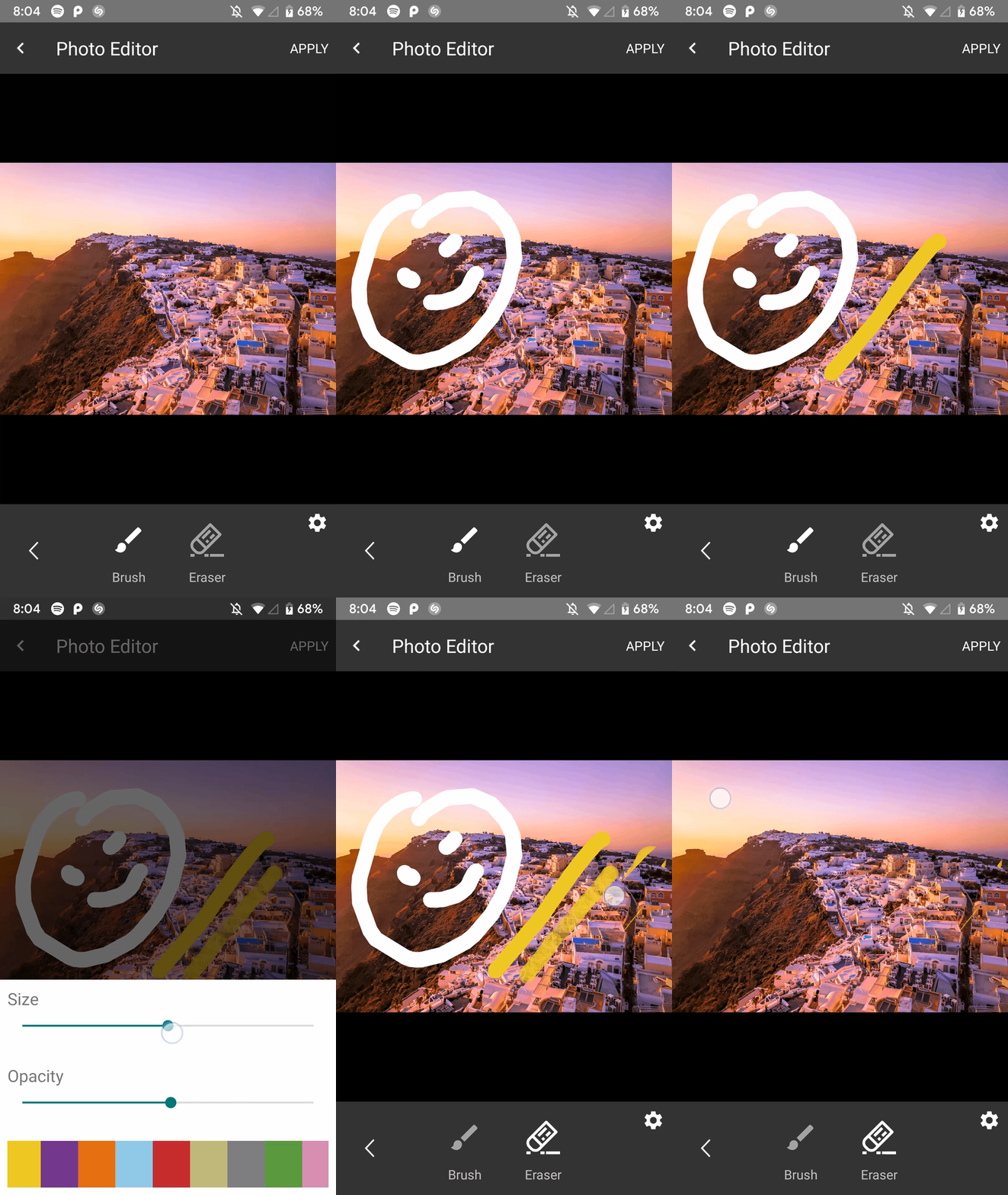 |
| Schönheitsmodus | Sättigungsmodus |
|---|---|
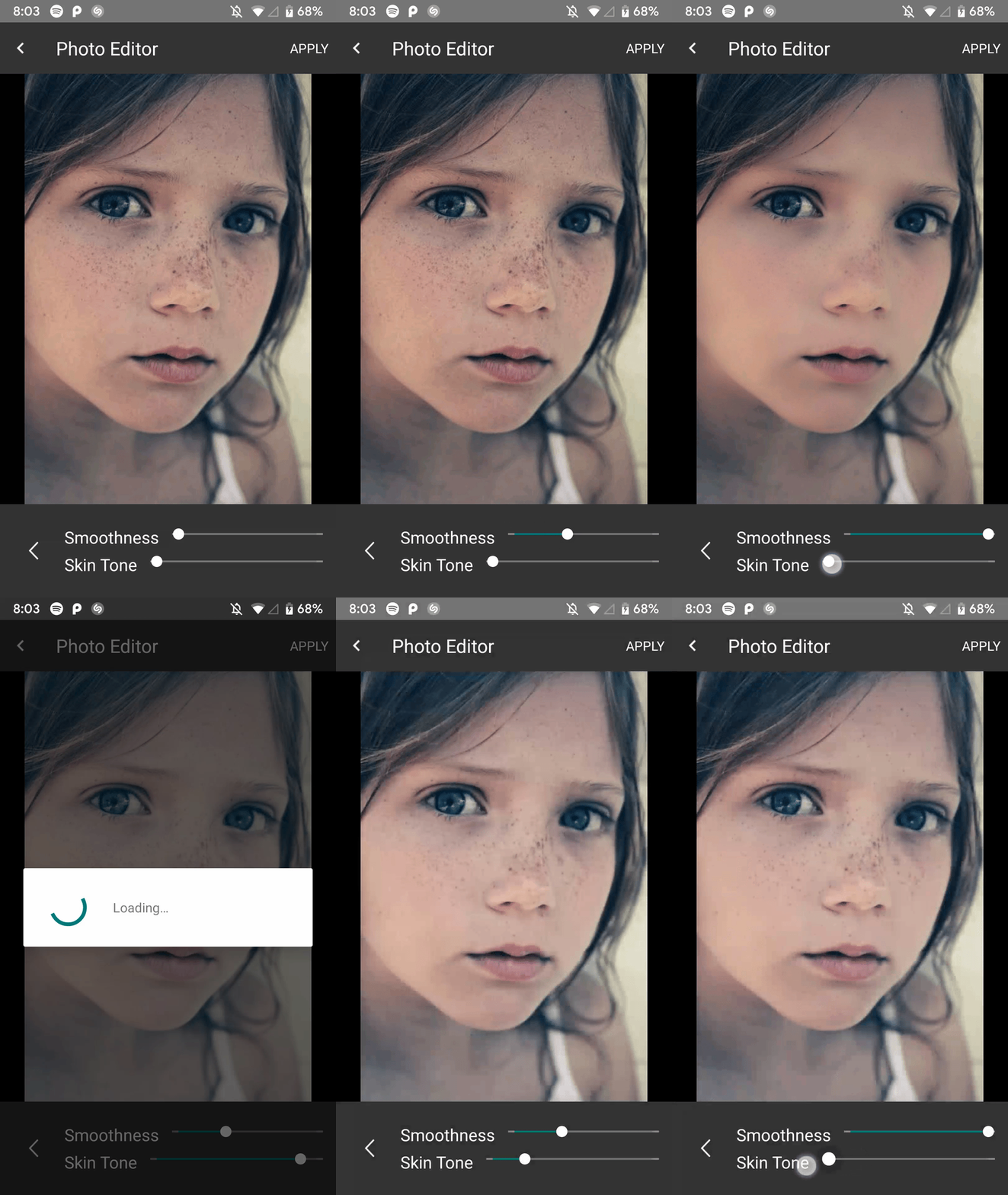 | 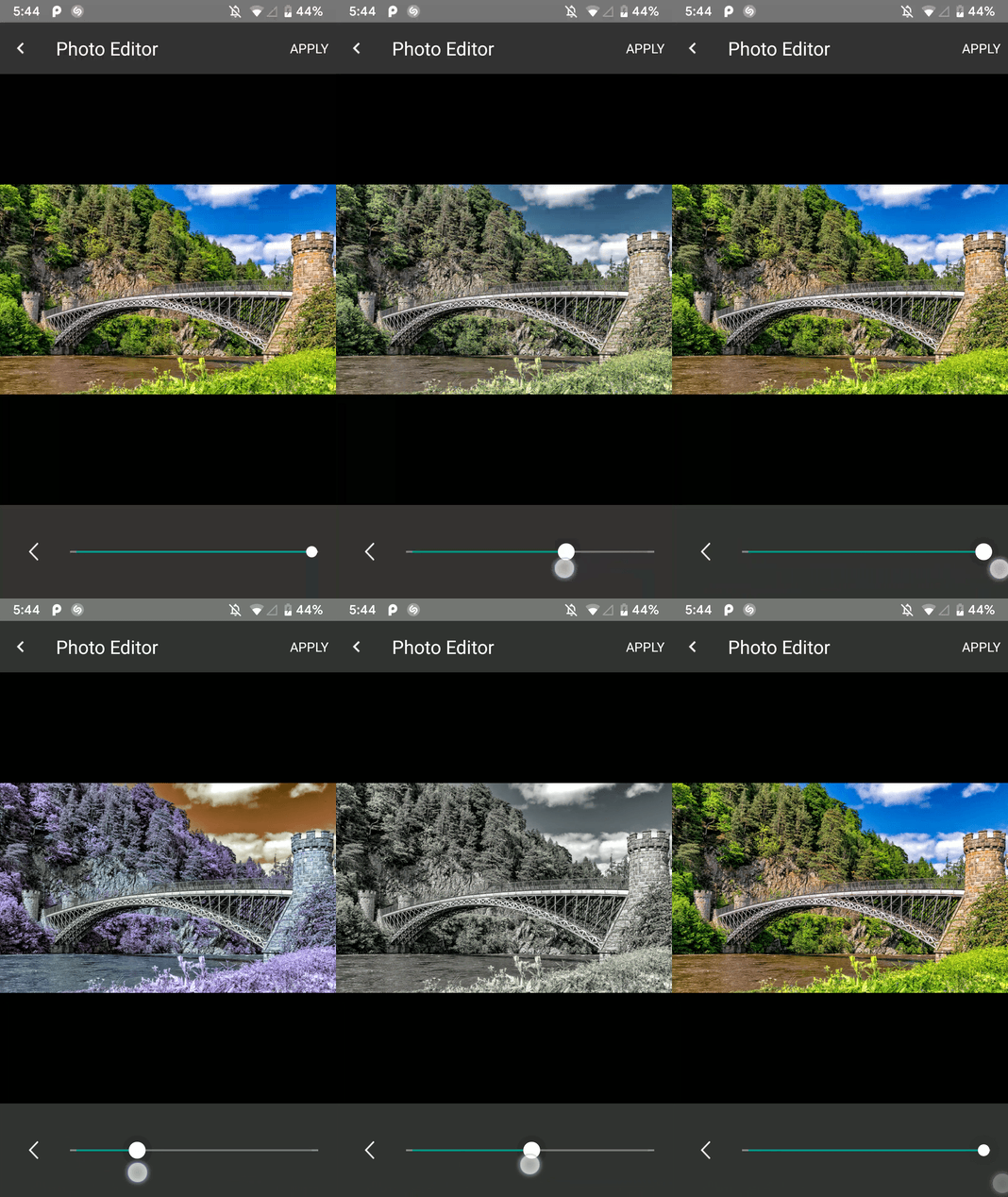 |
| Helligkeitsmodus | Aufklebermodus |
|---|---|
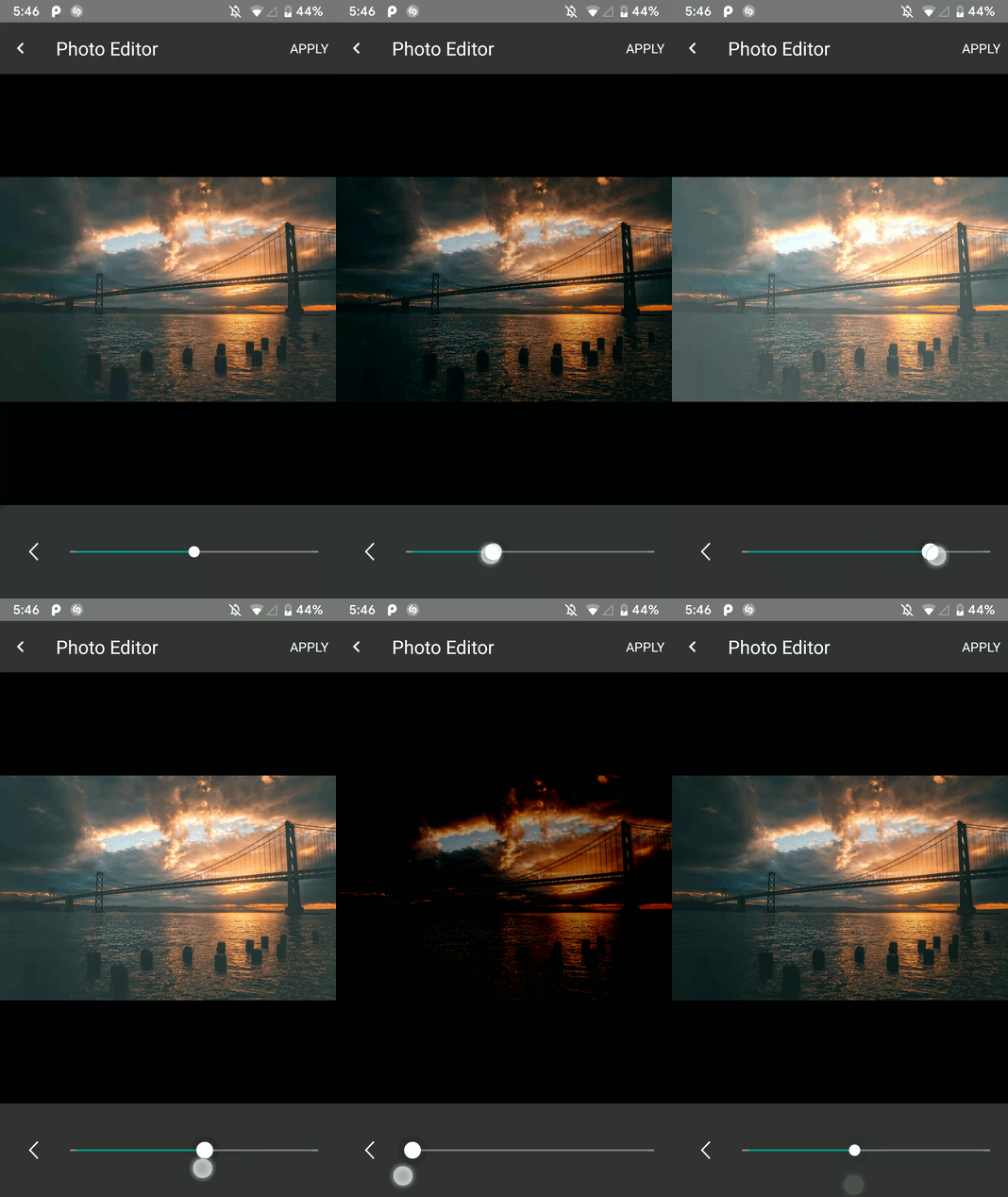 | 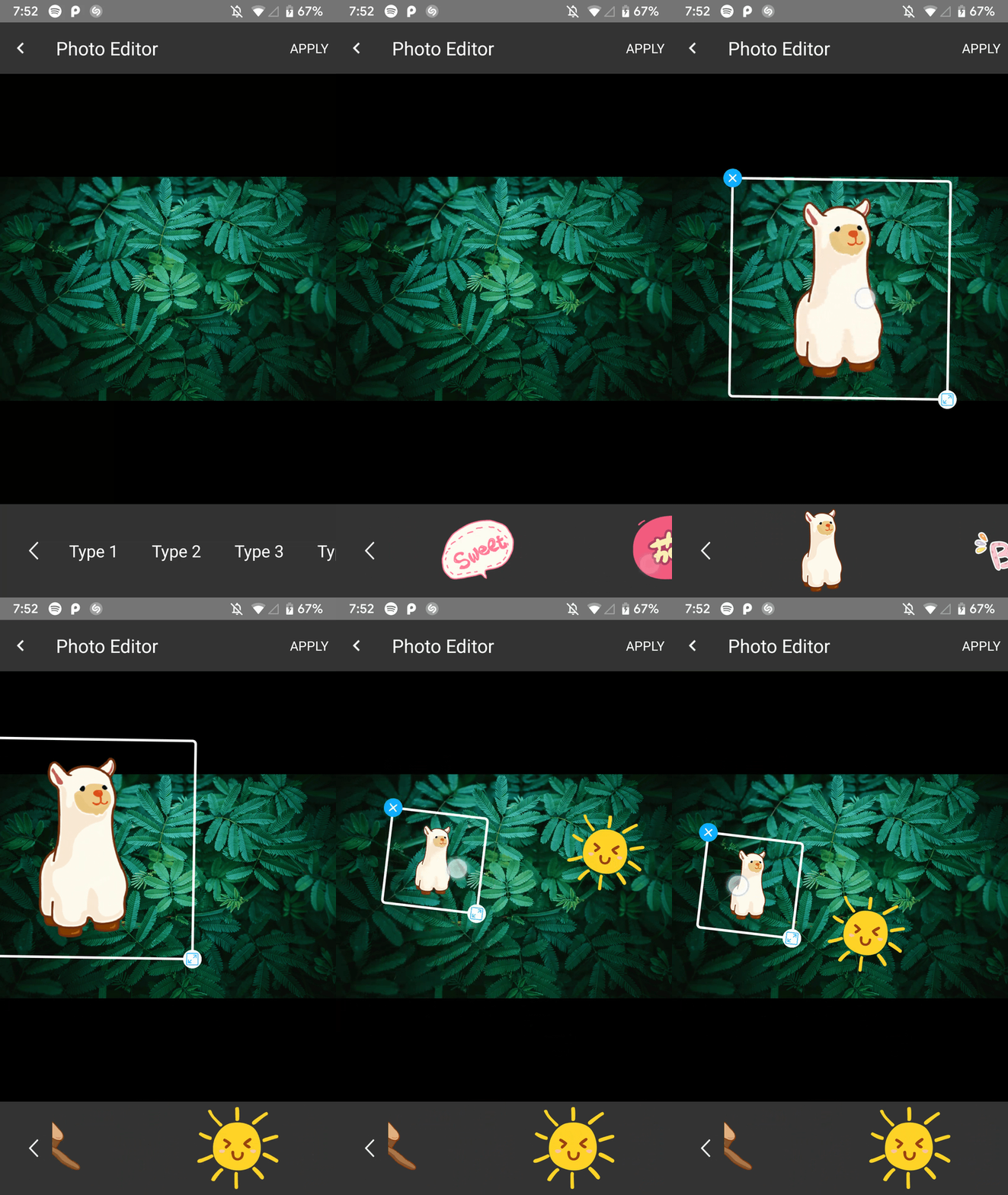 |
Fügen Sie es in Ihren Root Build hinzu. Gradle am Ende von Repositories:
  allprojects {
    repositories {
      ...
      maven { url 'https://jitpack.io' }
    }
  }
Fügen Sie die Abhängigkeit in der Gradle -Datei des App -Moduls wie diesem hinzu
implementation 'com.github.iamutkarshtiwari:Ananas:1.2.6'
Fügen Sie dies der proguard-rules.pro Datei Ihrer App hinzu:
 - keepclasseswithmembers class * {
    native < methods > ;
}
Und dies zum build.gradle Ihrer App.gradle:
 compileOptions {
        sourceCompatibility JavaVersion.VERSION_1_8
        targetCompatibility JavaVersion.VERSION_1_8
}
Da diese Bibliothek RxJava 2.0 verwendet und Ihr Projekt RxJava 1.0 verwendet, müssen Sie den folgenden Code der Gradle-Datei Ihrer App hinzufügen, damit beide Versionen koexistieren können.
 android {
    packagingOptions {
        exclude 'META-INF/rxjava.properties'
    }
}
Fügen Sie diese Konstante Ihrer Aktivitätsklasse mit Ihrem bevorzugten Anforderungscode hinzu:
private final int PHOTO_EDITOR_REQUEST_CODE = 231 ; // Any integer value as a request code.Verwenden Sie den folgenden Code, um den Foto -Editor zu erstellen und zu starten:
 try {
  Intent intent = new ImageEditorIntentBuilder ( this , sourceImagePath , outputFilePath )
         . withAddText () // Add the features you need
         . withPaintFeature ()
         . withFilterFeature ()
         . withRotateFeature ()
         . withCropFeature ()
         . withBrightnessFeature ()
         . withSaturationFeature ()
         . withBeautyFeature ()
         . withStickerFeature ()
         . forcePortrait ( true )  // Add this to force portrait mode (It's set to false by default)
         . setSupportActionBarVisibility ( false ) // To hide app's default action bar
         . build ();

 EditImageActivity . start ( activity , intent , PHOTO_EDITOR_REQUEST_CODE );
 } catch ( Exception e ) {
     Log . e ( "Demo App" , e . getMessage ()); // This could throw if either `sourcePath` or `outputPath` is blank or Null
}Sie können den neuen verarbeiteten Bildpfad erhalten und der Status wie diesen bearbeiten.
 @Override
    public void onActivityResult(int requestCode, int resultCode, Intent data) {
        super.onActivityResult(requestCode, resultCode, data);

        if (requestCode == PHOTO_EDITOR_REQUEST_CODE) { // same code you used while starting
            String newFilePath = data.getStringExtra(ImageEditorIntentBuilder.OUTPUT_PATH);
            boolean isImageEdit = data.getBooleanExtra(EditImageActivity.IS_IMAGE_EDITED, false);
        }
    }
Der Foto -Editor sperrt die aktuelle Orientierung, in der er gestartet wird -
Portrait gestartet sind, können Sie nicht zur Landscape wechseln, während die Bildeditor -Aktivität ausgeführt wird.Landscape angefangen haben, können Sie nicht während desselben auf Portrait wechseln.Sobald Sie jedoch zu Ihrer ursprünglichen App navigieren, werden Sie zu Ihren vorherigen Einstellungen für Konfigurationsänderungen zurückgekehrt.
Happy Coding! :)
Schlagen Sie mich auf Twitter
| Name | Bibliothek |
|---|---|
| Siwangqishiq | Imageditor Android |
| Arthurhub | Android Image Cropper |
| Hoanganhtuan95ptit | Kontrast- und Helligkeitsfunktion |
| Eltos | Farbauswahldialog |
| Russell Jurney | Kellys 22 Farbenliste |
| Burhanrashid52 | Photoeditor |






