imguin
v1.89.4 2023-03-19

Aktualisiert auf die neueste IMGui/Cimgui -Version :: V1.91.6dock (2024/12)
Dieses Projekt ist mein Experiment -Projekt, um NIM -Sprache, IMGui, Improt, Futhark usw. zu verwenden.
NIM-2.0.14 oder höher
Windows10 oder höher
MSYS2/MINGW -Befehlszeilen -Tools (UNIX -Tools), Make, CP, RM, Git, ... usw.
Linux Mint 22 (oder Ubuntu / Debian -Familien)
$ sudo apt install gcc g++ make git $ sudo apt install xorg-dev libopengl-dev libgl1-mesa-dev
$ sudo apt install libglfw3 libglfw3-dev libsdl2-devnimble uninstall imguin # Remove old versions if exists.
nimble install https://github.com/dinau/imguinErst klonen dieses Projekt,
git clone https://github.com/dinau/imguinBeispielprogramm ist hier, Beispiele. Zum Beispiel glfw_opengl3_base.nim,
 cd imguin/examples/glfw_opengl3_base
make  # or make run
Nach dem Build, run ./glfw_opengl3_base(.exe)
Die Kompinationsoptionen hängen von ./config.nims und ./Makefile .
Lesen Sie diese Beispiele/Readme.md, um den statischen Link oder den dynamischen Link auszuwählen.
| Bibliotheksname | ||
|---|---|---|
| v | Imgui / Cimgui | Basisbibliothek |
| v | Implot / Cimplot | |
| v | Imnodes / Cimnodes | |
| v | Imguizmo / Cimguizmo | |
| v | Imgui-Knobs/ Cimgui-Knobs | |
| v | IMgiifiledialog / cimguifiledialog | |
| ... | ... | ... |
| X | Imguicolortextedit / cimcte | 2025? |
| GLFW | SDL2 | SDL3 | ||
|---|---|---|---|---|
| OpenGL3 Backend | v | v | v | |
| SDL2 Backend | - - | ? | - - | 2025? |
| SDL3 Backend | - - | - - | ? | 2025? |
Diese Screenshots sind auf Windows10.
Grundes Beispiel mit Symbolschriften
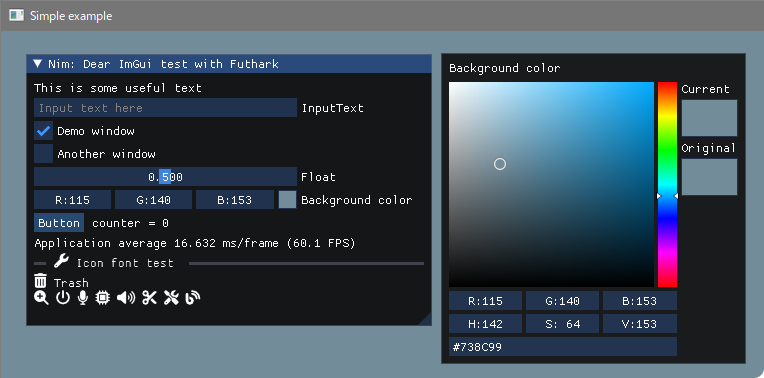
Bauen
 pwd
examples/glfw_opengl3
make        # or make run
oder
nim c glfw_opengl3.nim # or nim c -r glfw_opengl3.nim or nim r glfw_opengl3.nim https://github.com/altschuler/imgui-knobs
Cimgui-Knobs-Quellen wurden aus System64MC / PR (2024/12) beigetragen. Danke schön.
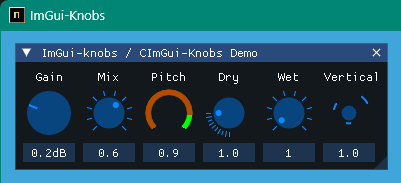
Bauen
 pwd
examples/glfw_opengl3_imknobs
make
oder
nim c -d:ImKnobsEnable --warning:HoleEnumConv:off glfw_opengl3_imknobs.nim IMgiifiledialog / cimguifiledialog
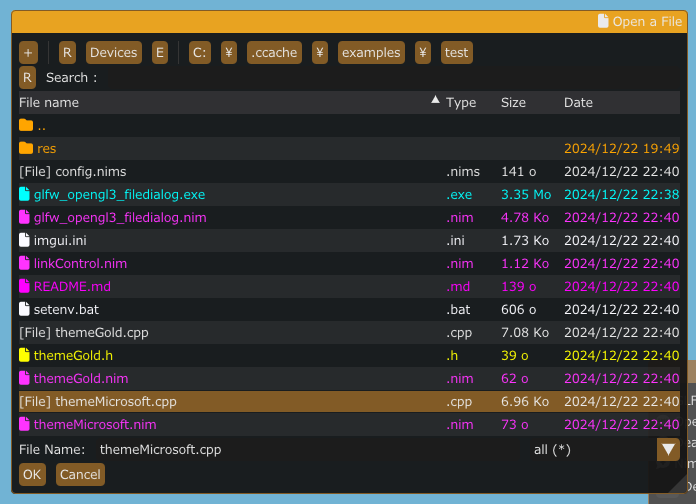
Bauen
 pwd
examples/glfw_opengl3_filedialog
make
oder
nim c -d:ImGuiFileDialogEnable glfw_opengl3_filedialog.nim Icon -Schriftart und Vergrößerungsglas
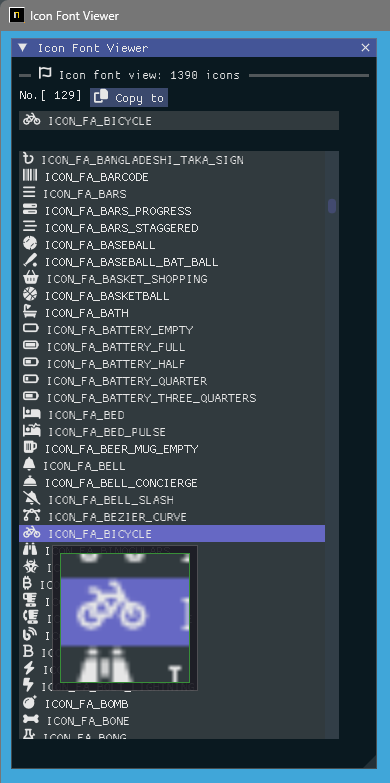
Bauen
 pwd
examples/iconFontViewer
make
oder
nim c iconFontViewer.nim Bildlast und Vergrößerung Glas
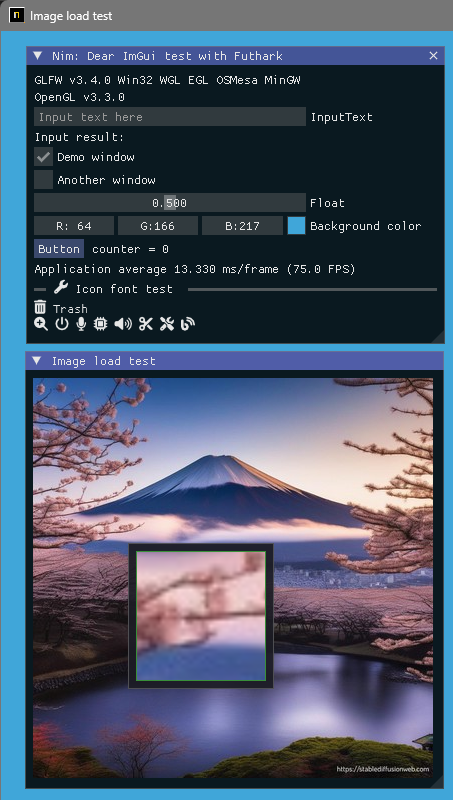
Bauen
 pwd
examples/glfw_opengl3_image_load
make
oder
nim c glfw_opengl3_image_load.nim Erstellen Sie die SDL2 -Version
 pwd
examples/sdl2_opengl3
make
oder
nim c -d:SDL sdl2_opengl3.nim Erstellen Sie die SDL3 -Version
Nur Windows OS in diesem Moment und WIP.
 pwd
examples/sdl3_opengl3
make
oder
nim c -d:SDL sdl3_opengl3.nim Bildlast / Speichern und Vergrößerung von Glas
Es kann einen Screenshot als [JPG, BMP, PNG oder TGA] -Datei speichern.
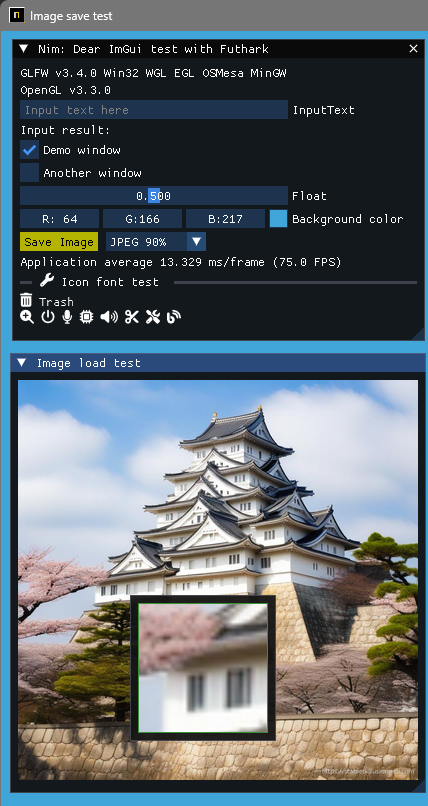
Bauen
 pwd
examples/glfw_opengl3_image_save
make        # or make run
oder
nim c glfw_opengl3_image_save.nim Zeigen Sie UTF-8-Text und geben Text mit einer lokalen Ländersprache ein. 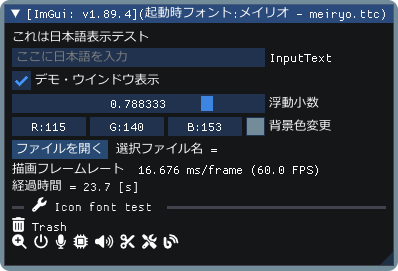
Bauen
 pwd
examples/glfw_opengl3_jp
make        # or make run
oder
nim c glfw_opengl3_jp.nim IMGUI -Demo mit Improt -Demo zeigen. 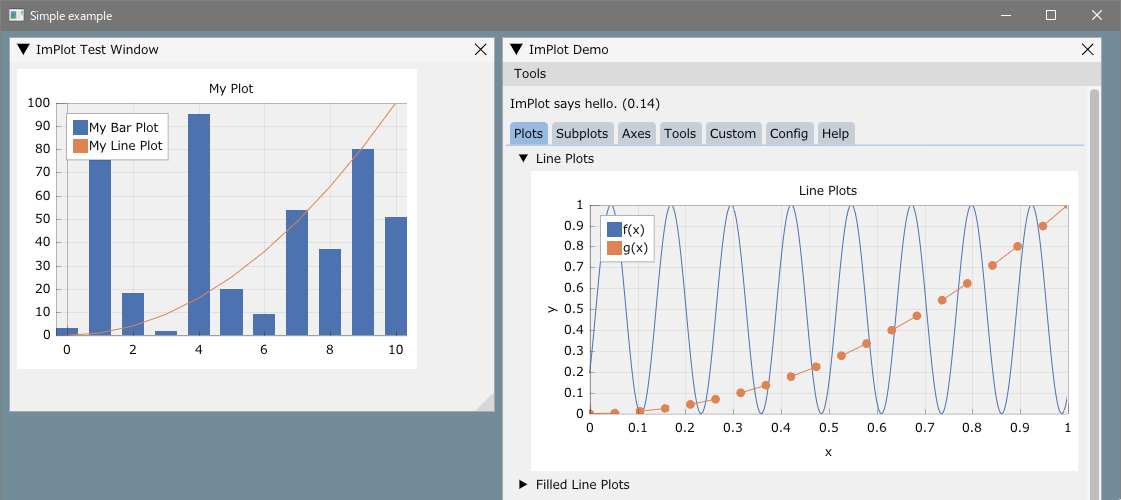
Bauen
 pwd
examples/glfw_opengl3_implot
make        # or make run
oder
nim c -d:ImPlotEnable glfw_opengl3_implot.nim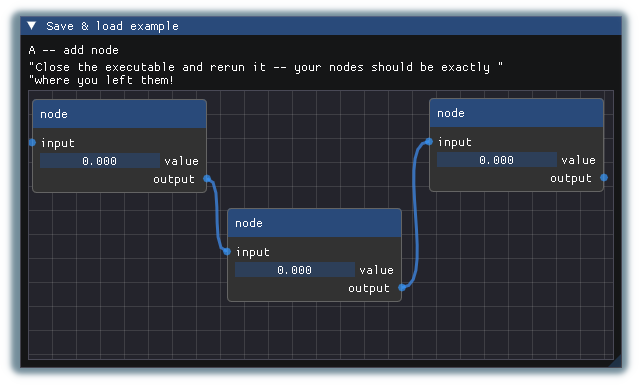
Bauen
 pwd
examples/glfw_opengl3_imnodes
make        # or make run
oder
nim c -d:ImNodesEnable glfw_opengl3_imnodes.nim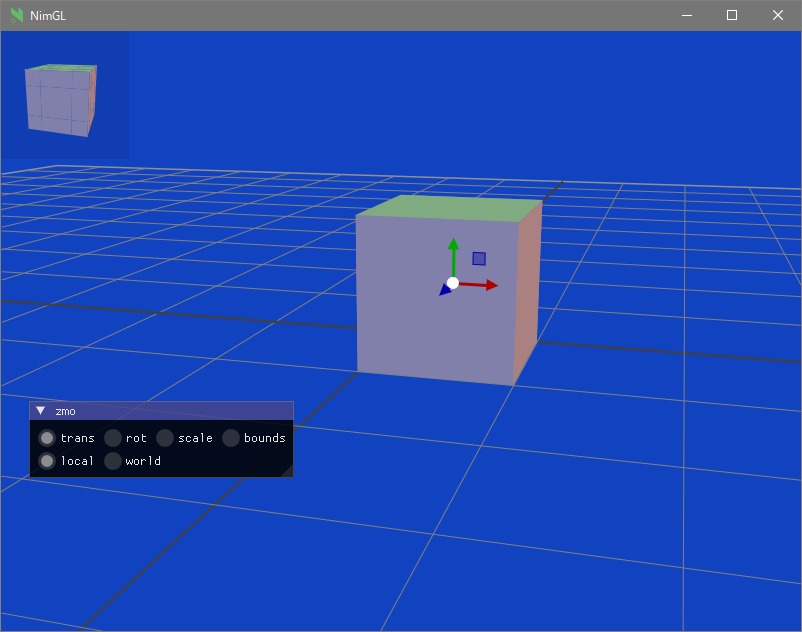
Bauen
 pwd
examples/glfw_opengl3_imguizmo
make        # or make run
oder
nim c -d:ImGuizmoEnable glfw_opengl3_imguizmo.nim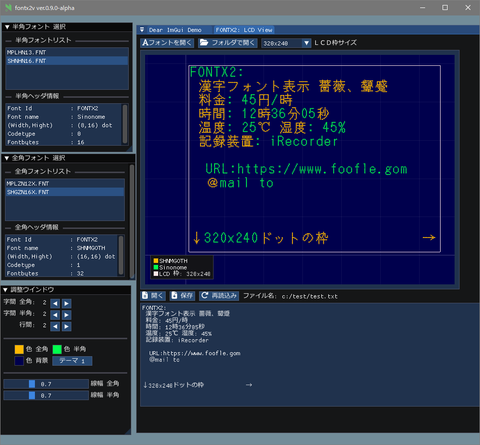
Sehen:
Cross Compilation zu Windows, Linker-Fehler (nicht erkannte Option '-z'
https://nim-lang.org/docs/nimc.html#crossminuscompilation-for-windows
Zum Beispiel auf Linux Mint 22 und so weiter,
 pwd
examples
cd glfw_opengl3
make win oder
nim c -d:mingw glfw_opengl3oder
nim c --os:windows glfw_opengl3 glfw_opengl3.exe wird im aktuellen Ordner generiert.
Git installiert.
Installierte MSYS2/Mingw -Befehlszeilen -Tools (UNIX -Tools), Make, CP, RM, ... usw.
Windows10 oder später Clang/LLVM beziehen sich auf die Futhark -Installation.
nimble install futhark Es muss libclang.a -Datei im Bibliotheksweg existieren (z. B. in c:llvmlib ).
Linux Debian 12 Bücherwurm
sudo apt install  clang-16
nimble install --passL: " -L/usr/lib/llvm-16/lib " futhark
Wichtiger Hinweis: Bestätigen Sie die Futhark -Version ist zu diesem Zeitpunkt V0.13.6 . (2024/09)
nimble dump futhark

name: " futhark "
version: " 0.13.6 "
author: " PMunch "
desc: " A package which uses libclang to parse C headers into Nim files for easy interop "
license: " MIT "
... Entwicklungsordner komponieren
Gehen Sie zuerst zu Ihrem Arbeitsordner, den Sie mögen, und dann zu Ihrem Arbeitsordner, dann
mkdir imguin_dev
cd imguin_dev
git clone https://github.com/dinau/imguin
cd imguin
Klon imgui/cimgui usw. Quellen gleichzeitig für immer
 pwd
imguin
make clonelibs
Klonte Bibliotheken sind unter ../libs/ Ordner
Aktualisieren Sie die Quellen rekursiv mit dem Befehl Git Pull oder fetch in den einzelnen Bibliotheksordnern.
../libs/cimgui
../libs/cimguizmo
../libs/cimnodes
../libs/cimplot
Checkout STRITRARY -Version mit Git -Befehl im jeweiligen Ordner
Geben Sie Ihren Clang an, den Pfad zu ClangIncludePath in imguin/src/imguin/cimgui.nim .
Generieren Sie die Definitionsdatei uisng futhark,
 pwd
imguin
make gen
Installieren Sie aktualisierte Dateien
Bearbeiten Sie die Versionsinformationen usw. in imguin.nimble -Datei ordnungsgemäß
 pwd
imguin
nimble uninstall imguin  # Remove old versions if it exists.
nimble install
Das ist alles.
Wiederholen Sie dies aus 3. Wenn Sie aktualisieren oder auf andere Versionen herabsteigen möchten.
Bestätigte Version
| Imgui/Cimgui Ver. | Imguin Ver. | Datum | Windowsos | Linux Mint 22 | Debian Bücherwurm (1) |
|---|---|---|---|---|---|
| 1.91.6dock | 1.91.6.6 | 2024/12 | OK | OK | - - |
| 1.91.5dock | - - | - - | - - | - - | - - |
| 1.91.4dock | 1.91.4.2 | 2024/12 | OK | OK | - - |
| 1.91.3dock | 1.91.3.1 | 2024/10 | OK | (7) | - - |
| 1.91.2dock | 1.91.2.0 | 2024/10 | OK | (7) | - - |
| 1.91.1dock | 1.91.1.2 | 2024/09 | OK | (6) | - - |
| 1.91.0dock | 1.91.0.0 | 2024/08 | OK | - - | (7) |
| 1.90.4dock | 1.90.4.2 | 2024/02 | OK | - - | OK (4) |
| 1.90.1dock | 1.90.1.0 | 2024/01 | OK | - - | Ng/ok (1) (3) (4) |
| 1.89.9dock | 1.89.9.8 | 2023/12 | OK | - - | Ng/ok (1) (3) (4) |
(1): Außer IMNODES und SDL2 -Beispiel.
(2): funktioniert nicht gut.
(3): funktioniert nur gut, wenn es sich um den Debug -Modus erstellt.
(4): Verwenden Sie NIM-2.0.2
(5): Ich weiß nicht, warum nicht unter Linux kompiliert werden kann.
(6): OK: Außer imnodes Beispiel
(7): In diesem Moment nicht überprüft.
Möglicherweise können Sie einen anderen C/C ++ - Compiler verwenden.
Clang, vcc(Visual Studio C/C++) , zig cc
Durch Ändern der variablen TC in Beispielen/config.nims.common.
cimgui.dll verwenden kann? (Jetzt kann es nur eine statische Verbindung sein)nimble install imguin kann? Installieren Sie UPX mit MSYS -Konsole auf Windowsos.
pacman -S mingw-w64-x86_64-upxFür die Komprimierungs -Exe -Datei,
 pwd
examples
cd glfw_opengl3_implot
make upx
Ultimate Packer for eXecutables
Copyright (C) 1996 - 2024
UPX 4.2.4 Markus Oberhumer, Laszlo Molnar & John Reiser May 9th 2024
File size Ratio Format Name
-------------------- ------ ----------- -----------
7117824 - > 1217024 17.10% win64/pe glfw_opengl3_implot.exe Dekomprimieren,
make dupxFühren in,
| GCC + UPX: GCC | Klang + upx: klang | MSVC (VCC) + UPX: MSVC | |
|---|---|---|---|
| glfw_opengl3.exe | 804 KB: 2360 KB | 720 KB: 2200 kb | 742 KB: 2070 KB |
| glfw_opengl3_implot.exe | 1220 KB : 7120 KB | 940 KB : 4200 KB | 945 KB : 3810 KB |
GCC: V14.2.0, Clang: V18.1.8, MSVC: 2022
Windows11 (Haupt)
NIM Compiler Version 2.2.0
GCC (Rev1, erstellt von MSYS2 Project) 14.2.0
pacman -S mingw-w64-ucrt-x86_64-gccClang Version 19.1.6
pacman -S mingw-w64-ucrt-x86_64-clangVisual Studio C ++/C 2022
Git Version 2.46.0.Windows.1
Sdl2.dll: 2.30.7
Make: gnu make 4.4.1
MSYS2/Mingw -Tools
Linux Mint 22
Dateidialog
Andere
GUI
Grafisch
| Sprache | Projekt | |
|---|---|---|
| Nim | Compiler | Imguin, nimgl_test, nim_implot |
| Lua | Skript | Luajitimgui |
| Zick , C Lang. | Compiler | Dear_bindings_build |
| Zick | Compiler | Imguinz |
| Nelua | Compiler | Neluaimgui |
| Python | Skript | Dearpygui für 32 -Bit -Windows Binary |
| Sprache | Projekt | |
|---|---|---|
| Nim | Compiler | NIM-Plattformer/ SDL3_NIM |
| Luajit | Skript | Luajit-Plattformer |
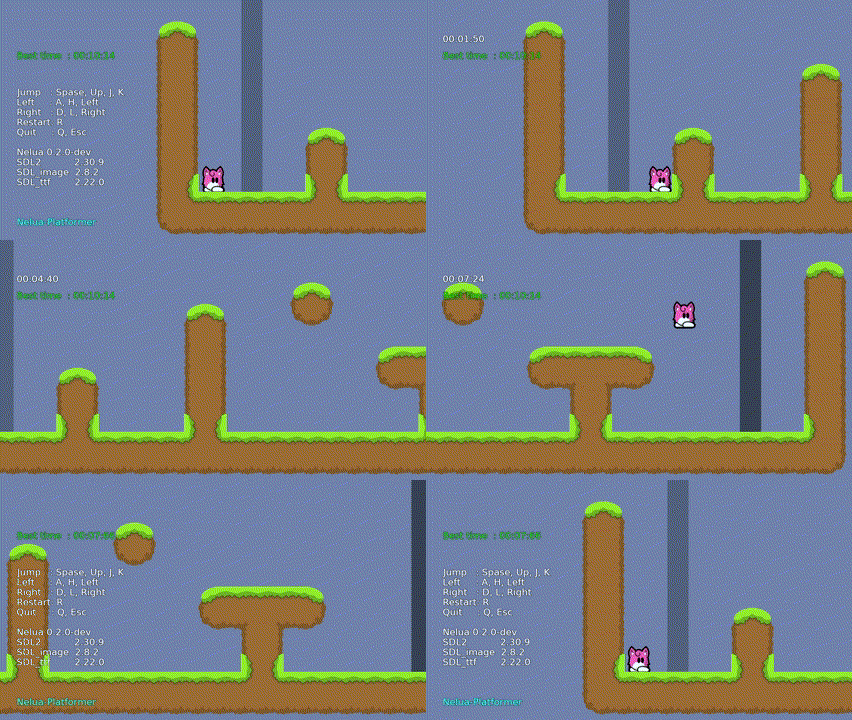
| Nelua | Compiler | Nelua-Platformer |
| Zick | Compiler | Zick-Plattformer |
error: assignment to ' char ** ' from incompatible pointer type ' const char * const* ' [-Wincompatible-pointer-types] type ConstCstring {. importc : const char *. } = cstring