react native rich editor
v1.9.0

Android和iOS(MACOS和Windows)的功能良好的富文本編輯器?
如果您想使用顫音,可以在此處檢查以添加flutter_rich_editor
 yarn add react-native-pell-rich-editor
or
npm i react-native-pell-rich-editor
另外,請在此處遵循說明以添加本機react-native-webview依賴關係。
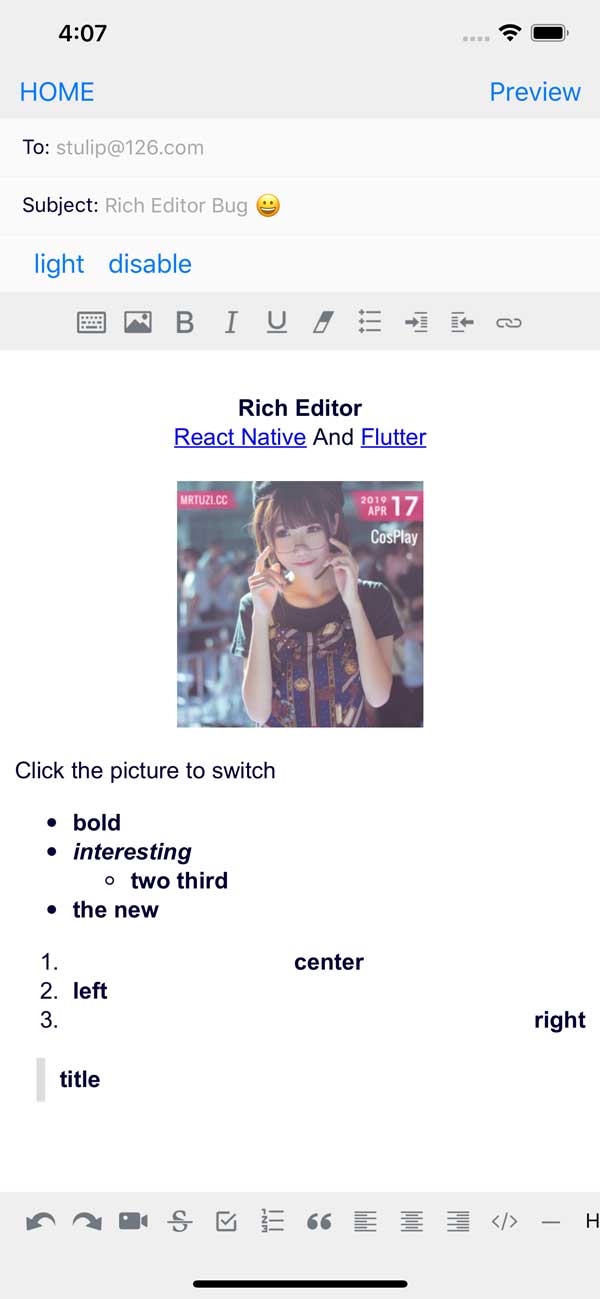
### usecontainer = {true}需要將其放置在scrolview中,並添加回調方法oncursorPosition來處理滾動條定位,請參閱示例this.scrollRef.current.scrollTo({y: scrollY - 30, animated: true});
RichEditor編輯器組件。只需將此組件放在視圖層次結構中即可接收功能齊全的豐富文本編輯器。
RichEditor採用以下可選道具:
html
接受自定義HTML,允許您進行自己的自定義
placeholder
包裝編輯內容佔位符
initialContentHTML
HTML將在“負載”內容部分呈現。
initialFocus
布爾值對初始內容請求的重點。默認值是false 。
disabled
布爾值以禁用編輯器。默認值是false 。
enterKeyHint
字符串值設置返回鍵類型 - returnKeyType
editorInitializedCallback
初始化編輯器時將調用的函數。
editorStyle
容器或豐富的編輯器的樣式更黑暗或光線設置。包含以下選項的對象:
backgroundColor :編輯器背景顏色color :編輯文本顏色caretColor光標/選擇顏色placeholderColor :編輯佔位符文本顏色contentCSSText :編輯器內容CSS文本(初始有效)cssText :編輯器全局CSS文本((初始有效)initialCSSText :在Inline樣式表的開頭注入CSS。對於合併自定義字體有用(請參見下文)。編輯數據修改後的onChange回調
高度更改後的onHeightChange回調
onMessage回調外部後期內部類型處理
< img src ="" onclick =" _.sendEvent('ImgClick') " contenteditable =" false " /> command在編輯器中執行JS
 // $ = document
this . richText . current ?. commandDOM ( '$.execCommand(' insertHTML ', false, "<br/>")' ) ; commandDOM操縱編輯器中的DOM
 // $ = document.querySelector
this . richText . current ?. commandDOM ( `$('#title').style.color=' ${ color } '` ) ; useContainer一個布爾值,該值確定是否包裹了一個視圖容器圍繞WebView。默認值是正確的。如果您使用自己的視圖將此庫包裹在周圍,請將此值設置為false。
styleWithCSS當正確時,標籤的樣式屬性會被修改。否則會創建專用標籤。默認值是false
initialHeight訪問者是通過在線視圖的初始高度視圖是錯誤的
pasteAsPlainText一個布爾值(默認值為false),該值確定剪貼板粘貼是否會保留其格式,或者將其作為純文本執行
useCharacter禁用漢字的選項使您可以在Android上支持英語字符。默認情況下,將向後兼容設置為true 。
defaultHttps一個布爾值(默認值為true),將https://預示到鏈接的開始
onPaste回調剪貼板糊狀值
onKeyUp回調鍵鍵事件(Android 229錯誤)
onKeyDown回調鍵Downd Event(Android 229錯誤)
onInput回調輸入值
onLink回調鏈接單擊
onFocus回調編輯器焦點
onBlur回調編輯器模糊
onCursorPosition回調輸入光標的位置this.scrollRef.current.scrollTo({y: scrollY - 30, duration: 100, animated: true});
RichEditor還具有可以在其ref上使用的方法:
setContentHTML(html: string)insertImage(url: string, style?: string)insertLink(title: string, url: string)insertText(text: string)insertHTML(html: string)insertVideo(url: string, style?: string)setContentFocusHandler(handler: Function)blurContentEditor()focusContentEditor()此方法會在光標位置更改或更改光標位置的編輯器樣式時會被調用的函數,該函數將通過在Cusor位置處於活動狀態的一系列actions ,使工具欄對更改做出響應。
registerToolbar(listener: Function) < RichEditor
ref = { ( r ) => this . richtext = r }
initialContentHTML = { 'Hello <b>World</b> <p>this is a new paragraph</p> <p>this is another new paragraph</p>' }
editorInitializedCallback = { ( ) => this . onEditorInitialized ( ) }
/>為了使用自定義字體,您需要使用editorStyle Prop中的initialCSSText 。
stylesheet.js文件。 const FontFamilyStylesheet = `
@font-face {
font-family: 'Your Font Family';
src: url('data:font/ttf;charset=utf-8;base64,...............'); // You can also use a web url here
font-weight: normal;
}
` ;
export default FontFamilyStylesheet ;RichEditor組件的位置,導入文件並利用文件。 import FontFamilyStylesheet from 'stylesheet.js' ;
const fontFamily = 'Your_Font_Family' ;
const initialCSSText = { initialCSSText : ` ${ FontFamilyStylesheet } ` , contentCSSText : `font-family: ${ fontFamily } ` }
< RichEditor editorStyle = { initialCSSText } / >有關initialCSSText工作原理的更多信息,請在此處查看PR。此外,還要歸功於此問題評論和他的叉子,該評論描述瞭如何使用base64編碼的字體文件。
RichToolbar這是一個組件,可提供用於輕鬆控制編輯器的工具欄。它被設計為與RichEditor組件一起使用。
RichToolbar有一個必需的財產:
getEditor()它必須提供一個將ref返回到RichEditor組件的函數。
這是因為ref直到第一個渲染之後才創建,在此之前渲染了工具欄。這意味著直接通過的任何ref都將不可避免地通過undefined 。
RichToolbar組件支持的其他道具是:
actions
該工具欄提供的array actions 。默認操作是:
actions.insertImageactions.setBoldactions.setItalicactions.insertBulletsListactions.insertOrderedListactions.insertLinkactions.keyboardactions.setStrikethroughactions.setUnderlineactions.removeFormatactions.insertVideoactions.checkboxListactions.undoactions.redo敲擊addImage操作時調用的onPressAddImage函數。
按下添加插入鏈接按鈕時發生的事情的onInsertLink邏輯
disabled
布爾值以禁用編輯器。默認值是false 。
iconTint
unselectedButtonStyle
selectedIconTint
selectedButtonStyle
disabledIconTint
disabledButtonStyle
這些提供了造型操作按鈕的選項。
iconSize
定義以像素為單位的圖標的大小。默認值為50。
renderAction
明顯地,您可以提供將使用的渲染函數而不是默認功能,因此您可以完全控制收費表設計。
iconMap
RichTextToolbar帶有默認圖標,用於其呈現的默認操作。要覆蓋這些,或添加用於非默認操作的圖標,請在此道具的字典中提供它們。
 const richText = React . createRef ( ) || useRef ( ) ;
< RichToolbar editor = { that . richText } /> 定義您自己的自定義操作:
actions數組中將操作名稱發送為字符串。iconMap一起包含一個圖標 < RichToolbar
editor = { that . richText }
actions = { [
actions . setBold ,
actions . setItalic ,
actions . insertBulletsList ,
actions . insertOrderedList ,
actions . insertImage ,
'customAction' ,
] }
iconMap = { {
customAction : customIcon ,
} }
customAction = { this . handleCustomAction }
/> import React from "react" ;
import { Text , Platform , KeyboardAvoidingView , SafeAreaView , ScrollView } from "react-native" ;
import { actions , RichEditor , RichToolbar } from "react-native-pell-rich-editor" ;
const handleHead = ( { tintColor } ) => < Text style = { { color : tintColor } } > H1 </ Text >
const TempScreen = ( ) => {
const richText = React . useRef ( ) ;
return (
< SafeAreaView >
< ScrollView >
< KeyboardAvoidingView behavior = { Platform . OS === "ios" ? "padding" : "height" } style = { { flex : 1 } } >
< Text > Description: </ Text >
< RichEditor
ref = { richText }
onChange = { descriptionText => {
console . log ( "descriptionText:" , descriptionText ) ;
} }
/>
</ KeyboardAvoidingView >
</ ScrollView >
< RichToolbar
editor = { richText }
actions = { [ actions . setBold , actions . setItalic , actions . setUnderline , actions . heading1 ] }
iconMap = { { [ actions . heading1 ] : handleHead } }
/>
</ SafeAreaView >
) ;
} ;
export default TempScreen ;