react native rich editor
v1.9.0

ตัวแก้ไขข้อความที่สมบูรณ์แบบใช้งานได้อย่างสมบูรณ์สำหรับทั้ง Android และ iOS (MacOS และ Windows)?
หากคุณต้องการใช้ Flutter คุณสามารถตรวจสอบที่นี่เพื่อเพิ่ม flutter_rich_editor
 yarn add react-native-pell-rich-editor
or
npm i react-native-pell-rich-editor
นอกจากนี้ให้ทำตามคำแนะนำที่นี่เพื่อเพิ่มการพึ่งพา react-native-webview ดั้งเดิม
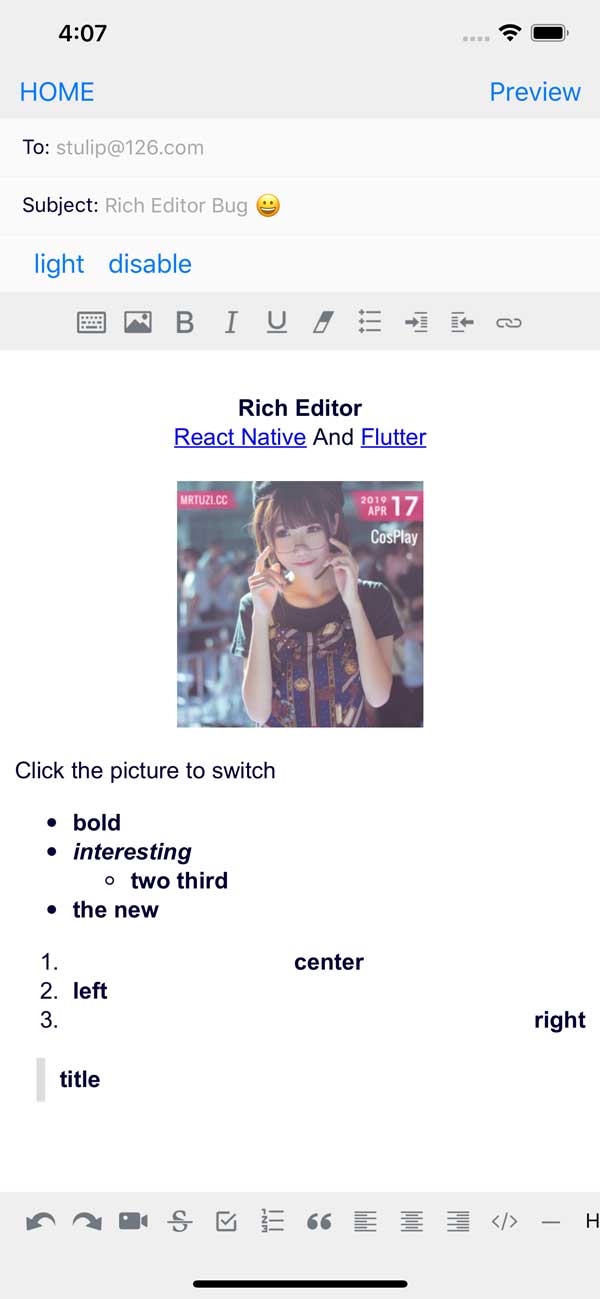
### usecontainer = {true} ต้องวางไว้ใน scrolview และเพิ่มวิธีการโทรกลับ oncursorPosition เพื่อจัดการการวางตำแหน่งแถบเลื่อนดูตัวอย่างสิ่ง this.scrollRef.current.scrollTo({y: scrollY - 30, animated: true});
RichEditorองค์ประกอบของตัวแก้ไข เพียงวางองค์ประกอบนี้ไว้ในลำดับชั้นมุมมองของคุณเพื่อรับตัวแก้ไขข้อความที่สมบูรณ์แบบทำงานได้อย่างสมบูรณ์
RichEditor ใช้อุปกรณ์ประกอบฉากเสริมต่อไปนี้:
html
ยอมรับ HTML ที่กำหนดเองช่วยให้คุณสามารถปรับแต่งเองได้
placeholder
สรุปตัวยึดเนื้อหาของบรรณาธิการ
initialContentHTML
HTML ที่จะแสดงในส่วนเนื้อหาเกี่ยวกับการโหลด
initialFocus
ค่าบูลีนไปยังการขอเนื้อหาเริ่มต้น ค่าเริ่มต้นเป็น false
disabled
ค่าบูลีนเพื่อปิดการใช้งานตัวแก้ไข ค่าเริ่มต้นเป็น false
enterKeyHint
ค่าสตริงเพื่อตั้งค่าคีย์ Return
editorInitializedCallback
ฟังก์ชั่นที่จะถูกเรียกเมื่อตัวแก้ไขได้รับการเริ่มต้น
editorStyle
จัดแต่งทรงผมสำหรับคอนเทนเนอร์หรือสำหรับตัวแก้ไขที่สมบูรณ์มากขึ้นการตั้งค่าที่มืดหรือเบา วัตถุที่มีตัวเลือกต่อไปนี้:
backgroundColor : สีพื้นหลังของตัวแก้ไขcolor : สีข้อความตัวแก้ไขสีcaretColorplaceholderColor : ตัวแก้ไขตัวยึดสีcontentCSSText : เนื้อหา Editor CSS Text (เริ่มต้นถูกต้อง)cssText : Editor Global Global CSS Text (เริ่มต้นใช้งานได้)initialCSSText : ฉีด CSS ที่จุดเริ่มต้นของสไตล์อินไลน์ มีประโยชน์สำหรับการผสมผสานแบบอักษรที่กำหนดเอง (ดูด้านล่าง) onChange การโทรกลับหลังจากการปรับเปลี่ยนข้อมูลตัวแก้ไข
onHeightChange โทรกลับหลังจากเปลี่ยนความสูง
onMessage การโทรกลับนอกการประมวลผลประเภทภายในโพสต์ข้อความภายใน
< img src ="" onclick =" _.sendEvent('ImgClick') " contenteditable =" false " /> command ดำเนินการ js ในตัวแก้ไข
 // $ = document
 this . richText . current ?. commandDOM ( '$.execCommand(' insertHTML ', false, "<br/>")' ) ;
commandDOM จัดการกับ DOM ในตัวแก้ไข
 // $ = document.querySelector
 this . richText . current ?. commandDOM ( `$('#title').style.color=' ${ color } '` ) ;
useContainer ค่าบูลีนที่กำหนดว่าคอนเทนเนอร์มุมมองถูกพันรอบเว็บวิว ค่าเริ่มต้นเป็นจริง หากคุณใช้มุมมองของคุณเองเพื่อห่อไลบรารีนี้ให้ตั้งค่านี้เป็นเท็จ
styleWithCSS เมื่อมีการแก้ไขแอตทริบิวต์สไตล์ของแท็กจริง มิฉะนั้นแท็กเฉพาะจะถูกสร้างขึ้น ค่าเริ่มต้นเป็นเท็จ
initialHeight usecontainer เป็นเท็จโดยมุมมองแบบอินไลน์ของความสูงเริ่มต้น
pasteAsPlainText ค่าบูลีน (เท็จเป็นค่าเริ่มต้น) ที่กำหนดว่าการวางคลิปบอร์ดจะเก็บรูปแบบหรือจะทำเป็นข้อความธรรมดา
useCharacter ตัวเลือกในการปิดการใช้งานตัวละครจีนช่วยให้คุณสนับสนุนอักขระภาษาอังกฤษโดยไม่มีข้อผิดพลาดใน Android ตั้งค่าเป็น true โดยค่าเริ่มต้นสำหรับความเข้ากันได้ย้อนหลัง
defaultHttps ค่าบูลีน (จริงเป็นค่าเริ่มต้น) ที่ล่วงหน้า https: // ไปยังจุดเริ่มต้นของลิงก์
onPaste Callback Clipboard PAST
เหตุการณ์คีย์อั onKeyUp callback onkeyup (Android 229 Bug)
เหตุการณ์คีย์ดาวน์สายการโทร onKeyDown (Android 229 Bug)
ค่าอินพุต onInput Callback
ลิงค์โทรกลับ onLink คลิก
onFocus Editor Focus
onBlur Callback Editor Blur
การโทรกลับ onCursorPosition ป้อนตำแหน่งของเคอร์เซอร์ this.scrollRef.current.scrollTo({y: scrollY - 30, duration: 100, animated: true});
RichEditor ยังมีวิธีการที่สามารถใช้กับ ref เพื่อตั้งค่า:
setContentHTML(html: string)insertImage(url: string, style?: string)insertLink(title: string, url: string)insertText(text: string)insertHTML(html: string)insertVideo(url: string, style?: string)setContentFocusHandler(handler: Function)blurContentEditor()focusContentEditor() วิธีนี้จะลงทะเบียนฟังก์ชั่นที่จะได้รับการเรียกเมื่อตำแหน่งเคอร์เซอร์เปลี่ยนแปลงหรือมีการเปลี่ยนแปลงตามสไตล์ของตัวแก้ไขที่ตำแหน่งของเคอร์เซอร์การเรียกกลับจะถูกเรียกด้วยอาร์เรย์ของ actions ที่ทำงานอยู่ที่ตำแหน่ง Cusor ทำให้แถบเครื่องมือตอบสนองต่อการเปลี่ยนแปลง
registerToolbar(listener: Function) < RichEditor
ref = { ( r ) => this . richtext = r }
initialContentHTML = { 'Hello <b>World</b> <p>this is a new paragraph</p> <p>this is another new paragraph</p>' }
editorInitializedCallback = { ( ) => this . onEditorInitialized ( ) }
/> ในการใช้แบบอักษรที่กำหนดเองคุณต้องใช้ initialCSSText จาก Prop editorStyle
stylesheet.js const FontFamilyStylesheet = `
@font-face {
font-family: 'Your Font Family';
src: url('data:font/ttf;charset=utf-8;base64,...............'); // You can also use a web url here
font-weight: normal;
}
` ;
export default FontFamilyStylesheet ;RichEditor ของคุณนำเข้าไฟล์และใช้ประโยชน์ import FontFamilyStylesheet from 'stylesheet.js' ;
const fontFamily = 'Your_Font_Family' ;
const initialCSSText = { initialCSSText : ` ${ FontFamilyStylesheet } ` , contentCSSText : `font-family: ${ fontFamily } ` }
< RichEditor editorStyle = { initialCSSText } / > สำหรับข้อมูลเพิ่มเติมเกี่ยวกับวิธีการทำงาน initialCSSText ลองดูที่ PR ที่นี่ นอกจากนี้เครดิตสำหรับความคิดเห็นปัญหานี้และส้อมของเขาที่อธิบายวิธีการใช้ไฟล์ตัวอักษรที่เข้ารหัส Base64
RichToolbar นี่คือส่วนประกอบที่ให้แถบเครื่องมือสำหรับการควบคุมตัวแก้ไขได้อย่างง่ายดาย มันถูกออกแบบมาเพื่อใช้ร่วมกับส่วนประกอบ RichEditor
RichToolbar มีทรัพย์สินที่จำเป็นอย่างหนึ่ง:
getEditor() ซึ่งจะต้องจัดเตรียม ฟังก์ชั่น ที่ส่งคืน ref ไปยังส่วนประกอบ RichEditor
นี่เป็นเพราะการ ref ไม่ได้ถูกสร้างขึ้นจนกระทั่งหลังจากการเรนเดอร์ครั้งแรกก่อนที่แถบเครื่องมือจะแสดงผล ซึ่งหมายความว่า ref ใด ๆ ที่ผ่านโดยตรงจะถูกส่งผ่านอย่างหลีกเลี่ยงไม่ได้ undefined
อุปกรณ์ประกอบฉากอื่น ๆ ที่สนับสนุนโดยส่วนประกอบ RichToolbar คือ:
actions
array ของ actions ที่จะจัดทำโดยแถบเครื่องมือนี้ การดำเนินการเริ่มต้นคือ:
actions.insertImageactions.setBoldactions.setItalicactions.insertBulletsListactions.insertOrderedListactions.insertLinkactions.keyboardactions.setStrikethroughactions.setUnderlineactions.removeFormatactions.insertVideoactions.checkboxListactions.undoactions.redo ฟังก์ชั่น onPressAddImage ที่เรียกว่าเมื่อการกระทำของ addImage ถูกแตะ
onInsertLink Logic สำหรับสิ่งที่จะเกิดขึ้นเมื่อคุณกดปุ่ม Add Insert Link
disabled
ค่าบูลีนเพื่อปิดการใช้งานตัวแก้ไข ค่าเริ่มต้นเป็น false
iconTint
unselectedButtonStyle
selectedIconTint
selectedButtonStyle
disabledIconTint
disabledButtonStyle
ตัวเลือกเหล่านี้ให้ตัวเลือกสำหรับปุ่มแอ็คชั่นสไตล์
iconSize
กำหนดขนาดของไอคอนเป็นพิกเซล ค่าเริ่มต้นคือ 50
renderAction
คุณสามารถจัดเตรียมฟังก์ชั่นเรนเดอร์ที่จะใช้แทนค่าเริ่มต้นดังนั้นคุณสามารถควบคุมการออกแบบ Tollbar ได้อย่างเต็มที่
iconMap
RichTextToolbar มาพร้อมกับไอคอนเริ่มต้นสำหรับการกระทำเริ่มต้นที่แสดงผล หากต้องการแทนที่สิ่งเหล่านั้นหรือเพื่อเพิ่มไอคอนสำหรับการกระทำที่ไม่ได้รับการป้องกันให้จัดหาพจนานุกรมให้กับเสานี้
 const richText = React . createRef ( ) || useRef ( ) ;
< RichToolbar editor = { that . richText } /> เพื่อกำหนดการดำเนินการที่กำหนดเองของคุณเอง:
actionsiconMap < RichToolbar
editor = { that . richText }
actions = { [
actions . setBold ,
actions . setItalic ,
actions . insertBulletsList ,
actions . insertOrderedList ,
actions . insertImage ,
'customAction' ,
] }
iconMap = { {
customAction : customIcon ,
} }
customAction = { this . handleCustomAction }
/> import React from "react" ;
import { Text , Platform , KeyboardAvoidingView , SafeAreaView , ScrollView } from "react-native" ;
import { actions , RichEditor , RichToolbar } from "react-native-pell-rich-editor" ;
const handleHead = ( { tintColor } ) => < Text style = { { color : tintColor } } > H1 </ Text >
const TempScreen = ( ) => {
const richText = React . useRef ( ) ;
return (
< SafeAreaView >
< ScrollView >
< KeyboardAvoidingView behavior = { Platform . OS === "ios" ? "padding" : "height" } style = { { flex : 1 } } >
< Text > Description: </ Text >
< RichEditor
ref = { richText }
onChange = { descriptionText => {
console . log ( "descriptionText:" , descriptionText ) ;
} }
/>
</ KeyboardAvoidingView >
</ ScrollView >
< RichToolbar
editor = { richText }
actions = { [ actions . setBold , actions . setItalic , actions . setUnderline , actions . heading1 ] }
iconMap = { { [ actions . heading1 ] : handleHead } }
/>
</ SafeAreaView >
) ;
} ;
export default TempScreen ;