react native rich editor
v1.9.0

Android和iOS(MACOS和Windows)的功能良好的富文本编辑器?
如果您想使用颤音,可以在此处检查以添加flutter_rich_editor
 yarn add react-native-pell-rich-editor
or
npm i react-native-pell-rich-editor
另外,请在此处遵循说明以添加本机react-native-webview依赖关系。
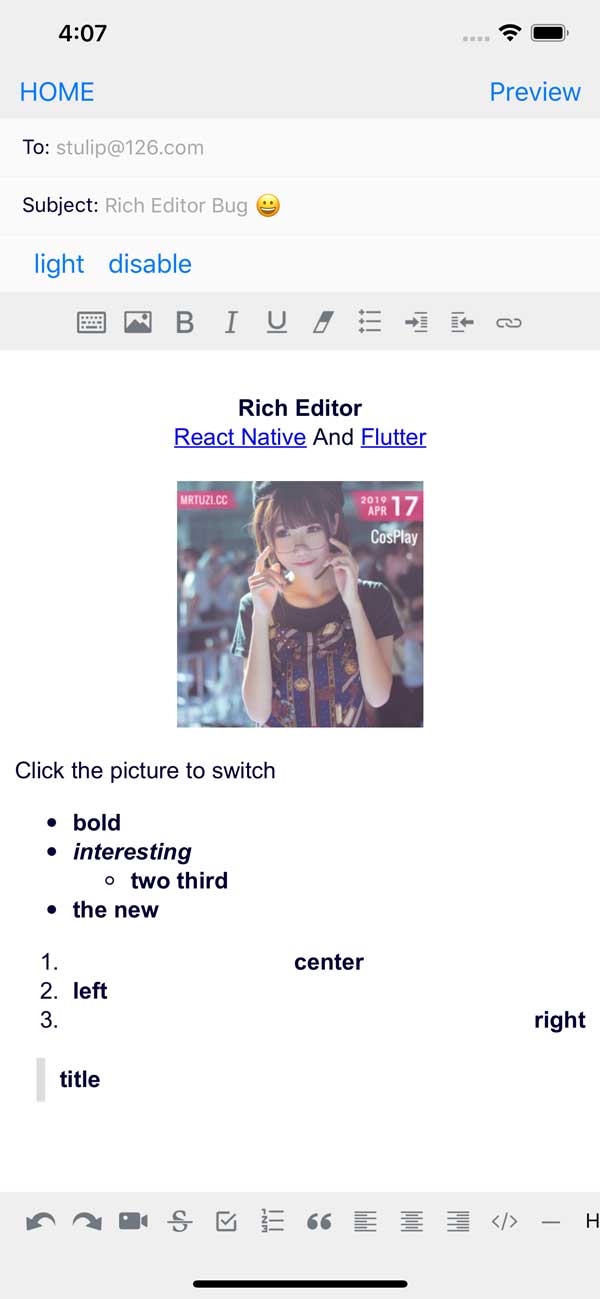
### usecontainer = {true}需要放在scrolview中,并添加回调方法oncursorPosition来处理滚动条定位,请参阅示例this.scrollRef.current.scrollTo({y: scrollY - 30, animated: true});
RichEditor编辑器组件。只需将此组件放在视图层次结构中即可接收功能齐全的丰富文本编辑器。
RichEditor采用以下可选道具:
html
接受自定义HTML,允许您进行自己的自定义
placeholder
包装编辑内容占位符
initialContentHTML
HTML将在“负载”内容部分呈现。
initialFocus
布尔值对初始内容请求的重点。默认值是false 。
disabled
布尔值以禁用编辑器。默认值是false 。
enterKeyHint
字符串值设置返回键类型 - returnKeyType
editorInitializedCallback
初始化编辑器时将调用的函数。
editorStyle
容器或丰富的编辑器的样式更黑暗或光线设置。包含以下选项的对象:
backgroundColor :编辑器背景颜色color :编辑文本颜色caretColor光标/选择颜色placeholderColor :编辑占位符文本颜色contentCSSText :编辑器内容CSS文本(初始有效)cssText :编辑器全局CSS文本((初始有效)initialCSSText :在Inline样式表的开头注入CSS。对于合并自定义字体有用(请参见下文)。编辑数据修改后的onChange回调
高度更改后的onHeightChange回调
onMessage回调外部后期内部类型处理
< img src ="" onclick =" _.sendEvent('ImgClick') " contenteditable =" false " /> command在编辑器中执行JS
 // $ = document
this . richText . current ?. commandDOM ( '$.execCommand(' insertHTML ', false, "<br/>")' ) ; commandDOM操纵编辑器中的DOM
 // $ = document.querySelector
this . richText . current ?. commandDOM ( `$('#title').style.color=' ${ color } '` ) ; useContainer一个布尔值,该值确定是否包裹了一个视图容器围绕WebView。默认值是正确的。如果您使用自己的视图将此库包裹在周围,请将此值设置为false。
styleWithCSS当正确时,标签的样式属性会被修改。否则会创建专用标签。默认值是false
initialHeight访问者是通过在线视图的初始高度视图是错误的
pasteAsPlainText一个布尔值(默认值为false),该值确定剪贴板粘贴是否会保留其格式,或者将其作为纯文本执行
useCharacter禁用汉字的选项使您可以在Android上支持英语字符。默认情况下,将向后兼容设置为true 。
defaultHttps一个布尔值(默认值为true),将https://预示到链接的开始
onPaste回调剪贴板糊状值
onKeyUp回调键键事件(Android 229错误)
onKeyDown回调键Downd Event(Android 229错误)
onInput回调输入值
onLink回调链接单击
onFocus回调编辑器焦点
onBlur回调编辑器模糊
onCursorPosition回调输入光标的位置this.scrollRef.current.scrollTo({y: scrollY - 30, duration: 100, animated: true});
RichEditor还具有可以在其ref上使用的方法:
setContentHTML(html: string)insertImage(url: string, style?: string)insertLink(title: string, url: string)insertText(text: string)insertHTML(html: string)insertVideo(url: string, style?: string)setContentFocusHandler(handler: Function)blurContentEditor()focusContentEditor()此方法会在光标位置更改或更改光标位置的编辑器样式时会被调用的函数,该函数将通过在Cusor位置处于活动状态的一系列actions ,使工具栏对更改做出响应。
registerToolbar(listener: Function) < RichEditor
ref = { ( r ) => this . richtext = r }
initialContentHTML = { 'Hello <b>World</b> <p>this is a new paragraph</p> <p>this is another new paragraph</p>' }
editorInitializedCallback = { ( ) => this . onEditorInitialized ( ) }
/>为了使用自定义字体,您需要使用editorStyle Prop中的initialCSSText 。
stylesheet.js文件。 const FontFamilyStylesheet = `
@font-face {
font-family: 'Your Font Family';
src: url('data:font/ttf;charset=utf-8;base64,...............'); // You can also use a web url here
font-weight: normal;
}
` ;
export default FontFamilyStylesheet ;RichEditor组件的位置,导入文件并利用文件。 import FontFamilyStylesheet from 'stylesheet.js' ;
const fontFamily = 'Your_Font_Family' ;
const initialCSSText = { initialCSSText : ` ${ FontFamilyStylesheet } ` , contentCSSText : `font-family: ${ fontFamily } ` }
< RichEditor editorStyle = { initialCSSText } / >有关initialCSSText工作原理的更多信息,请在此处查看PR。此外,还要归功于此问题评论和他的叉子,该评论描述了如何使用base64编码的字体文件。
RichToolbar这是一个组件,可提供用于轻松控制编辑器的工具栏。它被设计为与RichEditor组件一起使用。
RichToolbar有一个必需的财产:
getEditor()它必须提供一个将ref返回到RichEditor组件的函数。
这是因为ref直到第一个渲染之后才创建,在此之前渲染了工具栏。这意味着直接通过的任何ref都将不可避免地通过undefined 。
RichToolbar组件支持的其他道具是:
actions
该工具栏提供的array actions 。默认操作是:
actions.insertImageactions.setBoldactions.setItalicactions.insertBulletsListactions.insertOrderedListactions.insertLinkactions.keyboardactions.setStrikethroughactions.setUnderlineactions.removeFormatactions.insertVideoactions.checkboxListactions.undoactions.redo敲击addImage操作时调用的onPressAddImage函数。
按下添加插入链接按钮时发生的事情的onInsertLink逻辑
disabled
布尔值以禁用编辑器。默认值是false 。
iconTint
unselectedButtonStyle
selectedIconTint
selectedButtonStyle
disabledIconTint
disabledButtonStyle
这些提供了造型操作按钮的选项。
iconSize
定义以像素为单位的图标的大小。默认值为50。
renderAction
明显地,您可以提供将使用的渲染函数而不是默认功能,因此您可以完全控制收费表设计。
iconMap
RichTextToolbar带有默认图标,用于其呈现的默认操作。要覆盖这些,或添加用于非默认操作的图标,请在此道具的字典中提供它们。
 const richText = React . createRef ( ) || useRef ( ) ;
< RichToolbar editor = { that . richText } /> 定义您自己的自定义操作:
actions数组中将操作名称发送为字符串。iconMap一起包含一个图标 < RichToolbar
editor = { that . richText }
actions = { [
actions . setBold ,
actions . setItalic ,
actions . insertBulletsList ,
actions . insertOrderedList ,
actions . insertImage ,
'customAction' ,
] }
iconMap = { {
customAction : customIcon ,
} }
customAction = { this . handleCustomAction }
/> import React from "react" ;
import { Text , Platform , KeyboardAvoidingView , SafeAreaView , ScrollView } from "react-native" ;
import { actions , RichEditor , RichToolbar } from "react-native-pell-rich-editor" ;
const handleHead = ( { tintColor } ) => < Text style = { { color : tintColor } } > H1 </ Text >
const TempScreen = ( ) => {
const richText = React . useRef ( ) ;
return (
< SafeAreaView >
< ScrollView >
< KeyboardAvoidingView behavior = { Platform . OS === "ios" ? "padding" : "height" } style = { { flex : 1 } } >
< Text > Description: </ Text >
< RichEditor
ref = { richText }
onChange = { descriptionText => {
console . log ( "descriptionText:" , descriptionText ) ;
} }
/>
</ KeyboardAvoidingView >
</ ScrollView >
< RichToolbar
editor = { richText }
actions = { [ actions . setBold , actions . setItalic , actions . setUnderline , actions . heading1 ] }
iconMap = { { [ actions . heading1 ] : handleHead } }
/>
</ SafeAreaView >
) ;
} ;
export default TempScreen ;