SwiftUICharts
v2.10.3

Swiftui的圖表 /繪圖庫。在MACOS,iOS,WatchOS和TVOS上工作,並具有內置的可訪問性和本地化功能。
演示項目
文件
在API上使用更快的感覺進行版本3。
線圖
填充的線圖
多線圖
範圍的線圖
條形圖
遠程條形圖
分組的條形圖
堆疊的條形圖
餅圖
甜甜圈圖
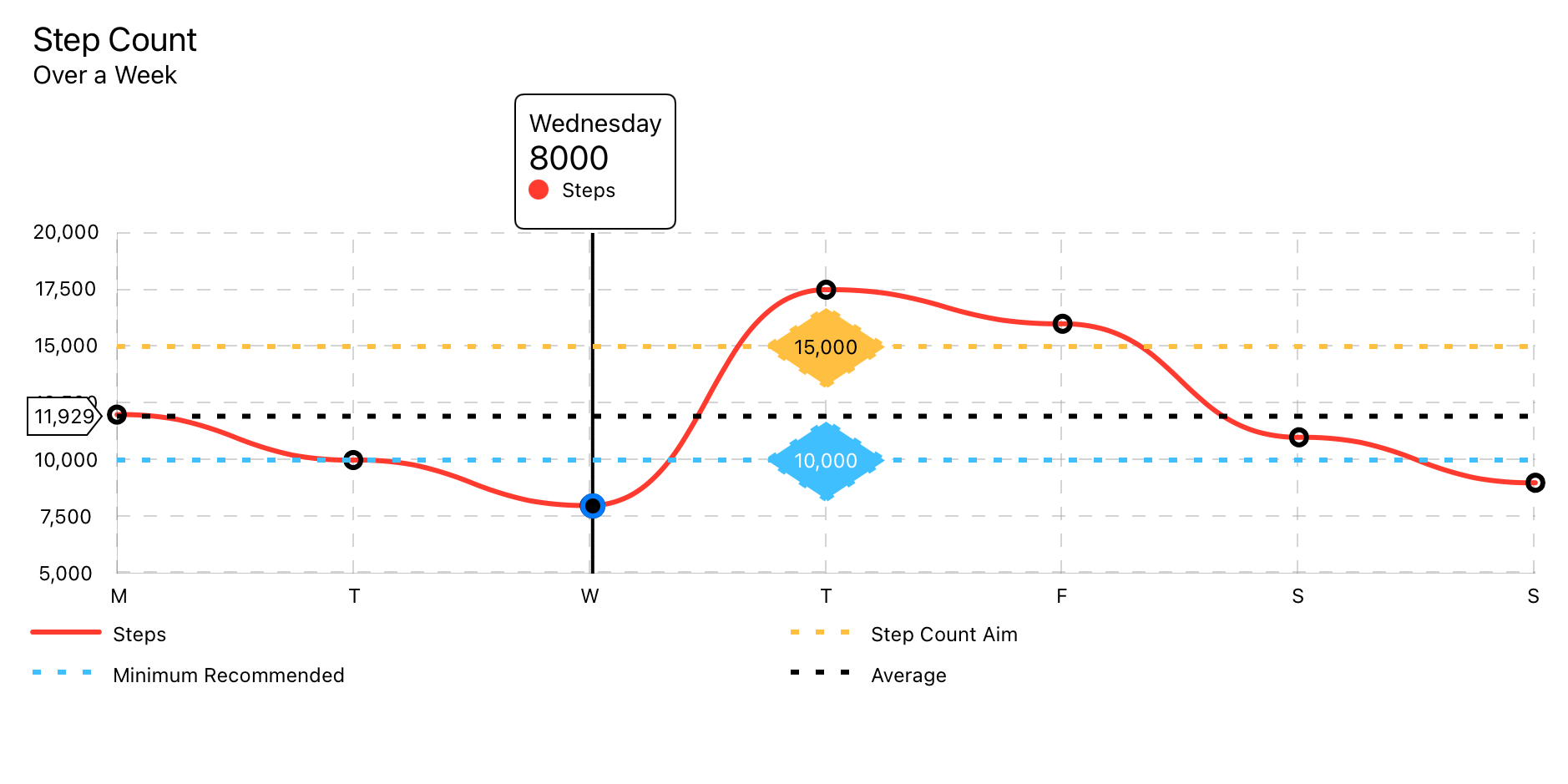
使用LineChartData數據模型。
LineChart ( chartData : LineChartData ) 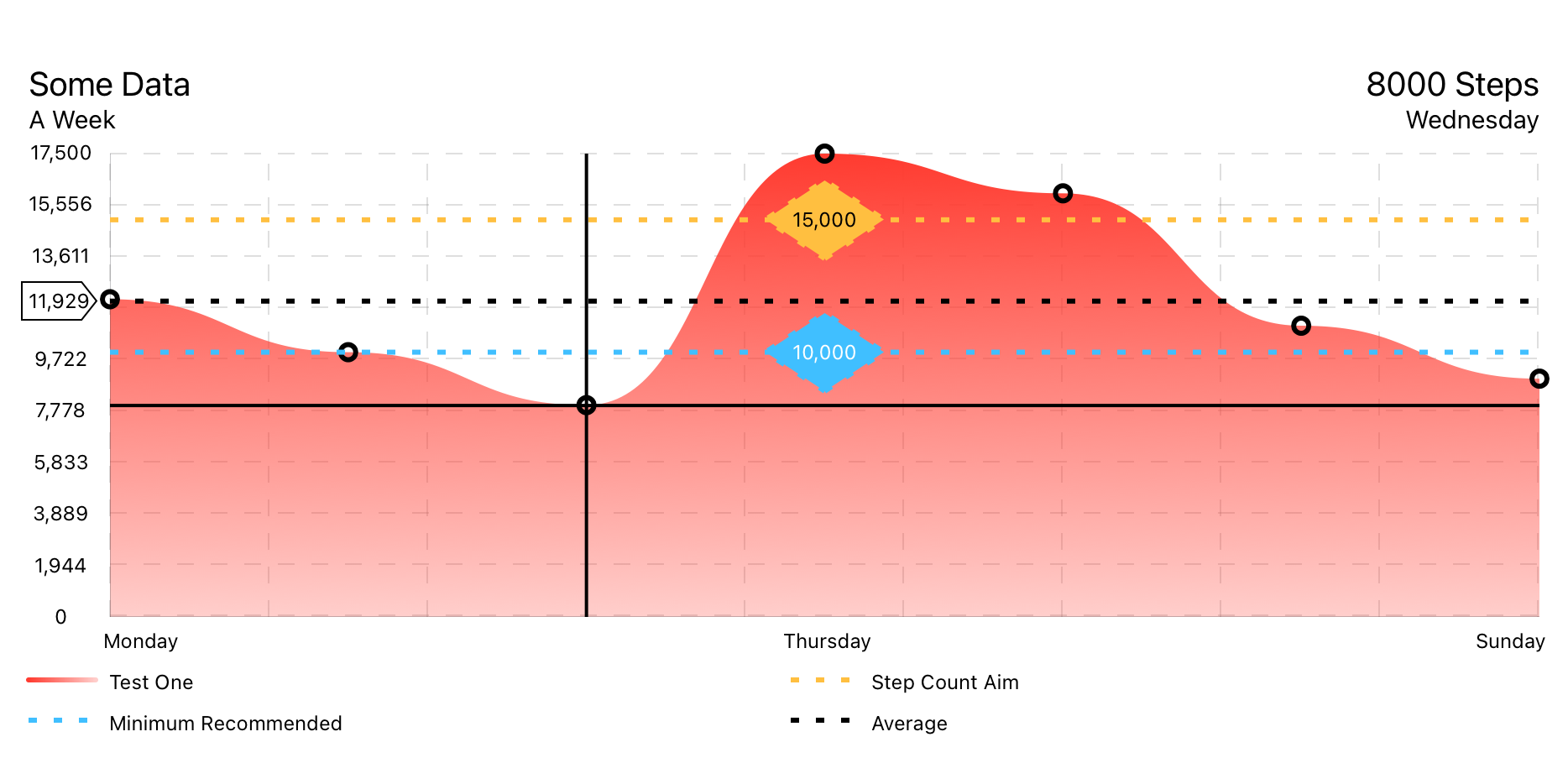
使用LineChartData數據模型。
FilledLineChart ( chartData : LineChartData ) 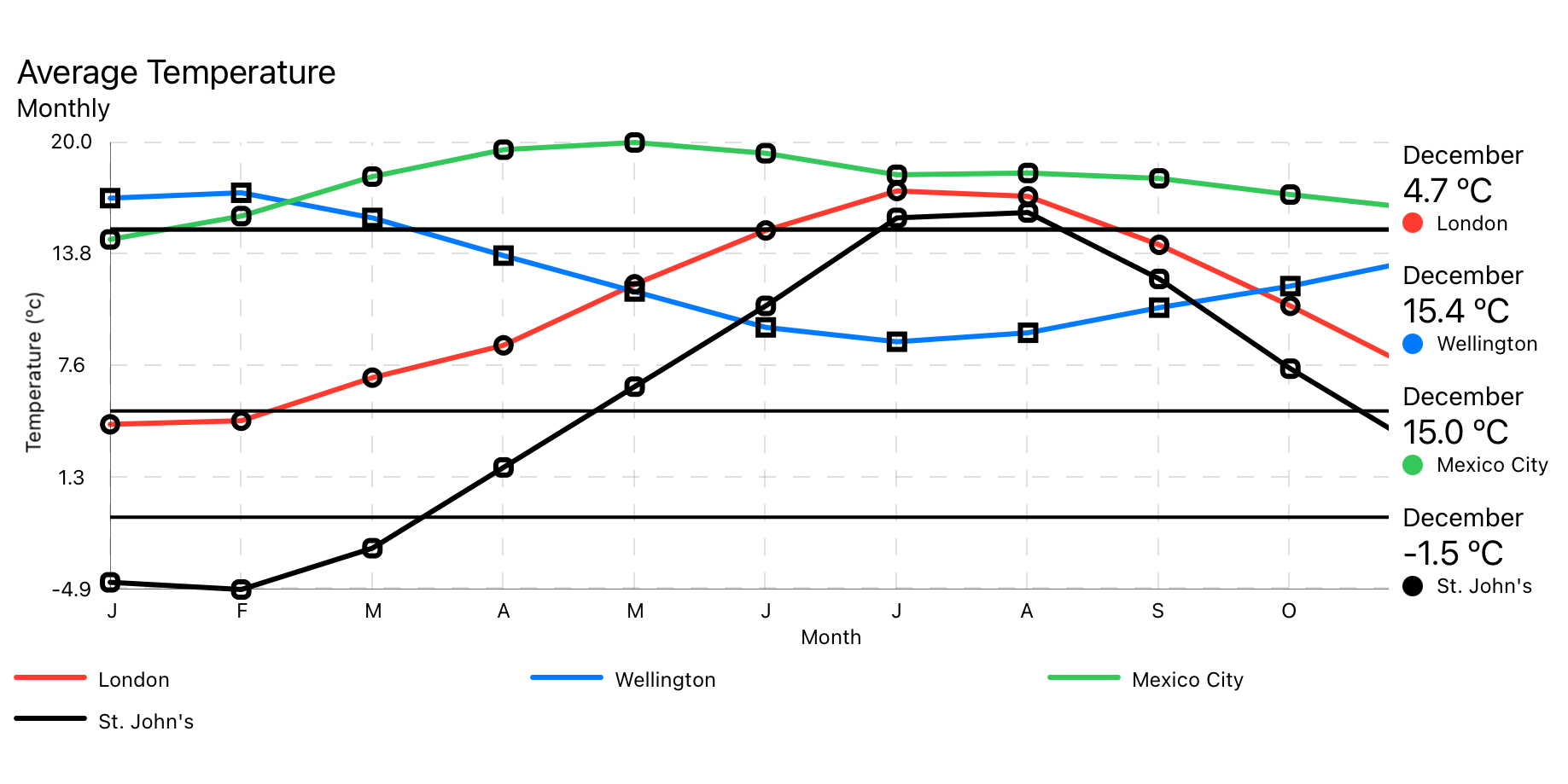
使用MultiLineChartData數據模型。
MultiLineChart ( chartData : MultiLineChartData ) 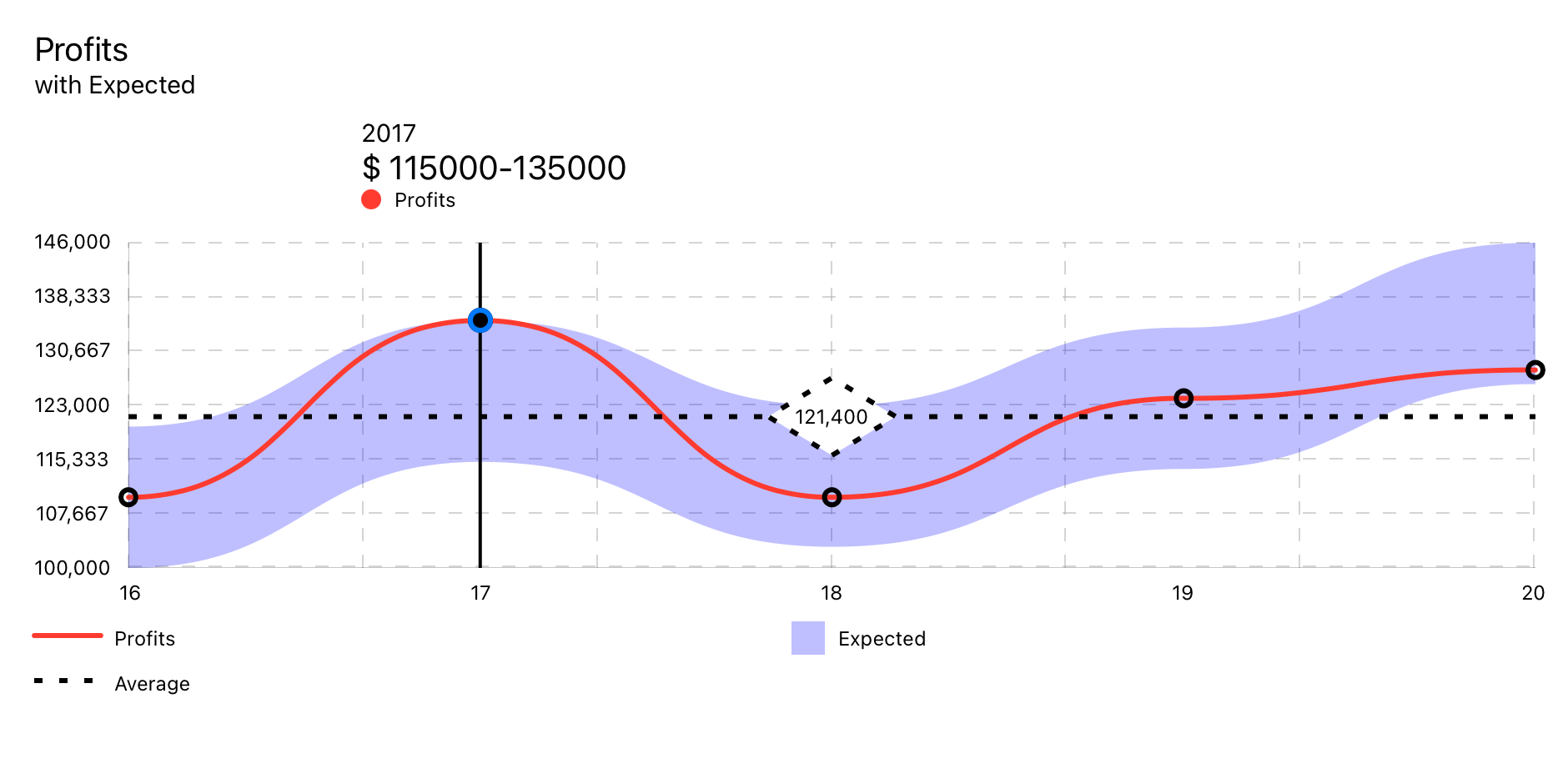
使用RangedLineChart數據模型。
RangedLineChart ( chartData : RangedLineChartData )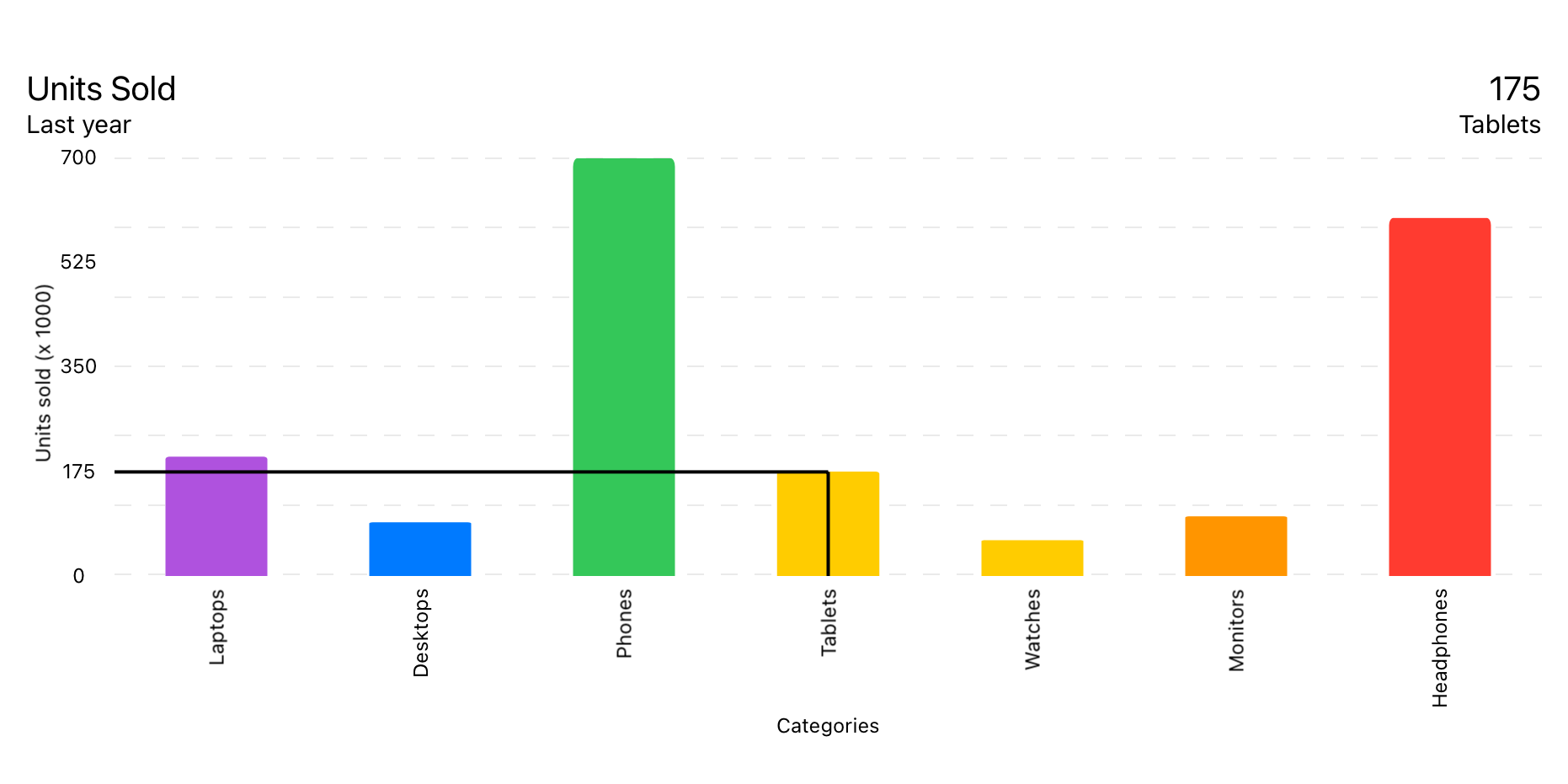
使用BarChartData數據模型。
BarChart ( chartData : BarChartData ) 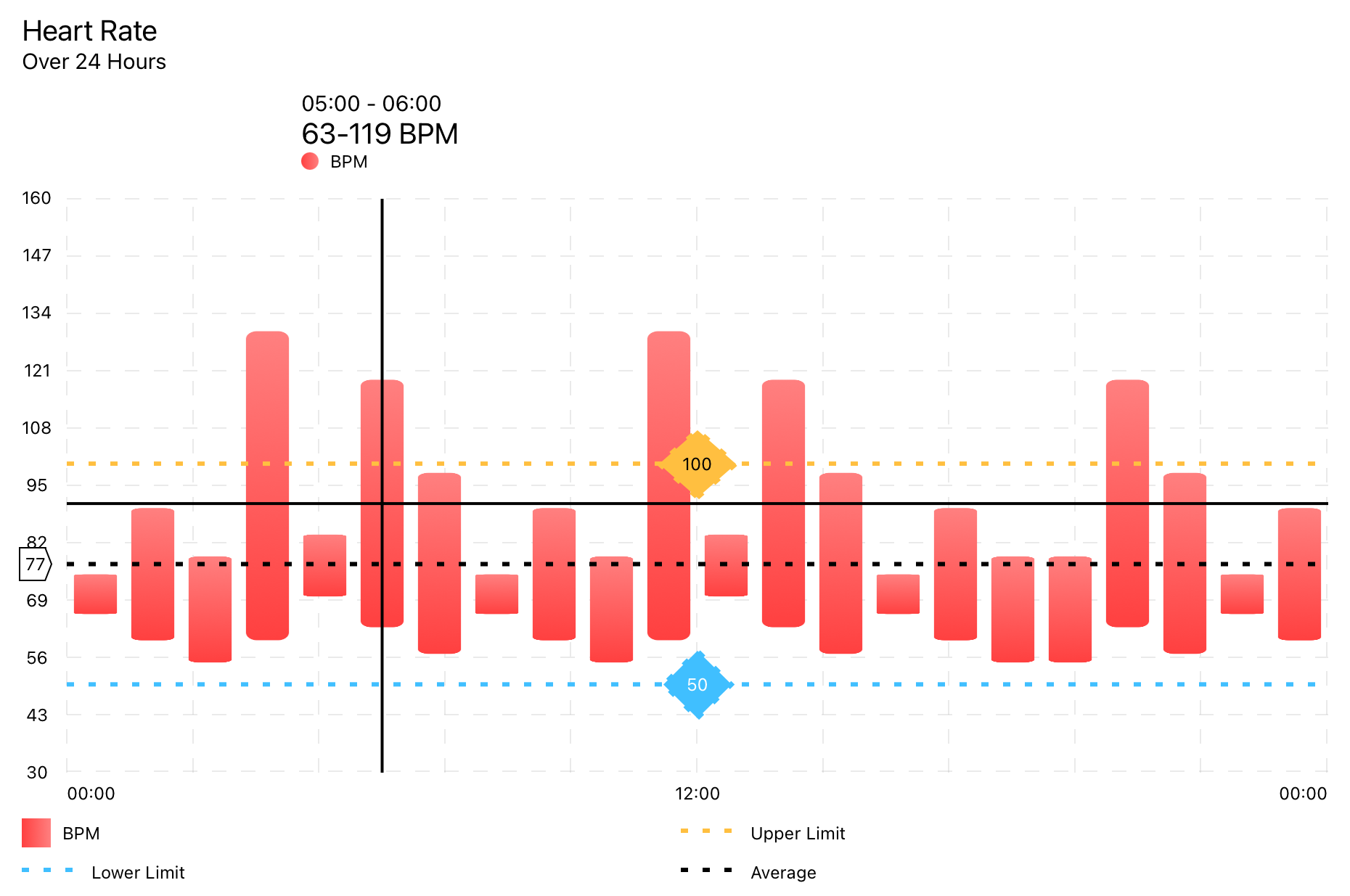
使用RangedBarChartData數據模型。
RangedBarChart ( chartData : RangedBarChartData ) 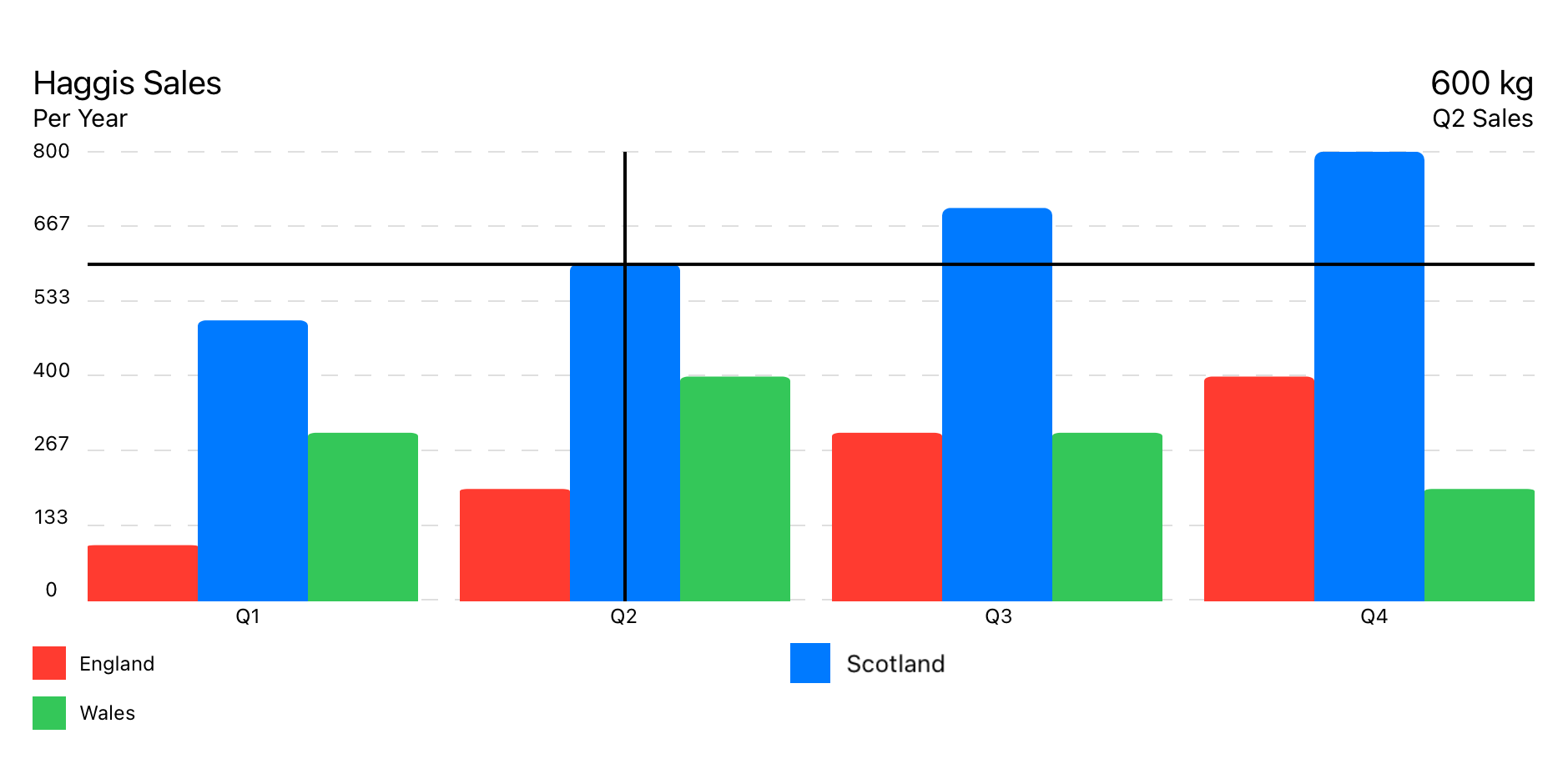
使用GroupedBarChartData數據模型。
GroupedBarChart ( chartData : GroupedBarChartData ) 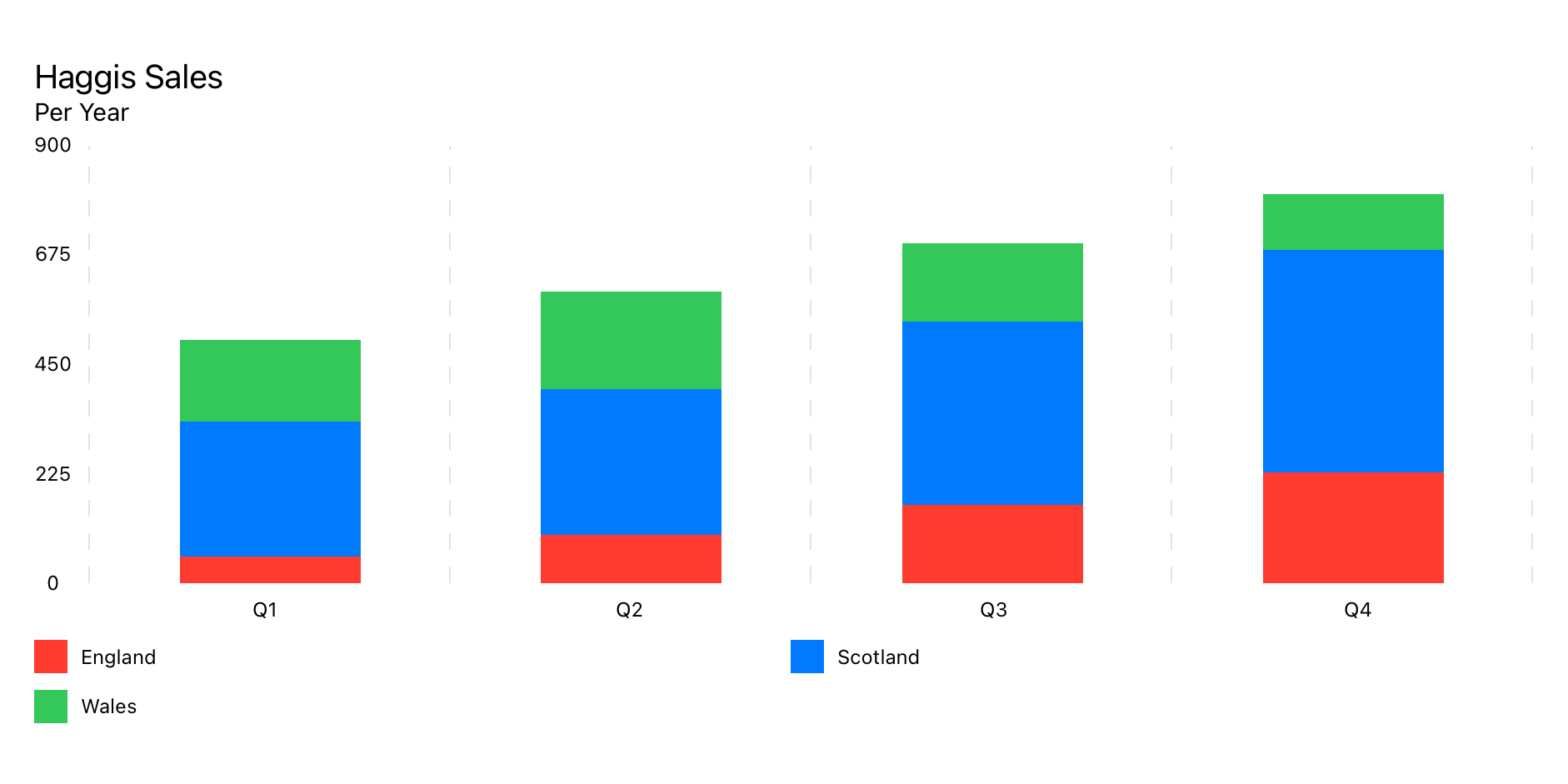
使用StackedBarChartData數據模型。
StackedBarChart ( chartData : StackedBarChartData )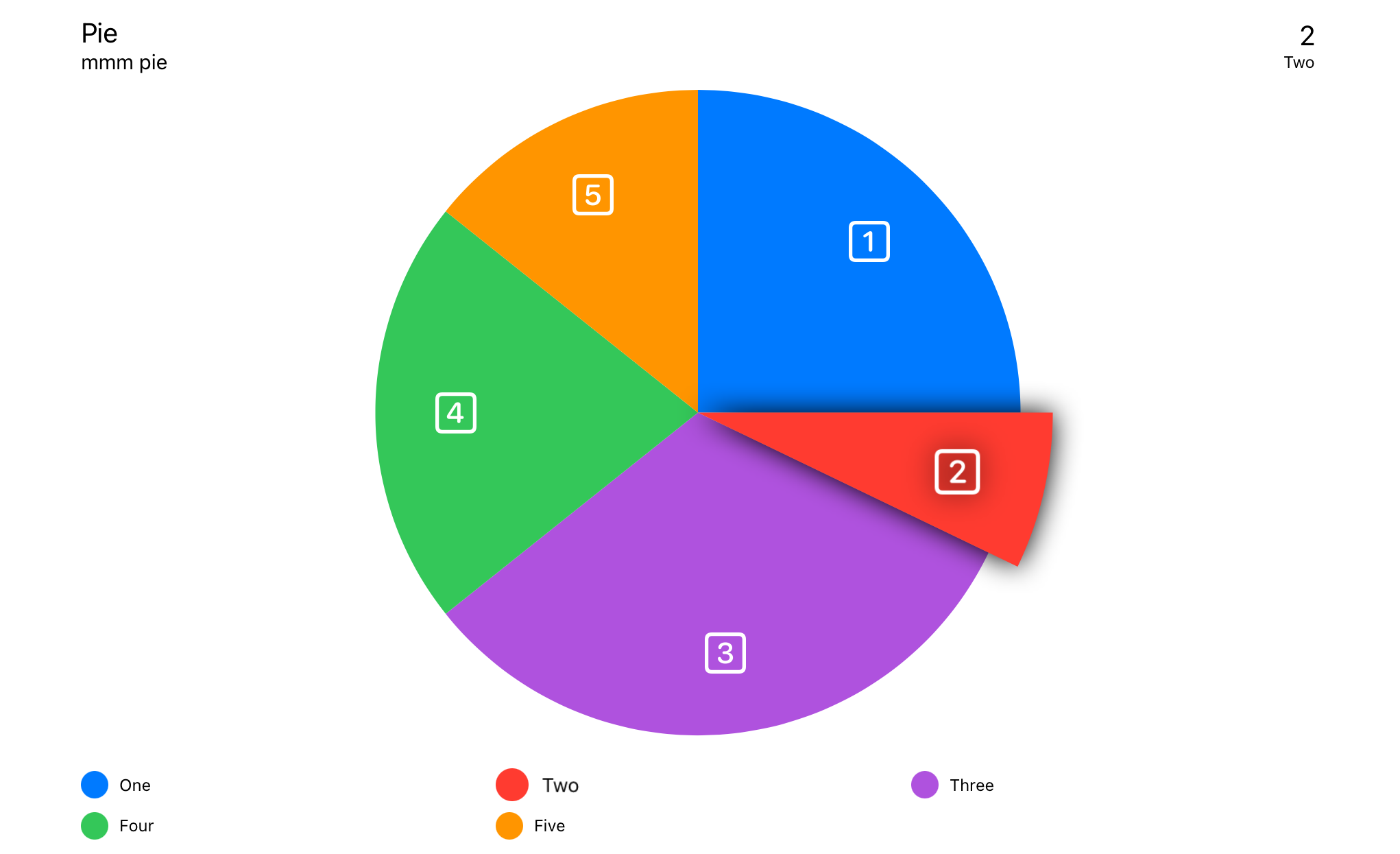
使用PieChartData數據模型。
PieChart ( chartData : PieChartData ) 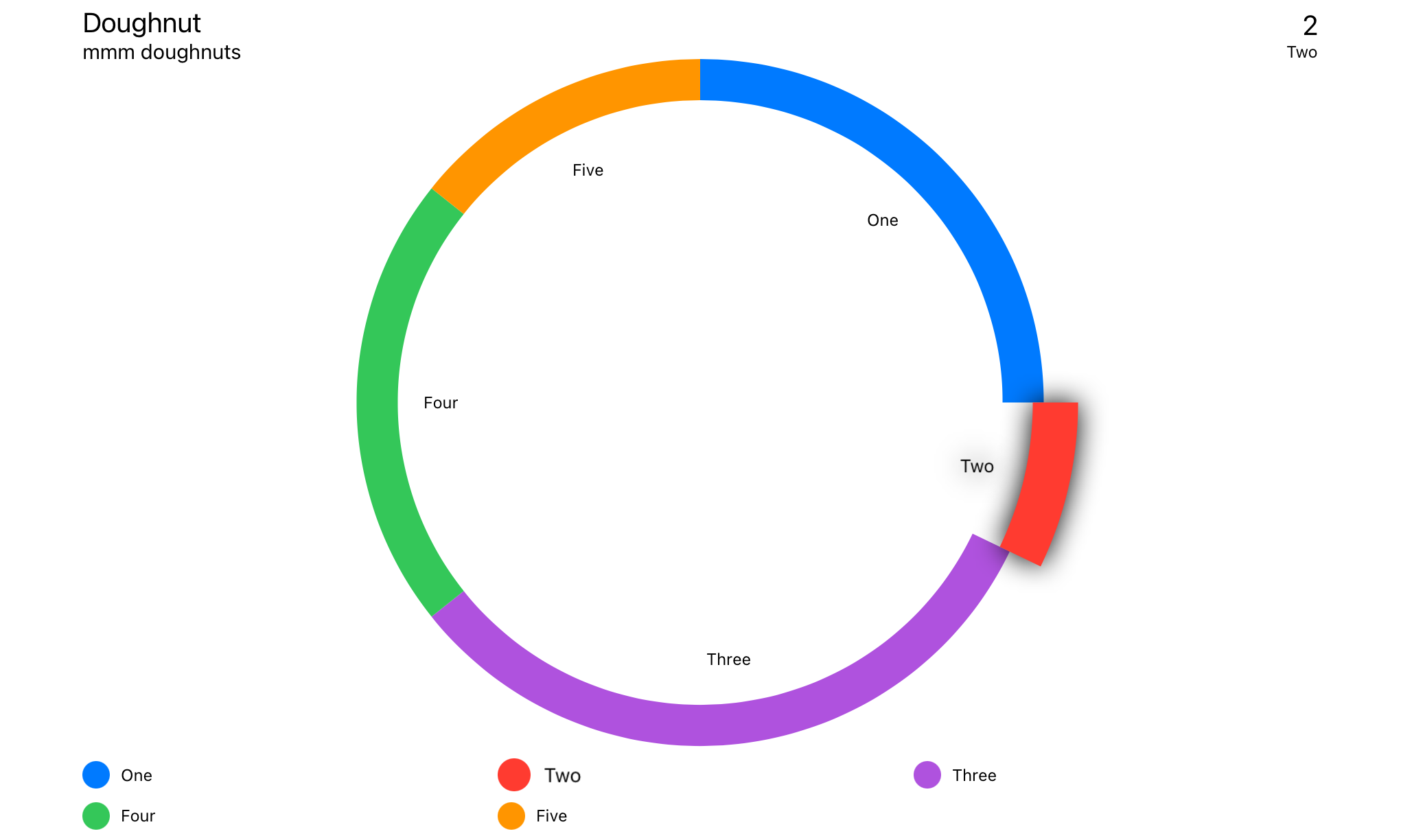
使用DoughnutChartData數據模型。
DoughnutChart ( chartData : DoughnutChartData ) Swift軟件包管理器
File > Swift Packages > Add Package Dependency...
import SwiftUICharts如果您在視圖無法正確更新時遇到麻煩,請在視圖中添加.id() 。
 LineChart ( chartData : LineChartData )
. id ( LineChartData . id ) 觸摸覆蓋
信息框
浮動信息框
標題盒
傳奇
平均線
y軸的興趣點
X軸網格
y軸網格
X軸標籤
Y軸標籤
線性趨勢線
點標記
視圖修飾符的順序是重要的,因為修飾符是圍繞先前視圖的各種類型的堆棧。
從指針觸摸中檢測輸入。找到最近的數據點並在指定的情況下顯示相關信息。
信息框的位置設置在ChartStyle -> infoBoxPlacement中。
. touchOverlay ( chartData : CTChartData , specifier : String , unit : TouchUnit )圖表數據中的設置 - >圖表樣式
如果將InfoBoxPlacement設置為.infoBox ,則顯示觸摸覆蓋的信息。
信息框的位置設置在ChartStyle -> infoBoxPlacement中。
. infoBox ( chartData : CTChartData )如果將InfoBoxPlacement設置為.floating則顯示觸摸覆蓋的信息。
信息框的位置設置在ChartStyle -> infoBoxPlacement中。
. floatingInfoBox ( chartData : CTChartData )顯示有關圖表的元數據,在Chart Data -> ChartMetadata
如果將InfoBoxPlacement設置為.header ,則顯示觸摸覆蓋的信息。
信息框的位置設置在ChartStyle -> infoBoxPlacement中。
. headerBox ( chartData : CTChartData ) 顯示傳奇。
. legends ( )在每個數據點上列出標記。
在所有數據點的平均值上顯示標記線。
 . averageLine ( chartData : CTLineBarChartDataProtocol ,
             markerName : " Average " ,
             labelPosition : . yAxis ( specifier : " %.0f " ) ,
             lineColour : . primary ,
strokeStyle : StrokeStyle ( lineWidth : 3 , dash : [ 5 , 10 ] ) )可配置的興趣點
 . yAxisPOI ( chartData : CTLineBarChartDataProtocol ,
          markerName : " Marker " ,
          markerValue : 123 ,
          labelPosition : . center ( specifier : " %.0f " ) ,
          labelColour : Color . black ,
          labelBackground : Color . orange ,
          lineColour : Color . orange ,
strokeStyle : StrokeStyle ( lineWidth : 3 , dash : [ 5 , 10 ] ) )沿X軸添加垂直線。
. xAxisGrid ( chartData : CTLineBarChartDataProtocol ) ChartData -> ChartStyle 。
沿Y軸添加水平線。
. yAxisGrid ( chartData : CTLineBarChartDataProtocol ) ChartData -> ChartStyle 。
X軸的標籤。
. xAxisLabels ( chartData : CTLineBarChartDataProtocol ) ChartData -> ChartStyle 。
自動生成Y軸的標籤
. yAxisLabels ( chartData : CTLineBarChartDataProtocol , specifier : " %.0f " ) ChartData -> ChartStyle 。
yaxislabeltype:
case numeric // Auto generated, numeric labels.
case custom // Custom labels array自定義是從ChartData -> yAxisLabels設置的
圖表上的一條線以顯示數據的趨勢。
 . linearTrendLine ( chartData : CTLineBarChartDataProtocol ,
                 firstValue : Double ,
                 lastValue : Double ,
                 lineColour : ColourStyle ,
strokeStyle : StrokeStyle )在每個數據點上列出標記。
. pointMarkers ( chartData : CTLineChartDataProtocol ) Data Set -> PointStyle中的設置。
在Filllinechart的頂部添加了一條獨立的行。
 . filledTopLine ( chartData : LineChartData ,
               lineColour : ColourStyle ,
               strokeStyle : StrokeStyle )
允許使用半透明填充的數據點上的硬線。
 struct LineChartDemoView : View {

    let data : LineChartData = weekOfData ( )

    var body : some View {
        VStack {
            LineChart ( chartData : data )
                . pointMarkers ( chartData : data )
                . touchOverlay ( chartData : data , specifier : " %.0f " )
                . yAxisPOI ( chartData : data ,
                          markerName : " Step Count Aim " ,
                          markerValue : 15_000 ,
                          labelPosition : . center ( specifier : " %.0f " ) ,
                          labelColour : Color . black ,
                          labelBackground : Color ( red : 1.0 , green : 0.75 , blue : 0.25 ) ,
                          lineColour : Color ( red : 1.0 , green : 0.75 , blue : 0.25 ) ,
                          strokeStyle : StrokeStyle ( lineWidth : 3 , dash : [ 5 , 10 ] ) )
                . yAxisPOI ( chartData : data ,
                          markerName : " Minimum Recommended " ,
                          markerValue : 10_000 ,
                          labelPosition : . center ( specifier : " %.0f " ) ,
                          labelColour : Color . white ,
                          labelBackground : Color ( red : 0.25 , green : 0.75 , blue : 1.0 ) ,
                          lineColour : Color ( red : 0.25 , green : 0.75 , blue : 1.0 ) ,
                          strokeStyle : StrokeStyle ( lineWidth : 3 , dash : [ 5 , 10 ] ) )
                . averageLine ( chartData : data ,
                             strokeStyle : StrokeStyle ( lineWidth : 3 , dash : [ 5 , 10 ] ) )
                . xAxisGrid ( chartData : data )
                . yAxisGrid ( chartData : data )
                . xAxisLabels ( chartData : data )
                . yAxisLabels ( chartData : data )
                . infoBox ( chartData : data )
                . headerBox ( chartData : data )
                . legends ( chartData : data , columns : [ GridItem ( . flexible ( ) ) , GridItem ( . flexible ( ) ) ] )
                . id ( data . id )
                . frame ( minWidth : 150 , maxWidth : 900 , minHeight : 150 , idealHeight : 250 , maxHeight : 400 , alignment : . center )
        }
        . navigationTitle ( " Week of Data " )
    }

    static func weekOfData ( ) -> LineChartData {
        let data = LineDataSet ( dataPoints : [
            LineChartDataPoint ( value : 12000 , xAxisLabel : " M " , description : " Monday " ) ,
            LineChartDataPoint ( value : 10000 , xAxisLabel : " T " , description : " Tuesday " ) ,
            LineChartDataPoint ( value : 8000 ,  xAxisLabel : " W " , description : " Wednesday " ) ,
            LineChartDataPoint ( value : 17500 , xAxisLabel : " T " , description : " Thursday " ) ,
            LineChartDataPoint ( value : 16000 , xAxisLabel : " F " , description : " Friday " ) ,
            LineChartDataPoint ( value : 11000 , xAxisLabel : " S " , description : " Saturday " ) ,
            LineChartDataPoint ( value : 9000 ,  xAxisLabel : " S " , description : " Sunday " )
        ] ,
        legendTitle : " Steps " ,
        pointStyle : PointStyle ( ) ,
        style : LineStyle ( lineColour : ColourStyle ( colour : . red ) , lineType : . curvedLine ) )

        let metadata   = ChartMetadata ( title : " Step Count " , subtitle : " Over a Week " )

        let gridStyle  = GridStyle ( numberOfLines : 7 ,
                                   lineColour   : Color ( . lightGray ) . opacity ( 0.5 ) ,
                                   lineWidth    : 1 ,
                                   dash         : [ 8 ] ,
                                   dashPhase    : 0 )

        let chartStyle = LineChartStyle ( infoBoxPlacement    : . infoBox ( isStatic : false ) ,
                                        infoBoxBorderColour : Color . primary ,
                                        infoBoxBorderStyle  : StrokeStyle ( lineWidth : 1 ) ,

                                        markerType          : . vertical ( attachment : . line ( dot : . style ( DotStyle ( ) ) ) ) ,

                                        xAxisGridStyle      : gridStyle ,
                                        xAxisLabelPosition  : . bottom ,
                                        xAxisLabelColour    : Color . primary ,
                                        xAxisLabelsFrom     : . dataPoint ( rotation : . degrees ( 0 ) ) ,

                                        yAxisGridStyle      : gridStyle ,
                                        yAxisLabelPosition  : . leading ,
                                        yAxisLabelColour    : Color . primary ,
                                        yAxisNumberOfLabels : 7 ,

                                        baseline            : . minimumWithMaximum ( of : 5000 ) ,
                                        topLine             : . maximum ( of : 20000 ) ,

                                        globalAnimation     : . easeOut ( duration : 1 ) )

        return LineChartData ( dataSets       : data ,
                             metadata       : metadata ,
                             chartStyle     : chartStyle )

    }
}內部某些元素是其他標籤,以幫助描述配音圖表。
查看可訪問性的本地化
所有標籤都支持本地化。但是,有一些隱藏的標籤可以支持配音。查看可訪問性的本地化
請參閱演示項目中的本地化演示。
當用戶觸摸最接近數據點的區域時,語音對數據點的描述。配音將說<chart title>, <data point value>, <data point description> 。
" %@ <local_description_of_a_data_point> " = " %@, <Description of a data point> " ;在poiMarker之前讀出。配音會說<poi marker>, <marker legend title>, <marker value> 。
 " P-O-I-Marker " = " P O I Marker " ;
" Average " = " Average " ;聲音超過了對poiMarker的描述。配音會說<POI-Marker>, <marker legend title>, <marker value> 。
" <local_marker_legend_title> %@ " = " local_marker_legend_title, %@ " ;在axisLabel之前讀出。畫外音會說<axisLabel>, <marker value> 。
 "X-Axis-Label" = "X Axis Label";
"Y-Axis-Label" = "Y Axis Label";
在legend之前讀出。配音會說<chart type legend>, <legend title> 。
 " Line-Chart-Legend " = " Line Chart Legend " ;
" P-O-I-Marker-Legend " = " P O I Marker Legend " ;
" Bar-Chart-Legend " = " Bar Chart Legend " ;
" P-O-I-Marker-Legend " = " P O I Marker Legend " ;
" Pie-Chart-Legend " = " Pie Chart Legend " ;
" P-O-I-Marker-Legend " = " P O I Marker Legend " ;




