Yazelix v5
Overview
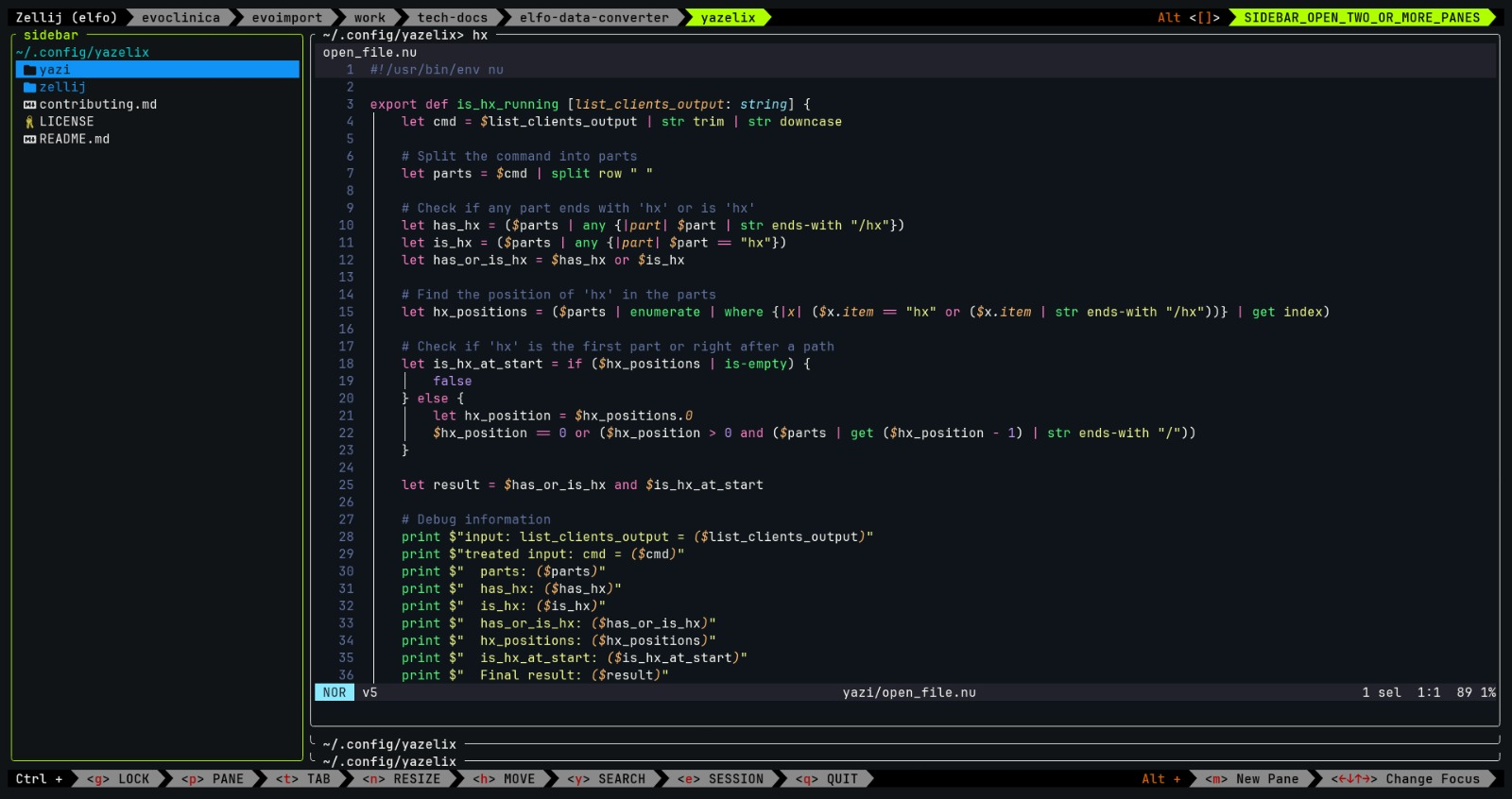
Yazelix integrates yazi, zellij and helix, hence the name, get it?
- Zellij orchestrates everything, with yazi as a sidebar and helix as the editor
- You can open and close the sidebar by switching zellij layouts (press
alt ] and alt [)
- Or if you only got one pane open, make it fullscreen (
ctrl p + f or alt f)
- Every keybinding from zellij that conflicts with helix is remapped (see them at the bottom)
- When you hit enter on a file/folder in the "sidebar" the following things happen:
- If helix is already open, in a pane next to the sidebar, it will open that file/folder in a new buffer on that pane (magic)
- If helix is not open, it will cd into the folder of the file (or the folder itself), and then open it in helix
- Note: It is highly recommended that you let the shell script execute in peace, so during these milliseconds don't move around
- This project holds my config files for zellij and yazi, almost like a plugin or something
- But it's just some config files with a bit of shell scripting!
Preview
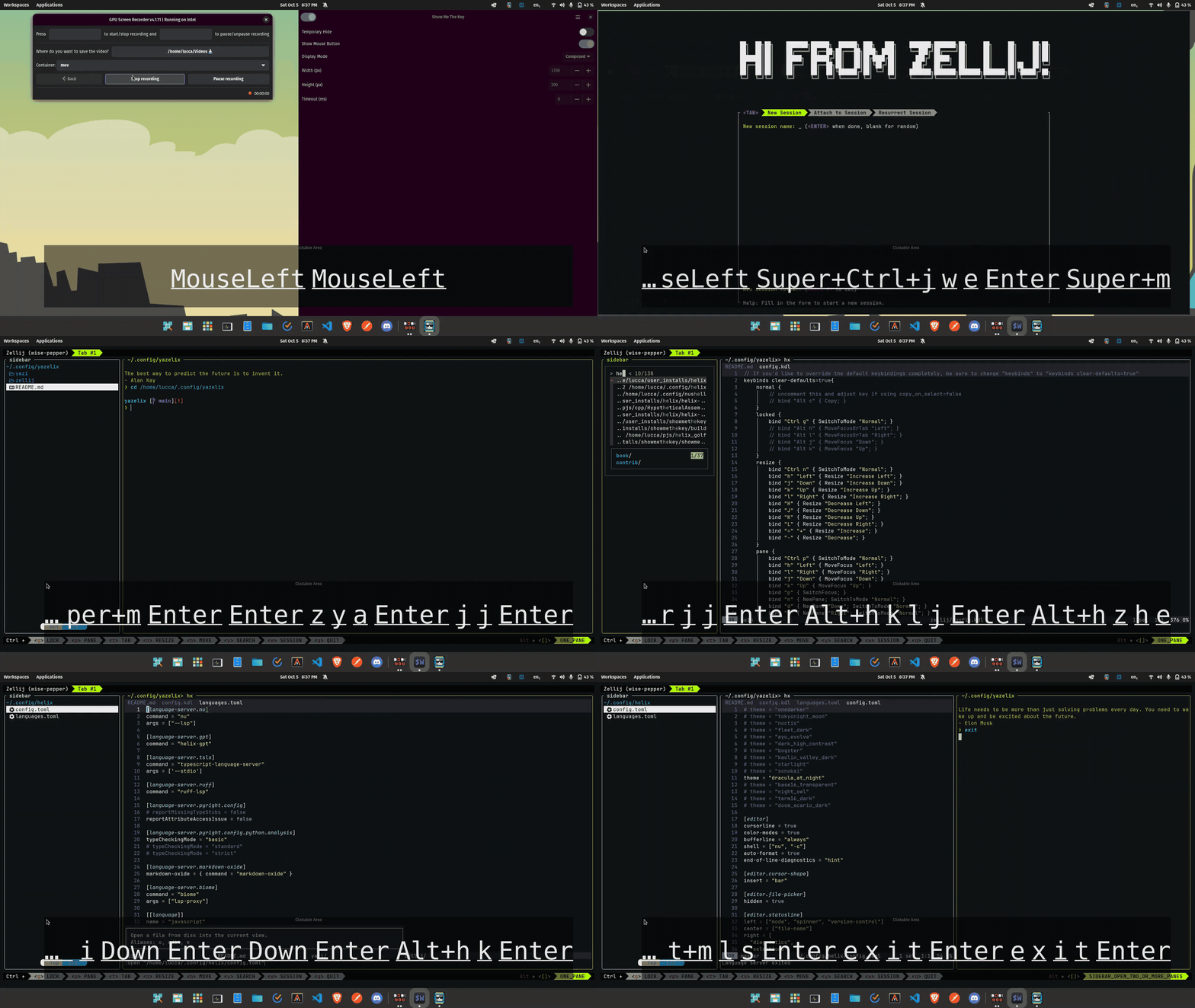
Improvements of v5 over v4.1
- Now when you open a new pane besides the sidebar pane, it will stack by default, focusing on full panes, instead of splits
- Change zellij tab name automatically to the dir from the file you open from yazi
- The two changes above allow you to focus much more on using a tab per project! So that every tab has a dir of their own.
- This helps you to visually and mentally know what each tab is doing.
- Now if you want to open a split, you can still do so like this:
- Type
ctrl p then r for a split to the right
- Type
ctrl p then d for a split in the "down" direction
- New rule IMPORTANT: to open a file from yazi into an existing yazelix buffer, the hx plane has to be the topmost of the stack (or a single pane with no stack), otherwise it will open a new helix instance
- If your helix pane is not the topmost, just press
ctrl h and move it up with k
- Important fix: Remapped keybindings were previously lost when attaching to a session or ressurrecting
- Important fix: #17 Failed to check if the command running in the current pane is helix
- fix: re-added move tab bindings. They were removed previously and now they work on tab mode
- Added a license
Instructions to set it up
-
Make sure yazi, zellij, helix, and nushell are installed and in your path
-
Just clone this repo in your ~/.config dir
-
Configure WezTerm:
a. Create or open your ~/.wezterm.lua file
b. Add the following content:
-- Pull in the wezterm API
local wezterm = require 'wezterm'
-- This will hold the configuration.
local config = wezterm.config_builder()
-- This is where you actually apply your config choices
-- For example, changing the color scheme:
config.color_scheme = 'Abernathy'
-- Spawn a nushell shell in login mode
config.default_prog = { 'nu', '-c', "zellij -l welcome --config-dir ~/.config/yazelix/zellij options --layout-dir ~/.config/yazelix/zellij/layouts" }
-- Others
config.hide_tab_bar_if_only_one_tab = true
config.window_decorations = "NONE"
-- and finally, return the configuration to wezterm
return config
Notes:
- For extra configuration, visit: https://wezfurlong.org/wezterm/config/files.html
- If you use another shell, you have to configure it to run something like
nu -c "zellij -l welcome --config-dir ~/.config/yazelix/zellij options --layout-dir ~/.config/yazelix/zellij/layouts" on startup
- or
zellij -l welcome --config-dir ~/.config/yazelix/zellij options --layout-dir ~/.config/yazelix/zellij/layout (but you still need nu anyways)
- Another option, if you wish, run this command manually every time you open yazelix
- The recommended shell is Wezterm though. More on that in the Notes section below
- Optional: Using zoxide enhances the yazelix experience ten-fold, let me tell ya... and it integrates with yazi
That's it, and feel free to open issues and PRs
Why use this project?
- This project is relatively simple to understand, the inner workings and all. Just a bit of shell scripting magic, but mostly config files
- Easy to configure and make it yours
- I daily drive this, and will change it according to my needs, keeping it updated and improving it
- Zero conflict keybindings, very powerful sidebar (learning yazi is a process, but you can do very cool stuff)
Troubleshooting
- If it's not working, try upgrading yazi and zellij to the latest version
Possible Improvements
- Yazelix will only detect helix if it's adjacent to the sidebar. A minor thing.
- When you open a new tab, yazi opens as single pane taking all space
- But it does not show the parents and preview columns, it only shows the current dir column
- To address this I would have to reopen yazi with a different config?
Keybinding remaps
| New Zellij Keybinding |
Previous Keybinding |
Helix Action that uses that previous key |
Zellij Action remapped |
| Ctrl e |
Ctrl o |
jump_backward |
SwitchToMode "Session" |
| Ctrl y |
Ctrl s |
save_selection |
SwitchToMode "Scroll" |
| Alt w |
Alt i |
shrink_selection |
MoveTab "Left" |
| Alt q |
Alt o |
expand_selection |
MoveTab "Right" |
| Alt m |
Alt n |
select_next_sibling |
NewPane |
| Alt 2 |
Ctrl b |
move_page_up |
SwitchToMode "Tmux" |
If you find a conflict, please open an issue. Keep in mind, though, that compatibility with tmux mode is not a goal of this project.
Discoverability of keybindings
- zellij: zellij is great at this, works out of the box, you'll visually see all the keybindings in the status-bar
- helix: helix is the same honestly
- yazi: There is only one keybinding to remember:
~ This shows all keybindings and commands (press alt f to make the yazi pane fullscreen)
- nushell: you can run
tutor on nushell, you can read the https://www.nushell.sh/book/, you can run help commands | find regex (if you want to learn about regex for example, but could be anything)
- well, I do use
ctrl r a lot in nushell, it opens a interactive history search
Keybindings tips
- Zellij: Type
alt f to make your pane fullscreen (and back)
- Zellij: Type
ctrl p then r for a split to the right
- Zellij: Type
ctrl p then d for a split in the "down" direction
- Yazi: Type
z to use zoxide (fuzzy find to known paths)
- Yazi: Type
Z to use fzf (fuzzy find to unknown paths)
- Yazi: Type
SPACE to select files
- Yazi: Type
y to yank and Y to unyank (cancels the copy)
- Yazi: Type
x to cut and X to uncut (cancels the cut)
- Yazi: Type
a to add a file (filename.ext) or a folder (foldername/)
Tips
- You can add more swap layouts as needed, using the KDL files in
layouts.
- I recommend using wezterm as your terminal
- because it can be configured to remove its native tabs, very extensible, including its keybindings (haven't found a conflict yet)
- very performant
- If you test this with nvim and it works, let me know (see the issue here)
- Special thanks to yazi's, zellij's and helix's contributors/maintainers!
- Yazi's author graciously contributed some lua code to make yazi's status bar look awesome in the small width of a sidebar
- If you accidentaly close the sidebar, you can get it back with
env YAZI_CONFIG_HOME=~/.config/yazelix/yazi/sidebar yazi
Im lost, it's too much information
In this case, learn how to use zellij on it's own first. And then optionally yazi. And then re-read the readme.
Contributing to Yazelix
See here in contributing
Similar projects
- File tree picker in Helix with Zellij
- Yazi can be used as a file picker to browse and open file(s) in your current Helix instance (running in a Zellij session)







