mavonEditor
v3.0.1

| Vue2 | |
|---|---|
| Vue3 |
Demo for jsfiddle
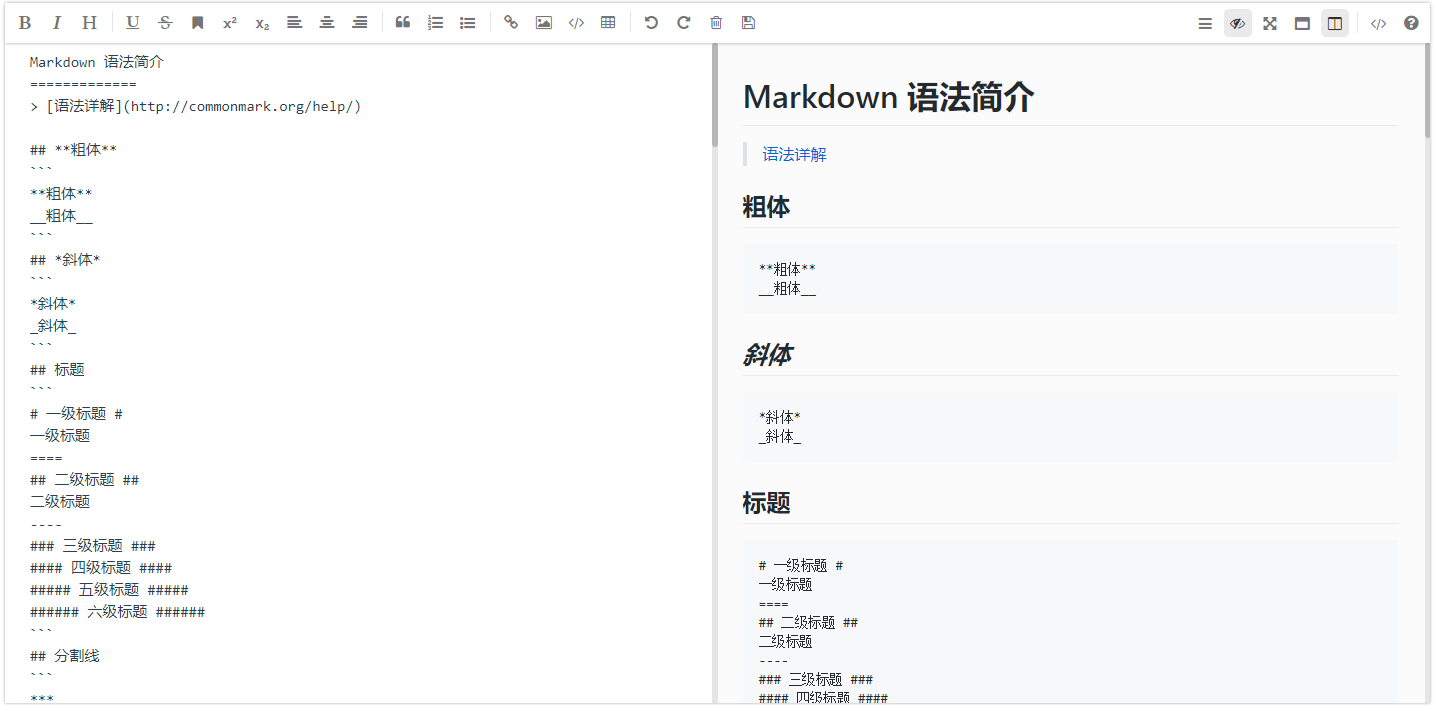
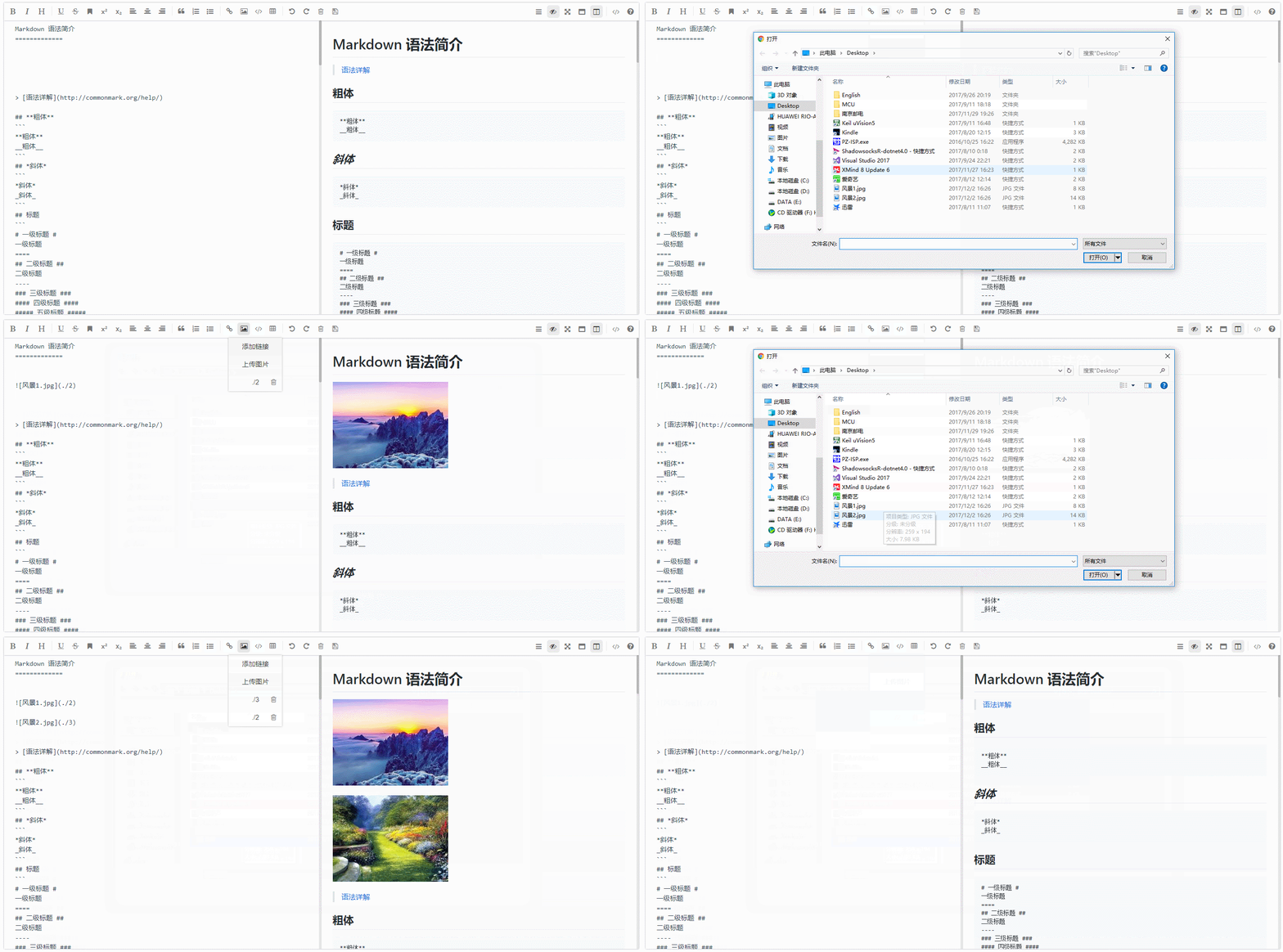
To view more pictures click here...
$ npm install mavon-editor --save
index.js :
    // 全局注册
    // import with ES6
    import Vue from 'vue'
    import mavonEditor from 'mavon-editor'
    import 'mavon-editor/dist/css/index.css'
    // use
    Vue . use ( mavonEditor )
    new Vue ( {
        'el' : '#main' ,
        data ( ) {
            return { value : '' }
        }
    } )
index.html
 < div id =" main " >
    < mavon-editor v-model =" value " />
</ div >First, create vue-mavon-editor.js in the project directory plugins
 import Vue from 'vue';
import mavonEditor from 'mavon-editor';
import 'mavon-editor/dist/css/index.css';

Vue.use(mavonEditor);
Then add plugins configuration in nuxt.config.js
  plugins : [
  ...
    { src : '@/plugins/vue-mavon-editor' , ssr : false }
  ] ,
The last step is to introduce it in the page or component
< template >
  < div class = " mavonEditor " >
    < no-ssr >
      < mavon-editor :toolbars = " markdownOption " v-model = " handbook " />
    </ no-ssr >
  </ div >
</ template >
< script >
export default {
  data () {
    return {
      markdownOption : {
        bold : true , // 粗体
        ... // 更多配置
      },
      handbook : " #### how to use mavonEditor in nuxt.js "
    };
  }
};
</ script >

< style scoped>
.mavonEditor {
  width : 100 % ;
  height : 100 % ;
}
</ style >
For more introduction methods click here...
How to get and set a markdown-it object...
| name name | type type | default default value | describe description |
|---|---|---|---|
| value | String | Initial value | |
| language | String | zh-CN | Language selection, temporarily supports zh-CN: Simplified Chinese, zh-TW: Oral Chinese, en: English, fr: French, pt-BR: Portuguese, ru: Russian, de: German, ja: Japanese |
| fontSize | String | 14px | Edit area text size |
| scrollStyle | Boolean | true | Turn on scrollbar style (only support chrome for the time being) |
| boxShadow | Boolean | true | Turn on border shadow |
| boxShadowStyle | String | 0 2px 12px 0 rgba(0, 0, 0, 0.1) | Border shadow style |
| Transition | Boolean | true | Whether to enable transition animation |
| toolbarsBackground | String | #ffffff | Toolbar background color |
| previewBackground | String | #fbfbfb | Preview box background color |
| subfield | Boolean | true | true: double columns (edit preview same screen), false: single columns (edit preview split screen) |
| defaultOpen | String | The default display area is displayed when in a single column ( subfield=false ).edit: The edit area is displayed by default. preview: default display preview area other = edit | |
| placeholder | String | Start editing... | Default prompt text when the input box is empty |
| editable | Boolean | true | Whether to allow editing |
| codeStyle | String | code-github | markdown style: default github, optional color scheme |
| toolbarsFlag | Boolean | true | Whether the toolbar is displayed |
| navigation | Boolean | false | Default display directory |
| shortCut | Boolean | true | Whether to enable shortcut keys |
| autofocus | Boolean | true | Automatic focus to text box |
| ishljs | Boolean | true | Code highlighted |
| imageFilter | function | null | The image filtering function has a File Object parameter, requiring a Boolean to be returned. true means the file is legal, and false means the file is illegal. |
| imageClick | function | null | Image click event, default is preview, can be overridden |
| tabSize | Number | t | The default is t |
| html | Boolean | true | Enable HTML tags. This tag has always defaulted to true due to historical reasons, but it is recommended to close it without using HTML tags. It can completely eliminate security issues. |
| xssOptions | Object | {} | xss rule configuration, enabled by default, set false to turn off. After enabled, HTML tags will be filtered, and all HTML tag attributes will be filtered by default. It is recommended to configure whitelists on demand to reduce the possibility of being attacked. - Custom rule reference: https://jsxss.com/zh/options.html - Reference DEMO: dev-demo |
| Toolbars | Object | The following example | Toolbar |
All default toolbar buttons are enabled, and custom objects are passed in. You can choose to enable some buttons.
 /*
  例如: {
      bold: true, // 粗体
      italic: true,// 斜体
      header: true,// 标题
  }
  此时, 仅仅显示此三个功能键
*/
toolbars: {
    bold : true , // 粗体
    italic : true , // 斜体
    header : true , // 标题
    underline : true , // 下划线
    strikethrough : true , // 中划线
    mark : true , // 标记
    superscript : true , // 上角标
    subscript : true , // 下角标
    quote : true , // 引用
    ol : true , // 有序列表
    ul : true , // 无序列表
    link : true , // 链接
    imagelink : true , // 图片链接
    code : true , // code
    table : true , // 表格
    fullscreen : true , // 全屏编辑
    readmodel : true , // 沉浸式阅读
    htmlcode : true , // 展示html源码
    help : true , // 帮助
    /* 1.3.5 */
    undo : true , // 上一步
    redo : true , // 下一步
    trash : true , // 清空
    save : true , // 保存(触发events中的save事件)
    /* 1.4.2 */
    navigation : true , // 导航目录
    /* 2.1.8 */
    alignleft : true , // 左对齐
    aligncenter : true , // 居中
    alignright : true , // 右对齐
    /* 2.2.1 */
    subfield : true , // 单双栏模式
    preview : true , // 预览
}
If you need to customize the Add Toolbar button, you can use the following methods
 < mavon-editor >
  <!-- 左工具栏前加入自定义按钮 -->
  < template slot = "left-toolbar-before" >
    < button
      type = "button"
      @ click = "$click('test')"
      class = "op-icon fa fa-mavon-align-left"
      aria-hidden = "true"
      title = "自定义"
    > </ button >
  </ template >
  <!-- 左工具栏后加入自定义按钮  -->
  < template slot = "left-toolbar-after" >
    < button
      type = "button"
      @ click = "$click('test')"
      class = "op-icon fa fa-mavon-align-left"
      aria-hidden = "true"
      title = "自定义"
    > </ button >
  </ template >
  <!-- 右工具栏前加入自定义按钮  -->
  < template slot = "right-toolbar-before" >
    < button
      type = "button"
      @ click = "$click('test')"
      class = "op-icon fa fa-mavon-align-left"
      aria-hidden = "true"
      title = "自定义"
    > </ button >
  </ template >
  <!-- 右工具栏后加入自定义按钮  -->
  < template slot = "right-toolbar-after" >
    < button
      type = "button"
      @ click = "$click('test')"
      class = "op-icon fa fa-mavon-align-left"
      aria-hidden = "true"
      title = "自定义"
    > </ button >
  </ template >
</ mavon-editor >| name method name | params parameters | describe description |
|---|---|---|
| Change | String: value , String: render | Callback event that changes in the edit area (reender: value The result after parsing by markdown) |
| save | String: value , String: render | Callback event of ctrl + s (save the key and trigger the callback too) |
| fullScreen | Boolean: status , String: value | Toggle the callback event for full-screen editing (boolean: full-screen on state) |
| readModel | Boolean: status , String: value | Toggle the callback event of immersive reading (boolean: Reading is enabled) |
| htmlCode | Boolean: status , String: value | Check the callback event of the html source code (boolean: source code is enabled) |
| subfieldToggle | Boolean: status , String: value | Switch the callback event of single and double column editing (boolean: double column open status) |
| previewToggle | Boolean: status , String: value | Toggle the preview edited callback event (boolean: preview open status) |
| helpToggle | Boolean: status , String: value | View the help callback event (boolean: Help is enabled) |
| navigationToggle | Boolean: status , String: value | Switch the callback event of the navigation directory (boolean: navigation is enabled) |
| imgAdd | Number: pos, File: imgfile | Add callback event to the image file (pos: the location of the image in the list, File: File Object) |
| imgDel | Array(2):[Number: pos,File:imgfile] | Image file deletion callback event (Array(2): an array of two elements, the first position is the position of the image in the list, and the second position is the File object) |
If you do not need to highlight the highlight code, you should set ishljs to false
Turn on code highlight props
<! -- ishljs默认为true -->
<mavon-editor :ishljs="true"></mavon-editor>
To optimize the plugin volume, the following files will use cdnjs external links by default from v2.4.2 :
highlight.jsgithub-markdown-csskatex ( v2.4.7 ) Code highlighting language parsing files in highlight.js and code highlighting styles will be loaded on demand when used. github-markdown-css and katex will only be loaded when mounted
Notice : Optional color scheme and supported languages are exported from highlight.js/9.12.0
Without using cdn, local loading on demand click here...
< template >
< mavon-editor ref = md @imgAdd = " $imgAdd " @imgDel = " $imgDel " ></ mavon-editor >
</ template >
< script >
export default {
methods : {
// 绑定@imgAdd event
$imgAdd (pos, $file){
// 第一步.将图片上传到服务器.
var formdata = new FormData ();
formdata . append ( ' image ' , $file);
axios ({
url : ' server url ' ,
method : ' post ' ,
data : formdata,
headers : { ' Content-Type ' : ' multipart/form-data ' },
}). then (( url ) => {
// 第二步.将返回的url替换到文本原位置 -> 
/**
* $vm 指为mavonEditor实例,可以通过如下两种方式获取
* 1. 通过引入对象获取: `import {mavonEditor} from ...` 等方式引入后,`$vm`为`mavonEditor`
* 2. 通过$refs获取: html声明ref : `<mavon-editor ref=md ></mavon-editor>,`$vm`为 `this.$refs.md`
*/
$vm . $img2Url (pos, url);
})
}
}
}
</ script >For details on uploading pictures, click here...
| key | keycode | Function |
|---|---|---|
| F8 | 119 | Turn navigation on/off |
| F9 | 120 | Preview/Edit toggle |
| F10 | 121 | Turn on/off full screen |
| F11 | 122 | Turn on/off reading mode |
| F12 | 123 | Single column/double column switching |
| TAB | 9 | indentation |
| CTRL + S | 17 + 83 | Trigger save |
| CTRL + D | 17 + 68 | Delete selected rows |
| CTRL + Z | 17 + 90 | Previous |
| CTRL + Y | 17 + 89 | Next step |
| CTRL + BreakSpace | 17 + 8 | Clear Edit |
| CTRL + B | 17 + 66 | **Bold** |
| CTRL + I | 17 + 73 | *Italics* |
| CTRL + H | 17 + 72 | #Title |
| CTRL + 1 | 17 + 97 or 49 | #Title |
| CTRL + 2 | 17 + 98 or 50 | ## Title |
| CTRL + 3 | 17 + 99 or 51 | ### Title |
| CTRL + 4 | 17 + 100 or 52 | #### Title |
| CTRL + 5 | 17 + 101 or 53 | ##### Title |
| CTRL + 6 | 17 + 102 or 54 | ###### Title |
| CTRL + U | 17 + 85 | ++Unscore++ |
| CTRL + M | 17 + 77 | ==Tag== |
| CTRL + Q | 17 + 81 | > Quotes |
| CTRL + O | 17 + 79 | 1. Ordered list |
| CTRL + L | 17 + 76 | [Link Title] (Link Address) |
| CTRL + ALT + S | 17 + 18 + 83 | ^Upper corner mark^ |
| CTRL + ALT + U | 17 + 18 + 85 | - Unordered List |
| CTRL + ALT + C | 17 + 18 + 67 | ``` Code block |
| CTRL + ALT + L | 17 + 18 + 76 | ![Image Title] (Picture Link) |
| CTRL + ALT + T | 17 + 18 + 84 | sheet |
| CTRL + SHIFT + S | 17 + 16 + 83 | |
| CTRL + SHIFT + D | 17 + 16 + 68 | ~~Middle marking~~ |
| CTRL + SHIFT + C | 17 + 16 + 67 | Center |
| CTRL + SHIFT + L | 17 + 16 + 76 | On the left |
| CTRL + SHIFT + R | 17 + 16 + 82 | On the right |
| SHIFT + TAB | 16 + 9 | Cancel indentation |
markdown-it
auto-textarea
Other syntax plugins can be introduced by obtaining the markdown-it object. Other syntax plugins can be introduced by obtaining the markdown-it object.
mavonEditor is open source and released under the MIT License.
Copyright (c) 2017 hinesboy






