XFCE4 GUI Termux Modification Win10
v1.0

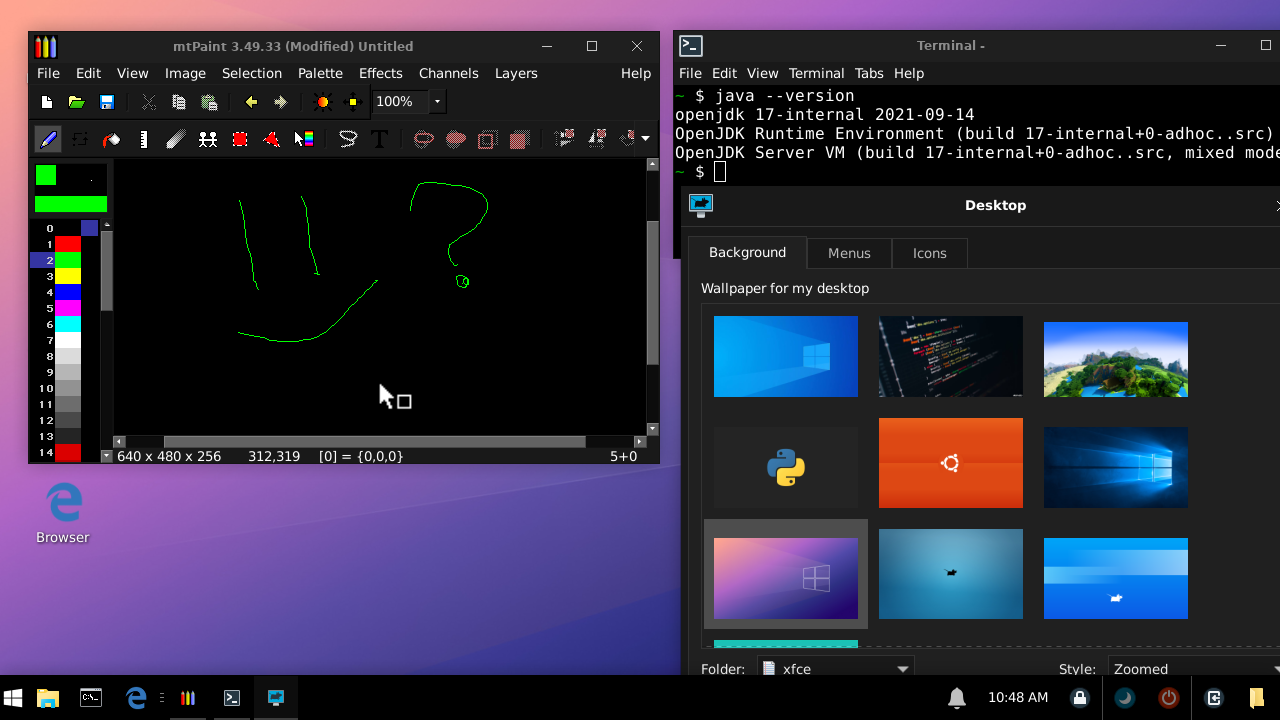
In this project, you will be able to run a desktop on your Android device, without rooting (rooting), with it you can access various programs being, browsers, IDES, Java, Python, and among other programs, is interface and light and with great optimization.
Run programs to program being in: Java, Python, Nodejs, C ++/C. You can access the internet with the browser, watch videos with video player, listen to music with Audacious and more, watch videos on YouTube by browser and among many other functions, below you will have a small XFCWIN installation tutorial on your device.
This graphic interface and a modified XFCE4 version with some changes being themes and functionality, this version of XFCE can be performed by the Termux terminal emulator app, XFCE creates an interface (desktop), so that the user can use keyboard and mouse to configure it with wallpaper, programs, themes, and other item varieties, this version is completely executed by the device, you do not need to have access, you do not need access Root !, This version is optimized and with light applications for use, without using a lot of CPU.
| You do not need to have keyboard and external mouse to use XFCWIN, VNC itself provides the keyboard and virtual mouse, but if you have a keyboard and external mouse, you can use ..
| Information | Answers |
|---|---|
| Modified name | |
| Size | |
| Recommended free memory | |
| XFCE Version | |
| Script version | |
| Android version | |
| Termux Version | |
| Architecture | |
| Construction | |
| Minimal | |
| Recommendable RAM | |
| Root |
Hello, you can now take the installation script, and set it as you want, so you can download the APK from our 'installer', if you don't want to download by the application, make the steps below.
? | XFCWIN-INSTALLER IN APK: xfcwin-installer.apk
For those who want to collect the installer script through the APK above, it is very simple ... Just configure the way you want when opening the app, and press the "pick up installation script" button, then you will open your Termux, and you will copy, paste and run.
Below you can install some of the scripts that download and install XFCWIN automatically, you can choose to install the full version with all features and programs, or the Lite version, which contains limited features and few programs, each version below is a language for you to install (the script language), in full version the language is selected at the Termux terminal. Remember to authorize the Termux application to access internal storage to be able to install correctly. Above you can install the latest version of Termux, you must always have it updated.
clear && cd $HOME &&
rm -rf setup.sh
apt update -y && apt upgrade -y
pkg install git &&
git clone https://github.com/MatheusTGP/XFCE4-GUI-Termux-Modification-Win10 &&
cd XFCE4-GUI-Termux-Modification-Win10 &&
mv setup.sh $HOME && cd $HOME && rm -rf XFCE4-GUI-Termux-Modification-Win10 &&
bash setup.shclear && cd $HOME &&
rm -rf setup.sh
apt update && apt upgrade -y
apt install git &&
git clone https://github.com/MatheusTGP/XFCE4-GUI-Termux-Modification-Win10 &&
cd XFCE4-GUI-Termux-Modification-Win10 &&
cd xfcwin-lite && bash install-lite-pt.shclear && cd $HOME &&
rm -rf setup.sh
apt update && apt upgrade -y
apt install git &&
git clone https://github.com/MatheusTGP/XFCE4-GUI-Termux-Modification-Win10 &&
cd XFCE4-GUI-Termux-Modification-Win10 &&
cd xfcwin-lite && bash install-lite-en.sh When XFCWIN is installed, you will need to have the VNC Viewer app to access the desktop. When you have completed the installation, you can use xfcwin-guide to see some of the commands you can use, the most important for now is startvnc , this command makes you start the server and desktop automatically. The first time you are calling this command, you will need to create a password greater than or equal to 6 digits, you need to enter the password twice, one to create and the other to confirm if you typed correctly (the password will not be displayed while you are typing, not a bug). After you create the password automatically the server will start, so now you will need to access the VNC Viewer app.
Now that we have the desktop started, we need to access it, so on the main screen of VNC Viewer we realize that in the lower right corner, it contains a floating button (+). Pressing this button it takes us to an addition screen for our server, in the address/adress field we will add the IP address of our desktop, as it is running on our device (local), the default address is localhost:1 , adding this in the address field, you will need to put a name to our desktop, in the Name field you can put the name that will not interfere with anything. Now that you have inserted all fields correctly press the Create button to save the server, after that you will go to a summary screen and some more settings from the server, in the Picture Quality option put in Medium (medium), this option makes the image that displays from the server, get better and correct some color tones, now you press the Connect button to access the desktop, then you will be redirected to the screen "Login" from VNC, remember that password you created when using the Startvnc command, is that password you will add to the field that is asking for the password. When you enter the password press the button up there in the right corner to access the server, and you're done, you should probably be able to use the desktop correctly, if you appear invalid password, go back to the Termux and type the vncpasswd command, this command makes you reset and create a new password.
Below it contains some of the XFCWIN available commands.
Commands:
startvncstopvncvncpasswdxfcwin-cleanxfcwin-infoxfcwin-remove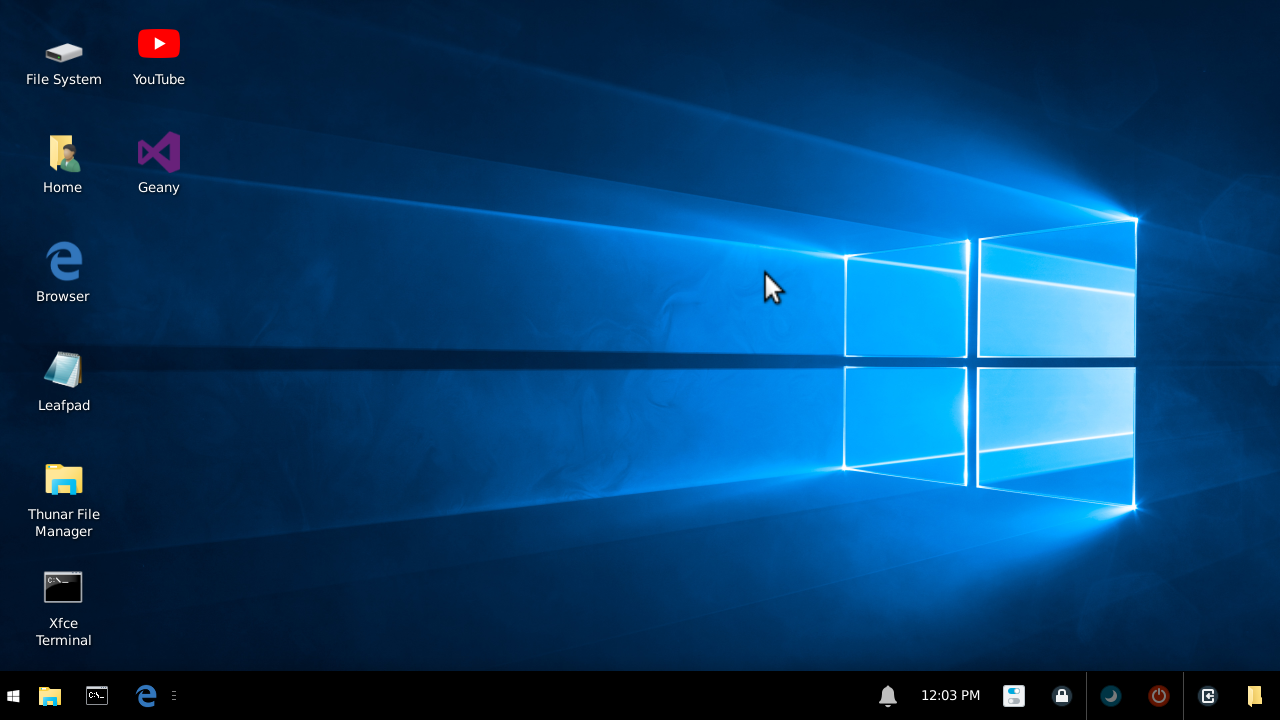
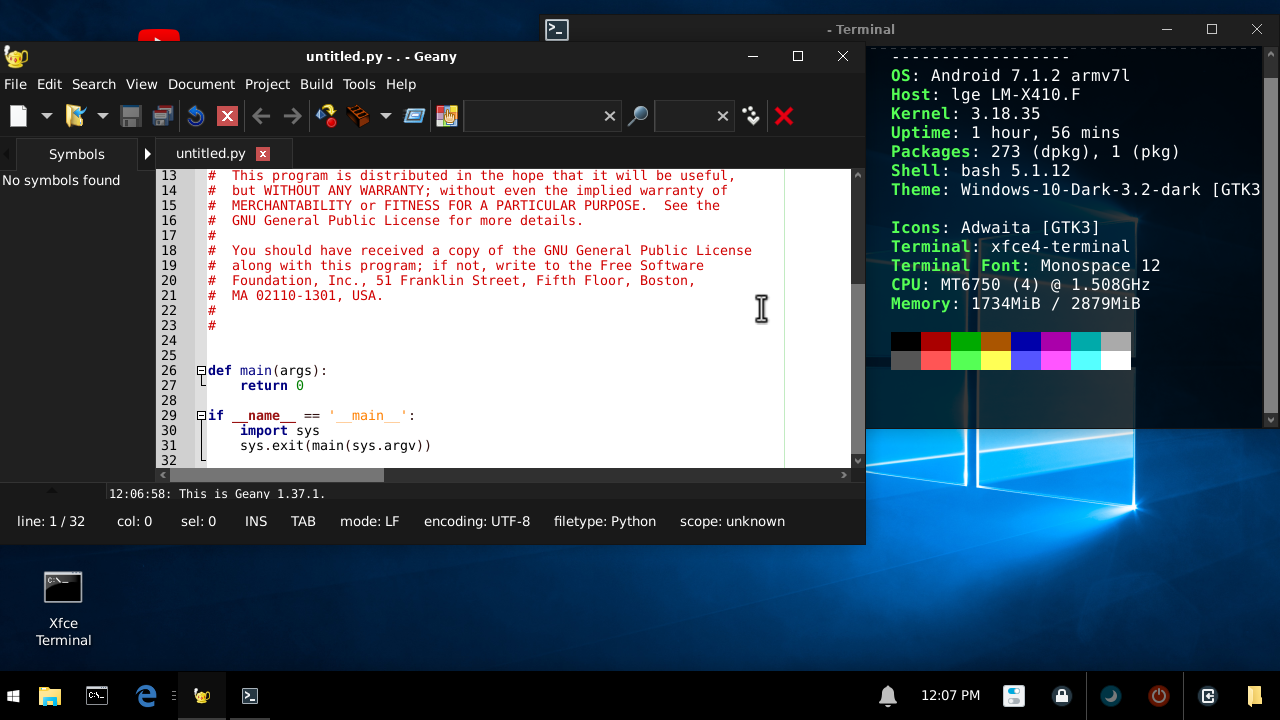
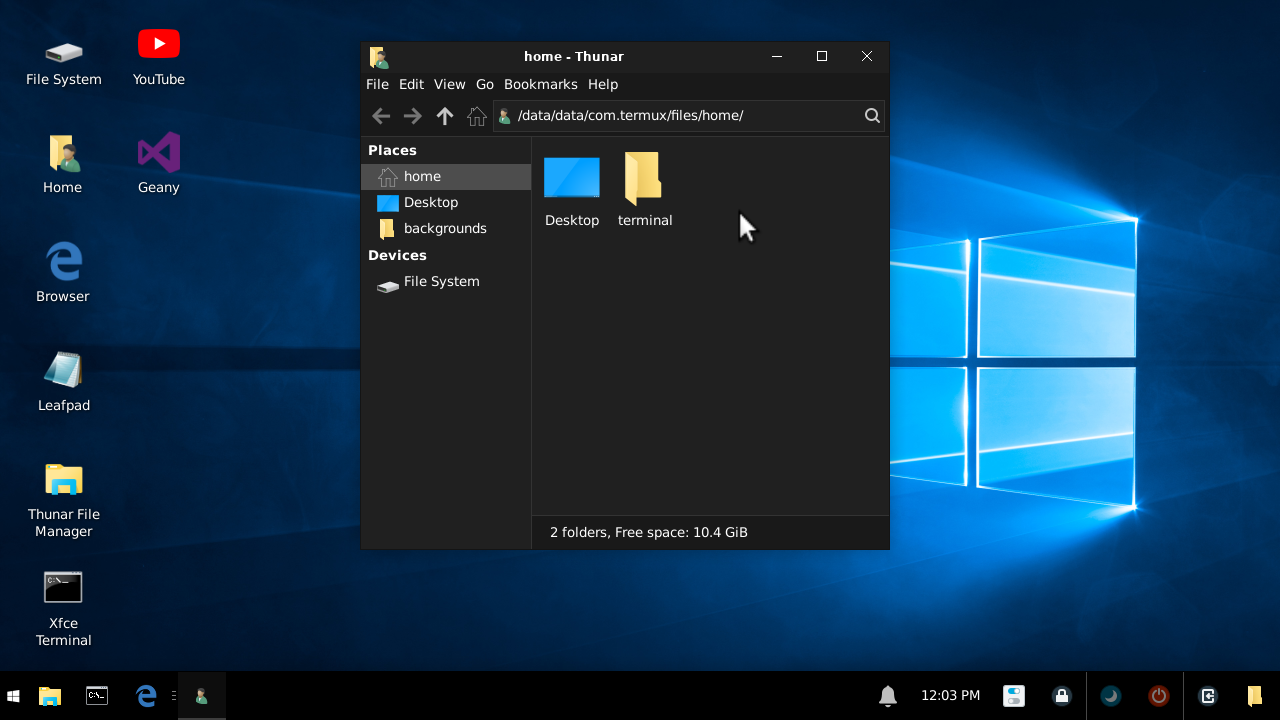
Below see the available programs and features.
Web Browsers:
Managers:
IDES & EDITORS:
Music & Video:
Packages:
[Features / portability]
[Known bugs]
| Information | Status |
|---|---|
| Status | |
| Maintainer | |
| Version | |
| Language |
Lite version:
Full version:
APK Installer:
Warning : This repository is being licensed by GPL-3.0 License, if you are going to copy this repository, issue credits along with the same license and the rights due.
Credits of all themes and icons used by XFCWIN:
If this repository conflicts with the license TERMS, please create an issue or send it to our contact email. PERASE, Add All of the Above Rights When Creating A Copy of the Repository or if You Are Going To Make A Distribution. Thanks to all the other developers for providing the themes and icons for xfcwin.
The new v1.5.0 version is working and with many new functions and programs, along with the new PATH in Portuguese-BR + English-USA a super combo of updates contain several new changes and optimization, I hope it has worked on your device is executed correctly.
Now you can install our new APK installer, where you make it possible to collect a personalized installation script the way you prefer, the first version is already available to download here in our page releases. down below to download xfcwin-installer.apk
New Update Available : Now you can download a Lite version of XFCWIN. It is not yet available on the installer app, but you can install the Lite version by up there on Readme. The current version Lite V1.0 is optimized for storage, bringing more space to your device, but some heavy programs are removed for it. But that's it, even the next updates!





