You Dont Need GUI
1.0.0

中文版请看这里
Graphical user interfaces are super friendly to computer users. They were introduced in reaction to the perceived steep learning curve of command-line interfaces (CLIs).
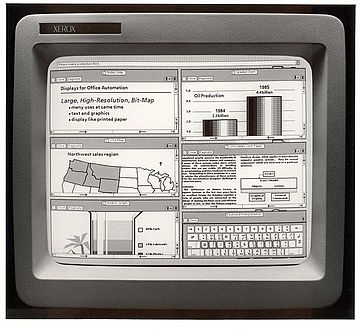
However, they often require more resources, are less powerful and hard to automate via scripting.
As a computer expert, we want to be more efficient and do our jobs better. We know that command words may not be easily discoverable or mnemonic, so we try to list some common tasks that you might be tempted to do in GUI.
STOP DRAG AND DROPPING A FILE, OR CMD/CTRL + C, CMD/CTRL + V A FILE ?
Copy readme.txt to the documents directory
$ cp readme.txt documents/Go to table of contents ?
STOP RIGHT CLICKING AND DUPLICATE A FILE ?
$ cp readme.txt readme.bak.txtMore advanced:
$ cp readme{,.bak}.txt
# Note: learn how the {} works with touch foo{1,2,3}.txt and see what happens.
Go to table of contents ?
STOP DRAG AND DROPPING A DIRECTORY, OR CMD/CTRL + C, CMD/CTRL + V A DIRECTORY ?
Copy myMusic directory to the myMedia directory
$ cp -a myMusic myMedia/
# or
$ cp -a myMusic/ myMedia/myMusic/
Go to table of contents ?
STOP RIGHT CLICKING AND DUPLICATE A DIRECTORY ?
$ cp -a myMusic/ myMedia/
# or if `myMedia` folder doesn't exist
$ cp -a myMusic myMedia/
Go to table of contents ?
STOP DRAG AND DROPPING A FILE, OR CMD/CTRL + X, CMD/CTRL + V A FILE ?
$ mv readme.txt documents/Always use a trailing slash when moving files, for this reason.
Go to table of contents ?
STOP RIGHT CLICKING AND RENAME A FILE ?
$ mv readme.txt README.mdGo to table of contents ?
STOP DRAG AND DROPPING A DIRECTORY, OR CMD/CTRL + X, CMD/CTRL + V A DIRECTORY ?
$ mv myMedia myMusic/
# or
$ mv myMedia/ myMusic/myMedia
Go to table of contents ?
STOP RIGHT CLICKING AND RENAME A DIRECTORY ?
$ mv myMedia/ myMusic/Go to table of contents ?
STOP DRAG AND DROPPING TO MERGE DIRECTORIES ?
$ rsync -a /images/ /images2/ # note: may over-write files with the same name, so be careful!Go to table of contents ?
STOP RIGHT CLICKING AND CREATE A NEW FILE ?
$ touch 'new file'    # updates the file's access and modification timestamp if it already exists
# or
$ > 'new file'        # note: erases the content if it already exists
Go to table of contents ?
STOP RIGHT CLICKING AND CREATE A NEW DIRECTORY ?
$ mkdir 'untitled folder'
# or
$ mkdir -p 'path/may/not/exist/untitled folder'
Go to table of contents ?
STOP RIGHT CLICKING AND SHOW FILE/directory INFO ?
$ du -sh node_modules/Go to table of contents ?
STOP RIGHT CLICKING AND SHOW FILE/DIRECTORY INFO ?
$ stat -x readme.md   # on macOS
$ stat readme.md      # on Linux
Go to table of contents ?
STOP DOUBLE CLICKING ON A FILE ?
$ xdg-open file   # on Linux
$ open file       # on MacOS
$ start file      # on Windows
Go to table of contents ?
STOP RIGHT CLICKING AND OPEN WITH ?
$ open -a appName fileGo to table of contents ?
STOP RIGHT CLICKING AND COMPRESS DIRECTORY ?
$ zip -r archive_name.zip folder_to_compressGo to table of contents ?
STOP RIGHT CLICKING AND UNCOMPRESS DIRECTORY ?
$ unzip archive_name.zipGo to table of contents ?
STOP RIGHT CLICKING AND UNCOMPRESS DIRECTORY ?
$ unar archive_name.zip
$ unar archive_name.7z
$ unar archive_name.rar
$ unar archive_name.ISO
$ unar archive_name.tar.gz
Go to table of contents ?
STOP USING WinRAR ?
$ zipinfo archive_name.zip
# or
$ unzip -l archive_name.zip
Go to table of contents ?
STOP USING WinRAR ?
$ lsar -l archive_name.zip
$ lsar -l archive_name.7z
$ lsar -l archive_name.ISO
$ lsar -l archive_name.rar
$ lsar -l archive_name.tar.gz
Go to table of contents ?
STOP RIGHT CLICKING AND DELETE A FILE PERMANENTLY ?
$ rm my_useless_fileIMPORTANT: The rm command deletes my_useless_file permanently, which is equivalent to move my_useless_file to Recycle Bin and hit Empty Recycle Bin.
Go to table of contents ?
STOP RIGHT CLICKING AND DELETE A DIRECTORY PERMANENTLY ?
$ rm -r my_useless_folderGo to table of contents ?
$ find . -name "*.bak" -type f -deleteIMPORTANT: run find . -name "*.bak" -type f first to see exactly which files you will remove.
Go to table of contents ?
STOP OPENING YOUR FINDER OR FILE EXPLORER ?
$ ls my_folder        # Simple
$ ls -la my_folder    # -l: show in list format. -a: show all files, including hidden. -la combines those options.
$ ls -alrth my_folder # -r: reverse output. -t: sort by time (modified). -h: output human-readable sizes.
Go to table of contents ?
STOP OPENING YOUR FINDER OR FILE EXPLORER ?
$ tree                                                        # on Linux
$ find . -print | sed -e 's;[^/]*/;|____;g;s;____|; |;g'      # on MacOS
# Note: install homebrew (https://brew.sh) to be able to use (some) Linux utilities such as tree.
# brew install tree
Go to table of contents ?
STOP USING YOUR FILE EXPLORER TO FIND A FILE ?
Find all files modified more than 5 days ago
$ find my_folder -mtime +5Go to table of contents ?
STOP LOOKING UP WHAT THIS MONTH LOOKS LIKE BY CALENDAR WIDGETS ?
Display a text calendar
$ calDisplay selected month and year calendar
$ cal 11 2018Go to table of contents ?
STOP USING WEBAPPS TO CALCULATE FUTURE DATES ?
What is today's date?
$ date +%m/%d/%YWhat about a week from now?
$ date -d "+7 days"                                           # on Linux
$ date -j -v+7d                                               # on MacOS
Go to table of contents ?
STOP USING CALCULATOR WIDGET ?
$ bc -lGo to table of contents ?
STOP CTRL + ALT + DELETE and choose the program to kill ?
$ killall -9 program_nameGo to table of contents ?
STOP OPENING A BROWSER ?
$ curl -i umair.surge.sh
# curl's -i (--include) option includes HTTP response headers in its output.
Go to table of contents ?
STOP DOUBLE CLICKING A FILE ?
$ cat apps/settings.py
# if the file is too big to fit on one page, you can use a 'pager' (less) which shows you one page at a time.
$ less apps/settings.py
Go to table of contents ?
STOP CMD/CTRL + F IN A FILE ?
$ grep -i "Query" file.txt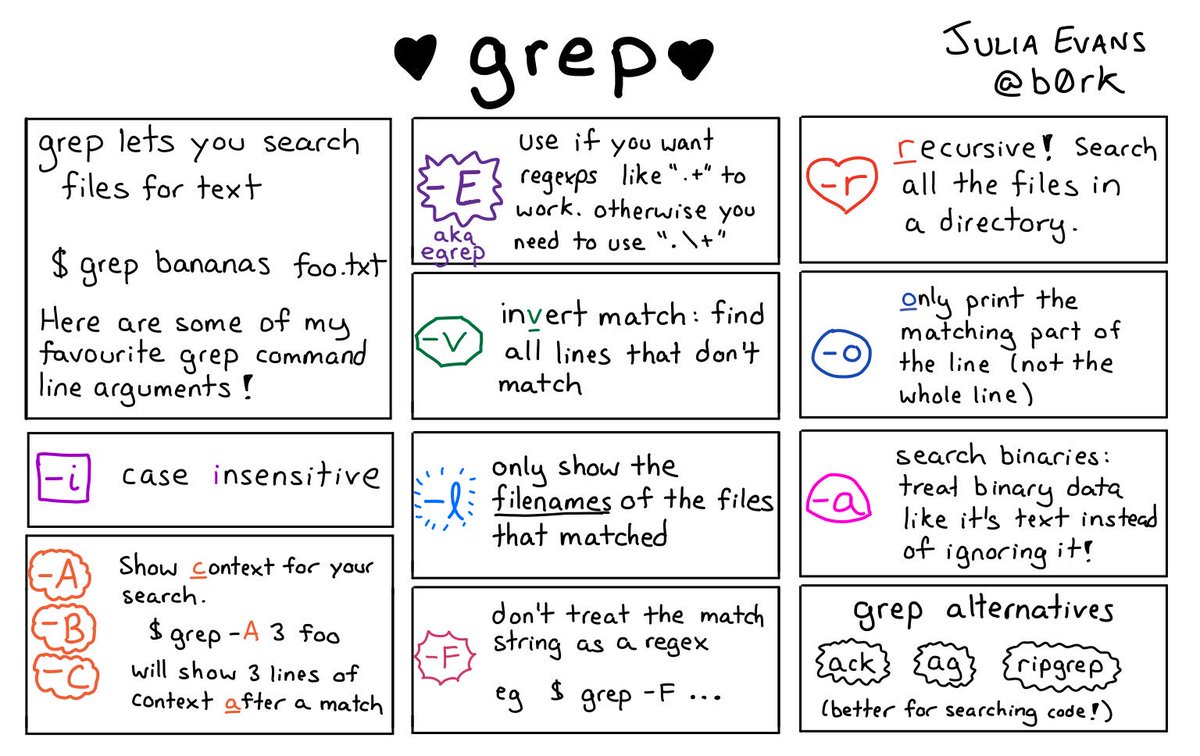
Go to table of contents ?
STOP CMD/CTRL + F IN A DIRECTORY ?
$ ripgrep -i "Query"
# brew install ripgrep
Go to table of contents ?
STOP USING PREVIEW ?
$ imgcat image.png
# Note: requires iTerm2 terminal.
Go to table of contents ?
STOP RIGHT CLICKING DISK ICON OR OPENING DISK UTILITY ?
$ df -hGo to table of contents ?
STOP OPENING YOUR ACTIVITY MONITOR OR TASK MANAGER ?
$ topif you want some more details:
$ htopGo to table of contents ?
$ glances
# brew install glances
Go to table of contents ?
This can be useful when you're patching a server that is accessed via SSH and you don't have a GUI.
# poweroff
$ sudo shutdown -h now
# reboot
$ sudo shutdown -r now
Go to table of contents ?
$ dfGo to table of contents ?
$ sudo umount /dev/sdb1Go to table of contents ?
# FAT32
$ sudo mkfs.vfat /dev/sdb1
# NTFS
$ sudo mkfs.ntfs /dev/sdb1
# exFAT
$ sudo mkfs.exfat /dev/sdb1
Go to table of contents ?
$ sudo fsck /dev/sdb1Go to table of contents ?
STOP CLICKING THE FILES ONE BY ONE ?
$ for FILE in *; do echo $FILE; doneGo to table of contents ?
STOP USING NETWORK UTILITY
$ nc -vz www.google.com 443
$ nc -vz 1.1.1.1 53
Go to table of contents ?
STOP USING NETWORK UTILITY
$ dig www.google.comGo to table of contents ?
STOP USING NETWORK UTILITY AND THE WEBSITE OF DOMAIN REGISTRATION PROVIDERS
$ whois www.google.comGo to table of contents ?
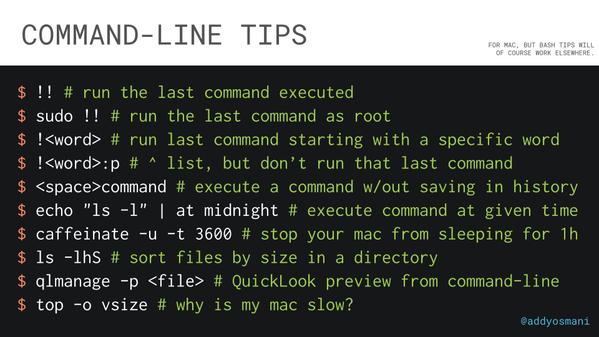
Go to table of contents ?
| Hotkey | Description |
|---|---|
| Ctrl+A | Go to the beginning of the line you are currently typing on |
| Ctrl+E | Go to the end of the line you are currently typing on |
| Ctrl+L | Clears the Screen, similar to the clear command |
| Ctrl+U | Clears the line before the cursor position. If you are at the end of the line, clears the entire line. |
| Ctrl+H | Same as backspace |
| Ctrl+R | Lets you search through previously used commands |
| Ctrl+C | Kill whatever you are running |
| Ctrl+D | Exit the current shell |
| Ctrl+Z | Puts whatever you are running into a suspended background process. fg restores it. |
| Ctrl+W | Delete the word before the cursor |
| Ctrl+K | Clear the line after the cursor |
| Ctrl+T | Swap the last two characters before the cursor |
| Ctrl+F | Move cursor forward one character |
| Ctrl+B | Move cursor backward one character |
| Esc+T | Swap the last two words before the cursor |
| Alt+T | Same as Esc + T |
| Alt+F | Move cursor forward one word on the current line |
| Alt+B | Move cursor backward one word on the current line |
| Esc+F | Same as Alt + F |
| Esc+B | Same as Alt + B |
| Alt+. | Paste the last word of the most recently command |
| Tab | Auto-complete files and directory names |
| Go to table of contents ? |
You can always google or man the commands you are not familiar with. Or, checkout tldr, a collection of simplified and community-driven man pages.
Go to table of contents ?





