jpeg_catcher
1.0.0

This project demonstrates how to receive images from this camera and process them into still images and movies using OpenCV and FFMPEG on Ubuntu 20.04 running on a Raspberry Pi model 4b. The camera sends the following JSON message via HTTP POST:
{
  "body": [
    {
      "name": "battery_percent",
      "value": "96"
    },
    {
      "name": "5MP_MC",
      "frames": 0,
      "content_type": "image/jpeg",
      "value": ""
    }
  ]
}
The battery data lands at the top of the image browsing page.
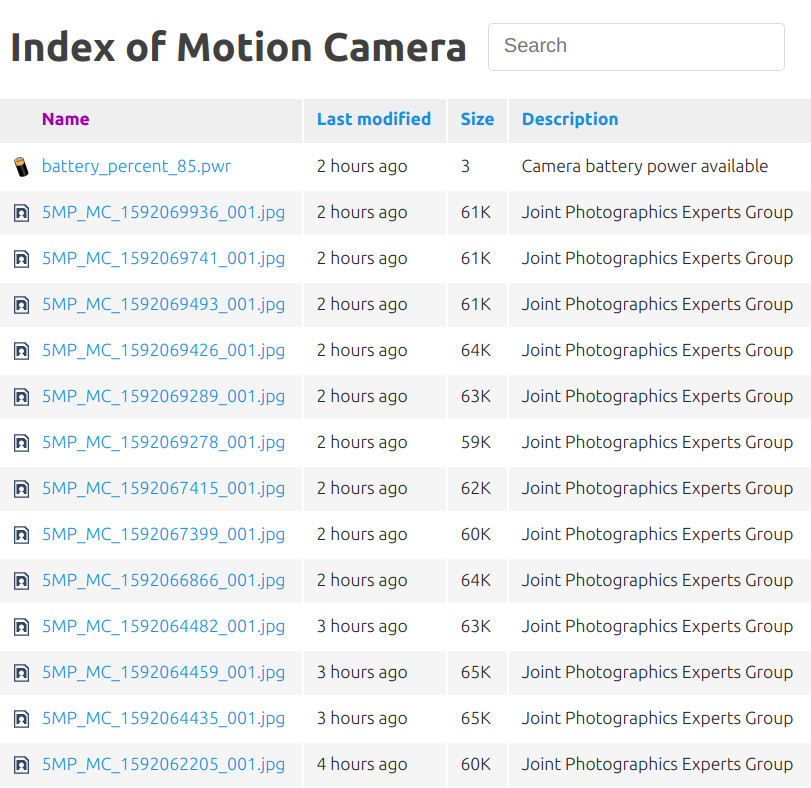
For more information about this page see the
Camera Settings Project. The rest of the
data are used to process the value payload. (It has been elided for brevity. Imagine a very long base64 encoded
string in its place.) The name field tells us which camera sent the data. If you have multiple cameras simply
give them distinct names and all will be well. The frames counter lets us know if we should expect a single JPEG
or multiples. Frames are numbered from zero so 0 frames yields one picture. If we get multiples we split them
apart and order them by frame number. If we get the reserved value of 255 that tells us we've received an AVI/MJPEG
movie. If it passes magic number and FFMPEG validation we
convert it to MP4 and save it as a movie. If it does not, we attempt to save as many frames as we can and fallback to
saving frame numbered images. See mjpeg_utils::save_avi_frames for how FFMPEG is used within OpenCV to accomplish
all this image processing.
I revised the project to build directly on Ubuntu 20.04 (64 bit) for the Raspberry Pi model 4b. If you are interested in the previous version which used Raspberry Pi OS (aka Raspbian) access the repository at commit 511c7b8
If you haven't already:
sudo apt-get install build-essential libcurl-dev libmagic-dev cmakeIt's widely known that the hardest part of using OpenCV is getting it and its dependencies installed. Once you get past
that it's a pleasure to use. I built this project on a Raspberry Pi model 4B running the latest (October 2020) Ubuntu
20.04 64 bit. I did that because I wanted the project to be accessible to those on a limited budget. The Pi is
famously affordable and it has more than enough capability for the tasks at hand. That said, if you have access to a
laptop running Ubuntu you might find that a better option. To begin the building,
install Clang 9. BTW: You may be tempted to build with GCC; if you get it to
work you're a better build master than me. After that, install OpenCV and it's dependencies.
Lastly run cmake in the usual way in the project root folder.
As root, do the following;
/usr/lib/cgi-bin/ If you renamed the project in
CMakeLists.txt the binary will have a new name as well. Be sure to reflect this name in HTTP_HOST_URL over in the
camera project's platformio.ini.sudo a2enmod cgisudo systemctl restart apache2/etc/apache2/ports.conf and add Listen 4444 on a line below Listen 80 and save the
file.-1. As root, open /etc/apache2/sites-available/000-default.conf and paste the following in just below the closing
</VirtualHost> tag.
<VirtualHost *:4444>
    <Directory /var/www/html/motion_camera>
        Options +Indexes
        AddType image/svg+xml svg svgz
        AddEncoding gzip svgz
        <IfModule mod_autoindex.c>
        IndexOptions IgnoreCase FancyIndexing HTMLTable SuppressHTMLPreamble FoldersFirst VersionSort NameWidth=* DescriptionWidth=* XHTML IconHeight=16 IconWidth=16
        IndexIgnore ..
        IndexOrderDefault Descending Name

        IndexStyleSheet ./fancy-index/style.css
        HeaderName ./fancy-index/header.html
        ReadmeName ./fancy-index/footer.html

        # IGNORE THESE FILES
        IndexIgnoreReset ON
        IndexIgnore fancy-index

        # DEFAULT ICON
        DefaultIcon ./fancy-index/icons/file-text.svg

        AddIcon ./fancy-index/icons/back.svg ..
        AddIcon ./fancy-index/icons/file-directory.svg ^^DIRECTORY^^
        # https://github.com/file-icons/source
        AddIcon ./fancy-index/icons/file-media.svg .jpg .jpeg
        AddIcon ./fancy-index/icons/Video.svg .avi .mp4
        # https://upload.wikimedia.org/wikipedia/commons/d/da/Battery-303889.svg
        AddIcon ./fancy-index/icons/battery.svg .pwr
        AddDescription "MPEG Layer 4 Format" .mp4
        AddDescription "Joint Photographics Experts Group" .jpg .jpeg .jpe .jfif
        AddDescription "Audio Video Interleave - Motion JPEG" .avi
        AddDescription "Camera battery power available" .pwr

        </IfModule>
    </Directory>
</VirtualHost>
-2. As root, make the directory /var/www/html/motion_camera and copy the contents of this project's
web_root folder into it.
-3. Fix the ownership, group, and permissions.
sudo mkdir /var/www/html/motion_camera
cd /var/www/html/motion_camera
sudo chown -R www-data:www-data
sudo find . -type f -exec chmod 0644 {} ;
sudo find . -type d -exec chmod 0755 {} ;
-4. When you're done /var/www/html/motion_camera will contain:
ls -al /var/www/html/motion_camera/fancy-index/
total 72
drwxr-xr-x 3 www-data www-data  4096 Jun  9 09:37 .
drwxr-xr-x 3 www-data www-data 40960 Jun 15 09:06 ..
-rw-r--r-- 1 www-data www-data    66 Jun  5 15:53 footer.html
-rw-r--r-- 1 www-data www-data   295 Jun  5 16:05 header.html
drwxr-xr-x 2 www-data www-data  4096 Jun  8 15:35 icons
-rw-r--r-- 1 www-data www-data  6322 Jun  8 15:48 script.js
-rw-r--r-- 1 www-data www-data  3170 Jun  9 09:37 style.css
-5. You can now test the configuration by pointing your browser to http://your_server:4444/motion_camera
One of the handy things about the design of the CGI interface is that all error messages should be written to the
standard error stream; stderr. The web server writes these into it's error log; /var/log/apache2/error.log.
If this CGI encounters an error it will write a useful message about it to this file. To turn off this output edit
debug_output.hpp and comment out DEBUG_OUTPUT
Certainly not. The CGI interface standard is supported by many different HTTP servers. You should have little difficulty adapting this project to work with your chosen web server.
There are also tools you may find useful to you in other projects. For example;
std::map<std::string, std::vector<std::string>> From this you can create a project that handles HTML GET requests.std::map<std::string, std::vector<std::string>> - one for variables and another for files. From this you can
create a project where forms are used to control a robot/embedded system or your Raspberry Pi. To help you get started
there is an everything-but-the-kitchen-sink HTML form. Edit the <form> tag at the top
and change the action attribute to reflect your server name.If you find a bug please create an issue. If you'd like to contribute please send a pull request.
I used Doxygen to create the project documentation. You can read it here.
The following were helpful references in the development of this project.





