hydralit
1.0.14


Das Hydralit-Paket ist ein Wrap- und Vorlageprojekt, mit dem mehrere unabhängige (oder etwas abhängige) Stromanwendungen zu einer mehrseitigen Anwendung kombiniert werden.
Derzeit implementiert das Projekt eine Host -Anwendung HydraApp und jede untergeordnete Anwendung muss lediglich entweder eine Klasse sein, die von der HydraheadApp -Klasse abgeleitet wird und eine einzige, einfache Methode implementiert, run (), um einen maximalen Gewinn zu erzielen, oder Sie können einen Dekorateur für Flask -Stil für Ihre Funktionen verwenden, um sie direkt als separate Stromseiten hinzuzufügen.
Bei der Konvertierung vorhandener Anwendungen können Sie den gesamten vorhandenen Code effektiv innerhalb der Run () -Methode einfügen und eine Wrapper -Klasse erstellen, die von HydraheadApp abgeleitet oder einen Dekorateur über die Funktion lag. Anschließend erstellen Sie die übergeordnete App als Instanz von Hydraapp, fügen Ihre untergeordneten Apps hinzu (siehe Beispiel Secure_App.py) und mit nur wenigen Codezeilen wird alles auf magische Weise zusammenkommen.
Hydralit kann von PYPI installiert werden:
pip install -U hydralit #when we import hydralit, we automatically get all of Streamlit
import hydralit as hy
app = hy . HydraApp ( title = 'Simple Multi-Page App' )
@ app . addapp ()
def my_home ():
hy . info ( 'Hello from app1' )
@ app . addapp ()
def app2 ():
hy . info ( 'Hello from app 2' )
#Run the whole lot, we get navbar, state management and app isolation, all with this tiny amount of work.
app . run ()Diese winzige Codemenge erstellt ein Menü und Seiten, die rendern, wenn die Zielfunktion aufgerufen wird, indem es aus dem Menü ausgewählt wird.
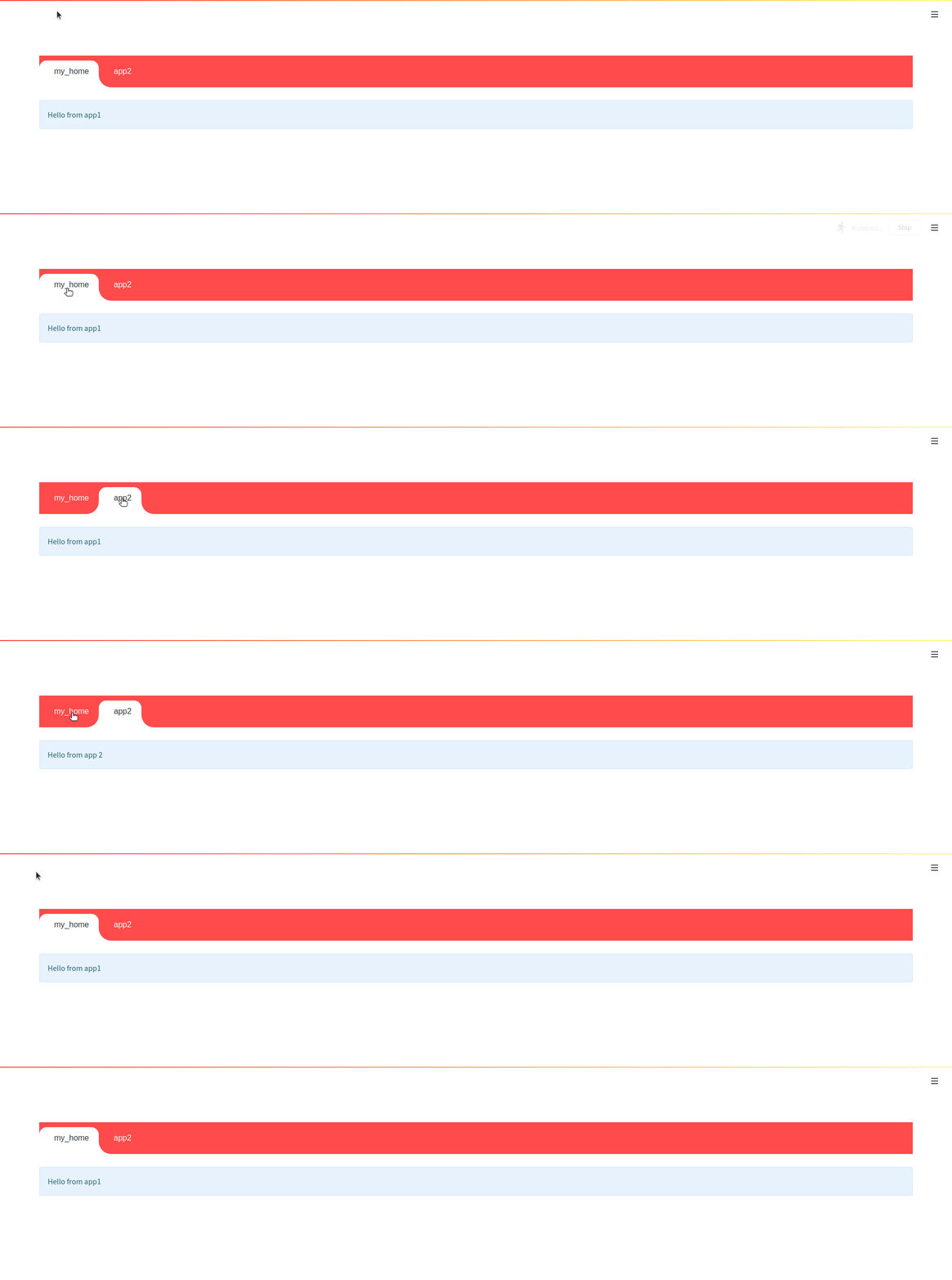


<br
Aufgrund des Streamlit-Ausführungsmodells ist die Möglichkeit, interne NAV-Links aus einer untergeordneten App zu verwenden, bei der Verwendung der NAVBAR One-Shot. Dies bedeutet, dass sich der interne Link zum Kind weiterleitet. Wenn jedoch in der untergeordneten App eine Anforderung zur Wiedergabe von Skript erneut gestellt wird (z. Sie können die NAVBAR deaktivieren und das Menü "Streamlit Core Components Nav wird angezeigt" und die internen Links funktionieren wie erwartet.
app = HydraApp ( title = 'Secure Hydralit Data Explorer' , favicon = "?" , hide_streamlit_markers = True , use_navbar = True , navbar_sticky = True )Die Hydralit Navbar ist vollständig integriert, thema bewusst und animiert (Sie können es ausschalten, wenn Sie möchten), fügen Sie einfach Ihre Kinder -Apps hinzu und gehen Sie, die Naviglade wird automatisch angezeigt.
Wenn Sie aus der Schachtel einen schönen Loader/Spinner haben, wenn Sie zwischen Apps/Seiten navigieren. Sie können auch Ihre eigene Loader -App erstellen und jeden Teil des Aussehens und beim Laden vollständig anpassen, um je nach Zielanwendung unterschiedliche Effekte zu erzeugen. Siehe den Hydralit Secure Beispielcode, um zu sehen, was möglich ist.
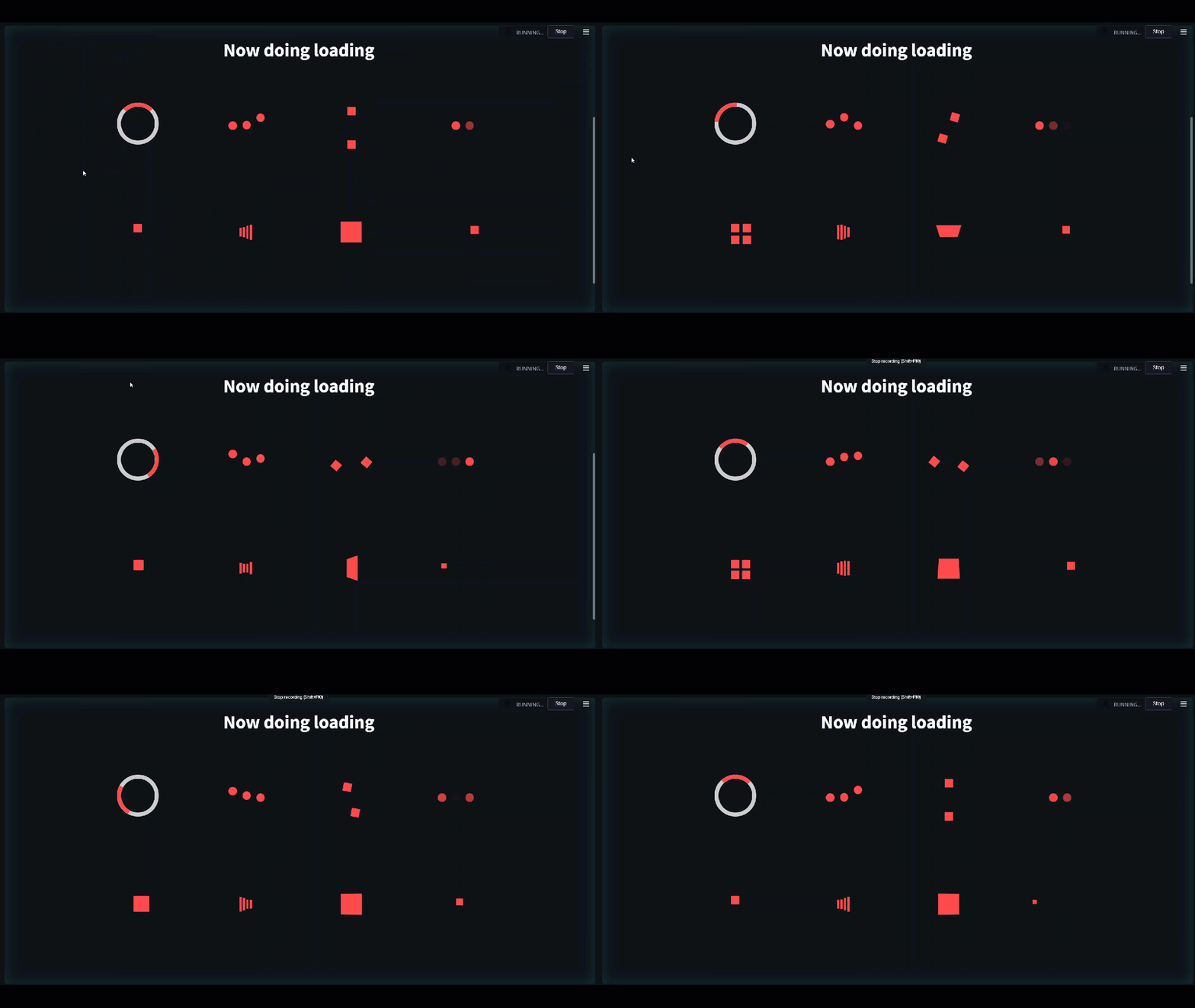
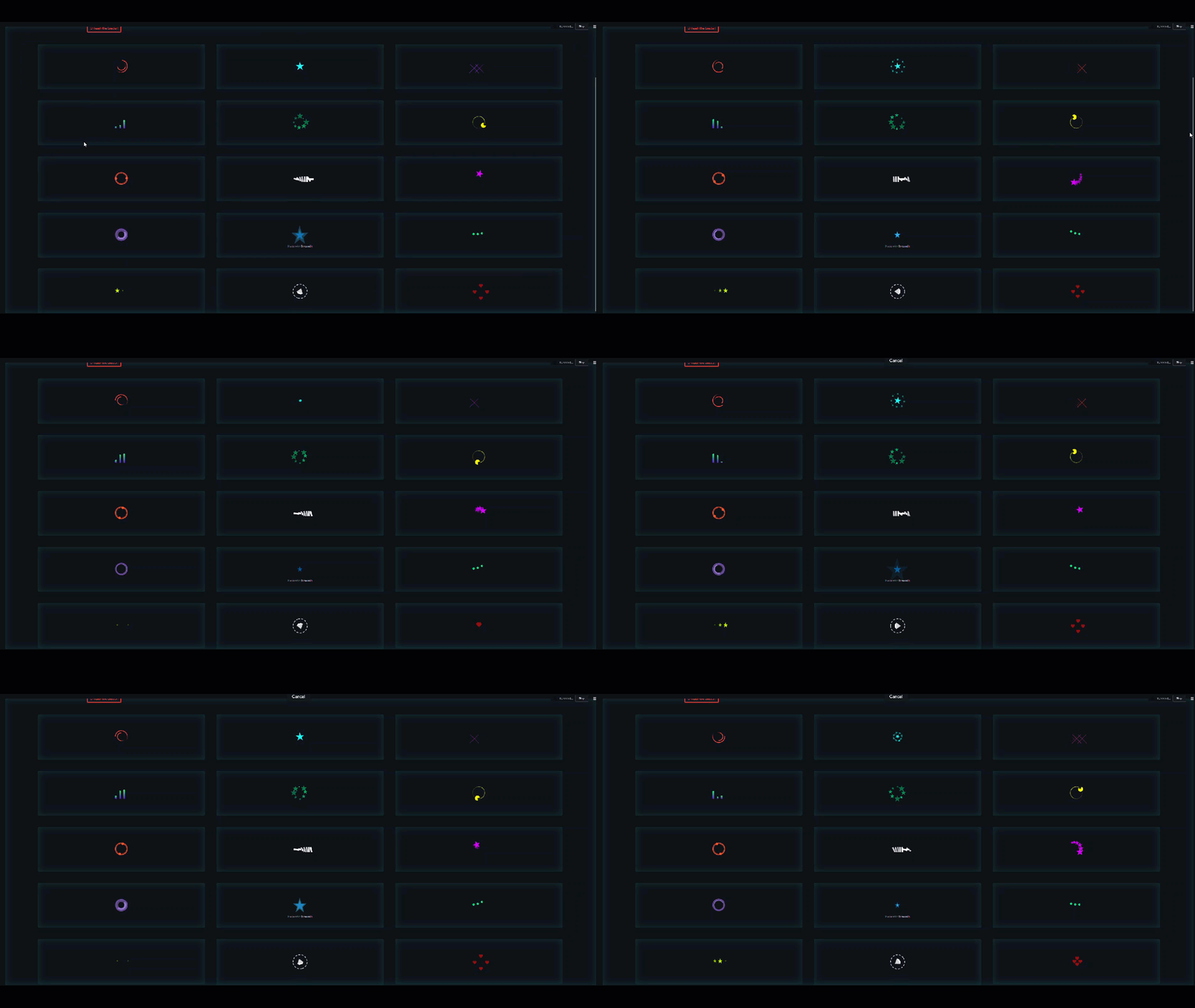
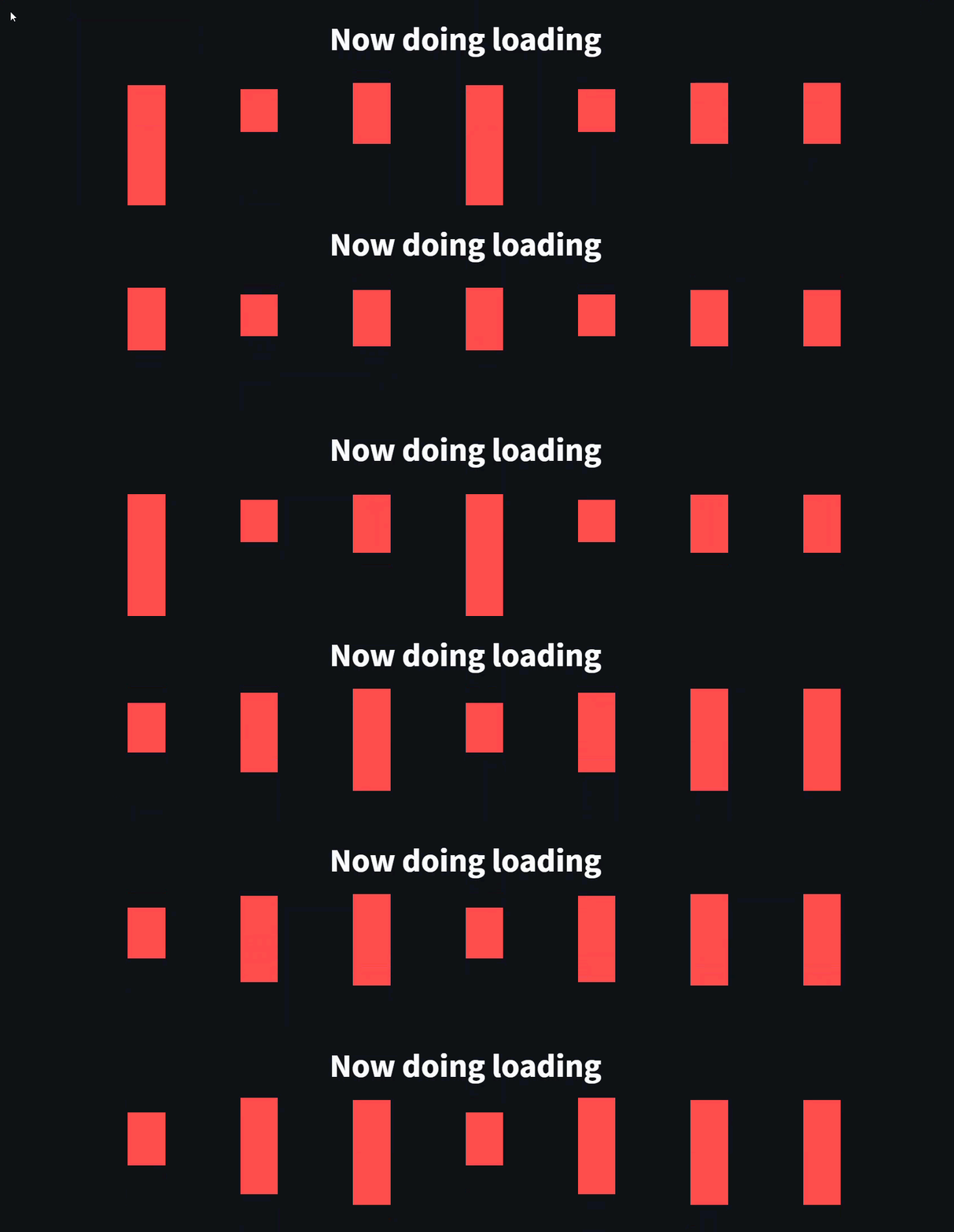
Wenn Sie einige Funktionen haben und möchten, dass sie wie separate Seiten laufen, können Sie schnell mit einem Dekorateur im Flask Stil über Ihre Funktionen in Gang kommen.
 #when we import hydralit, we automatically get all of Streamlit
import hydralit as hy

app = hy . HydraApp ( title = 'Simple Multi-Page App' )

@ app . addapp ( is_home = True )
def my_home ():
 hy . info ( 'Hello from Home!' )

@ app . addapp ()
def app2 ():
 hy . info ( 'Hello from app 2' )

@ app . addapp ( title = 'The Best' , icon = "?" )
def app3 ():
 hy . info ( 'Hello from app 3, A.K.A, The Best ?' )

#Run the whole lot, we get navbar, state management and app isolation, all with this tiny amount of work.
app . run ()
Diese winzige Menge Code erstellt wie unten eine schöne benutzerdefinierte mehrseitige App.
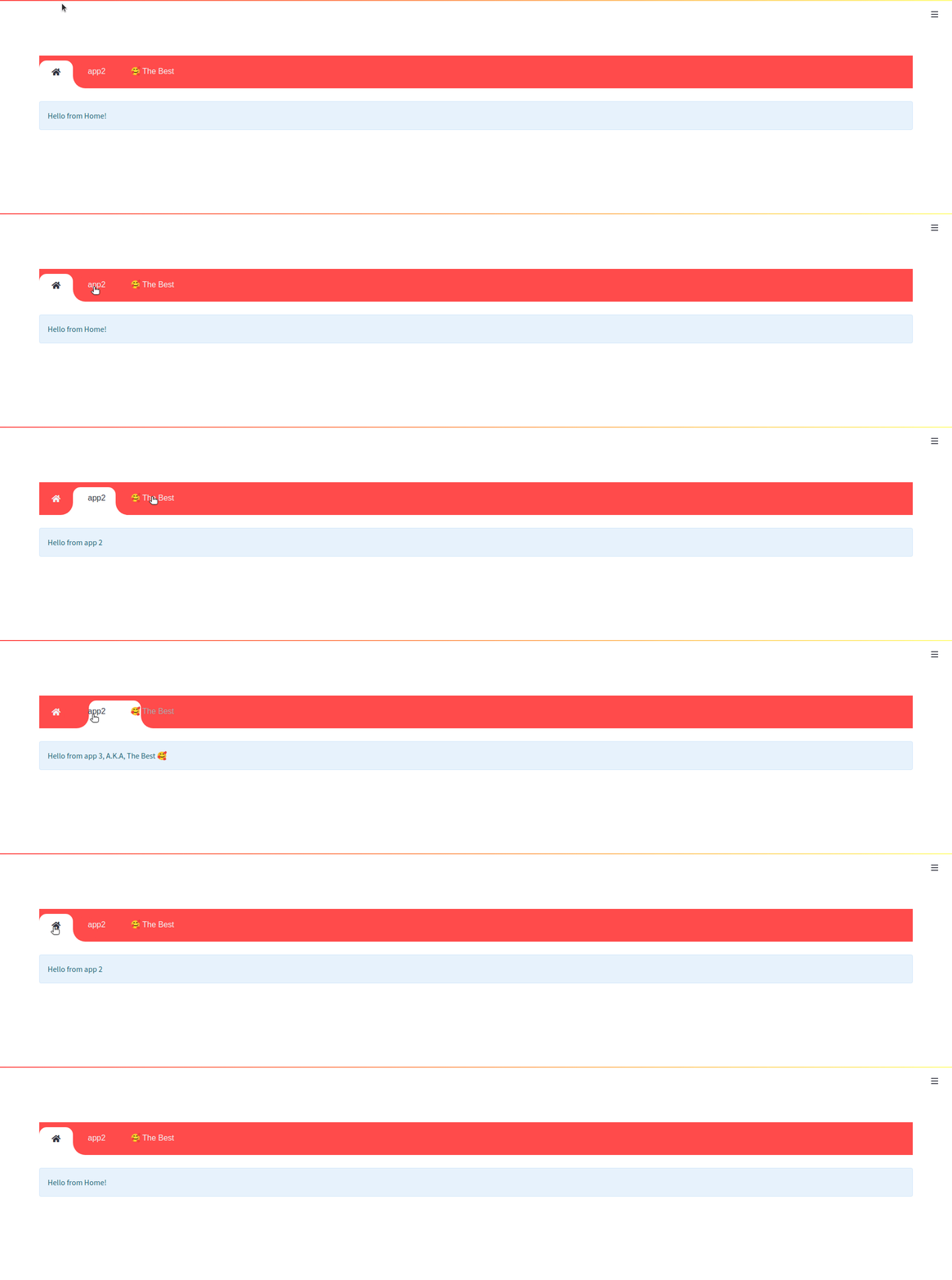
Sie können es ausprobieren, indem Sie die beiden Beispielanwendungen mit ihren Kindern ausführen, die sich im Hydralit-Exampe-Repository befinden.
hydralit_example > pip install -r requirements.txt

hydralit_example > streamlit run secure.appDieses Code -Beispiel stammt direkt aus dem Streamlit -Beispieldaten -Explorer
 import streamlit as st
import pandas as pd
import numpy as np

st . title ( 'Uber pickups in NYC' )

DATE_COLUMN = 'date/time'
DATA_URL = ( 'https://s3-us-west-2.amazonaws.com/'
            'streamlit-demo-data/uber-raw-data-sep14.csv.gz' )

@ st . cache
def load_data ( nrows ):
    data = pd . read_csv ( DATA_URL , nrows = nrows )
    lowercase = lambda x : str ( x ). lower ()
    data . rename ( lowercase , axis = 'columns' , inplace = True )
    data [ DATE_COLUMN ] = pd . to_datetime ( data [ DATE_COLUMN ])
    return data

data_load_state = st . text ( 'Loading data...' )
data = load_data ( 10000 )
data_load_state . text ( "Done! (using st.cache)" )

if st . checkbox ( 'Show raw data' ):
    st . subheader ( 'Raw data' )
    st . write ( data )

st . subheader ( 'Number of pickups by hour' )
hist_values = np . histogram ( data [ DATE_COLUMN ]. dt . hour , bins = 24 , range = ( 0 , 24 ))[ 0 ]
st . bar_chart ( hist_values )

# Some number in the range 0-23
hour_to_filter = st . slider ( 'hour' , 0 , 23 , 17 )
filtered_data = data [ data [ DATE_COLUMN ]. dt . hour == hour_to_filter ]

st . subheader ( 'Map of all pickups at %s:00' % hour_to_filter )
st . map ( filtered_data )
Verwenden wir auch eine einfache Anwendung, um sich mit der obigen Demo zu kombinieren.
 import streamlit as st
import numpy as np
import pandas as pd
from data . create_data import create_table

def app ():
    st . title ( 'Small Application with a table and chart.' )

    st . write ( "See `apps/simple.py` to know how to use it." )

    st . markdown ( "### Plot" )
    df = create_table ()

    st . line_chart ( df )
Sie können diese Apps problemlos in Hydralit konvertieren, indem Sie einfach jeweils in einer Klasse, die von HydraheadApp innerhalb von Hydralit abgeleitet ist, und den gesamten Code in die Run () -Methode einfügen.
Für die obige streamlit -Demo -Anwendung bedeutet dies, dass alles, was benötigt wird, eine geringfügige Änderung ist. Wir erstellen eine Datei sample_app.py und fügen hinzu.
 import streamlit as st
import pandas as pd
import numpy as np

#add an import to Hydralit
from hydralit import HydraHeadApp

#create a wrapper class
class MySampleApp ( HydraHeadApp ):

#wrap all your code in this method and you should be done
    def run ( self ):
        #-------------------existing untouched code------------------------------------------
        st . title ( 'Uber pickups in NYC' )

        DATE_COLUMN = 'date/time'
        DATA_URL = ( 'https://s3-us-west-2.amazonaws.com/'
                    'streamlit-demo-data/uber-raw-data-sep14.csv.gz' )

        @ st . cache
        def load_data ( nrows ):
            data = pd . read_csv ( DATA_URL , nrows = nrows )
            lowercase = lambda x : str ( x ). lower ()
            data . rename ( lowercase , axis = 'columns' , inplace = True )
            data [ DATE_COLUMN ] = pd . to_datetime ( data [ DATE_COLUMN ])
            return data

        data_load_state = st . text ( 'Loading data...' )
        data = load_data ( 10000 )
        data_load_state . text ( "Done! (using st.cache)" )

        if st . checkbox ( 'Show raw data' ):
            st . subheader ( 'Raw data' )
            st . write ( data )

        st . subheader ( 'Number of pickups by hour' )
        hist_values = np . histogram ( data [ DATE_COLUMN ]. dt . hour , bins = 24 , range = ( 0 , 24 ))[ 0 ]
        st . bar_chart ( hist_values )

        # Some number in the range 0-23
        hour_to_filter = st . slider ( 'hour' , 0 , 23 , 17 )
        filtered_data = data [ data [ DATE_COLUMN ]. dt . hour == hour_to_filter ]

        st . subheader ( 'Map of all pickups at %s:00' % hour_to_filter )
        st . map ( filtered_data )
        #-------------------existing untouched code------------------------------------------
Für die andere kleine Anwendung können wir dies wiederum umwandeln, indem wir in eine Klasse von Hydraheadapp von Hydralit einwickelt und den gesamten Code in die Run () -Methode einfügen. Wir erstellen eine Datei small_app.py und addieren.
 import streamlit as st
import numpy as np
import pandas as pd
from data . create_data import create_table

#add an import to Hydralit
from hydralit import HydraHeadApp

#create a wrapper class
class MySmallApp ( HydraHeadApp ):

#wrap all your code in this method and you should be done
    def run ( self ):
        #-------------------existing untouched code------------------------------------------
        st . title ( 'Small Application with a table and chart.' )

        st . markdown ( "### Plot" )
        df = create_table ()

        st . line_chart ( df )
Dies ist jetzt bereit, innerhalb einer Hydralit -Anwendung verwendet zu werden. Wir müssen nur eine einfache Host -Anwendung erstellen, die aus der Hydraapp -Klasse in Hydralit stammt, die Kinder hinzufügen und wir sind fertig! Wir erstellen eine Datei host_app.py und fügen Sie hinzu;
 from hydralit import HydraApp
import streamlit as st
from sample_app import MySampleApp
from small_app import MySmallApp


if __name__ == '__main__' :

    #this is the host application, we add children to it and that's it!
    app = HydraApp ( title = 'Sample Hydralit App' , favicon = "?" )

    #add all your application classes here
    app . add_app ( "Small App" , icon = "?" , app = MySmallApp ())
    app . add_app ( "Sample App" , icon = "?" , app = MySampleApp ())

    #run the whole lot
app . run ()Dieses super einfache Beispiel besteht aus 3 Dateien.
 hydralit sample project
│   host_app.py
│   small_app.py
│   sample_app.py
hydralit sample project > pip install hydralit

hydralit sample project > streamlit run host.appDer Code für eine Hostanwendung, die mit einer Anmeldung-App gesichert ist, ist unten angezeigt. Das gesamte Beispiel befindet sich im Hydralit-Exampe-Repository.
 from hydralit import HydraApp
import streamlit as st
import apps


if __name__ == '__main__' :
    over_theme = { 'txc_inactive' : '#FFFFFF' }
    #this is the host application, we add children to it and that's it!
    app = HydraApp (
        title = 'Secure Hydralit Data Explorer' ,
        favicon = "?" ,
        hide_streamlit_markers = False ,
        #add a nice banner, this banner has been defined as 5 sections with spacing defined by the banner_spacing array below.
        use_banner_images = [ "./resources/hydra.png" , None ,{ 'header' : "<h1 style='text-align:center;padding: 0px 0px;color:black;font-size:200%;'>Secure Hydralit Explorer</h1><br>" }, None , "./resources/lock.png" ],
        banner_spacing = [ 5 , 30 , 60 , 30 , 5 ],
        use_navbar = True ,
        navbar_sticky = False ,
        navbar_theme = over_theme
    )

    #Home button will be in the middle of the nav list now
    app . add_app ( "Home" , icon = "?" , app = apps . HomeApp ( title = 'Home' ), is_home = True )

    #add all your application classes here
    app . add_app ( "Cheat Sheet" , icon = "" , app = apps . CheatApp ( title = "Cheat Sheet" ))
    app . add_app ( "Sequency Denoising" , icon = "?" , app = apps . WalshApp ( title = "Sequency Denoising" ))
    app . add_app ( "Sequency (Secure)" , icon = "?" , app = apps . WalshAppSecure ( title = "Sequency (Secure)" ))
    app . add_app ( "Solar Mach" , icon = "?️" , app = apps . SolarMach ( title = "Solar Mach" ))
    app . add_app ( "Spacy NLP" , icon = "⌨️" , app = apps . SpacyNLP ( title = "Spacy NLP" ))
    app . add_app ( "Uber Pickups" , icon = "?" , app = apps . UberNYC ( title = "Uber Pickups" ))
    app . add_app ( "Solar Mach" , icon = "?️" , app = apps . SolarMach ( title = "Solar Mach" ))

    #we have added a sign-up app to demonstrate the ability to run an unsecure app
    #only 1 unsecure app is allowed
    app . add_app ( "Signup" , icon = "?️" , app = apps . SignUpApp ( title = 'Signup' ), is_unsecure = True )

    #we want to have secure access for this HydraApp, so we provide a login application
    #optional logout label, can be blank for something nicer!
    app . add_app ( "Login" , apps . LoginApp ( title = 'Login' ), is_login = True )

    #specify a custom loading app for a custom transition between apps, this includes a nice custom spinner
    app . add_loader_app ( apps . MyLoadingApp ( delay = 5 ))
    #app.add_loader_app(apps.QuickLoaderApp())

    #we can inject a method to be called everytime a user logs out
    @ app . logout_callback
    def mylogout_cb ():
        print ( 'I was called from Hydralit at logout!' )

    #we can inject a method to be called everytime a user logs in
    @ app . login_callback
    def mylogin_cb ():
        print ( 'I was called from Hydralit at login!' )

    #if we want to auto login a guest but still have a secure app, we can assign a guest account and go straight in
    app . enable_guest_access ()

    #--------------------------------------------------------------------------------------------------------------------
    #if the menu is looking shit, use some sections
    #check user access level to determine what should be shown on the menu
    user_access_level , username = app . check_access ()

    # If the menu is cluttered, just rearrange it into sections!
    # completely optional, but if you have too many entries, you can make it nicer by using accordian menus
    if user_access_level > 1 :
        complex_nav = {
            'Home' : [ 'Home' ],
            'Intro ?' : [ 'Cheat Sheet' , "Solar Mach" ],
            'Hotstepper ' : [ "Sequency Denoising" , "Sequency (Secure)" ],
            'Clustering' : [ "Uber Pickups" ],
            'NLP' : [ "Spacy NLP" ],
        }
    elif user_access_level == 1 :
        complex_nav = {
            'Home' : [ 'Home' ],
            'Intro ?' : [ 'Cheat Sheet' , "Solar Mach" ],
            'Hotstepper ' : [ "Sequency Denoising" ],
            'Clustering' : [ "Uber Pickups" ],
            'NLP' : [ "Spacy NLP" ],
        }
    else :
        complex_nav = {
            'Home' : [ 'Home' ],
        }


    #and finally just the entire app and all the children.
    app . run ( complex_nav )

    #(DEBUG) print user movements and current login details used by Hydralit
    #---------------------------------------------------------------------
    user_access_level , username = app . check_access ()
    prev_app , curr_app = app . get_nav_transition ()
    print ( prev_app , '- >' , curr_app )
    print ( int ( user_access_level ), '- >' , username )
    #---------------------------------------------------------------------
Sie können es ausprobieren, indem Sie die beiden Beispielanwendungen mit ihren Kindern ausführen, die sich im Hydralit-Exampe-Repository befinden.
hydralit_example > pip install -r requirements.txt

hydralit_example > streamlit run secure.app






