tkpf
1.0.0

tkpf是在受WPF(Windows展示基金會)和Angular影響的範式中構建Tkinter Guis的庫。
主要功能是:
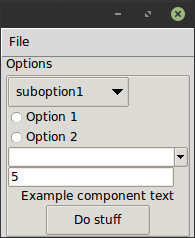
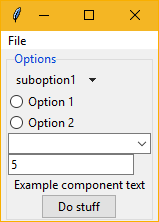
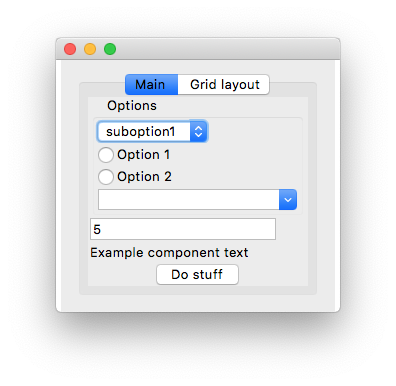
您以XML或YAML格式指定GUI。這是一個簡單的示例, ExampleWindow.xml :
< Frame pack-anchor = " nw " pack-padx = " 5 " >
     < LabelFrame text = " Options " pack-anchor = " w " pack-fill = " x " >
        < Radiobutton pack-anchor = " w " variable = " [(choice)] " value = " option1 " >
            Option 1
        </ Radiobutton >
        < Radiobutton pack-anchor = " w " variable = " [(choice)] " value = " option2 " >
            Option 2
        </ Radiobutton >
        < Combobox pack-anchor = " w " textvariable = " (selected_suboption) " values = " [available_suboptions] "
                  name = " combobox " />
        < Button command = " do_stuff " >Do stuff</ Button >
    </ LabelFrame >
</ Frame >
如您所見,XML標籤名稱對應於tkinter widget類名稱,而XML屬於其參數。 tkpf被認為是因為它始終使用更好的ttk主題小部件。
諸如pack-anchor="nw"或grid-row="0"之類的選項指定佈局,並將傳遞到適當的tkinter佈局管理器方法,在這種情況下.pack(anchor='nw') 。
關於如何以YAML格式指定GUI,請參見example/ExampleWindow.yaml 。
您通過創建從Window派生並顯示的類來顯示GUI。您必須在構造函數中提供ViewModel。
 class ExampleWindow ( Window ):
    template_path = 'ExampleWindow.xml'  # 'ExampleWindow.yaml' works too

ExampleWindow ( ExampleModel ()). show ()
如果要將佈局XML保存在此文件中,也可以執行此操作:
 class ExampleWindow ( Window ):
    template = '<Label>Some text</Label>'
或者
 class ExampleWindow ( Window ):
    template_yaml = '''
    Label:
      text: Some text
    '''
設置窗口標題:
    def __init__ ( self , model ):
        super (). __init__ ( model )
        self . title = 'My application'
在視圖類中,您可以編寫事件處理程序。例如,該按鈕起作用:
    def do_stuff ( self ):
        self . combobox . config ( state = 'disabled' )
這還顯示瞭如何在視圖類方法中通過名稱訪問小部件。但是,如果您願意,您可以像這樣動態訪問它們:
self . named_widgets [ 'combobox' ] class ExampleModel ( ViewModel ):
choice = Bindable ( AutoProperty ( 1 ))
available_suboptions = Bindable ( AutoProperty ())
selected_suboption = Bindable ( AutoProperty ())
def __init__ ( self ):
super (). __init__ ()
self . available_suboptions = ( 'suboption1' , 'suboption2' ) AutoProperty類似於C#自動化性質。默認情況下,其數據類型為str 。您可以向其構造函數提供默認值或類型。
Bindable是一種裝飾器,您可以在任何屬性上使用它來返回可綁定的屬性。它必須知道包裝屬性的數據類型,因此請用類型註釋指定其返回類型:
 @ Bindable
@ property
def foo () -> int :
return 1 AutoProperty為您處理這一點。
僅支持tkinter綁定,僅支持int , bool , float和str類型,儘管對於ComboBox值,您可以分配一個python元組。
如果在視圖類中找不到活動處理程序,它也會在ViewModel上查找。
在XML中,您可以用類似於Angular的語法指定數據綁定的方向:
values="[available_suboptions]"
是從數據源到查看目標的單向綁定,
textvariable="(selected_suboption)"
是從視圖目標到數據源的單向綁定,以及
variable="[(choice)]"
是雙向綁定。
您可以使用從TKINTER小部件類派生的自定義小部件。您唯一要做的就是打電話
Directive . Registry . register ( YourCustomWidgetClass )在加載使用它的模板之前。
tkpf支持將您的GUI分解為組件。這是具有自己的ViewModel的進度鍵組件的示例:
 class ProgressbarModel ( ViewModel ):
    value = BindableProperty ( 0 )
    target = BindableProperty ( 100 )


class CustomProgressbar ( Component ):
    template = '<Progressbar name="progressbar" variable="[value]" maximum="[target]"/>'
您可以這樣使用:
< CustomProgressbar tkpf-model = " [progressbar_model] " />其中progressbar_model是您的主視圖模型上的屬性或屬性。
在Python 3.5上,您必須在使用該組件之前註冊。在Python 3.6+上是自動的。
Directive . Registry . register ( CustomProgressbar )計劃您將能夠添加自定義,可綁定的屬性到組件,這樣的組件:
 class ExampleComponent ( Component ):
    template = '<Label name="thelabel">Example component text</Label>'

    def config ( self , ** kwargs ):
        self . thelabel . config ( text = kwargs [ 'custom-text' ])
然後以這樣的方式使用它們:
< ExampleComponent custom-text = " Custom text " />唯一的要求是屬性名稱包含連字符。
tkpf僅支持Python 3.5+。
這是一項正在進行的工作。也是我第一次創建圖書館的嘗試。查看項目問題,以查看不支持的問題。