HP integration example
1.0.0

此示例显示了如何从服务器,Raspberry Pi等访问Valden热泵数据等。
您需要的只是安装了USB-> RS485转换器和Python2。
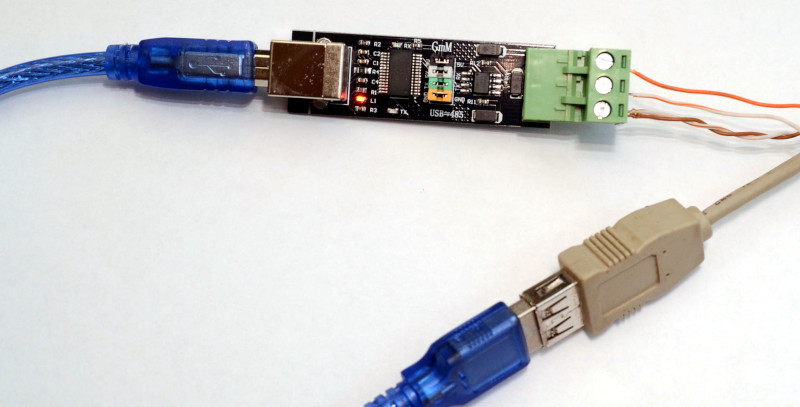
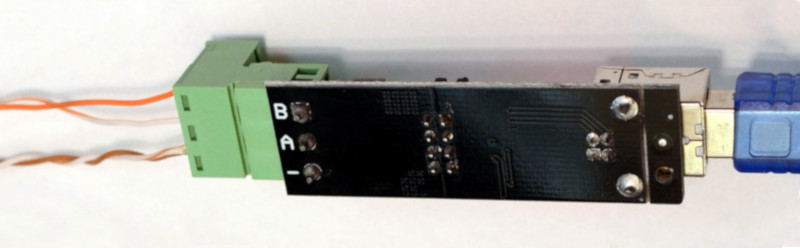
如下图所示,将计算机连接到RS485线,将电线的另一侧连接,如Valden显示页面所述,并从下面的一个示例中运行Python脚本。
请记住,RS485是一条3线线。不要使用没有“信号接地”的便宜转换器,只有A和B。它们将工作几米距离。
 # Communication example for:
# - Valden Display  https://github.com/openhp/Display/
# - Valden Service Display https://github.com/openhp/ServiceDisplay/
#
# The source code licensed under GPLv3.
#
# This product is distributed in the hope that it will be useful, but WITHOUT ANY WARRANTY;
# without even the implied warranty of MERCHANTABILITY or FITNESS FOR A PARTICULAR PURPOSE.
# See the GNU General Public License for more details.


import serial
from time import sleep
import datetime
import string
import sys

#-------------------------------------------------------
#function to send commands and print answers
def SendCommand ( ID_to , command ):
	#send command
	towrite = str ( ID ) +  str ( ID_to ) + command
	print "> " + str ( datetime . datetime . now ())[ 0 : 19 ] + " we sent: " + towrite
	try :
		serial . write ( towrite )
	except :		#do not catch all exceptions in a real code
		print "USB>Serial converter disconnected?" , sys . exc_info ()
		line = None
		return 0

	#read result
	try :
		line = serial . readline ()   # read a 'n' terminated line
	except :		#do not catch all exceptions in a real code
		print "USB>Serial converter disconnected?" , sys . exc_info ()
		line = None
		return 0

	#print answer
	if len ( line ) > 2 :
		print "< " + str ( datetime . datetime . now ())[ 0 : 19 ] + " we got: " + line
	else :
		print "No answer from" , ID_to , " t t " , str ( datetime . datetime . now ())[ 0 : 19 ]

#-------------------------------------------------------
#open serial
print "Starting.."
try :
	serial = serial . Serial ( '/dev/ttyUSB2' , 9600 , timeout = 3 )		#Change serial name to yours!
	print "Opened: " , serial . name
except serial . serialutil . SerialException :
	print "Serial open error! Change serial name to yours! (ex: /dev/ttyUSB5, or something like COM9 at win)"
	exit ( 0 )

#-------------------------------------------------------
#some example values
eev_target = "02.50"		#new eev temperature difference
newtemp = "31.50"		#new setpoint temperature

ID 	= chr ( 0x30 )		#this script ID, 0x30 by default, default value supported by all Valden components so do not change it
remote_ID = chr ( 0x41 )		#Remote Display ID ( this display https://github.com/openhp/Display/ or that display https://github.com/openhp/ServiceDisplay/ )
				#Remote Display ID can be changed, and yes: few devices with unique IDs can work together at the same time at same line

#-------------------------------------------------------
#example cycle, interaction with Remote Display
#commands:
#(G)et all
#new (T)emperature set (setpoint)
#new (E)EV difference set


#cycle sends 10 times (G)er all command
#then sends (T)emperature set
#then sends (E)EV difference set
#then cycle


while ( 1 == 1 ):
	for i in xrange ( 10 ):
		SendCommand ( remote_ID , "G" )	#sends 0AG : from ID 0 to ID A (G)et all
		sleep ( 5 )
	SendCommand ( remote_ID , "T" + newtemp )	#sends 0AT31.50, command format TNN.NN
	sleep ( 5 )
	SendCommand ( remote_ID , "E" + eev_target )	#sends 0AE02.50, command format ENN.NN
	sleep ( 5 )
脚本输出示例(单击放大): 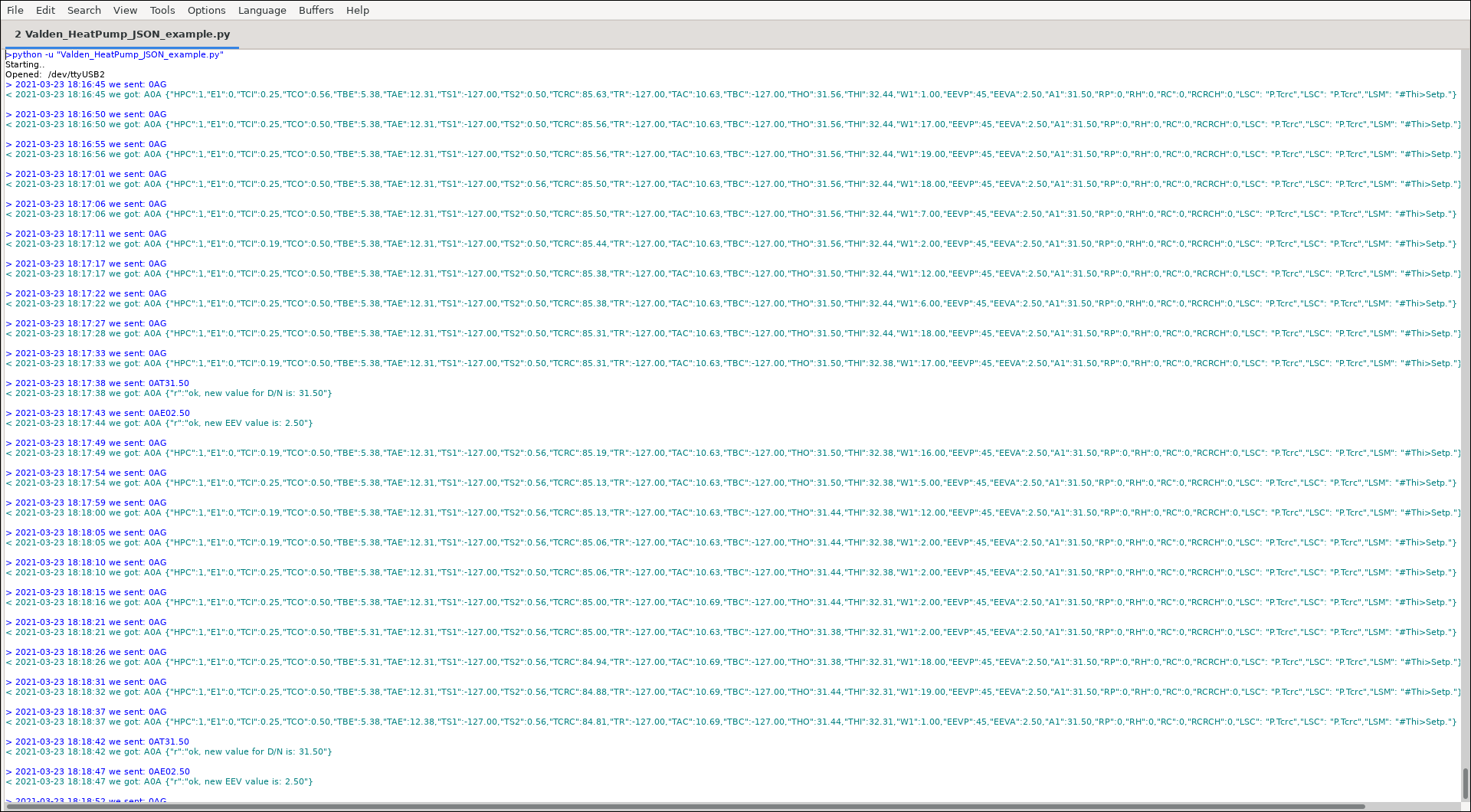
JSON通信特定的简短名称(键):
| abbr。 | 姓名 |
|---|---|
| A1 | 设定点 |
| E1 | 错误代码 |
| HPC | 连接热泵(到远程显示,1 =是,0 =否) |
| W1 | 瓦特 |
您将在显示屏上看到的所有缩写和状态消息均在Valden热泵控制器附录中列出。错误代码也在那里。
接下来是什么?您拥有所有需要集成的信息,例如,与家庭助理或您喜欢的另一个“智能家庭”系统。只是解析琴弦(在Python中非常容易),然后将键值对馈送到您喜欢的系统。
我不使用“智能家居”系统,但我喜欢图形。图有助于分析过程动态。因此,我在服务器端上有一个脚本(更复杂的脚本),该脚本从我所有设备中获取统计数据并为我绘制图形。
例如,我的一个热泵的每日图(单击以放大): 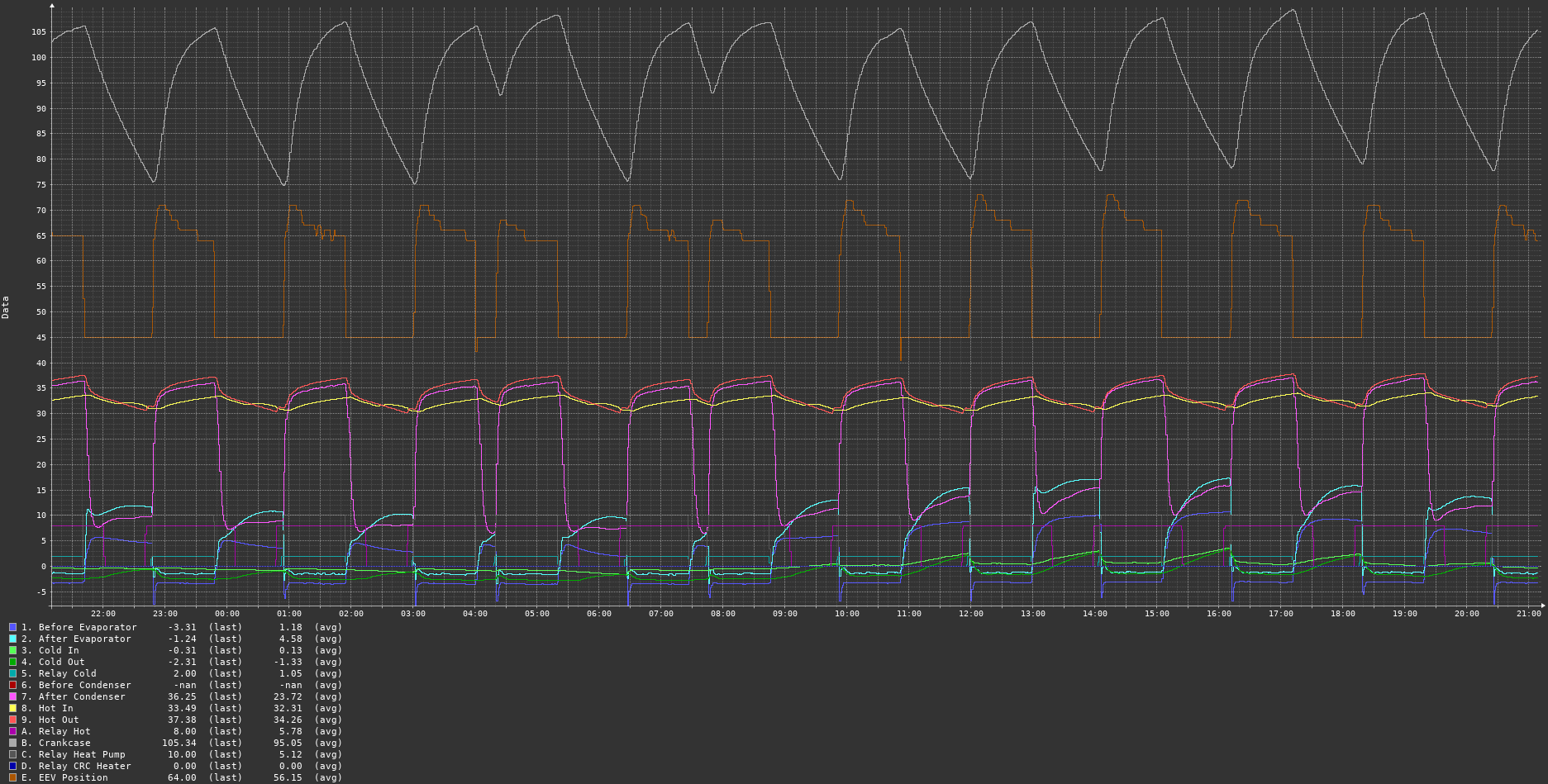
要获取图形,您可以使用仙人掌监测系统之类的东西。
还有一个:您可以使用“设置温度”命令自动更改“设定点”温度,以在节省和房屋温度之间建立舒适的平衡。或依赖日期,小时依赖性或某种依赖温度的系统。
©2015-2021 DAA保留所有权利; gonzho at web.de; https://github.com/openhp/hp-integration-example/。
根据CC-BY-SA许可证v4.0许可的文本,媒体和其他材料。
归因:您必须清楚地归因于valden热泵集成(https://github.com/openhp/hp-integration-example/)在任何衍生作品中的原始作品。
共享和共享:如果您对重复使用的内容进行修改或添加,则必须根据CC-BY-SA许可证v4.0或更高版本许可它们。
指示更改:如果进行修改或添加,则必须以合理的方式表明原始作品已被修改。
您可以免费:只要您遵守许可条款,就可以在商业上分享并适应任何目的。
根据GPLV3许可的源代码。
该产品的分发是希望它将有用的,但没有任何保证;即使没有对特定目的的适销性或适合性的隐含保证。有关更多详细信息,请参见GNU通用公共许可证。
对于本产品中使用的第三方库许可,请参考这些图书馆。





