HP integration example
1.0.0

この例は、サーバー、Raspberry PiなどからValden Heat Pumpデータにアクセスする方法を示しています。
必要なのは、USB-> rs485コンバーターとPython2インストールだけです。
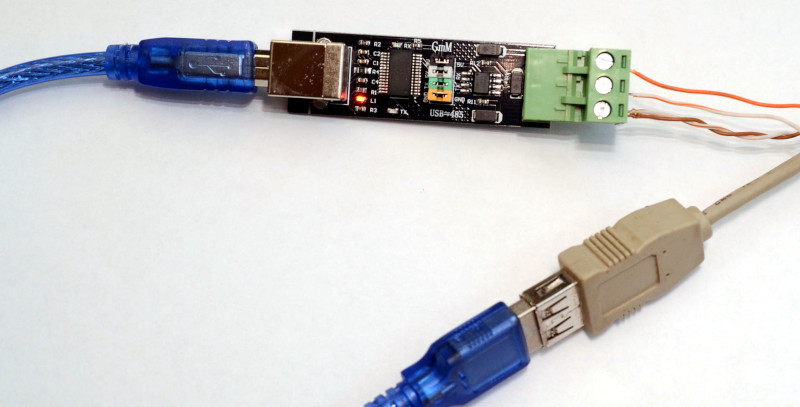
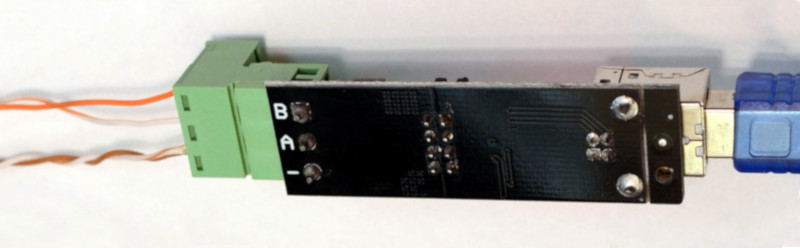
以下の写真のように、コンピューターをRS485行に接続し、Valdenディスプレイページで説明したようなワイヤの別の側面を接続し、以下の例からPythonスクリプトを実行します。
RS485は3線ラインであることを忘れないでください。 「信号グラウンド」とAとBのみを使用して安価なコンバーターを使用しないでください。数メートルの距離で動作します。
 # Communication example for:
# - Valden Display  https://github.com/openhp/Display/
# - Valden Service Display https://github.com/openhp/ServiceDisplay/
#
# The source code licensed under GPLv3.
#
# This product is distributed in the hope that it will be useful, but WITHOUT ANY WARRANTY;
# without even the implied warranty of MERCHANTABILITY or FITNESS FOR A PARTICULAR PURPOSE.
# See the GNU General Public License for more details.


import serial
from time import sleep
import datetime
import string
import sys

#-------------------------------------------------------
#function to send commands and print answers
def SendCommand ( ID_to , command ):
	#send command
	towrite = str ( ID ) +  str ( ID_to ) + command
	print "> " + str ( datetime . datetime . now ())[ 0 : 19 ] + " we sent: " + towrite
	try :
		serial . write ( towrite )
	except :		#do not catch all exceptions in a real code
		print "USB>Serial converter disconnected?" , sys . exc_info ()
		line = None
		return 0

	#read result
	try :
		line = serial . readline ()   # read a 'n' terminated line
	except :		#do not catch all exceptions in a real code
		print "USB>Serial converter disconnected?" , sys . exc_info ()
		line = None
		return 0

	#print answer
	if len ( line ) > 2 :
		print "< " + str ( datetime . datetime . now ())[ 0 : 19 ] + " we got: " + line
	else :
		print "No answer from" , ID_to , " t t " , str ( datetime . datetime . now ())[ 0 : 19 ]

#-------------------------------------------------------
#open serial
print "Starting.."
try :
	serial = serial . Serial ( '/dev/ttyUSB2' , 9600 , timeout = 3 )		#Change serial name to yours!
	print "Opened: " , serial . name
except serial . serialutil . SerialException :
	print "Serial open error! Change serial name to yours! (ex: /dev/ttyUSB5, or something like COM9 at win)"
	exit ( 0 )

#-------------------------------------------------------
#some example values
eev_target = "02.50"		#new eev temperature difference
newtemp = "31.50"		#new setpoint temperature

ID 	= chr ( 0x30 )		#this script ID, 0x30 by default, default value supported by all Valden components so do not change it
remote_ID = chr ( 0x41 )		#Remote Display ID ( this display https://github.com/openhp/Display/ or that display https://github.com/openhp/ServiceDisplay/ )
				#Remote Display ID can be changed, and yes: few devices with unique IDs can work together at the same time at same line

#-------------------------------------------------------
#example cycle, interaction with Remote Display
#commands:
#(G)et all
#new (T)emperature set (setpoint)
#new (E)EV difference set


#cycle sends 10 times (G)er all command
#then sends (T)emperature set
#then sends (E)EV difference set
#then cycle


while ( 1 == 1 ):
	for i in xrange ( 10 ):
		SendCommand ( remote_ID , "G" )	#sends 0AG : from ID 0 to ID A (G)et all
		sleep ( 5 )
	SendCommand ( remote_ID , "T" + newtemp )	#sends 0AT31.50, command format TNN.NN
	sleep ( 5 )
	SendCommand ( remote_ID , "E" + eev_target )	#sends 0AE02.50, command format ENN.NN
	sleep ( 5 )
スクリプト出力の例(クリックして拡大): 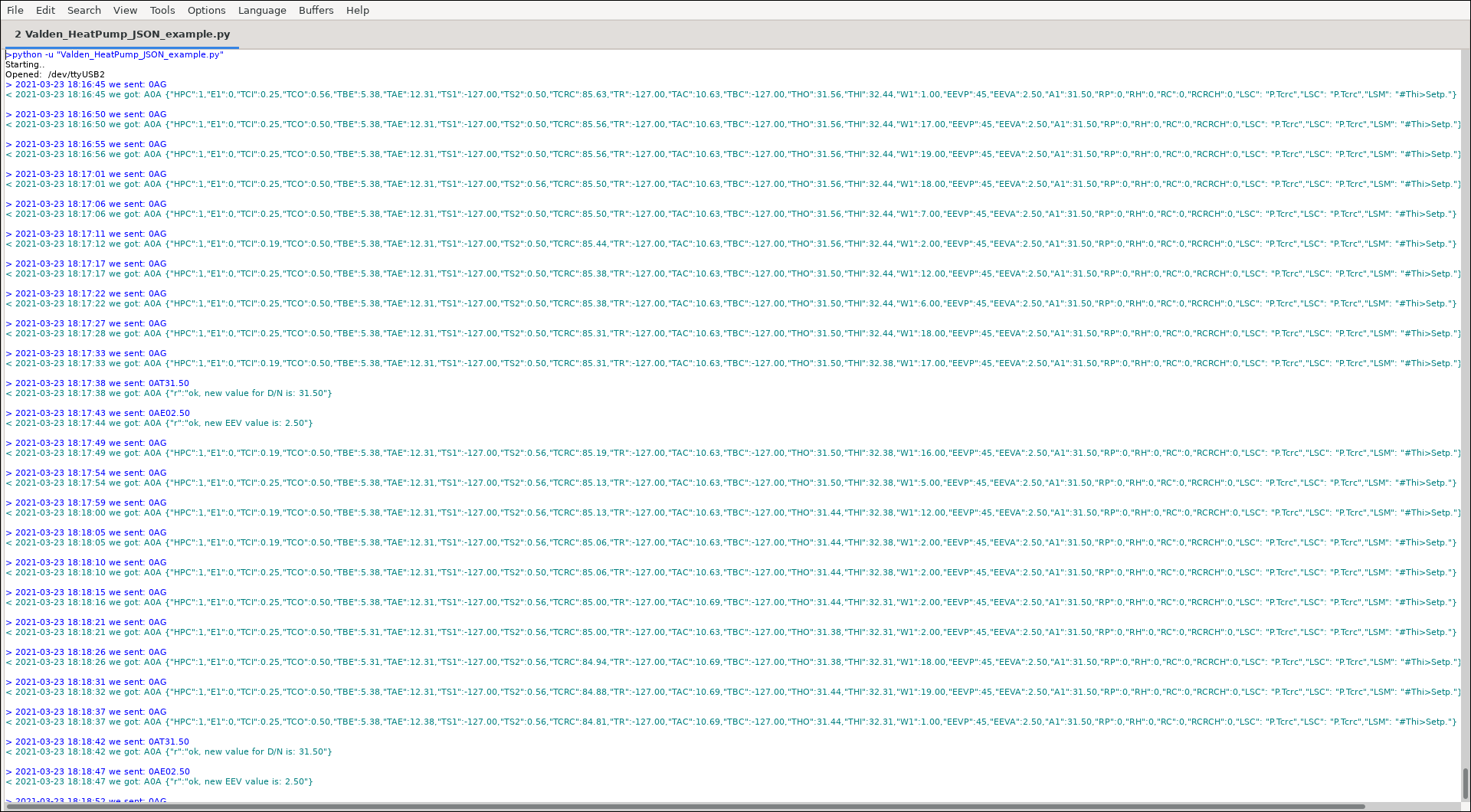
JSONコミュニケーションに固有の短い名前(キー):
| abbr。 | フルネーム |
|---|---|
| A1 | セットポイント |
| E1 | エラーコード |
| HPC | 接続されたヒートポンプ(リモートディスプレイに、1 =はい、0 =いいえ) |
| W1 | ワッツ |
ディスプレイに表示されるすべての略語とステータスメッセージは、Valden Heat Pump Controllerの付録にリストされています。エラーコードもあります。
次は何ですか?たとえば、ホームアシスタントや好きな別の「スマートホーム」システムと統合するために必要なすべての情報があります。手に入れた文字列(Pythonで非常に簡単です)を解析し、お気に入りのシステムにキー価値のペアを供給します。
私は「スマートホーム」システムを使用していませんが、グラフが好きです。グラフは、プロセスのダイナミクスを分析するのに役立ちます。そのため、サーバー側にスクリプト(はるかに複雑なスクリプト)があり、すべてのデバイスから統計を取得し、グラフを描画します。
たとえば、ヒートポンプの1つの毎日のグラフ(クリックして拡大): 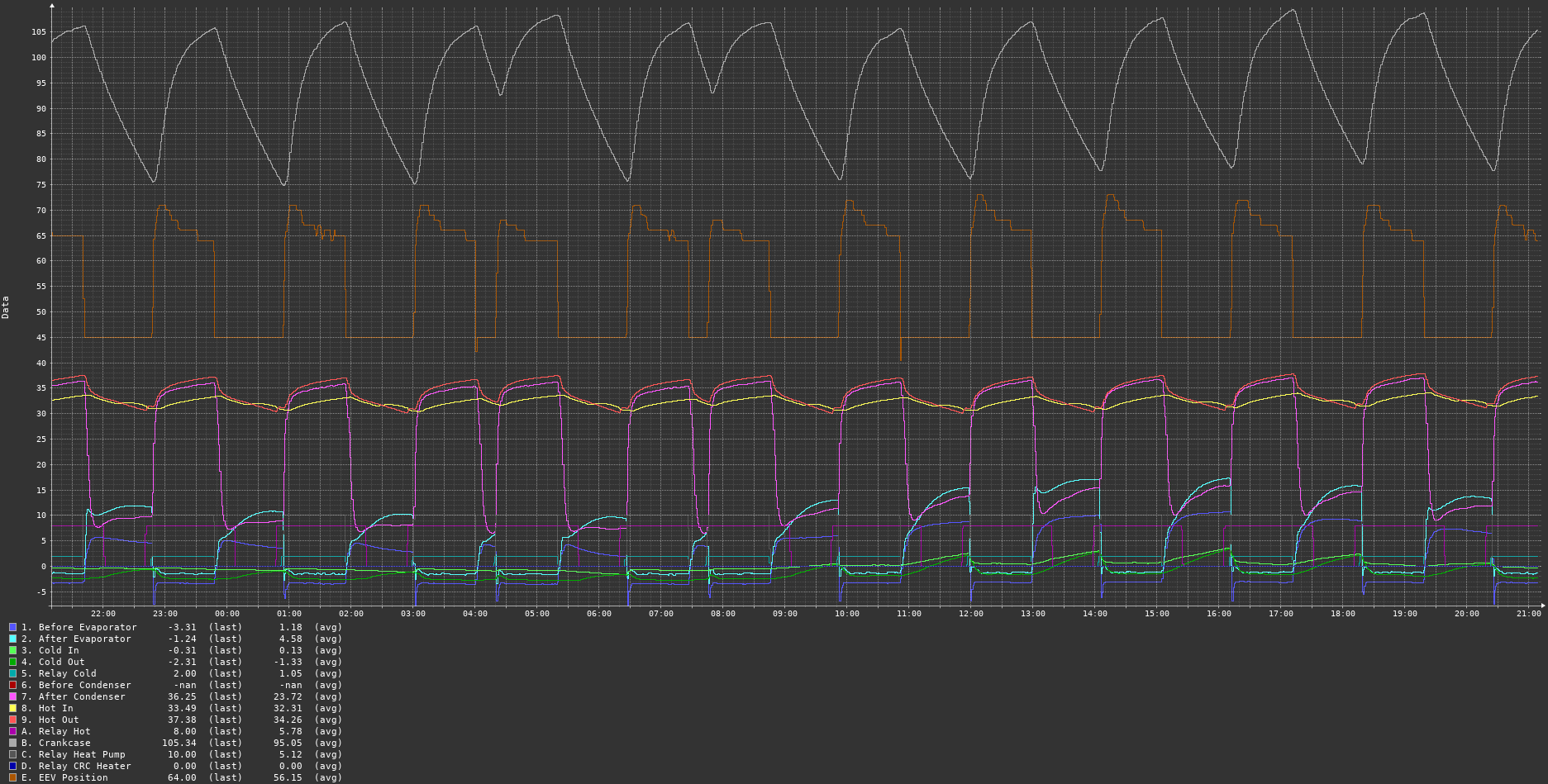
グラフを取得するには、サボテン監視システムのようなものを使用できます。
もう1つ:「セット温度」コマンドを使用して、「セットポイント」の「温度」を自動的に変更して、省電力と家の温度の快適なバランスを作成できます。または、日依存、時間依存、または何か - エルス温度依存システム。
©2015-2021 daa all rights reserved; Web.deのGonzho; https://github.com/openhp/hp-integration-example/。
CC-SAライセンスv4.0に基づいて認可されたテキスト、メディア、その他の資料。
属性:Valden Heat Pump Integration(https://github.com/openhp/hp-integration-example/)のオリジナル作業では、明確に属性が必要です。
共有と共有:再使用するコンテンツに変更または追加を行う場合は、CC-SAライセンスv4.0以下でライセンスを付ける必要があります。
変更を示す:変更または追加を行う場合、元の作品が変更されたことを合理的に示す必要があります。
あなたは無料です:ライセンス条件に従う限り、商業的にも、あらゆる目的のために資料を共有し、適応させること。
GPLV3の下でライセンスされたソースコード。
この製品は、それが有用であることを期待して配布されますが、保証はありません。商品性や特定の目的に対するフィットネスの暗黙の保証さえありません。詳細については、GNU一般公開ライセンスを参照してください。
この製品で使用されているサードパーティライブラリライセンスについては、これらのライブラリを参照してください。





