HP integration example
1.0.0

ตัวอย่างนี้แสดงวิธีการเข้าถึงข้อมูลปั๊มความร้อน Valden จากเซิร์ฟเวอร์ของคุณ Raspberry Pi และอื่น ๆ
สิ่งที่คุณต้องการคือตัวแปลง USB-> RS485 และ Python2 ติดตั้ง
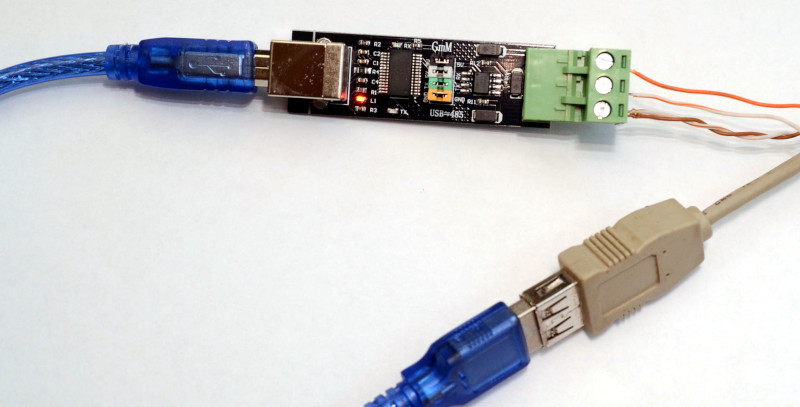
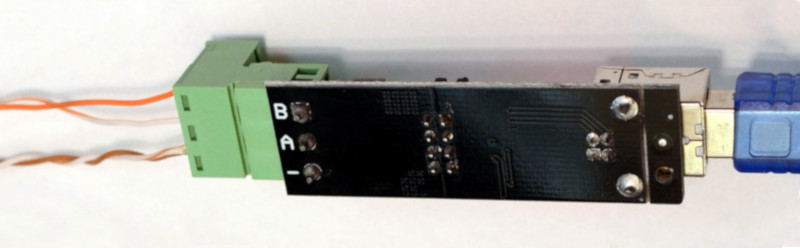
เชื่อมต่อคอมพิวเตอร์ของคุณกับบรรทัด RS485 ตามภาพด้านล่างเชื่อมต่อด้านอื่นของสายไฟอีกด้านหนึ่งเช่นที่อธิบายไว้ที่หน้าจอแสดงผล Valden และเรียกใช้สคริปต์ Python จากตัวอย่างด้านล่าง
โปรดจำไว้ว่า RS485 เป็นสาย 3 สาย อย่าใช้ตัวแปลงราคาถูกโดยไม่มี "กราวด์สัญญาณ" และมีเพียง A และ B พวกเขาจะทำงานได้ระยะทางไม่กี่เมตร
 # Communication example for:
# - Valden Display  https://github.com/openhp/Display/
# - Valden Service Display https://github.com/openhp/ServiceDisplay/
#
# The source code licensed under GPLv3.
#
# This product is distributed in the hope that it will be useful, but WITHOUT ANY WARRANTY;
# without even the implied warranty of MERCHANTABILITY or FITNESS FOR A PARTICULAR PURPOSE.
# See the GNU General Public License for more details.


import serial
from time import sleep
import datetime
import string
import sys

#-------------------------------------------------------
#function to send commands and print answers
def SendCommand ( ID_to , command ):
	#send command
	towrite = str ( ID ) +  str ( ID_to ) + command
	print "> " + str ( datetime . datetime . now ())[ 0 : 19 ] + " we sent: " + towrite
	try :
		serial . write ( towrite )
	except :		#do not catch all exceptions in a real code
		print "USB>Serial converter disconnected?" , sys . exc_info ()
		line = None
		return 0

	#read result
	try :
		line = serial . readline ()   # read a 'n' terminated line
	except :		#do not catch all exceptions in a real code
		print "USB>Serial converter disconnected?" , sys . exc_info ()
		line = None
		return 0

	#print answer
	if len ( line ) > 2 :
		print "< " + str ( datetime . datetime . now ())[ 0 : 19 ] + " we got: " + line
	else :
		print "No answer from" , ID_to , " t t " , str ( datetime . datetime . now ())[ 0 : 19 ]

#-------------------------------------------------------
#open serial
print "Starting.."
try :
	serial = serial . Serial ( '/dev/ttyUSB2' , 9600 , timeout = 3 )		#Change serial name to yours!
	print "Opened: " , serial . name
except serial . serialutil . SerialException :
	print "Serial open error! Change serial name to yours! (ex: /dev/ttyUSB5, or something like COM9 at win)"
	exit ( 0 )

#-------------------------------------------------------
#some example values
eev_target = "02.50"		#new eev temperature difference
newtemp = "31.50"		#new setpoint temperature

ID 	= chr ( 0x30 )		#this script ID, 0x30 by default, default value supported by all Valden components so do not change it
remote_ID = chr ( 0x41 )		#Remote Display ID ( this display https://github.com/openhp/Display/ or that display https://github.com/openhp/ServiceDisplay/ )
				#Remote Display ID can be changed, and yes: few devices with unique IDs can work together at the same time at same line

#-------------------------------------------------------
#example cycle, interaction with Remote Display
#commands:
#(G)et all
#new (T)emperature set (setpoint)
#new (E)EV difference set


#cycle sends 10 times (G)er all command
#then sends (T)emperature set
#then sends (E)EV difference set
#then cycle


while ( 1 == 1 ):
	for i in xrange ( 10 ):
		SendCommand ( remote_ID , "G" )	#sends 0AG : from ID 0 to ID A (G)et all
		sleep ( 5 )
	SendCommand ( remote_ID , "T" + newtemp )	#sends 0AT31.50, command format TNN.NN
	sleep ( 5 )
	SendCommand ( remote_ID , "E" + eev_target )	#sends 0AE02.50, command format ENN.NN
	sleep ( 5 )
ตัวอย่างสคริปต์เอาต์พุต (คลิกเพื่อขยาย): 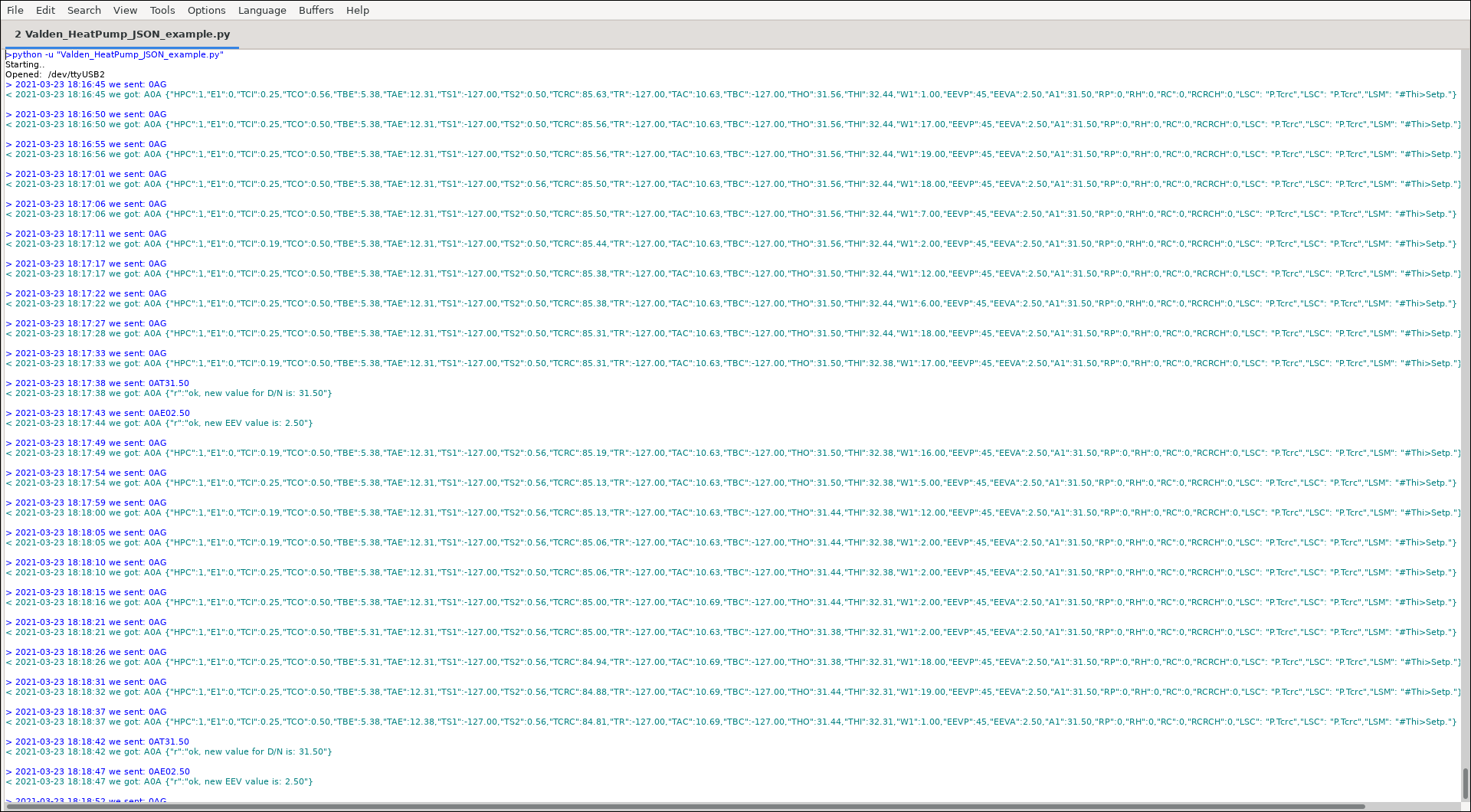
ชื่อสั้น ๆ (ปุ่ม) เฉพาะสำหรับการสื่อสาร JSON:
| Abbr. | ชื่อเต็ม |
|---|---|
| A1 | จุดที่ตั้งไว้ |
| E1 | รหัสข้อผิดพลาด |
| HPC | เชื่อมต่อปั๊มความร้อน (เพื่อแสดงผลระยะไกล, 1 = ใช่, 0 = ไม่) |
| W1 | วัตต์ |
ตัวย่อและข้อความสถานะทั้งหมดที่คุณจะเห็นที่หน้าจอแสดงอยู่ที่ภาคผนวกของ Valden Heat Pump Controller รหัสข้อผิดพลาดยังมี
ถัดไปคืออะไร? คุณมีข้อมูลทั้งหมดที่คุณต้องการรวมเข้าด้วยกันกับระบบผู้ช่วยที่บ้านหรือระบบ "สมาร์ทโฮม" อื่นที่คุณชอบ เพียงแค่แยกวิเคราะห์สตริง (มันง่ายมากในงูหลาม) และป้อนคู่ค่าคีย์-ค่าเข้ากับระบบที่คุณชื่นชอบ
ฉันไม่ได้ใช้ระบบ "Smart Home" แต่ฉันชอบกราฟ กราฟช่วยในการวิเคราะห์การเปลี่ยนแปลงของกระบวนการ ดังนั้นฉันมีสคริปต์ (สคริปต์ที่ซับซ้อนมากขึ้น) ทางฝั่งเซิร์ฟเวอร์ที่ได้รับสถิติจากอุปกรณ์ทั้งหมดของฉันและวาดกราฟให้ฉัน
ตัวอย่างเช่นกราฟรายวันสำหรับหนึ่งในปั๊มความร้อนของฉัน (คลิกเพื่อขยาย): 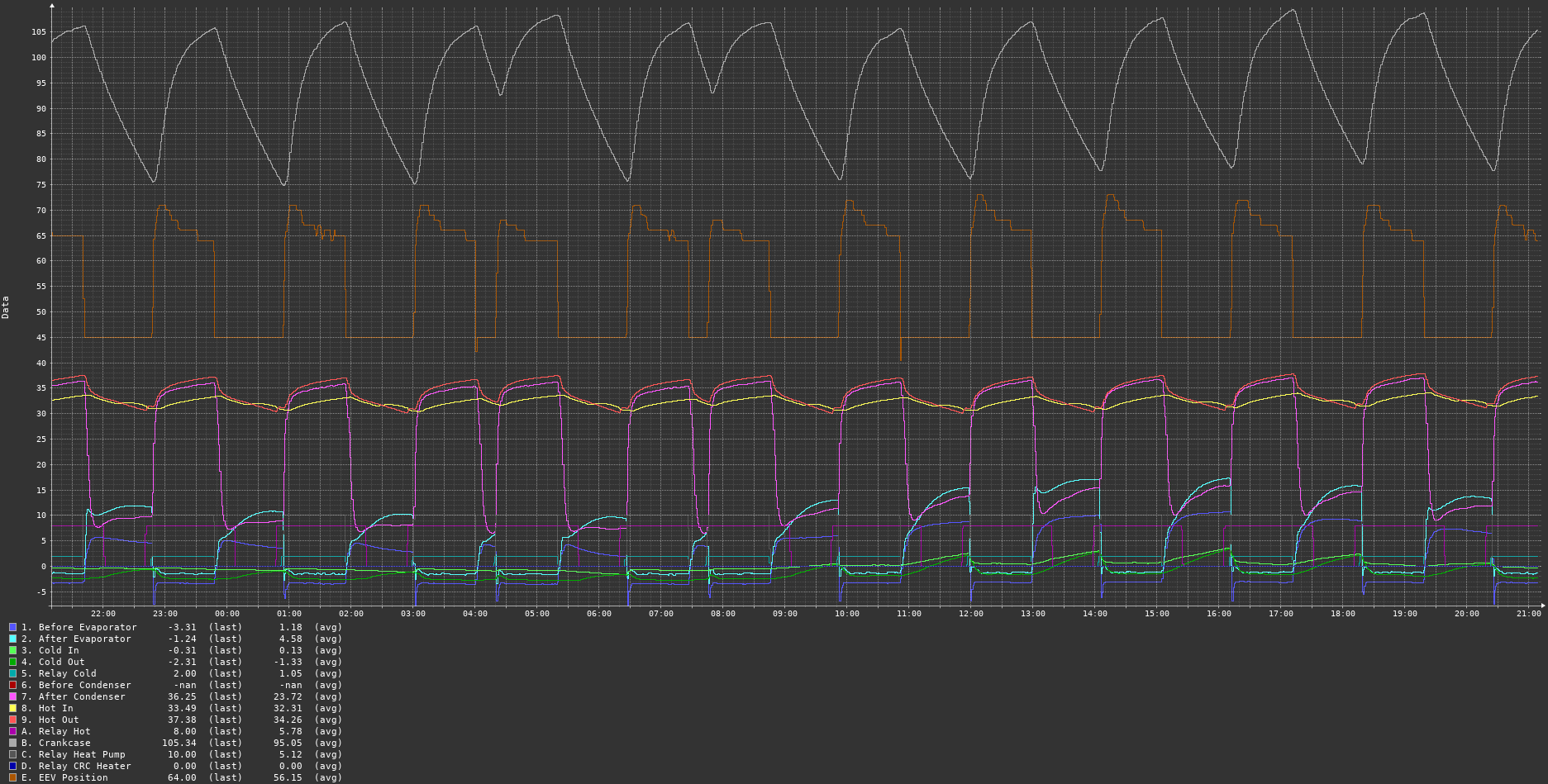
ในการรับกราฟคุณสามารถใช้บางอย่างเช่นระบบตรวจสอบ CACTI
และอีกหนึ่ง: คุณสามารถใช้คำสั่ง "ตั้งค่าอุณหภูมิ" เพื่อเปลี่ยนอุณหภูมิ "setpoint" โดยอัตโนมัติเพื่อสร้างความสมดุลที่สะดวกสบายระหว่างการประหยัดพลังงานและอุณหภูมิบ้าน หรือขึ้นอยู่กับวันขึ้นอยู่กับชั่วโมงหรือระบบอุณหภูมิที่ขึ้นอยู่กับอุณหภูมิ
© 2015-2021 DAA สงวนลิขสิทธิ์; Gonzho ที่ web.de; https://github.com/openhp/hp-integration-example/
ข้อความสื่อและวัสดุอื่น ๆ ที่ได้รับใบอนุญาตภายใต้ใบอนุญาต CC-by-SA v4.0
การระบุแหล่งที่มา: คุณต้องแสดงแอตทริบิวต์การรวม Valden Heat Pump (https://github.com/openhp/hp-integration-example/) งานต้นฉบับในงานอนุพันธ์ใด ๆ
แบ่งปันและแบ่งปันเหมือนกัน: หากคุณทำการดัดแปลงหรือเพิ่มเติมกับเนื้อหาที่คุณใช้ซ้ำคุณต้องอนุญาตให้ใช้งานภายใต้ใบอนุญาต CC-by-SA V4.0 หรือใหม่กว่า
ระบุการเปลี่ยนแปลง: หากคุณทำการดัดแปลงหรือเพิ่มเติมคุณต้องระบุในแบบที่สมเหตุสมผลว่างานต้นฉบับได้รับการแก้ไขแล้ว
คุณมีอิสระ: เพื่อแบ่งปันและปรับเนื้อหาไม่ว่าจะในเชิงพาณิชย์แม้กระทั่งในเชิงพาณิชย์ตราบใดที่คุณปฏิบัติตามข้อกำหนดใบอนุญาต
ซอร์สโค้ดที่ได้รับอนุญาตภายใต้ GPLV3
ผลิตภัณฑ์นี้มีการแจกจ่ายด้วยความหวังว่าจะมีประโยชน์ แต่ไม่มีการรับประกันใด ๆ โดยไม่มีการรับประกันโดยนัยเกี่ยวกับความสามารถในการค้าหรือความเหมาะสมสำหรับวัตถุประสงค์เฉพาะ ดูใบอนุญาตสาธารณะ GNU ทั่วไปสำหรับรายละเอียดเพิ่มเติม
สำหรับใบอนุญาตไลบรารีของบุคคลที่สามที่ใช้ในผลิตภัณฑ์นี้โปรดดูที่ไลบรารีเหล่านั้น





