XamlFlair
1.0.0


Xamlflair库的目的是简化常见动画的实现,并允许开发人员轻松地添加只有几行XAML的单个或组合的动画集。
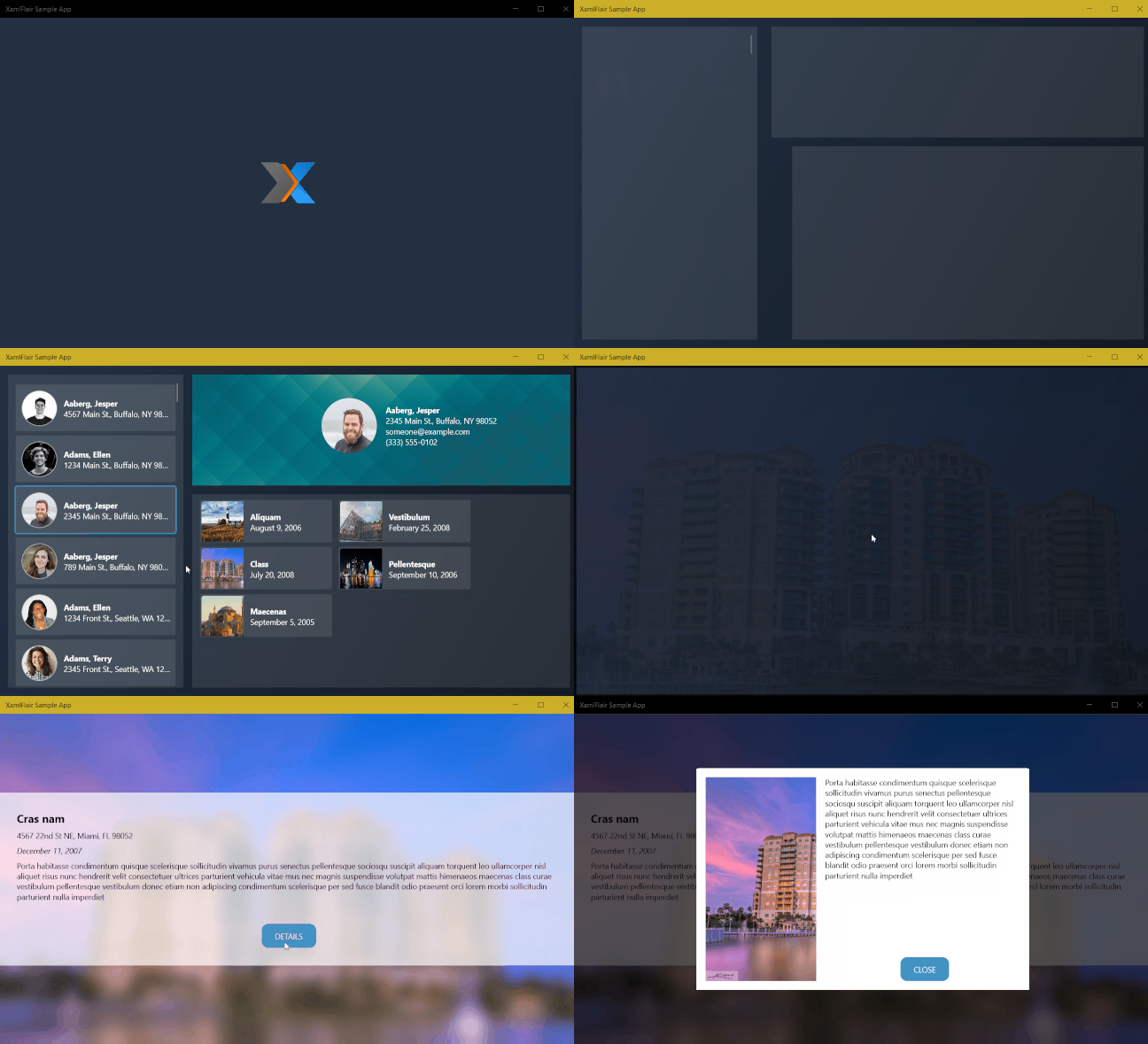
| Sekuence益智游戏 |
|---|
 |
如果您想用一些咖啡来支持我的工作,可以在这里做:给我买咖啡。您的帮助使我能够继续花时间在此项目上,并在可能的情况下继续使用新功能进行维护和更新。提前致谢!
从Nuget安装
功能概述
基本概念
用法
基本动画类型
彩色动画(仅WPF和UNO )
覆盖全局默认值
对基础设置使用ResourceDictionary
默认动画(仅WPF )
TransformOn属性(仅WPF )
透视旋转(仅限UWP )
组合动画
覆盖值
X和Y轴上的相对翻译
复合动画
重复动画
事件
绑定
初级和次要完成命令
使用StartWith属性
使用AllowOpacityReset属性(仅WPF )
使用ClipToBounds属性(仅UWP和UNO )
调试动画
记录动画
ListViewBase ( UWP和UNO )和ListBox -BATE -BATE -BASING( WPF )动画
| 平台 | 包裹 | nuget |
|---|---|---|
| UWP | xamlflair.uwp | |
| WPF | xamlflair.wpf | |
| UNO | xamlflair.uno |
要安装Xamlflair ,请在软件包管理器控制台中运行以下命令:
UWP:
Install-Package XamlFlair.UWP
您的应用必须针对Windows 10版本1809(构建17763)的目标
WPF:
Install-Package XamlFlair.WPF
UNO:
Install-Package XamlFlair.Uno
您的UWP应用程序必须针对Windows 10版本1809(构建18362)的目标
| 特征 | UWP | WPF | UWP(UNO) | ios(uno) | Android(UNO) | WASM(UNO)实验 |
|---|---|---|---|---|---|---|
| 动画系统 | 作品 | 故事板 | 故事板 | 故事板 | 故事板 | 故事板 |
| 变换类型 | N/A。 | 变换组 | COMPOSITETRANSFORM | COMPOSITETRANSFORM | COMPOSITETRANSFORM | COMPOSITETRANSFORM |
| defaultanimations.xaml | - | ✔ | - | - | - | - |
TransformOn | - | ✔ | - | - | - | - |
| 复合动画 | ✔ | ✔ | ✔ | ✔ | ✔ | ✔ |
| 相对翻译 | ✔ | ✔ | ✔ | ✔ | ✔ | ✔ |
| 重复动画 | ✔ | ✔ | ✔ | ✔ | ✔ | ✔ |
| 事件和绑定 | ✔ | ✔ | ✔ | ✔ | ✔ | ✔ |
| 主要/次级完成命令 | ✔ | ✔ | ✔ | ✔ | ✔ | ✔ |
StartWith | ✔ | ✔ | ✔ | ✔ | ✔ | ✔ |
AllowOpacityReset | - | ✔ | - | - | - | - |
ClipToBounds | ✔ | N/A。 | ✔ | ✔ | ✔ | ✔ |
| 动画列表 | ✔ | ✔ | ✔ | ✔ | ✔ | ✔ |
| 模糊效果 | ✔ | ✔ | - | - | - | - |
| 饱和效应 | ✔ | - | - | - | - | - |
| 色调效果 | ✔ | - | - | - | - | - |
| 彩色动画 | - | ✔ | ✔ | ✔ | ✔ | ✔ |
| 透视旋转(旋转) | ✔ | - | - | - | - | - |
| 调试动画 | ✔ | ✔ | ✔ | ✔ | ✔ | - |
Xamlflair的基本概念是基于被归类为中和到的动画。任何由Animation组成的UI元素都将以一个或多个任意值开始,并使用相应属性的默认值完成。任何由动画组成的UI元素都将以当前状态开始,并将一个或多个任意值动画。
来自动画的示例(一个UI元素转换为翻译的默认值(0)):

动画的示例(UI元素远离其当前状态):

注意:重要的是要注意,该规则的颜色动画有例外,这在基本动画类型部分中进行了解释。
首先,您需要具有以下XAML名称空间参考:
UWP和UNO:
xmlns:xf="using:XamlFlair"WPF:
xmlns:xf="clr-namespace:XamlFlair;assembly=XamlFlair.WPF"从这里开始,将附加的属性设置为需要动画的任何FrameworkElement是一个简单的问题:
< Border xf:Animations.Primary= " {StaticResource FadeIn} " />注意:如果您的
FrameworkElement定义了XAML中的CompositeTransform,则在动画过程中将进行更改。
注意:使用
StaticResource是参考全局通用动画,这将在下一部分中进行讨论。

警告:对
FadeTo进行动画动画时要小心,因为如果VisibilityVisible,则元素保留在视觉树中。可能在某些情况下,您需要手动管理IsHitTestVisible,以允许用户点击元素。
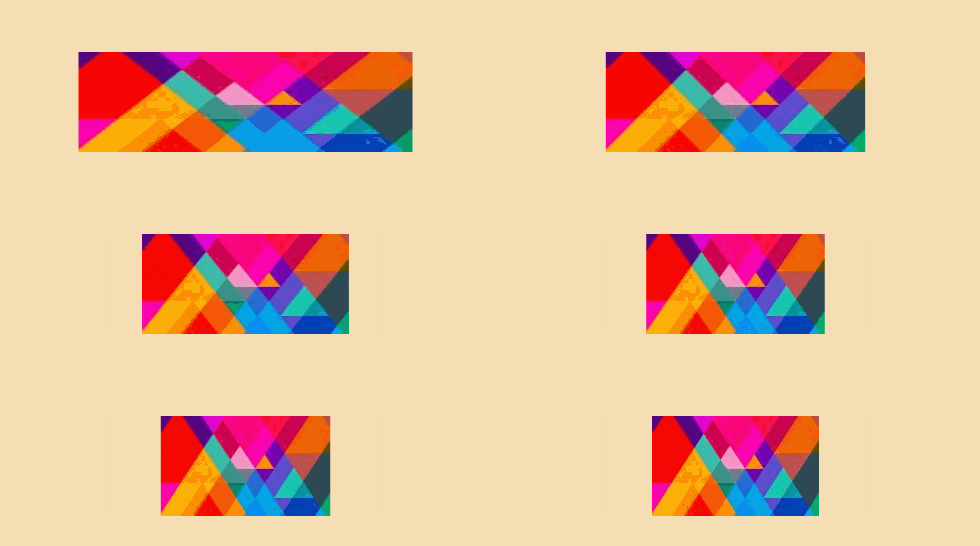





注意:要注意使用Animation a对颜色进行动画作用时,颜色将从指定值到其当前状态而不是默认值进行动画。

注意:阅读截面透视旋转(仅限UWP )以获取更多详细信息。
以下列出了与Xamlflair一起工作时的一些显着默认值:
颜色动画需要一些关注,因为它们与其他基本类型动画略有不同。使用ColorTo和ColorFrom时,必须完成以下操作:
Shape.Stroke以下属性进行动画操作: Control.Background , Control.Foreground , Control.BorderBrush , Border.BorderBrush , TextBlock.Foreground , Shape.Fill Border.BackgroundColorOn指定目标属性下面的示例将使矩形从皇家蓝调到darkgreen的Fill进行动画:
< xf : AnimationSettings x : Key = " SampleColorAnimation "
                      Kind = " ColorTo "
                      Color = " DarkGreen "
                      ColorOn = " Fill " />

< Rectangle Fill = " RoyalBlue "
xf:Animations.Primary= " {StaticResource SampleColorAnimation} " />如果您需要在全球更改默认动画值之一(例如,默认Duration为750而不是500),则可以在应用程序初始化代码中调用OverrideDefaultSettings函数。以下示例更改了Duration和Easing默认值:
 XamlFlair . Animations . OverrideDefaultSettings (
    duration : 750 ,
    easing : EasingType . Quadratic ) ;
因此,使用上面的示例代码,每个动画都将在二次宽松的情况下运行750ms。
ResourceDictionary所有常见的动画都应放置在全球ResourceDictionary (例如: Animations.xaml )中,并在整个应用程序中使用的地方使用。目的是将所有动画合并到一个具有有意义名称的文件中,以便任何开发人员都可以准确地了解哪些动画应用于FrameworkElement 。这是它的外观的一个小例子:
< ResourceDictionary xmlns = " http://schemas.microsoft.com/winfx/2006/xaml/presentation "
                    xmlns : x = " http://schemas.microsoft.com/winfx/2006/xaml "
                    xmlns : xf = " using:XamlFlair " >

    < x : Double x : Key = " PositiveOffset " >50</ x : Double >
    < x : Double x : Key = " NegativeOffset " >-50</ x : Double >
    < x : Double x : Key = " SmallScaleFactor " >0.75</ x : Double >
    < x : Double x : Key = " LargeScaleFactor " >1.25</ x : Double >

    < xf : AnimationSettings x : Key = " FadeIn "
                          Kind = " FadeFrom "
                          Opacity = " 0 " />

    < xf : AnimationSettings x : Key = " FadeOut "
                          Kind = " FadeTo "
                          Opacity = " 0 " />

    <!-- Scale to a larger value -->
    < xf : AnimationSettings x : Key = " Expand "
                          Kind = " ScaleXTo,ScaleYTo "
                          ScaleX = " {StaticResource LargeScaleFactor} "
                          ScaleY = " {StaticResource LargeScaleFactor} " />

    <!-- Scale from a larger value -->
    < xf : AnimationSettings x : Key = " Contract "
                          Kind = " ScaleXFrom,ScaleYFrom "
                          ScaleX = " {StaticResource LargeScaleFactor} "
                          ScaleY = " {StaticResource LargeScaleFactor} " />
    .
    .
    .
</ ResourceDictionary >要设置您的应用程序中已经可用的一组预配置的AnimationSettings ,请执行以下步骤:
Animations.xamlApp.xaml中,添加以下内容: < Application .Resources>
< ResourceDictionary >
< ResourceDictionary .MergedDictionaries>
< ResourceDictionary Source = " Animations.xaml " />
</ ResourceDictionary .MergedDictionaries>
</ ResourceDictionary >
</ Application .Resources>Animations.xaml中,从下面的相应链接中复制并粘贴内容:UWP的动画设置
WPF的动画设置
UNO的动画设置
您的应用程序现在有一组全局的通用动画,可以使用。
或者,Xamlflair可以创建包含您自定义AnimationSettings ResourceDictionary ,提供了一些默认的动画。
要在您的应用程序中引用这些默认动画,请在App.xaml中执行以下步骤:
XamlFlair.WPF名称空间: xmlns:xf="clr-namespace:XamlFlair;assembly=XamlFlair.WPF" < Application .Resources>
< ResourceDictionary >
< ResourceDictionary .MergedDictionaries>
< xf : XamlFlairResources />
</ ResourceDictionary .MergedDictionaries>
</ ResourceDictionary >
</ Application .Resources>您的应用程序现在有一组全局的默认动画,可以使用。
如果使用<xf:XamlFlairResources />时,Visual Studio Intellisense不起作用,则可能需要尝试以下内容:
    < Application .Resources>
        < ResourceDictionary >
            < ResourceDictionary .MergedDictionaries>
                < ResourceDictionary Source = " pack://application:,,,/XamlFlair.WPF;component/DefaultAnimations.xaml " />
            </ ResourceDictionary .MergedDictionaries>
        </ ResourceDictionary >
</ Application .Resources>TransformOn属性(仅WPF )使用TransformOn属性,您可以针对哪种类型的RenderTransform应用于动画。可用的选项是Render和Layout 。如果没有指定任何指定,则默认谷是Render 。这是两个例子:
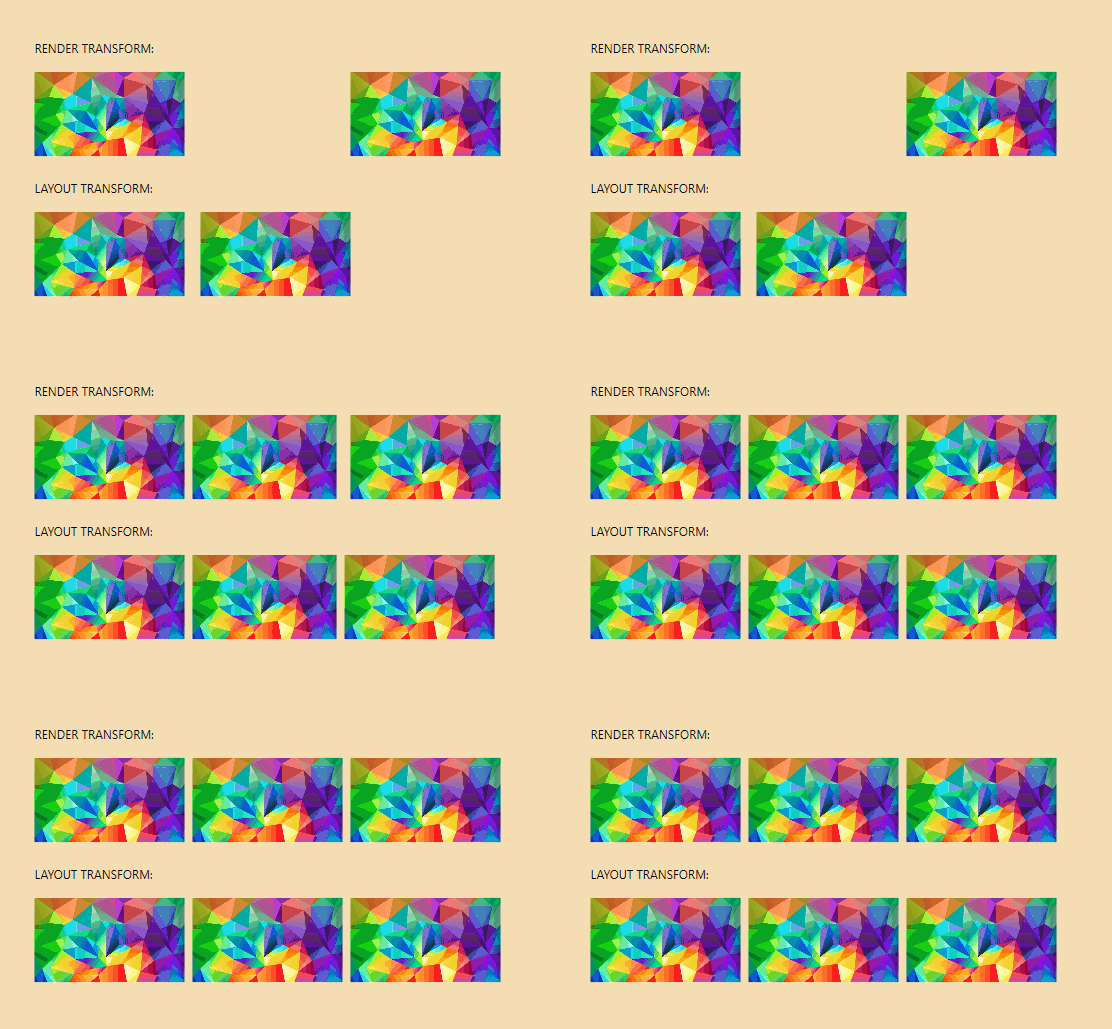
注意:非常重要的是要注意,WPF的
LayoutTransform不支持任何TranslateTransform,因此翻译动画将永远无法使用。您可以在此处的“评论”部分中阅读有关它的更多信息。
重要的是要注意,将透视旋转(也称为Swivel )应用于目标元素,要求将其包裹在容器中,并将布局属性应用于容器元素。因此,考虑以下简单的视角旋转:
< xf : AnimationSettings x : Key = " PerspectiveVerticalRotation "
                      Kind = " SwivelYFrom "
                      SwivelY = " -45 " />
而不是这样的元素动画:
< Rectangle Fill = " RoyalBlue "
           Width = " 200 "
           Height = " 200 "
           HorizontalAlignment = " Center "
           VerticalAlignment = " Center "
           xf:Animations.Primary= " {StaticResource PerspectiveVerticalRotation} " />
该元素应放在容器中,以使动画正常工作:
< Border Width = " 200 "
        Height = " 200 "
        HorizontalAlignment = " Center "
        VerticalAlignment = " Center " >
    < Rectangle Fill = " RoyalBlue "
           xf:Animations.Primary= " {StaticResource PerspectiveVerticalRotation} " />
</ Border >动画可以合并,如前所述,通常将这些共同使用的组合动画放在全球ResourceDictionary (ex: Animations.xaml )中:
< ResourceDictionary xmlns = " http://schemas.microsoft.com/winfx/2006/xaml/presentation "
                    xmlns : x = " http://schemas.microsoft.com/winfx/2006/xaml "
                    xmlns : xf = " using:XamlFlair " >
    .
    .
    .
    < xf : AnimationSettings x : Key = " FadeInAndSlideFromLeft "
                          Kind = " FadeFrom,TranslateXFrom "
                          Opacity = " 0 "
                          OffsetX = " {StaticResource NegativeOffset} " />

    < xf : AnimationSettings x : Key = " FadeInAndSlideFromTop "
                          Kind = " FadeFrom,TranslateYFrom "
                          Opacity = " 0 "
                          OffsetY = " {StaticResource NegativeOffset} " />

    < xf : AnimationSettings x : Key = " FadeInAndGrow "
                          Kind = " FadeFrom,ScaleXFrom,ScaleXFrom "
                          Opacity = " 0 "
                          ScaleX = " {StaticResource SmallScaleFactor} "
                          ScaleY = " {StaticResource SmallScaleFactor} " />

    < xf : AnimationSettings x : Key = " FadeInAndGrowHorizontally "
                          Kind = " FadeFrom,ScaleXFrom "
                          Opacity = " 0 "
                          ScaleX = " {StaticResource SmallScaleFactor} " />
    .
    .
    .
</ ResourceDictionary >这表明了从FadeFrom和TranslateFrom的淡出的组合动画:

这表明了FadeFrom , TranslateFrom和ScaleFrom的淡入淡出的动画:

动画可以将其设置直接在FrameworkElement上覆盖。这通常是为了改变延迟和持续时间的值,以使我们不会过分填充Animations.xaml文件,并使用重复的资源。要实现覆盖,请使用与BasedOn属性配对的Animate标记扩展:
< Border xf:Animations.Primary= " {xf:Animate BasedOn={StaticResource ScaleFromBottom}, Delay=500} " />由于OffsetX和OffsetY的硬编码值可能是限制的(例如,在处理可解析的窗口时),因此OffsetX和OffsetY支持Star的值:
< Border xf:Animations.Primary= " {xf:Animate BasedOn={StaticResource SlideFromLeft}, OffsetX=1.5*} " />基于恒星的值将根据
FrameworkElement的当前ActualWidth和/或ActualHeight值来计算偏移,因此,重要的是要执行其Loaded事件,这一点很重要。如果尚未计算ActualWidth和/或ActualHeight,则偏移值将尝试基于Width和/或Height。
复合动画只是使用CompoundSettings类的多步动画。每个内部动画都执行后,一旦完成,它们是顺序的动画:

< xf : CompoundSettings x : Key = " Compound " >
    < xf : CompoundSettings .Sequence>
        < xf : AnimationSettings Kind = " ScaleXTo "
                              ScaleX = " 1.25 "
                              Duration = " 1250 " />
        < xf : AnimationSettings Kind = " ScaleXTo "
                              ScaleX = " 1 "
                              Duration = " 1250 " />
        < xf : AnimationSettings Kind = " RotateTo "
                              Rotation = " 360 "
                              Duration = " 1250 " />
    </ xf : CompoundSettings .Sequence>
</ xf : CompoundSettings >注意:
CompoundSettings支持Event属性,这将在后面的部分中进行讨论。
可以使用IterationBehavior和IterationCount属性(分别为Count和1的默认值)来重复动画。

以下说明了如何仅运行动画5次:
< Border xf:Animations.Primary= " {StaticResource FadeIn} "
        xf:Animations.IterationCount= " 5 " />
以下说明了如何无限期地运行动画:
< Border xf:Animations.Primary= " {StaticResource FadeIn} "
xf:Animations.IterationBehavior= " Forever " />另请注意,也可以重复复合动画。例如,使用上一节中的化合物动画(命名进度):
< Border xf:Animations.Primary= " {StaticResource Progress} "
xf:Animations.IterationCount= " 5 " />警告:使用重复动画时,您无法在元素上设置
Secondary动画。
重要的是要注意,所有Xamlflair动画都是“开球”动画,换句话说,它们仅在完成(或关联元素卸载)时才停止,除了重复动画外。在为PrimaryBinding属性提供false值时,可以停止重复动画(下一节介绍绑定):
< CheckBox x : Name = " SampleCheckBox "
          IsChecked = " False " />

< Rectangle xf:Animations.PrimaryBinding= " {Binding IsChecked, ElementName=SampleCheckBox} "
xf:Animations.Primary= " {xf:Animate BasedOn={StaticResource FadeIn}, Event=None} " />当在绑定上设置一个false时,动画的当前迭代将运行直到完成,然后重复动画停止。
默认情况下,当动画元素启动其Loaded事件时,所有动画将执行。通过设置Event属性可以覆盖此行为。 Event可以是从动画元素中暴露的任何事件。例如,要在单击按钮时在按钮上执行动画,可以使用Click事件:
< Button xf:Animations.Primary= " {xf:Animate BasedOn={StaticResource FadeOut}, Event=Click} " />一些可以使用的常见事件的例子:
有一些特殊情况需要注意。第一个特殊情况是DataContextChanged事件。当使用DataContextChanged事件时,当DataContext值更改时,它将触发,除非设置了null值,否则将null滤出并不会触发动画。
另一个特殊情况是Visibility 。尽管在FrameworkElement中不存在事件VisibilityChanged ,但是当值变化时, Visibility属性被视为事件,因为当元素在UI上可见时可以使其对元素进行动画作用。如果通过Event=Visibility触发动画,则只有在设置Visibile值时才会触发它。
Event的最重要值之一是None ,它是用于取消任何基于事件的动画触发的值。指定None时,您需要使用PrimaryBinding或SecondaryBinding属性手动触发动画。这些属性是类型的bool ,并期望有一个True的值,以执行相应的动画。以下是触发基于复选框控件IsChecked的动画的示例:
< CheckBox x : Name = " SampleCheckBox "
          IsChecked = " False " />

< Rectangle xf:Animations.PrimaryBinding= " {Binding IsChecked, ElementName=SampleCheckBox} "
xf:Animations.Primary= " {xf:Animate BasedOn={StaticResource FadeIn}, Event=None} " />上述动画只有在IsChecked True时才会执行。如果None针对Event指定,则动画将在Loaded和绑定上执行。
当使用PrimaryBinding和SecondaryBinding (基于相同的布尔值)时,使用CombinedBinding可能更清洁,更简单。 CombinedBinding仅充当PrimaryBinding和SecondaryBinding 。而不是以下内容:
< CheckBox x : Name = " SampleCheckBox "
          IsChecked = " False " />

< Rectangle xf:Animations.PrimaryBinding= " {Binding IsChecked, ElementName=SampleCheckBox} "
           xf:Animations.Primary= " {xf:Animate BasedOn={StaticResource FadeIn}, Event=None} "
           xf:Animations.SecondaryBinding= " {Binding IsChecked, ElementName=SampleCheckBox, Converter={StaticResource InverseBoolConverter}} "
           xf:Animations.Secondary= " {xf:Animate BasedOn={StaticResource FadeOut}, Event=None} "
           xf:Animations.StartWith= " {StaticResource FadeOut} " />
您将使用它:
< CheckBox x : Name = " SampleCheckBox "
          IsChecked = " False " />

< Rectangle xf:Animations.CombinedBinding= " {Binding IsChecked, ElementName=SampleCheckBox} "
           xf:Animations.Primary= " {xf:Animate BasedOn={StaticResource FadeIn}, Event=None} "
           xf:Animations.Secondary= " {xf:Animate BasedOn={StaticResource FadeOut}, Event=None} "
xf:Animations.StartWith= " {StaticResource FadeOut} " />通过以这种方式使用CombinedBinding ,它可以节省必须使用转换器作为内部处理的逆布尔值。
在动画完成时,可能有些情况可能需要执行ICommand 。在这种情况下,存在两个属性: PrimaryCompletionCommand和SecondaryCompletionCommand 。
在下面的示例中,一旦主要动画完成后,名为mycustomCommand的命令将执行:
< TextBlock Text = " Example of a completion command "
           xf:Animations.Primary= " {StaticResource FadeInAndSlideFromBottom} "
xf:Animations.PrimaryCompletionCommand= " {x:Bind MyCustomCommand} " />StartWith属性在某些情况下,您需要您的UI元素才能以特定的状态启动,例如,该元素在执行动画之前需要缩小。这是使用StartWith属性实现的:
< Rectangle xf:Animations.Primary= " {xf:Animate BasedOn={StaticResource ScaleFromBottom}, Delay=500} "
xf:Animations.StartWith= " {StaticResource ScaleFromBottom} " />在上面的示例中,由于该元素是从底部缩放的,但是随着延迟,我们需要以缩放位置启动,因此我们使用StartWith属性来设置其初始状态。从本质上讲, StartWith作用是在元素上加载后立即设置初始值。
AllowOpacityReset属性(仅WPF ).NET文档指出以下内容:
在某些情况下,似乎您无法在属性被动画后更改它的价值。 ...您必须阻止动画影响属性。
在某些情况下,您可以使不透明的动画突然重置它的价值而不是动画,或者不按照您的意图行事。在情况下,您可能需要设置AllowOpacityReset = False ( AllowOpacityReset的默认值为True )才能实现预期的行为:
< Image xf:Animations.Primary= " {StaticResource FadeInThenFadeOut} "
       xf:Animations.AllowOpacityReset= " False "
Source = " /Assets/... " />ClipToBounds属性(仅UWP和UNO ) ClipToBounds是WPF中存在的有用属性,是WPF中存在的有用属性,但不幸的是不在UWP中。因此,由于易于使用和易用,它已在Xamlflair中添加。要将儿童内容夹在包含元素的边界上,只需将ClipToBounds设置为True on contaging元素:
< Border xf:Layout.ClipToBounds= " True " >
.
.
.
< Border >为了调试动画并介入代码,请使用EnableDebugging属性。由于包含Sourcelink库,可以进行调试。请确保执行以下操作:
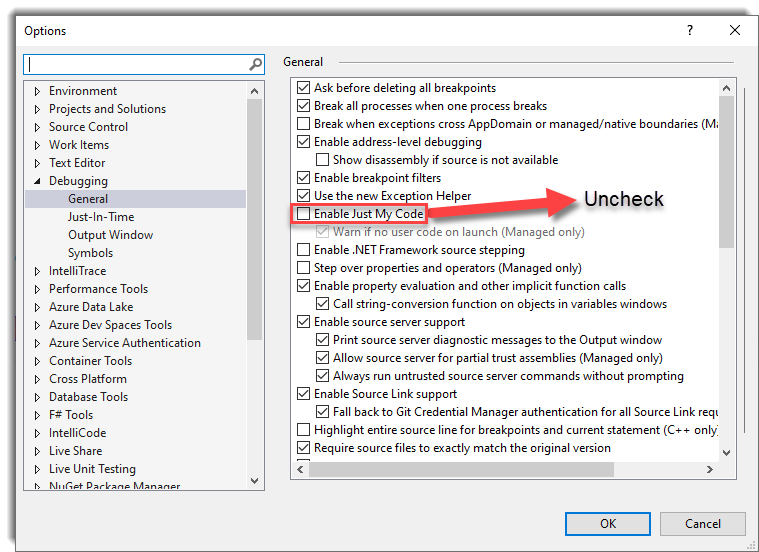
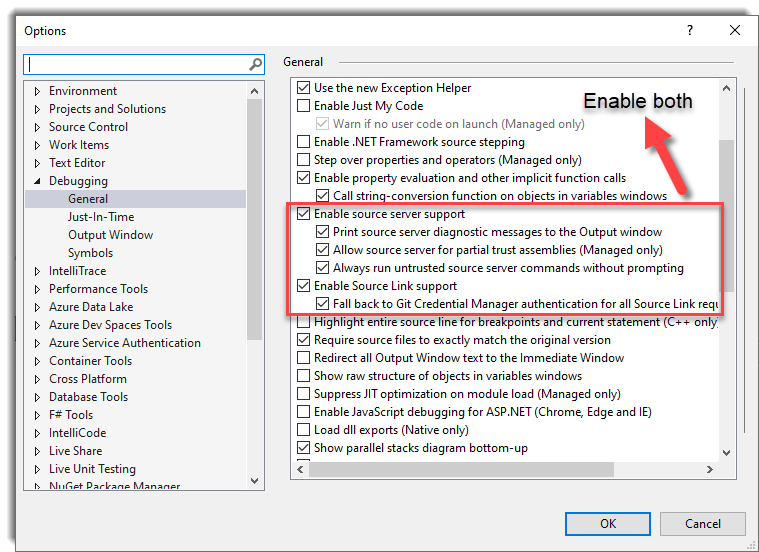
< Rectangle xf:Animations.EnableDebugging= " InitializeElement "
           xf:Animations.Primary= " {StaticResource SlideFromLeft} " />
以下表解释了枚举值:
| 枚举价值 | 描述 |
|---|---|
None | 默认值。不会发生调试。 |
InitializeElement | 打破Xamlflair的InitializeElement功能中的调试器。 |
RunAnimation | 打破了Xamlflair的RunAnimation函数中的调试器。 |
Xamlflair库使用Microsoft.Extensions.Logging.Abstractions摘要其记录。以下是UWP应用中使用Serilog的记录示例:
 public App ( )
{
    this . InitializeComponent ( ) ;
    .
    .
    .
    // Setup the Serilog logger
    Log . Logger = new LoggerConfiguration ( )
        . MinimumLevel . Debug ( )
        . WriteTo . Debug ( )
        . CreateLogger ( ) ;

    // Initalie the XamlFlair loggers using the LoggerFactory (with Serilog support)
	XamlFlair . Animations . InitializeLoggers ( new LoggerFactory ( ) . AddSerilog ( ) ) ;
}要输出一个或多个动画的值,只需将Debug设置为目标FrameworkElement上的EnableLogging属性:
< Rectangle xf:Animations.EnableLogging= " Debug "
           xf:Animations.Primary= " {StaticResource SlideFromLeft} " />
这样做将为您提供以下类似的控制台输出(WPF略有不同):
 Element = Windows.UI.Xaml.Controls.Button
Kind = FadeFrom, TranslateFrom
TargetProperty = Translation
Duration = 500
Delay = 0
Opacity = 0
OffsetX = 0
OffsetY = 50
OffsetZ = 0
ScaleX = 1
ScaleY = 1
ScaleZ = 1
Rotation = 0
Blur = 0
TransformCenterPoint = 0.5,0.5
Easing = Cubic
EasingMode = EaseOut
在每个故事板执行时,它都将其保存在内部列表中,直到完成(或停止)。要输出此内部列表,请在应用程序启动代码中暂时添加以下列表:
Animations . EnableActiveTimelinesLogging = LogLevel . Debug ;这样做将为您提供以下类似的控制台输出:
 ---------- ALL ACTIVE TIMELINES --------
Active timeline removed at 12:42:26:43222

Element = Button,  Key = d69f826a-1978-4a4e-b516-4a6b0469238b,  ElementGuid = 195d8c13-1dd7-4fef-a7f3-fc78bdab1cd7
    State = Running,  IsSequence = False,  IsIterating = False,  IterationBehavior = Count,  IterationCount = 0
------------------------------------

---------- ACTIVE TIMELINE --------
Guid d69f826a-1978-4a4e-b516-4a6b0469238b - Updated state to: Completed at 12:42:26:88616
------------------------------------

---------- ALL ACTIVE TIMELINES --------
Active timeline removed at 12:42:26:89614

NO ACTIVE TIMELINES!
------------------------------------
目前,上述Xamlflair中的所有登录都在
LogLevel.Debug登录
ListViewBase ( UWP和UNO )和ListBox -BATE -BATE -BASING( WPF )动画
为了在列表项目上正确实现项目动画,仅仅针对ListViewBase(UWP)和ListBox(WPF)控件创建附加属性是不够的。取而代之的是,创建了继承的控件:UWP的AnimatedListView和AnimatedGridView ,以及WPF的AnimatedListView和AnimatedListBox ,所有这些都从XamlFlair.Controls namespace提供。
UWP和UNO名称空间:
xmlns:xfc="using:XamlFlair.Controls"WPF名称空间:
xmlns:xfc="clr-namespace:XamlFlair.Controls;assembly=XamlFlair.WPF"列表中的动画项目与对典型的UI元素进行动画略有不同。造成这种差异的主要原因是,相应的AnimationSettings上的Event值不能从其默认值中更改。因此以下是无效的:
< xfc : AnimatedListView ItemsSource = " Binding SampleDataList "
xf:Animations:Items= " {xf:Animate BasedOn={StaticResource FadeIn}, Event=Visibility} " />默认情况下,列出项目动画,根据每个可见项目的Loaded事件进行动画化,也基于对列表控件的ItemsSource属性的更新。为了禁用这些默认行为,可以独立使用以下两个属性:
< xfc : AnimatedListView ItemsSource = " Binding SampleDataList "
                      xf:Animations.AnimateOnLoad= " False "
                      ... />

< xfc : AnimatedListView ItemsSource = " Binding SampleDataList "
                      xf:Animations.AnimateOnItemsSourceChange= " False "
... />默认情况下,项目动画在每个项目之间的延迟为25毫秒。可以使用InterElementDelay属性更改此值:
< xfc : AnimatedListView ItemsSource = " Binding SampleDataList "
                      xf:Animations.InterElementDelay= " 50 "
... />就像PrimaryBinding和SecondaryBinding一样,项目动画可以通过使用ItemsBinding属性的绑定来触发:
< xfc : AnimatedListView ItemsSource = " Binding SampleDataList "
                      xf:Animations.AnimateOnLoad= " False "
                      xf:Animations.ItemsBinding= " {Binding MyViewModelProperty} "
xf:Animations:Items= " {xf:Animate BasedOn={StaticResource FadeIn}} " />警告(仅限UWP ) :请注意,如果您在
AnimatedListView或AnimatedGridView上设置了任何ItemContainerTransitions,则将清除它们。这样做是为了避免矛盾的项目动画。
注意(仅UNO ) :要避免在项目动画上闪烁,目前有一个约束:
Items动画必须包含从FadeFrom。





