tio
v3.8


TIO는 기본 I/O 작업을 위해 직렬 TTY 장치에 쉽게 연결할 수있는 간단한 명령 줄 및 구성 파일 인터페이스를 특징으로하는 직렬 장치 도구입니다.
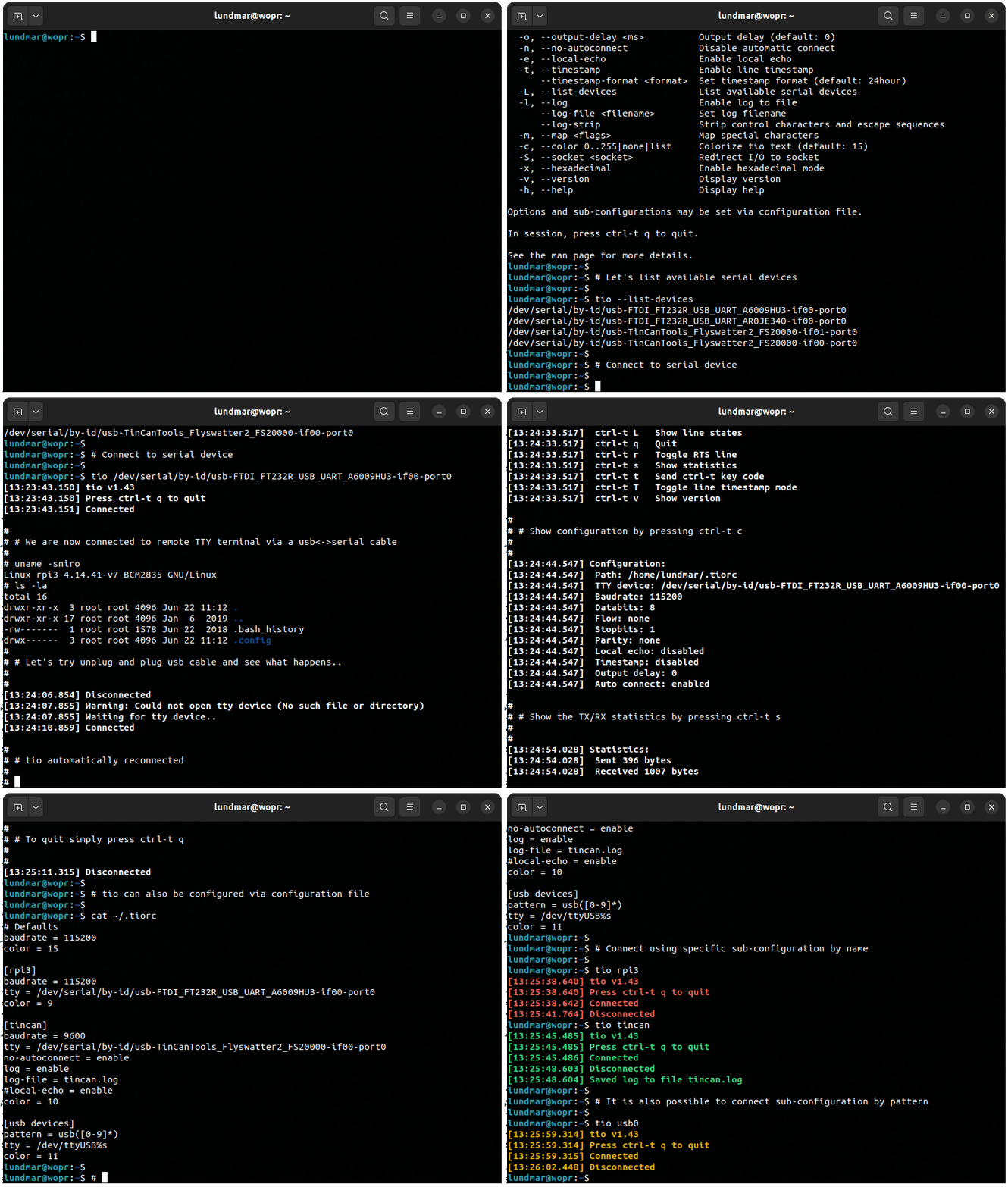
클래식 터미널/모뎀 기능에 중점을 둔 직렬 TTY 장치로 작업하기위한 더 간단한 직렬 장치 도구를 만들고 임베디드 개발자 및 해커의 요구에 더 중점을 둡니다.
TIO는 원래 TMUX와 함께 사용될 때 직렬 장치에 연결하기위한 스크린 대안으로 만들어졌습니다.
자세한 내용은 여기에서 Man Page 문서를 참조하십시오.
명령 줄 인터페이스는 tio --help 의 출력에 반영된대로 간단합니다.
 Usage: tio [<options>] <tty-device|profile|tid>

Connect to TTY device directly or via configuration profile or topology ID.

Options:
  -b, --baudrate <bps>                   Baud rate (default: 115200)
  -d, --databits 5|6|7|8                 Data bits (default: 8)
  -f, --flow hard|soft|none              Flow control (default: none)
  -s, --stopbits 1|2                     Stop bits (default: 1)
  -p, --parity odd|even|none|mark|space  Parity (default: none)
  -o, --output-delay <ms>                Output character delay (default: 0)
  -O, --output-line-delay <ms>           Output line delay (default: 0)
      --line-pulse-duration <duration>   Set line pulse duration
  -a, --auto-connect new|latest|direct   Automatic connect strategy (default: direct)
      --exclude-devices <pattern>        Exclude devices by pattern
      --exclude-drivers <pattern>        Exclude drivers by pattern
      --exclude-tids <pattern>           Exclude topology IDs by pattern
  -n, --no-reconnect                     Do not reconnect
  -e, --local-echo                       Enable local echo
      --input-mode normal|hex|line       Select input mode (default: normal)
      --output-mode normal|hex|hexN      Select output mode (default: normal)
  -t, --timestamp                        Enable line timestamp
      --timestamp-format <format>        Set timestamp format (default: 24hour)
      --timestamp-timeout <ms>           Set timestamp timeout (default: 200)
  -l, --list                             List available serial devices, TIDs, and profiles
  -L, --log                              Enable log to file
      --log-file <filename>              Set log filename
      --log-directory <path>             Set log directory path for automatic named logs
      --log-append                       Append to log file
      --log-strip                        Strip control characters and escape sequences
  -m, --map <flags>                      Map characters
  -c, --color 0..255|bold|none|list      Colorize tio text (default: bold)
  -S, --socket <socket>                  Redirect I/O to socket
      --rs-485                           Enable RS-485 mode
      --rs-485-config <config>           Set RS-485 configuration
      --alert bell|blink|none            Alert on connect/disconnect (default: none)
      --mute                             Mute tio messages
      --script <string>                  Run script from string
      --script-file <filename>           Run script from file
      --script-run once|always|never     Run script on connect (default: always)
      --exec <command>                   Execute shell command with I/O redirected to device
  -v, --version                          Display version
  -h, --help                             Display help

Options and profiles may be set via configuration file.

In session you can press ctrl-t ? to list available key commands.

See the man page for more details.
기본적으로 TIO는 제공된 TTY 장치에 자동으로 연결됩니다. 장치가없는 경우 TIO가 나타나기를 기다린 다음 연결합니다. 연결이 손실되면 (예 : 장치가 플러그되지 않음) 장치가 다시 나타날 때까지 대기하고 다시 연결됩니다. 그러나 --no-reconnect 옵션이 제공되면 장치가 없거나 확립 된 연결이 손실되면 TIO가 종료됩니다.
일반적인 사용은 옵션이 없습니다.
$ tio /dev/ttyUSB0
일반적으로 사용되는 기본 옵션에 해당합니다.
$ tio --baudrate 115200 --databits 8 --flow none --stopbits 1 --parity none /dev/ttyUSB0
사용 가능한 직렬 장치 나열 :
 $ tio --list
Device            TID     Uptime [s] Driver           Description
----------------- ---- ------------- ---------------- --------------------------
/dev/ttyS4        BaaB     19526.576 port             16550A UART
/dev/ttyS5        eV0Z     19525.845 port             16550A UART
/dev/ttyUSB1      bCC2      1023.274 ftdi_sio         TTL232R-3V3
/dev/ttyUSB0      SPpw       978.527 ftdi_sio         TTL232RG-VREG3V3
/dev/ttyACM0      i5q4         2.079 cdc_acm          ST-Link VCP Ctrl

By-id
--------------------------------------------------------------------------------
/dev/serial/by-id/usb-FTDI_TTL232R-3V3_FTCHUV56-if00-port0
/dev/serial/by-id/usb-FTDI_TTL232RG-VREG3V3_FT1NELUB-if00-port0
/dev/serial/by-id/usb-STMicroelectronics_STLINK-V3_004900343438510234313939-if02

By-path
--------------------------------------------------------------------------------
/dev/serial/by-path/pci-0000:00:14.0-usb-0:8.1.3.1.4:1.0-port0
/dev/serial/by-path/pci-0000:00:14.0-usbv2-0:8.1.3.1.4:1.0-port0
/dev/serial/by-path/pci-0000:00:14.0-usbv2-0:6.4:1.0-port0
/dev/serial/by-path/pci-0000:00:14.0-usb-0:6.4:1.0-port0
/dev/serial/by-path/pci-0000:00:14.0-usbv2-0:6.3:1.2
/dev/serial/by-path/pci-0000:00:14.0-usb-0:6.3:1.2

Configuration profiles (/home/lundmar/.config/tio/config)
--------------------------------------------------------------------------------
rpi3                stm32               esp32               am64-evm
imx8mp-evk          nucleo-h743zi2      usb-devices
Serial TTY 장치를 ID로 연결하는 것이 좋습니다.
$ tio /dev/serial/by-id/usb-FTDI_TTL232R-3V3_FTCHUV56-if00-port0
참고 : 직렬 장치를 사용하여 ID를 사용하면 TIO가 다시 열거 될 때에도 재충전 될 때 동일한 직렬 장치에 자동으로 다시 연결되도록합니다.
ID 별 직렬 장치가 없으면 토폴로지 ID (TID)를 통해 연결하는 것이 좋습니다.
$ tio bCC2
참고 : TID는 고유하며 USB 직렬 포트 장치가 동일한 USB 토폴로지 (동일한 포트, 동일한 허브, 동일한 연결 등)에 연결되는 한 동일하게 유지됩니다. 이렇게하면 TIO가 동일한 장치에 성공적으로 다시 연결할 수 있습니다.
첫 번째 새 모양의 직렬 장치에 자동으로 연결하십시오.
$ tio --auto-connect new
최신 등록 된 직렬 장치에 자동으로 연결하십시오.
$ tio --auto-connect latest
자동 연결 전략에 관여하는 직렬 장치에 영향을 미치기 위해 옵션을 제외 할 수 있습니다.
$ tio --auto-connect new --exclude-devices "/dev/ttyACM?,/dev/ttyUSB2"
그리고 패턴별로 드라이버를 제외하려면 :
$ tio --auto-connect new --exclude-drivers "cdc_acm,ftdi_sio"
참고 : 패턴 매칭 지원 '*'및 '?'. 쉼표 분리를 사용하여 여러 패턴을 정의하십시오.
특정 패턴별로 드라이버를 포함 시키려면 단순히 제외 옵션을 부정합니다.
$ tio --auto-connect new --exclude-drivers !("cp2102")
자가 생성 된 파일 이름으로 파일에 로그인 :
$ tio --log /dev/ttyUSB0
특정 파일 이름으로 파일에 로그인 :
$ tio --log --log-file my-log.txt
라인 당 ISO8601 타임 스탬프 활성화 :
$ tio --timestamp --timestamp-format iso8601 /dev/ttyUSB0
너비 16으로 16 진로 출력 :
$ tio --output-mode hex16 /dev/ttyUSB0
포트 4242에서 I/O를 IPv4 네트워크 소켓으로 리디렉션합니다.
$ tio --socket inet:4242 /dev/ttyUSB0
직렬 장치에 파이프 데이터 :
$ cat data.bin | tio /dev/ttyUSB0
Connect에서 모뎀 라인 조작 :
$ tio --script "set{DTR=high,RTS=low}; msleep(100); set{DTR=toggle,RTS=toggle}" /dev/ttyUSB0
직렬 장치로의 명령을 파이프하고 1 초 이내에 라인 응답을 기다립니다.
 $ echo "*IDN?" | tio /dev/ttyACM0 --script "expect('rn', 1000)" --mute
KORAD KD3305P V4.2 SN:32475045
다양한 세션 키 명령이 지원됩니다. TIO가 시작되면 Ctrl-T를 누릅니다. 사용 가능한 주요 명령을 나열합니다.
 [15:02:53.269] Key commands:
[15:02:53.269]  ctrl-t ?       List available key commands
[15:02:53.269]  ctrl-t b       Send break
[15:02:53.269]  ctrl-t c       Show configuration
[15:02:53.269]  ctrl-t e       Toggle local echo mode
[15:02:53.269]  ctrl-t f       Toggle log to file
[15:02:53.269]  ctrl-t F       Flush data I/O buffers
[15:02:53.269]  ctrl-t g       Toggle serial port line
[15:02:53.269]  ctrl-t i       Toggle input mode
[15:02:53.269]  ctrl-t l       Clear screen
[15:02:53.269]  ctrl-t L       Show line states
[15:02:53.269]  ctrl-t m       Change mapping of characters on input or output
[15:02:53.269]  ctrl-t o       Toggle output mode
[15:02:53.269]  ctrl-t p       Pulse serial port line
[15:02:53.269]  ctrl-t q       Quit
[15:02:53.269]  ctrl-t r       Run script
[15:02:53.269]  ctrl-t R       Execute shell command with I/O redirected to device
[15:02:53.269]  ctrl-t s       Show statistics
[15:02:53.269]  ctrl-t t       Toggle line timestamp mode
[15:02:53.269]  ctrl-t v       Show version
[15:02:53.269]  ctrl-t x       Send file via Xmodem
[15:02:53.269]  ctrl-t y       Send file via Ymodem
[15:02:53.269]  ctrl-t ctrl-t  Send ctrl-t character
필요한 경우 CTRL-T (Confix Key)를 구성 파일을 통해 다시 가져올 수 있습니다.
옵션은 나열된 순서의 다음 위치 중 하나에서 처음 발견 된 구성 파일을 통해 설정할 수 있습니다.
구성 파일은 명령 줄을 통해 이름 또는 패턴별로 활성화 할 수있는 이름의 섹션을 사용하여 프로파일을 지원합니다. 프로파일은 연결할 TTY 장치 및 기타 옵션을 지정합니다.
구성 파일 예 :
 [default]
baudrate = 115200
databits = 8
parity = none
stopbits = 1
color = 10

[rpi3]
device = /dev/serial/by-id/usb-FTDI_TTL232R-3V3_FTGQVXBL-if00-port0
no-reconnect = true
log = true
log-file = rpi3.log
line-pulse-duration = DTR=200,RTS=150
color = 11

[svf2]
device = /dev/ttyUSB0
baudrate = 9600
script = expect("login: "); write("rootn"); expect("Password: "); write("rootn")
color = 12

[esp32]
device = /dev/serial/by-id/usb-0403_6014-if00-port0
script = set{DTR=high,RTS=low}; msleep(100); set{DTR=low,RTS=high}; msleep(100); set{RTS=low}
script-run = once
color = 13

[usb-devices]
pattern = ^usb([0-9]*)
device = /dev/ttyUSB%m1
color = 14
이름 별 특정 프로필을 사용하려면 TIO를 시작합니다.
$ tio rpi3
또는 패턴 매치로 :
$ tio usb12
더 정교한 구성 파일 예제는 여기에서 제공됩니다.
Tio는 TTY 장치와의 상호 작용을 쉽게 자동화하기 위해 LUA 스크립팅을 지원합니다.
Lua Api Tio 외에도 다음 기능을 사용할 수 있습니다.
 expect(string, timeout)
      Expect string - waits for string to match or timeout before continueing.
      Supports regular expressions. Special characters must be escaped with '\'.
      Timeout is in milliseconds, defaults to 0 meaning it will wait forever.

      Returns 1 on successful match, 0 on timeout, or -1 on error.

      On successful match it also returns the match string as second return value.

read(size, timeout)
      Read from serial device. If timeout is 0 or not provided it will wait
      forever until data is ready to read.

      Returns number of bytes read on success, 0 on timeout, or -1 on error.

      On success, returns read string as second return value.

read_line(timeout)
      Read line from serial device. If timeout is 0 or not provided it will
      wait forever until data is ready to read.

      Returns number of bytes read on success, 0 on timeout, or -1 on error.

      On success, returns the string that was read as second return value.
      Also emits a single timestamp to stdout and log file per options.timestamp
      and options.log.

write(string)
      Write string to serial device.

      Returns number of bytes written on success or -1 on error.

send(file, protocol)
      Send file using x/y-modem protocol.

      Protocol can be any of XMODEM_1K, XMODEM_CRC, YMODEM.

tty_search()
      Search for serial devices.

      Returns a table of number indexed tables, one for each serial device
      found.  Each of these tables contains the serial device information accessible
      via the following string indexed elements "path", "tid", "uptime", "driver",
      "description".

      Returns nil if no serial devices are found.

set{line=state, ...}
      Set state of one or multiple tty modem lines.

      Line can be any of DTR, RTS, CTS, DSR, CD, RI

      State is high, low, or toggle.

sleep(seconds)
      Sleep for seconds.

msleep(ms)
      Sleep for miliseconds.

exit(code)
      Exit with exit code.
다양한 GNU/Linux 배포판에 대한 패키지를 사용할 수 있습니다. TIO를 찾고 설치하려면 패키지 관리자 도구를 참조하십시오.
좋아하는 배포에 TIO가 포함 된 경우 패키지 관리자 팀에 연락하십시오.
최신 안정 버전 설치 :
$ snap install tio --classic
참고 : Snapcraft 프레임 워크의 한계로 인해 현재 고전적인 감금이 필요합니다. 토론은 문제 #187을 참조하십시오.
양조 된 경우 :
$ brew install tio
MSYS2가 설치된 경우 :
$ pacman -S tio
최신 소스 릴리스는 여기에서 찾을 수 있습니다.
설치 단계를 실행하기 전에 Glib 및 LUA 라이브러리가 설치되어 있는지 확인하십시오. 예를 들어:
$ sudo apt install libglib2.0-dev liblua5.2-dev
단계 설치 :
 $ meson setup build
$ meson compile -C build
$ meson install -C build
tio 특정 빌드 옵션은 meson_options.txt를 참조하십시오.
참고 : Meson 설치 단계는 특정 시스템에 따라 다를 수 있습니다.
직렬 장치를 열려고 권한 액세스 오류가 발생합니까?
직렬 장치에 영구적으로 액세스 할 수있는 그룹에 사용자를 추가하십시오. 예를 들어, 사용자를 '다이얼 아웃'그룹에 추가하려면 다음과 같습니다.
sudo usermod -a -G dialout < username >이 세션의 경우 "전화 발신"그룹으로 전환하십시오.
newgrp dialout이것은 오픈 소스 프로젝트입니다. 모든 기여 (버그 보고서, 코드, 문서, 아이디어 등)를 환영합니다.
GitHub 문제 추적기를 사용하고 요청 기능을 당기십시오.
또한이 무료 오픈 소스 소프트웨어가 유용하다고 생각되면 선택한 기부를 자유롭게 기부하십시오.

github : https://github.com/tio/tio/issues를 통해 버그 보고서를 제출하십시오
tio.github.io를 방문하십시오
TIO는 GPLV2+입니다. 자세한 내용은 라이센스 파일을 참조하십시오.
Martin Lund <[email protected]에 의해 유지됩니다
기고자의 전체 목록은 저자 파일을 참조하십시오.





