tio
v3.8


TIOは、基本的なI/O操作のためにシリアルTTYデバイスに簡単に接続するための簡単なコマンドラインおよび構成ファイルインターフェイスを備えたシリアルデバイスツールです。
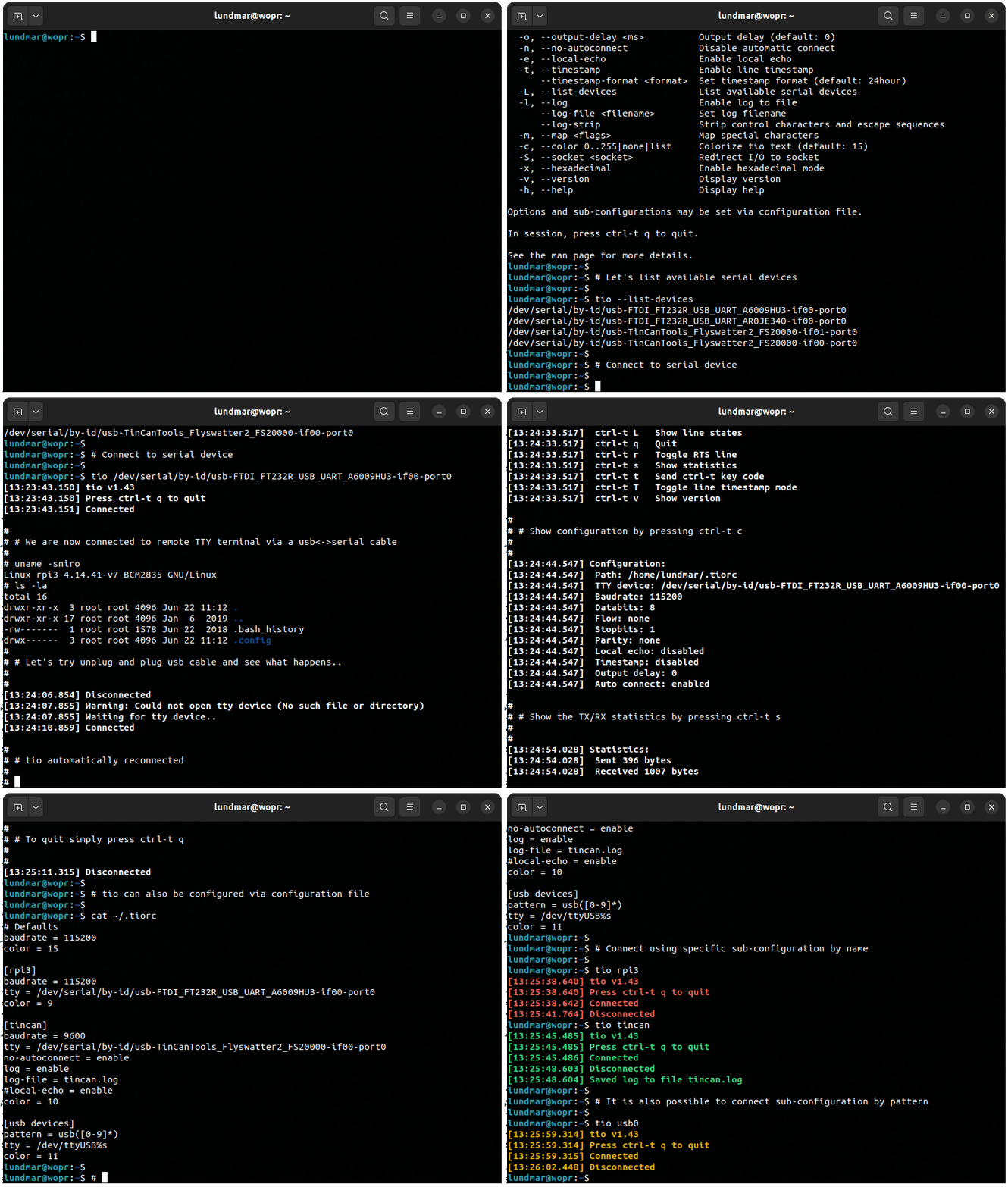
クラシックターミナル/モデム機能にあまり焦点を当てていないシリアルTTYデバイスを操作するためのよりシンプルなシリアルデバイスツールを作成するため、埋め込み開発者とハッカーのニーズに焦点を合わせます。
TIOはもともと、TMUXと組み合わせて使用すると、シリアルデバイスに接続するためのスクリーンの代替として作成されました。
その他の使用については、こちらのManページのドキュメントをご覧ください。
コマンドラインインターフェイスは、 tio --help :
 Usage: tio [<options>] <tty-device|profile|tid>

Connect to TTY device directly or via configuration profile or topology ID.

Options:
  -b, --baudrate <bps>                   Baud rate (default: 115200)
  -d, --databits 5|6|7|8                 Data bits (default: 8)
  -f, --flow hard|soft|none              Flow control (default: none)
  -s, --stopbits 1|2                     Stop bits (default: 1)
  -p, --parity odd|even|none|mark|space  Parity (default: none)
  -o, --output-delay <ms>                Output character delay (default: 0)
  -O, --output-line-delay <ms>           Output line delay (default: 0)
      --line-pulse-duration <duration>   Set line pulse duration
  -a, --auto-connect new|latest|direct   Automatic connect strategy (default: direct)
      --exclude-devices <pattern>        Exclude devices by pattern
      --exclude-drivers <pattern>        Exclude drivers by pattern
      --exclude-tids <pattern>           Exclude topology IDs by pattern
  -n, --no-reconnect                     Do not reconnect
  -e, --local-echo                       Enable local echo
      --input-mode normal|hex|line       Select input mode (default: normal)
      --output-mode normal|hex|hexN      Select output mode (default: normal)
  -t, --timestamp                        Enable line timestamp
      --timestamp-format <format>        Set timestamp format (default: 24hour)
      --timestamp-timeout <ms>           Set timestamp timeout (default: 200)
  -l, --list                             List available serial devices, TIDs, and profiles
  -L, --log                              Enable log to file
      --log-file <filename>              Set log filename
      --log-directory <path>             Set log directory path for automatic named logs
      --log-append                       Append to log file
      --log-strip                        Strip control characters and escape sequences
  -m, --map <flags>                      Map characters
  -c, --color 0..255|bold|none|list      Colorize tio text (default: bold)
  -S, --socket <socket>                  Redirect I/O to socket
      --rs-485                           Enable RS-485 mode
      --rs-485-config <config>           Set RS-485 configuration
      --alert bell|blink|none            Alert on connect/disconnect (default: none)
      --mute                             Mute tio messages
      --script <string>                  Run script from string
      --script-file <filename>           Run script from file
      --script-run once|always|never     Run script on connect (default: always)
      --exec <command>                   Execute shell command with I/O redirected to device
  -v, --version                          Display version
  -h, --help                             Display help

Options and profiles may be set via configuration file.

In session you can press ctrl-t ? to list available key commands.

See the man page for more details.
デフォルトでは、TIOは提供されたTTYデバイスに自動的に接続します。デバイスが存在しない場合、TIOはそれが表示されるのを待ってから接続します。接続が失われた場合(たとえば、デバイスがプラグが解除されています)、デバイスが再び現れてから再接続するのが待ちます。ただし、 --no-reconnectオプションが提供されている場合、デバイスが存在しないか、確立された接続が失われた場合、TIOは終了します。
典型的な使用にはオプションがありません。
$ tio /dev/ttyUSB0
一般的に使用されるデフォルトオプションに対応します。
$ tio --baudrate 115200 --databits 8 --flow none --stopbits 1 --parity none /dev/ttyUSB0
利用可能なシリアルデバイスをリストします:
 $ tio --list
Device            TID     Uptime [s] Driver           Description
----------------- ---- ------------- ---------------- --------------------------
/dev/ttyS4        BaaB     19526.576 port             16550A UART
/dev/ttyS5        eV0Z     19525.845 port             16550A UART
/dev/ttyUSB1      bCC2      1023.274 ftdi_sio         TTL232R-3V3
/dev/ttyUSB0      SPpw       978.527 ftdi_sio         TTL232RG-VREG3V3
/dev/ttyACM0      i5q4         2.079 cdc_acm          ST-Link VCP Ctrl

By-id
--------------------------------------------------------------------------------
/dev/serial/by-id/usb-FTDI_TTL232R-3V3_FTCHUV56-if00-port0
/dev/serial/by-id/usb-FTDI_TTL232RG-VREG3V3_FT1NELUB-if00-port0
/dev/serial/by-id/usb-STMicroelectronics_STLINK-V3_004900343438510234313939-if02

By-path
--------------------------------------------------------------------------------
/dev/serial/by-path/pci-0000:00:14.0-usb-0:8.1.3.1.4:1.0-port0
/dev/serial/by-path/pci-0000:00:14.0-usbv2-0:8.1.3.1.4:1.0-port0
/dev/serial/by-path/pci-0000:00:14.0-usbv2-0:6.4:1.0-port0
/dev/serial/by-path/pci-0000:00:14.0-usb-0:6.4:1.0-port0
/dev/serial/by-path/pci-0000:00:14.0-usbv2-0:6.3:1.2
/dev/serial/by-path/pci-0000:00:14.0-usb-0:6.3:1.2

Configuration profiles (/home/lundmar/.config/tio/config)
--------------------------------------------------------------------------------
rpi3                stm32               esp32               am64-evm
imx8mp-evk          nucleo-h743zi2      usb-devices
IDでシリアルTTYデバイスを接続することをお勧めします:
$ tio /dev/serial/by-id/usb-FTDI_TTL232R-3V3_FTCHUV56-if00-port0
注:IDでシリアルデバイスを使用すると、TIOが異なって列挙されている場合でも、再刻んだときにTIOが同じシリアルデバイスに自動的に再接続することを保証します。
IDによるシリアルデバイスが利用できない場合は、トポロジID(TID)を介して接続することをお勧めします。
$ tio bCC2
注:TIDは一意であり、USBシリアルポートデバイスが同じUSBトポロジ(同じポート、同じハブ、同じ接続など)に接続する限り、同じままです。このようにして、TIOが同じデバイスに正常に再接続することができます。
最初の新しい表示されるシリアルデバイスに自動的に接続します。
$ tio --auto-connect new
自動的に最新の登録シリアルデバイスに接続します。
$ tio --auto-connect latest
オプションを除外して、自動接続戦略に関与するシリアルデバイスに影響を与える可能性があります。
$ tio --auto-connect new --exclude-devices "/dev/ttyACM?,/dev/ttyUSB2"
ドライバーをパターンごとに除外するには:
$ tio --auto-connect new --exclude-drivers "cdc_acm,ftdi_sio"
注:パターンマッチングは「*」と「?」をサポートします。コンマ分離を使用して、複数のパターンを定義します。
特定のパターンでドライバーを含めることは、単に除外オプションを無効にします。
$ tio --auto-connect new --exclude-drivers !("cp2102")
自動生成されたファイル名でファイルするためにログ:
$ tio --log /dev/ttyUSB0
特定のファイル名でファイルするためにログ:
$ tio --log --log-file my-log.txt
ISO8601ラインあたりのタイムスタンプを有効にします。
$ tio --timestamp --timestamp-format iso8601 /dev/ttyUSB0
幅16の六角出力:
$ tio --output-mode hex16 /dev/ttyUSB0
ポート4242のI/OをIPv4ネットワークソケットにリダイレクトします:
$ tio --socket inet:4242 /dev/ttyUSB0
シリアルデバイスにデータをパイプします。
$ cat data.bin | tio /dev/ttyUSB0
接続のモデム線を操作します:
$ tio --script "set{DTR=high,RTS=low}; msleep(100); set{DTR=toggle,RTS=toggle}" /dev/ttyUSB0
シリアルデバイスへのパイプコマンドと1秒以内にライン応答を待ちます:
 $ echo "*IDN?" | tio /dev/ttyACM0 --script "expect('rn', 1000)" --mute
KORAD KD3305P V4.2 SN:32475045
さまざまなセッションキーコマンドがサポートされています。 TIOが開始されるとき、Ctrl-Tを押しますか?使用可能なキーコマンドをリストします。
 [15:02:53.269] Key commands:
[15:02:53.269]  ctrl-t ?       List available key commands
[15:02:53.269]  ctrl-t b       Send break
[15:02:53.269]  ctrl-t c       Show configuration
[15:02:53.269]  ctrl-t e       Toggle local echo mode
[15:02:53.269]  ctrl-t f       Toggle log to file
[15:02:53.269]  ctrl-t F       Flush data I/O buffers
[15:02:53.269]  ctrl-t g       Toggle serial port line
[15:02:53.269]  ctrl-t i       Toggle input mode
[15:02:53.269]  ctrl-t l       Clear screen
[15:02:53.269]  ctrl-t L       Show line states
[15:02:53.269]  ctrl-t m       Change mapping of characters on input or output
[15:02:53.269]  ctrl-t o       Toggle output mode
[15:02:53.269]  ctrl-t p       Pulse serial port line
[15:02:53.269]  ctrl-t q       Quit
[15:02:53.269]  ctrl-t r       Run script
[15:02:53.269]  ctrl-t R       Execute shell command with I/O redirected to device
[15:02:53.269]  ctrl-t s       Show statistics
[15:02:53.269]  ctrl-t t       Toggle line timestamp mode
[15:02:53.269]  ctrl-t v       Show version
[15:02:53.269]  ctrl-t x       Send file via Xmodem
[15:02:53.269]  ctrl-t y       Send file via Ymodem
[15:02:53.269]  ctrl-t ctrl-t  Send ctrl-t character
必要に応じて、プレフィックスキー(CTRL-T)を構成ファイルを介して再マッピングできます。
オプションは、次の場所のいずれかで最初に見つかった構成ファイルを介して設定できます。
構成ファイルは、名前またはパターンでコマンドラインを介してアクティブにできる名前のセクションを使用してプロファイルをサポートします。プロファイルは、接続するTTYデバイスとその他のオプションを指定します。
構成ファイルの例:
 [default]
baudrate = 115200
databits = 8
parity = none
stopbits = 1
color = 10

[rpi3]
device = /dev/serial/by-id/usb-FTDI_TTL232R-3V3_FTGQVXBL-if00-port0
no-reconnect = true
log = true
log-file = rpi3.log
line-pulse-duration = DTR=200,RTS=150
color = 11

[svf2]
device = /dev/ttyUSB0
baudrate = 9600
script = expect("login: "); write("rootn"); expect("Password: "); write("rootn")
color = 12

[esp32]
device = /dev/serial/by-id/usb-0403_6014-if00-port0
script = set{DTR=high,RTS=low}; msleep(100); set{DTR=low,RTS=high}; msleep(100); set{RTS=low}
script-run = once
color = 13

[usb-devices]
pattern = ^usb([0-9]*)
device = /dev/ttyUSB%m1
color = 14
名前で特定のプロファイルを使用するには、SOのようにtioを開始するだけです。
$ tio rpi3
またはパターンマッチによる:
$ tio usb12
もう1つのより精巧な構成ファイルの例は、こちらをご覧ください。
TIOは、TTYデバイスとの相互作用を簡単に自動化するためにLua Scriptingをサポートします。
Lua API Tioに加えて、次の機能を利用可能にします。
 expect(string, timeout)
      Expect string - waits for string to match or timeout before continueing.
      Supports regular expressions. Special characters must be escaped with '\'.
      Timeout is in milliseconds, defaults to 0 meaning it will wait forever.

      Returns 1 on successful match, 0 on timeout, or -1 on error.

      On successful match it also returns the match string as second return value.

read(size, timeout)
      Read from serial device. If timeout is 0 or not provided it will wait
      forever until data is ready to read.

      Returns number of bytes read on success, 0 on timeout, or -1 on error.

      On success, returns read string as second return value.

read_line(timeout)
      Read line from serial device. If timeout is 0 or not provided it will
      wait forever until data is ready to read.

      Returns number of bytes read on success, 0 on timeout, or -1 on error.

      On success, returns the string that was read as second return value.
      Also emits a single timestamp to stdout and log file per options.timestamp
      and options.log.

write(string)
      Write string to serial device.

      Returns number of bytes written on success or -1 on error.

send(file, protocol)
      Send file using x/y-modem protocol.

      Protocol can be any of XMODEM_1K, XMODEM_CRC, YMODEM.

tty_search()
      Search for serial devices.

      Returns a table of number indexed tables, one for each serial device
      found.  Each of these tables contains the serial device information accessible
      via the following string indexed elements "path", "tid", "uptime", "driver",
      "description".

      Returns nil if no serial devices are found.

set{line=state, ...}
      Set state of one or multiple tty modem lines.

      Line can be any of DTR, RTS, CTS, DSR, CD, RI

      State is high, low, or toggle.

sleep(seconds)
      Sleep for seconds.

msleep(ms)
      Sleep for miliseconds.

exit(code)
      Exit with exit code.
さまざまなGNU/Linuxディストリビューションのパッケージが利用可能です。 TIOを見つけてインストールするには、パッケージマネージャーツールを参照してください。
お気に入りの配布にTIOを含めたい場合は、パッケージメンテナーチームにご連絡ください。
最新の安定したバージョンをインストールします:
$ snap install tio --classic
注:Snapcraftフレームワークの制限により、現在、古典的な閉じ込めが必要です。ディスカッションについては、問題#187を参照してください。
醸造がインストールされている場合:
$ brew install tio
MSYS2がインストールされている場合:
$ pacman -S tio
最新のソースリリースはここにあります。
インストール手順を実行する前に、GlibとLuaライブラリがインストールされていることを確認してください。例えば:
$ sudo apt install libglib2.0-dev liblua5.2-dev
手順をインストールする:
 $ meson setup build
$ meson compile -C build
$ meson install -C build
Tio固有のビルドオプションについては、meson_options.txtを参照してください。
注:Mesonインストールステップは、特定のシステムによって異なる場合があります。
シリアルデバイスを開こうとする許可アクセスエラーを取得しますか?
シリアルデバイスに永続的にアクセスできるようにするグループにユーザーを追加します。たとえば、ユーザーを「ダイヤルアウト」グループに追加するには:
sudo usermod -a -G dialout < username >「ダイヤルアウト」グループに切り替えて、一時的なものですが、このセッションのために直ちに。
newgrp dialoutこれはオープンソースプロジェクトです - すべての貢献(バグレポート、コード、ドキュメント、アイデアなど)は大歓迎です。
GitHub Issue TrackerとPull Request Featureを使用してください。
また、この無料のオープンソースソフトウェアが便利だと思われる場合は、お好みの寄付を検討してください。

github:https://github.com/tio/tio/issues経由でバグレポートを送信します
tio.github.ioにアクセスしてください
TIOはGPLV2+です。詳細については、ライセンスファイルを参照してください。
Martin Lund <[email protected]>
貢献者の完全なリストについては、著者のファイルを参照してください。





