Il2CppInspector
Il2CppInspector 2021.1

IL2CPPinspector에 대한 개발 작업이 가까운 미래에 중단되었음을 알리게 된 것은 유감입니다.
그 이유는 건강과 개인적인 삶의 변화로 인해 더 이상 프로젝트 작업을 할 시간이 없기 때문입니다. 이것은 나에게 매우 실망 스럽지만 실제로 그것에 대해 할 수있는 것은 거의 없습니다.
프로젝트를 자유롭게 포크하고 개선하십시오! 저 또는 다른 사람이이 작업을 다시 시작할 수있는 기회가있는 경우 버그와 문제의 개요를 원하기 때문에 문제를 계속 게시 할 수 있습니다. 그러나 가까운 미래에 앞으로 나아갈 문제 나 PR에 응답하지 않을 것입니다.
IL2CPP 툴링이 필요한 경우, IL2CPP 바이너리를 DNSPY 등에서 쉽게 볼 수있는 IL 코드로 직접 다시 변환하는 작업 도구 인 친구와 동료의 우수한 프로젝트 CPP2IL을 추천합니다. 이것은 매머드 작업 이므로이 놀라운 프로젝트에서 그의 작업을 지원하십시오!
행복한 해킹,
케이티.
IL2CPPinspector는 현재 사용 가능한 가장 완벽한 분석을 제공하여 IL2CPP 응용 프로그램을 역 엔지니어링하는 데 도움이됩니다.
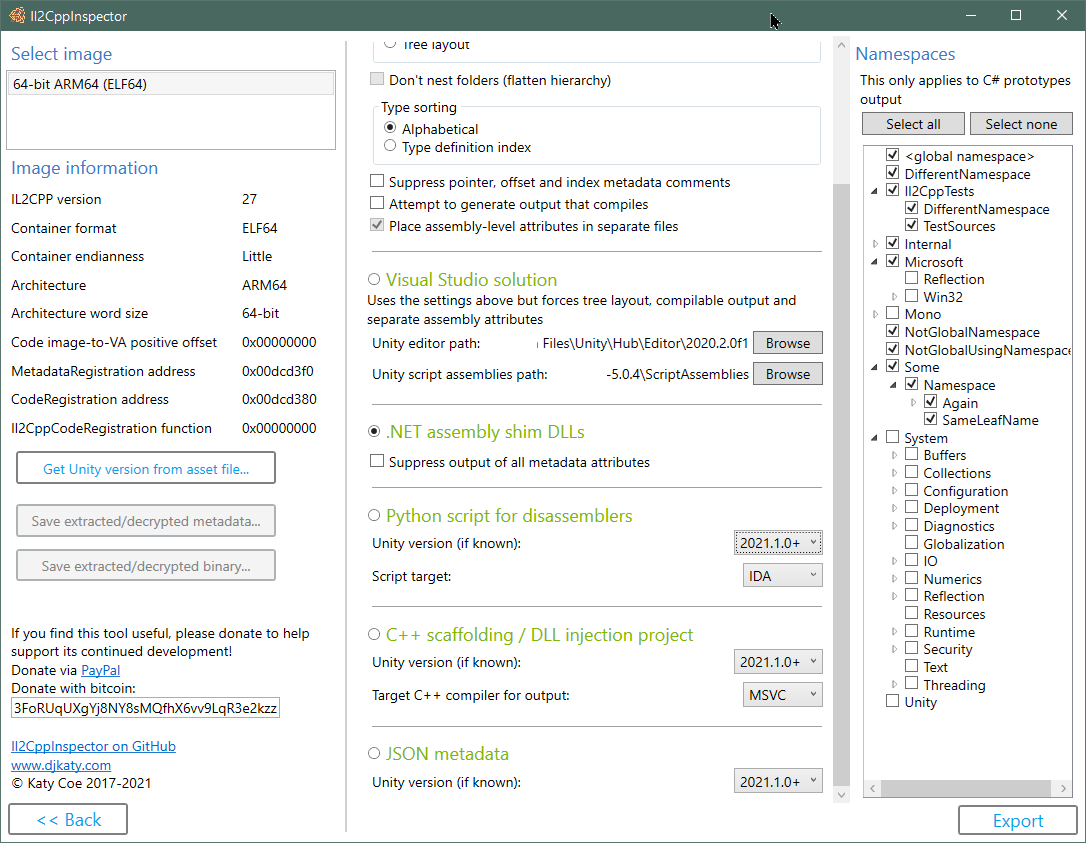
출력 IL2CPP 유형 정의, 메타 데이터 및 메소드 포인터는 C# Stub 코드 로
ILSPY, DNSPY, ASSETSTUDIO 또는 IL2CPPASSEMBLYUNHOLLOWER의 관리 대리 생성과 같은 디 컴파일러에 사용하기위한 IL2CPP 응용 프로그램 구조 및 메타 데이터를 포함하는 .NET 어셈블리 Shim DLL을 만듭니다.
X64DBG, Cydia 기판 등에 사용하기 위해 IL2CPP 애플리케이션에서 모든 유형, 방법, 기능 포인터 및 API 기능에 대해 C ++ 스캐 폴딩을 만듭니다.
기호, 기능 및 유형 정보를 채우기 위해 IDA 및 Ghidra Python 스크립트를 작성하십시오. 다른 대상의 스크립트를 구현하기위한 API 후크가 포함되어 있습니다
IL2CPP 파일에서 직접 Visual Studio C ++ DLL 주입 프로젝트 작성
IL2CPP 파일에서 직접 Visual Studio C# Code Stub 솔루션 작성
IL2CPP 파일에서 직접 완전한 주소 맵으로 JSON 메타 데이터를 만듭니다.
Unity 프로젝트가없는 임의의 C# 소스 코드에서 IL2CPP 바이너리 생성
저 레벨 이진 메타 데이터, .NET 유형 모델 및 전체 C ++ 응용 프로그램을 쿼리하기위한 고유 한 사용자 정의 정적 분석 프로젝트에서 사용하기위한 3 가지 주요 API . 이것들은 또한 Nuget 패키지로도 제공됩니다.
Plugin SDK는 IL2CPPINSPERTOR의 기능을 확장하기 위해 사용자 정의 플러그인을 만들 수 있습니다.
특정 유형의 난독 화를 물리칩니다
모든 주요 파일 형식 및 프로세서 아키텍처를 지원합니다
Windows, MacOS X 및 Linux에서 작동합니다. 드래그 및 드롭 지원이있는 Windows 사용자 용 통합 GUI
Unity 5.3.0 이후 IL2CPP의 모든 출시로 테스트되었습니다
내 시리즈 IL2CPP 리버스 엔지니어링에서 IL2CPP의 작동 방식에 대한 자세한 내용은 다음과 같습니다.
1 부 : Hello World 및 IL2CPP 도구 체인
2 부 : 구조 개요 및 메타 데이터 찾기
il2cppinspector 플러그인 개발 위키
IL2CPP DLL 주입 프로젝트를 작성, 사용 및 디버그하는 방법
IL2CPP DLL 주입 프로젝트에서 코드 작업
il2cppinspector의 유형 모델 사용을 사용하여 protobuf-net 정의를 추출합니다 (사례 연구 : 가을 사람들)
난독 화 된 Global-Metadata.dat 파일 용 로더 찾기-거의 모든 IL2CPP 애플리케이션에서 global-metadata.dat 의 로더, Deobfuscation 및/또는 암호 해독 코드를 찾는 방법에 대해 설명합니다.
리그 오브 레전드의 로딩 활성화 : 와일드 리프트 - XOR 암호 해독, XOR 문자열 암호 해독, API 수출 부패 암호 해독, 이진 메타 데이터의 데이터 난독
Honkai Impact의로드 활성화 (3 부) - 이미지에서 기능 찾기, Global -Metadata.dat, IDA 디코틀러 기술의 데이터 난독 화, 플러그인 작성 방법
vmprotect 컨트롤 흐름 흐름 난커 화 혼 진 충격 - X64DBG 및 IDA 디 컴파일러를 사용하여 제어 흐름 평평한 기능으로 코드 경로를 추정합니다.
PowerShell의 역 엔지니어링 겐 킨 충격 - Brute -Force Attack / Reverse 퍼지를 통해 난독 화 된 이진에서 기능을 찾기 위해 테스트 하네스 작성을 커버합니다.
파일 형식 및 아키텍처 지원 :
가지고 있으면 좋다 :
using 사항이 포함되어 있습니다. 범위 및 유형 이름 충돌은 자동으로 해결되어 컴파일하는 코드를 생성합니다.클래스 라이브러리 대상 .NET Core 3.1. Visual Studio 2019로 제작되었습니다.
참고 : IL2CPPinspector는 디 컴파일러가 아닙니다. 모든 방법에 대한 응용 프로그램 및 기능 주소의 구조를 제공하여 분해기에서 관심있는 방법으로 쉽게 이동할 수 있습니다. 응용 프로그램의 전체 소스 코드를 복구하려고 시도하지 않습니다.
 git clone --recursive https://github.com/djkaty/Il2CppInspector
cd Il2CppInspector
CLI 및 Windows GUI 버전을 구축하십시오.
dotnet publish -c Release
모든 현재 플러그인 가져 오기 (선택 사항) :
powershell -f get-plugins.ps1
CLI 버전 빌드 :
 cd Il2CppInspector.CLI
dotnet publish -r osx-x64 -c Release
모든 현재 플러그인 가져 오기 (선택 사항) :
../get-plugins.sh
CLI 버전 빌드 :
 cd Il2CppInspector.CLI
dotnet publish -r linux-x64 -c Release
모든 현재 플러그인 가져 오기 (선택 사항) :
../get-plugins.sh
.NET Core를 지원하는 다른 운영 체제의 경우 xxx https://docs.microsoft.com/en-us/dotnet/articles/core/rid-catalog에서 제거되는 최종 명령에 -r xxx 추가하십시오.
명령 줄 사용에 대한 출력 바이너리는 Il2CppInspector/Il2CppInspector.CLI/bin/Release/netcoreapp3.0/[win|osx|linux]-x64/publish/Il2CppInspector.exe 에 배치됩니다.
Windows GUI의 출력 바이너리는 Il2CppInspector/Il2CppInspector.GUI/bin/Release/netcoreapp3.1/[win|osx|linux]-x64/publish/Il2CppInspector.exe 에 배치됩니다.
plugins 폴더는 Il2CppInspector.exe 와 동일한 폴더에 배치해야합니다.
명령 프롬프트에서 Il2CppInspector.exe 실행하십시오.
파일 형식 및 아키텍처가 자동으로 감지됩니다.
모든 출력은 기본적으로 생성됩니다. 특정 출력 만 생성하려면 출력 선택 스위치와 함께 --select-outputs 스위치를 사용하십시오.
  -i, --bin                   (Default: libil2cpp.so) IL2CPP binary, APK, AAB, XAPK, IPA, Zip or Linux process map text input file(s) (single file or comma-separated list for split APKs)

  -m, --metadata              (Default: global-metadata.dat) IL2CPP metadata file input (ignored for APK/AAB/XAPK/IPA/Zip)

  --image-base                For ELF memory dumps, the image base address in hex (ignored for standard ELF files and other file formats)

  --select-outputs            Only generate outputs specified on the command line (use --cs-out, --py-out, --cpp-out, --json-out, --dll-out to select outputs). If not specified, all outputs are generated

  -c, --cs-out                (Default: types.cs) C# output file (when using single-file layout) or path (when using per namespace, assembly or class layout)

  -p, --py-out                (Default: il2cpp.py) Python script output file

  -h, --cpp-out               (Default: cpp) C++ scaffolding / DLL injection project output path

  -o, --json-out              (Default: metadata.json) JSON metadata output file

  -d, --dll-out               (Default: dll) .NET assembly shim DLLs output path

  --metadata-out              IL2CPP metadata file output (for extracted or decrypted metadata; ignored otherwise)

  --binary-out                IL2CPP binary file output (for extracted or decrypted binaries; ignored otherwise; suffixes will be appended for multiple files)

  -e, --exclude-namespaces    (Default: System Mono Microsoft.Reflection Microsoft.Win32 Internal.Runtime Unity UnityEditor UnityEngine UnityEngineInternal AOT JetBrains.Annotations) Comma-separated list of namespaces to suppress in C# output, or 'none' to include all namespaces

  -l, --layout                (Default: single) Partitioning of C# output ('single' = single file, 'namespace' = one file per namespace in folders, 'assembly' = one file per assembly, 'class' = one file per class in namespace folders, 'tree' = one file per class in assembly and
                              namespace folders)

  -s, --sort                  (Default: index) Sort order of type definitions in C# output ('index' = by type definition index, 'name' = by type name). No effect when using file-per-class or tree layout

  -f, --flatten               Flatten the namespace hierarchy into a single folder rather than using per-namespace subfolders. Only used when layout is per-namespace or per-class. Ignored for tree layout

  -n, --suppress-metadata     Diff tidying: suppress method pointers, field offsets and type indices from C# output. Useful for comparing two versions of a binary for changes with a diff tool

  --suppress-dll-metadata     Diff tidying: suppress method pointers, field offsets and type indices attributes from DLL output. Useful for comparing two versions of a binary for changes

  -k, --must-compile          Compilation tidying: try really hard to make code that compiles. Suppress generation of code for items with CompilerGenerated attribute. Comment out attributes without parameterless constructors or all-optional constructor arguments. Don't emit
                              add/remove/raise on events. Specify AttributeTargets.All on classes with AttributeUsage attribute. Force auto-properties to have get accessors. Force regular properties to have bodies. Suppress global::Locale classes. Generate dummy parameterless
                              base constructors and ref return fields.

  --separate-attributes       Place assembly-level attributes in their own AssemblyInfo.cs files. Only used when layout is per-assembly or tree

  -j, --project               Create a Visual Studio solution and projects. Implies --layout tree, --must-compile and --separate-attributes

  --cpp-compiler              (Default: BinaryFormat) Compiler to target for C++ output (MSVC or GCC); selects based on binary executable type by default

  -t, --script-target         (Default: IDA) Application to target for Python script output (IDA or Ghidra) - case-sensitive

  --unity-path                (Default: C:Program FilesUnityHubEditor*) Path to Unity editor (when using --project). Wildcards select last matching folder in alphanumeric order

  --unity-assemblies          (Default: C:Program FilesUnityHubEditor*EditorDataResourcesPackageManagerProjectTemplateslibcachecom.unity.template.3d-*ScriptAssemblies) Path to Unity script assemblies (when using --project). Wildcards select last matching folder in
                              alphanumeric order

  --unity-version             Version of Unity used to create the input files, if known. Used to enhance Python, C++ and JSON output. If not specified, a close match will be inferred automatically.

  --unity-version-from-asset  A Unity asset file used to determine the exact Unity version. Overrides --unity-version.

  --plugins                   Specify options for plugins. Enclose each plugin's configuration in quotes as follows: --plugins "pluginone --option1 value1 --option2 value2" "plugintwo --option...". Use --plugins <name> to get help on a specific plugin

  --help                      Display this help screen.

  --version                   Display version information.
여러 아키텍처 용 바이너리가있는 Apple Universal Binaries 및 APK/Xapks : CLI를 사용할 때는 여러 출력 파일이 생성되며, 각 파일 이름은 바이너리의 이미지 색인에 의해 첫 번째 접미사 외에 생성됩니다. 지원되지 않는 이미지가 건너 뜁니다.
IPA 패키지 : 실행 파일을 먼저 해독해야합니다. 암호화 된 실행 가능 바이너리는 지원되지 않습니다.
분할 APK 패키지 : CLI를 사용할 때 각 파일 이름 사이에 쉼표가있는 APK 파일 목록을 지정하십시오.
메모리 덤프에서 생성 된 ELF BINARIES : --image-base 사용하여 이미지베이스 (16 진)를 지정하십시오. 제공된 이미지 기반이 올바르지 않으면 응용 프로그램이 충돌 할 수 있습니다.
GameGuardian 덤프 (및 기타 Linux 프로세스 맵 덤프) : IL2CPP 바이너리 대신 *-maps.txt 파일을 사용할 수 있습니다. IL2CPPinspector는 .bin 파일 및 재 조립 및 Rebase libil2cpp.so 와 일치하는 맵 파일이 포함 된 폴더를 스캔합니다. 따라서 이런 종류의 덤프를 사용할 때 파일을 수동으로 만들거나 이미지 기반 주소를 제공 할 필요가 없습니다. 이를 위해서는 텍스트 파일이나 바이너리 파일의 이름을 바꿔서는 안되며 모두 같은 폴더에 있어야합니다.
포장 된 PE 파일 (DLLS) : 경고 : 포장 된 PE 파일을로드하면 DLL의 진입 점 및 초기화 기능이 실행됩니다. 포장 된 PE 파일을 처리 할 때 악성 DLL을로드하지 말고 IL2CPPinspector를 관리자로 실행하지 마십시오. 자신의 위험에 사용하십시오.
IL2CPPinspector는 포인터 메타 데이터가있는 C# 코드 스터브 파일을 만들어 IL2CPP 바이너리를 읽기 쉬운 형식으로 탐색 할 수 있습니다.
C# 출력 파일 또는 경로를 선택할 -c 스위치를 지정하십시오.
C# 소스 파일 출력에서 특정 네임 스페이스에서 유형을 제외하려면 --exclude-namespaces 의 COMMA로 구분 된 사례에 민감한 네임 스페이스 목록을 제공하십시오. 인수가 지정되지 않은 경우 다음 네임 스페이스는 제외됩니다.
 System
Mono
Microsoft.Reflection
Microsoft.Win32
Internal.Runtime
Unity
UnityEditor
UnityEngine
UnityEngineInternal
AOT
JetBrains.Annotations
--exclude-namespaces 에 인수를 제공하면 기본 목록이 무시됩니다. 모든 네임 스페이스를 출력하려면 --exclude-namespaces=none 사용하십시오. 이것은 C# 프로토 타입 출력에만 적용됩니다.
--layout 스위치로 출력 레이아웃을 지정할 수 있습니다.
single - 단일 파일의 모든 유형namespace - 파일 당 하나의 네임 스페이스 (각 파일은 네임 스페이스 이름이 부여됩니다)assembly - 파일 당 하나의 어셈블리 (각 파일은 어셈블리 이름이 부여됩니다)class - 파일 당 하나의 클래스tree -최상위 어셈블리 폴더와 2 단계 네임 스페이스 폴더가있는 트리와 같은 폴더 구조의 파일 당 1 개의 클래스 --sort 스위치를 사용하여 파일 내 유형 순서를 지정할 수 있습니다.
index IL2CPP 메타 데이터에서 찾은대로 유형별 정의 색인 정렬name - 유형별로 알파벳순으로 정렬하십시오 이 스위치는 class 또는 tree 레이아웃을 사용할 때 영향을 미치지 않습니다.
--flatten 스위치를 사용하면 layout 이 class 또는 namespace 일 때 중첩 네임 스페이스의 계층 구조를 평평하게 할 수 있습니다. 일련의 하위 폴더 System/IO/Compression 대신 단일 최상위 하위 폴더 System.IO.Compression 될 것입니다 .io.compression.
--suppress-metadata 스위치를 사용하면 메소드 포인터, 필드 오프셋 및 유형 지수를 포함한 주석의 출력을 억제 할 수 있습니다. 이것은 두 버전의 응용 프로그램 간의 변경 사항을 차단하여 어떤 유형이 변경되었는지 만 확인할 때 유용합니다.
--seperate-attributes 스위치는 IL2CPPinspector를 지시합니다. layout assembly 또는 tree 일 때 각 어셈블리에 대해 생성 된 첫 번째 파일의 맨 위에있는 것이 아니라 자체 어셈블리 수준 속성을 자체 AssemblyInfo.cs 파일에 넣도록 지시합니다.
-p 스위치를 사용하여 IL2CPPINSPECTOR를 실행하여 IDA 스크립트 출력 파일을 선택하십시오. 이진 파일을 IDA에로드하고 Alt+F7을 누르고 생성 된 스크립트를 선택하십시오. IDA가 파일을 분석하는 동안 출력 창을 관찰하십시오. 시간이 오래 걸릴 수 있습니다.
Il2cppinspector에 의해 idapython : Python 스크립트 자체, JSON 메타 데이터 파일 및 C ++ 유형 헤드러 파일 ( cpp/appdata/il2cpp-types.h , CLI를 사용한 경우 GUI를 사용한 경우 또는 il2cpp.h )에 의해 세 가지 파일이 생성됩니다. 스크립트가 성공적으로 실행하려면이 파일이 있어야합니다.
바이너리가 컴파일 된 Unity 버전을 알고 있다면 --unity-version (예 : --unity-version 2019.3.1f1 )으로이를 지정하여 출력을 향상시킬 수 있습니다. 애플리케이션에서 모든 자산 파일을 공급하여 --unity-version-from-asset 으로 Unity 버전을 감지 할 수도 있습니다. 그렇지 않으면 IL2Cppinspector는 이진의 내용에 따라 교육받은 추측을합니다.
IL2Cppinspector IDA 프로젝트에 대한 다음 데이터를 생성합니다.
예제 IDA C ++ IL2CPPINSPECTOR (Brevity에 대한 초기화 코드)를 적용한 후 Decompilation :
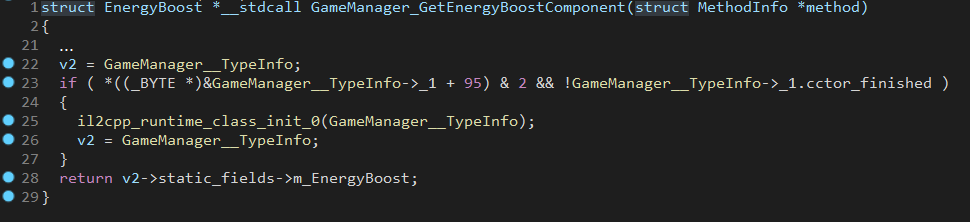
-p 스위치를 사용하여 il2cppinspector를 실행하여 GHIDRA 스크립트 출력 파일을 선택하고 -t Ghidra (Case -Ensensitive)를 선택하여 GHIDRA를 생성하려는 스크립트 유형으로 지정하십시오.
GHIDRA : Python Script 자체, JSON 메타 데이터 파일 및 C ++ 유형 헤더 파일의 경우 IL2CPPINSPECTOR에 의해 세 가지 파일이 생성됩니다. 스크립트가 성공적으로 실행하려면이 파일이 있어야합니다.
바이너리가 컴파일 된 Unity 버전을 알고 있다면 --unity-version (예 : --unity-version 2019.3.1f1 )으로이를 지정하여 출력을 향상시킬 수 있습니다. 애플리케이션에서 모든 자산 파일을 공급하여 --unity-version-from-asset 으로 Unity 버전을 감지 할 수도 있습니다. 그렇지 않으면 IL2Cppinspector는 이진의 내용에 따라 교육받은 추측을합니다.
참고 : 최상의 결과를 얻으려면 GHIDRA가 이진이 처음로드 될 때 자동 분석을 수행 할 것인지 묻는 경우 NO를 선택하십시오. 아래 스크립트를 실행할 때 Conflicting data exists at address 수신되면 이진을 프로젝트에 다시로드하고 자동 분석 프롬프트에서 아니요를 선택하십시오.
참고 : ELF 파일의 분석 속도를 크게 높이려면 바이너리의로드 옵션에서 이미지 기반을 0 ( 0x00000000 )으로 설정하십시오. 호환성의 이유로, ELF 파일에서 Ghidra Python 스크립트를 실행하면 필요한 경우 파일의 이미지 기반을 0으로 변경하지만 현재 이미지 기반이 0이 아닌 경우 완료하는 데 시간이 오래 걸릴 수 있습니다. 다른 파일 형식은 동일한 이미지 기반을 유지합니다.
메타 데이터를 기존 GHIDRA 프로젝트로 가져 오려면 :
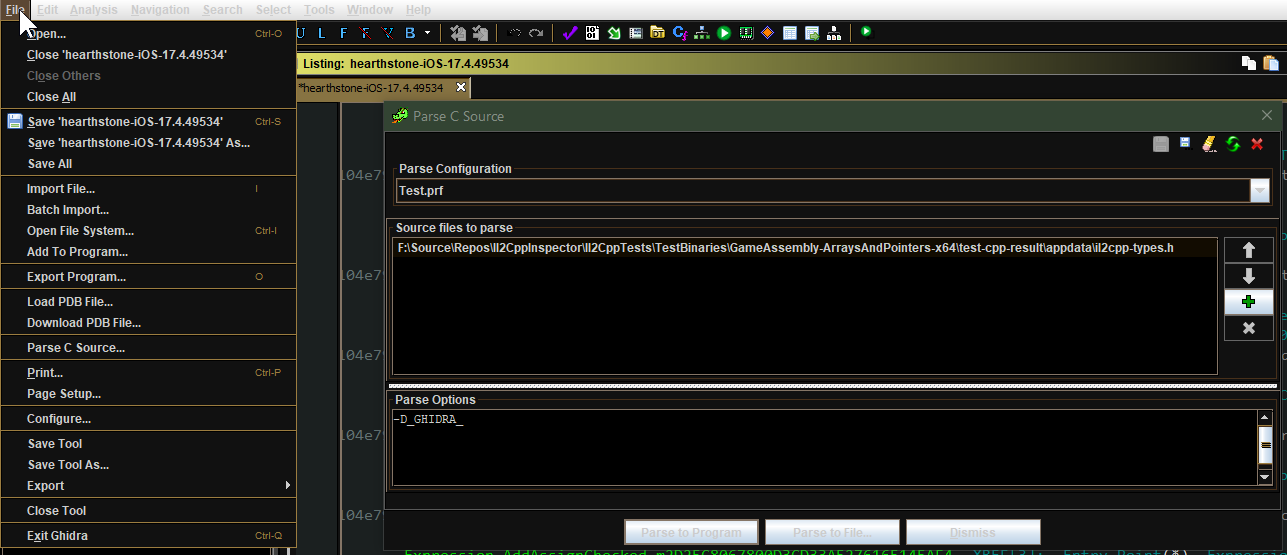
코드 브라우저 에서 파일 -> 구문 분석 소스를 선택하십시오 ...
새 프로필을 작성하고 생성 된 C ++ 유형 헤더 파일을 추가하십시오. CLI를 사용한 경우 기본적으로 cpp/appdata/il2cpp-types.h GUI를 사용한 경우 il2cpp.h 입니다.
구문 분석 옵션이 다음과 같이 정확하게 설정되어 있는지 확인하십시오.
-D_GHIDRA_
구문 분석을 클릭하여 프로그래밍하고 경고를 수락하십시오. 완료하는 데 시간이 오래 걸릴 수 있습니다.
스크립트 관리자를 열고 IL2CPPinspector에서 선택한 출력 폴더를 스크립트 폴더로 추가하십시오.
다른 바이너리에 IL2CPPinspector의 스크립트를 사용한 경우 Python 파일의 이름이 다르게 명명되거나 이전 스크립트 폴더의 사용을 비활성화하는지 확인하십시오.
새로 고침을 클릭하여 스크립트 관리자 에 스크립트가 나타납니다.
스크립트를 마우스 오른쪽 버튼으로 클릭하고 실행을 선택하십시오. 완료하는 데 시간이 걸릴 수 있습니다.
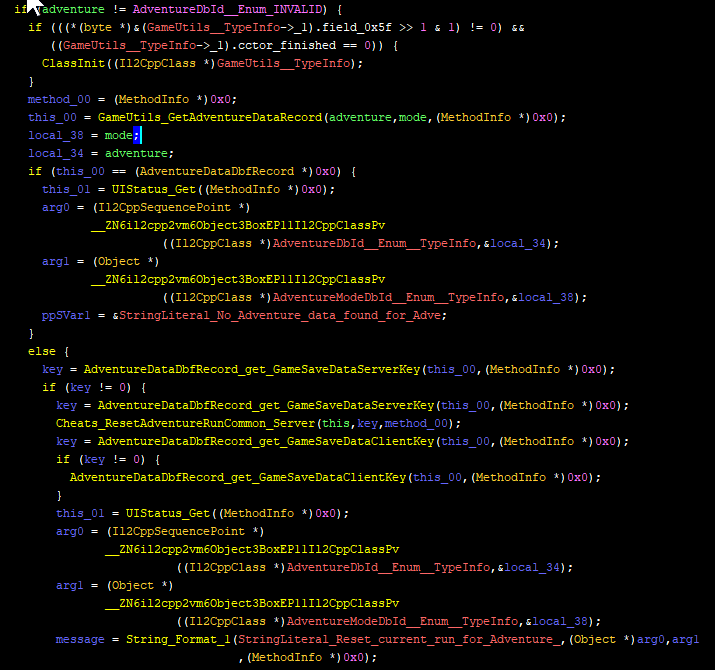
IL2CPPinspector IDA와 마찬가지로 GHIDRA 프로젝트에 대해 동일한 데이터를 생성합니다. 자세한 내용은 위의 섹션을 참조하십시오.
예제 GHIDRA C ++ IL2CPPINSPECTOR를 적용한 후 Decompilation :
il2cppinspector는 예를 들어 다양한 방법으로 사용할 수있는 일련의 C ++ 소스 파일을 생성합니다.
-h 스위치를 사용하여 IL2CPPINSPECTOR를 실행하여 C ++ 출력 폴더를 선택하십시오.
바이너리가 컴파일 된 Unity 버전을 알고 있다면 --unity-version (예 : --unity-version 2019.3.1f1 )으로이를 지정하여 출력을 향상시킬 수 있습니다. 애플리케이션에서 모든 자산 파일을 공급하여 --unity-version-from-asset 으로 Unity 버전을 감지 할 수도 있습니다. 그렇지 않으면 IL2Cppinspector는 이진의 내용에 따라 교육받은 추측을합니다.
출력 파일을 사용하려는 C ++ 컴파일러를 다음과 같이 사용하려는 C ++ 컴파일러를 대상으로 할 수 있습니다. Visual Studio 용 --cpp-compiler MSVC 및 GCC 또는 Clang 용 --cpp-compiler GCC 지정할 수 있습니다.
IL2CPPinspector는 C ++에서 사전 정의 된 기호 및 키워드의 사용을 피하고 응용 프로그램에서 동일한 이름 기호의 재정의를 처리하기 위해 자동 이름 충돌 해결을 수행합니다.
일부 IL2CPP 바이너리 파일에는 부분적 API 내보내기 세트 만 포함되거나 전혀 없습니다. 이러한 경우 IL2CPPinspector는 가용 내보내기 만 사용하여 스캐 폴딩을 구축하여 프로젝트가 성공적으로 컴파일되도록합니다.
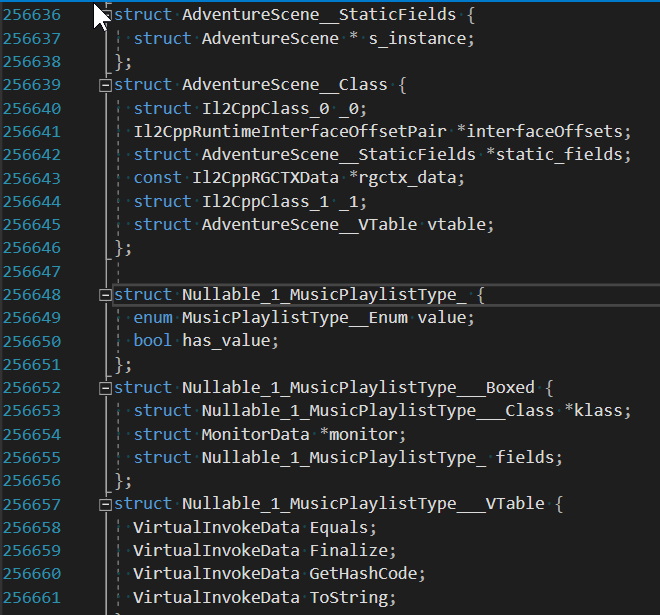
다음 파일이 생성됩니다.
appdata 이 폴더는 프로젝트에 대한 비수성 이진 별 선언이 포함되어 있습니다. ilc2pp-types.h :
il2cpp-functions.h :
MethodInfo ** )로 오프셋 il2cpp-types-ptr.h :
Il2CppClass ** )로 오프셋 il2cpp-api-functions.h :
il2cpp-api-functions-ptr.h :
il2cpp_ 로 시작하는 기능)로 오프셋 il2cpp-metadata-version.h :
#define위의 파일에는 디버거에서 동적 분석에 필요한 모든 데이터가 포함되어 있습니다.
또한 DLL 주입을 위해 다음 파일이 생성됩니다.
framework -프로젝트 공유 이진-비수성 보일러 플레이트 코드 및 스캐 폴딩 :
dllmain.cpp :
init_il2cpp() (아래 참조)를 호출하고 새 스레드에서 Run() (아래 참조)을 호출하는 dll 분사 스텁을 제공합니다. helpers.cpp 및 helpers.h :
helpers.h 의 의견을 참조하십시오. il2cpp-init.cpp , il2cpp-init.h 및 il2cpp-appdata.h :
void init_il2cpp() 함수를 제공합니다. pch-il2cpp.cpp 및 pch-il2cpp.h :
appdata 폴더의 모든 헤더에 대해 사전 컴파일 된 헤더 (PCH)를 활성화하는 데 필요한 스캐 폴딩을 제공합니다. user -원하는대로 수정할 수있는 프로젝트 별 이진 공유 사용자 코드 :
main.cpp 및 main.h :Run() 함수가 포함되어 있습니다. 함수는 새 스레드에서 실행되므로 DllMain 차단하지 않습니다.파일을 편집 해야하는 유일한 폴더입니다 .
Visual Studio 사용자의 경우 다음 파일도 생성됩니다.
IL2CppDLL.vcxproj , Il2CppDLL.vcxproj.filters 및 Il2CppDLL.sln : Default main.cpp 에는 helpers.h 의 함수를 사용하여 로그에 쓸 수 있거나 새 콘솔을 열 수있는 주석 코드가 포함되어 있습니다. 소스 코드에서 로그 파일 대상을 지정하려면 extern const LPCWSTR LOG_FILE = L"my_log_file.txt" 사용하십시오.
팁 : 대상 응용 프로그램의 새 버전이 릴리스되면 C ++ 스캐 폴딩 프로젝트를 다시 출력 할 수 있습니다. appdata 및 framework 폴더가 덮어 쓰지 않지만 user 폴더 및 프로젝트/솔루션 파일은 변경되지 않습니다. 따라서 대상 응용 프로그램이 업데이트되었을 때 프로젝트를 쉽게 업데이트 할 수 있습니다!
호환성 : Visual Studio 2019 (MSVC ++ 빌드 도구 v142 이상)를 사용하는 것이 좋습니다. 스캐 폴딩 프로젝트는 Visual Studio 2019 및 Visual Studio 2017 (MSVC ++ Build Tools v141)으로 테스트되었지만 컴파일이 성공할 수 있도록 Visual Studio 2017을 사용할 때 일부 도우미 코드가 생략됩니다.
Il2CppDLL.sln )을 Visual Studio에로드하십시오.main.cpp 에서 Run() 함수에서 실행하려는 코드 추가응용 프로그램의 모든 C#-동등한 유형 및 메소드와 사용 가능한 모든 IL2CPP API 기능에 액세스 할 수 있습니다. 추가 기능 포인터 또는 유형 선언이 필요하지 않습니다.
예제 ( Vector3 만들고 파일에 y 조정을 기록) : :
 // in main.cpp
void Run ()
{
    // Vector3 example

    // (Call an IL2CPP API function)
    Vector3__Boxed* myVector3 = (Vector3__Boxed*) il2cpp_object_new ((Il2CppClass*) *Vector3__TypeInfo);

    // (Call an instance constructor)
    Vector3__ctor (myVector3, 1 . 0f , 2 . 0f , 3 . 0f , NULL );

    // (Access an instance field)
    il2cppi_log_write ( to_string (myVector3-> fields . y ));
}
보다 자세한 튜토리얼은 여기에서 찾을 수 있습니다.
IL2CPP DLL 주입 프로젝트를 작성, 사용 및 디버그하는 방법
IL2CPP DLL 주입 프로젝트에서 코드 작업
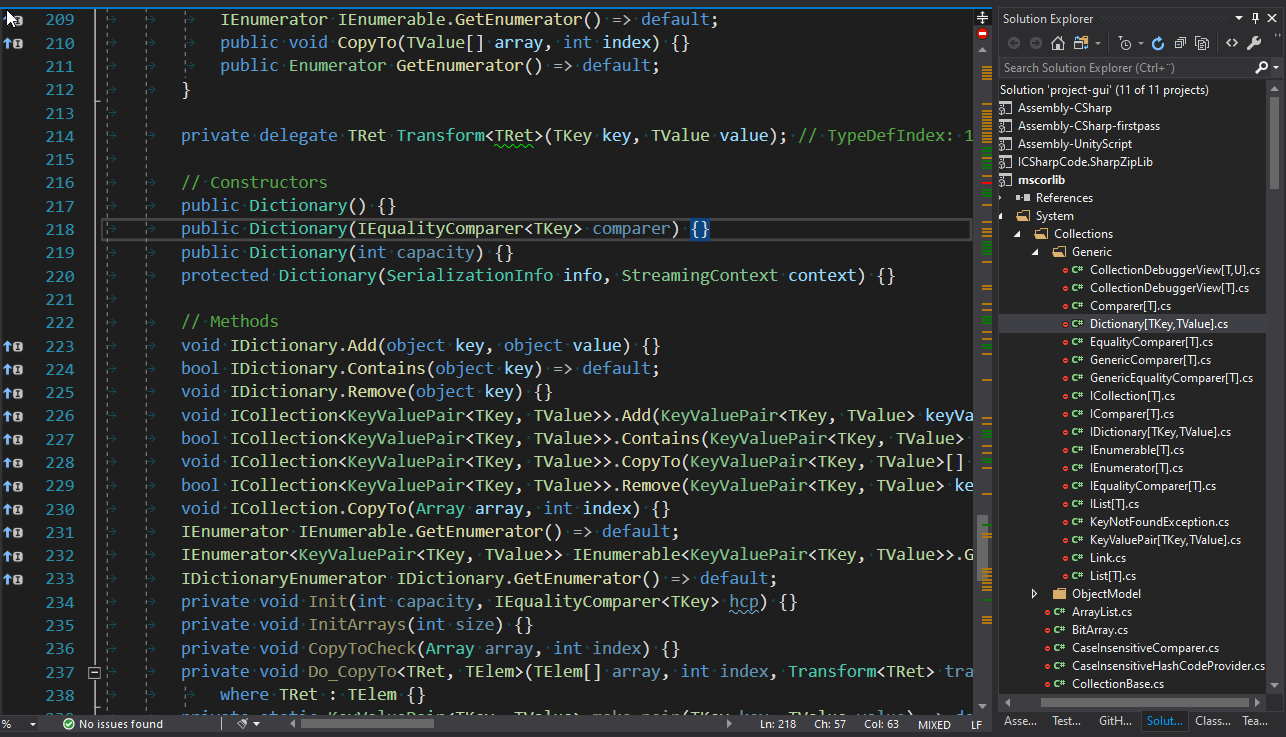
IL2CPPinspector는 솔루션 (.SLN) 파일, Project (.CSPROJ) 파일 및 어셈블리-나임 스페이스 클래스 트리 유사 폴더 구조로 완전한 Visual Studio Workscace를 생성 할 수 있습니다. 각 프로젝트는 단일 어셈블리를 만듭니다.
--project 스위치를 사용하여 솔루션 작업 공간을 생성하십시오.
IL2CPPinspector가 올바른 Unity 어셈블리 참조를 포함하는 .csproj 파일을 만들 수 있으려면 설치된 Unity 편집기 및 기존 Unity 프로젝트의 프로젝트 템플릿 또는 ScriptAssemblies 폴더에 대한 경로를 제공해야합니다.
참고 : 기본 설정은 기본 위치에 설치된 경우 최신 설치된 Unity 버전과 기본 3D 프로젝트 템플릿의 최신 버전을 선택합니다.
일반적인 Unity 편집기 위치 ( --unity-path 로 지정 됨) : c : program files unity hub editor 20xx.yz
일반적인 Unity 프로젝트 템플릿 위치 ( --unity-assemblies 로 지정 됨) : c : program files unity unity hub editor 20xx.yz editor data resources packagemanager projectTemplates libcache <name-of-template
기존 프로젝트의 일반적인 Unity Script Assemblies 위치 ( --unity-aseemblies 로 지정 됨) : x : myProject library ScriptAssemblies
X , Y 및 Z를 Unity 버전 번호로 교체하십시오. <template>을 원하는 템플릿으로 바꾸십시오.
참고 : 이러한 경로를 지정할 때 별표 와일드 카드 (*)를 한 번 이상 사용할 수 있습니다. IL2CPPinspector는 영숫자 순서로 마지막 일치하는 폴더를 선택합니다. 여러 개의 나란히 Unity 설치가 있고 항상 최신 버전 또는 템플릿을 선택하려는 경우 유용합니다.
솔루션을 처음로드 할 때 어셈블리 참조가 올바르게 해결되지 않은 경우 솔루션을 닫고 다시 열도록 강제로 해결하십시오.
il2cppinspector는 응용 프로그램에 대한 다양한 메타 데이터가 포함 된 JSON 파일을 만들 수 있습니다.
-o 스위치를 사용하여 JSON 출력 경로를 지정하십시오.
출력 스키마는 다음과 같습니다.
addressMap (객체)
이진의 모든 IL2CPP 관련 컨텐츠의 주소 맵
methodDefinitions (Array) 가상 주소, 이진 기호, C ++ 함수 서명 및 .NET 메소드 서명의 모든 .NET-Igivalent 메소드의 서명
constructedGenericMethods (ARRAY) 가상 주소, 이진 기호, C ++ 기능 서명 및 .NET 메소드 서명의 모든 .NET- 동등한 콘크리트 일반 방법의 .NET 메소드 서명.
customAttributesGenerators (배열) 가상 주소, 이름 및 C ++ 기능 바이너리의 모든 사용자 정의 속성 생성기 기능의 서명
methodInvokers (배열) 모든 방법의 가상 주소, 이름 및 C ++ 기능 서명.
5.3.2보다 낮은 통일 버전의 stringLiterals (배열) : Unity 버전 5.3.2 이상의 바이너리의 모든 문자열 문자의 서수, 이름 및 텍스트 : 바이너리의 모든 문자열 문자의 가상 주소, 이름 및 텍스트
typeInfoPointers (배열) 가상 주소, 이름, C ++ 파생 유형 이름 및 .NET 유형 이름은 모든 클래스 정의 포인터 ( Il2CppClass * )와 동일합니다.
typeRefPointers (배열) 가상 주소, 이름 및 .NET 유형 이름은 바이너리의 모든 유형 참조 포인터 ( Il2CppType * )와 동일합니다.
methodInfoPointers (배열) BAINER의 모든 런타임 메소드 정의 포인터 ( MethodInfo * )의 가상 주소, 이름 및 .NET 메소드 서명
functionAddresses (배열) 위의 모든 것들과 위의 범주에 포함되지 않은 다른 모든 것들을 포함하여 이진에서 모든 알려진 기능의 시작의 가상 주소
typeMetadata (Array) 가상 주소, 이름 및 C ++ 유형의 주요 메타 데이터 항목의 이름. 여기에는 Il2CppCodeRegistration 및 Il2CppMetadataRegistration 이 포함되며 이진 버전에 따라 각 Il2CppCodeGenModule 에 대한 포인터도 포함될 수 있습니다.
arrayMetadata (Array) 가상 주소, 이름, C ++ 유형 이름 및 주요 메타 데이터 배열의 크기
functionMetadata (배열) 이진의 주요 메타 데이터 함수의 가상 주소, 이름 및 C ++ 기능 서명. IL2CPPinspector에 의해 이진을 분석 한 방법에 따라 il2cpp_codegen_register 가 포함될 수 있습니다.
apis (배열) 바이너리에서 식별 된 모든 IL2CPP API 기능의 가상 주소, 이름 및 C ++ 기능 서명
exports (배열) 바이너리의 모든 내보내기의 가상 주소 및 이름
symbols (Array) 가상 주소, 이름 및 기호 유형의 이름 및 기호 유형은 이진에 정의 된 모든 명명 된 (0이 아닌 이름 길이) 및 0이 아닌 주소 함수 정의, 유형, 필드 이름 및 가져 오기 (ELF)입니다. 현재 PE 파일에 지원되지 않습니다.
IL2CPP 바이너리의 쉽게 건축 및 테스트를 가능하게하기 위해 3 개의 PowerShell 스크립트가 제공됩니다.
il2cpp.ps1 은 메인 워크 호스이며 각 지정된 C# 소스 파일을 TestSources (또는 공급되지 않은 경우 모두)에서 별도의 어셈블리로 컴파일하고 TestAssemblies 로 출력합니다. 그런 다음 모든 지정된 어셈블리가 TestAssemblies 에서 가져와 각 아키텍처 각각에 대해 별도의 IL2CPP 프로젝트로 각각을 컴파일합니다.
이들은 TestBinaries 폴더에 배치됩니다. 각 빌드의 C ++ 소스 코드는 TestCpp 폴더에 배치됩니다. 그런 다음 generate-tests.ps1 호출합니다.
첫 번째 인수 (또는 -assemblies )로 처리하기 위해 쉼표로 구분 된 소스 파일 목록 ( .cs 확장자없이)을 지정하십시오.
2 차 인수 (또는 -unityVersion )와 함께 Unity 버전 또는 Unity 설치 경로를 선택적으로 지정할 수 있습니다. 제공되지 않으면 최신 설치된 Unity 버전이 사용됩니다. 와일드 카드를 지정할 수도 있습니다. 2019* 최신 설치된 Unity 2019, 2018.3* 의 최신 버전을 사용하여 최신 설치된 버전의 Unity 2018.3 등을 사용합니다. Unity Hub를 사용하여 원하는 버전을 설치하십시오.
따라서 하나의 명령을 사용하면 특정 소스 파일 목록, 소스 파일 당 하나의 출력 세트에 대해 각 아키텍처에 대한 어셈블리 DLL, C ++ 소스 코드 및 IL2CPP 바이너리를 생성 할 수 있습니다.
Tests.cs generate-tests.ps1 TestBinaries Il2CppTests 이 파일은 Il2CppTests 프로젝트에 의해 편집됩니다. 그런 다음 Visual Studio의 테스트 탐색기에서 IL2CPP 프로젝트 당 하나의 테스트를 볼 수 있습니다.
자동 생성 된 테스트는 테스트 비나리 TestBinaries 의 테스트 IL2CPP 바이너리 폴더 ( test 와 접두사)의 C#, JSON 및 C 헤더 파일을 생성하고 (공백 불신) TestExpectedResults 의 해당 프로젝트 이름 파일과 비교합니다. 이러한 방식으로 분석이 올바르게 수행되는 알려진 구조가있는 파일을 확인하거나 프로젝트의 명령 줄 인수를 변경하지 않고 디버거의 특정 바이너리 분석을 진행할 수 있습니다.
update-expected-results.ps1 TestBinaries 에서 TestExpectedResults 로 모든 출력 테스트 결과를 복사하므로 올바른 테스트 결과를 확인하는 데 사용될 파일을 업데이트합니다.
예제 사용 :
./il2cpp.ps1
각 C# 소스 파일을 구축합니다. ìnto a .NET 어셈블리 DLL, C ++ 소스 폴더 및 지원되는 아키텍처 당 IL2CPP 바이너리 1 개를 빌드합니다.
./il2cpp.ps1 MyFirstTest
MyFirstTest.cs MyFirstTest.dll 에 빌드하고, 각 지원되는 각 아키텍처에 대한 MyFirstTest 라는 C ++ 소스 폴더 및 IL2CPP 바이너리를 만듭니다.
./il2cpp.ps1 MyFirstTest,MySecondTest 2019.3.1f1
Unity 2019.3.1f1을 사용하여 MyFirstTest.cs 및 MySecondTest.cs 개별 어셈블리 DLL, C ++ 소스 폴더 및 IL2CPP 바이너리로 빌드합니다.
./il2cpp.ps1 MyFirstTest,MySecondTest F:UnityHubEditor2019.3.1f1
위와 같이 Unity 설치를위한 사용자 정의 경로를 지정합니다.
최소 지원 Unity 버전은 2017.1.0F3입니다.
이러한 기능에 대한 자세한 내용은 IL2CPPINSPECTOR를 사용하여 IL2CPP 코드를 생성하여 IL2CPP 리버스 엔지니어링 파트 1에서 제목의 섹션을 참조하십시오.
참고 : IL2CPPINSPECTOR API는 NUGET 패키지로도 제공됩니다! (검색 : noisycowstudios.il2cppinspector)
il2cppinspector는 다음과 같은 재사용 가능한 클래스 라이브러리 API를 제공합니다.
이 API를 사용하여 IL2CPP 유형을 쉽게 쿼리하고 새 출력 모듈을 만들고 IL2CPPinspector를 고유 한 정적 분석 응용 프로그램과 통합하십시오.
자체 프로젝트에서 IL2CPPINSPECTOR를 사용하려면 Il2CppInspector.Common.dll 에 대한 참조를 추가하십시오.
지시문을 using 다음을 포함하십시오.
using Il2CppInspector to use Il2CppInspector .using Il2CppInspector.Reflection to use TypeModel .using Il2CppInspector.Model to use AppModel .See the source code for further details or the tutorials above.
Plugins should be placed in the plugins folder in the same folder as Il2CppInspector.exe . Each plugin should be placed into its own sub-folder with any dependencies or configuration files needed.
From the GUI you can enable and disable plugins, change the execution order and configure individual plugin settings via the Manage plugins... button.
From the CLI you can specify which plugins and settings to use as follows.
For one plugin:
Il2CppInspector.exe --plugins "myplugin --firstOption value1 --secondOption value2"
For multiple plugins:
Il2CppInspector.exe --plugins "plugin1 --option1 ..." "plugin2 --option2 ..." ...
Plugins will be executed in the order specified.
Core plugins (those that are part of Il2CppInspector's base functionality) are always enabled when using the CLI, but can be disabled in the GUI.
When using the CLI, core plugins always execute first by default. You can force the core plugins to execute in a different order by specifying their names in the desired execution order. 예를 들어:
Il2CppInspector.exe --plugins "analytics --output foo.csv"
will run the core plugins first then the analytics example plugin, but:
Il2CppInspector.exe --plugins "analytics --output foo.csv" "xor"
will cause the xor core plugin to run after analytics .
For help on a specific plugin, specify the plugin name with no arguments:
Il2CppInspector.exe --plugins myplugin
To get more plugins, click Get Plugins in the Manage Plugins window in the GUI, visit the Il2CppInspectorPlugins repository or use the get-plugins.ps1 or get-plugins.sh scripts to update to the latest plugin releases.
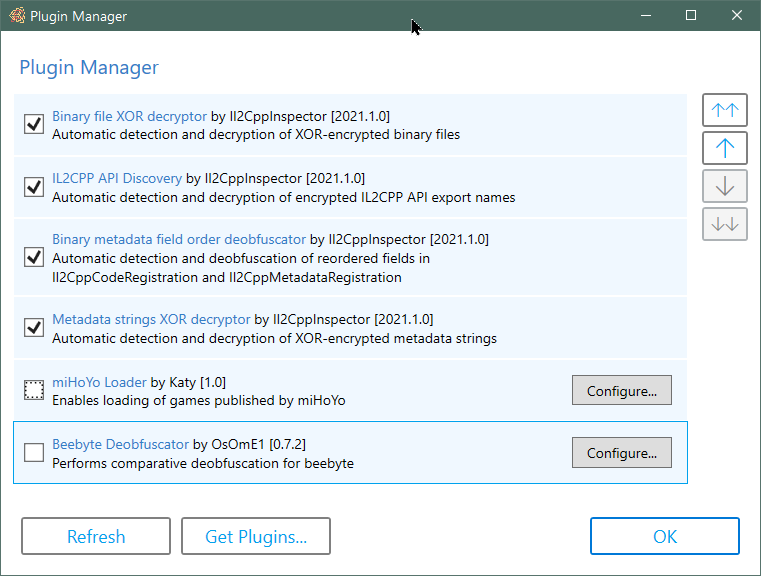
Plugins let you extend the functionality of Il2CppInspector. For example you can pre and post-process metadata and binaries to enable inspection of IL2CPP applications that Il2CppInspector cannot handle automatically.
Plugin support is currently experimental and has limited functionality.
Details on how to create your own plugins can be found in the Il2CppInspector Plugin Development Wiki.
You can find out more about plugins, and browse the source code of current plugins and examples in the Il2CppInspectorPlugins repository.
The current version of Il2CppInspector can output Python scripts targeting the IDA and Ghidra disassemblers.
When Il2CppInspector generates such a script, it generates a concatenation of a shared block of code ( Outputs/ScriptResources/shared-main.py ) which parses the JSON metadata and dispatches it to a set of implementation-specific functions to be processed, and a block of code specific to the target application which implements these functions (a file from Outputs/ScriptResources/Targets ).
If you would like to add support for a new target application, create a new Python script in Outputs/ScriptResources/Targets with the nane <target-name-without-whitespace>.py and implement the following functions:
CustomInitializer() - perform any custom initialization required for the target before applying the metadataDefineCode(code) - parse and apply the specified C++ declaration text (this is not required for Unity 5.3.2 and later; if you don't need to support earlier versions, just specify pass as the implementation)GetScriptDirectory() - retrieve the directory that the Python script is running in. This will normally be os.path.dirname(os.path.realpath(__file__))MakeFunction(start, name=None) - define address start as the start of a function, optionally with name nameSetComment(addr, text) - place the comment text at address addrSetFunctionType(addr, sig) - parse the C++ function signature in sig and apply it to the function at address addrSetHeaderComment(addr, text) - place the header/plate/pre-item comment text at address addrSetName(addr, name) - set the symbol (or label or name) of address addr to nameSetType(addr, type) - define address addr to be an item of the C++ type type Refer to the source code of IDA.py and Ghidra.py for examples.
When you add a new target and re-compile Il2CppInspector:
-t ( --script-target ) switch via the CLIIf you develop an API for a target that you think might be useful to others, please feel free to submit a PR with the code!
| Unity version | IL2CPP version | 지원하다 |
|---|---|---|
| 4.6.1+ | 첫 번째 릴리스 | Unsupported |
| 5.2.x | 15 | Unsupported |
| 5.3.0-5.3.1 | 16 | 일하고 있는 |
| 5.3.2 | 19 | 일하고 있는 |
| 5.3.3-5.3.4 | 20 | 일하고 있는 |
| 5.3.5-5.4.6 | 21 | 일하고 있는 |
| 5.5.0-5.5.6 | 22 | 일하고 있는 |
| 5.6.0-5.6.7 | 23 | 일하고 있는 |
| 2017.1.0-2018.2.21 | 24 | 일하고 있는 |
| 2018.3.0-2018.4.x | 24.1 | 일하고 있는 |
| 2019.1.0-2019.3.6 | 24.2 | 일하고 있는 |
| 2019.3.7-2019.4.14 | 24.3 | 일하고 있는 |
| 2019.4.15-2019.4.20 | 24.4 | 일하고 있는 |
| 2019.4.21-2019.4.x | 24.5 | 일하고 있는 |
| 2020.1.0-2020.1.10 | 24.3 | 일하고 있는 |
| 2020.1.11-2020.1.17 | 24.4 | 일하고 있는 |
| 2020.2.0-2020.2.3 | 27 | 일하고 있는 |
| 2020.2.4-2020.3.x | 27.1 | 일하고 있는 |
| 2021.1.0-2021.1.x | 27.2 | Partial |
Please refer to the companion repository https://github.com/nneonneo/Il2CppVersions if you would like to track the changes between each IL2CPP release version.
If you have files that don't work or are in an unsupported format, please open a new issue on GitHub and attach a sample with details on the file format, and I'll try to add support. Include both the IL2CPP binary and global-metadata.dat in your submission.
Please check the binary file in a disassembler to ensure that it is a plain IL2CPP binary before filing an issue. Il2CppInspector is not intended to handle packed, encrypted or obfuscated IL2CPP files.
If you found Il2CppInspector useful, you can really help support the project by making a small donation at http://paypal.me/djkaty!
You can also donate with bitcoin: 3FoRUqUXgYj8NY8sMQfhX6vv9LqR3e2kzz
많은 사랑! - Katy
Thanks to the following major contributors!
This project uses:
Thanks to the following individuals whose code and research helped me develop this tool:
The following books and documents were also very helpful:
Pizza spinner animation in the GUI made by Chris Gannon - https://gannon.tv/
This software is licensed under AGPLv3.