pv_simulator_challenge
1.0.0

In this repository, a brief simulation of photovoltaic power values is implemented. There are mainly 3 components:
Initially, meter sends an initialization message to the photovoltaics module (PV). This message contains a file_name variable and informs the PV to initialize a file with the name file_name with a predefined content.
Every second, a watt value is read in the meter.py, which should reflect the power consumption of a house. Then the meter sends this watt value and its timestamp to the photovoltaic module (PV). PV (which already listens the meter) gets this info, samples a watt value (power generated by the PV) from a predefined distribution with the timestamp parameter. Then this data is appended to the file file_name.
Please use a Ubuntu computer, all the development is done on a Ubuntu 16.04 environment. Other OS's are not tested.
RabbitMQ server should be set up and running.
To setup, see RabbitMQ Guide.
Later, start the service with:
sudo service rabbitmq-server start
Go into the project directory, and install the pip dependencies with
pip install -r requirements.txt
Open the notebooks Meter_Simulator.ipynb and PV_Simulator.ipynb .
In the notebook PV_Simulator, run until the code:
pv.listen_queue()This will have the execution wait for the incoming messages.
Note: This waiting could be stopped with an interrupt to the notebook. Or, a message (of the type dictionary in Python)
with the key: m_type equals to 1 will stop the this waiting by running .stop_consuming() method in channel.
Then, in the notebook Meter_Simulator, after running package imports and Setup Parameters sections, one can choose what type of simulation is preferred. The first one is slow and the other one is quick simulation.
If slow simulation is preferred, the code after the Setup Parameters until the Quick Simulation section could be run.
If quick simulation is preffered, after runnning Setup Parameters, the Quick Simulation section should be run.
When the simulation ends (with m_type=1), the waiting for new messages in PV_Simulator ends.
To see the simulated values, go into the PV_Simulator notebook's Visualize section. Assign file name of the
csv file to be visualized to the variable output_file_name and run the cell.
Example visuals are as follows:
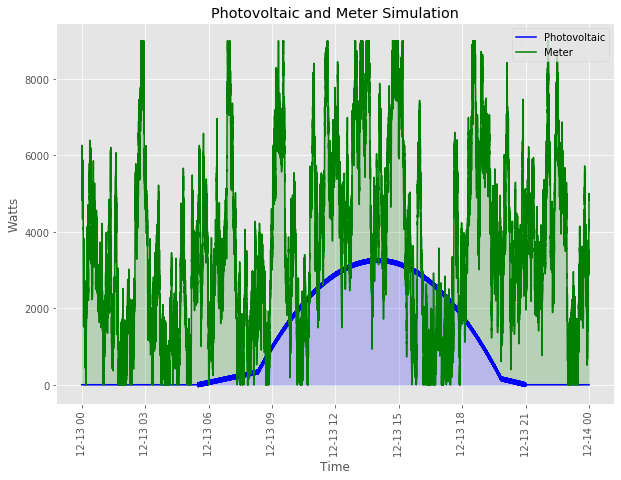
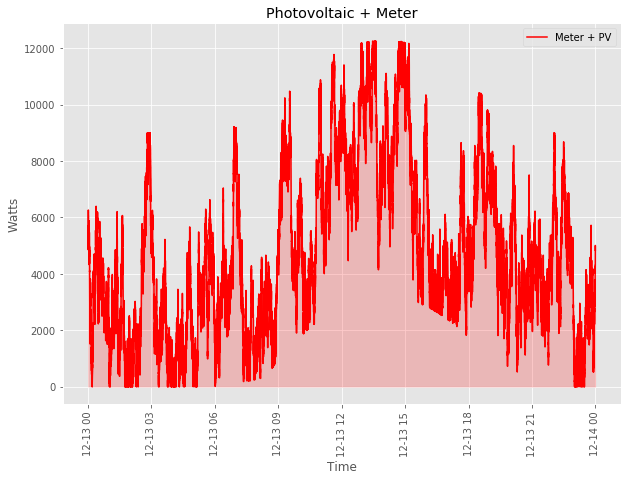
To check whether the application runs on your computer, you can simply run the pytests in the project directory as follows:
python -m pytest tests/





