asp net bootstrap grid initialize combo box column in batch edit mode
1.0.0

This example demonstrates how to create a combo box column's edit item template to bind the column to a filtered data source and configure the grid's cell edit functionality in batch mode.
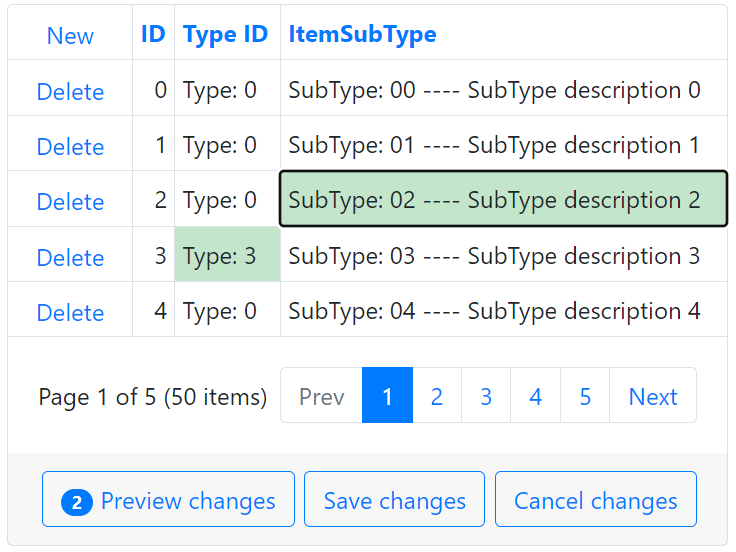
Follow the steps below to initialize a combo box column in batch edit mode:
Add a BootstrapGridView control to your page and populate it with columns.
Create a combo box column and specify its PropertiesComboBox settings for the view mode. To bind a combo box column to a data source, handle the column's ItemRequestedByValue and ItemRequestedByFilterCondition events and filter the data source.
<dx:BootstrapGridViewComboBoxColumn FieldName="YourFieldName" ...>
    <PropertiesComboBox ValueField="YourFieldName"	OnItemRequestedByValue="OnItemRequestedByValue_View"
    OnItemsRequestedByFilterCondition="OnItemsRequestedByFilterCondition_View" TextFormatString="{0}|{1}...">
        <Fields>
        <!-- ... -->
        </Fields>
    </PropertiesComboBox>
    <!-- ... -->
</dx:BootstrapGridViewComboBoxColumn>
protected void OnItemRequestedByValue_View(object source, ListEditItemRequestedByValueEventArgs e) {
if (e.Value == null) return;
int subTypeID = (int)e.Value;
BootstrapComboBox editor = source as BootstrapComboBox;
editor.DataSource = ItemTypeFactory.GetItemSubTypes().Where(s => s.SubTypeID == subTypeID);
editor.DataBind();
}
protected void OnItemsRequestedByFilterCondition_View(object source, ListEditItemsRequestedByFilterConditionEventArgs e) {
BootstrapComboBox editor = source as BootstrapComboBox;
editor.DataSource = ItemTypeFactory.GetItemSubTypes().Where(s => s.SubTypeDescription.Contains(e.Filter)
|| s.SubTypeName.Contains(e.Filter)
|| s.SubTypeID.ToString().Contains(e.Filter));
editor.DataBind();
}Specify the column's EditItemTemplate property, add a BootstrapComboBox control to the template to use it in edit mode, and enable its EnableCallbackMode property. Handle the combo box's server-side ItemsRequestedByFilterCondition and ItemRequestedByValue events and filter the data source based on the values of other fields.
<dx:BootstrapGridViewComboBoxColumn Caption="ItemSubType" FieldName="SubTypeID" VisibleIndex="4">
    <!-- ... -->
    <EditItemTemplate>
        <dx:BootstrapComboBox ID="bsCombobox" runat="server" EnableCallbackMode="true" ClientInstanceName="bsCombobox" OnItemRequestedByValue="OnItemRequestedByValue" OnItemsRequestedByFilterCondition="OnItemsRequestedByFilterCondition" ValueField="SubTypeID" TextFormatString="SubTypeID: {0} ---- Desription: {1}">
            <Fields>
                <!-- ... -->
            </Fields>
            <ClientSideEvents LostFocus="bsCombobox_LostFocus" />
        </dx:BootstrapComboBox>
    </EditItemTemplate>
</dx:BootstrapGridViewComboBoxColumn>
protected void OnItemRequestedByValue(object source, ListEditItemRequestedByValueEventArgs e) {
// ...
int typeID = GetCurrentItemTypeID();
List<SubType> subTypes;
if (typeID > -1)
subTypes = ItemTypeFactory.GetItemSubTypes().Where(s => s.TypeID == typeID && s.SubTypeID.ToString() == id).ToList();
// ...
editor.DataSource = subTypes;
editor.DataBind();
}
protected void OnItemsRequestedByFilterCondition(object source, ListEditItemsRequestedByFilterConditionEventArgs e) {
BootstrapComboBox editor = source as BootstrapComboBox;
int typeID = GetCurrentItemTypeID();
List<SubType> subTypes;
if (typeID > -1)
subTypes = ItemTypeFactory.GetItemSubTypes().Where(s => s.TypeID == typeID && (s.SubTypeDescription.Contains(e.Filter)
// ...
editor.DataSource = subTypes;
editor.DataBind();
}To initialize the combo box control on the client, handle the grid's BatchEditStartEditing and BatchEditEndEditing events as demonstrated in the following example: Grid View for ASP.NET Web Forms - How to implement an edit item template in batch mode.
function OnBatchEditStartEdit(s, e) {
    var currentTypeID = grid.batchEditApi.GetCellValue(e.visibleIndex, 'TypeID');
    var cellInfo = e.rowValues[ColIndexByName('SubTypeID')];
    this.setTimeout(function () {
    bsCombobox.SetValue(cellInfo.value);
    bsCombobox.SetText(cellInfo.text);
    }, 0);
    RefreshData(currentTypeID);
}
function OnBatchEditEndEdit(s, e) {
    var cellInfo = e.rowValues[ColIndexByName('SubTypeID')];
    cellInfo.value = bsCombobox.GetValue();
    cellInfo.text = bsCombobox.GetText();
    bsCombobox.SetValue(null);
}
To pass the new field value to the server, use a hidden field control and call the combo box's PerformCallback method.
function RefreshData(currentTypeID) {
    hf1.Set('currentTypeID', currentTypeID);
    bsCombobox.PerformCallback();
}
(you will be redirected to DevExpress.com to submit your response)





