SwiftyFitsize
1.4.2

克隆或下載倉庫到本地後,請先運行pod install , 再打開SwiftyFitsize.xcworkspace
 use_frameworks!
pod 'SwiftyFitsize' 1. File > Add Packages
2. Search https://github.com/LinXunFeng/SwiftyFitsize.git
3. Select "Up to Next Major" with "1.4.1"
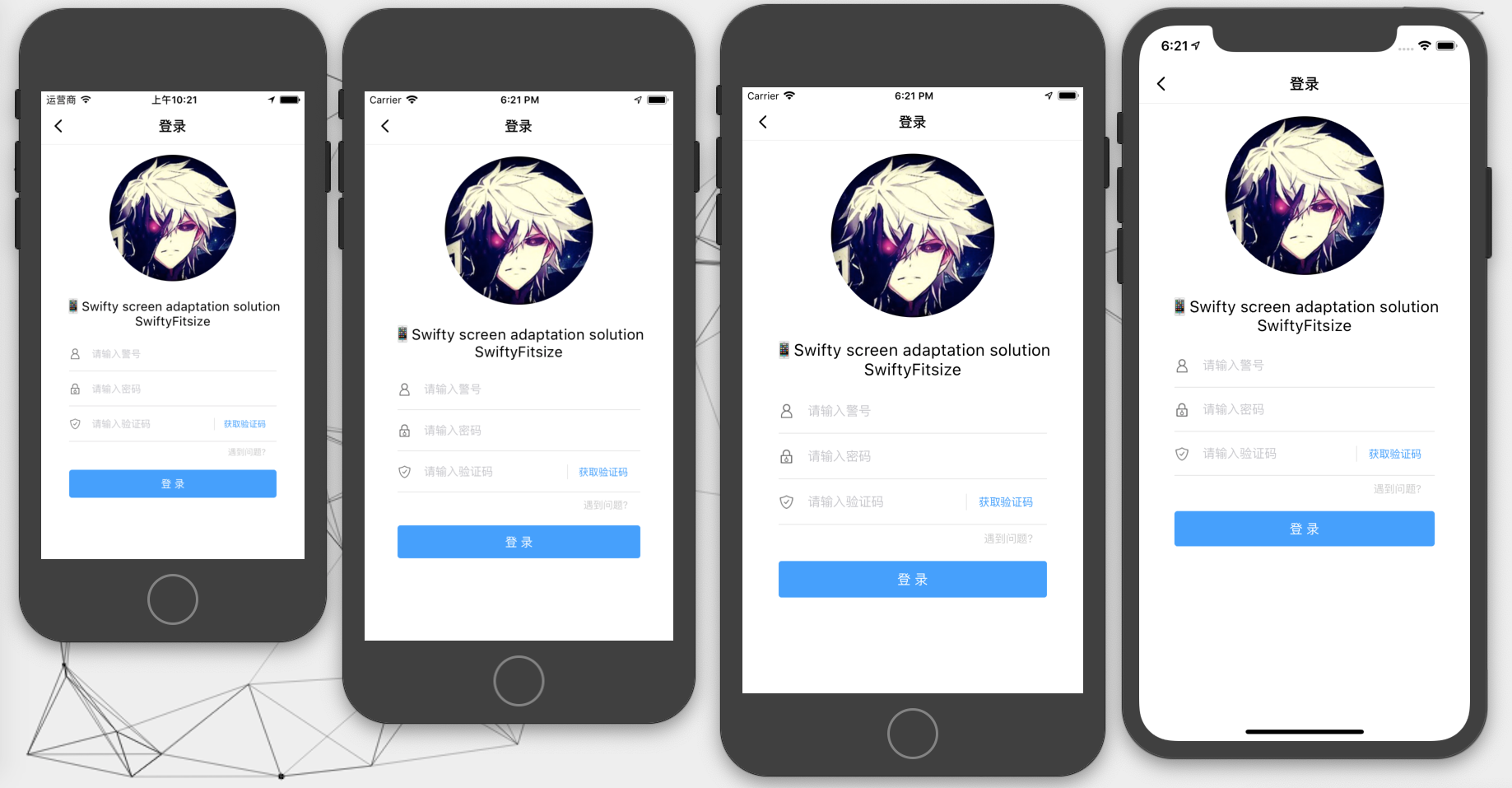
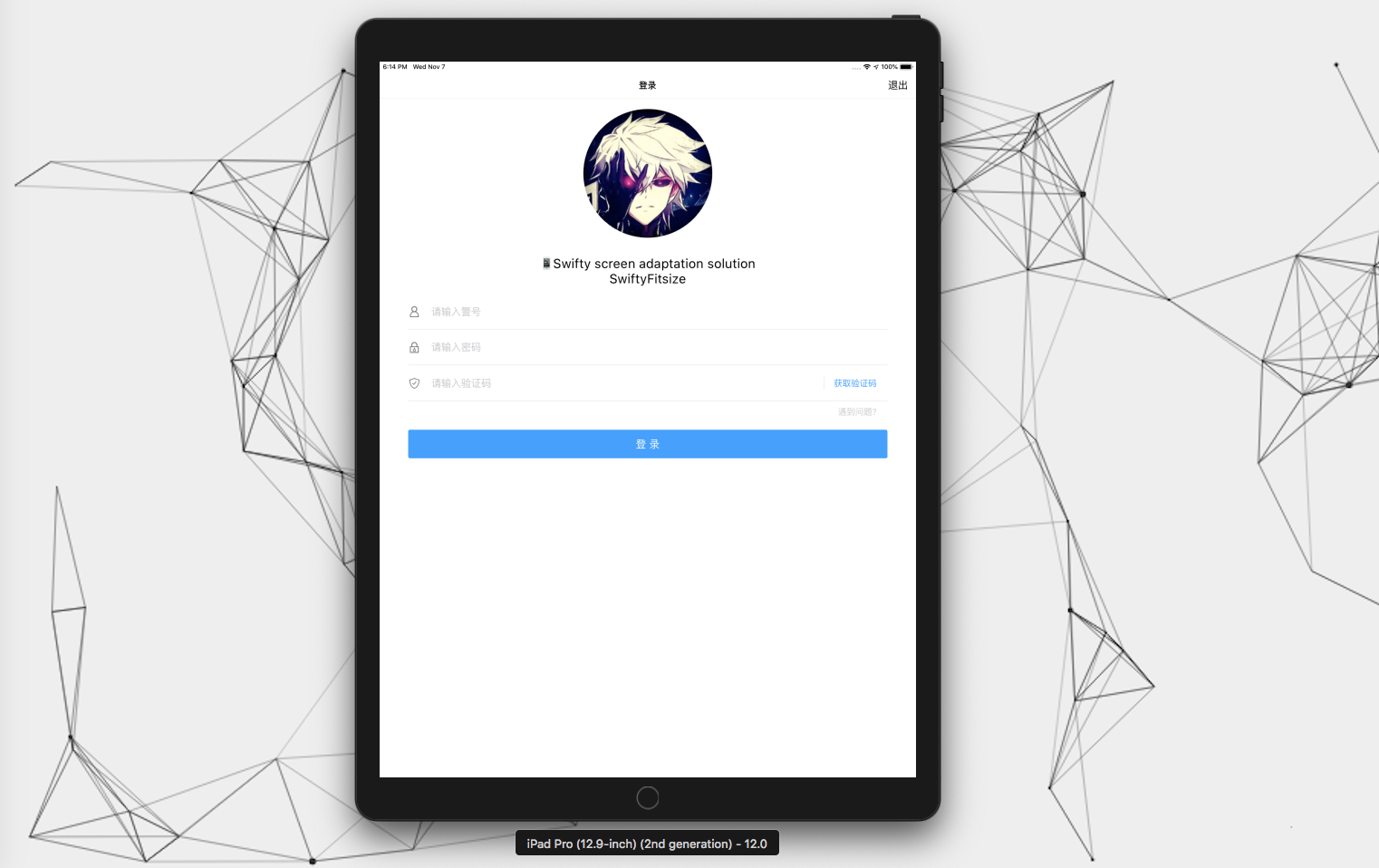
無論是
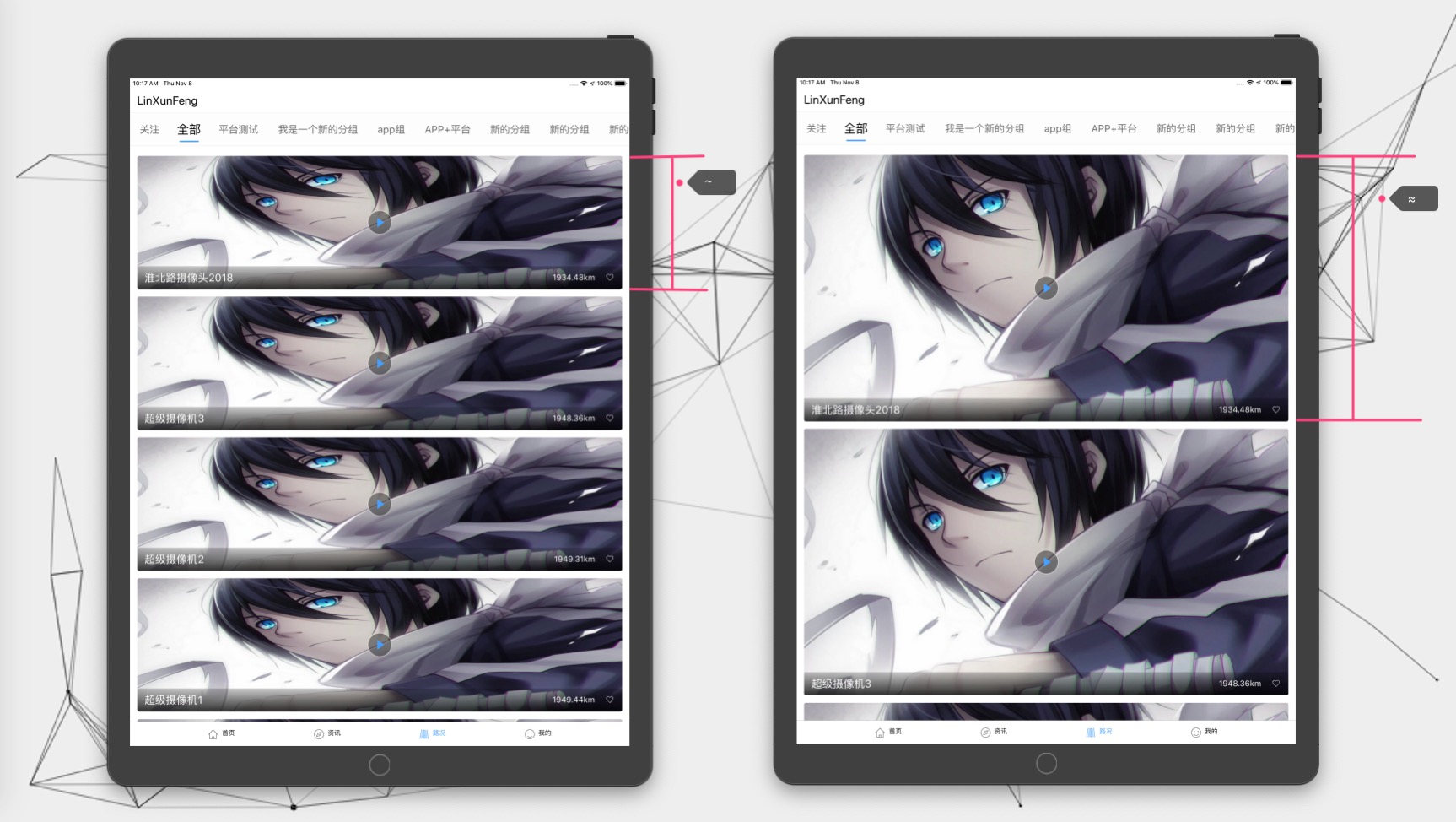
~還是≈對iPhone的適配效果是一樣的。而對iPad而言,iPad的寬度太大,使用≈還是會按寬度比例進行運算,就會顯示特別臃腫,這時使用~在顯示上就會比較合適。
~在≈的基礎上針對iPad的適配大小後再去乘上iPadFitMultiple。- 一般情況下直接使用
~即可。- 其它運算符亦是如此,具體請看下方的說明表
| 運算符 | 說明 |
|---|---|
~ | 對比寬度,當設備為iPad時,適配後的value會再乘上iPadFitMultiple |
≈ | 對比寬度,強制適配,不論是iPhone還是iPad都不會乘上iPadFitMultiple |
∣ | 對比高度,對應~ ,整屏高度 |
∥ | 對比高度,對應≈ ,整屏高度 |
∣= | 對比高度,對應∣ ,安全區域內的高度 |
∥= | 對比高度,對應∥ ,安全區域內的高度 |
∣- | 對比高度,對應∣ ,除去劉海區域的安全區域內的高度 |
∥- | 對比高度,對應∥ ,除去劉海區域的安全區域內的高度 |
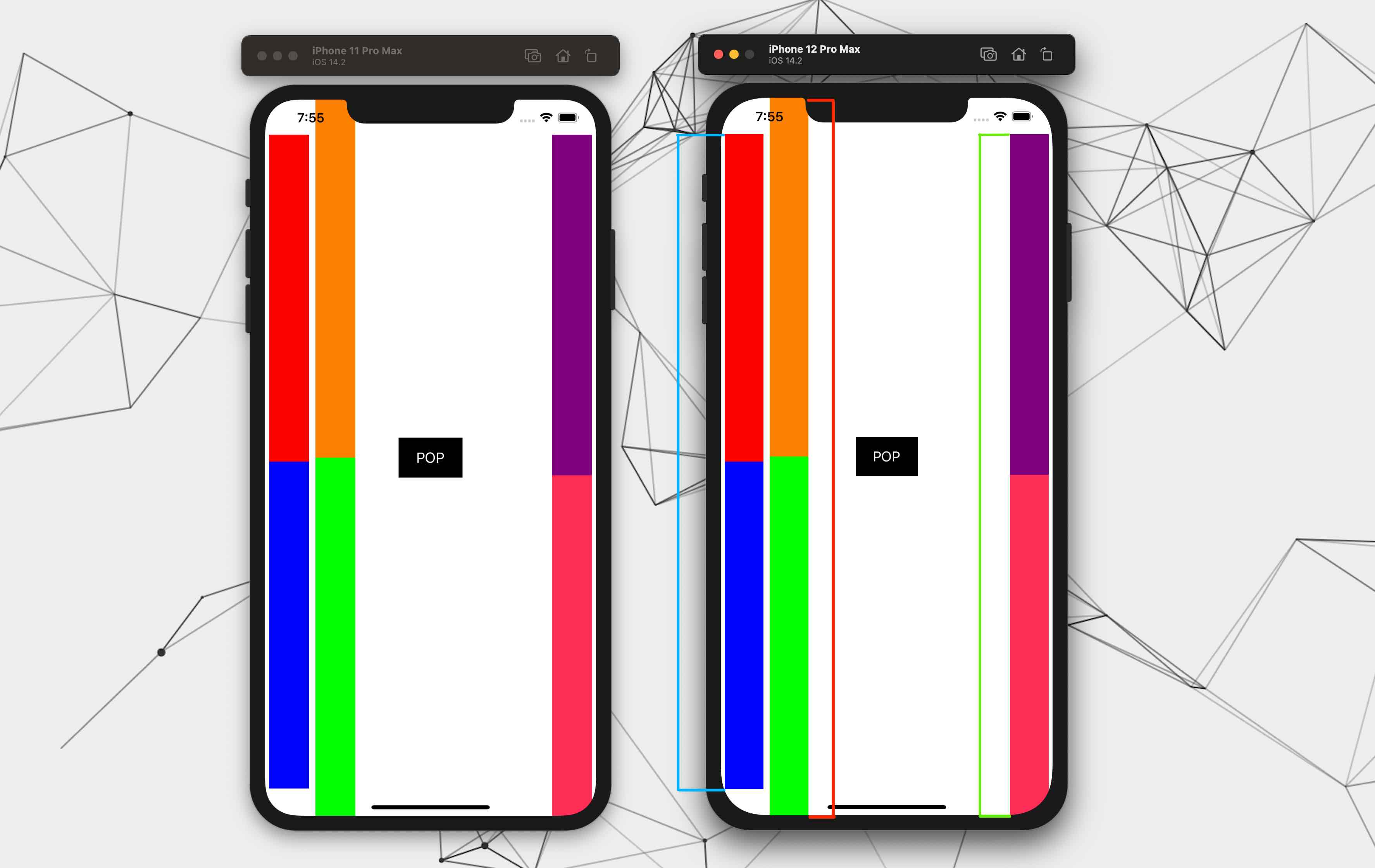
各高度適配的對比
- 紅色:
∣和∥,以整個屏幕的高度進行適配- 藍色:
∣=和∥=以中心安全區域的高度進行適配- 綠色:
∣-和∥-以包括底部的安全區域進行適配
舉個例子
~ : 當設備為iPad時,適配後的值會與iPadFitMultiple相乘
 100 ~
UIFont . systemFont ( ofSize : 14 ) ~
CGPoint ( x : 10 , y : 10 ) ~
CGRect ( x : 10 , y : 10 , width : 100 , height : 100 ) ~
UIEdgeInsetsMake ( 10 , 10 , 10 , 10 ) ~
≈ : (option + x) 適配後的值不會與iPadFitMultiple相乘
 100 ≈
UIFont . systemFont ( ofSize : 14 ) ≈
CGPoint ( x : 10 , y : 10 ) ≈
CGRect ( x : 10 , y : 10 , width : 100 , height : 100 ) ≈
UIEdgeInsetsMake ( 10 , 10 , 10 , 10 ) ≈修改参照宽度、参照高度、是否为iPhoneX系列的参照高度與iPadFitMultiple可以調用如下方法
/// 设置参照的相关参数
///
/// - Parameters:
///   - width: 参照的宽度
///   - height: 参照的高度
///   - isIPhoneXSeriesHeight: 是否为iPhoneX系列的参照高度
///   - iPadFitMultiple: iPad 在适配后所得值的倍数 (0 , 1]
SwiftyFitsize . reference (
  width : 414 ,
  height : 896 ,
  isIPhoneXSeriesHeight : true ,
  iPadFitMultiple : 0.5
) enum SwiftyFitType : Int {
/// Original Value
case none = 0
/// ~
case flexibleWidth = 1
/// ≈
case forceWidth = 2
/// ∣
case flexibleHeight = 3
/// ∥
case forceHeight = 4
/// ∣=
case flexibleSafeAreaCenterHeight = 5
/// ∥=
case forceSafeAreaCenterHeight = 6
/// ∣-
case flexibleSafeAreaWithoutTopHeight = 7
/// ∥-
case forceSafeAreaWithoutTopHeight = 8
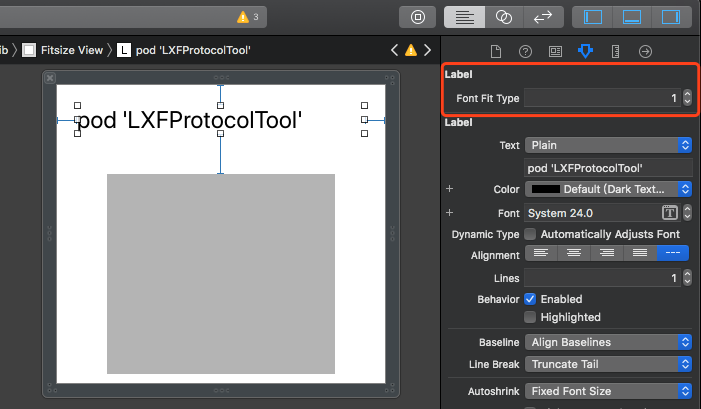
}支持的UI控件有: UILabel UIButton UITextView UITextField
FontFitType的值請參考上方的enum SwiftyFitType
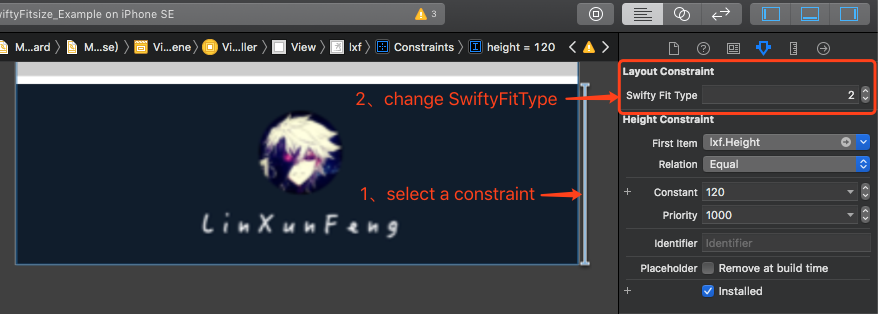
約束適配同上
iPad關於~與≈在使用上的對比
由於
OC不支持運算符重載,所以只能用宏來適配。
Xib和Storyboard則跟上方提及的使用方式相同。
Swift运算符與OC宏對應表
| Swift運算符 | OC宏 |
|---|---|
~ | SF_xx |
≈ | SFZ_xx |
∣ | SF_FH_xx |
∥ | SFZ_FH_xx |
∣= | SF_SCH_xx |
∥= | SFZ_SCH_xx |
∣- | SF_SBH_xx |
∥- | SFZ_SBH_xx |
注: xx支持如下類型Font 、 Int 、 Float 、 Point 、 Size 、 Rect 、 EdgeInsets
@import SwiftyFitsize;注:如果你使用的是
SPM添加的依賴,且需要使用到宏(如:SF_Float),則需要導入
SwiftyFitsizeOCSupport,而SwiftyFitsize可以不導入。
@import SwiftyFitsizeOCSupport;参照宽度、参照高度、是否为iPhoneX系列的参照高度與iPadFitMultiple [SwiftyFitsize referenceWithWidth: 414
height: 896
isIPhoneXSeriesHeight: YES
iPadFitMultiple: 0.6 ];~ UIFont *font = [UIFont systemFontOfSize: 14 ];
UIFont *font1 = font.sf;
UIFont *font2 = SF_Font(font);
CGFloat num = SF_Float( 14 );
CGPoint point = SF_Point(CGPointMake( 10 , 10 ));
CGSize size = SF_Size(CGSizeMake( 100 , 100 ));
CGRect rect = SF_Rect(CGRectMake( 10 , 10 , 100 , 100 ));
UIEdgeInsets edge = SF_EdgeInsets(UIEdgeInsetsMake( 0 , 0 , 100 , 100 ));
≈ UIFont *font1 = font.sfz;
UIFont *font2 = SFZ_Font(font);
CGFloat num = SFZ_Float( 14 );
CGPoint point = SFZ_Point(CGPointMake( 10 , 10 ));
CGSize size = SFZ_Size(CGSizeMake( 100 , 100 ));
CGRect rect = SFZ_Rect(CGRectMake( 10 , 10 , 100 , 100 ));
UIEdgeInsets edge = SFZ_EdgeInsets(UIEdgeInsetsMake( 0 , 0 , 100 , 100 ));其它運算符亦是如此使用
場景:
tableView的左右間距在屏幕大小不同的情況下都為10,在排除左右為10的間距後,再對Cell進行等比適配使用思路:寬度一共減去
20,以剩下的大小來做適配
建議使用PropertyWrapper方案,供下面的調用方式一和二使用
 struct Metric {
    static let tableViewLeftRightMargin : CGFloat = 10 // 定义 tableView 的左右间距
    ...
    static let tableViewHeight : CGFloat = Fit . $width ( 30 ) // 去掉左右边距后进行适配的值
    static let rowLeftViewWidth : CGFloat = Fit . $width ( 177.5 )
    static let rowCenterViewWidth : CGFloat = Fit . $width ( 100.5 )
    static let rowRightViewWidth : CGFloat = Fit . $width ( 77 )
    ...
}

struct Fit {
//    @WrappedSwiftyFitsize(fitType: .flexibleWidth, reduceValue: Metric.tableViewLeftRightMargin)
//    fitType 默认值是 .flexibleWidth,所以可以不传
    @ WrappedSwiftyFitsize ( reduceValue : Metric . tableViewLeftRightMargin * 2 )
    static var width : CGFloat = 375
} 375是初始化值,沒有特殊意義,只為調用Fit.width時可以取到值,如果用不到Fit.width的值可以不進行初始化
調用方式:
// 移除指定尺寸后的适配,调用方式:
// 以下都是以适配 tableView 为例,移除 tableView 左右两侧固定的边距,以剩余的宽度来做适配

// 方式一:先赋值再取值
// 将 20 进行适配
Fit . width = 20
print ( "适配后的值 -- ( Fit . width ) " )

// 方式二:使用 $ 将 width 当方法用,传入待适配的值
// 将 30 进行适配
let aVal = Fit . $width ( 30 )
print ( "适配后的值 aVal -- ( aVal ) " )

// 方式三:调用 SwiftyFitsize.fit 方法
let bVal = SwiftyFitsize . fit (
  size : 40 ,
  fitType : . flexibleWidth ,
  reduceValue : Metric . tableViewLeftRightMargin * 2
)
print ( "适配后的值 bVal -- ( bVal ) " ) 這是還是以適配tableView為例,移除tableView 左右兩側固定的邊距,以剩餘的寬度來做適配
 CGFloat fitWidth = [SwiftyFitsize fitWithSize: 40
                                      fitType: SwiftyFitTypeFlexibleWidth
                                  reduceValue: 20 ];
可以將其做為宏,以方便使用
# define kFitWidth ( value )
[SwiftyFitsize fitWithSize: value fitType: SwiftyFitTypeFlexibleWidth reduceValue: 20 ]
使用宏來做適配
 CGFloat fitWidth = kFitWidth ( 40 );
NSLog ( @" fitWidth -- %f " , fitWidth);
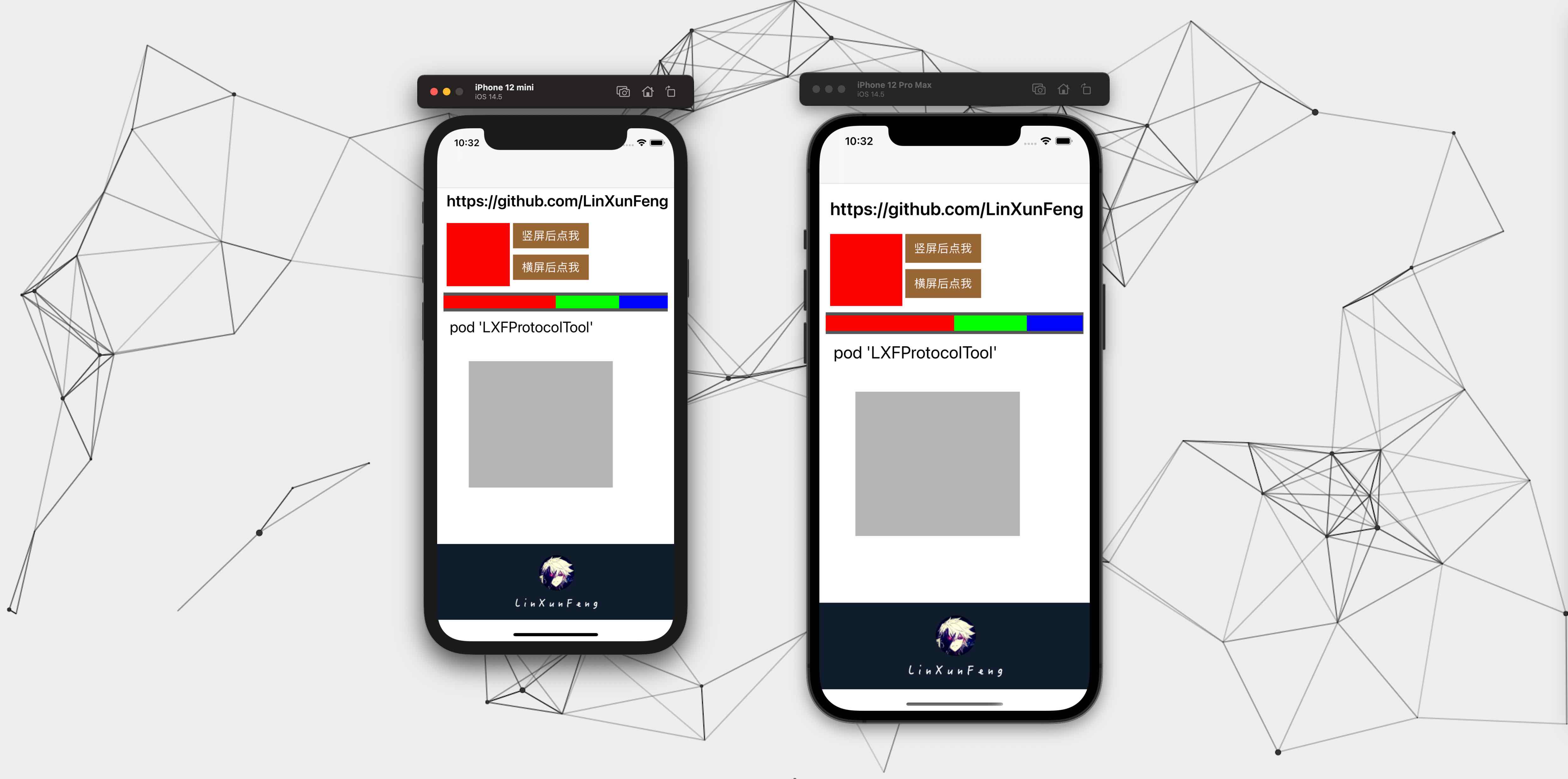
效果如包含紅綠藍的條視圖所示:
/// 计算结果类型
@ objc public enum SwiftyFitCalcResultType : Int {
    /// 跟随全局配置
    case globalConfig
    /// 原始数据
    case raw
    /// 四舍五入
    case round
    /// 保留一位小数(根据第二位小数进行四舍五入)
    case oneDecimalPlace
} .raw : 影響忽略不計.round : 影響範圍(-0.5, 0.5].oneDecimalPlace : 影響範圍(-0.05, 0.05]
- 不配置則默認為
.raw.globalConfig取的就是這裡配置的類型- 如果在該處還是設置為
.globalConfig,則內部會將其重置為.raw
SwiftyFitsize . reference ( width : 375 , calcResultType : . oneDecimalPlace ) // 全局配置计算结果为保留一位小数以下在不指定
calcResultType參數的情況下,默認都是跟隨全局配置
單獨指定calcResultType
 SwiftyFitsize . fit (
    size : 35 , // 36
    fitType : . flexibleWidth ,
    reduceValue : 10 * 2 ,
    calcResultType : . raw // .round .oneDecimalPlace
) PropertyWrapper方式
// calcResultType: .raw .round .oneDecimalPlace
@ WrappedSwiftyFitsize ( reduceValue : Metric . tableViewLeftRightMargin * 2 , calcResultType : . raw )
static var width : CGFloat = 375 第一列為適配前的數值
其它列為適配後根據不同的SwiftyFitCalcResultType計算得到的值
| 原值 | raw | round | oneDecimalPlace |
|---|---|---|---|
| 35 | 36.478873239436616 | 36.0 | 36.5 |
| 36 | 37.52112676056338 | 38.0 | 37.5 |
下面列出一些設備對應的分辨率,方便查找
| 裝置 | 邏輯分辨率(point) | 設備分辨率(pixel) |
|---|---|---|
| SE | 320x568 | 640x1136 |
| 6(S)/7/8 / SE(第二代) | 375x667 | 750x1334 |
| 6(S)+/7+/8+ | 414x736 | 1080x1920 |
| X(S) / 11Pro | 375x812 | 1125x2436 |
| XR / 11 | 414x896 | 828x1792 |
| XS Max / 11Pro Max | 414x896 | 1242x2688 |
| 12 mini / 13 mini | 360x780 | 1080x2340 |
| 12(Pro) / 13(Pro) | 390x844 | 1170x2532 |
| 12 Pro Max / 13 Pro Max | 428x926 | 1284x2778 |
SwiftyFitsize is available under the MIT license. See the LICENSE file for more info.

 |  |
|---|---|