Eureka
5.5.0


由Xmartlabs用❤️製成。這是Swift中Xlform的重新創建。
簡體中文
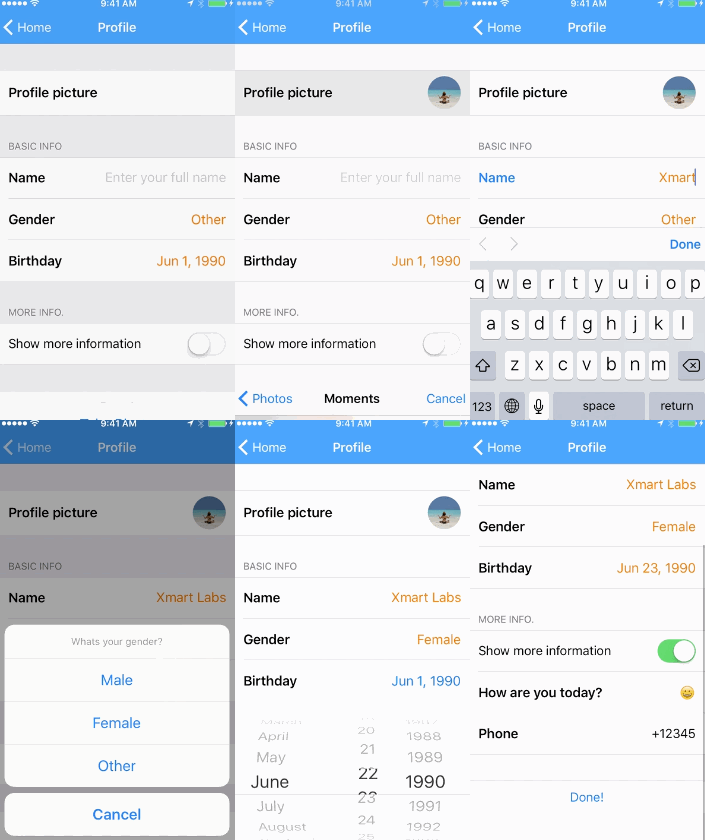 | 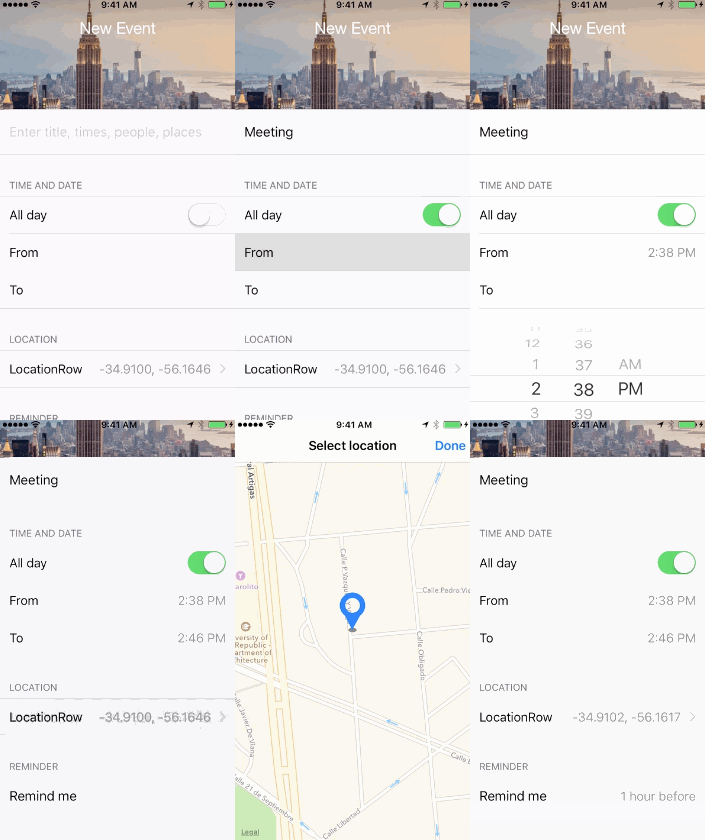 | 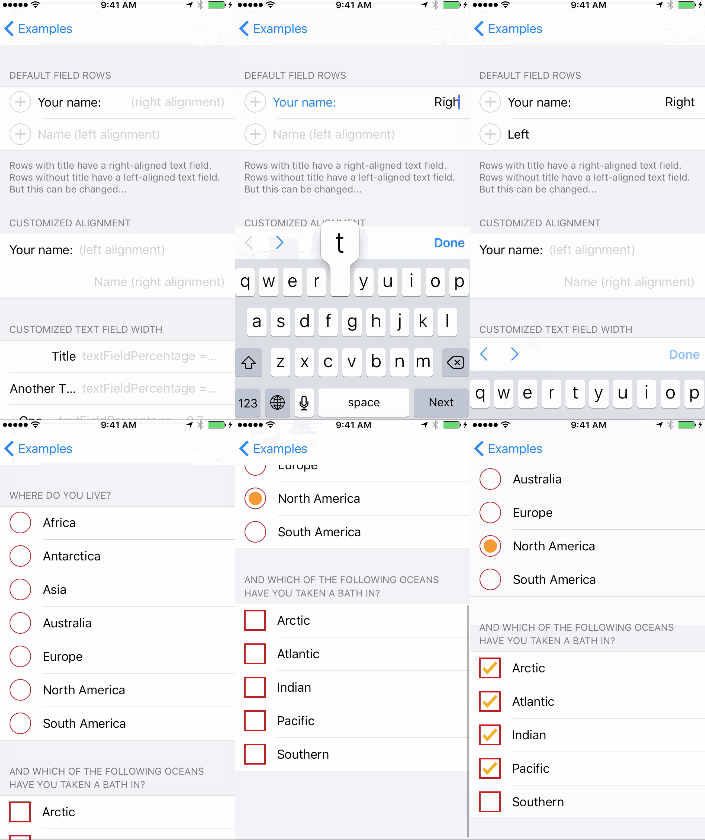 |
|---|
有關更多信息,請查看我們介紹Eureka的博客文章。
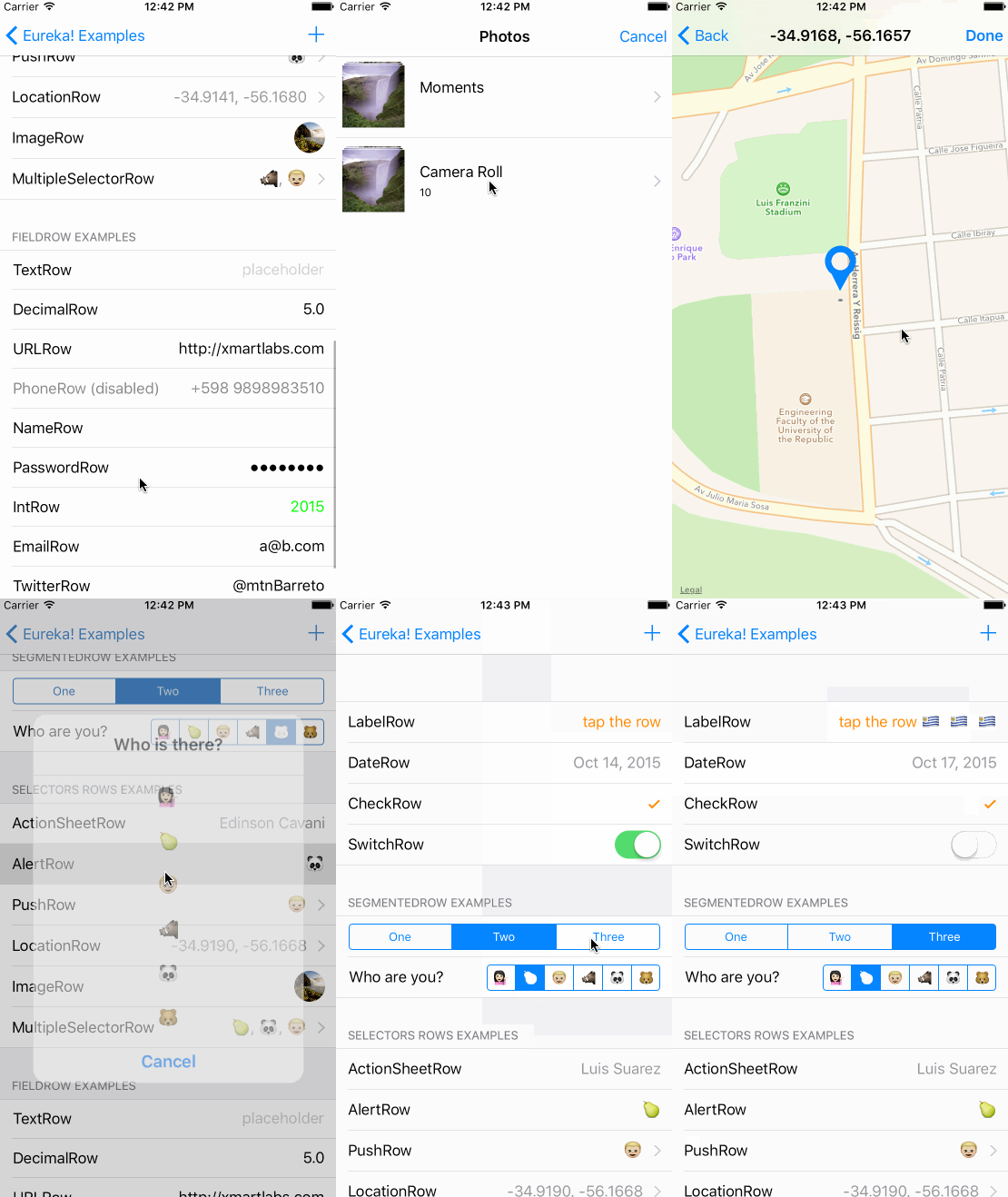
您可以克隆並運行示例項目,以查看尤里卡大多數功能的示例。
 |  |
|---|
通過擴展FormViewController您可以只需將部分和行添加到form變量即可。
import Eureka

class MyFormViewController : FormViewController {

    override func viewDidLoad ( ) {
        super . viewDidLoad ( )
        form +++ Section ( " Section1 " )
            <<< TextRow ( ) { row in
                row . title = " Text Row "
                row . placeholder = " Enter text here "
            }
            <<< PhoneRow ( ) {
                $0 . title = " Phone Row "
                $0 . placeholder = " And numbers here "
            }
        +++ Section ( " Section2 " )
            <<< DateRow ( ) {
                $0 . title = " Date Row "
                $0 . value = Date ( timeIntervalSinceReferenceDate : 0 )
            }
    }
}
在示例中,我們創建兩個具有標準行的部分,結果是:
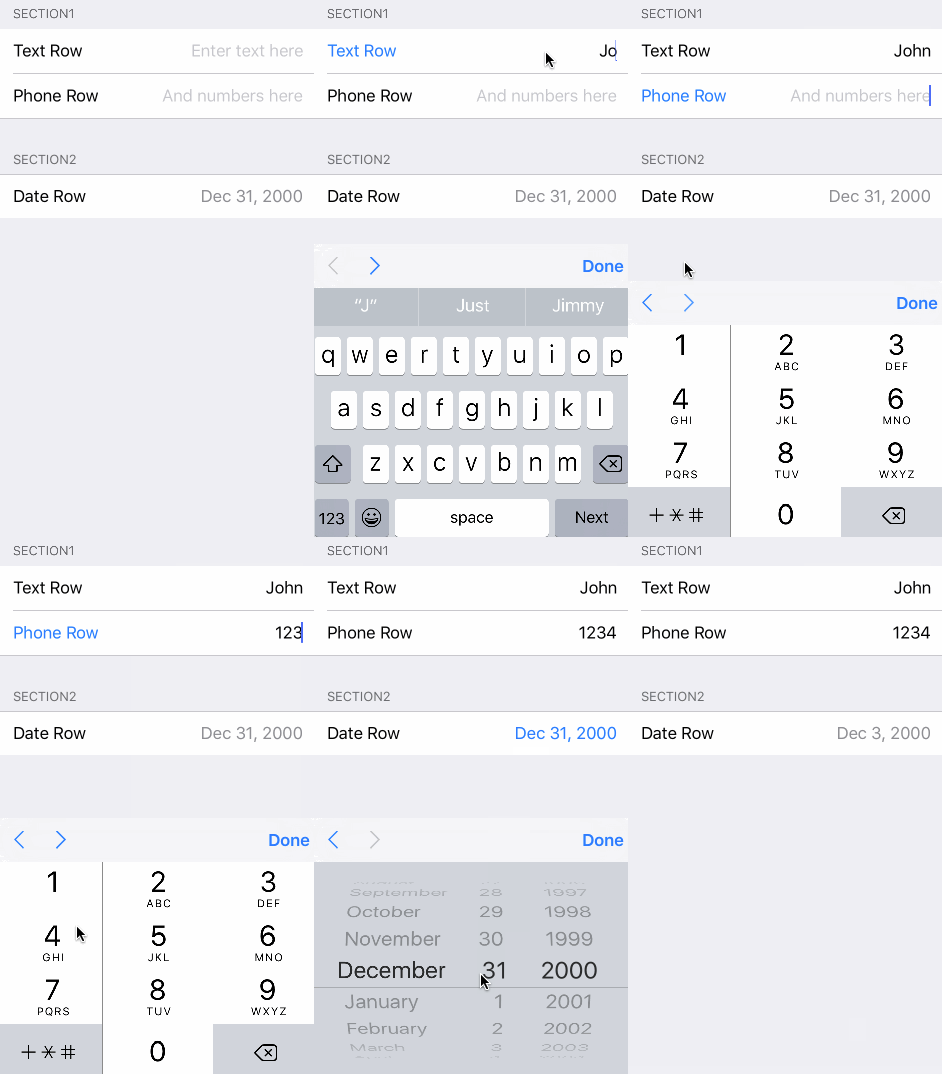
您可以通過自己設置form屬性而無需從FormViewController延伸而創建表單,但是此方法通常更方便。
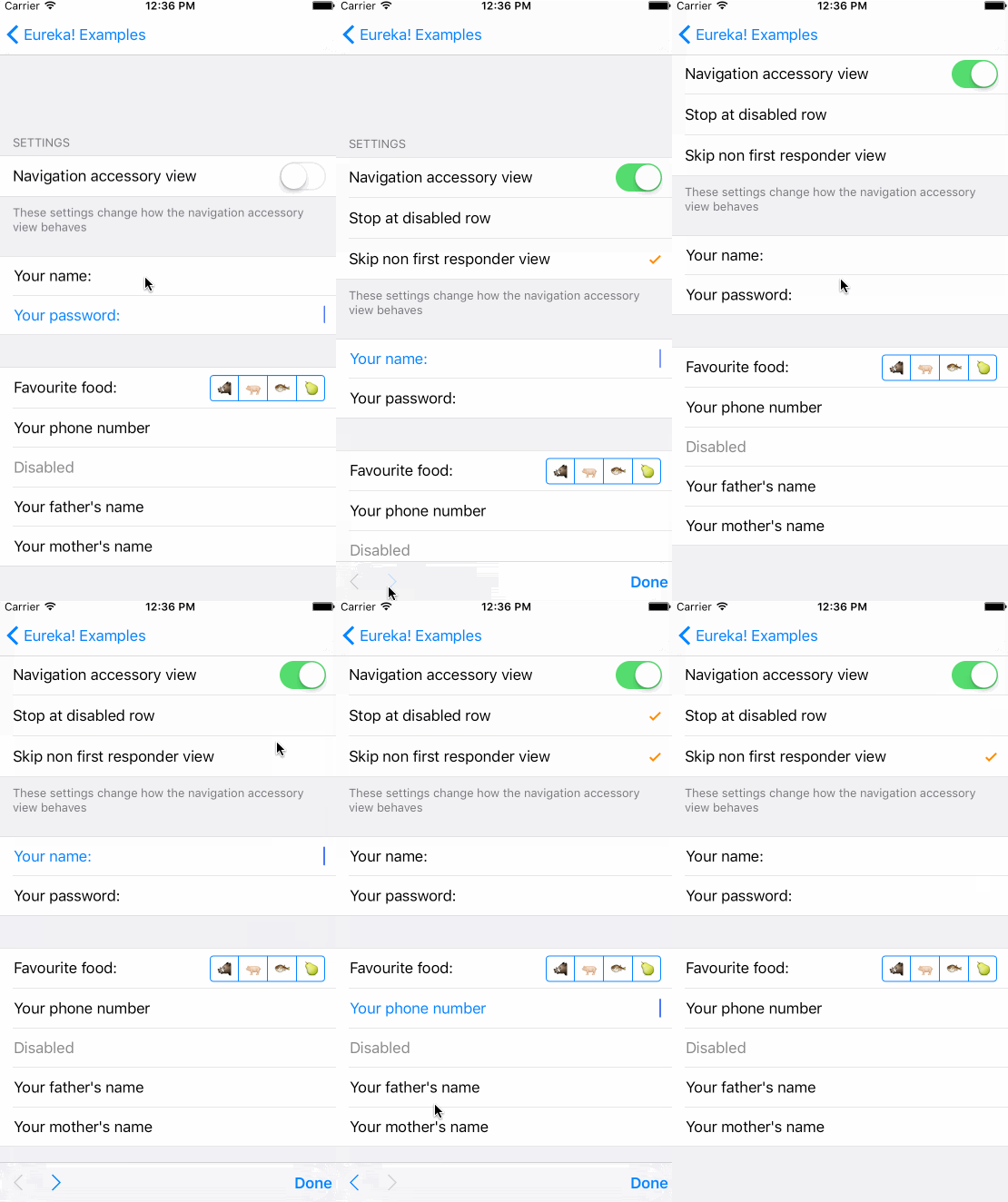
要更改此行為,您應該設置控制器的導航選項。 FormViewController具有一個navigationOptions ,可以具有以下值:
canBecomeFirstResponder()默認值已enabled & skipCanNotBecomeFirstResponderRow
要使光滑的滾動滾動到屏幕外行,請通過animateScroll屬性啟用它。默認情況下,當用戶鍵入鍵盤導航附件中的下一個或上一個按鈕時,包括下一個行屏幕上的下一個或上一個按鈕時, FormViewController會立即跳到行之間。
要設置導航事件後鍵盤和突出顯示的行之間的空間數量,請設置rowKeyboardSpacing屬性。默認情況下,當形式滾動到屏幕外視圖時,鍵盤頂部和行底部之間不會留出空間。
 class MyFormViewController : FormViewController {

    override func viewDidLoad ( ) {
        super . viewDidLoad ( )
        form = ...

	// Enables the navigation accessory and stops navigation when a disabled row is encountered
	navigationOptions = RowNavigationOptions . Enabled . union ( . StopDisabledRow )
	// Enables smooth scrolling on navigation to off-screen rows
	animateScroll = true
	// Leaves 20pt of space between the keyboard and the highlighted row after scrolling to an off screen row
	rowKeyboardSpacing = 20
    }
}如果要更改整個導航附件視圖,則必須在FormViewController子類中覆蓋navigationAccessoryView變量。
Row對象具有特定類型的值。例如, SwitchRow具有Bool值,而TextRow保持String值。
// Get the value of a single row
let row : TextRow ? = form . rowBy ( tag : " MyRowTag " )
let value = row . value

// Get the value of all rows which have a Tag assigned
// The dictionary contains the 'rowTag':value pairs.
let valuesDictionary = form . values ( )尤里卡(Eureka)包括自定義操作員,使形式創建變得容易:
form +++ Section ( )

// Chain it to add multiple Sections
form +++ Section ( " First Section " ) +++ Section ( " Another Section " )

// Or use it with rows and get a blank section for free
form +++ TextRow ( )
+++ TextRow ( ) // Each row will be on a separate sectionform +++ Section ( )
<<< TextRow ( )
<<< DateRow ( )
// Or implicitly create the Section
form +++ TextRow ( )
<<< DateRow ( ) // Append Sections into a Form
form += [ Section ( " A " ) , Section ( " B " ) , Section ( " C " ) ]
// Append Rows into a Section
section += [ TextRow ( ) , DateRow ( ) ]尤里卡(Eureka)包括結果建造者,使形式創建變得容易:
// Section + Section
form = ( Section ( " A " ) +++ {
    URLRow ( " UrlRow_f1 " ) { $0 . title = " Url " }
    if something {
        TwitterRow ( " TwitterRow_f2 " ) { $0 . title = " Twitter " }
    } else {
        TwitterRow ( " TwitterRow_f1 " ) { $0 . title = " Twitter " }
    }
    AccountRow ( " AccountRow_f1 " ) { $0 . title = " Account " }
} )

// Form + Section
form +++ {
    if something {
        PhoneRow ( " PhoneRow_f1 " ) { $0 . title = " Phone " }
    } else {
        PhoneRow ( " PhoneRow_f2 " ) { $0 . title = " Phone " }
    }
    PasswordRow ( " PasswordRow_f1 " ) { $0 . title = " Password " }
} @ FormBuilder
var form : Form {
Section ( " Section A " ) { section in
section . tag = " Section_A "
}
if true {
Section ( " Section B " ) { section in
section . tag = " Section_B "
}
}
NameRow ( " NameRow_f1 " ) { $0 . title = " Name " }
}尤里卡(Eureka)包括回調以更改行的外觀和行為。
Row是eureka的抽像用途,該用途容納一個值並包含視圖Cell 。該Cell管理視圖並子類UITableViewCell 。
這是一個示例:
 let row  = SwitchRow ( " SwitchRow " ) { row in      // initializer
                        row . title = " The title "
                    } . onChange { row in
                        row . title = ( row . value ?? false ) ? " The title expands when on " : " The title "
                        row . updateCell ( )
                    } . cellSetup { cell , row in
                        cell . backgroundColor = . lightGray
                    } . cellUpdate { cell , row in
                        cell . textLabel ? . font = . italicSystemFont ( ofSize : 18.0 )
} 
onChange()
當一行的值更改時調用。您可能有興趣在此處調整一些參數,甚至使其他一些行出現或消失。
OnCellSelection()
每次用戶點擊行上的用戶都會選擇。請注意,這也將被召喚為禁用行,因此您應該使用guard !row.isDisabled else { return }之類的內容在此回調中啟動代碼
CellSetup()
首先配置單元格時僅調用一次。在此處設置永久設置。
callupdate()
每當單元出現在屏幕上時,請調用。您可以使用CellSetup()上可能不存在的變量更改此處的外觀。
oncellhighlightchanged()
每當單元或任何子視圖變成或辭職時,都會稱呼第一響應者。
OnrowValidationChanged()
每當與行關聯的驗證錯誤更改時,請致電。
Onexpandinlinerow()
在擴展內聯行之前調用。適用於符合InlineRowType協議的行。
OnCollapseInlinerow()
在倒線行之前打電話。適用於符合InlineRowType協議的行。
onPresent()
在展示另一個視圖控制器之前,由一排調用。適用於符合PresenterRowType協議的行。使用它來設置呈現的控制器。
您可以將標題String或自定義View設置為Section的標題或頁腳。
 Section ( " Title " )

Section ( header : " Title " , footer : " Footer Title " )

Section ( footer : " Footer Title " ) 您可以從.xib文件使用自定義視圖:
 Section ( ) { section in
    var header = HeaderFooterView < MyHeaderNibFile > ( . nibFile ( name : " MyHeaderNibFile " , bundle : nil ) )

    // Will be called every time the header appears on screen
    header . onSetupView = { view , _ in
        // Commonly used to setup texts inside the view
        // Don't change the view hierarchy or size here!
    }
    section . header = header
}或自定義UIView編程創建的
 Section ( ) { section in
    var header = HeaderFooterView < MyCustomUIView > ( . class )
    header . height = { 100 }
    header . onSetupView = { view , _ in
        view . backgroundColor = . red
    }
    section . header = header
}
或者只是用回調構建視圖
 Section ( ) { section in
    section . header = {
          var header = HeaderFooterView < UIView > ( . callback ( {
              let view = UIView ( frame : CGRect ( x : 0 , y : 0 , width : 100 , height : 100 ) )
              view . backgroundColor = . red
              return view
          } ) )
          header . height = { 100 }
          return header
        } ( )
}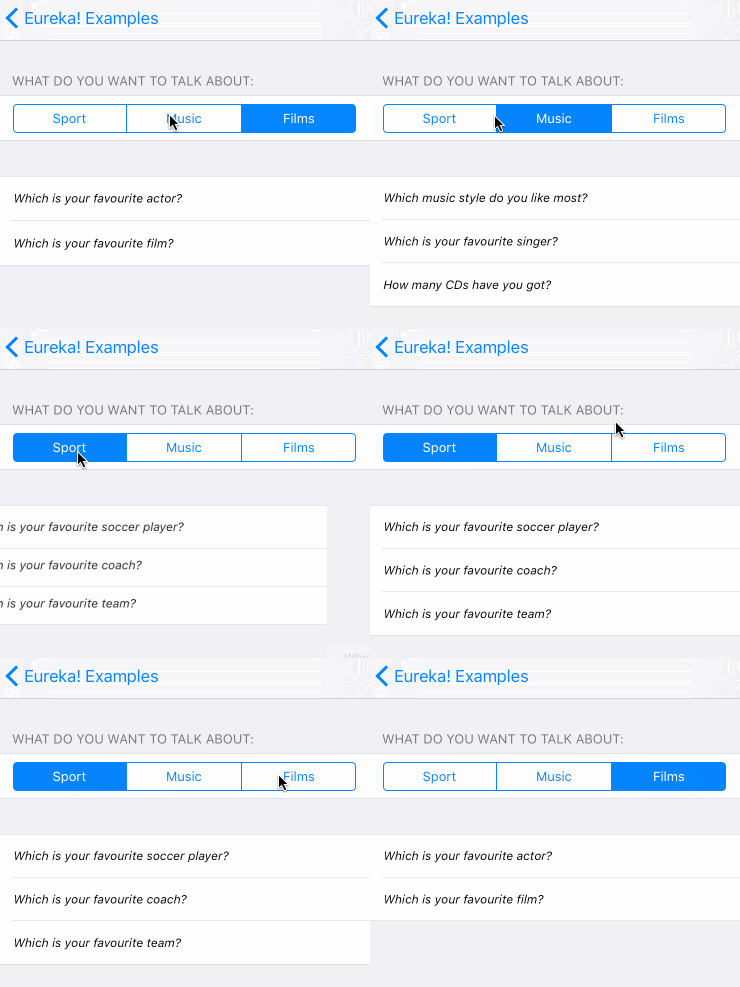
在這種情況下,我們正在隱藏並顯示整個部分。
為了完成此操作,每行都有一個可選類型Condition的hidden變量,可以使用函數或NSPredicate設置該變量。
使用Condition的function情況:
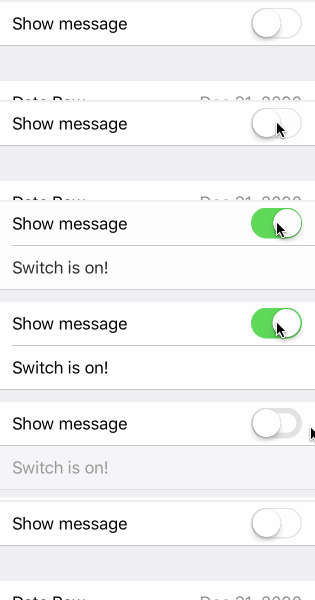
Condition . function ( [ String ] , ( Form ) - > Bool )要通過的String數組應包含該行的行的標籤。每次這些行的值更改時,函數都會重新評估。然後,該功能採用Form並返回一個Bool ,指示該行是否應隱藏。這是設置hidden屬性的最強大方法,因為它沒有明確的限制。
form +++ Section ( )
            <<< SwitchRow ( " switchRowTag " ) {
                $0 . title = " Show message "
            }
            <<< LabelRow ( ) {

                $0 . hidden = Condition . function ( [ " switchRowTag " ] , { form in
                    return ! ( ( form . rowBy ( tag : " switchRowTag " ) as? SwitchRow ) ? . value ?? false )
                } )
                $0 . title = " Switch is on! "
} 
 public enum Condition {
    case function ( [ String ] , ( Form ) -> Bool )
    case predicate ( NSPredicate )
} hidden變量也可以使用NSPRedicate設置。在謂詞字符串中,您可以通過標籤引用其他行的值,以確定是否應該隱藏或可見一行。這只有在謂詞必須檢查的行值是nsobject的情況下(字符串和int將在其橋接到其OBJC對應物時起作用,但枚舉將無法正常工作,這才能起作用。為什麼在更有限的情況下使用謂詞會很有用?好吧,它們比功能要簡單得多,更短和可讀。看看這個示例:
$0 . hidden = Condition . predicate ( NSPredicate ( format : " $switchTag == false " ) )而且我們可以將其寫得更短,因為Condition符合ExpressibleByStringLiteral文字:
$0 . hidden = " $switchTag == false "注意:我們將替換標籤為'switchtag'而不是“ $ switchtag”的行的值
對於所有這些工作,所有隱含的行都必須具有標籤,因為標籤將標識它們。
我們還可以通過這樣做來隱藏一行:
$0 . hidden = true作為Condition符合ExpressibleByBooleanLiteral 。
不設置hidden變量將使行總是可見。
如果顯示表格後,請手動設置隱藏的(或禁用)條件,則可能必須調用row.evaluateHidden()迫使Eureka重新評估新條件。有關更多信息,請參見此常見問題解答部分。
對於部分,這也是如此。這意味著我們可以設置hidden屬性以動態顯示/隱藏它。
為了禁用行,每行都有一個disabled變量,它也是可選Condition類型屬性。該變量也與hidden變量相同,因此它需要行具有標籤。
請注意,如果要永久禁用行,也可以將disabled變量設置為true 。
要顯示選項列表,尤里卡(Eureka)包括一個特殊的部分,稱為SelectableSection 。創建一個時,您需要傳遞在選項和selectionType中使用的行類型。 selectionType是一個枚舉,可以是multipleSelection或singleSelection(enableDeselection: Bool)其中enableDeselection參數可以確定是否可以取消選擇所選行。
form +++ SelectableSection < ListCheckRow < String > > ( " Where do you live " , selectionType : . singleSelection ( enableDeselection : true ) )

let continents = [ " Africa " , " Antarctica " , " Asia " , " Australia " , " Europe " , " North America " , " South America " ]
for option in continents {
    form . last! <<< ListCheckRow < String > ( option ) { listRow in
        listRow . title = option
        listRow . selectableValue = option
        listRow . value = nil
    }
} 要創建這樣的部分,您必須創建一個符合SelectableRowType協議的行。
 public protocol SelectableRowType : RowType {
    var selectableValue : Value ? { get set }
}此selectableValue是該行值永久存儲的位置。 value變量將用於確定是否選擇該行,如果選擇或否則為“選擇”。 Eureka包括使用的ListCheckRow ,例如使用。在示例項目的自定義行中,您還可以找到ImageCheckRow 。
為了輕鬆獲取SelectableSection的選定行/s,有兩種方法: selectedRow()和selectedRows() ,可以調用這些方法以獲取所選行,以防萬一它是SingleSelection部分或所有選定行(如果是MultipleSelection部分)。
此外,您可以使用SelectorViewController的以下屬性來設置要按部分進行分組的選項列表:
sectionKeyForValue封閉,應返回特定行值的鍵。此鍵後來通過各節破壞選項。
sectionHeaderTitleForKey截止返回特定鍵的部分標題。默認情況下,返回密鑰本身。
sectionFooterTitleForKey封閉式返回特定密鑰部分的頁腳標題。
尤里卡(Eureka)使用多相位部分支持特定字段(例如觸點中的電話號碼)的多個值。它使我們可以輕鬆地創建可插入,可刪除和可重新排序的部分。
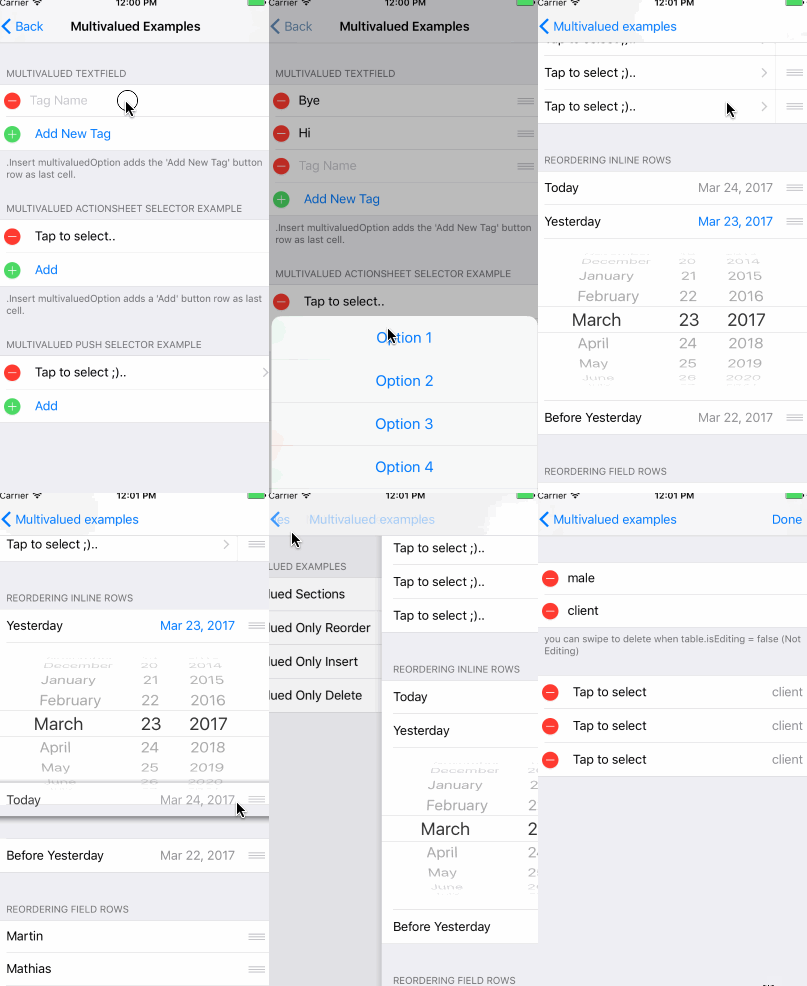
為了創建一個多價部分,我們必須使用MultivaluedSection類型而不是常規Section類型。 MultivaluedSection擴展了Section ,並具有一些其他屬性來配置多相截面行為。
讓我們研究一個代碼示例...
form +++
    MultivaluedSection ( multivaluedOptions : [ . Reorder , . Insert , . Delete ] ,
                       header : " Multivalued TextField " ,
                       footer : " .Insert adds a 'Add Item' (Add New Tag) button row as last cell. " ) {
        $0 . addButtonProvider = { section in
            return ButtonRow ( ) {
                $0 . title = " Add New Tag "
            }
        }
        $0 . multivaluedRowToInsertAt = { index in
            return NameRow ( ) {
                $0 . placeholder = " Tag Name "
            }
        }
        $0 <<< NameRow ( ) {
            $0 . placeholder = " Tag Name "
        }
    }
以前的代碼片段顯示瞭如何創建多估面部分。在這種情況下,我們希望按照多雜誌參數指示插入,刪除和重新排序行。
addButtonProvider允許我們自定義按鈕行,該按鈕行插入新行,而multivaluedOptions包含.Insert值。
每當需要插入新的行時,尤里卡(Eureka)調用了multivaluedRowToInsertAt封閉屬性。為了提供以添加到多相關部分的行,我們應該設置此屬性。尤里卡(Eureka)將索引作為閉合參數傳遞。請注意,即使在大多數情況下,多相度的部分行是相同的類型,我們也可以返回任何類型的行,甚至是自定義行。
當我們創建一個可插入的多值部分時,Eureka會自動添加一個按鈕行。我們可以自定義此按鈕行的外觀,如我們之前所述。 showInsertIconInAddButton屬性指示是否應在按鈕的左側出現Plus按鈕(插入樣式),默認情況下為true。
在創建可插入部分時,我們需要考慮一些考慮因素。添加到可插入的多價部分中的任何行都應放在尤里卡自動添加以插入新行的行上方。可以通過將這些附加行添加到部分內部的初始化器閉合(截面初始化器的最後一個參數)中來輕鬆實現這一點,然後Eureka在部分末尾添加了添加插入按鈕。
默認情況下,Eureka只有在形式中有多估計分類時,將將表觀isEditing設置為true。這將在第一次提出表格時在viewWillAppear中完成。
有關如何使用多相關部分的更多信息,請查看包含幾個用法示例的Eureka示例項目。
如果要使用不是ButtonRow添加按鈕,則可以使用GenericMultivaluedSection<AddButtonType> ,其中AddButtonType是您要用作添加按鈕的行的類型。如果您想使用自定義行更改按鈕的UI,這將很有用。
例子:
 GenericMultivaluedSection < LabelRow > ( multivaluedOptions : [ . Reorder , . Insert , . Delete ] , {
    $0 . addButtonProvider = { section in
        return LabelRow ( ) {
            $0 . title = " A Label row as add button "
        }
    }
    // ...
}Eureka 2.0.0介紹了備受要求的內置驗證功能。
一排具有Rules的集合和特定配置,該規則確定何時應評估驗證規則。
默認情況下有一些規則,但您也可以自己創建新規則。
提供的規則是:
讓我們看看如何設置驗證規則。
 override func viewDidLoad ( ) {
        super . viewDidLoad ( )
        form
          +++ Section ( header : " Required Rule " , footer : " Options: Validates on change " )

            <<< TextRow ( ) {
                $0 . title = " Required Rule "
                $0 . add ( rule : RuleRequired ( ) )

		// This could also have been achieved using a closure that returns nil if valid, or a ValidationError otherwise.
		/*
		let ruleRequiredViaClosure = RuleClosure<String> { rowValue in
		return (rowValue == nil || rowValue!.isEmpty) ? ValidationError(msg: "Field required!") : nil
		}
		$0.add(rule: ruleRequiredViaClosure)
		*/

                $0 . validationOptions = . validatesOnChange
            }
            . cellUpdate { cell , row in
                if !row . isValid {
                    cell . titleLabel ? . textColor = . systemRed
                }
            }

          +++ Section ( header : " Email Rule, Required Rule " , footer : " Options: Validates on change after blurred " )

            <<< TextRow ( ) {
                $0 . title = " Email Rule "
                $0 . add ( rule : RuleRequired ( ) )
                $0 . add ( rule : RuleEmail ( ) )
                $0 . validationOptions = . validatesOnChangeAfterBlurred
            }
            . cellUpdate { cell , row in
                if !row . isValid {
                    cell . titleLabel ? . textColor = . systemRed
                }
}如您在上一個代碼段中所看到的,我們可以通過調用ROW的add(rule:)函數來設置與行相同的規則。
行還提供func remove(ruleWithIdentifier identifier: String)以刪除規則。為了使用它,我們必須在創建規則後將ID分配給該規則。
有時,我們要在一排中使用的規則集合與我們想要在許多其他行上使用的規則相同。在這種情況下,我們可以使用驗證規則集合的RuleSet集來設置所有驗證規則。
 var rules = RuleSet < String > ( )
rules . add ( rule : RuleRequired ( ) )
rules . add ( rule : RuleEmail ( ) )

let row = TextRow ( ) {
            $0 . title = " Email Rule "
            $0 . add ( ruleSet : rules )
            $0 . validationOptions = . validatesOnChangeAfterBlurred
}尤里卡(Eureka)允許我們指定何時應評估驗證規則。我們可以通過設置validationOptions Row的屬性來做到這一點,該屬性可以具有以下值:
.validatesOnChange驗證每行值更改時。.validatesOnBlur (默認值)在單元辭職後立即驗證。不適用於所有行。.validatesOnChangeAfterBlurred驗證第一次辭職後行變化時驗證。.validatesOnDemand我們應通過調用validate()方法來手動驗證行或形式。如果要驗證整個表單(所有行),則可以手動調用form validate()方法。
每一行都有validationErrors屬性,可用於檢索所有驗證錯誤。此屬性僅保留最新行驗證執行的驗證錯誤列表,這意味著它不評估行的驗證規則。
正如預期的那樣,規則必須使用與行對象相同的類型。要格外小心檢查使用的行類型。您可能會看到一個編譯器錯誤(“呼叫中的不正確的Arugment標籤(具有'規則:'預期'規則表:')“混合類型時並未指向問題。
通過使用滑動操作,我們可以定義每行的多個leadingSwipe和trailingSwipe動作。由於滑動操作取決於iOS系統功能,因此僅在iOS 11.0+上使用leadingSwipe 。
讓我們看看如何定義滑動動作。
 let row = TextRow ( ) {
            let deleteAction = SwipeAction (
                style : . destructive ,
                title : " Delete " ,
                handler : { ( action , row , completionHandler ) in
                    //add your code here.
                    //make sure you call the completionHandler once done.
                    completionHandler ? ( true )
                } )
            deleteAction . image = UIImage ( named : " icon-trash " )

            $0 . trailingSwipe . actions = [ deleteAction ]
            $0 . trailingSwipe . performsFirstActionWithFullSwipe = true

            //please be aware: `leadingSwipe` is only available on iOS 11+ only
            let infoAction = SwipeAction (
                style : . normal ,
                title : " Info " ,
                handler : { ( action , row , completionHandler ) in
                    //add your code here.
                    //make sure you call the completionHandler once done.
                    completionHandler ? ( true )
                } )
            infoAction . actionBackgroundColor = . blue
            infoAction . image = UIImage ( named : " icon-info " )

            $0 . leadingSwipe . actions = [ infoAction ]
            $0 . leadingSwipe . performsFirstActionWithFullSwipe = true
}滑動操作需要tableView.isEditing設置為false 。如果以形式(在viewWillAppear )中有多估計分節,則尤里卡(Eureka)將其設置為true 。如果您以相同形式的形式具有多相關性和滑動操作,則應根據自己的需求進行isEditing 。
非常普遍的是,您需要與尤里卡(Eureka)中包含的行不同的行。如果是這種情況,則必須創建自己的行,但這應該不難。您可以閱讀有關如何創建自定義行以入門的教程。您可能還想查看Eurekacommunity,其中包括一些額外的行,準備添加到Eureka中。
要創建具有自定義行為和外觀的行,您可能需要創建Row和Cell格的子類。
請記住,該Row是Eureka使用的抽象,而Cell是負責視圖的實際UITableViewCell 。由於Row包含Cell ,因此必須針對相同的值類型定義Row和Cell 。
// Custom Cell with value type: Bool
// The cell is defined using a .xib, so we can set outlets :)
public class CustomCell : Cell < Bool > , CellType {
    @ IBOutlet weak var switchControl : UISwitch !
    @ IBOutlet weak var label : UILabel !

    public override func setup ( ) {
        super . setup ( )
        switchControl . addTarget ( self , action : #selector ( CustomCell . switchValueChanged ) , for : . valueChanged )
    }

    func switchValueChanged ( ) {
        row . value = switchControl . on
        row . updateCell ( ) // Re-draws the cell which calls 'update' bellow
    }

    public override func update ( ) {
        super . update ( )
        backgroundColor = ( row . value ?? false ) ? . white : . black
    }
}

// The custom Row also has the cell: CustomCell and its correspond value
public final class CustomRow : Row < CustomCell > , RowType {
    required public init ( tag : String ? ) {
        super . init ( tag : tag )
        // We set the cellProvider to load the .xib corresponding to our cell
        cellProvider = CellProvider < CustomCell > ( nibName : " CustomCell " )
    }
}
結果: 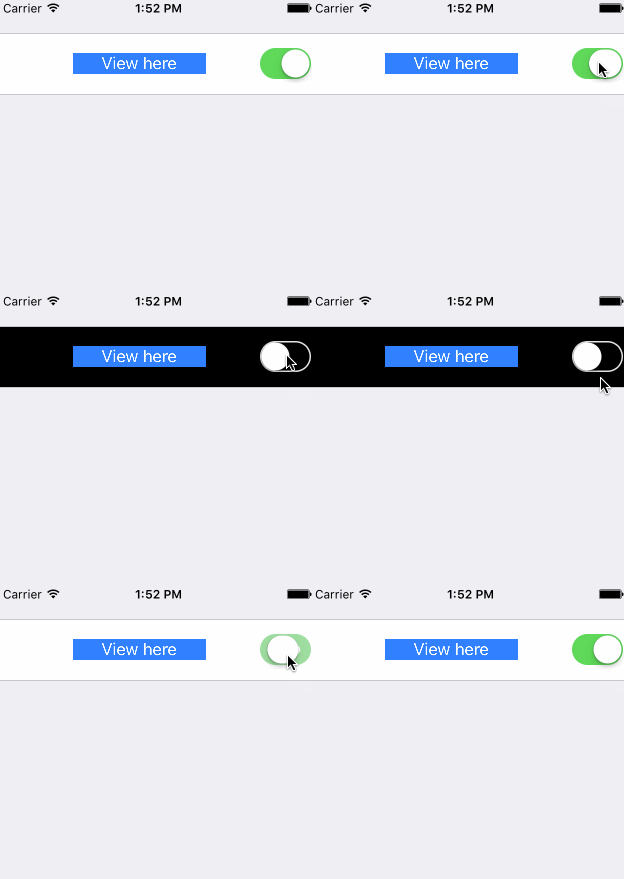
就像回調CellSetup和Cellupdate一樣,該Cell具有設置和更新方法,您可以在其中自定義它。
內聯行是一種特定的行類型,它在其下方動態顯示一行,通常每當挖掘行時,在擴展的模式和折疊模式之間會發生變化。
因此,要創建一個內聯行,我們需要2行,這是“始終”可見的行,以及將展開/折疊的行。
另一個要求是,這2行的值類型必須相同。這意味著,如果一排具有String值,則另一個行也必須具有String值。
一旦有了這2行,我們應該使第一行類型符合InlineRowType 。該協議要求您定義InlineRow typealias和setupInlineRow函數。 InlineRow類型將是將展開/崩潰的行的類型。以此為例:
 class PickerInlineRow < T > : Row < PickerInlineCell < T > > where T : Equatable {

    public typealias InlineRow = PickerRow < T >
    open var options = [ T ] ( )

    required public init ( tag : String ? ) {
        super . init ( tag : tag )
    }

    public func setupInlineRow ( _ inlineRow : InlineRow ) {
        inlineRow . options = self . options
        inlineRow . displayValueFor = self . displayValueFor
        inlineRow . cell . height = { UITableViewAutomaticDimension }
    }
} InlineRowType還將在您的內聯行中添加一些方法:
 func expandInlineRow ( )
func collapseInlineRow ( )
func toggleInlineRow ( )
這些方法應該可以正常工作,但是如果您想覆蓋它們,請記住, toggleInlineRow必須調用expandInlineRow和collapseInlineRow 。
最後,當選擇行時,您必須調用toggleInlineRow() ,例如customDidSelect :
 public override func customDidSelect ( ) {
    super . customDidSelect ( )
    if !isDisabled {
        toggleInlineRow ( )
    }
}注意:主持人行是一行,它介紹了新的UiviewController。
要創建一個自定義主持人行,您必須創建一個符合PresenterRowType協議的類。強烈建議您將其SelectorRow子選擇,因為它確實符合該協議並添加其他有用的功能。
當前的eROWType協議定義如下:
 public protocol PresenterRowType : TypedRowType {

     associatedtype PresentedControllerType : UIViewController , TypedRowControllerType

     /// Defines how the view controller will be presented, pushed, etc.
     var presentationMode : PresentationMode < PresentedControllerType > ? { get set }

     /// Will be called before the presentation occurs.
     var onPresentCallback : ( ( FormViewController , PresentedControllerType ) -> Void ) ? { get set }
}當該行即將介紹另一個視圖控制器時,將調用OnPresentCallback。這是在SelectorRow中完成的,因此,如果您不分類,則必須自己稱呼它。
presentationMode定義了控制器的呈現方式以及呈現哪個控制器的方式。本演示文稿可以使用SEGUE標識符,SEGUE類,模仿控制器或推向特定的視圖控制器。例如,可以這樣定義自定義pushrow:
讓我們看看一個例子。
/// Generic row type where a user must select a value among several options.
open class SelectorRow < Cell : CellType > : OptionsRow < Cell > , PresenterRowType where Cell : BaseCell {


    /// Defines how the view controller will be presented, pushed, etc.
    open var presentationMode : PresentationMode < SelectorViewController < SelectorRow < Cell > > > ?

    /// Will be called before the presentation occurs.
    open var onPresentCallback : ( ( FormViewController , SelectorViewController < SelectorRow < Cell > > ) -> Void ) ?

    required public init ( tag : String ? ) {
        super . init ( tag : tag )
    }

    /**
     Extends `didSelect` method
     */
    open override func customDidSelect ( ) {
        super . customDidSelect ( )
        guard let presentationMode = presentationMode , !isDisabled else { return }
        if let controller = presentationMode . makeController ( ) {
            controller . row = self
            controller . title = selectorTitle ?? controller . title
            onPresentCallback ? ( cell . formViewController ( ) ! , controller )
            presentationMode . present ( controller , row : self , presentingController : self . cell . formViewController ( ) ! )
        } else {
            presentationMode . present ( nil , row : self , presentingController : self . cell . formViewController ( ) ! )
        }
    }

    /**
     Prepares the pushed row setting its title and completion callback.
     */
    open override func prepare ( for segue : UIStoryboardSegue ) {
        super . prepare ( for : segue )
        guard let rowVC = segue . destination as Any as? SelectorViewController < SelectorRow < Cell > > else { return }
        rowVC . title = selectorTitle ?? rowVC . title
        rowVC . onDismissCallback = presentationMode ? . onDismissCallback ?? rowVC . onDismissCallback
        onPresentCallback ? ( cell . formViewController ( ) ! , rowVC )
        rowVC . row = self
    }
}


// SelectorRow conforms to PresenterRowType
public final class CustomPushRow < T : Equatable > : SelectorRow < PushSelectorCell < T > > , RowType {

    public required init ( tag : String ? ) {
        super . init ( tag : tag )
        presentationMode = . show ( controllerProvider : ControllerProvider . callback {
            return SelectorViewController < T > ( ) { _ in }
            } , onDismiss : { vc in
                _ = vc . navigationController ? . popViewController ( animated : true )
        } )
    }
}有時,我們想更改一個行之一的UI外觀,但不要更改行類型和與一行相關的所有邏輯。如果您使用的是從筆尖文件實例化的單元格,目前有一種方法可以做到這一點。當前,尤里卡(Eureka)的核心行沒有從筆尖文件實例化,但是尤里卡科姆(Eurekacommunity)中的某些自定義行是搬到那裡的郵政編碼。
您要做的是:
cellProvider變量來使用此筆尖來完成的。您應該在每種混凝土實例化或使用defaultRowInitializer中在初始評估器中執行此操作。例如: <<< PostalAddressRow ( ) {
$0 . cellProvider = CellProvider < PostalAddressCell > ( nibName : " CustomNib " , bundle : Bundle . main )
}您還可以為此創建一個新的行。在這種情況下,嘗試從與您要更改以繼承其邏輯的行相同的超類。
當您這樣做時,有一些事情要考慮:
Unknown class <YOUR_CLASS_NAME> in Interface Builder file ,則可能是您必須在代碼中的某個地方實例化該新類型以在運行時加載它。在我的情況下打電話let t = YourClass.self 。 標籤行 | 按鈕行 | 檢查行 |
開關行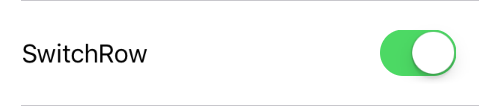 | 滑塊行 | 步行行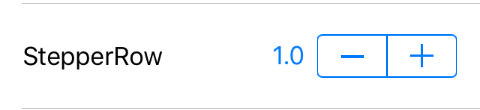 |
文本區域行 |
這些行在單元的右側有一個文本場。它們之間的每個區別在於不同的資本化,自動更正和鍵盤類型配置。
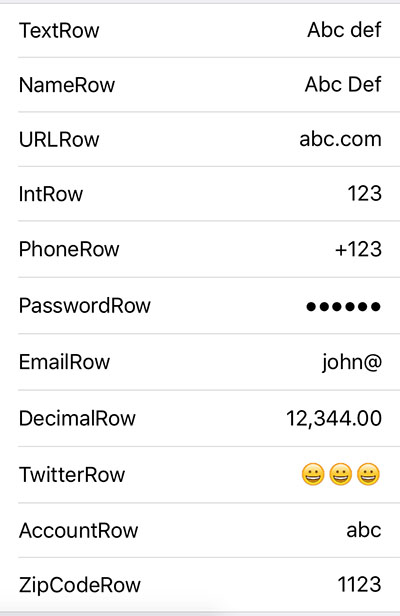 | 德文斯特 Namerow urlrow 促進 Phonerow passwordrow 電子郵件羅 十進制 Twitterrow Accountrow zipcoderow |
上面的所有FieldRow類型都具有NSFormatter類型的formatter屬性,可以設置該屬性以確定應如何顯示該行的值。尤里卡( DecimalFormatter )包含十進制標記後,具有兩個數字的數字的自定義格式化器。該示例項目還包含一個CurrencyFormatter ,該貨幣形式根據用戶的語言環境顯示數字作為貨幣。
默認情況下,設置行的formatter只是在不編輯時顯示值的方式。要在編輯行時格式化值,請在初始化行時將useFormatterDuringInput設置為true 。格式化值為編輯時可能需要更新光標位置,而尤里卡(Eureka)提供了以下協議,該協議應符合以處理光標位置:
 public protocol FormatterProtocol {
    func getNewPosition ( forPosition forPosition : UITextPosition , inTextInput textInput : UITextInput , oldValue : String ? , newValue : String ? ) -> UITextPosition
}
此外, FieldRow類型具有useFormatterOnDidBeginEditing屬性。當使用允許小數值並符合用戶語言環境(例如DecimalFormatter )的格式化器的DecimalRow ,如果使用useFormatterDuringInput false是false ,則必須將useFormatterOnDidBeginEditing設置為true ,以使其在鍵盤上編輯的小數符號匹配。
日期行保留一個日期,並允許我們通過UIDESPICKER控件設置新值。 UIDESPICKER的模式以及顯示日期選擇器視圖的方式是它們之間的變化。
日期行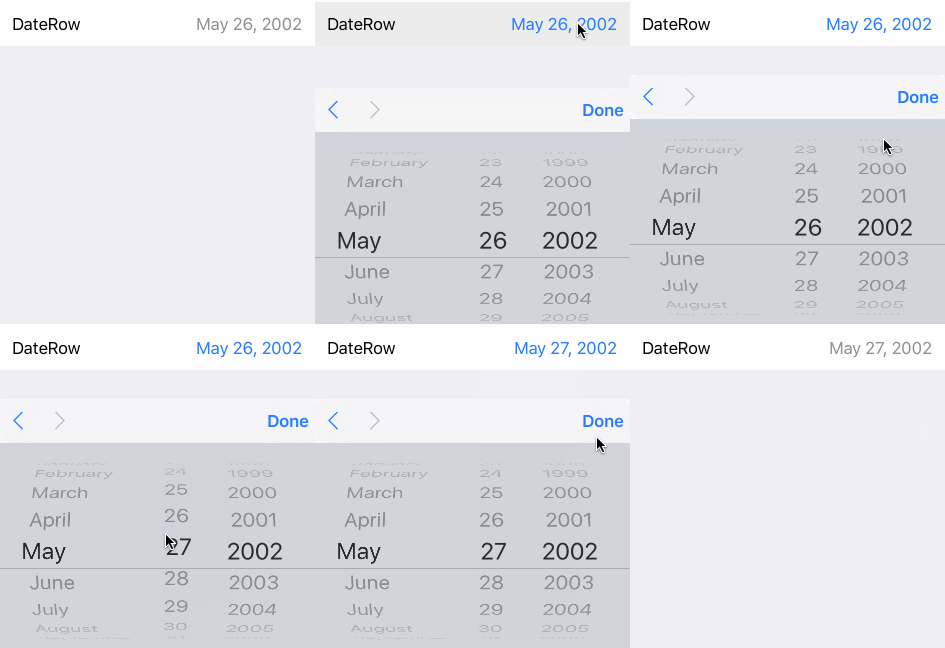 鍵盤中顯示的選擇器。 | 日期行(內聯) 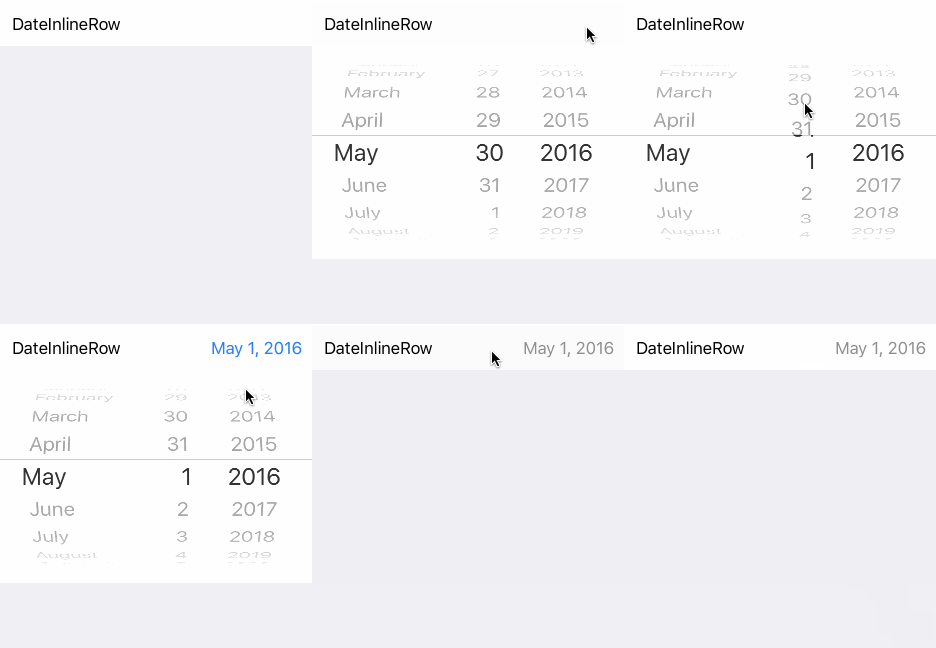 該行擴展。 | 日期行(Picker) 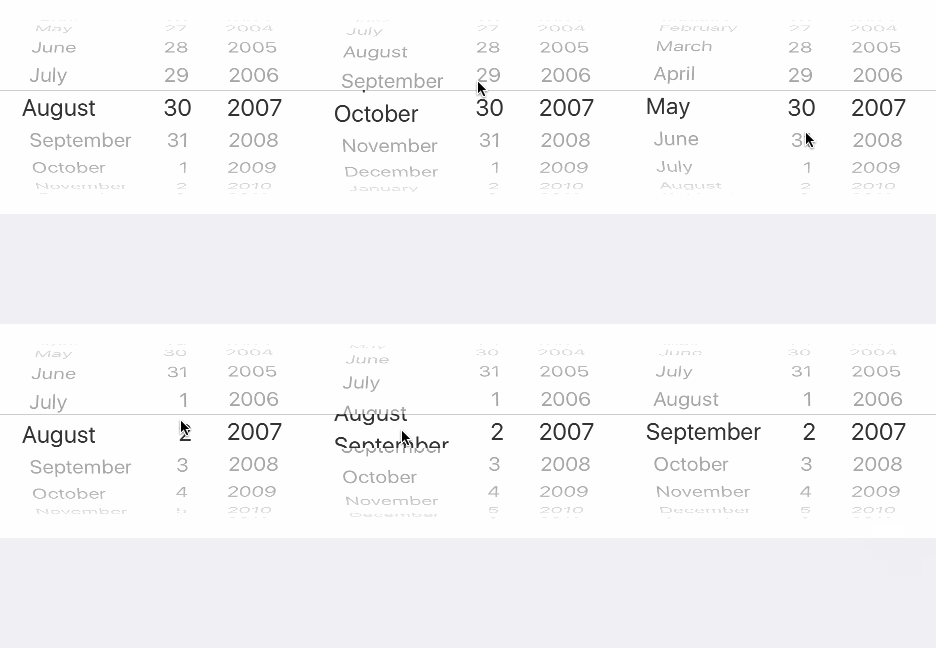 選擇器總是可見的。 |
尤里卡(Eureka
這些行帶有用戶必須選擇的相關選項列表。
 <<< ActionSheetRow < String > ( ) {
                $0 . title = " ActionSheetRow "
                $0 . selectorTitle = " Pick a number "
                $0 . options = [ " One " , " Two " , " Three " ]
                $0 . value = " Two "    // initially selected
            }
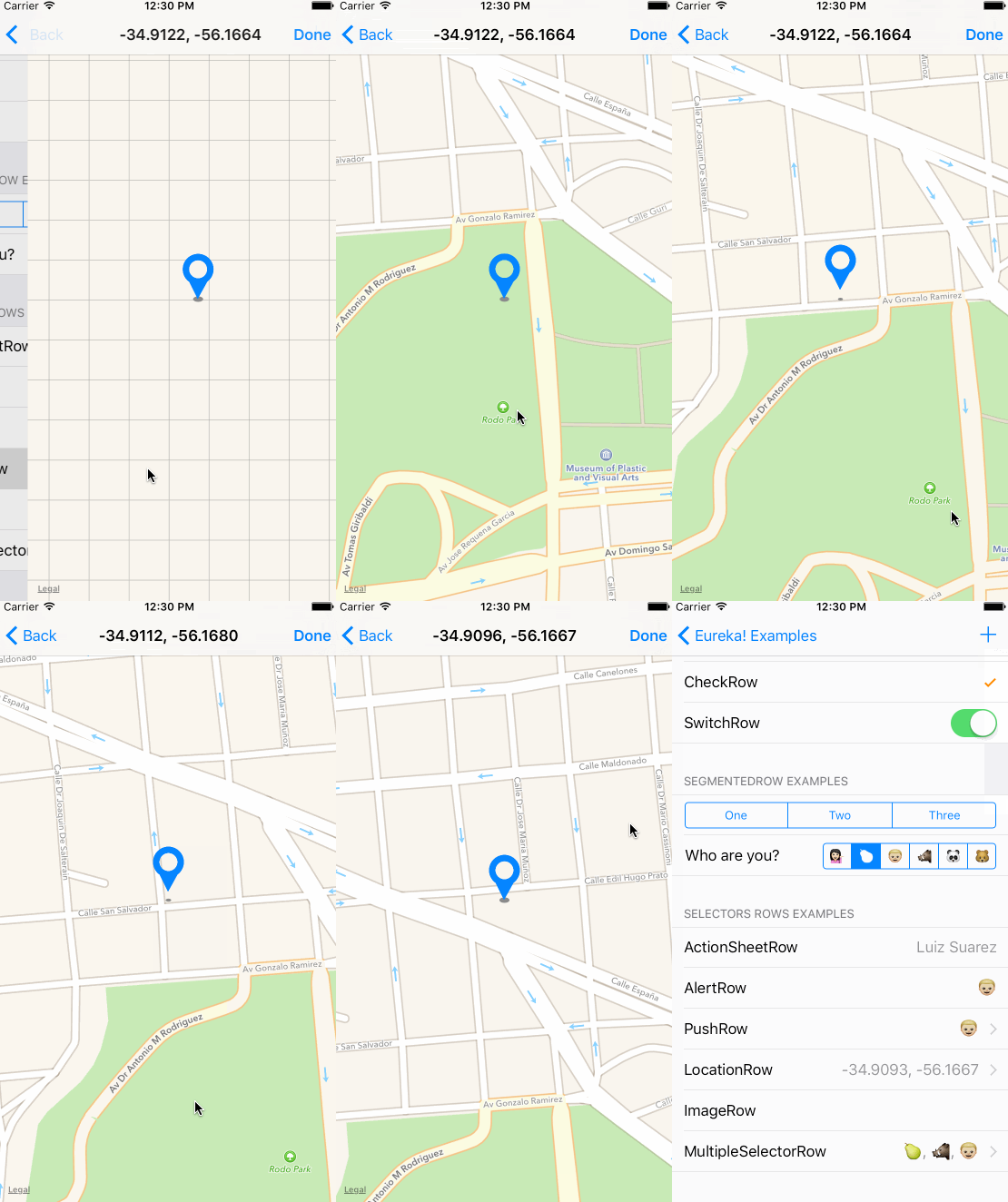
警報行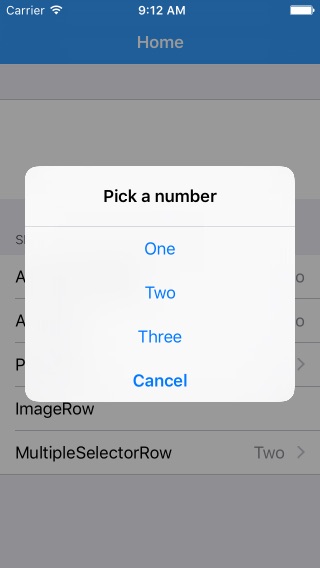 將顯示一個警報,其中有選項可供選擇。 | ActionSheet行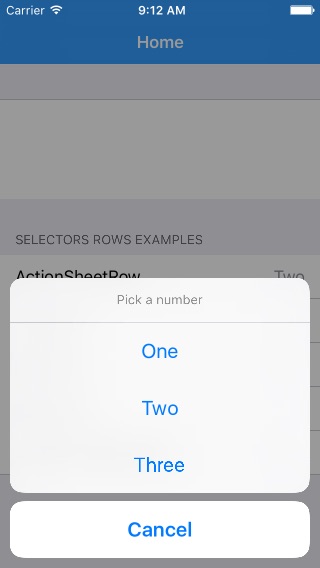 將顯示一個動作表,其中包括可供選擇的選項。 | 推行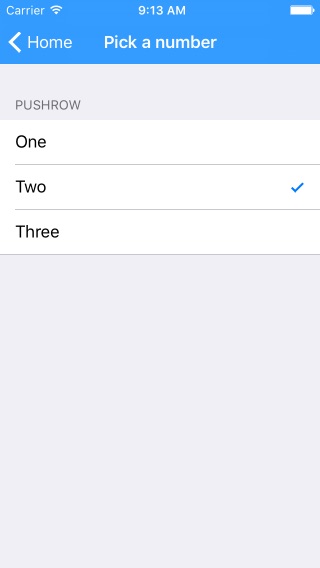 將推向新的控制器,從哪裡選擇使用檢查行列出的選項。 | 多個選擇器行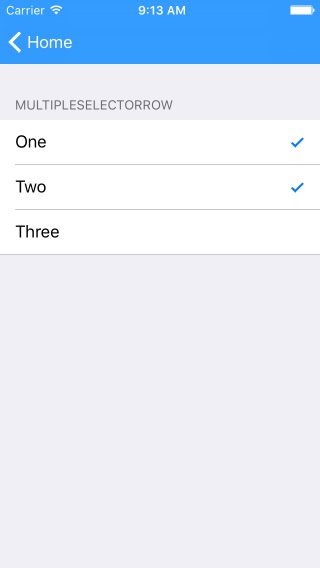 像推桿一樣,但允許選擇多個選項。 |
分段行 | 分段行(w/title) | 選擇器行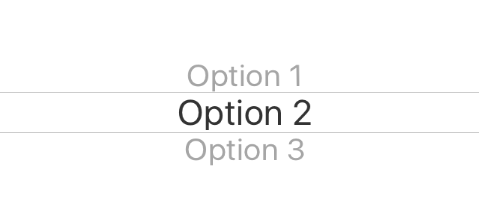 通過選擇器視圖提供通用類型的選項 (也有選擇器內聯行) |
讓我們知道,我們很高興在這裡提到它。 :)
Cocoapods是可可項目的依賴性經理。
將尤里卡(Eureka)指定到您的項目的Podfile中:
 source 'https://github.com/CocoaPods/Specs.git'
platform :ios , '9.0'
use_frameworks!

pod 'Eureka'
然後運行以下命令:
$ pod installSwift軟件包管理器是管理Swift代碼分佈的工具。
設置Package.swift後,Swift清單文件後,您可以將Eureka添加為依賴性,通過將其添加到Package.swift的依賴項值中。
依賴項:[.package(url:“ https://github.com/xmartlabs/eureka.git”,來自:“ 5.5.0”)]
迦太基是可可的簡單,分散的依賴性經理。
將尤里卡(Eureka)指定到您的項目的Cartfile :
github "xmartlabs/Eureka" ~> 5.5
$ git submodule add https://github.com/xmartlabs/Eureka.git打開由以前的git子模塊命令創建的Eureka文件夾,然後將eureka.xcodeproj拖到應用程序Xcode項目的項目導航器中。
在項目導航器中選擇eureka.xcodeproj,並通過應用程序部署目標驗證部署目標匹配。
在XCode導航中選擇您的項目,然後從側邊欄中選擇您的應用程序目標。接下來,選擇“常規”選項卡,然後單擊“嵌入式二進製文件”部分下的 +按鈕。
選擇Eureka.framework ,我們完成了!
eureka-forms )。貢獻之前,請檢查貢獻文件以獲取更多信息。
如果您在應用程序中使用Eureka ,我們很想听聽它!在Twitter上給我們一條線。
每個行都有以下屬性:
/// Block variable used to get the String that should be displayed for the value of this row.
public var displayValueFor : ( ( T ? ) -> String ? ) ? = {
    return $0 . map { String ( describing : $0 ) }
}您可以根據要顯示的字符串值設置displayValueFor 。
我們可以通過調用Form類展示的以下任何功能來獲得特定的行:
 public func rowBy < T : Equatable > ( tag : String ) -> RowOf < T > ?
public func rowBy < Row : RowType > ( tag : String ) -> Row ?
public func rowBy ( tag : String ) -> BaseRow ?
例如:
 let dateRow : DateRow ? = form . rowBy ( tag : " dateRowTag " )
let labelRow : LabelRow ? = form . rowBy ( tag : " labelRowTag " )

let dateRow2 : Row < DateCell > ? = form . rowBy ( tag : " dateRowTag " )

let labelRow2 : BaseRow ? = form . rowBy ( tag : " labelRowTag " ) let section : Section ? = form . sectionBy ( tag : " sectionTag " ) 調用setValues(values: [String: Any?])哪個通過Form類公開。
例如:
form . setValues ( [ " IntRowTag " : 8 , " TextRowTag " : " Hello world! " , " PushRowTag " : Company ( name : " Xmartlabs " ) ] )其中"IntRowTag" , "TextRowTag" , "PushRowTag"是行標籤(每個標籤都唯一地標識了一行)和8 , "Hello world!" , Company(name:"Xmartlabs")是要分配的相應行值。
行的值類型必須與相應字典值的值類型匹配,否則將分配零。
如果已經顯示了表單,則必須通過重新加載表view tableView.reloadData()或調用updateCell()為每個可見行來重新加載可見行。
設置條件後,未自動評估此條件。如果您想立即進行操作,則可以致電.evaluateHidden()或.evaluateDisabled() 。
當一行添加到表單中,而行取決於更改時,此功能只是調用。如果顯示行時的條件已更改,則必須手動對其進行重新評估。
看看這個問題。
section . header = HeaderFooterView ( title : " Header title ( variable ) " ) // use String interpolation
//or
var header = HeaderFooterView < UIView > ( . class ) // most flexible way to set up a header using any view type
header . height = { 60 }  // height can be calculated
header . onSetupView = { view , section in  // each time the view is about to be displayed onSetupView is invoked.
    view . backgroundColor = . orange
}
section . header = headersection . reload ( ) 提供了selectableRowSetup , selectableRowCellUpdate和selectableRowCellSetup屬性,以便能夠自定義SelectorViewController和MultipleselectorViewController選擇單元格。
 let row = PushRow < Emoji > ( ) {
              $0 . title = " PushRow "
              $0 . options = [ ?? , ? , ?? , ? , ? , ? ]
              $0 . value = ??
              $0 . selectorTitle = " Choose an Emoji! "
          } . onPresent { from , to in
              to . dismissOnSelection = false
              to . dismissOnChange = false
              to . selectableRowSetup = { row in
                  row . cellProvider = CellProvider < ListCheckCell < Emoji > > ( nibName : " EmojiCell " , bundle : Bundle . main )
              }
              to . selectableRowCellUpdate = { cell , row in
                  cell . textLabel ? . text = " Text " + row . selectableValue!  // customization
                  cell . detailTextLabel ? . text = " Detail " +  row . selectableValue!
              }
} 正如我們所說的, Form和Section類型符合MutableCollection和RangeReplaceableCollection 。形式是一組部分,部分是一組行。
RangeReplaceableCollection協議擴展提供了許多有用的方法來修改收集。
 extension RangeReplaceableCollection {
    public mutating func append ( _ newElement : Self . Element )
    public mutating func append < S > ( contentsOf newElements : S ) where S : Sequence , Self . Element == S . Element
    public mutating func insert ( _ newElement : Self . Element , at i : Self . Index )
    public mutating func insert < S > ( contentsOf newElements : S , at i : Self . Index ) where S : Collection , Self . Element == S . Element
    public mutating func remove ( at i : Self . Index ) -> Self . Element
    public mutating func removeSubrange ( _ bounds : Range < Self . Index > )
    public mutating func removeFirst ( _ n : Int )
    public mutating func removeFirst ( ) -> Self . Element
    public mutating func removeAll ( keepingCapacity keepCapacity : Bool )
    public mutating func reserveCapacity ( _ n : Self . IndexDistance )
}
這些方法在內部用於實現自定義運算符,如顯示的Bellow所示:
 public func +++ ( left : Form , right : Section ) -> Form {
    left . append ( right )
    return left
}

public func += < C : Collection > ( inout lhs : Form , rhs : C ) where C . Element == Section {
    lhs . append ( contentsOf : rhs )
}

public func << < ( left : Section , right : BaseRow ) -> Section {
    left . append ( right )
    return left
}

public func += < C : Collection > ( inout lhs : Section , rhs : C ) where C . Element == BaseRow {
    lhs . append ( contentsOf : rhs )
}
您可以在此處查看其餘的自定義操作員。
由您決定是否要使用Eureka自定義操作員。
該表格始終顯示在UITableView中。您可以在故事板上設置視圖控制器,並在希望它的位置添加UitableView,然後將插座連接到FormViewController的tableView變量。這使您可以為表格定義自定義框架(可能具有約束)。
所有這些也可以通過編程更改的框架,邊距等來完成您的FormViewController的tableView 。
這樣我們就可以使尤里卡變得更好! 
可以在changelog.md文件中找到。





