TutorialReactNative
1.0.0

本教程的目的是與React Native的第一步指導您。
讓我們使用電視迷宮API構建一個應用程序,並遵循以下原型:
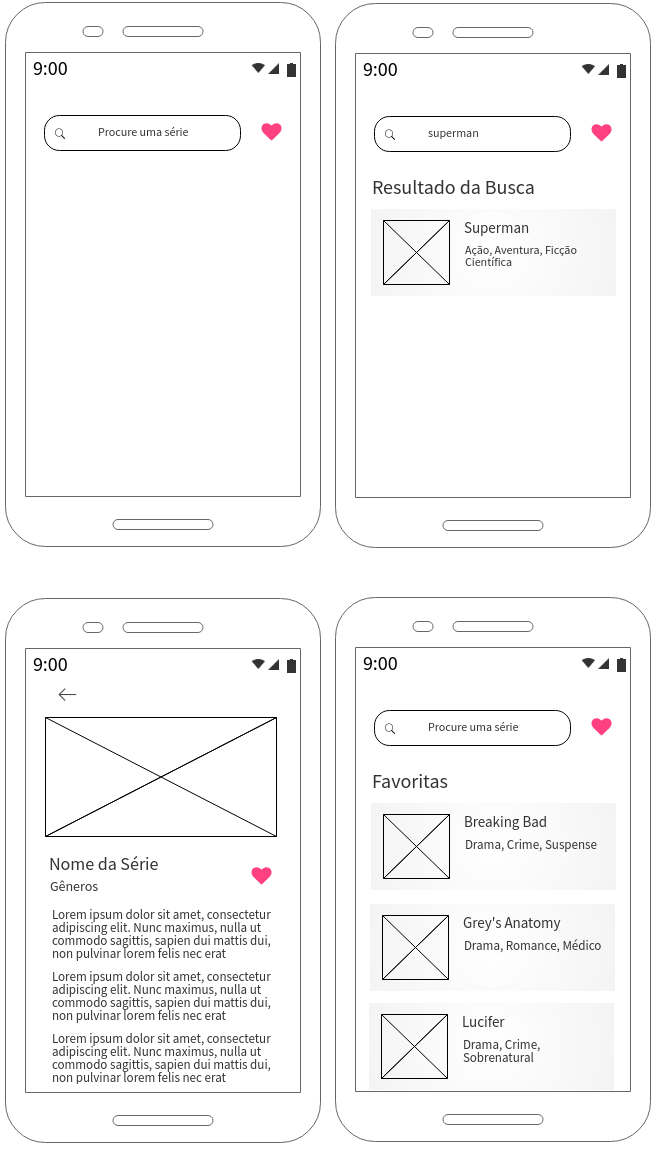
本教程正在建設中。到目前為止,他介紹了以下幾點:
存儲庫準備代碼,也正在構造中:https://github.com/erbuen/favtvshow :)
在開始編寫代碼之前,重要的是要了解與每個屏幕相關的行為。
這是用戶在啟動應用程序時會查看的屏幕。
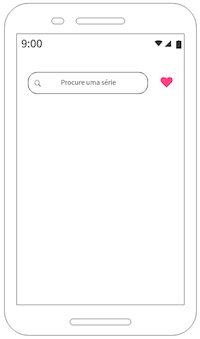
她應該有一個搜索欄,在酒吧的右側,一個按鈕。
搜索欄應該有一個佔位符。輸入要尋求的單詞時,我們必須使用鍵盤可用的按鈕來啟動搜索,例如,當我們在移動瀏覽器中鍵入URL時,我們如何發生。
查找結果應顯示在搜索欄下方和標題“搜索結果”下方,一行。如果您沒有得到任何結果,則應顯示消息“找不到結果”。
結果應顯示為包含圖像的“卡”,該系列的名稱以及歸因於其的流派(請參見第1.3節)。
當用戶選擇結果之一時,應將其帶到另一個屏幕上,以顯示該系列的完整信息。我們將盡快描述此屏幕。
單擊搜索欄的右鍵應顯示“收藏夾”標題下方的最喜歡的用戶系列。
如果沒有進行搜索,請不要在屏幕上顯示任何內容。
如果沒有喜歡的系列,請顯示消息“您仍然沒有喜歡的系列”。
當用戶單擊一個系列時,在搜索結果中要么有利,應將其帶到此屏幕上。
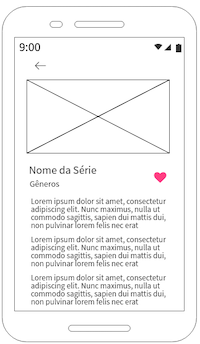
該屏幕應顯示與該系列,名稱,流派和摘要相關的圖像。
在名稱和流派旁邊,您應該有一個按鈕,以便用戶可以偏愛系列。
當用戶單擊按鈕偏愛該系列時,應將數據保存在應用程序的內部全局存儲中,並且應該對可能是“吐司”或類似的用戶進行視覺返回。
在該系列的圖像上方,您應該有一個返回按鈕,該按鈕將帶到上一個屏幕上。
用戶應該能夠滾動屏幕,因為摘要的內容可能大於設備的屏幕尺寸。
搜索並獲得至少一個結果或訪問自己喜歡的系列時,您會看到一個系列列表。
為此,我們應如下圖構建一個卡組件:
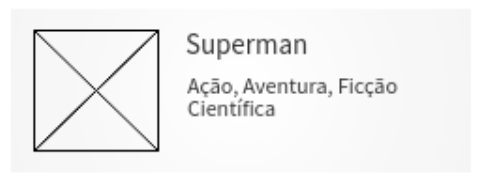
卡應單擊並顯示在列表上。
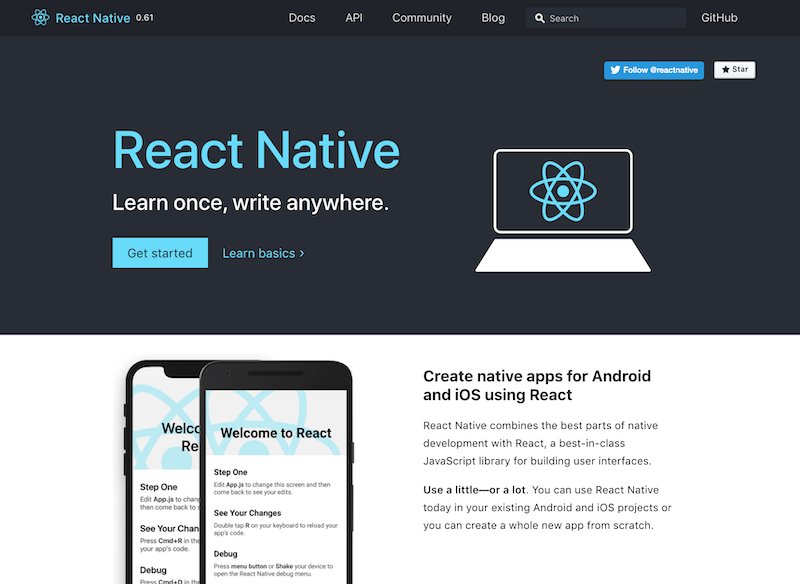
現在是時候開始項目了!為此,請訪問React本地頁面,然後單擊“開始” 。
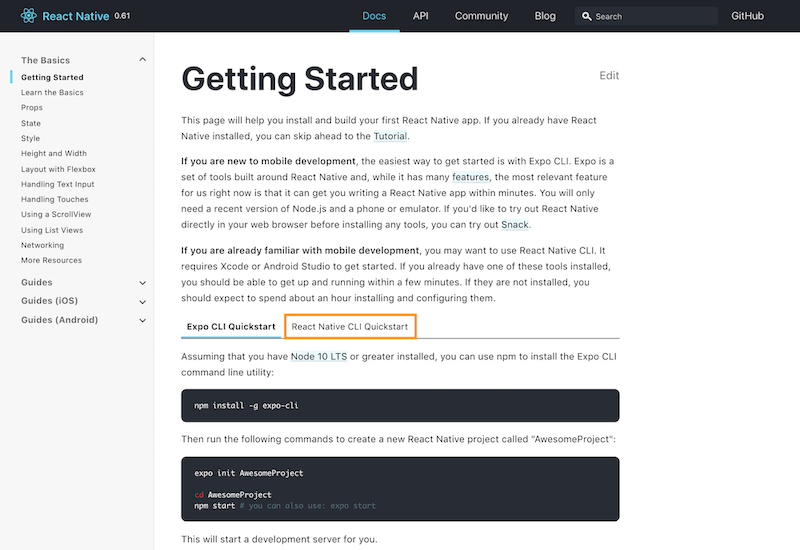
在“入門”頁面上,您將找到從React Native開始的所有信息。對於本教程,我們建議您選擇React Native ClickStart選項。
然後選擇適合您個人資料的最佳選項。就我而言,我將使用Mac開發,因此在開發中,我選擇了它們,並且可以使用iPhone進行測試,在Target中,我選擇了目標作為iOS ,但可以選擇Android 。
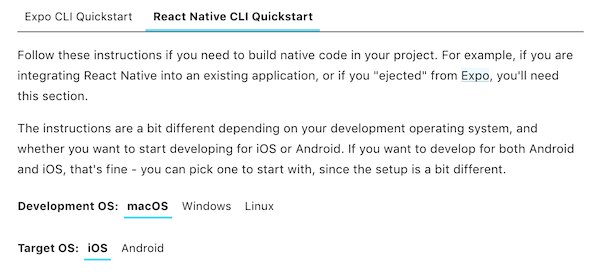
如果您使用Mac,則只能選擇目標作為iOS 。對於Windows和Linux ,您必須選擇Android 。
根據操作系統選擇選項後,請按照說明安裝使用React Antial所需的設施的說明。
根據React Native站點的逐步完成所有依賴項的安裝後,您將能夠使用以下命令啟動項目:
npx react-native init NomeDoProjeto該項目的創建可能需要幾分鐘,不用擔心,然後遵循終端的日誌:)
過程完成後,您可以使用以下命令運行項目:
 cd NomeDoProjeto
npx react-native run-ios
如果您使用的是MacOS。或者,如果您使用的是Windows或Linux:
 cd NomeDoProjeto
npx react-native run-android
一段時間後 - 我們第一次運行此命令確實需要很長時間 - 您會看到類似的東西(取決於目標OS ):
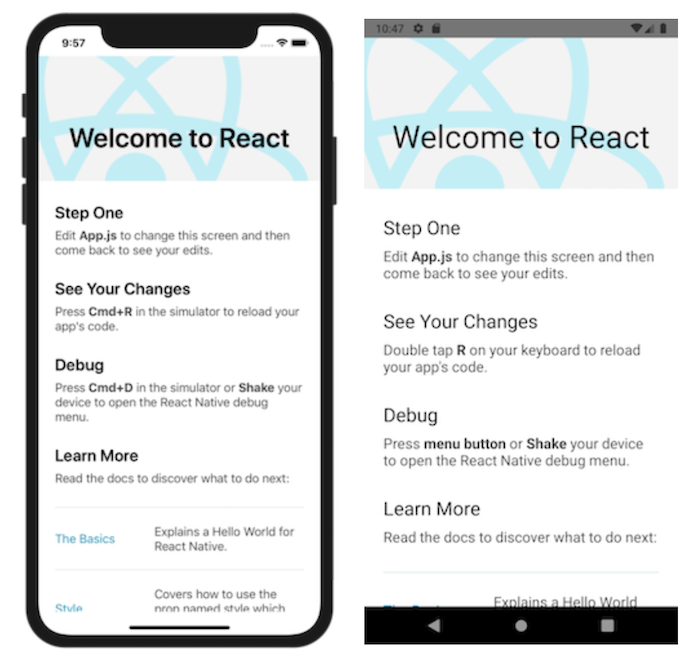
重要:請注意,第一個執行(無更改)中的默認項目文本提到了您查看更改(重新加載)和調試的選項。這意味著您可以更改代碼並查看更改並實時進行調試。
為了修改項目,您必須使用您選擇的代碼編輯器:
在您選擇的代碼編輯器中打開項目時,您將看到此文件夾和文件結構:
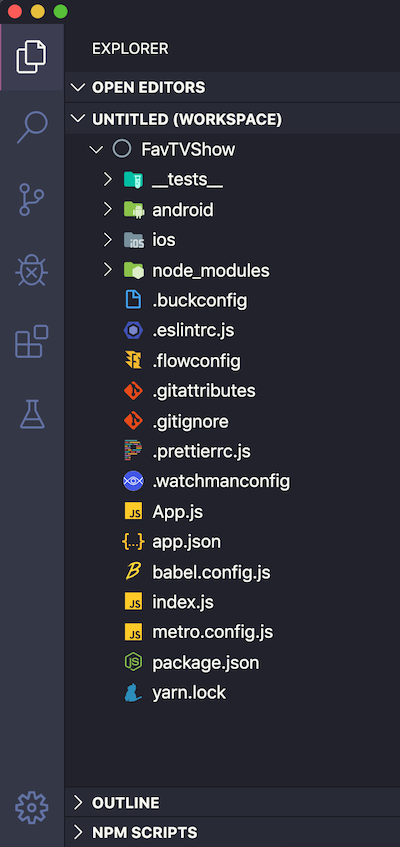
注意:這是我的Visual Studio代碼的側邊欄。我使用與標準不同的主題,並且還具有一個擴展名,可以修改與每個文件或文件夾關聯的圖標的圖像。我給項目的名字是FavtvShow 。
重要的是在這裡知道:
Android和iOS文件夾包含生成的本機代碼。您可以在Android Studio上運行應用程序,或者分別在每個IDE中打開這些文件夾。這些文件夾對於生成您的應用程序的發布很重要。
Node_modules文件夾包含NPM安裝的所有項目設施。
該應用程序可以最初通過app.js文件進行編輯。
index.js文件尋求並記錄應用程序的全局組件,即第一個要加載的組件。它與app.js文件的內容有關,並在屏幕上呈現。
package.json文件包含與您項目相關的腳本上的所有數據。
刪除app.js文件的所有內容,然後替換為:
 import React , { Component } from 'react' ; // 1
import { Text , View , StyleSheet } from 'react-native' ; // 2

// 3
export default class App extends Component {
  render ( ) {
    return (
      // 4
      < View style = { styles . hello } >
        < Text > Hello, world! </ Text >
      </ View >
    ) ;
  }
}

// 5
const styles = StyleSheet . create ( {
  hello : {
    flex : 1 ,
    justifyContent : 'center' ,
    alignItems : 'center' ,
  } ,
} ) ;刪除app.js內容時,請放置此新內容並保存文件,如果運行模擬器,它會自動為視圖充電。
請務必閱讀有關文本和查看組件以及抽像樣式表的官方文檔。
讓我們在文本組件中稍微更改文本的樣式。首先,重寫文本行,這樣就是這樣:
< Text style = {styles.text} > Hello, world! </ Text >然後以樣式添加文本樣式。就是這樣:
 const styles = StyleSheet . create ( {
  hello : {
    flex : 1 ,
    justifyContent : 'center' ,
    alignItems : 'center' ,
  } ,
  text : {
    fontSize : 30 ,
    color : 'blue' ,
  } ,
} ) ;
保存文件時,請參閱模擬器中的結果! :)
我們需要根據原型開始給我們的項目一個面孔。至少最初,我們將盡可能簡單地做到這一點。
我們如何添加主屏幕的必要元素?其中之一是搜索欄。有這個準備好的組件的庫,但是我們可以學習如何做,我們不會使用它們。
讓我們將TextInput組件添加到我們的第二行導入。在此處查看此組件的文檔。
import { Text , View , StyleSheet , TextInput } from 'react-native' ;讓我們修改代碼段落,以使屏幕呈現為這樣的屏幕:
 export default class App extends Component {
  render ( ) {
    return (
      < View style = { styles . screen } >
        < View style = { styles . search } >
          < TextInput style = { styles . input } />
        </ View >
        < View style = { styles . results } >
          < Text > Os resultados aparecerão aqui </ Text >
        </ View >
      </ View >
    ) ;
  }
}我們有一個視圖組件,可以封裝屏幕的所有元素,並接收屏幕樣式。
在此組件中,我們還有其他兩個視圖組件:一個在頂部(白色背景)接收搜索樣式,下面有一個(臨時淺灰色用於可視化),可接收結果。
在頂部組件中,我們具有文本視圖組件。在屏幕底部的組件內,我們具有文本組件。
現在,讓我們修改樣式,以便它們是這樣:
 const styles = StyleSheet . create ( {
  screen : {
    flex : 1 ,
    flexDirection : 'column' ,
  } ,
  search : {
    flex : 1 ,
    justifyContent : 'center' ,
    alignItems : 'center' ,
  } ,
  input : {
    marginTop : 55 ,
    height : 40 ,
    width : 250 ,
    borderColor : 'lightgray' ,
    borderWidth : 1 ,
    padding : 10 ,
    fontSize : 20 ,
  } ,
  results : {
    flex : 4 ,
    backgroundColor : 'lightgray' ,
    alignItems : 'center' ,
  } ,
} ) ;
進行更改並保存文件。現在查看每個項目的說明:
包含所有其他組件(屏幕名稱樣式)的視圖組件等於1。這使其成為所有屏幕,因為它涵蓋了所有其他組件。它具有等於列的撓性指導,因為我們希望其中的組件垂直組織。
我們將搜索風格的視圖組件向上以及以下結果保持在下面的結果。它們以屏幕樣式在視圖組件內,並垂直組織。他們必須劃分相同的空間。我們使用flex做到這一點。鞋面具有flex 1和底部4。這意味著我們有5個比例零件(1+4),屈曲等於1佔1/5,而屈曲等於4的屈曲為4/5。重要:請參閱React本地文檔以了解有關Flexbox的更多信息:)
查看搜索樣式視圖組件,在內部,我們將文本視圖組件與輸入樣式自定義。借助它,我們能夠定義其高度(高度),寬度(寬度),距屏幕頂部邊緣(Margintop),BorderColor顏色,界限厚度,向後(填充)和場源大小(Fontsize)的距離。
在模擬器中,如果單擊TextInput ,則鍵盤會自動出現。您可以鍵入某些內容,然後單擊“返回”(對於iOS)。就目前而言,什麼都不會發生,因為我們仍然需要實施行為。
讓我們在渲染()函數之前添加一個稱為狀態的變量,該變量將接收文本輸入中的文本。
  state = {
    searchText : '' ,
}我們還將更改textInput以擁有一個佔位符,並將其保存到狀態變量中。他會這樣:
  < TextInput
    placeholder = { 'Procure uma série' }
    style = { styles . input }
    onChangeText = { ( text ) => this . setState ( { searchText : text } ) }
/>注意組件的OnchangeText方法。它在搜索文本中收到文本的值並保存(this.setstate)。我們可以實時檢查一下另一個組件的小更改。
我們在哪裡:
< Text > Os resultados aparecerão aqui </ Text >更改:
< Text > {this.state.searchText} </ Text >保存並測試以在文本輸入中輸入某些內容:)
更改我們的TextInput ,讓我們使用OnSubMiteding方法在用戶按下返回鍵(或等效於Android上)時進行搜索。目前,我們還不會向API提出任何請求,但是我們會把事情轉發!
我們的文本輸入將是這樣:
  < TextInput
    placeholder = { 'Procure uma série' }
    style = { styles . input }
    onChangeText = { ( text ) => this . setState ( { searchText : text } ) }
    onSubmitEditing = { ( ) => this . submitSearch ( ) }
/>我們需要添加inscitsearch()函數,這可以在狀態下方完成。就是這樣:
  state = {
    searchText : '' ,
  }

  submitSearch ( ) {
    alert ( 'Buscar: ' + this . state . searchText ) ;
}由於我們還沒有提出請求,因此我提出警報,以便您意識到在搜索中鍵入的文本字段中鍵入的內容將在searsearch()函數中發生,因為它將發生在搜索中。
這樣我們就可以使用數據受歡迎,讓我們使用API電視迷宮,即開放式REST API(我們不需要身份驗證),免費並以JSON格式返回數據。
讓我們看一下使用此API的搜索示例。如果我們想用解剖詞進行搜索,我們將使用以下終點:
[GET] http://api.tvmaze.com/search/shows?q=anatomy
結果,我們將在下面有JSON(僅顯示一條拉伸),其中包含所有具有解剖結構或類似內容的條目:
[
  {
    "score" : 20.919525 ,
    "show" : {
      "id" : 67 ,
      "url" : " http://www.tvmaze.com/shows/67/greys-anatomy " ,
      "name" : " Grey's Anatomy " ,
      "type" : " Scripted " ,
      "language" : " English " ,
      "genres" : [
        " Drama " ,
        " Romance " ,
        " Medical "
      ],
      "status" : " Running " ,
      "runtime" : 60 ,
      "premiered" : " 2005-03-27 " ,
      "officialSite" : " http://abc.go.com/shows/greys-anatomy/ " ,
      "schedule" : {
        "time" : " 21:00 " ,
        "days" : [
          " Thursday "
        ]
      },
      "rating" : {
        "average" : 8.3
      },
      "weight" : 99 ,
      "network" : {
        "id" : 3 ,
        "name" : " ABC " ,
        "country" : {
          "name" : " United States " ,
          "code" : " US " ,
          "timezone" : " America/New_York "
        }
      },
      "webChannel" : null ,
      "externals" : {
        "tvrage" : 3741 ,
        "thetvdb" : 73762 ,
        "imdb" : " tt0413573 "
      },
      "image" : {
        "medium" : " http://static.tvmaze.com/uploads/images/medium_portrait/211/529884.jpg " ,
        "original" : " http://static.tvmaze.com/uploads/images/original_untouched/211/529884.jpg "
      },
      "summary" : " <p>The doctors of Grey Sloan Memorial Hospital deal with life-or-death consequences on a daily basis -- it's in one another that they find comfort, friendship and, at times, more than friendship. Together they're discovering that neither medicine nor relationships can be defined in black and white. Real life only comes in shades of grey.</p> " ,
      "updated" : 1576320037 ,
      "_links" : {
        "self" : {
          "href" : " http://api.tvmaze.com/shows/67 "
        },
        "previousepisode" : {
          "href" : " http://api.tvmaze.com/episodes/1749376 "
        },
        "nextepisode" : {
          "href" : " http://api.tvmaze.com/episodes/1760391 "
        }
      }
    }
  },
  {
    "score" : 15.932307 ,
    "show" : {
      "id" : 34388 ,
      "url" : " http://www.tvmaze.com/shows/34388/greys-anatomy-b-team " ,
      "name" : " Grey's Anatomy: B-Team " ,
      "type" : " Scripted " ,
      "language" : " English " ,
      "genres" : [
        " Drama " ,
        " Romance " ,
        " Medical "
      ],
      "status" : " Ended " ,
      "runtime" : 3 ,
      "premiered" : " 2018-01-11 " ,
      "officialSite" : " http://abc.go.com/shows/greys-anatomy-b-team " ,
      "schedule" : {
        "time" : " " ,
        "days" : [
          " Thursday "
        ]
      },
      "rating" : {
        "average" : null
      },
      "weight" : 80 ,
      "network" : null ,
      "webChannel" : {
        "id" : 95 ,
        "name" : " ABC.com " ,
        "country" : {
          "name" : " United States " ,
          "code" : " US " ,
          "timezone" : " America/New_York "
        }
      },
      "externals" : {
        "tvrage" : null ,
        "thetvdb" : null ,
        "imdb" : null
      },
      "image" : {
        "medium" : " http://static.tvmaze.com/uploads/images/medium_portrait/142/355662.jpg " ,
        "original" : " http://static.tvmaze.com/uploads/images/original_untouched/142/355662.jpg "
      },
      "summary" : " <p>A fresh crop of interns face their first day at Grey Sloan Memorial Hospital. Can these new surgeons survive the pressures of high-stakes medicine, intimidating attendings, and cut throat competition?</p> " ,
      "updated" : 1526845476 ,
      "_links" : {
        "self" : {
          "href" : " http://api.tvmaze.com/shows/34388 "
        },
        "previousepisode" : {
          "href" : " http://api.tvmaze.com/episodes/1390266 "
        }
      }
    }
  }
]
您可以使用JSON編輯器在線查看此JSON內容的友好版本。我已經保存了,所以您可以查看全部!點擊這裡 ;)
在JSON編輯器中,很容易看到它是一個帶有9個對象的數組,每個對像都是一個系列。
根據原型以及我們迄今為止已經實施的內容:
讓我們使用Axios將其付諸實踐。
我們需要在項目中安裝Axios庫。我們將通過在終端上鍵入以下命令來做到這一點:
$ npm install axios之後,讓我們在其中創建一個服務文件夾和一個api.js文件。讓我們將以下代碼放在文件中:
 import axios from 'axios' ; // 1

// 2
const api = axios . create ( {
  baseURL : 'http://api.tvmaze.com/' ,
} ) ;

export default api ;在app.js中,讓我們導入api.js文件:
import api from './service/api' ;讓我們修改commitsearch函數()如下:
  submitSearch = async ( ) => { // 1
    if ( this . state . searchText != '' ) { // 2
      try { // 3
        const response = await api . get ( '/search/shows' , { // 4
          params : { q : this . state . searchText } // 5
        } ) ;
        alert ( JSON . stringify ( response ) ) ;
      } catch ( error ) {
        alert ( JSON . stringify ( error ) ) ;
      }
    }
}試驗塊內部和捕獲塊中的警報對於查看請求中獲得的答案非常有用。在另一個時候,我們將以另一種方式使用這些答案:)
在此處查看有關異步功能的更多信息。
讓我們開始實現flatlist以顯示搜索結果列表。讓我們為此修改我們的導入:
import { Text , View , StyleSheet , TextInput , FlatList } from 'react-native' ;然後,我們將修改狀態和commitsearch()函數,以便它們是:
  state = {
    searchText : '' ,
    searchResults : null , // 1
  }

  submitSearch = async ( ) => {
    if ( this . state . searchText != '' ) {
      try {
        const response = await api . get ( '/search/shows' , {
          params : { q : this . state . searchText } ,
        } ) ;
        this . setState ( { searchResults : response . data } ) ; // 2
      } catch ( error ) {
        alert ( JSON . stringify ( error ) ) ;
      }
    }
}我們還必須修改渲染() ,將其插入其中:
  render ( ) {
    return (
      < View style = { styles . screen } >
        < View style = { styles . search } >
          < TextInput
          placeholder = { 'Procure uma série' }
          style = { styles . input }
          onChangeText = { ( text ) => this . setState ( { searchText : text } ) }
          onSubmitEditing = { ( ) => this . submitSearch ( ) }
         />
        </ View >
        < View style = { styles . results } >
          < FlatList
            data = { this . state . searchResults }
            renderItem = { ( { item } ) => < Text > { item . show . name } </ Text > }
            keyExtractor = { item => item . show . id }
          />
        </ View >
      </ View >
    ) ;
}請注意,我們僅使用文本組件渲染該系列的名稱。但是,根據第1.3節,讓我們在此處創建我們的卡類型。
在項目中,我們可能會創建多個組件。為了促進組織,讓我們創建一個組件文件夾,我們創建的所有組件都將保存在其中。
在此文件夾中,我們將創建一個名為card.js的文件,其中包含以下內容:
 import React , { Component } from 'react' ;
import { Text , View , TouchableOpacity , Image , StyleSheet } from 'react-native' ;

export default class Card extends Component {
  render ( ) {
    return (
      < TouchableOpacity style = { styles . container } >
        < View style = { styles . cardView } >
          < View >
          < Image
            style = { styles . image }
            source = { { uri : this . props . info . image == null ? 'https://i.ibb.co/YfZFr7k/noimg.png' : ( this . props . info . image . original || this . props . info . image . medium ) } }
          />
          </ View >
          < View style = { { flexDirection : 'column' } } >
            < Text style = { styles . name } > { this . props . info . name || 'Sem nome' } </ Text >
            < Text style = { styles . genres } > { this . props . info . genres || 'Sem gênero' } </ Text >
          </ View >
        </ View >
      </ TouchableOpacity >
    ) ;
  }
}

const styles = StyleSheet . create ( {
  container : {
    padding : 10 ,
  } ,
  cardView : {
    alignItems : 'center' ,
    flexDirection : 'row' ,
  } ,
  image : {
    width : 80 ,
    height : 120 ,
    resizeMode : 'contain' ,
  } ,
  name : {
    fontSize : 20 ,
    marginLeft : 10 ,
  } ,
  genres : {
    fontSize : 16 ,
    marginLeft : 10 ,
  } ,
} ) ;請注意,該組件的名稱是卡片,如果該系列沒有有效的URL,我使用圖像作為佔位符。
現在,讓我們將新組件導入到app.js文件中:
import Card from './components/card' ;在flatlist中,我們將用以下方式替換當前內容
 < FlatList
  data = { this . state . searchResults }
  renderItem = { ( { item } ) => < Card info = { item . show } /> }
  keyExtractor = { item => item . show . id }
/>我們現在使用卡片,而不是使用文本組件,而是使用該卡,並通過接收顯示對象的信息屬性將其傳遞給它。
請參閱我們多次使用表達式的card.js文件。為了獲取該系列的名稱,我們使用this.props.info.name 。





