TutorialReactNative
1.0.0

本教程的目的是与React Native的第一步指导您。
让我们使用电视迷宫API构建一个应用程序,并遵循以下原型:
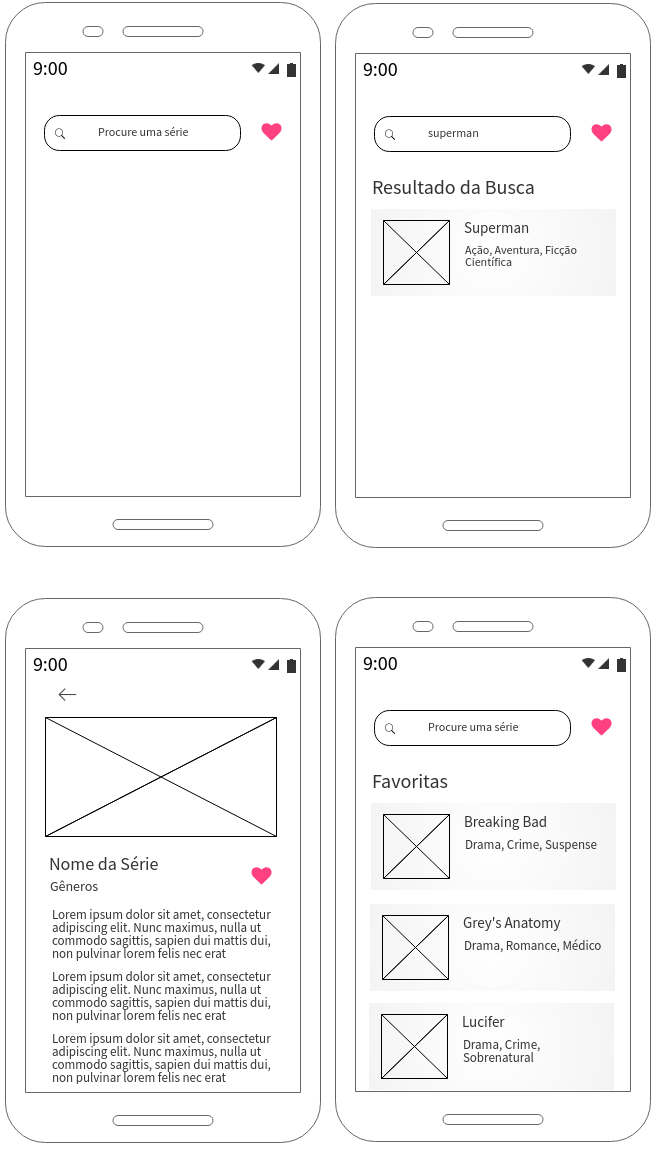
本教程正在建设中。到目前为止,他介绍了以下几点:
存储库准备代码,也正在构造中:https://github.com/erbuen/favtvshow :)
在开始编写代码之前,重要的是要了解与每个屏幕相关的行为。
这是用户在启动应用程序时会查看的屏幕。
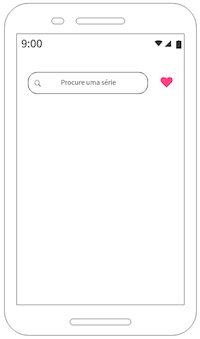
她应该有一个搜索栏,在酒吧的右侧,一个按钮。
搜索栏应该有一个占位符。输入要寻求的单词时,我们必须使用键盘可用的按钮来启动搜索,例如,当我们在移动浏览器中键入URL时,我们如何发生。
查找结果应显示在搜索栏下方和标题“搜索结果”下方,一行。如果您没有得到任何结果,则应显示消息“找不到结果”。
结果应显示为包含图像的“卡”,该系列的名称以及归因于其的流派(请参见第1.3节)。
当用户选择结果之一时,应将其带到另一个屏幕上,以显示该系列的完整信息。我们将尽快描述此屏幕。
单击搜索栏的右键应显示“收藏夹”标题下方的最喜欢的用户系列。
如果没有进行搜索,请不要在屏幕上显示任何内容。
如果没有喜欢的系列,请显示消息“您仍然没有喜欢的系列”。
当用户单击一个系列时,在搜索结果中要么有利,应将其带到此屏幕上。
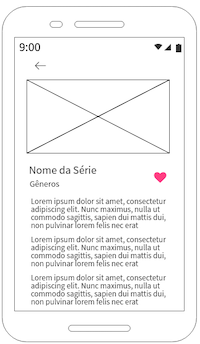
该屏幕应显示与该系列,名称,流派和摘要相关的图像。
在名称和流派旁边,您应该有一个按钮,以便用户可以偏爱系列。
当用户单击按钮偏爱该系列时,应将数据保存在应用程序的内部全局存储中,并且应该对可能是“吐司”或类似的用户进行视觉返回。
在该系列的图像上方,您应该有一个返回按钮,该按钮将带到上一个屏幕上。
用户应该能够滚动屏幕,因为摘要的内容可能大于设备的屏幕尺寸。
搜索并获得至少一个结果或访问自己喜欢的系列时,您会看到一个系列列表。
为此,我们应如下图构建一个卡组件:
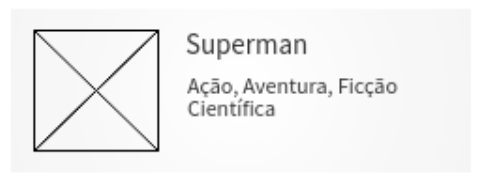
卡应单击并显示在列表上。
现在是时候开始项目了!为此,请访问React本地页面,然后单击“开始” 。
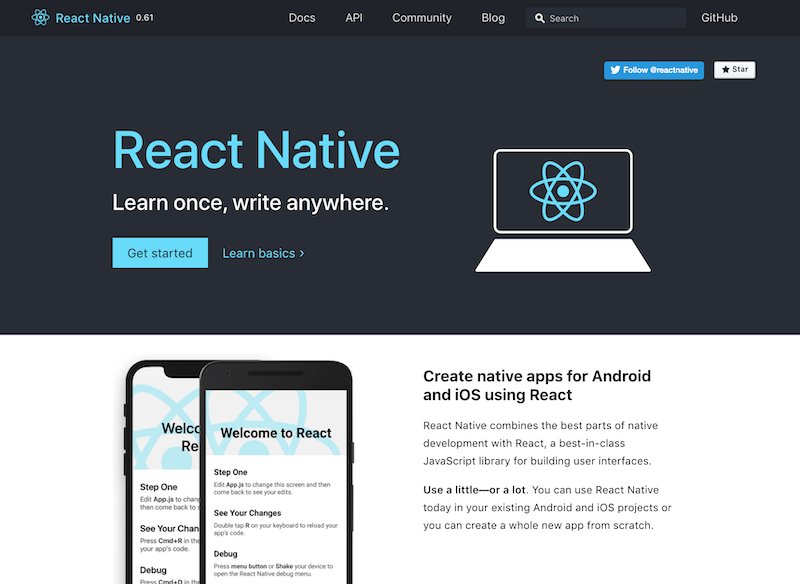
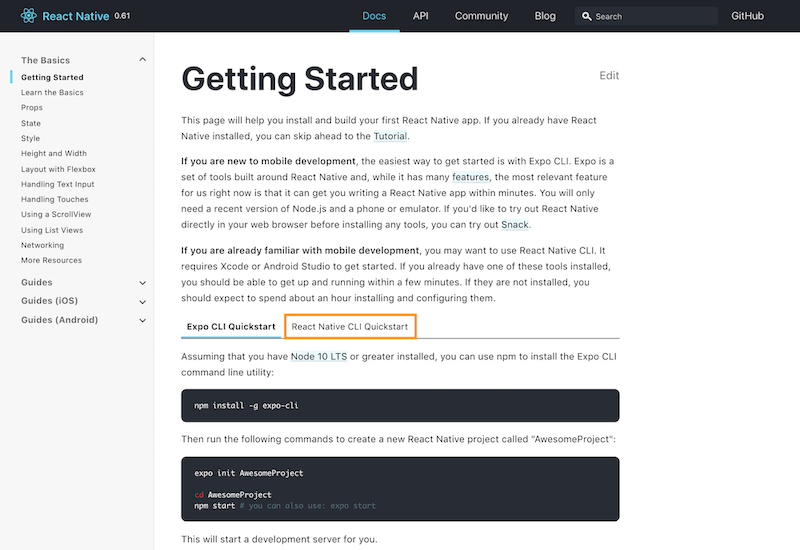
在“入门”页面上,您将找到从React Native开始的所有信息。对于本教程,我们建议您选择React Native ClickStart选项。
然后选择适合您个人资料的最佳选项。就我而言,我将使用Mac开发,因此在开发中,我选择了它们,并且可以使用iPhone进行测试,在Target中,我选择了目标作为iOS ,但可以选择Android 。
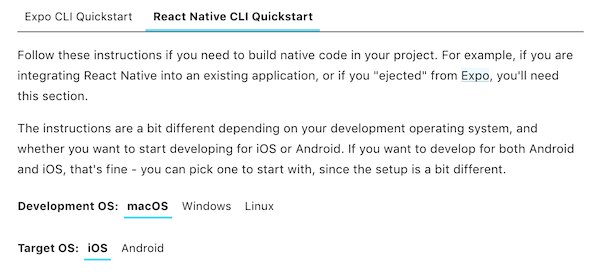
如果您使用Mac,则只能选择目标作为iOS 。对于Windows和Linux ,您必须选择Android 。
根据操作系统选择选项后,请按照说明安装使用React Antial所需的设施的说明。
根据React Native站点的逐步完成所有依赖项的安装后,您将能够使用以下命令启动项目:
npx react-native init NomeDoProjeto该项目的创建可能需要几分钟,不用担心,然后遵循终端的日志:)
过程完成后,您可以使用以下命令运行项目:
 cd NomeDoProjeto
npx react-native run-ios
如果您使用的是MacOS。或者,如果您使用的是Windows或Linux:
 cd NomeDoProjeto
npx react-native run-android
一段时间后 - 我们第一次运行此命令确实需要很长时间 - 您会看到类似的东西(取决于目标OS ):
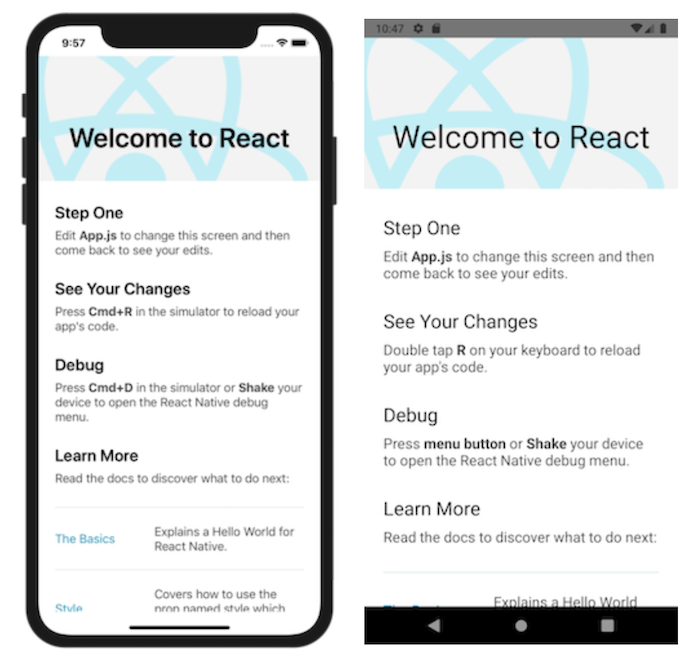
重要:请注意,第一个执行(无更改)中的默认项目文本提到了您查看更改(重新加载)和调试的选项。这意味着您可以更改代码并查看更改并实时进行调试。
为了修改项目,您必须使用您选择的代码编辑器:
在您选择的代码编辑器中打开项目时,您将看到此文件夹和文件结构:
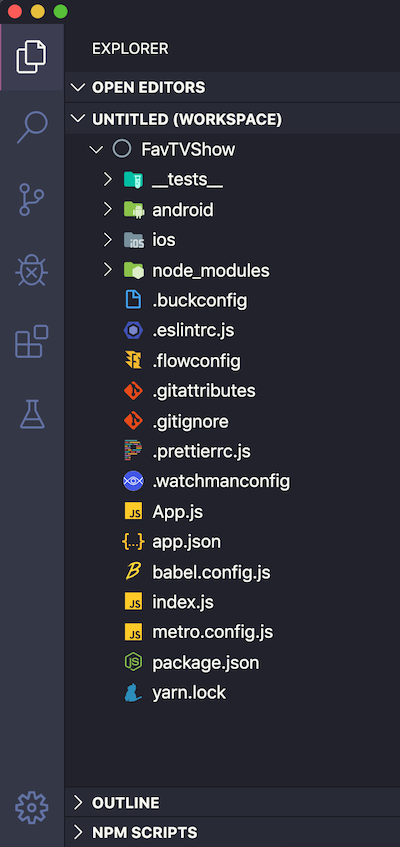
注意:这是我的Visual Studio代码的侧边栏。我使用与标准不同的主题,并且还具有一个扩展名,可以修改与每个文件或文件夹关联的图标的图像。我给项目的名字是FavtvShow 。
重要的是在这里知道:
Android和iOS文件夹包含生成的本机代码。您可以在Android Studio上运行应用程序,或者分别在每个IDE中打开这些文件夹。这些文件夹对于生成您的应用程序的发布很重要。
Node_modules文件夹包含NPM安装的所有项目设施。
该应用程序可以最初通过app.js文件进行编辑。
index.js文件寻求并记录应用程序的全局组件,即第一个要加载的组件。它与app.js文件的内容有关,并在屏幕上呈现。
package.json文件包含与您项目相关的脚本上的所有数据。
删除app.js文件的所有内容,然后替换为:
 import React , { Component } from 'react' ; // 1
import { Text , View , StyleSheet } from 'react-native' ; // 2

// 3
export default class App extends Component {
  render ( ) {
    return (
      // 4
      < View style = { styles . hello } >
        < Text > Hello, world! </ Text >
      </ View >
    ) ;
  }
}

// 5
const styles = StyleSheet . create ( {
  hello : {
    flex : 1 ,
    justifyContent : 'center' ,
    alignItems : 'center' ,
  } ,
} ) ;删除app.js内容时,请放置此新内容并保存文件,如果运行模拟器,它会自动为视图充电。
请务必阅读有关文本和查看组件以及抽象样式表的官方文档。
让我们在文本组件中稍微更改文本的样式。首先,重写文本行,这样就是这样:
< Text style = {styles.text} > Hello, world! </ Text >然后以样式添加文本样式。就是这样:
 const styles = StyleSheet . create ( {
  hello : {
    flex : 1 ,
    justifyContent : 'center' ,
    alignItems : 'center' ,
  } ,
  text : {
    fontSize : 30 ,
    color : 'blue' ,
  } ,
} ) ;
保存文件时,请参阅模拟器中的结果! :)
我们需要根据原型开始给我们的项目一个面孔。至少最初,我们将尽可能简单地做到这一点。
我们如何添加主屏幕的必要元素?其中之一是搜索栏。有这个准备好的组件的库,但是我们可以学习如何做,我们不会使用它们。
让我们将TextInput组件添加到我们的第二行导入。在此处查看此组件的文档。
import { Text , View , StyleSheet , TextInput } from 'react-native' ;让我们修改代码段落,以使屏幕呈现为这样的屏幕:
 export default class App extends Component {
  render ( ) {
    return (
      < View style = { styles . screen } >
        < View style = { styles . search } >
          < TextInput style = { styles . input } />
        </ View >
        < View style = { styles . results } >
          < Text > Os resultados aparecerão aqui </ Text >
        </ View >
      </ View >
    ) ;
  }
}我们有一个视图组件,可以封装屏幕的所有元素,并接收屏幕样式。
在此组件中,我们还有其他两个视图组件:一个在顶部(白色背景)接收搜索样式,下面有一个(临时浅灰色用于可视化),可接收结果。
在顶部组件中,我们具有文本视图组件。在屏幕底部的组件内,我们具有文本组件。
现在,让我们修改样式,以便它们是这样:
 const styles = StyleSheet . create ( {
  screen : {
    flex : 1 ,
    flexDirection : 'column' ,
  } ,
  search : {
    flex : 1 ,
    justifyContent : 'center' ,
    alignItems : 'center' ,
  } ,
  input : {
    marginTop : 55 ,
    height : 40 ,
    width : 250 ,
    borderColor : 'lightgray' ,
    borderWidth : 1 ,
    padding : 10 ,
    fontSize : 20 ,
  } ,
  results : {
    flex : 4 ,
    backgroundColor : 'lightgray' ,
    alignItems : 'center' ,
  } ,
} ) ;
进行更改并保存文件。现在查看每个项目的说明:
包含所有其他组件(屏幕名称样式)的视图组件等于1。这使其成为所有屏幕,因为它涵盖了所有其他组件。它具有等于列的挠性指导,因为我们希望其中的组件垂直组织。
我们将搜索风格的视图组件向上以及以下结果保持在下面的结果。它们以屏幕样式在视图组件内,并垂直组织。他们必须划分相同的空间。我们使用flex做到这一点。鞋面具有flex 1和底部4。这意味着我们有5个比例零件(1+4),屈曲等于1占1/5,而屈曲等于4的屈曲为4/5。重要:请参阅React本地文档以了解有关Flexbox的更多信息:)
查看搜索样式视图组件,在内部,我们将文本视图组件与输入样式自定义。借助它,我们能够定义其高度(高度),宽度(宽度),距屏幕顶部边缘(Margintop),BorderColor颜色,界限厚度,向后(填充)和场源大小(Fontsize)的距离。
在模拟器中,如果单击TextInput ,则键盘会自动出现。您可以键入某些内容,然后单击“返回”(对于iOS)。就目前而言,什么都不会发生,因为我们仍然需要实施行为。
让我们在渲染()函数之前添加一个称为状态的变量,该变量将接收文本输入中的文本。
  state = {
    searchText : '' ,
}我们还将更改textInput以拥有一个占位符,并将其保存到状态变量中。他会这样:
  < TextInput
    placeholder = { 'Procure uma série' }
    style = { styles . input }
    onChangeText = { ( text ) => this . setState ( { searchText : text } ) }
/>注意组件的OnchangeText方法。它在搜索文本中收到文本的值并保存(this.setstate)。我们可以实时检查一下另一个组件的小更改。
我们在哪里:
< Text > Os resultados aparecerão aqui </ Text >更改:
< Text > {this.state.searchText} </ Text >保存并测试以在文本输入中输入某些内容:)
更改我们的TextInput ,让我们使用OnSubMiteding方法在用户按下返回键(或等效于Android上)时进行搜索。目前,我们还不会向API提出任何请求,但是我们会把事情转发!
我们的文本输入将是这样:
  < TextInput
    placeholder = { 'Procure uma série' }
    style = { styles . input }
    onChangeText = { ( text ) => this . setState ( { searchText : text } ) }
    onSubmitEditing = { ( ) => this . submitSearch ( ) }
/>我们需要添加inscitsearch()函数,这可以在状态下方完成。就是这样:
  state = {
    searchText : '' ,
  }

  submitSearch ( ) {
    alert ( 'Buscar: ' + this . state . searchText ) ;
}由于我们还没有提出请求,因此我提出警报,以便您意识到在搜索中键入的文本字段中键入的内容将在searsearch()函数中发生,因为它将发生在搜索中。
这样我们就可以使用数据受欢迎,让我们使用API电视迷宫,即开放式REST API(我们不需要身份验证),免费并以JSON格式返回数据。
让我们看一下使用此API的搜索示例。如果我们想用解剖词进行搜索,我们将使用以下终点:
[GET] http://api.tvmaze.com/search/shows?q=anatomy
结果,我们将在下面有JSON(仅显示一条拉伸),其中包含所有具有解剖结构或类似内容的条目:
[
  {
    "score" : 20.919525 ,
    "show" : {
      "id" : 67 ,
      "url" : " http://www.tvmaze.com/shows/67/greys-anatomy " ,
      "name" : " Grey's Anatomy " ,
      "type" : " Scripted " ,
      "language" : " English " ,
      "genres" : [
        " Drama " ,
        " Romance " ,
        " Medical "
      ],
      "status" : " Running " ,
      "runtime" : 60 ,
      "premiered" : " 2005-03-27 " ,
      "officialSite" : " http://abc.go.com/shows/greys-anatomy/ " ,
      "schedule" : {
        "time" : " 21:00 " ,
        "days" : [
          " Thursday "
        ]
      },
      "rating" : {
        "average" : 8.3
      },
      "weight" : 99 ,
      "network" : {
        "id" : 3 ,
        "name" : " ABC " ,
        "country" : {
          "name" : " United States " ,
          "code" : " US " ,
          "timezone" : " America/New_York "
        }
      },
      "webChannel" : null ,
      "externals" : {
        "tvrage" : 3741 ,
        "thetvdb" : 73762 ,
        "imdb" : " tt0413573 "
      },
      "image" : {
        "medium" : " http://static.tvmaze.com/uploads/images/medium_portrait/211/529884.jpg " ,
        "original" : " http://static.tvmaze.com/uploads/images/original_untouched/211/529884.jpg "
      },
      "summary" : " <p>The doctors of Grey Sloan Memorial Hospital deal with life-or-death consequences on a daily basis -- it's in one another that they find comfort, friendship and, at times, more than friendship. Together they're discovering that neither medicine nor relationships can be defined in black and white. Real life only comes in shades of grey.</p> " ,
      "updated" : 1576320037 ,
      "_links" : {
        "self" : {
          "href" : " http://api.tvmaze.com/shows/67 "
        },
        "previousepisode" : {
          "href" : " http://api.tvmaze.com/episodes/1749376 "
        },
        "nextepisode" : {
          "href" : " http://api.tvmaze.com/episodes/1760391 "
        }
      }
    }
  },
  {
    "score" : 15.932307 ,
    "show" : {
      "id" : 34388 ,
      "url" : " http://www.tvmaze.com/shows/34388/greys-anatomy-b-team " ,
      "name" : " Grey's Anatomy: B-Team " ,
      "type" : " Scripted " ,
      "language" : " English " ,
      "genres" : [
        " Drama " ,
        " Romance " ,
        " Medical "
      ],
      "status" : " Ended " ,
      "runtime" : 3 ,
      "premiered" : " 2018-01-11 " ,
      "officialSite" : " http://abc.go.com/shows/greys-anatomy-b-team " ,
      "schedule" : {
        "time" : " " ,
        "days" : [
          " Thursday "
        ]
      },
      "rating" : {
        "average" : null
      },
      "weight" : 80 ,
      "network" : null ,
      "webChannel" : {
        "id" : 95 ,
        "name" : " ABC.com " ,
        "country" : {
          "name" : " United States " ,
          "code" : " US " ,
          "timezone" : " America/New_York "
        }
      },
      "externals" : {
        "tvrage" : null ,
        "thetvdb" : null ,
        "imdb" : null
      },
      "image" : {
        "medium" : " http://static.tvmaze.com/uploads/images/medium_portrait/142/355662.jpg " ,
        "original" : " http://static.tvmaze.com/uploads/images/original_untouched/142/355662.jpg "
      },
      "summary" : " <p>A fresh crop of interns face their first day at Grey Sloan Memorial Hospital. Can these new surgeons survive the pressures of high-stakes medicine, intimidating attendings, and cut throat competition?</p> " ,
      "updated" : 1526845476 ,
      "_links" : {
        "self" : {
          "href" : " http://api.tvmaze.com/shows/34388 "
        },
        "previousepisode" : {
          "href" : " http://api.tvmaze.com/episodes/1390266 "
        }
      }
    }
  }
]
您可以使用JSON编辑器在线查看此JSON内容的友好版本。我已经保存了,所以您可以查看全部!点击这里 ;)
在JSON编辑器中,很容易看到它是一个带有9个对象的数组,每个对象都是一个系列。
根据原型以及我们迄今为止已经实施的内容:
让我们使用Axios将其付诸实践。
我们需要在项目中安装Axios库。我们将通过在终端上键入以下命令来做到这一点:
$ npm install axios之后,让我们在其中创建一个服务文件夹和一个api.js文件。让我们将以下代码放在文件中:
 import axios from 'axios' ; // 1

// 2
const api = axios . create ( {
  baseURL : 'http://api.tvmaze.com/' ,
} ) ;

export default api ;在app.js中,让我们导入api.js文件:
import api from './service/api' ;让我们修改commitsearch函数()如下:
  submitSearch = async ( ) => { // 1
    if ( this . state . searchText != '' ) { // 2
      try { // 3
        const response = await api . get ( '/search/shows' , { // 4
          params : { q : this . state . searchText } // 5
        } ) ;
        alert ( JSON . stringify ( response ) ) ;
      } catch ( error ) {
        alert ( JSON . stringify ( error ) ) ;
      }
    }
}试验块内部和捕获块中的警报对于查看请求中获得的答案非常有用。在另一个时候,我们将以另一种方式使用这些答案:)
在此处查看有关异步功能的更多信息。
让我们开始实现flatlist以显示搜索结果列表。让我们为此修改我们的导入:
import { Text , View , StyleSheet , TextInput , FlatList } from 'react-native' ;然后,我们将修改状态和commitsearch()函数,以便它们是:
  state = {
    searchText : '' ,
    searchResults : null , // 1
  }

  submitSearch = async ( ) => {
    if ( this . state . searchText != '' ) {
      try {
        const response = await api . get ( '/search/shows' , {
          params : { q : this . state . searchText } ,
        } ) ;
        this . setState ( { searchResults : response . data } ) ; // 2
      } catch ( error ) {
        alert ( JSON . stringify ( error ) ) ;
      }
    }
}我们还必须修改渲染() ,将其插入其中:
  render ( ) {
    return (
      < View style = { styles . screen } >
        < View style = { styles . search } >
          < TextInput
          placeholder = { 'Procure uma série' }
          style = { styles . input }
          onChangeText = { ( text ) => this . setState ( { searchText : text } ) }
          onSubmitEditing = { ( ) => this . submitSearch ( ) }
         />
        </ View >
        < View style = { styles . results } >
          < FlatList
            data = { this . state . searchResults }
            renderItem = { ( { item } ) => < Text > { item . show . name } </ Text > }
            keyExtractor = { item => item . show . id }
          />
        </ View >
      </ View >
    ) ;
}请注意,我们仅使用文本组件渲染该系列的名称。但是,根据第1.3节,让我们在此处创建我们的卡类型。
在项目中,我们可能会创建多个组件。为了促进组织,让我们创建一个组件文件夹,我们创建的所有组件都将保存在其中。
在此文件夹中,我们将创建一个名为card.js的文件,其中包含以下内容:
 import React , { Component } from 'react' ;
import { Text , View , TouchableOpacity , Image , StyleSheet } from 'react-native' ;

export default class Card extends Component {
  render ( ) {
    return (
      < TouchableOpacity style = { styles . container } >
        < View style = { styles . cardView } >
          < View >
          < Image
            style = { styles . image }
            source = { { uri : this . props . info . image == null ? 'https://i.ibb.co/YfZFr7k/noimg.png' : ( this . props . info . image . original || this . props . info . image . medium ) } }
          />
          </ View >
          < View style = { { flexDirection : 'column' } } >
            < Text style = { styles . name } > { this . props . info . name || 'Sem nome' } </ Text >
            < Text style = { styles . genres } > { this . props . info . genres || 'Sem gênero' } </ Text >
          </ View >
        </ View >
      </ TouchableOpacity >
    ) ;
  }
}

const styles = StyleSheet . create ( {
  container : {
    padding : 10 ,
  } ,
  cardView : {
    alignItems : 'center' ,
    flexDirection : 'row' ,
  } ,
  image : {
    width : 80 ,
    height : 120 ,
    resizeMode : 'contain' ,
  } ,
  name : {
    fontSize : 20 ,
    marginLeft : 10 ,
  } ,
  genres : {
    fontSize : 16 ,
    marginLeft : 10 ,
  } ,
} ) ;请注意,该组件的名称是卡片,如果该系列没有有效的URL,我使用图像作为占位符。
现在,让我们将新组件导入到app.js文件中:
import Card from './components/card' ;在flatlist中,我们将用以下方式替换当前内容
 < FlatList
  data = { this . state . searchResults }
  renderItem = { ( { item } ) => < Card info = { item . show } /> }
  keyExtractor = { item => item . show . id }
/>我们现在使用卡片,而不是使用文本组件,而是使用该卡,并通过接收显示对象的信息属性将其传递给它。
请参阅我们多次使用表达式的card.js文件。为了获取该系列的名称,我们使用this.props.info.name 。





