TutorialReactNative
1.0.0

The purpose of this tutorial is to guide you in the first steps with React Native.
Let's build an app using the TV MAZE API and following the prototype below:
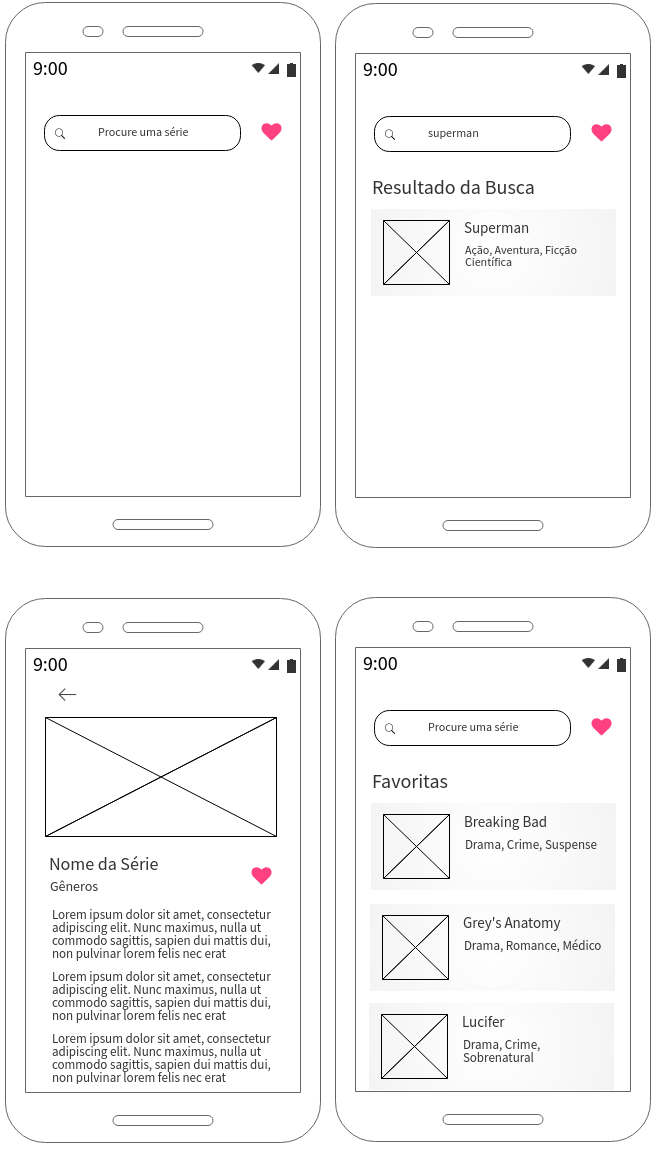
This tutorial is under construction. So far, he covers the following points:
Repository with the code ready, also under construction : https://github.com/erbuen/favtvshow :)
Before you start writing code, it is important to understand the behaviors associated with each screen.
This is the screen that the user will view when starting the application.
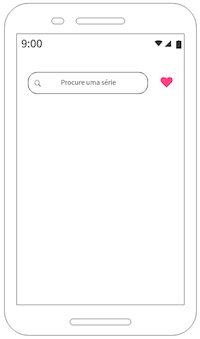
She should have a search bar and, on the right side of the bar, a button.
The search bar should have a placeholder. When entering a word to be sought, we must use the button that the keyboard makes available to start the search, for example, how we occur when we type a URL in the mobile browser.
Finding results, should be displayed below the search bar and below the title "Search Result", one by line. If you do not get any results, you should display the message "No results found".
The results should be displayed as "cards" containing the image, the name of the series and the genres attributed to it (see section 1.3).
When the user selects one of the results, it should be taken to another screen that will show the full information of the series. We will describe this screen soon.
The right button of the search bar, when clicked, should show the favorite series of the user below the title "Favorites".
If there is no search in progress, do not display anything on the screen.
If there is no favorite series, display the message "You still have no favorite series".
When the user clicks on a series, either in the search results or in favor, it should be taken to this screen.
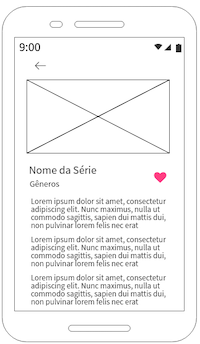
This screen should show an image associated with the series, the name, the genres and the summary.
Next to the name and genres, you should have a button so that the user can favor the series.
When the user clicks the button to favor the series, the data should be saved in the application's internal global storage and there should be some visual return to the user who could be a "toast" or similar.
Above the image of the series, you should have a return button that will take to the previous screen.
The user should be able to roll the screen as the contents of the summary may be greater than the screen size of the device.
You will see a series list when you search and get at least one result or when you access your favorite series.
For this purpose, we should build a card component as image below:
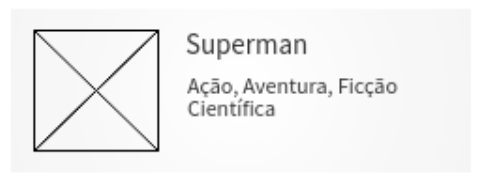
Cards should be clicked and displayed on a flatlist.
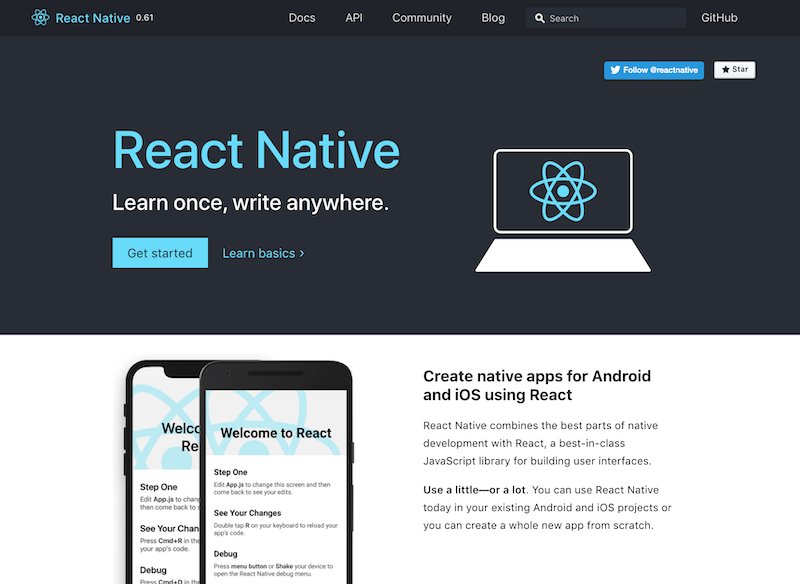
The time has come to start the project! To do this, visit the React Native page and click Get Started .
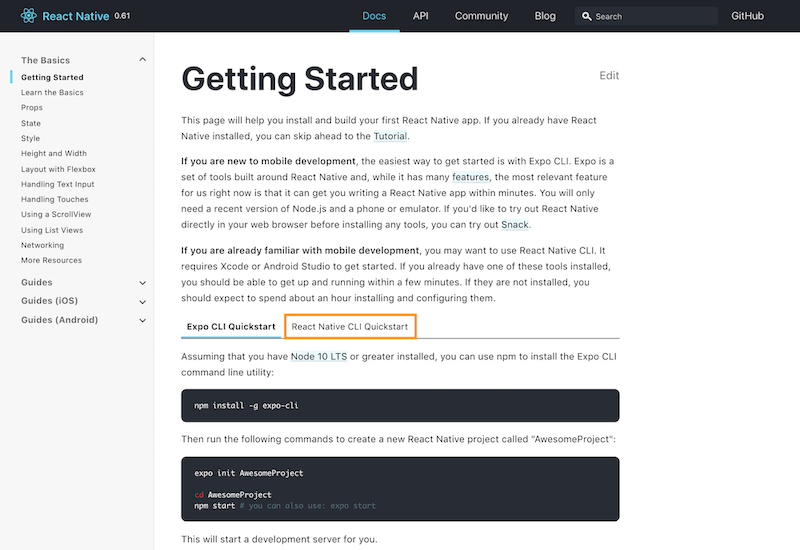
On the Getting Started page, you will find all the information you need to start with React Native. For this tutorial, we suggest that you choose the react native clickstart option.
Then choose the best option that fits your profile. In my case, I will develop using a Mac, so in development I chose them and as I will test using the iPhone, in target , I chose the target as iOS , but could have chosen Android .
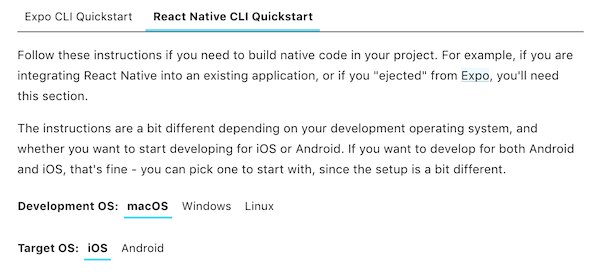
You can only choose Target as ios if you are using a Mac. For Windows and Linux , you must necessarily choose Android .
After selecting the options according to your operating system, follow the instructions for installing the facilities required to use React Native.
After completing the installation of all dependencies according to the step-by-step of the React Native site, you will be able to boot your project with the following command:
npx react-native init NomeDoProjetoThe creation of the project can take a few minutes, do not worry and follow the logs through the terminal :)
When the process is completed, you can run your project with the following commands:
 cd NomeDoProjeto
npx react-native run-ios
If you are using macos. Or, if you are using Windows or Linux:
 cd NomeDoProjeto
npx react-native run-android
After a while - and the first time we run this command can really take a long time - you will see something like that (depending on target OS ):
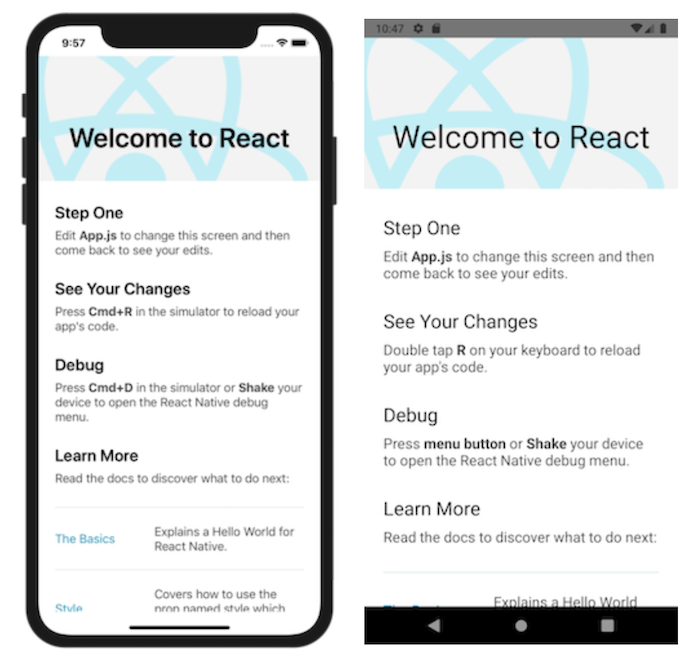
IMPORTANT: Note that the default project text in the first execution (no changes) mentions options for you to view your changes (reload) and also to debug. This means that you can change the code and see the changes and make debug in real time.
For you to modify the project, you must use a code editor of your choice:
When opening the project in the code editor of your choice, you will see this folder and file structure:
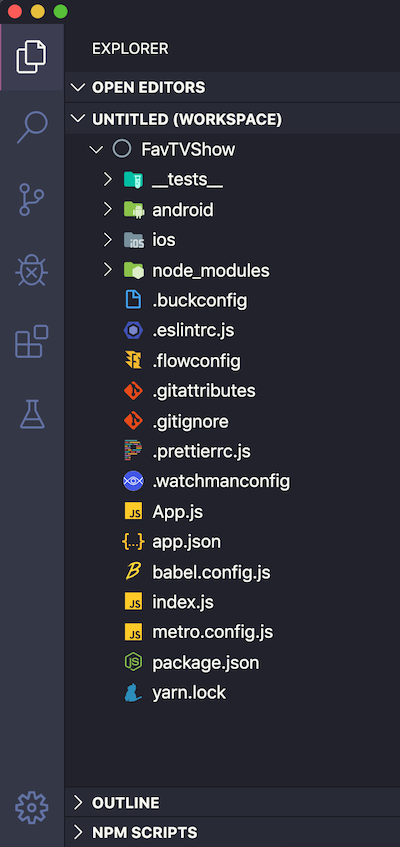
Note: This is the sidebar of my visual Studio Code. I am using a different theme from the standard and I also have an extension that modifies the images of the icons associated with each file or folder. The name I gave to my project is Favtvshow .
What is important to know here:
Android and iOS folders contain the native code generated. You can run your application on Android Studio or Xcode opening these folders in each IDE respectively. These folders are important to generate the release of your application.
The Node_Modules folder contains all project facilities installed by the NPM.
The application can be initially edited through the app.js file.
The index.js file seeks and records the global component of our application, ie the first component to be loaded. It matters the contents of the app.js file and render on the screen.
The Package.json file contains all the data on the premises and also of scripts related to your project.
Delete all the contents of the app.js file and replace it with:
 import React , { Component } from 'react' ; // 1
import { Text , View , StyleSheet } from 'react-native' ; // 2

// 3
export default class App extends Component {
  render ( ) {
    return (
      // 4
      < View style = { styles . hello } >
        < Text > Hello, world! </ Text >
      </ View >
    ) ;
  }
}

// 5
const styles = StyleSheet . create ( {
  hello : {
    flex : 1 ,
    justifyContent : 'center' ,
    alignItems : 'center' ,
  } ,
} ) ;When you remove app.js content, put this new content and save the file, if you have the simulator running, it automatically recharges the view.
Be sure to read the official documentation about the text and view components and the abstraction Stylesheet.
Let's change the style of the text a little in the text component. First, rewrite the text line line so that it is like this:
< Text style = {styles.text} > Hello, world! </ Text >Then add the text style in Styles . It will be like this:
 const styles = StyleSheet . create ( {
  hello : {
    flex : 1 ,
    justifyContent : 'center' ,
    alignItems : 'center' ,
  } ,
  text : {
    fontSize : 30 ,
    color : 'blue' ,
  } ,
} ) ;
See the result in the simulator when you save the file! :)
We need to start giving our project a face according to the prototype. We will do this as simply as possible, at least initially.
How can we add the necessary elements of the home screen? One of them is a search bar. There are libraries with this ready component, but so that we can learn how to do it, we will not use them.
Let's add the textinput component to our second line of import . See the documentation of this component here.
import { Text , View , StyleSheet , TextInput } from 'react-native' ;Let's modify the code passage that takes care of rendering the screen to be like this:
 export default class App extends Component {
  render ( ) {
    return (
      < View style = { styles . screen } >
        < View style = { styles . search } >
          < TextInput style = { styles . input } />
        </ View >
        < View style = { styles . results } >
          < Text > Os resultados aparecerão aqui </ Text >
        </ View >
      </ View >
    ) ;
  }
}
We have a view component that encapsulates all elements of the screen and it receives the Screen style.
Within this component, we have two other View components: one at the top (white background) that receives the Search style and one below (temporarily light gray for visualization) that receives the results .
Within the top component, we have the TextView component. And inside the component at the bottom of the screen we have the text component.
Now let's modify the styles so that they are this way:
 const styles = StyleSheet . create ( {
  screen : {
    flex : 1 ,
    flexDirection : 'column' ,
  } ,
  search : {
    flex : 1 ,
    justifyContent : 'center' ,
    alignItems : 'center' ,
  } ,
  input : {
    marginTop : 55 ,
    height : 40 ,
    width : 250 ,
    borderColor : 'lightgray' ,
    borderWidth : 1 ,
    padding : 10 ,
    fontSize : 20 ,
  } ,
  results : {
    flex : 4 ,
    backgroundColor : 'lightgray' ,
    alignItems : 'center' ,
  } ,
} ) ;
Make the changes and save the file. Now see the explanation for each item:
The view component that encompasses all other components ( screen name style) has flex equal to 1. This makes it all screen, as it encompasses all the others. It has flexdirection equal to Column because we want the components within it to organize vertically.
We have the Search -style View component upwards and the results with results that stays below. They are inside the View component with screen style and organize vertically. They have to divide the same space. We do this using the flex. The upper has flex 1 and the bottom 4. This means that we have 5 proportional parts (1+4), which has flex equal to 1 occupies 1/5 and the flex equal to 4 occupies 4/5. IMPORTANT: See React Native documentation to learn more about Flexbox :)
Looking at the Search style View component, inside we put the textview component that is customized with the Input style. With it, we were able to define its height (Height), width (width), distance from the top margin of the screen (margintop), bordercolor color, borderwidth thickness, backwards (padding) and field source size (fontsize).
In the simulator, if you click on Textinput , the keyboard appears automatically. You can type something and click "Return" (in the case of iOS). For now, nothing will happen because we still need to implement the behavior.
Let's add a variable called State before the render () function that will receive the text typed in the textinput .
  state = {
    searchText : '' ,
  }
We will also change Textinput to have a placeholder and to save it into the state variable the typed text. He will be like this:
  < TextInput
    placeholder = { 'Procure uma série' }
    style = { styles . input }
    onChangeText = { ( text ) => this . setState ( { searchText : text } ) }
  />
Note the component's OnchangeText method. It receives the value of text and saved (this.setState) in Searchtext . We can check this in real time making a small change in another component.
Where we have:
< Text > Os resultados aparecerão aqui </ Text >Change for:
< Text > {this.state.searchText} </ Text >Save and test to type something in textinput :)
Changing our textinput a little more, let's use the ONSUBMITEDITING Method to make the search occur when the user presses the Return key (or equivalent on Android). For now we will not make any request to the API yet, but we will leave things forwarded!
Our textinput will be like this:
  < TextInput
    placeholder = { 'Procure uma série' }
    style = { styles . input }
    onChangeText = { ( text ) => this . setState ( { searchText : text } ) }
    onSubmitEditing = { ( ) => this . submitSearch ( ) }
  />
We need to add the submitsearch () function, this can be done just below state . It will be like this:
  state = {
    searchText : '' ,
  }

  submitSearch ( ) {
    alert ( 'Buscar: ' + this . state . searchText ) ;
  }
As we are not making the request yet, I put an alert so that you realize that the content typed in the text field will be used in the search, as it will occur within the submitsearch () function.
So that we can popular our app with data, let's use the API TV Maze which is an open REST API (we don't need to authentication), free and returns the data in JSON format.
Let's look at a search example using this API. If we want to perform a search with the word Anatomy , we will use the following endpoint:
[GET] http://api.tvmaze.com/search/shows?q=anatomy
As a result, we will have the JSON below (only one stretch is being shown) containing all entries that have Anatomy or something like:
[
  {
    "score" : 20.919525 ,
    "show" : {
      "id" : 67 ,
      "url" : " http://www.tvmaze.com/shows/67/greys-anatomy " ,
      "name" : " Grey's Anatomy " ,
      "type" : " Scripted " ,
      "language" : " English " ,
      "genres" : [
        " Drama " ,
        " Romance " ,
        " Medical "
      ],
      "status" : " Running " ,
      "runtime" : 60 ,
      "premiered" : " 2005-03-27 " ,
      "officialSite" : " http://abc.go.com/shows/greys-anatomy/ " ,
      "schedule" : {
        "time" : " 21:00 " ,
        "days" : [
          " Thursday "
        ]
      },
      "rating" : {
        "average" : 8.3
      },
      "weight" : 99 ,
      "network" : {
        "id" : 3 ,
        "name" : " ABC " ,
        "country" : {
          "name" : " United States " ,
          "code" : " US " ,
          "timezone" : " America/New_York "
        }
      },
      "webChannel" : null ,
      "externals" : {
        "tvrage" : 3741 ,
        "thetvdb" : 73762 ,
        "imdb" : " tt0413573 "
      },
      "image" : {
        "medium" : " http://static.tvmaze.com/uploads/images/medium_portrait/211/529884.jpg " ,
        "original" : " http://static.tvmaze.com/uploads/images/original_untouched/211/529884.jpg "
      },
      "summary" : " <p>The doctors of Grey Sloan Memorial Hospital deal with life-or-death consequences on a daily basis -- it's in one another that they find comfort, friendship and, at times, more than friendship. Together they're discovering that neither medicine nor relationships can be defined in black and white. Real life only comes in shades of grey.</p> " ,
      "updated" : 1576320037 ,
      "_links" : {
        "self" : {
          "href" : " http://api.tvmaze.com/shows/67 "
        },
        "previousepisode" : {
          "href" : " http://api.tvmaze.com/episodes/1749376 "
        },
        "nextepisode" : {
          "href" : " http://api.tvmaze.com/episodes/1760391 "
        }
      }
    }
  },
  {
    "score" : 15.932307 ,
    "show" : {
      "id" : 34388 ,
      "url" : " http://www.tvmaze.com/shows/34388/greys-anatomy-b-team " ,
      "name" : " Grey's Anatomy: B-Team " ,
      "type" : " Scripted " ,
      "language" : " English " ,
      "genres" : [
        " Drama " ,
        " Romance " ,
        " Medical "
      ],
      "status" : " Ended " ,
      "runtime" : 3 ,
      "premiered" : " 2018-01-11 " ,
      "officialSite" : " http://abc.go.com/shows/greys-anatomy-b-team " ,
      "schedule" : {
        "time" : " " ,
        "days" : [
          " Thursday "
        ]
      },
      "rating" : {
        "average" : null
      },
      "weight" : 80 ,
      "network" : null ,
      "webChannel" : {
        "id" : 95 ,
        "name" : " ABC.com " ,
        "country" : {
          "name" : " United States " ,
          "code" : " US " ,
          "timezone" : " America/New_York "
        }
      },
      "externals" : {
        "tvrage" : null ,
        "thetvdb" : null ,
        "imdb" : null
      },
      "image" : {
        "medium" : " http://static.tvmaze.com/uploads/images/medium_portrait/142/355662.jpg " ,
        "original" : " http://static.tvmaze.com/uploads/images/original_untouched/142/355662.jpg "
      },
      "summary" : " <p>A fresh crop of interns face their first day at Grey Sloan Memorial Hospital. Can these new surgeons survive the pressures of high-stakes medicine, intimidating attendings, and cut throat competition?</p> " ,
      "updated" : 1526845476 ,
      "_links" : {
        "self" : {
          "href" : " http://api.tvmaze.com/shows/34388 "
        },
        "previousepisode" : {
          "href" : " http://api.tvmaze.com/episodes/1390266 "
        }
      }
    }
  }
]
You can view a friendlier version of the contents of this JSON using JSON Editor Online. I've left saved so you can view it all! Click here ;)
In JSON Editor Online was easy to see that it is an array with 9 objects and each object is a series.
According to the prototype and what we have implemented so far:
Let's put this into practice in the next section using Axios.
We need to install the Axios Library in the project. We will do this by typing the following command at the terminal:
$ npm install axiosAfter that, let's create an service folder and an API.js file inside it. Let's put the following code in the file:
 import axios from 'axios' ; // 1

// 2
const api = axios . create ( {
  baseURL : 'http://api.tvmaze.com/' ,
} ) ;

export default api ;In app.js , let's import the API.JS file:
import api from './service/api' ;And let's modify the submitsearch function () to be like this:
  submitSearch = async ( ) => { // 1
    if ( this . state . searchText != '' ) { // 2
      try { // 3
        const response = await api . get ( '/search/shows' , { // 4
          params : { q : this . state . searchText } // 5
        } ) ;
        alert ( JSON . stringify ( response ) ) ;
      } catch ( error ) {
        alert ( JSON . stringify ( error ) ) ;
      }
    }
}Alerts inside the Try block and within the catch block will be useful for viewing the answers obtained in the request. In another time, we will use these answers in another way :)
See more about asynchronous functions here and about promises here.
Let's start implementing Flatlist to display the search results list. Let's modify our import for this:
import { Text , View , StyleSheet , TextInput , FlatList } from 'react-native' ;Then we will modify the state and the submitsearch () function so that they are:
  state = {
    searchText : '' ,
    searchResults : null , // 1
  }

  submitSearch = async ( ) => {
    if ( this . state . searchText != '' ) {
      try {
        const response = await api . get ( '/search/shows' , {
          params : { q : this . state . searchText } ,
        } ) ;
        this . setState ( { searchResults : response . data } ) ; // 2
      } catch ( error ) {
        alert ( JSON . stringify ( error ) ) ;
      }
    }
  }
We also have to modify the render () , inserting the flatlist in it:
  render ( ) {
    return (
      < View style = { styles . screen } >
        < View style = { styles . search } >
          < TextInput
          placeholder = { 'Procure uma série' }
          style = { styles . input }
          onChangeText = { ( text ) => this . setState ( { searchText : text } ) }
          onSubmitEditing = { ( ) => this . submitSearch ( ) }
         />
        </ View >
        < View style = { styles . results } >
          < FlatList
            data = { this . state . searchResults }
            renderItem = { ( { item } ) => < Text > { item . show . name } </ Text > }
            keyExtractor = { item => item . show . id }
          />
        </ View >
      </ View >
    ) ;
  }
Note that we are rendering only the name of the series with the text component. However, let's create our card type here, as per section 1.3.
In a project, we will possibly create more than one component. To facilitate the organization, let's create a component folder and all the components we create will be saved in it.
Within this folder, we will create a file called card.js with the following content:
 import React , { Component } from 'react' ;
import { Text , View , TouchableOpacity , Image , StyleSheet } from 'react-native' ;

export default class Card extends Component {
  render ( ) {
    return (
      < TouchableOpacity style = { styles . container } >
        < View style = { styles . cardView } >
          < View >
          < Image
            style = { styles . image }
            source = { { uri : this . props . info . image == null ? 'https://i.ibb.co/YfZFr7k/noimg.png' : ( this . props . info . image . original || this . props . info . image . medium ) } }
          />
          </ View >
          < View style = { { flexDirection : 'column' } } >
            < Text style = { styles . name } > { this . props . info . name || 'Sem nome' } </ Text >
            < Text style = { styles . genres } > { this . props . info . genres || 'Sem gênero' } </ Text >
          </ View >
        </ View >
      </ TouchableOpacity >
    ) ;
  }
}

const styles = StyleSheet . create ( {
  container : {
    padding : 10 ,
  } ,
  cardView : {
    alignItems : 'center' ,
    flexDirection : 'row' ,
  } ,
  image : {
    width : 80 ,
    height : 120 ,
    resizeMode : 'contain' ,
  } ,
  name : {
    fontSize : 20 ,
    marginLeft : 10 ,
  } ,
  genres : {
    fontSize : 16 ,
    marginLeft : 10 ,
  } ,
} ) ;
Note that the component's name is card and that I used an image to serve as placeholder if the series does not have a valid URL.
Now let's import our new component into the app.js file:
import Card from './components/card' ;And in flatlist we will replace the current content with:
 < FlatList
  data = { this . state . searchResults }
  renderItem = { ( { item } ) => < Card info = { item . show } /> }
  keyExtractor = { item => item . show . id }
/>
Instead of using the text component, we are now using the card and we pass it for it through the Info attribute that receives the show object.
See the card.js file that we use several times the expression this.props.info to access values that were passed when the component is used. To get the name of the series, we use this.props.info.name , for example.





