UnityRuntimeNodeEditor
1.0.0

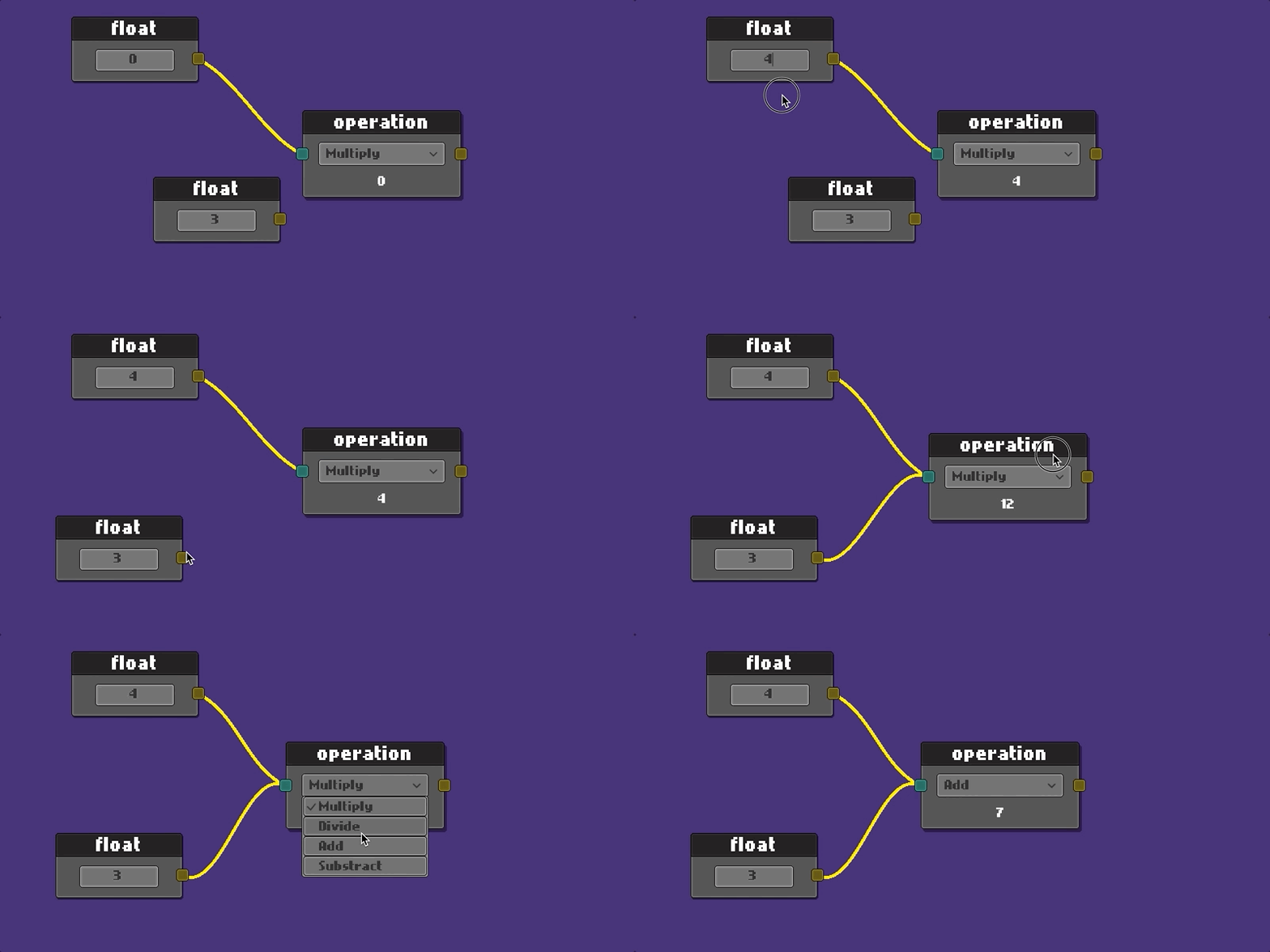
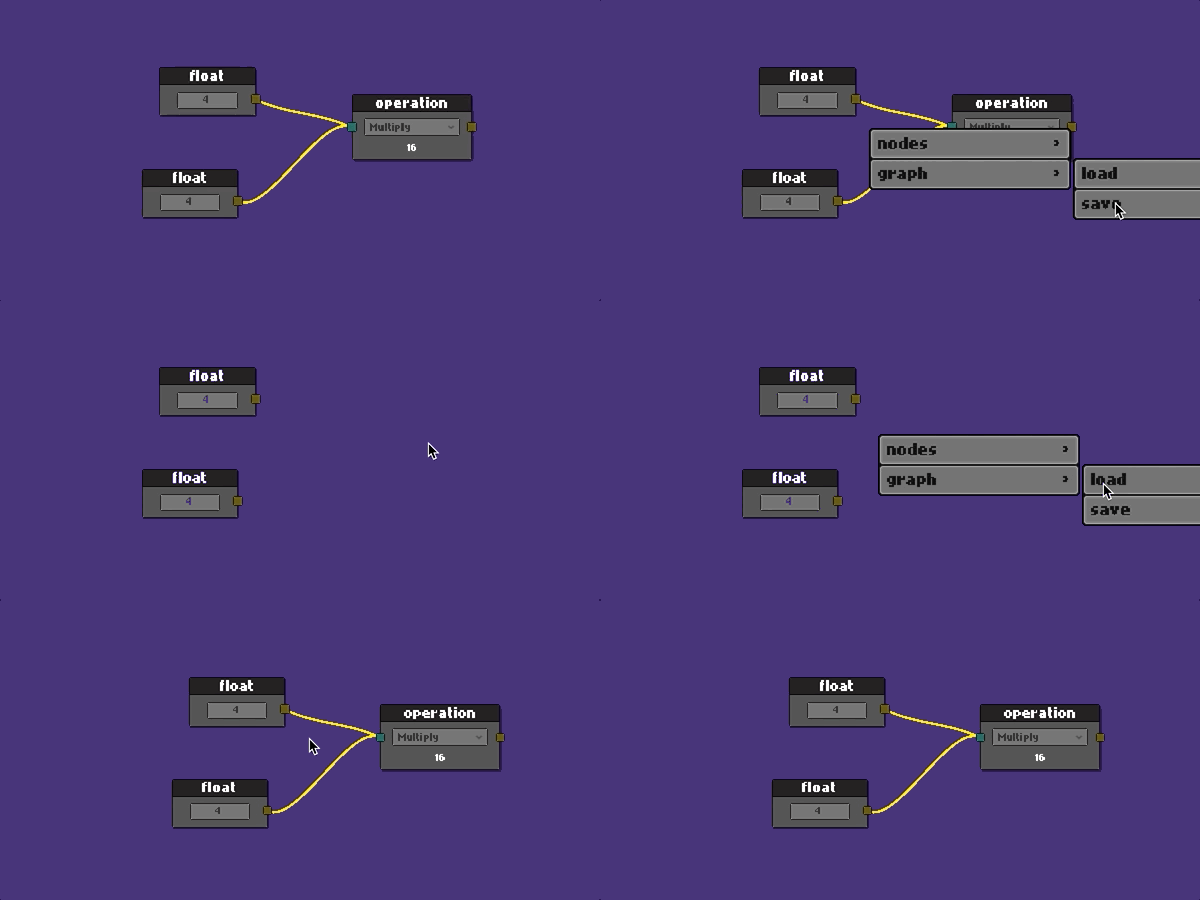
เกือบทุกตัวแก้ไขโหนดที่สร้างขึ้นใน Unity กำลังใช้ Unity Editor เพื่อสร้างมันขึ้นมา
เป้าหมายของฉันคือทำให้มันอยู่ในรันไทม์กับ Unity UI
Unity Version 2021.3.3F1
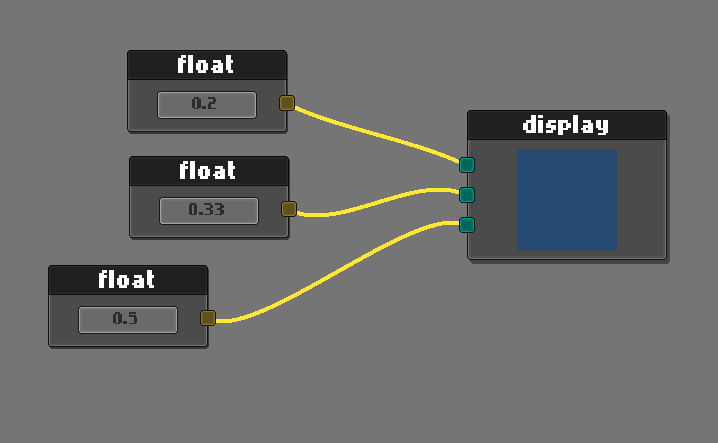
ตัวอย่างการแสดงสี RGB
เพียงแค่ขยาย NodeEditor
 public class ExampleNodeEditor : NodeEditor
{
    public override void StartEditor ( NodeGraph graph )
    {
        base . StartEditor ( graph ) ;

        //  make your custom initialization here
    }
}
สร้างกราฟโดยใช้ API กราฟจะยืดไปยังวัตถุที่ถือ (ไม่มีสำเร็จรูป)
 public class ApplicationStartup : MonoBehaviour
{
    public RectTransform        editorHolder ;
    public ExampleNodeEditor    editor ;    //  asigned in unity from hierarchy

    private void Start ( )
    {
        var graph = editor . CreateGraph < NodeGraph > ( editorHolder ) ;
        // var graph = editor.CreateGraph<NodeGraph>(editorHolder, bgColor, connColor);
        editor . StartEditor ( graph ) ;
    }
}
คุณอาจต้องการใช้กราฟที่กำหนดเองและสำเร็จรูปของคุณเองเช่นกัน
 public class ApplicationStartup : MonoBehaviour
{
    public RectTransform        editorHolder ;
    public ExampleNodeEditor    editor ;

    private void Start ( )
    {
        editor . StartEditor ( graph ) ;
    }
}
การกระทำของกราฟเป็นไปตามเหตุการณ์
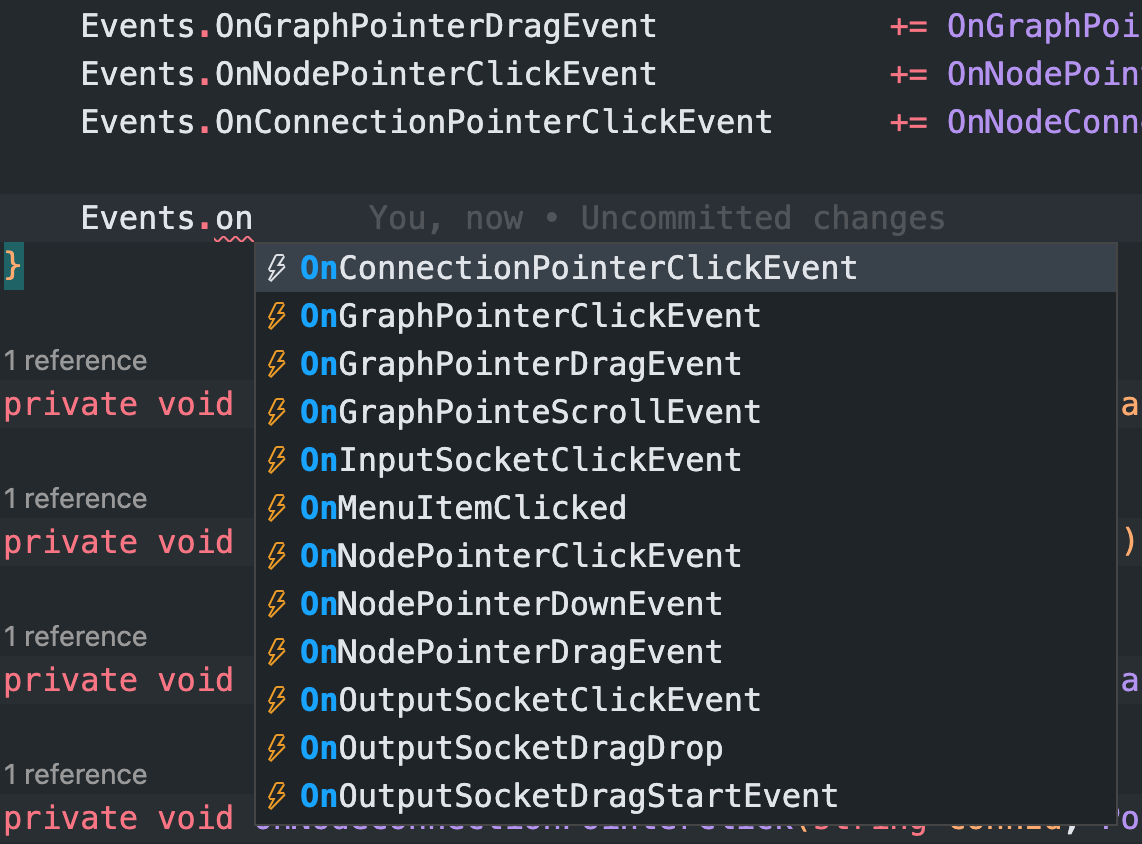
คุณจะพบตัวอย่างที่สมบูรณ์ในโฟลเดอร์ตัวอย่าง มาคำแนะนำกันเถอะ
ฟังเหตุการณ์จากบรรณาธิการ
 public class ExampleNodeEditor : NodeEditor
{
    private string _savePath ;

    public override void StartEditor ( NodeGraph graph )
    {
        base . StartEditor ( graph ) ;

        _savePath = Application . dataPath + "/Example/Resources/graph.json" ;

        Events . OnGraphPointerClickEvent           += OnGraphPointerClick ;
        Events . OnGraphPointerDragEvent            += OnGraphPointerDrag ;
        Events . OnNodePointerClickEvent            += OnNodePointerClick ;
        Events . OnConnectionPointerClickEvent      += OnNodeConnectionPointerClick ;
    }
} protected override void OnGraphPointerClick ( PointerEventData eventData )
{
switch ( eventData . button )
{
case PointerEventData . InputButton . Right :
{
var ctx = new ContextMenuBuilder ( )
. Add ( "nodes/float" , CreateFloatNode )
. Add ( "nodes/math op" , CreateMatOpNode )
. Add ( "graph/load" , ( ) => LoadGraph ( _savePath ) )
. Add ( "graph/save" , ( ) => SaveGraph ( _savePath ) )
. Build ( ) ;
SetContextMenu ( ctx ) ;
DisplayContextMenu ( ) ;
}
break ;
case PointerEventData . InputButton . Left : CloseContextMenu ( ) ; break ;
}
} protected override void OnNodePointerClick ( Node node , PointerEventData eventData )
{
if ( eventData . button == PointerEventData . InputButton . Right )
{
var ctx = new ContextMenuBuilder ( )
. Add ( "duplicate" , ( ) => DuplicateNode ( node ) )
. Add ( "clear connections" , ( ) => ClearConnections ( node ) )
. Add ( "delete" , ( ) => DeleteNode ( node ) )
. Build ( ) ;
SetContextMenu ( ctx ) ;
DisplayContextMenu ( ) ;
}
} protected override void OnNodeConnectionPointerClick ( string connId , PointerEventData eventData )
{
if ( eventData . button == PointerEventData . InputButton . Right )
{
var ctx = new ContextMenuBuilder ( )
. Add ( "clear connection" , ( ) => DisconnectConnection ( connId ) )
. Build ( ) ;
SetContextMenu ( ctx ) ;
DisplayContextMenu ( ) ;
}
}มีการกล่าวเพื่อสร้างโหนดใหม่:
 public class MyAwesomeNode : Node
{
    public TMP_InputField valueField ;   //  added from editor
    public SocketOutput outputSocket ;   //  added from editor
    public SocketInput inputSocket ;     //  added from editor

    public override void Setup ( )
    {
        Register ( outputSocket ) ;
        Register ( inputSocket ) ;

        SetHeader ( "float" ) ;
    }

    public override void OnSerialize ( Serializer serializer )
    {
        //  save values on graph save
        serializer . Add ( "floatValue" , valueField . text ) ;

        //  it would be good idea to use JsonUtility for complex data
    }

    public override void OnDeserialize ( Serializer serializer )
    {
        //  load values on graph load
        var value = serializer . Get ( "floatValue" ) ;
        valueField . SetTextWithoutNotify ( value ) ;
    }
}
ในการสร้างโหนดจากตัวแก้ไขของคุณให้ส่งเส้นทางจากโฟลเดอร์ Resources
 //  context item actions
private void CreateMyNode ( )
{
    graph . Create ( "Prefabs/Nodes/MyAwesomeNode" ) ;    //  your prefab path in resources
}
ตรวจสอบ Expample ที่สมบูรณ์ใน ExampleScene สำหรับรายละเอียดเพิ่มเติม
โครงการนี้มีการพัฒนาอย่างแข็งขัน อย่าลังเลที่จะวางปัญหาสำหรับข้อเสนอแนะหรือข้อเสนอแนะใด ๆ
มิกซ์
ลิขสิทธิ์ (c) 2022 CEM Ugur Karacam






