tarsier
v.0.6.0 - Microsoft OCR Support

? Webインタラクションエージェントのビジョンユーティリティ?
?メインサイト• ? Twitter • ?不和
LLMを使用してWebインタラクションを自動化しようとした場合、おそらく次のような質問に遭遇します。
reworkdでは、これらすべての問題を何万もの実際のWebタスクにまたがって、Webエージェントの強力な認識システムを構築するために繰り返しました... TARSIER!以下のビデオでは、Tarsierを使用して、ミニマルなGPT-4 Langchain WebエージェントのWebページ認識を提供しています。
Tarsierは、ブラケット + ID [23]を介してページ上のインタラクティブな要素に視覚的にタグ付けします。これを行うと、LLMがアクションを実行するための要素とIDの間のマッピングを提供します( CLICK [23] )。相互作用可能な要素を、ページに表示されるボタン、リンク、または入力フィールドとして定義します。 tag_text_elements=Trueを渡すと、すべてのテキスト要素にタグを付けることもできます。
さらに、ページのスクリーンショットを、視覚がなくてもLLMが理解できてもLLMがホワイトスペース構造の文字列(ASCIIアートのように)に変換するためのOCRアルゴリズムを開発しました。現在のビジョン言語モデルには、Webインタラクションタスクに必要な細粒表現がまだ欠けているため、これは重要です。内部ベンチマークでは、Unimodal GPT-4 + TARSIER-TEXT BEATS GPT-4V + TARSIER-SCREENSHOTは10-20%ビートします。
| タグ付きスクリーンショット | タグ付きテキスト表現 |
|---|---|
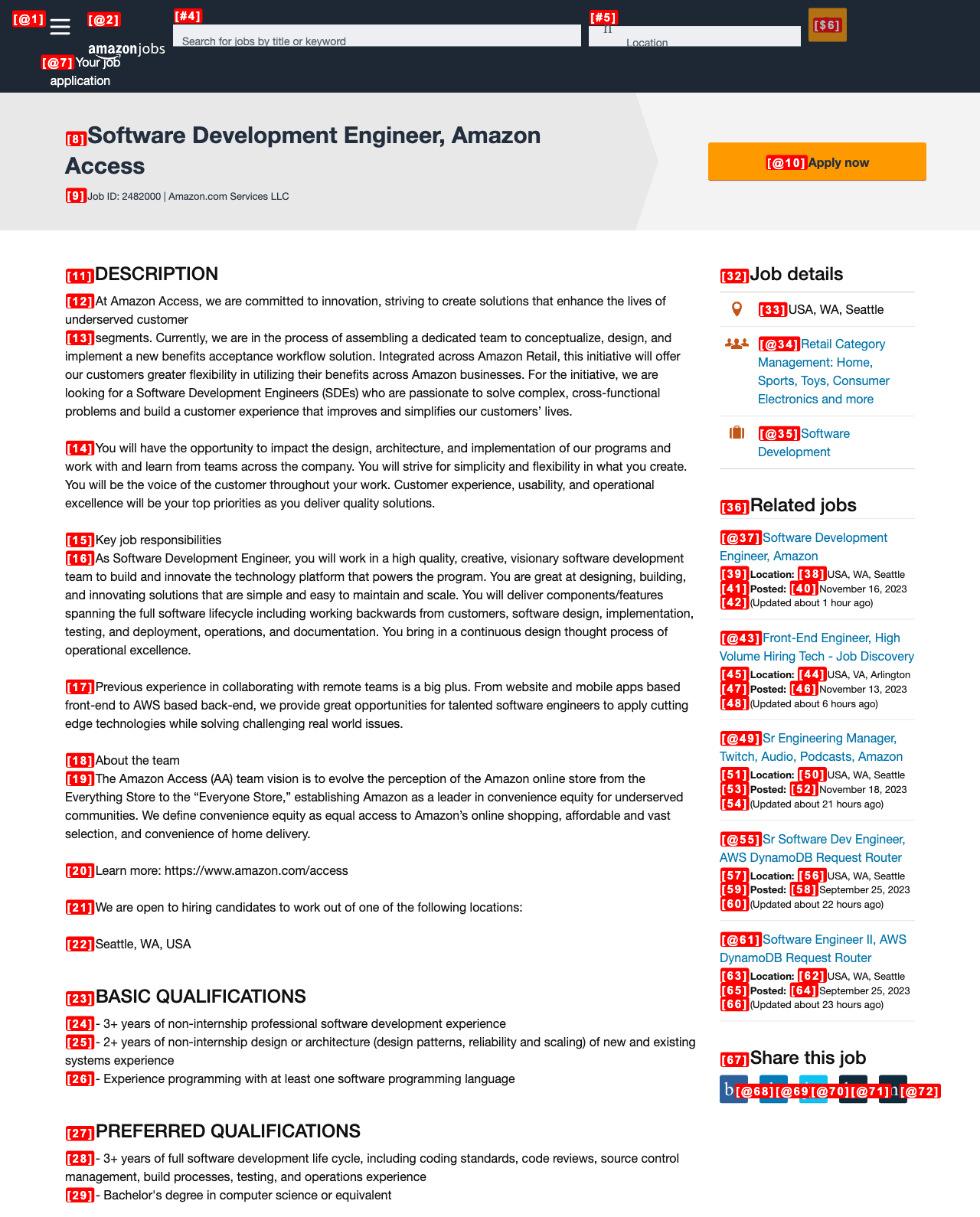 | 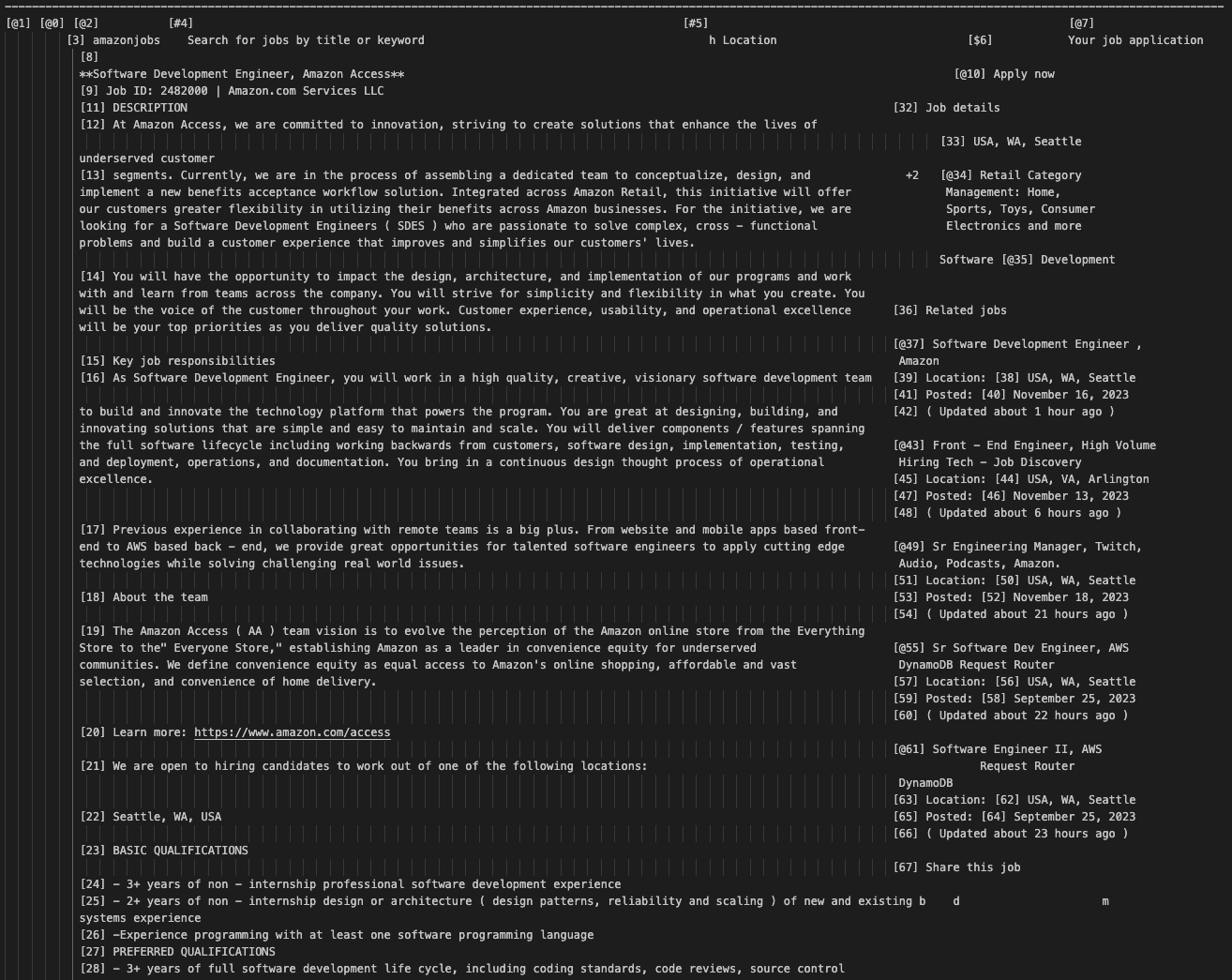 |
pip install tarsierTARSIERを使用したエージェントの例については、クックブックをご覧ください。
現在、Google VisionとMicrosoft Azureの2つのOCRエンジンをサポートしています。 Googleのサービスアカウント資格情報を作成するには、これに関する指示に従ってください。
Microsoft Azureの資格情報は、APIキーとエンドポイントで構成される単純なJSONとして保存されます
{
  "key" : " <enter_your_api_key> " ,
  "endpoint" : " <enter_your_api_endpoint> "
}
これらの値は、コンピュータービジョンリソースのキーおよびエンドポイントセクションにあります。 https://learn.microsoft.com/en-us/answers/questions/854952/dont-find-your-key-de-your-endpointの手順を参照してください
それ以外の場合、基本的な足場の使用は次のようになるかもしれません:
 import asyncio

from playwright . async_api import async_playwright
from tarsier import Tarsier , GoogleVisionOCRService , MicrosoftAzureOCRService
import json

def load_ocr_credentials ( json_file_path ):
    with open ( json_file_path ) as f :
        credentials = json . load ( f )
    return credentials

async def main ():
    # To create the service account key, follow the instructions on this SO answer https://stackoverflow.com/a/46290808/1780891

    google_cloud_credentials = load_ocr_credentials ( './google_service_acc_key.json' )
    #microsoft_azure_credentials = load_ocr_credentials('./microsoft_azure_credentials.json')

    ocr_service = GoogleVisionOCRService ( google_cloud_credentials )
    #ocr_service = MicrosoftAzureOCRService(microsoft_azure_credentials)

    tarsier = Tarsier ( ocr_service )

    async with async_playwright () as p :
        browser = await p . chromium . launch ( headless = False )
        page = await browser . new_page ()
        await page . goto ( "https://news.ycombinator.com" )

        page_text , tag_to_xpath = await tarsier . page_to_text ( page )

        print ( tag_to_xpath )  # Mapping of tags to x_paths
        print ( page_text )  # My Text representation of the page


if __name__ == '__main__' :
    asyncio . run ( main ())
Tarsierは、さまざまなタイプの要素に異なる方法でタグ付けされ、LLMが各要素で実行可能なアクションを特定できるようにしてください。具体的には:
[#ID] :Text-Insertableフィールド( textarea 、テキストタイプのinput )[@ID] :HyperLinks( <a>タグ)[$ID] :他の相互作用可能な要素(たとえばbutton 、 select )[ID] :プレーンテキスト( tag_text_elements=True渡す場合) TARSIER開発であなたを立ち上げて実行するための便利なセットアップスクリプトを提供しました。
./script/setup.shTarsierが使用するTypeScriptファイルを変更する場合は、次のコマンドを実行する必要があります。これにより、TypeScriptがJavaScriptにコンパイルされ、Pythonパッケージで使用できます。
npm run buildテストにはpytestを使用します。テストを実行するには、単純に実行します。
poetry run pytest .潜在的なPRを送信する前に、次のように実行してコードをフォーマットしてください。
./script/format.sh bibtex
@misc{reworkd2023tarsier,
title = {Tarsier},
author = {Rohan Pandey and Adam Watkins and Asim Shrestha and Srijan Subedi},
year = {2023},
howpublished = {GitHub},
url = {https://github.com/reworkd/tarsier}
}







