python reddit youtube bot
1.0.0

Redditから投稿をスクレイプし、YouTubeビデオとサムネイルを自動的に生成します
YouTubeチャンネルをチェックアウトします。たとえば、このレポで作成されたビデオ:
人々がコミットしているのはどんな犯罪ですか? 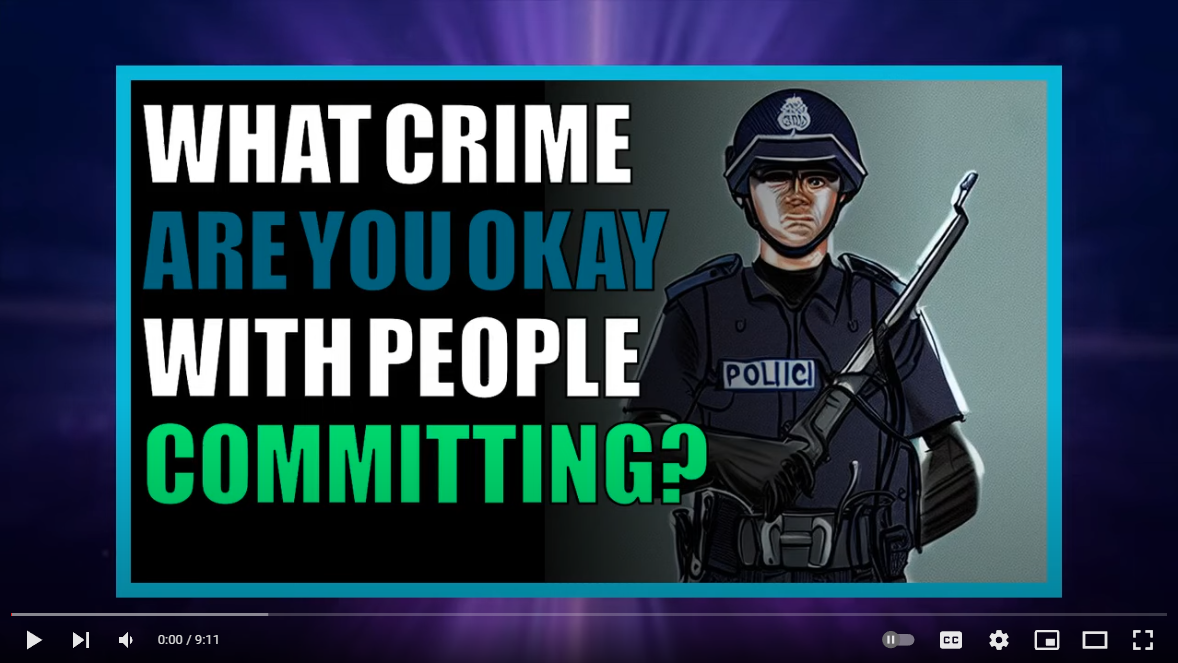
好意的なキャラクターがいないショーは何ですか? 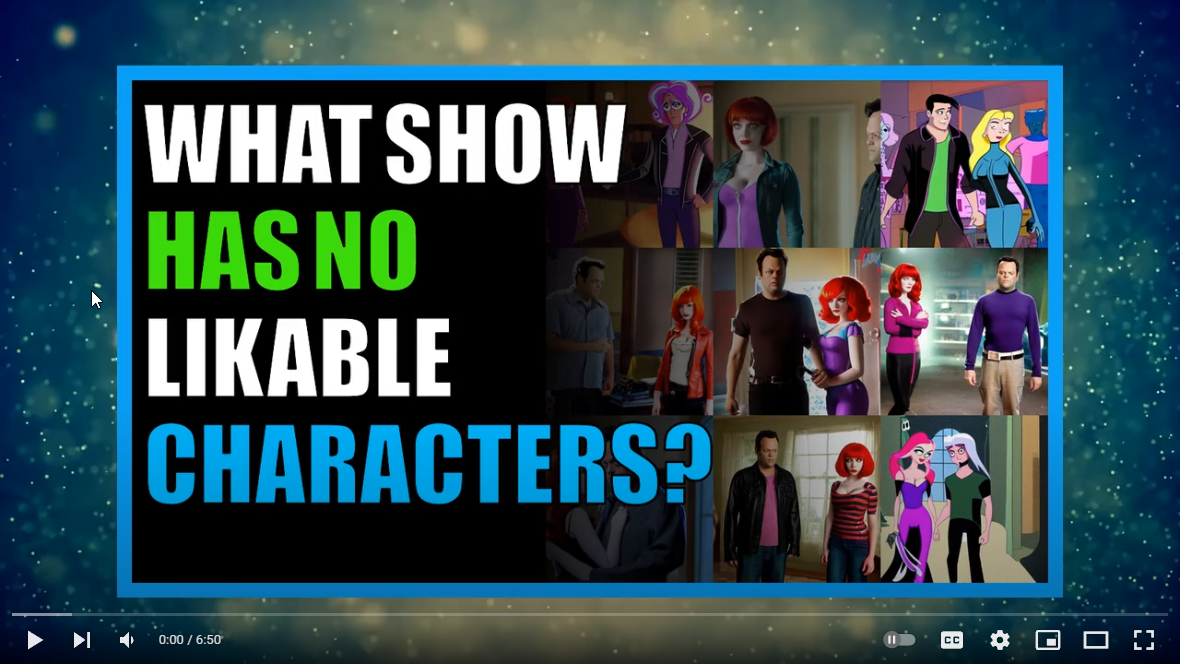
このレポを使用して生成されたYouTubeチャネル:
YouTubeチャネルがこのリポジトリを使用して生成され、上記のリストが必要な場合は、YouTubeチャネルURLとチャンネル名でこの問題#91についてコメントし、メインReadMeファイルにリストしたいことをお勧めします。
Python Reddit YouTubeボットチュートリアルビデオをご覧ください。 
これらの前提条件コンポーネントを最初にインストールします。
git -https://git-scm.com/download/win
Python 3.10-https://www.python.org/ftp/python/3.10.0/python-3.10.0-amd64.exe
Microsoft C ++ビルドツール-https://visualstudio.microsoft.com/visual-cpp-build-tools/
ImageMagick -https://imagemagick.org/script/download.php#windows
 git clone [email protected]:alexlaverty/python-reddit-youtube-bot.git
cd python-reddit-youtube-bot
Reddit Praw Tokens -https://www.reddit.com/prefs/apps/を生成する
auth-example.pyファイルのコピーを作成し、auth.pyに名前を付けます:
copy config/auth-example.py config/auth.py
auth.pyファイルを更新して、前のステップで生成したReddit Authトークンを含みます。
pip install -r requirements.txt
実行して劇作家をインストールして構成します。
playwright install
Pythonスクリプトを実行します:
python app.py
それが完了すると、ビデオがvideosフォルダに生成され、 final.mp4という名前が付けられます
ビデオの背景を追加する場合は、YT-DLPをインストールします。
yt-dlp
次に、 backgroundsフォルダーを作成し、次のコマンドを実行します。
 mkdir -p assets/backgrounds
cd assets/backgrounds
yt-dlp --playlist-items 1:10 -f 22 --output "%(uploader)s_%(id)s.%(ext)s" https://www.youtube.com/playlist?list=PLGmxyVGSCDKvmLInHxJ9VdiwEb82Lxd2E
Passinine --help :
 python app.py --help

##### YOUTUBE REDDIT BOT #####
usage: app.py [-h] [-l VIDEO_LENGTH] [-o] [-s] [-t] [-u URL]

options:
  -h, --help            show this help message and exit
  -l VIDEO_LENGTH, --video-length VIDEO_LENGTH
                        Set how long you want the video to be
  -o, --disable-overlay
                        Disable video overlay
  -s, --story-mode      Generate video for post title and selftext only, disables user comments
  -t, --thumbnail-only  Generate thumbnail image only
  -u URL, --url URL     Specify Reddit post url, seperate with a comma for multiple posts.
または、特定のReddit投稿のビデオを生成する場合は、 --url paramを介して指定できます。
python app.py --url https://www.reddit.com/r/AskReddit/comments/hvsxty/which_legendary_reddit_post_comment_can_you_still/
または、コンマで分離することにより、複数のURLを実行することができます。
python app.py --url https://www.reddit.com/r/post1,https://www.reddit.com/r/post2,https://www.reddit.com/r/post3
あなたが指定できるサムネイルのみを生成する場合は、 --thumbnail-onlyモード、これはビデオコンパイルプロセスをスキップします:
python app.py --thumbnail-only
ニュースキャスターを有効にする場合は、settings.pyを編集して設定します。
enable_newscaster = True
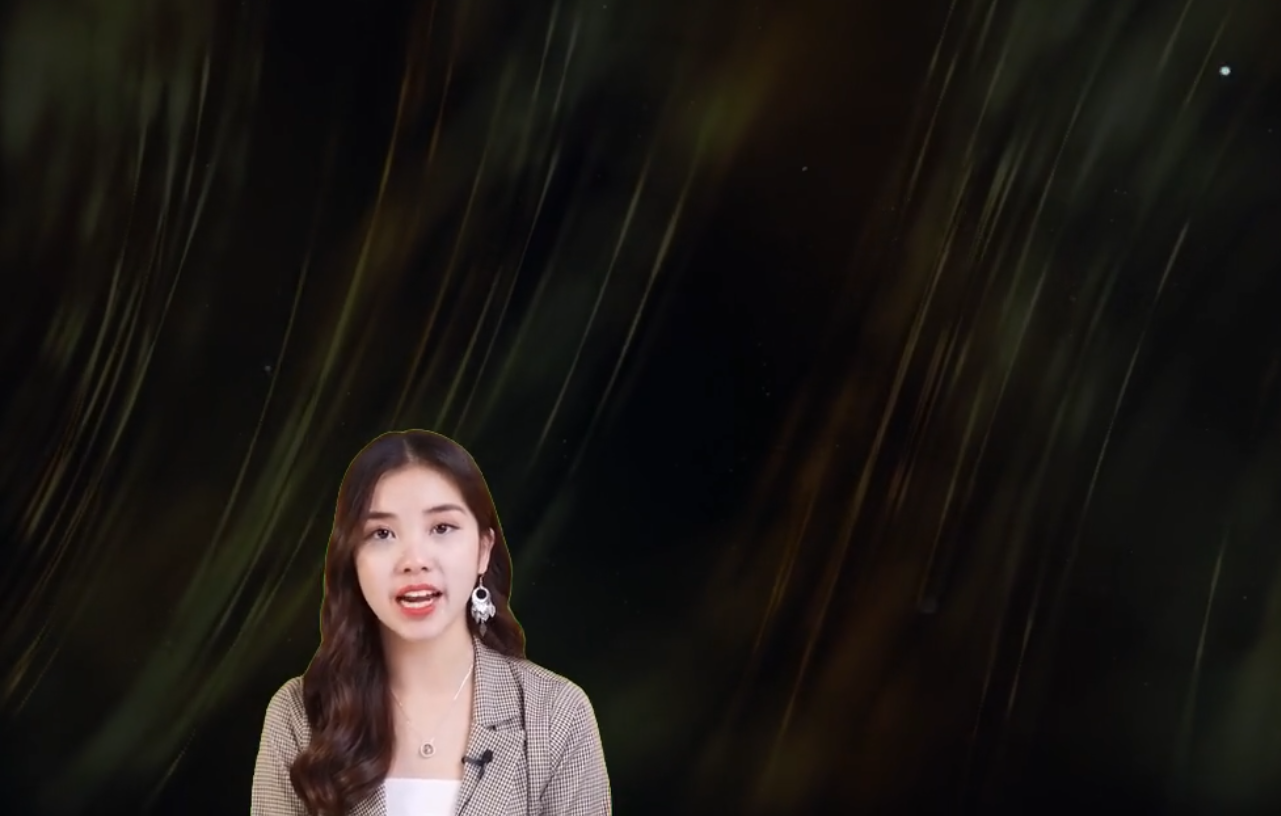
NewCasterビデオに緑色の画面がある場合は、次の設定で削除できます。EyeDropperを使用してGreenscreenのRGB色を取得し、削除するように設定します。
 newscaster_remove_greenscreen = True
newscaster_greenscreen_color = [1, 255, 17] # Enter the Green Screen RGB Colour
newscaster_greenscreen_remove_threshold = 100
settings.pyファイルでカスタマイズできるオプションがかなりあります。
スクレイプするsubredditsを指定します。
 subreddits = [
    "AmItheAsshole",
    "antiwork",
    "AskMen",
    "ChoosingBeggars",
    "hatemyjob",
    "NoStupidQuestions",
    "pettyrevenge",
    "Showerthoughts",
    "TooAfraidToAsk",
    "TwoXChromosomes",
    "unpopularopinion",
    "confessions",
    "confession"
    ]
除外するsubreddits:
 subreddits_excluded = [
    "r/CFB",
]
指定されたキーワードを介してReddit投稿を除外します
banned_keywords =["my", "nasty", "keywords"]
テキストを使用したい音声エンジンに変更し、AWS Pollyが必要とし、AWSアカウントと認証トークンに注意し、コストを負担することができます。
音声エンジンをサポートします:
 # choices "polly","balcon","gtts"
voice_engine = "polly"
生成するRedditビデオの総数
total_posts_to_process = 5
次の設定は、投稿を自動的にフィルタリングすることです
Redditの投稿は、この量の更新よりも少ないことを投稿してください
minimum_submission_score = 5000
Reddit Post Title Lengthに基づいてReddit投稿をフィルタリングする
 title_length_minimum = 20
title_length_maximum = 100
最大のセルフテキストの長さを超える投稿を除外
maximum_length_self_text = 5000
十分なコメントがないRedditの投稿を除外します
minimum_num_comments = 200
最大量のReddit投稿を処理しようとするだけです
submission_limit = 1000
生成するサムネイル画像の数を指定します
number_of_thumbnails = 3
最大ビデオ長を指定します
max_video_length = 600 # Seconds
ビデオで生成するコメントの最大量を指定します
comment_limit = 600
さまざまなフォルダーパスを指定します
 assets_directory = "assets"
temp_directory = "temp"
audio_directory = str(Path("temp"))
fonts_directory = str(Path(assets_directory,"fonts"))
image_backgrounds_directory = str(Path(assets_directory,"image_backgrounds"))
images_directory = str(Path(assets_directory,"images"))
thumbnails_directory = str(Path(assets_directory,"images"))
background_directory = str(Path(assets_directory,"backgrounds"))
video_overlay_filepath = str(Path(assets_directory,"particles.mp4"))
videos_directory = "videos"
ビデオの高さと幅を指定します
 video_height = 720
video_width = 1280
clip_size = (video_width, video_height)
ビデオをコンパイルして、代わりに終了するだけです
enable_compilation = True
YouTubeへのアップロードをスキップします
enable_upload = False
ビデオにビデオオーバーレイを追加します。たとえば、雪が降る効果
enable_overlay = True
ニュースキャスターリーダーをビデオに追加します
enable_newscaster = True
ニューキャスターのビデオが緑の画面の場合、緑の画面を削除しようとします
newscaster_remove_greenscreen = True
RGBの緑色画面の色を指定します
newscaster_greenscreen_color = [1, 255, 17] # Enter the Green Screen RGB Colour
グリーンスクリーンのしきい値数が高いほど、削除しようとします
newscaster_greenscreen_remove_threshold = 100
ニューキャスターファイルへのパス
newscaster_filepath = str(Path(assets_directory,"newscaster.mp4").resolve())
ニュースキャスターの画面上の位置
newscaster_position = ("left","bottom")
ニュースキャスターのサイズ
newcaster_size = (video_width * 0.5, video_height * 0.5)
各テキストの後にスピーチオーディオファイルに一時停止を追加する
pause = 1 # Pause after speech
テキストスタイルの設定
 text_bg_color = "#1A1A1B"
text_bg_opacity = 1
text_color = "white"
text_font = "Verdana-Bold"
text_fontsize = 32
Lexicaから画像をダウンロードするか、ダウンロードしようとしてスキップします
lexica_download_enabled = True







