code run
1.0.0

A code editing preview tool, similar to codepen .
Online example: https://wanglin2.github.io/code-run-online/.
Use Skypack to import ES modules directly on your browser
Quickly build a code online editing preview tool
How to manually parse vue single file and preview it?
Teach you step by step to implement the VSCode theme in Monaco Editor
Supports multiple preprocessing languages
Supports random switching of multiple layouts
Supports adding additional css and js resources
Built-in multiple common templates
Support export of zip
Support code formatting
A beautiful and powerful console
Supports single vue files (2.x, 3.x)
Supports direct porting of VSCode themes, and has built-in a large number of high-quality themes
Built-in support to save to github gist [gist API], it is very easy to modify it to save to your own storage system.
Built-in support to save changes to the url without github gist, so that you can easily share the url with others to view it.
Built-in support to generate as beautiful and beautiful code pictures as carbon
Built-in unpkg and importmap to support the use of ES module syntax on the browser
Supports embed mode, which is convenient for use in document websites, making document examples easier
git clone https://github.com/wanglin2/code-run.git

cd code-run

npm i

npm run serve Please first confirm the base path applied after packaging. The default base path of the project is /code-run/ . If you want to change it, you can modify it as follows:
1. Modify the publicPath field in the vue.config.js file.
2. Modify the base field of the src/config/index.js file.
The default routing mode is hash模式. If you need to use history mode, please modify the routerMode field of the src/config/index.js file.
In addition, if there are multi-level paths in history mode, the following files may be modified:
1. Modify the path of prettier -related js resources in the /public/index.html file;
npm run build Scaffolding: Vue CLI
Framework: Vue 3.X family bucket, using组合式API through script setup
UI library: element-plus
Code Editor: Monaco Editor
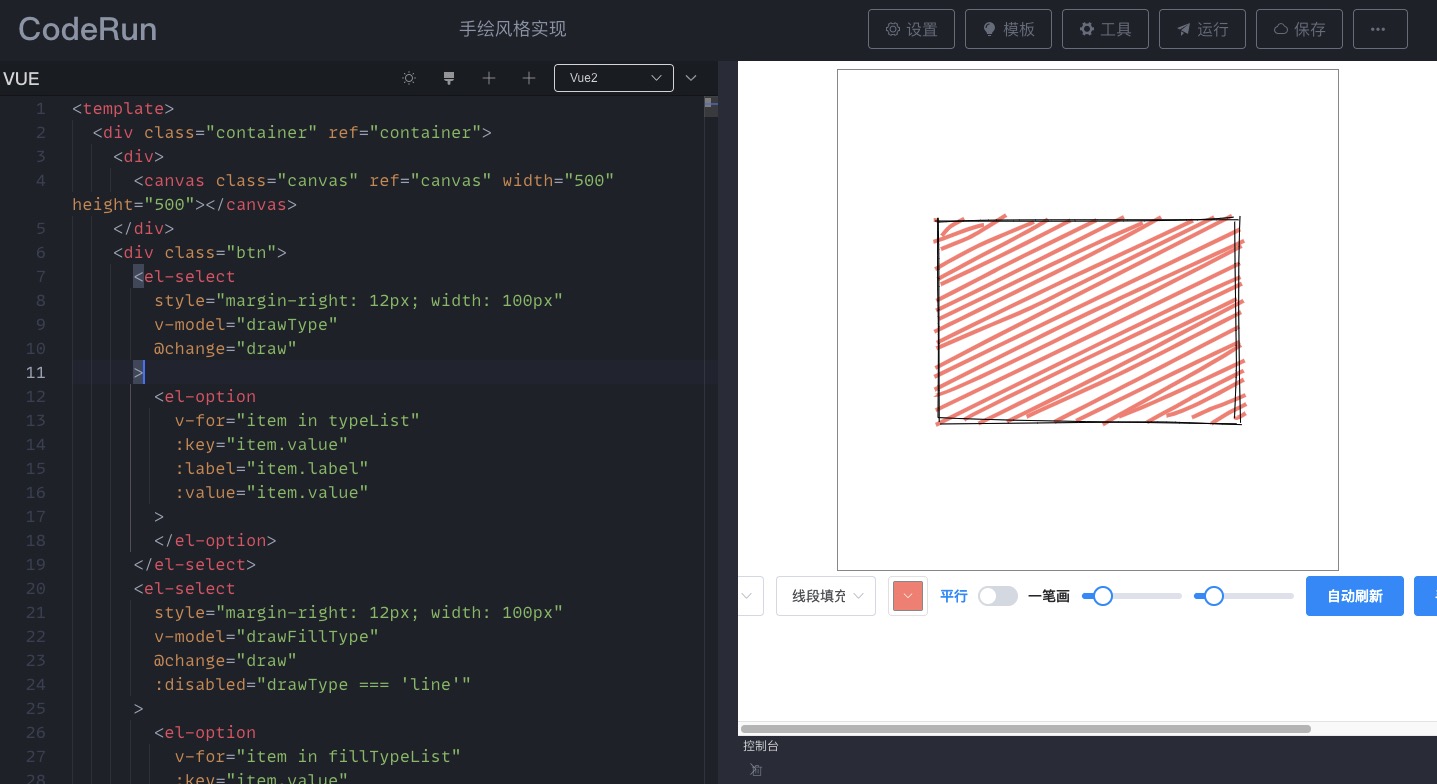
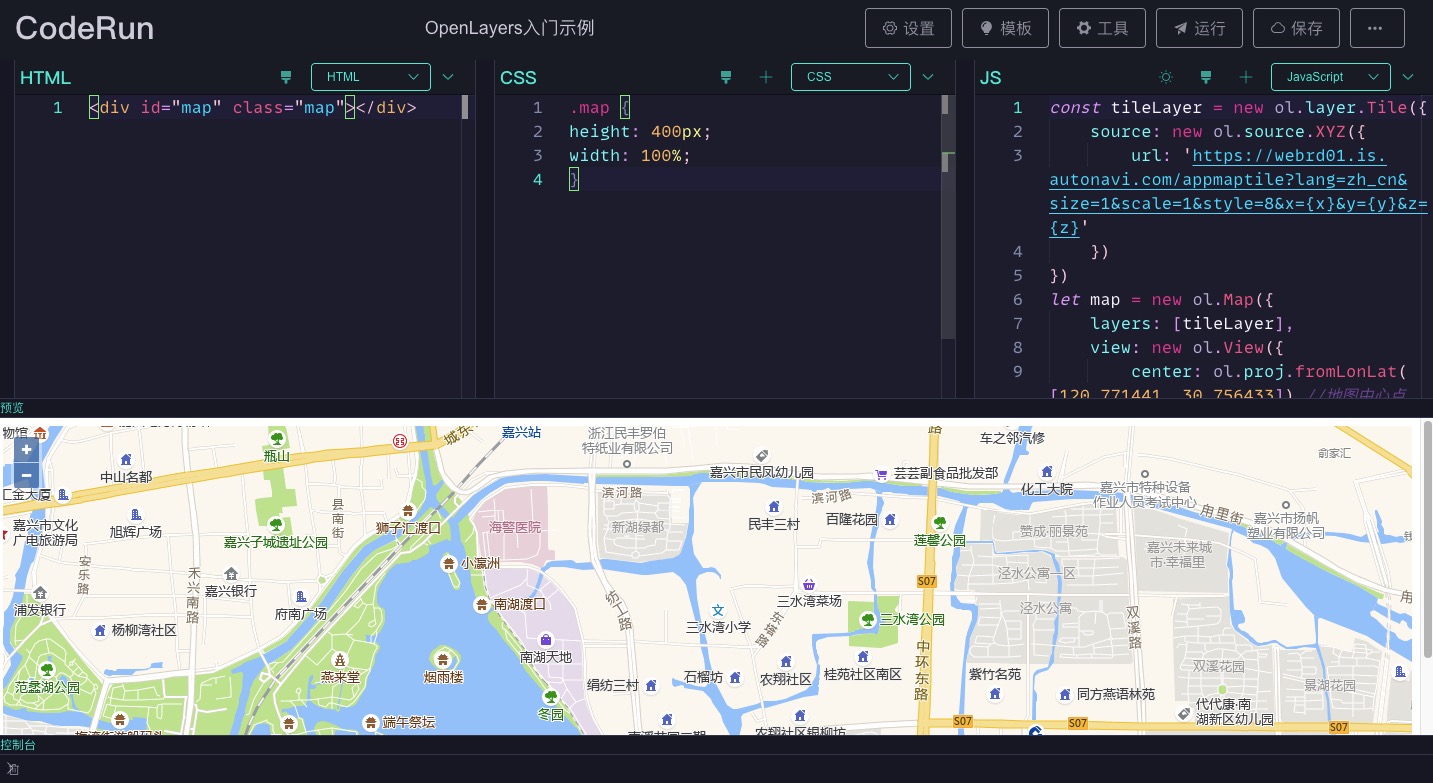
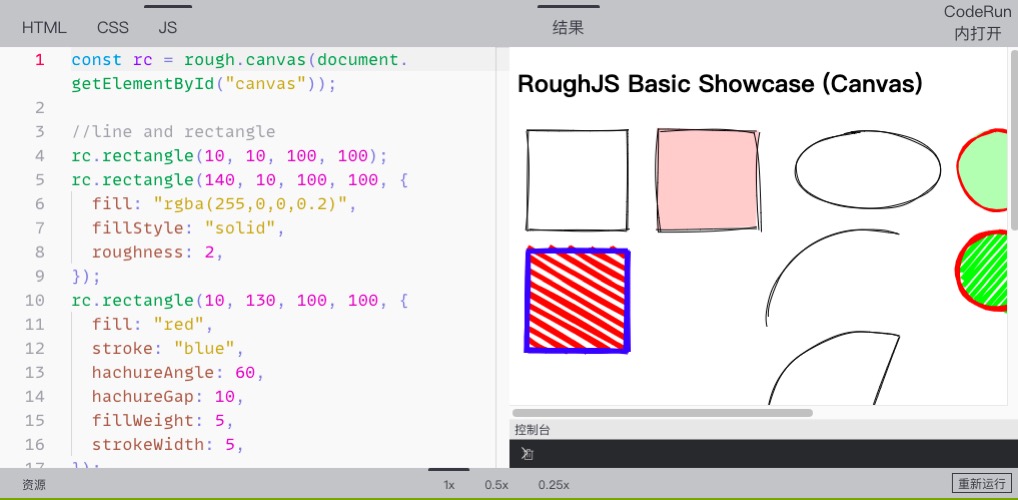
Currently, ESM is supported in JavaScript , TypeScript , CoffeeScript , Vue3 , Vue2 and other modes. By default, if you directly import modules in the following way:
import moment from 'moment'Finally it will be converted to:
import moment from 'https://unpkg.com/moment?module' That is to use unpkg, but some modules unpkg cannot obtain the ESM version, or the version obtained directly is not what we expect. For example, when importing vue , what we need is https://unpkg.com/[email protected]/dist/vue.esm-browser.js , but https://unpkg.com/vue?module returns by default https://unpkg.com/[email protected]/dist/vue.runtime.esm-bundler.js?module . This version cannot run on the browser, so you can manually add importmap to set the source of the import module.
This tutorial is aimed at the migration VSCode topic.
1. Determine the theme you want to add, first install and switch to the theme on the local VSCode , then press F1 or Command/Control + Shift + P or right-click Command Palette/命令面板, then find and click Developer:Generate Color Theme From Current Setting/开发人员:使用当前设置生成颜色主题, and then VSCode will generate a copy of json data and save it to the /scripts/vscodeThemes/ directory of the project.
2. Then execute the command npm run convertTheme on the command line, and the converted theme will be output to the project's /public/themes directory. Next, execute the command npm run createThemeList to generate the theme configuration. Next, you can设置->主题设置里看到所有主题,并可以切换使用.
npm run buildConsole : The /public/console/index.js file of the compiled project is ES5 syntax and output to compile.js in the same directory. The file will be loaded in iframe of the page preview. Please do not modify the compile.js file directly.
npm run buildMonacoWorker : Package the worker file of the Monaco Editor editor. If the version of the Monaco Editor Editor used changes, it needs to be repackaged.
npm run convertTheme : converts the VSCode theme file to the Monaco Editor theme file.
npm run createThemeList : Automatically generates configuration files based on the theme file list.
npm run buildVueSFCCompiler : Package @vue/compiler-sfc file for Vue3 .
Because this project is a pure front-end project, it is necessary to compile online when using preprocessing languages or extended languages such as less , sass , typescript , etc. This work is processed by compilers in each language. You can find these compilers in /public/parses/ directory. Over time, they will definitely lag behind their new versions, so you need to update them regularly. Getting their browser version is not easy, so I will share some of my only experience with you here.
less First npm i less , and then find less/dist/ directory in node_modules . The two files in this directory are in umd format and can be used directly.
sass sass is currently using this project sass.js, but this project has not been updated for three years.
babel babel provides a browser version. For details, please refer to the official document @babel/standalone.
typescript typescript directly npm i typescript , and then find the node_modules/typescript/lib/typescript.js file, which also supports direct use on the browser.
coffeescript coffeescript is also directly npm i coffeescript , and then find node_modules/coffeescript/coffeescript-browser-compiler-legacy/coffeescript.js file, which supports direct use on the browser.
livescript livescript 's browser version can be downloaded directly from its official repository, but it has not been updated for two years.
postcss You can use Browserify or webpack to package it into a file.
stylus has not found the browser version or the compilation has been successful yet. Friends who know it are welcome to mention an issue .
The project has several commonly used code templates built-in, which can be added or decreased as needed. The template configuration file is in src/config/templates.js .
The project has several commonly used page layout templates built-in. If it does not meet your needs, you can add new layouts. One layout is a vue单文件. You can find all layouts in src/pages/edit/layouts/ directory. Each layout is actually to determine how to display the three parts编辑器,控制台, and预览.编辑器includes four editors: js , css , html , and vue You can configure which ones to display, the order, whether drag is allowed, etc. The newly added layouts also need to be placed in this directory.
Next, take vue单文件的布局as an example. First, determine the layout details. We want to display a vue editor on the left, and display预览and控制台on the right.预览module is expanded by default, and控制台is minimized by default:
1. First we create a VueSFC.vue in layouts directory.
2. Modify the src/config/constants.js file, introduce the component, and add the layout to layoutList and layoutMap configurations:
 import VueSFC from '../pages/edit/layouts/VueSFC.vue'

export const layoutList = [
	// ...
	{
		name : 'Vue单文件' ,
		value : 'vue' ,
	}
]

export const layoutMap = {
	// ...
	vue : VueSFC
}
You can add a preview image of the layout, place it in the src/assets/layoutImgs/ directory, then import it in the constants.js file, and finally add it in the previewImgMap configuration.
After modifying this way, you can see the newly added Vue单文件option in the drop-down list of布局设置in设置function of the page. Next, improve the content of VueSFC.vue .
3. You can refer to the content of other layout structures and copy them to modify them. The final content should be as follows:
< template >
  <!-- 该容器的直接DragItem直接数量为2,方向水平排列,第一个DragItem直接允许缩小到0,第二个DragItem组件最小允许缩小到20px -->
  < Drag :number = " 2 " dir = " h " :config = " [{ min: 0 }, { min: 20 }] " >
    <!-- 编辑器块,索引为0,禁止缩放该块,隐藏拖动条 -->
    < DragItem :index = " 0 " :disabled = " true " :showTouchBar = " false " >
      <!-- 编辑器增加,内部编辑器排列方向为垂直,配置了要显示的编辑器 -->
      < Editor dir = " v " :showList = " showList " ></ Editor >
    </ DragItem >
    <!-- 预览&控制台,索引为1,允许拖动进行缩放 -->
    < DragItem :index = " 1 " :disabled = " false " >
      <!-- DragItem又嵌套了一个容器组件,该容器的直接DragItem直接数量为2,方向垂直排列,第一个DragItem直接允许缩小到0,第二个DragItem组件默认显示的高度为48px,且最小允许缩小到48px -->
      < Drag :number = " 2 " dir = " v " :config = " [{ min: 0 }, { min: 48, default: 48 }] " >
        < DragItem
          :index = " 0 "
          :disabled = " true "
          :showTouchBar = " false "
          title = "预览"
        >
          < Preview ></ Preview >
        </ DragItem >
        < DragItem :index = " 1 " :disabled = " false " title = "控制台" >
          < Console ></ Console >
        </ DragItem >
      </ Drag >
    </ DragItem >
  </ Drag >
</ template >

< script setup>
import Editor from ' @/components/Editor.vue '
import Preview from ' @/components/Preview.vue '
import Console from ' @/components/Console.vue '
import Drag from ' @/components/Drag.vue '
import DragItem from ' @/components/DragItem.vue '
import { reactive } from ' vue '

// 配置只显示vue编辑器
const showList = reactive ([
    {
        title : ' VUE ' , // 编辑器名称
        disableDrag : true , // 禁止拖动进行缩放
        showTouchBar : false // 隐藏推动条
    }
])
</ script >
The comments have been explained in detail, please refer to the following component documentation for details.
This component is equivalent to a container. Each container will instantiate a Resize size drag and resize class, and the DragItem component needs to be placed inside.
Component props :
| name | introduce | type | default value |
|---|---|---|---|
| dir | DragItem component arrangement method inside the container, with options: h (horizontal arrangement), v (vertical arrangement) | String | h |
| number | Number of internal DragItem components | Number | 0 |
| config | The information of the internal DragItem component, array type, and each item is an object. For specific properties, please refer to Table 1. | Array | [] |
Properties of the object of each item in config array:
| name | introduce | type | default value |
|---|---|---|---|
| default | The size displayed by the DragItem component of the corresponding index is the default. When dir is h , it refers to the width and when v it refers to the height. | Number | All DragItem components in the default container split space |
| min | The minimum size allowed to be displayed by the DragItem component of the corresponding index. When dragging occurs, if the component space is squeezed, it is allowed to be compressed to 0 by default, that is, it will not be displayed at all. If this property is configured, it will not change after shrinking to the configured size. | Number | 0 |
| max | The maximum size allowed to be displayed by the DragItem component of the corresponding index. When dragging occurs, if the component space is increased, the default will be increased to the maximum size allowed. If this property is configured, it will not change after increasing to the configured size. | Number | 0 |
This component represents a draggable block that needs to be placed under the Drag component to pass in the content that needs to be actually displayed through slot . Drag containers can be nested in the DragItem component.
Component props :
| name | introduce | type | default value |
|---|---|---|---|
| disabled | Is dragging prohibited | Boolean | false |
| touchBarSize | The size of the drag bar, when dir is h , refers to the width, and when v is v , refers to the height | Number | 20 |
| index | The index of this component in the list of DragItem components in the container, starting from 0 | Number | 0 |
| showTouchBar | Whether to display the drag bar | Boolean | true |
| title | title | String | |
| Hide | Whether to hide the component | Boolean | false |
This component currently contains four editors: js , css , html , and vue , which can control which ones are displayed and how they are arranged.
Component props :
| name | introduce | type | default value |
|---|---|---|---|
| Hide | Whether to hide the editor | Boolean | false |
| dir | Arrangement direction, v (vertical), h (horizontal) | String | h |
| showList | List of editors to be displayed, array type, each item can be a number or an object, see Table 2 | Array | ['HTML', 'CSS', 'JS'] |
Each item in showList array can be a string, with optional values: HTML , CSS , JS , VUE , representing four editors, and displaying which ones are configured.
If you need to configure some properties, such as whether to allow the editor to drag, etc., the configurable properties are as follows:
| name | introduce | type | default value |
|---|---|---|---|
| title | Editor name, optional: HTML , CSS , JS , VUE | String | |
| disableDrag | Is it prohibited to drag and zoom the editor | Boolean | |
| showTouchBar | Whether to display the push bar for this editor | Boolean |
1. Generate code image function The image height generated occasionally exceeds the actual height of the code, and no reason or fundamental solution has been found yet. One of the optional methods provides the function of cropping the image after generating the image.
2. In rare cases, the problem of the topic not taking effect will occur.
The compilation part of the preprocessing/extended language in this project and some other details refer to the implementation of the project codepan.
MIT






